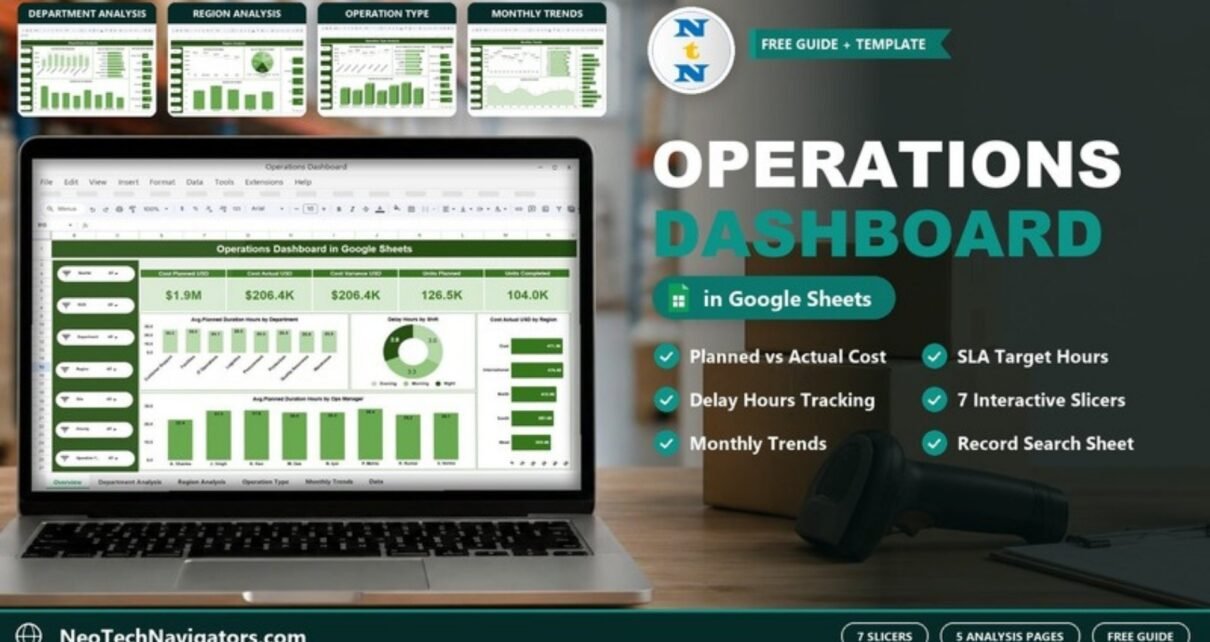
The Operations Dashboard in Google Sheets turns a list of operations records (production runs, shipments, support tickets, maintenance jobs and more) into five analysis pages. They show planned versus actual cost, SLA target hours, delay hours and monthly trends. Seven slicers let you filter everything by Quarter, Shift, Department, Region, Site, Priority and Operation Type.
It is built for operations managers, plant and site heads, COOs of small and mid-sized firms, and analysts who need a quick answer to “where are we over budget and where are we running late?”. The file has seven tabs: Overview, Department Analysis, Region Analysis, Operation Type Analysis, Monthly Trends, Search and Data. It uses charts, slicers and summary formulas that read from the Data sheet, so you update the data and the pages follow.
This guide covers every page, explains the data layout, works through a planned-versus-actual cost example from the sample, and is honest about when you will outgrow it.
🎥 Watch the Video Tutorial
What Problem Does It Solve?
Operations data is usually plentiful but scattered. Each department keeps its own log, costs live in finance, and delays are noticed only when a customer complains. A single dashboard built on one shared data sheet changes that: every record carries its department, region, site, shift, manager, priority, planned and actual dates, and costs, so the same data can be sliced in many ways.
The practical result is that a weekly operations meeting can start with facts. Which department has the longest average delay? Which region is spending most above plan? Is the night shift slower than the morning shift? The dashboard answers those questions in a few clicks.
Operations Dashboard in Google Sheets: Page-by-Page Summary
| Page | Charts on the page | Chart types |
|---|---|---|
| Overview | Avg. Planned Duration Hours by Department; Delay Hours by Shift; Cost Actual USD by Region; Avg. Planned Duration Hours by Ops Manager | Column, donut, bar, column |
| Department Analysis | Cost Planned USD; Avg. SLA Target Hours; Avg. Delay Hours; Cost Actual USD, all by Department | Column, bar, column, bar |
| Region Analysis | Cost Planned USD; Avg. SLA Target Hours; Avg. Delay Hours; Cost Actual USD, all by Region | Line, pie, column, bar |
| Operation Type Analysis | Cost Planned USD; Avg. SLA Target Hours; Avg. Delay Hours; Cost Actual USD, all by Operation Type | Line, bar, 3D column, bar |
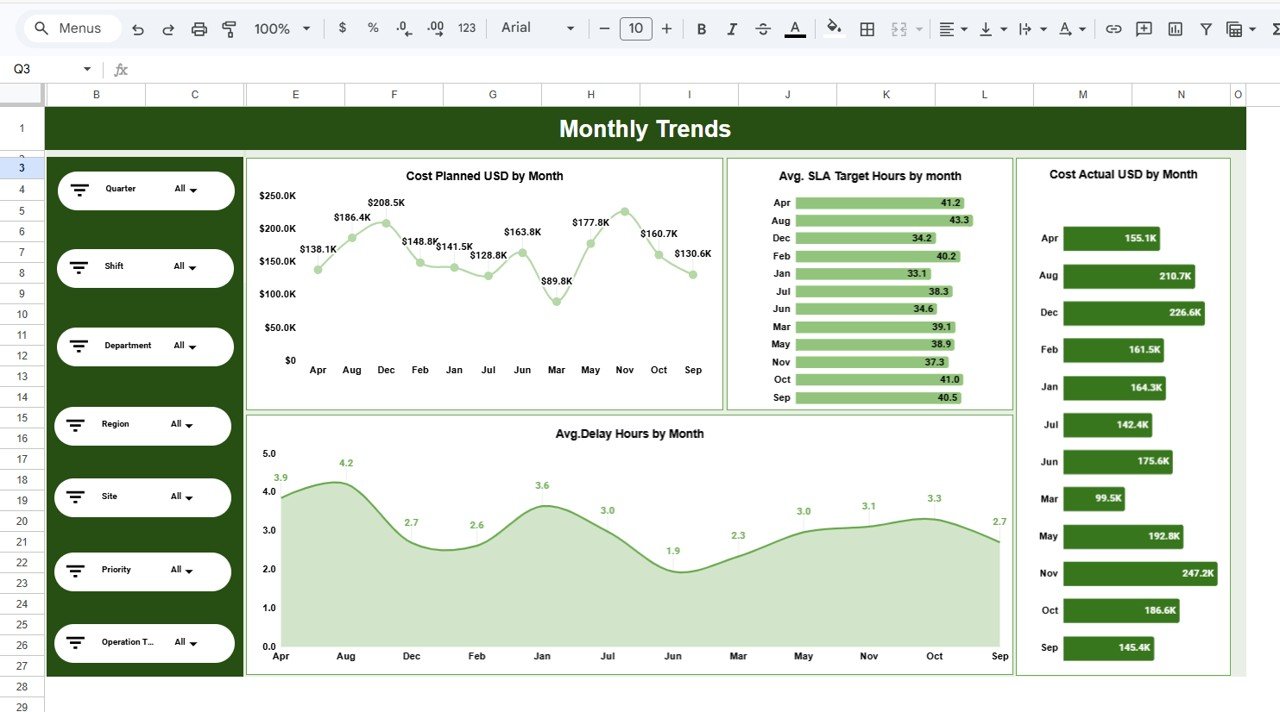
| Monthly Trends | Cost Planned USD; Avg. SLA Target Hours; Avg. Delay Hours; Cost Actual USD, all by Month | Line, bar, area, bar |
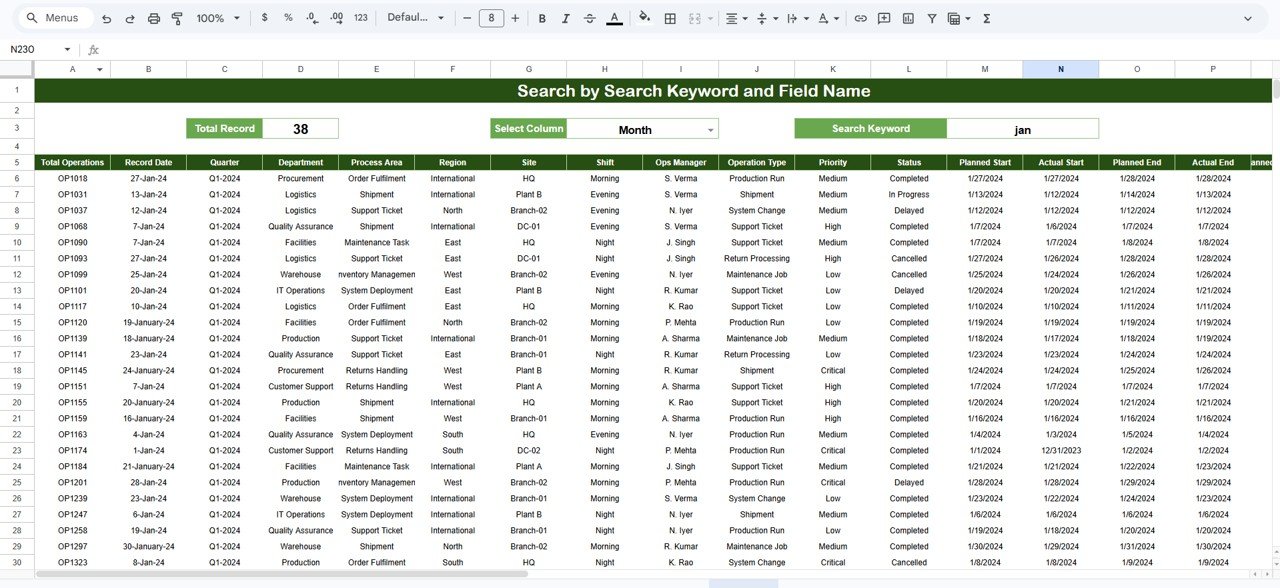
| Search | Record search by column and keyword | Table |
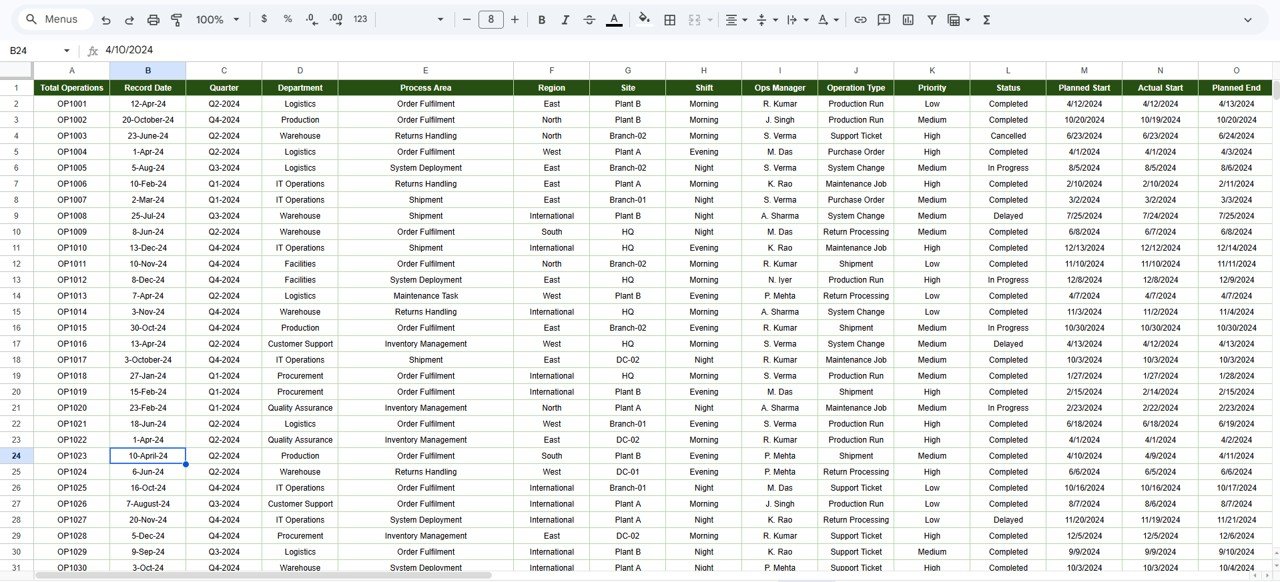
| Data | Raw operations records | Table |
Dashboard Pages Explained
1. Overview
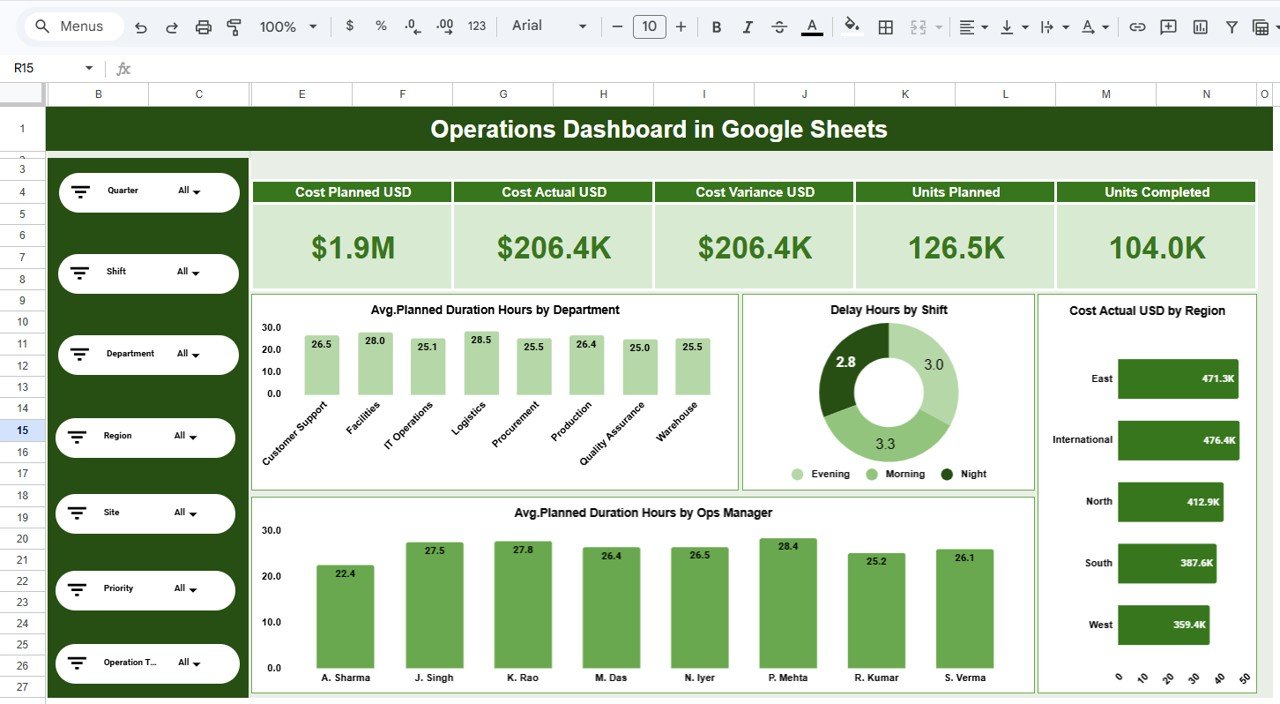
The Overview opens with five KPI cards: Cost Planned USD, Cost Actual USD, Cost Variance USD, Units Planned and Units Completed. The slicer panel on the left (Quarter, Shift, Department, Region, Site, Priority, Operation Type) appears on every analysis page.
The four charts give a quick health check. In the sample, average planned duration sits between about 25 and 28.5 hours across departments, and Delay Hours by Shift shows Morning at 3.3, Evening at 3.0 and Night at 2.8.
2. Department Analysis
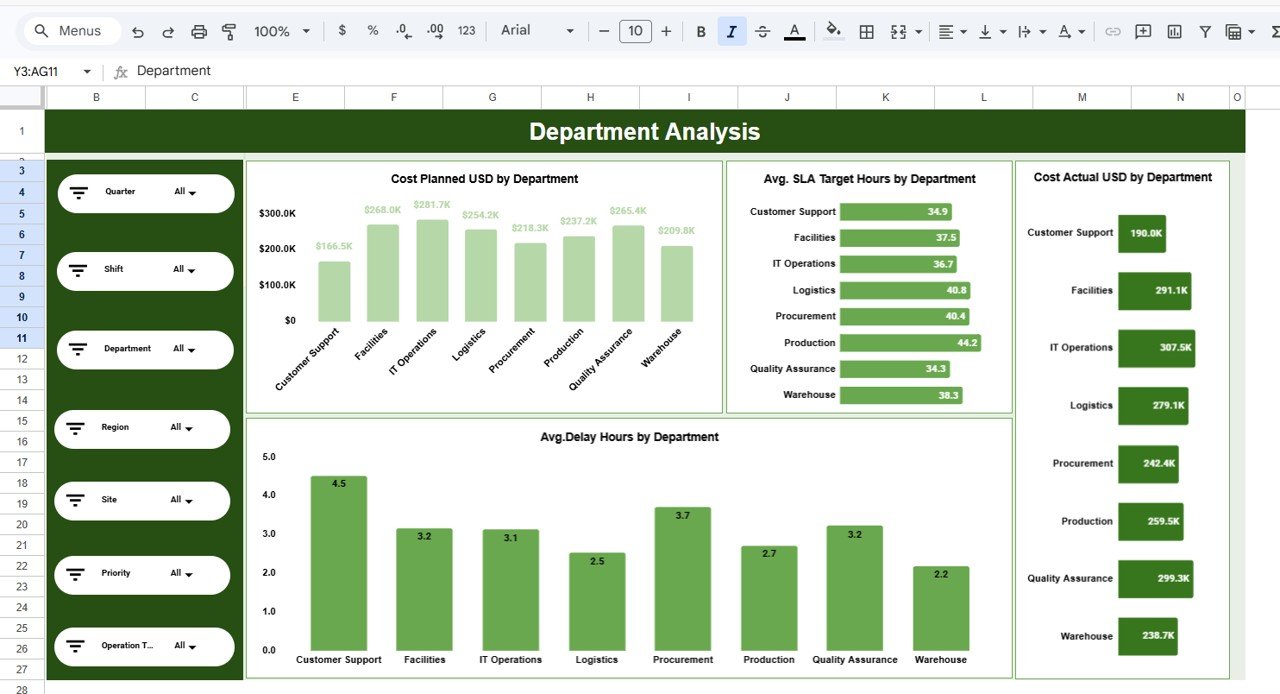
This page compares the eight departments in the sample: Customer Support, Facilities, IT Operations, Logistics, Procurement, Production, Quality Assurance and Warehouse. Customer Support has the highest average delay (4.5 hours) and Warehouse the lowest (2.2). Production has the highest average SLA target at 44.2 hours.
3. Region Analysis
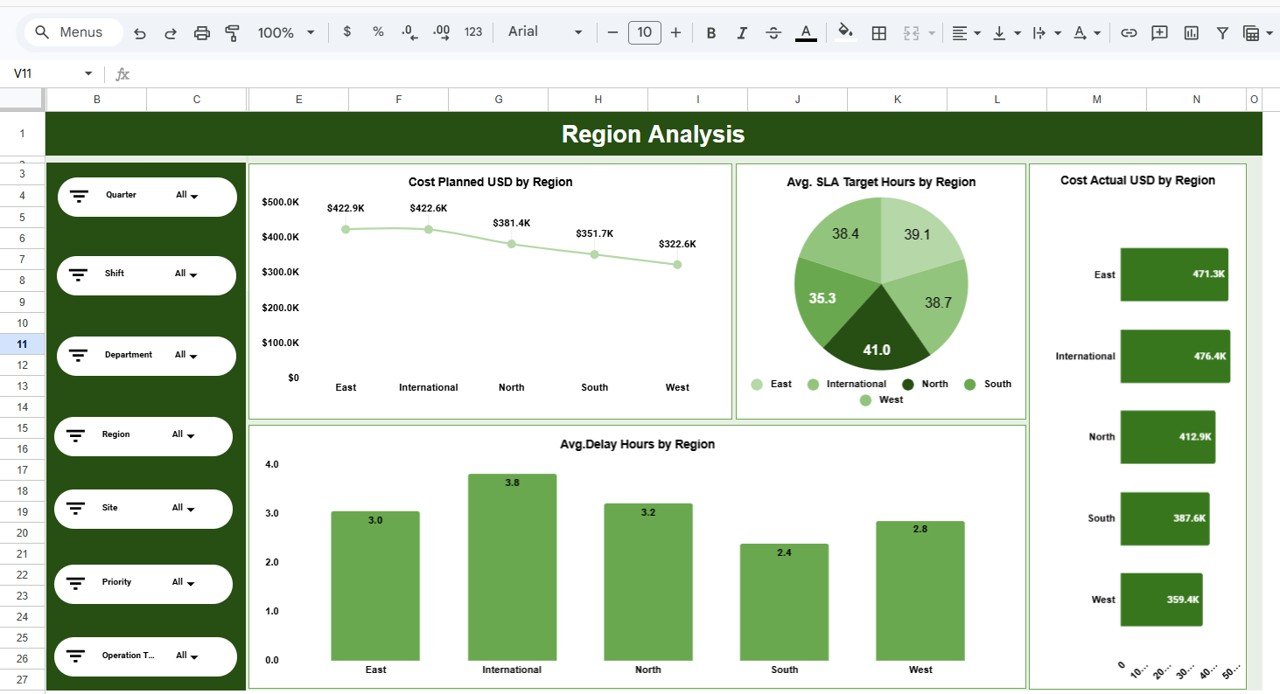
Five regions are compared: East, International, North, South and West. International has the longest average delay at 3.8 hours, and South the shortest at 2.4. The pie chart shows average SLA target hours, which range from 35.3 to 41.0 hours across regions.
4. Operation Type Analysis
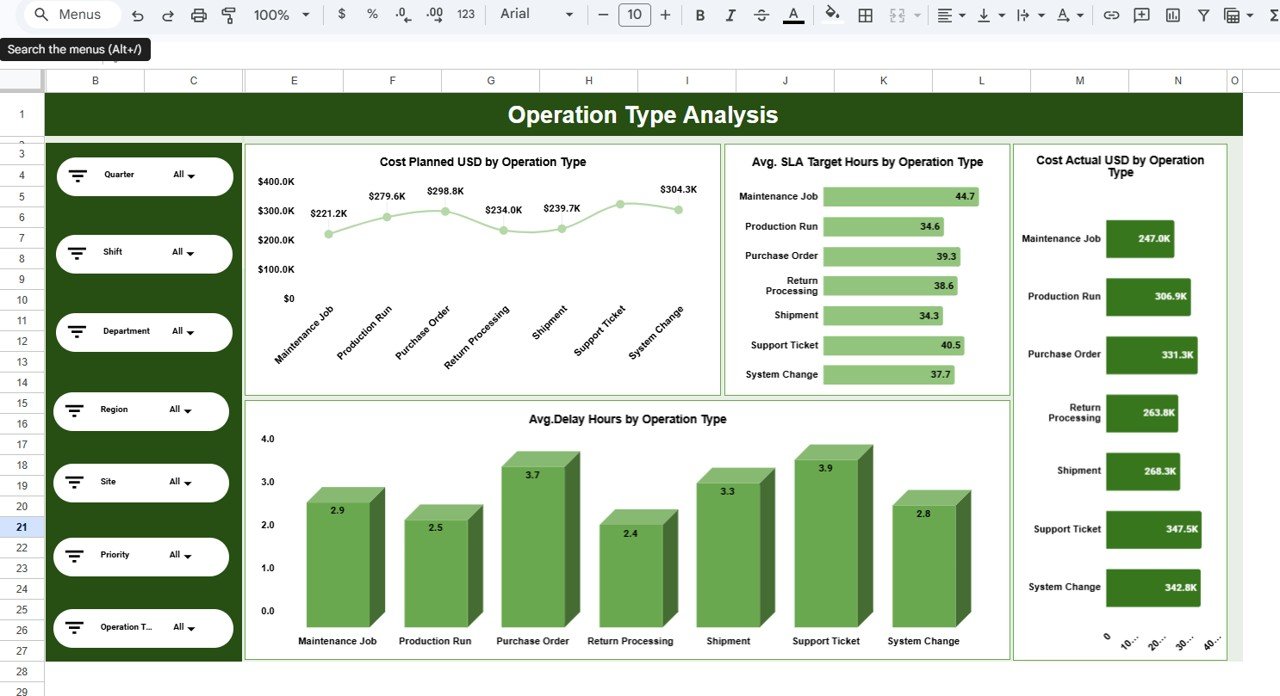
Seven operation types are tracked: Maintenance Job, Production Run, Purchase Order, Return Processing, Shipment, Support Ticket and System Change. Support Ticket has the highest average delay (3.9 hours) and the highest actual cost ($347.5K), which makes it the first place to look for process fixes.
5. Monthly Trends
The time view shows planned cost as a line, SLA target hours and actual cost as bars, and average delay as a shaded area. In the sample, delay peaks at 4.2 hours in August and drops to 1.9 in June, a pattern worth checking against holidays or peak season in your own data.
6. Search Sheet
The Search sheet (“Search by Search Keyword and Field Name”) lets you pick a column in Select Column, type a value in Search Keyword, and see every matching record with a Total Record count. In the sample, searching the Month column for “jan” returns 38 records.
7. Data Sheet
Every chart reads from this sheet. Each row is one operation, with an ID such as OP1001 and columns including Record Date, Quarter, Department, Process Area, Region, Site, Shift, Ops Manager, Operation Type, Priority, Status, Planned Start, Actual Start and Planned End, followed by further columns for actual end, durations, costs and units. Status values in the sample are Completed, In Progress, Delayed and Cancelled; Priority values are Low, Medium, High and Critical.
Worked Example: Planned vs Actual Cost by Region
Put the Region Analysis charts side by side and you can work out how far each region is over plan. Using the sample values:
| Region | Cost Planned USD | Cost Actual USD | Variance | Variance % |
|---|---|---|---|---|
| East | $422.9K | $471.3K | +$48.4K | +11.4% |
| International | $422.6K | $476.4K | +$53.8K | +12.7% |
| North | $381.4K | $412.9K | +$31.5K | +8.3% |
| South | $351.7K | $387.6K | +$35.9K | +10.2% |
| West | $322.6K | $359.4K | +$36.8K | +11.4% |
Variance    = Cost Actual USD - Cost Planned USD
Variance %  = Variance / Cost Planned USD
East:  (471.3 - 422.9) / 422.9 = 48.4 / 422.9 = 11.4%
The planned figures add up to about $1.9M, matching the Cost Planned USD card, and the total overspend of about $206.4K matches the Cost Variance USD card. Every region is over plan, International by the widest margin. Combine that with International’s 3.8-hour average delay and you have a clear item for the next review.
How to Use It With Your Own Data
- Make a copy of the file in your Google Drive.
- Open the Data sheet and note the column order. Keep the headers exactly as they are.
- Clear the sample rows and paste your own records underneath, one operation per row, with dates in a consistent format.
- Use the same spelling for repeated values such as department and region names, or they will appear as separate items in the charts and slicers.
- Open the Overview and check the KPI cards and charts have picked up your data. If a chart range looks short, extend it to cover the new rows.
- Use the slicers to filter, and the Search sheet to pull up individual records behind a number.
Three Real-World Use Cases
A manufacturing plant’s weekly review
The plant manager filters by Site and Shift to compare Production Runs on Plant A and Plant B, and checks whether the night shift’s delay hours differ from the day shifts.
A logistics company tracking regional cost
Finance uses the Region Analysis page each month to compare planned and actual cost by region, as in the example above, and to set next quarter’s budgets.
A shared-services centre managing tickets
The service desk lead filters Operation Type to Support Ticket and Priority to High or Critical, then uses Search to list the delayed records for follow-up.
Best Practices
- Agree what “delay” means before collecting data: actual end minus planned end is the usual choice.
- Add new records at least weekly so the Monthly Trends page stays current.
- Clear slicers before you present, or the audience may be looking at a filtered view without realising it.
- Read cost and delay together. A region that is over budget but on time may simply be busier.
- Keep a backup copy before pasting a large batch of new data.
Limitations and Who Should Not Use It
This is a reporting dashboard, not an operations system. It does not schedule work, assign tasks or send alerts. Google Sheets handles thousands of rows comfortably, but if you log hundreds of thousands of operations a year, a database with Looker Studio or Power BI on top will be faster. There is also no automatic data feed: records must be pasted or imported into the Data sheet.
Related Templates and Guides
If you need target-based KPIs rather than record-level analysis, see the Operations KPI Dashboard in Google Sheets or the Operations KPI Scorecard. Plant teams may prefer the Plant Operations Dashboard, efficiency-focused teams the Operational Efficiency KPI Dashboard, and IT service teams the IT SLA Compliance and Ticket Monitoring Dashboard.
Related template: there is also an Operations Dashboard in Excel.
If you want to build dashboards like this from your own data, the Excel Pivot Tables & Dashboards course on NextGenTemplates Academy teaches the summarising and charting techniques step by step.
Frequently Asked Questions
What pages are in the Operations Dashboard in Google Sheets?
Seven tabs: Overview, Department Analysis, Region Analysis, Operation Type Analysis, Monthly Trends, Search and Data.
Which slicers does it include?
Quarter, Shift, Department, Region, Site, Priority and Operation Type. They appear on the Overview and on every analysis page.
How do I update the dashboard?
Paste or type your records into the Data sheet using the same columns. The charts, slicers and KPI cards read from that sheet, so they update when the data changes.
Can I change the chart types or colours?
Yes. Click a chart, open the three-dot menu and choose Edit chart to change the chart type, series or colours.
Can I rename departments or regions?
Yes. The categories come from your data, so whatever department, region or operation type names you enter will appear in the charts and slicers.
Does it work for very large datasets?
It works well for small and medium datasets. For very large volumes, consider keeping the raw data in a database and using a BI tool for reporting.
Get the Operations Dashboard in Google Sheets
Wrapping Up
The Operations Dashboard in Google Sheets gives you one place to see cost against plan, SLA targets and delays, cut by department, region, operation type and month. Load a month of your own records, compare the Region Analysis numbers with what finance already reports, and use the gaps you find as the agenda for your next operations review.
📅 Last updated: October 2026