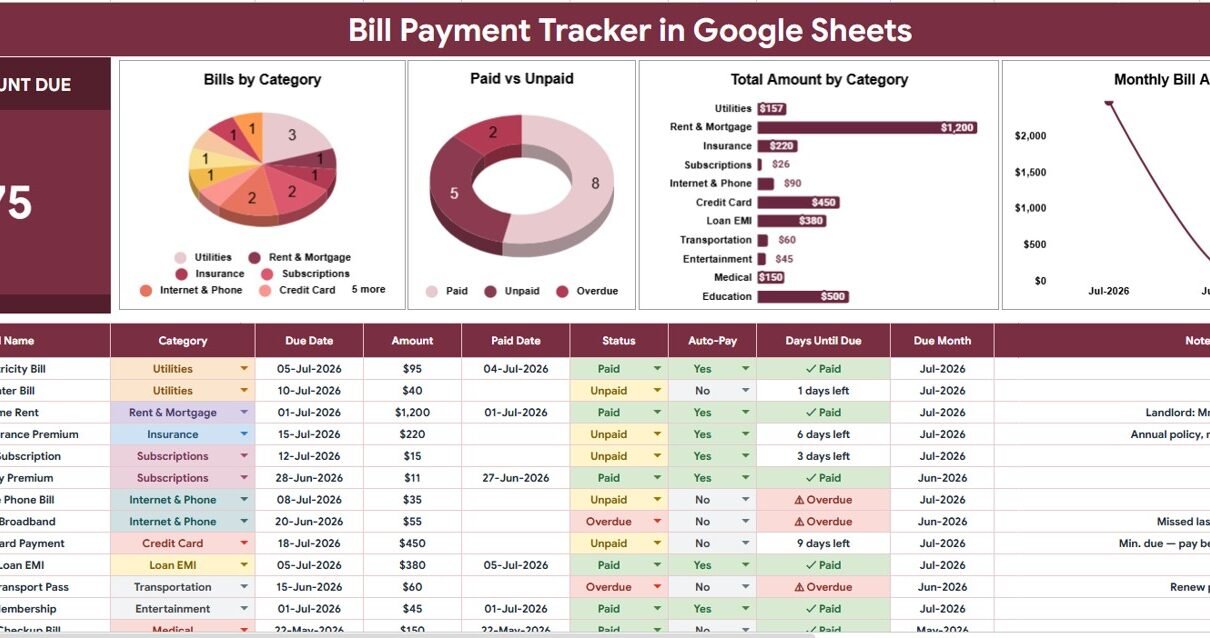
Missed bill dates usually do not happen because people are careless; they happen because due dates, categories, auto-pay settings, and payment status live in too many places. The Bill Payment Tracker in Google Sheets turns that scattered workflow into a 2-sheet system with 1 headline KPI card, 4 dashboard charts, multiple slicers, and 3 dropdown option lists. It is built for users who want a one-time $6.99 tracker instead of another monthly subscription.
Because it runs in Google Sheets, you can keep the file in your own Drive, edit the dropdown lists, share access with a spouse, assistant, bookkeeper, or team member, and review bills from any browser. Google also documents how slicers can filter charts and tables in Google Sheets, which is the same dashboard workflow used in this tracker.
Get the Bill Payment Tracker in Google Sheets
Key Features of Bill Payment Tracker in Google Sheets
- Overview dashboard: Review your bill workload from one clean reporting sheet instead of scrolling through rows.
- Total Amount Due card: See the amount still due across the filtered bill records at the top of the dashboard.
- Bill Count by Category: Understand how many bills belong to categories such as utilities, rent, subscriptions, insurance, loans, or other custom groups.
- Payment Status Count by Status: Compare how many bills are paid, unpaid, pending, overdue, or scheduled based on your own status values.
- Total Amount by Category: See which bill categories create the largest financial load during the selected period.
- Monthly Bill Amount by Due Month: Track upcoming bill amounts by month so you can prepare cash flow before due dates arrive.
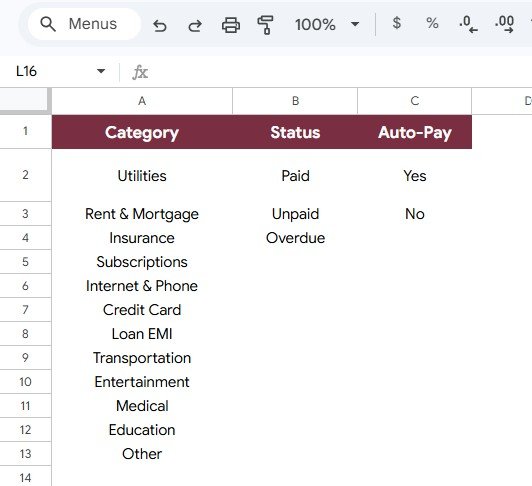
- Dropdown List Sheet: Manage category, payment status, and auto-pay options from one setup tab.
- Google Sheets access: Use the tracker in a browser, on the Sheets mobile app, or inside a shared Google Drive folder.
Dashboard Pages Explanation
1 – Overview Page
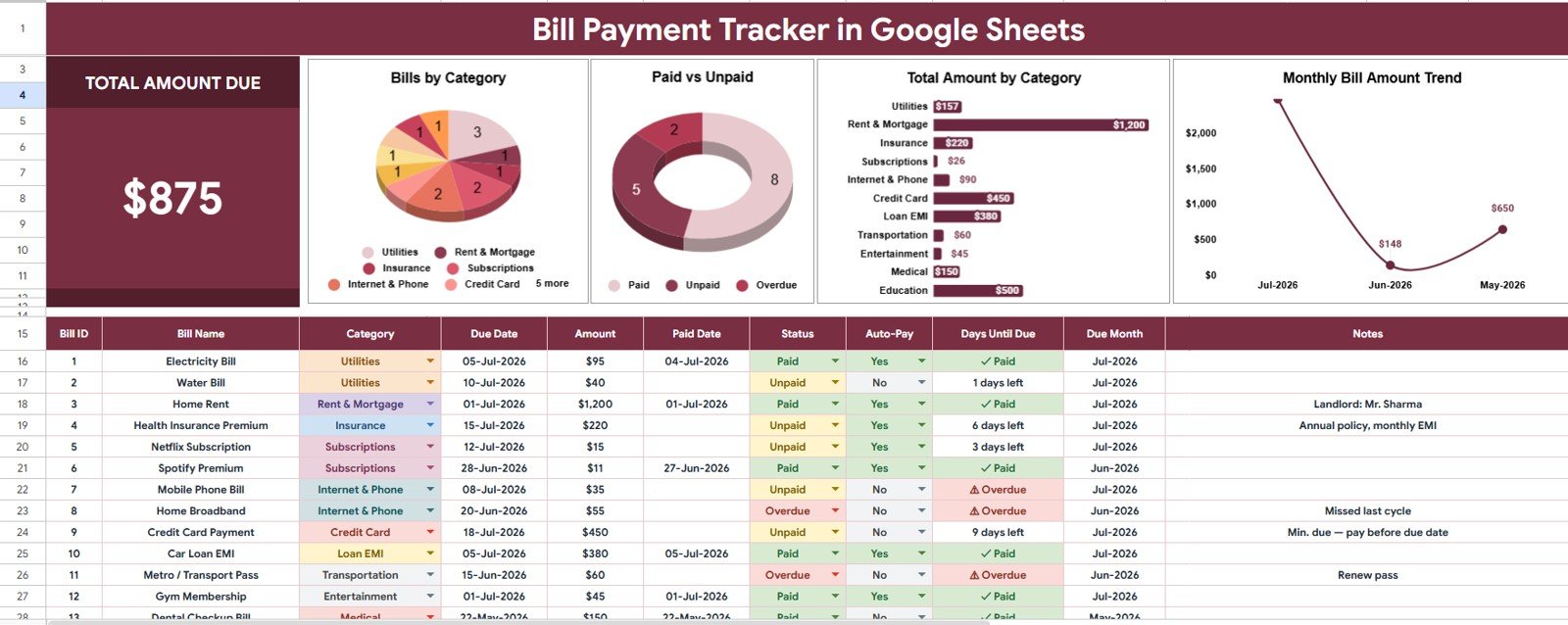
The Overview Page is the main dashboard sheet. At the top, the Total Amount Due card gives a quick financial summary of all bills currently included in the active slicer view. This is the number most users check first because it answers, “How much do I still need to pay?”
The page also includes multiple slicers, so you can filter the dashboard quickly by fields such as category, payment status, auto-pay selection, or due month depending on how the template is configured. Once a slicer is selected, the KPI card and charts update together, giving you a focused view of the bills that matter right now.
Bill Count by Category: This chart counts bills within each category so you can see where your recurring obligations are concentrated. If subscriptions, loans, or utilities dominate the count, it becomes easier to spot where cleanup or consolidation may be useful.
Payment Status Count by Status: This chart shows how many bills sit in each payment status. It helps users identify unpaid or overdue items quickly instead of checking every row manually.
Total Amount by Category: This chart summarizes the value of bills by category. A category with fewer bills can still create the largest cash requirement, so this view is useful for budget planning.
Monthly Bill Amount by Due Month: This chart groups bills by due month and shows the amount due across the calendar. It is especially helpful before month end, when users want to prepare for the next payment cycle.
2 – Dropdown List Sheet
The Dropdown List Sheet is the setup area behind the tracker. Instead of typing slightly different labels such as “Paid,” “paid,” and “Payment Done,” you can maintain controlled lists and keep entries consistent. Cleaner dropdowns lead to cleaner charts.
Bill Category Options by Category: Use this section to define the bill categories you want to track, such as rent, mortgage, utilities, internet, mobile, insurance, loans, subscriptions, taxes, or custom business expenses.
Payment Status Options by Status: Use this list to standardize status labels such as Paid, Unpaid, Pending, Overdue, Scheduled, or Cancelled. Consistent statuses make the Payment Status Count chart much more useful.
Auto-Pay Options by Auto-Pay Selection: Use this area to manage whether a bill is set to auto-pay. A simple Yes or No list can help you separate bills that need manual follow-up from bills that should process automatically.
Bill Payment Tracker in Google Sheets vs. Microsoft Excel vs. Paid Bill Management SaaS – Feature Comparison
| Feature | This Google Sheets tracker | Microsoft Excel alternative | Paid bill management SaaS |
|---|---|---|---|
| Cost | $6.99 sale price, one-time | Template cost plus Microsoft licensing if needed | Usually recurring subscription pricing |
| Platform | Google Sheets in Drive | Excel desktop or web | Vendor-hosted app |
| Setup time | Copy file, edit lists, enter bills | Open or customize workbook | Create account and configure billing records |
| Real-time team collaboration | Built into Google Sheets sharing | Available through Microsoft sharing tools | Depends on the plan |
| Mobile access | Google Sheets mobile app | Excel mobile app | Usually included |
| Customizable fields | Edit lists, labels, and sheet values | Editable if workbook is unlocked | Often limited by app structure |
| Share with link | Yes, through Google Drive permissions | Yes, through OneDrive or SharePoint | Usually account-based sharing |
| Year-1 cost at 5 users | $6.99 before any Google Workspace costs | Template cost plus Office licensing if required | Varies by subscription and user limits |
| Bill dashboard | 1 KPI card, 4 charts, and slicers | Must be built or customized | Depends on product tier |
| Auto-pay tracking | Dropdown list included | Manual setup unless built in | May include payment automation |
Who Should Use This Template
The Bill Payment Tracker in Google Sheets is useful for individuals managing household bills, couples who want one shared bill list, freelancers tracking business subscriptions, landlords monitoring property expenses, and small teams that need a simple recurring payment checklist.
It is also a good fit for people who want manual control. Some users do not want a bill management app connected to bank accounts, cards, or payment providers. A spreadsheet-based tracker keeps the workflow transparent: you enter the bill, set the category, choose the status, mark auto-pay, and review the dashboard.
This template is not a replacement for full accounting software, payment processing, or bank feed automation. If you need automatic card payments, vendor ACH transfers, approval routing, or tax-ready accounting ledgers, you may eventually need a dedicated finance system. For everyday bill visibility, this tracker keeps the process much lighter.
Real-World Use Cases
Household bill planning: A family can list rent, utilities, internet, phone bills, insurance, subscriptions, and loan payments, then use the due month chart to plan cash flow before the next salary cycle.
Small business recurring expenses: A freelancer can track software subscriptions, web hosting, contractor retainers, tax payments, and insurance due dates in one shared Google Sheet.
Property expense tracking: A landlord can separate bills by category and due month, then use payment status filters to see what still needs attention before late fees appear.
Assistant-managed payment follow-up: A business owner can share the sheet with an assistant who updates status values while the owner reviews the dashboard only.
Advantages of Bill Payment Tracker in Google Sheets
The first advantage is visibility. The Total Amount Due card and four charts turn a bill list into a dashboard, so you can review the payment situation without reading every row. The second advantage is consistency. Dropdowns reduce spelling variations and keep charts accurate.
The third advantage is collaboration. Since the file lives in Google Drive, multiple users can access the same version without sending copies back and forth. The fourth advantage is cost control: the template is a one-time purchase, and the structure remains editable after download.
Opportunities for Improvement
This tracker is intentionally lightweight. It does not connect directly to bank accounts, payment gateways, or card providers. Users who want automated payment execution will need a separate bill pay service or a custom integration.
It also depends on regular updates. If a bill is paid but the status is not changed, the dashboard will continue to show it as unpaid or pending. A weekly bill review habit makes the tracker much more accurate.
Best Practices
- Update payment status as soon as a bill is paid or scheduled.
- Keep bill categories short and consistent so charts stay readable.
- Use the auto-pay dropdown to separate manual bills from automated payments.
- Review the Monthly Bill Amount by Due Month chart before each new month begins.
- Protect formula and chart areas before sharing edit access with others.
- Keep a backup copy before making structural changes to the workbook.
Explore Relevant Templates
If you want to expand your finance tracking setup, these related resources pair naturally with this bill payment workflow:
- Client Billing and Payment Tracker in Google Sheets for invoice and client payment tracking.
- Payment Processing Tracker in Google Sheets for payment mode, status, and department analysis.
- Supplier Payment Request Tracker in Google Sheets for vendor payment approvals and tracking.
- Purchase Order Tracker in Google Sheets for purchase orders and delivery/payment control.
- Google Sheets tracker templates for more ready-to-use tracking workflows.
On Neotech Navigators, you may also find the Payment Processing Tracker in Google Sheets and Client Billing and Payment Tracker in Google Sheets useful for adjacent payment workflows.
Want to build trackers like this one yourself? The NextGenTemplates Academy learning paths take you through spreadsheet tracking skills step by step with practice files.
Get the Bill Payment Tracker in Google Sheets
Frequently Asked Questions
What is included in the Bill Payment Tracker in Google Sheets?
It includes an Overview Page with a Total Amount Due card, 4 dashboard charts, slicer-based filtering, and a Dropdown List Sheet for bill category, payment status, and auto-pay options.
Do I need Microsoft Excel to use this template?
No. This template is designed for Google Sheets. You need a Google account and access to Google Sheets in your browser or mobile app.
Can I customize bill categories?
Yes. Edit the Bill Category Options list on the Dropdown List Sheet and use your own categories for household, business, rental, or subscription bills.
Does the tracker make payments automatically?
No. It tracks due amounts, categories, statuses, and auto-pay selection, but it does not process payments or connect to your bank account.
Can I share the tracker with another person?
Yes. After copying the file to Google Drive, you can share it with view or edit permissions depending on who needs access.
Is this a subscription?
No. The tracker is a one-time template purchase. After purchase, you work from your own editable copy.
About the Author
Built by PK – Microsoft Certified Professional with 15+ years of Excel, Google Sheets, and Power BI experience. Founder of NextGenTemplates, reaching 300K+ subscribers across YouTube channels. Every template is hand-built and tested before release.
Conclusion
The Bill Payment Tracker in Google Sheets gives you a simple way to manage recurring bills, payment status, categories, auto-pay selections, and monthly due amounts without adopting a full finance platform. With 1 KPI card, 4 dashboard charts, slicers, and editable dropdown lists, it turns bill management into a repeatable review process.
Download the Bill Payment Tracker in Google Sheets from NextGenTemplates and start organizing your bills with a cleaner dashboard view.
Instant download · One-time payment · No subscription
Last updated: July 2026