YouTube Channel Analytics Dashboard in Google Sheets is a comprehensive, plug-and-play template built for content creators, digital marketers, and channel managers who want to track every aspect of their YouTube channel performance in one place. This professionally designed Google Sheets dashboard includes 5 interactive pages — Overview, Content Performance, Audience, Revenue, and Search — along with a dedicated Data sheet. It tracks over 15 key performance indicators including Total Views, Watch Time, Subscribers, Revenue, Average CTR, RPM, and more. Whether you run a growing YouTube channel or manage content strategy for a brand, this dashboard puts all the data you need at your fingertips without any coding or complicated setup.
Click here to Purchase YouTube Channel Analytics Dashboard in Google Sheets
Key Features of YouTube Channel Analytics Dashboard in Google Sheets
This YouTube Channel Analytics Dashboard in Google Sheets packs a wide range of features designed to give you deep, actionable insights into your channel’s performance. Here are the highlights:
- 5 Interactive Dashboard Pages — Overview, Content Performance, Audience, Revenue, and Search sheets covering every angle of YouTube analytics
- 15+ KPI Cards — Track Total Views, Watch Time (Hrs), Total Subscribers, Total Revenue, Avg CTR, RPM, Avg Views/Video, Avg Likes/Video, Total Subs Gained, Mobile Share, and more
- Dynamic Charts and Visualizations — Category breakdowns, monthly trends, traffic source analysis, device distribution, and revenue comparisons update automatically
- Slicer Filters — Apply quick filters on the Overview page to slice data by video category, date, and other dimensions instantly
- Video Search by ID — Look up any individual video’s complete details from a simple dropdown on the Search sheet
- Plug-and-Play Data Entry — Paste your YouTube data into the Data sheet and every page updates automatically with no formulas to edit
- No Macros or Scripts Required — Works entirely with native Google Sheets formulas and chart features
Dashboard Pages Explained
1 — Overview Page
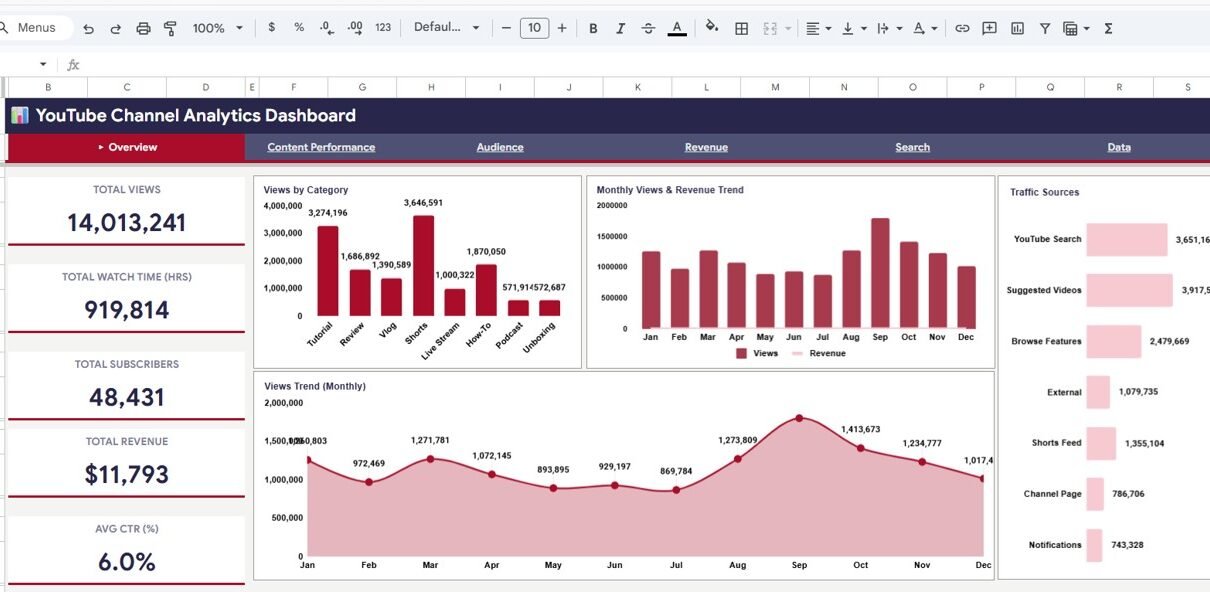
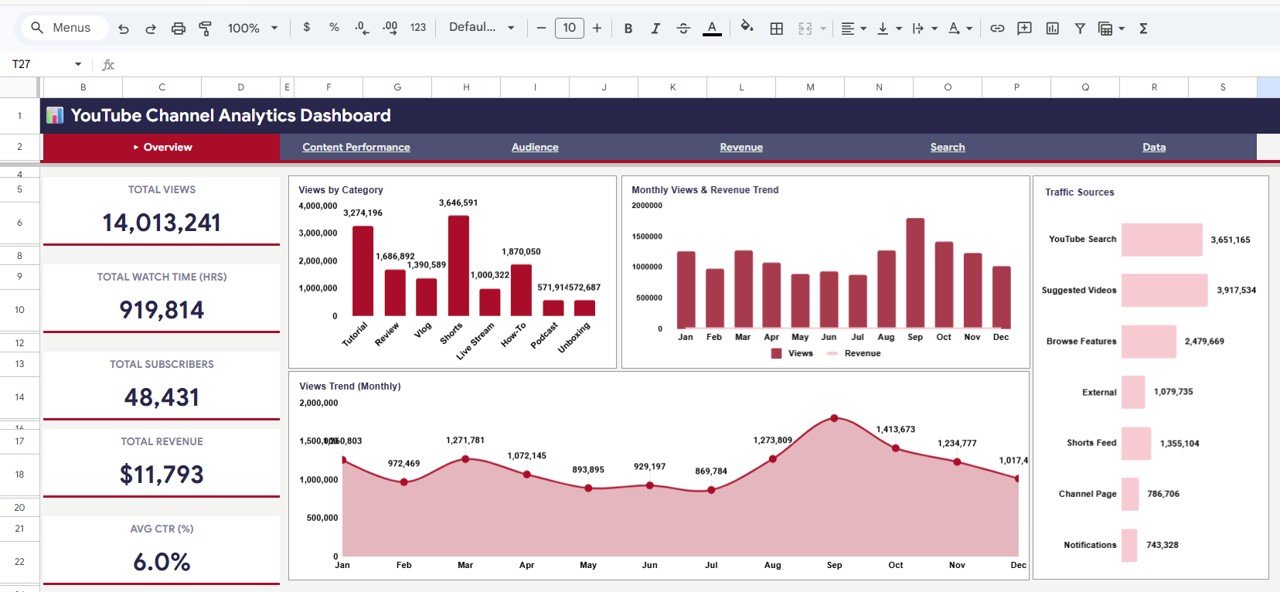
The Overview page is your command center. At the top, five KPI cards display Total Views, Total Watch Time (Hrs), Total Subscribers, Total Revenue, and Avg CTR (%) for a quick snapshot of overall channel health. Below the cards, you will find several charts that break down your data visually:
- Views by Category — Shows how views are distributed across different video categories so you can see which topics attract the most viewers
- Monthly Views and Revenue Trend — A dual-axis chart that tracks both views and revenue over time, helping you spot correlations between viewership and earnings
- Views Trend (Monthly) — A clean line chart showing your monthly view count trajectory for growth tracking
- Traffic Sources — Breaks down where your views come from including YouTube search, suggested videos, browse features, and external sources
Multiple slicer filters sit above the charts so you can instantly filter the dashboard by category, time period, or other dimensions.
YouTube Channel Analytics Dashboard in Google Sheets2 — Content Performance Page
The Content Performance page goes deeper into video-level analytics. KPI cards show Avg Views/Video, Avg Likes/Video, Avg Watch Time, and Total Videos. The charts on this page include:
- Avg Views and Likes by Category — Compare average engagement across content categories to identify your strongest-performing topics
- Views Distribution by Category — A proportional chart showing which categories contribute the most to your total view count
- Avg CTR (%) by Category — Reveals which video categories have the highest click-through rates from impressions
- Duration vs Views — Plots video duration against views so you can find the optimal video length for your audience
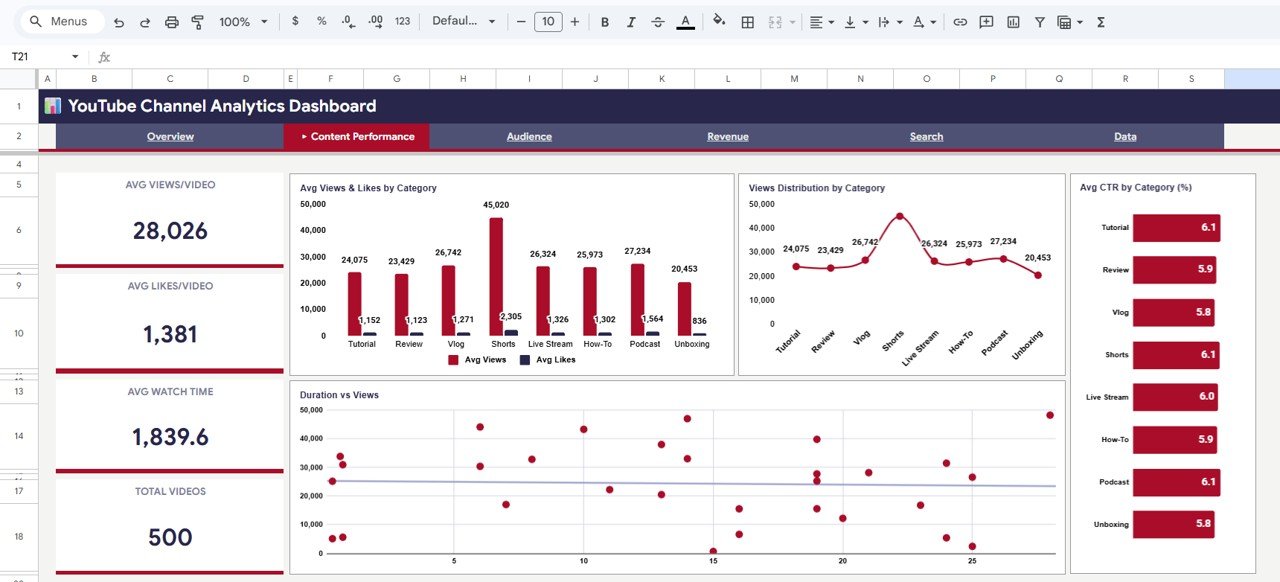 Content Performance Page
3 — Audience Page
The Audience page helps you understand who is watching your content and how. KPI cards include Total Subs Gained, Avg Subs/Video, and Mobile Share. Charts on this page cover:
- Views by Device — Shows how your audience splits across mobile, desktop, and tablet
- Avg View Duration by Device (min) — Compares how long viewers watch on each device type
- Subscribers by Category — Identifies which content categories drive the most subscriber growth
- Monthly Subscriber Growth — Tracks your net subscriber gains over time
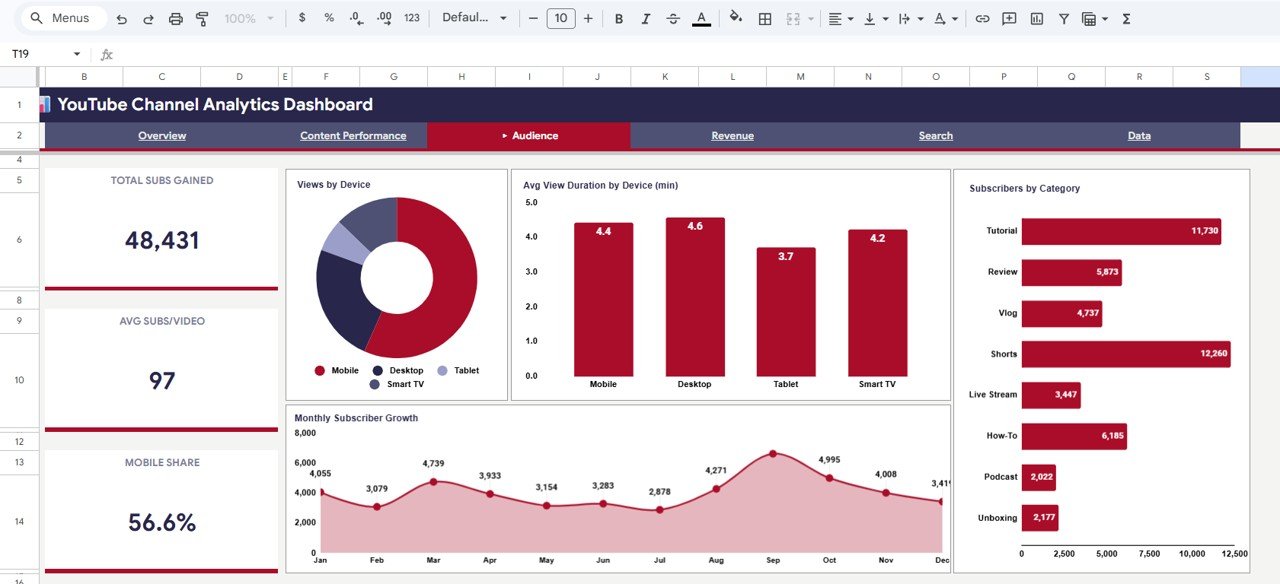 Audience Page
4 — Revenue Page
The Revenue page is essential for monetized channels. KPI cards display Total Revenue, RPM ($/1K Views), Avg Rev/Video, and Top Month Rev. The analysis charts include:
- Monthly Revenue and Watch Time — Tracks earnings alongside watch time to show how engagement directly impacts revenue
- RPM by Traffic Source — Reveals which traffic sources generate the highest revenue per thousand views
- Revenue by Category — Shows which video categories are most profitable
- Revenue Trend — A time-series chart tracking your revenue trajectory month over month
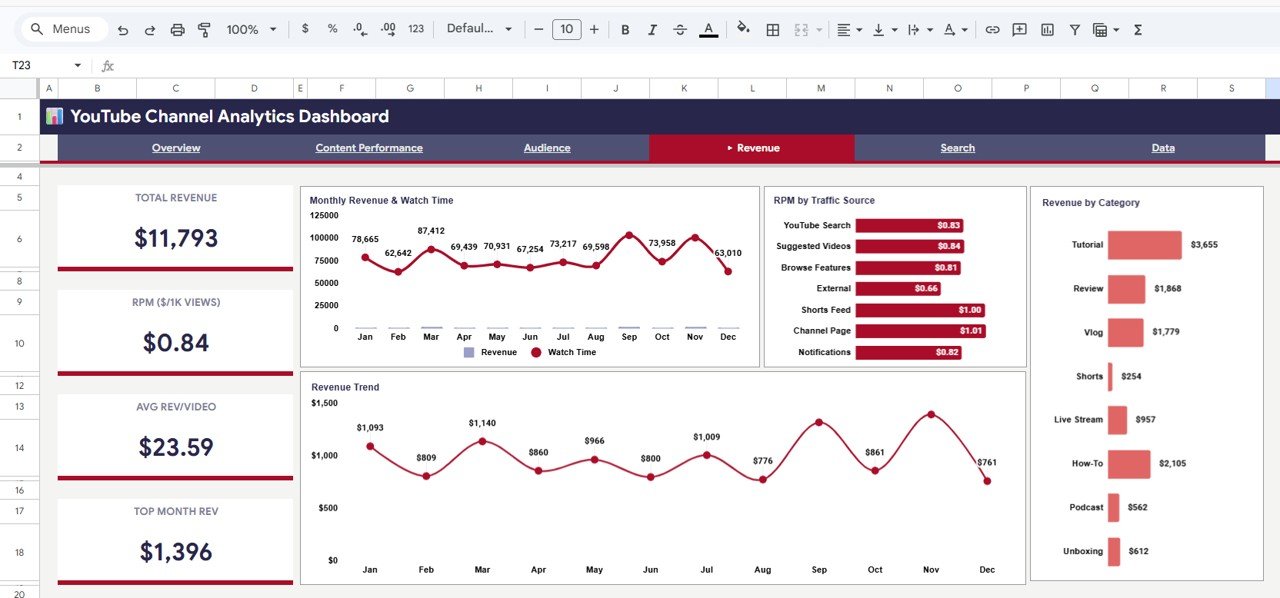 Revenue Page
5 — Search Sheet
The Search sheet provides a quick video lookup feature. Select any Video ID from the dropdown and instantly see complete details for that video including Publish Date, Video Title, Category, Duration, Views, Likes, Comments, Shares, Watch Time, Avg View Duration, CTR, Subs Gained, Revenue, Traffic Source, and Device. This is a fast way to check individual video performance without scrolling through the raw data.
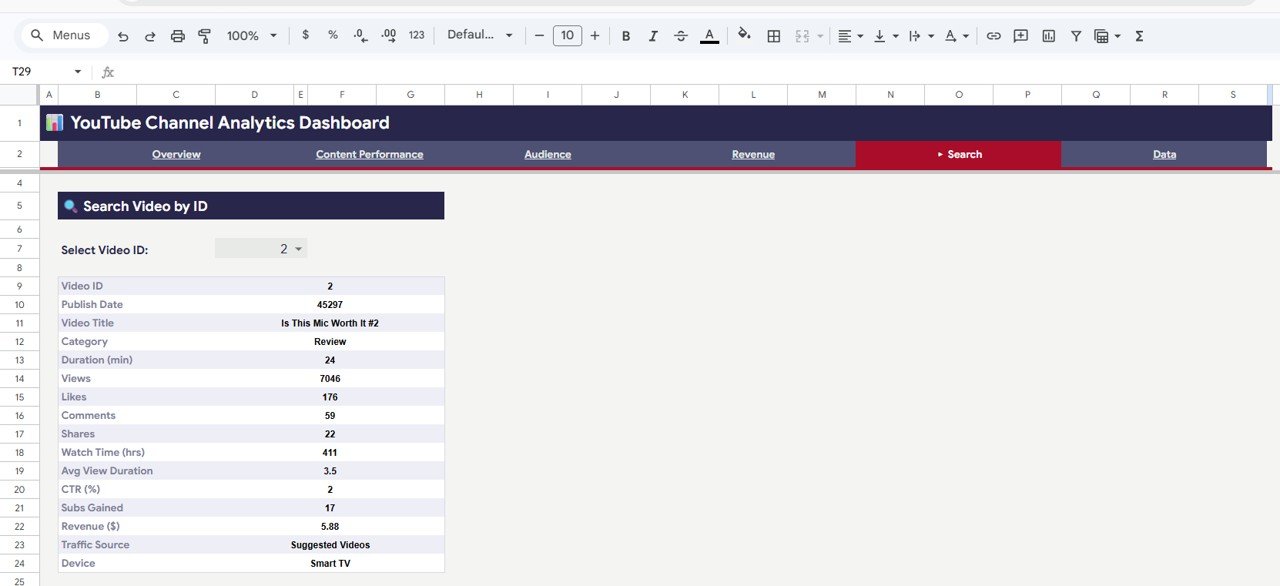 Search Sheet tab
6 — Data Sheet
The Data sheet is where all your YouTube data lives. Simply paste your data in the same column format and every dashboard page updates automatically. No formulas to modify, no macros to enable — just clean data in, beautiful dashboards out.
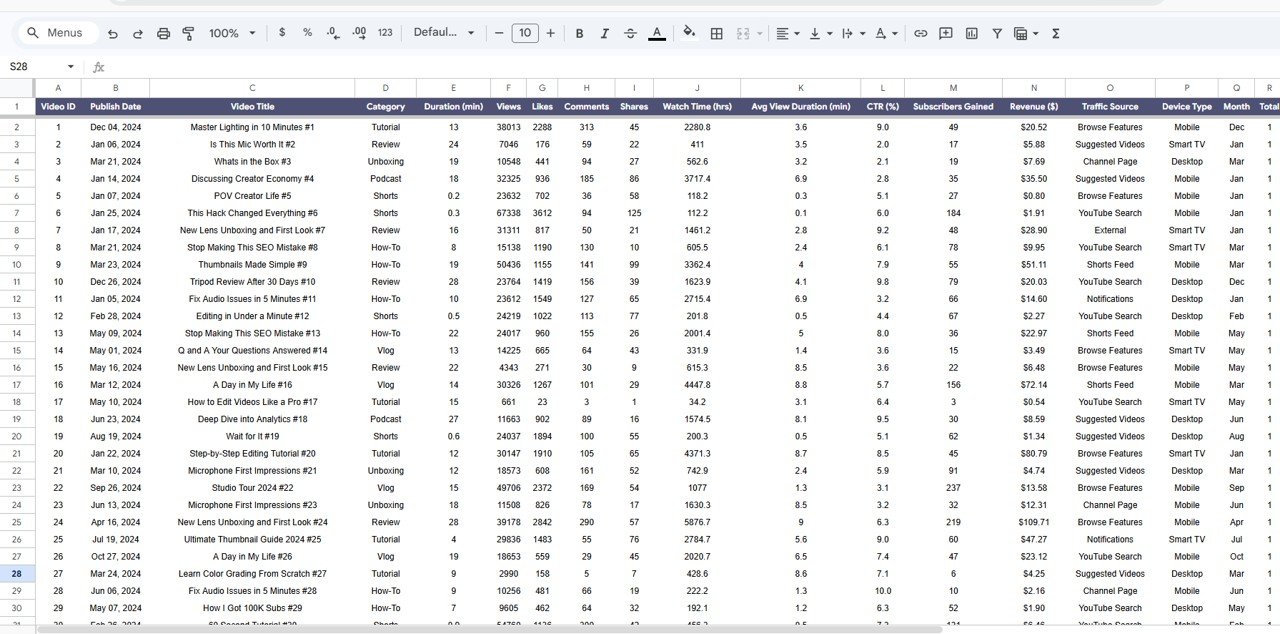 Data Sheet tab
Advantages of YouTube Channel Analytics Dashboard in Google Sheets
Click here to Purchase YouTube Channel Analytics Dashboard in Google Sheets
- All-in-One Analytics — No need to switch between YouTube Studio tabs. Views, engagement, audience, and revenue data are consolidated in one file.
- Cloud-Based Access — Being in Google Sheets means you can access your dashboard from any device with an internet connection and share it with team members instantly.
- Zero Learning Curve — The template is fully built. Just replace the sample data and start analyzing. No Google Sheets expertise required.
- Custom Filtering — Slicer filters let you drill down into specific categories, date ranges, or dimensions without altering the underlying data.
- Cost-Effective — Much cheaper than monthly analytics tool subscriptions, and you own it forever with unlimited use.
If you are interested in similar analytics templates, check out the Digital Marketing Campaign Dashboard in Google Sheets for tracking your broader marketing funnel, or the Etsy Seller Analytics Dashboard in Google Sheets for e-commerce analytics.
Opportunities for Improvement
- Adding a comparison feature to benchmark performance across different time periods (e.g., this month vs last month) would make trend analysis even more powerful.
- A dedicated Shorts vs Long-Form content breakdown page could help creators who publish both formats understand performance differences.
- Integration guidance for pulling data directly from the YouTube Analytics API via Google Apps Script would save manual data entry time for advanced users.
- Adding a competitor benchmarking section where users can manually input competitor metrics for side-by-side comparison.
Best Practices for Using the YouTube Channel Analytics Dashboard
Click here to Purchase YouTube Channel Analytics Dashboard in Google Sheets
- Update Weekly or Monthly — Export your YouTube Analytics data regularly and paste it into the Data sheet to keep your dashboard current.
- Focus on CTR and Watch Time — These two metrics are the strongest signals YouTube’s algorithm uses for recommendations. Track them closely on the Content Performance and Overview pages.
- Use Category Filters — If you publish multiple types of content, use the slicer filters to analyze each category separately and double down on what works.
- Monitor RPM by Traffic Source — Not all views are equal in terms of revenue. The Revenue page’s RPM by Traffic Source chart helps you prioritize the most profitable traffic channels.
- Track Subscriber Growth by Category — The Audience page reveals which content types convert viewers into subscribers, helping you plan your content calendar strategically.
Also explore the YouTube Channel Analytics Dashboard in HTML if you prefer a browser-based interactive version, or the YouTube Channel Analytics Dashboard in Excel for desktop analysis. You can also browse our full collection of Google Sheets Dashboard Templates for more options.
Explore Relevant Templates
- YouTube Channel Analytics Dashboard in HTML — Browser-based interactive version with the same comprehensive analytics
- YouTube Channel Analytics Dashboard in Power BI — Advanced Power BI version for enterprise-level analysis
- Digital Marketing Campaign Dashboard in Google Sheets — Track your full digital marketing performance across channels
- Etsy Seller Analytics Dashboard in Google Sheets — Seller analytics for Etsy shop owners
- Crypto Portfolio Dashboard in Google Sheets — Track cryptocurrency investments and portfolio performance
Frequently Asked Questions
Click here to Purchase YouTube Channel Analytics Dashboard in Google Sheets
What KPIs does the YouTube Channel Analytics Dashboard in Google Sheets track?
This dashboard tracks over 15 key performance indicators across 5 interactive pages. Key metrics include Total Views, Watch Time (Hours), Total Subscribers, Total Revenue, Average CTR (%), RPM ($/1K Views), Average Views per Video, Average Likes per Video, Subscribers Gained, Mobile Share, and detailed breakdowns by video category, traffic source, and device type.
Do I need any coding or advanced Google Sheets skills to use this dashboard?
No. The YouTube Channel Analytics Dashboard in Google Sheets is fully pre-built with all formulas, charts, and KPI cards configured. You simply paste your YouTube data into the Data sheet in the provided format and every dashboard page updates automatically. No macros, no scripts, no formulas to edit.
How do I get my YouTube data into the dashboard?
Export your channel data from YouTube Studio Analytics. Then paste it into the Data sheet of the Google Sheets template following the column format provided in the sample data. All charts and KPI cards across the 5 dashboard pages will refresh automatically.
Can I filter the dashboard to view specific video categories or time periods?
Yes. The Overview page includes multiple slicer filters that let you instantly filter the entire dashboard by video category, date range, and other dimensions. This makes it easy to focus on specific content types or time periods without modifying any data.
What is the best YouTube analytics dashboard template for Google Sheets?
The YouTube Channel Analytics Dashboard in Google Sheets from NextGenTemplates is one of the most comprehensive options available. It includes 5 dashboard pages covering overview KPIs, content performance analysis, audience insights with device breakdowns, complete revenue tracking with RPM analysis, and a video search feature — all in a single plug-and-play Google Sheets file.
Can I share this dashboard with my team?
Yes. Since it is built in Google Sheets, you can share the file with team members directly through Google Drive. Each person gets their own copy if needed, or you can collaborate on a shared version in real time.
Conclusion
The YouTube Channel Analytics Dashboard in Google Sheets is a must-have tool for any serious content creator or digital marketer who wants to make data-driven decisions about their YouTube strategy. With 5 interactive dashboard pages, 15+ KPIs, dynamic charts, slicer filters, and a video search feature, this template gives you everything you need to understand your channel’s performance — all inside a familiar Google Sheets environment. Simply paste your data and start analyzing. No coding, no subscriptions, no learning curve.
Click here to Purchase YouTube Channel Analytics Dashboard in Google Sheets
Subscribe to our YouTube channel for step-by-step video tutorials: Youtube.com/@NeoTechNavigators