The Budget Calculator in Google Sheets tracks 3 spending categories across 2 interactive pages, with 3 budget allocation cards, 2 charts, and a built-in expense tracker covering 15+ sub-categories. Based on the 50/30/20 budgeting rule, it automatically splits your monthly take-home pay into Needs (50%), Wants (30%), and Savings (20%) — then compares your target budget against actual spending in real time.
Most people know they should budget, but building a spreadsheet from scratch takes hours and usually falls apart after the first month. The Budget Calculator in Google Sheets eliminates that friction — enter your monthly income, start logging expenses, and every chart and summary updates automatically. No formulas to edit, no Apps Script needed, and because it runs on Google Sheets, you can access it from any device and share it with family for collaborative tracking.
Key Features of Budget Calculator in Google Sheets
👉 Click here to Purchase the Budget Calculator in Google Sheets
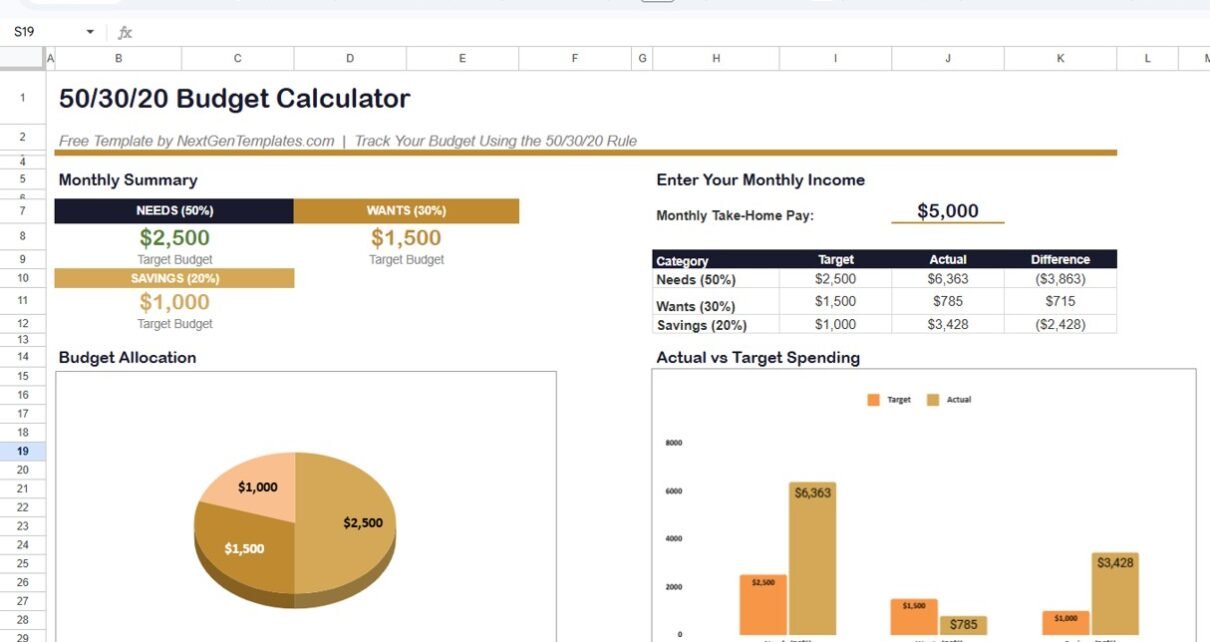
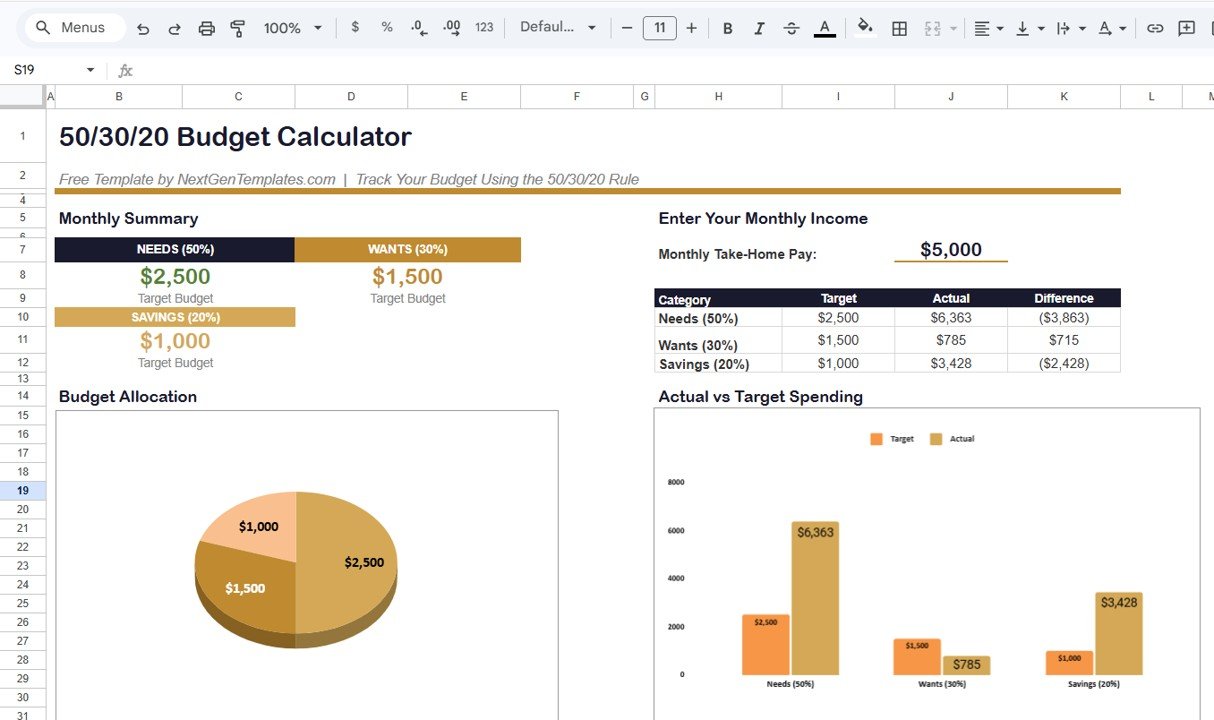
The Budget Calculator in Google Sheets uses the 50/30/20 rule to automatically divide your monthly take-home pay into three target budgets: Needs (50%), Wants (30%), and Savings (20%). Three KPI-style allocation cards display exact dollar amounts for each category the moment you enter your income.
A grouped bar chart compares target vs actual spending for Needs, Wants, and Savings side by side. The difference column in the summary table flags exactly how much you are over or under budget in each category — making overspending immediately visible without any manual calculation.
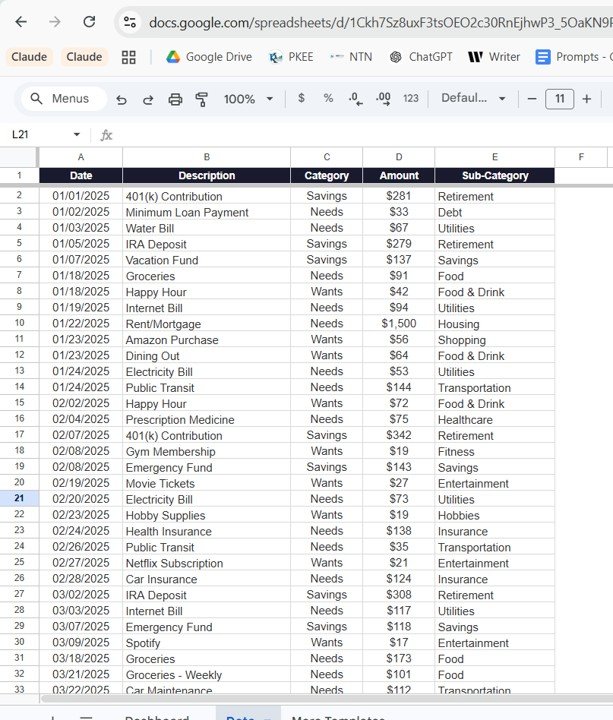
A 3-slice pie chart shows your total budget distribution across the three categories with dollar values. The built-in expense tracker on the Data Sheet logs every transaction with Date, Description, Category, Amount, and Sub-Category fields covering 15+ expense types including Housing, Utilities, Food, Transportation, Insurance, Healthcare, Retirement, Entertainment, Shopping, Fitness, Hobbies, Food & Drink, Debt, and Savings.
All calculations are pre-built with Google Sheets formulas. Change your income and the entire calculator recalculates. Add an expense row and summaries refresh automatically. Cloud-based access means you can use it from any device via the browser or Google Sheets app, and you can share it with family members for real-time collaborative budget tracking.
Template Pages Explanation
Calculator Page — The main page displays the Monthly Summary section with 3 budget allocation cards (Needs $2,500 / Wants $1,500 / Savings $1,000 based on $5,000 sample income), a Budget Allocation pie chart, the Enter Your Monthly Income input field, a Category comparison table (Target vs Actual vs Difference for Needs, Wants, and Savings), and an Actual vs Target Spending bar chart.
Data Sheet — A structured transaction log with 5 columns: Date, Description, Category, Amount, and Sub-Category. Sample data includes 35+ rows covering expenses from January through April 2025 across all three budget categories. Categories map to Needs, Wants, or Savings, while Sub-Categories provide granular detail like Housing, Utilities, Food, Transportation, Entertainment, Retirement, and more.
👉 Click here to Purchase the Budget Calculator in Google Sheets
Budget Calculator in Google Sheets vs. Excel Budget Calculator vs. YNAB — Feature Comparison
| Feature | Budget Calculator in Google Sheets | Excel Budget Calculator | YNAB (You Need a Budget) |
|---|---|---|---|
| Cost | $0 free download | Free (with Excel) | $14.99/month ($99/year) |
| Platform | Google Sheets (browser + app) | Microsoft Excel (desktop) | Web + Mobile app |
| Setup Time | Under 5 minutes | Under 5 minutes | 30+ minutes with bank linking |
| 50/30/20 Rule Built-In | ✅ Yes — automatic allocation | ✅ Yes | ❌ Custom categories only |
| Real-Time Collaboration | ✅ Share with family via Google Drive | ❌ Single-user file | ✅ Multi-device sync |
| Offline Access | Limited (Google Sheets offline mode) | ✅ Full offline use | ❌ Requires internet |
| Bank Account Sync | ❌ Manual entry | ❌ Manual entry | ✅ Auto-sync with banks |
| Data Privacy | ✅ Your Google Drive — no third-party access | ✅ 100% local file | Stored on YNAB servers |
| Year-1 Cost (1 user) | $0 | $0 | $99/year |
For individuals who want a structured 50/30/20 budget calculator with cloud access and family sharing without monthly subscription costs, the Budget Calculator in Google Sheets sits in the sweet spot.
Who Should Use This Template
👉 Click here to Purchase the Budget Calculator in Google Sheets
Perfect for:
- Individuals and families following the 50/30/20 budgeting method in Google Sheets
- Working professionals tracking take-home pay against spending from any device
- Students and young adults building their first budget with a free cloud-based tool
- Couples sharing and collaborating on household finances in real time via Google Drive
Not a fit if:
- You need automatic bank account syncing and real-time transaction imports — YNAB or Mint handle that
- You run a business requiring multi-user expense approval workflows
- You need investment tracking or debt payoff calculators — see Debt Payoff Calculator in Google Sheets or Personal Finance Dashboard in Google Sheets
Real-World Use Cases
Priya is a 28-year-old software developer in Bangalore earning ₹80,000 per month. She uses the Budget Calculator in Google Sheets to split her salary into Needs (rent, groceries, utilities), Wants (dining out, subscriptions, shopping), and Savings (mutual funds, emergency fund). Each weekend she spends 5 minutes logging expenses. The Difference column helped her identify ₹4,000/month in food delivery overspending — money she now redirects to her emergency fund.
James and Sarah are a couple in Austin managing a combined $7,500 monthly income. They share the calculator via Google Drive so both can log expenses in real time. The 50/30/20 rule gives them clear guardrails: $3,750 for Needs, $2,250 for Wants, and $1,500 for Savings. The bar chart revealed their Wants spending was at 38% — prompting them to cut subscriptions and dining out.
Maria is a freelance designer in Madrid with variable monthly income. She updates her Monthly Take-Home Pay each month and adjusts targets accordingly. The pie chart helps her visualize income distribution, and the Data Sheet doubles as a running expense record for tax season documentation.
Advantages of Budget Calculator in Google Sheets
👉 Click here to Purchase the Budget Calculator in Google Sheets
The 50/30/20 framework removes the guesswork from budgeting. Instead of creating arbitrary spending limits, the calculator applies a research-backed allocation method that financial advisors recommend for individuals at every income level. According to Google’s own Sheets documentation, formulas and charts in Google Sheets update in real time when data changes — which means your budget stays current without manual recalculation.
The cloud-based nature of Google Sheets is a significant advantage over desktop-only tools like Excel. Family members can edit the same file simultaneously, making it ideal for couples and households managing shared expenses. The template is also completely free with no subscription, no per-user fees, and no data shared with third-party servers beyond your Google Drive.
Opportunities for Improvement
The Budget Calculator in Google Sheets does not sync with bank accounts automatically. If you want real-time transaction imports, a paid app like YNAB ($99/year) handles that. The template also does not include investment tracking, debt payoff calculators, or multi-month historical trend analysis — for those features, consider the Personal Finance Dashboard in Google Sheets ($9.99) which covers 6 analysis pages.
Offline access is limited compared to the Excel version — Google Sheets requires an internet connection for full functionality, though limited offline editing is available via the Google Sheets app with offline mode enabled.
Best Practices
Log expenses weekly rather than monthly for the most accurate tracking. Set a recurring 10-minute calendar reminder every Sunday to update the Data Sheet. When entering expenses, use consistent Sub-Category names to keep your summary clean. Review the Difference column on the Calculator page at least twice per month to catch overspending early. If your income varies month to month, update the Monthly Take-Home Pay field at the start of each pay period so allocation targets stay realistic.
Explore Relevant Templates
📌 Budget Calculator in Excel — The same 50/30/20 budget calculator for Microsoft Excel. Free
📌 Personal Monthly Budget Tracker in Google Sheets — 4 pages, 6 KPIs, 3 charts for deeper budget tracking. $6.99
📌 Personal Finance Dashboard in Google Sheets — 6 pages covering transactions, budgets, investments, and search. $9.99
📌 Debt Payoff Calculator in Google Sheets — Snowball vs Avalanche strategies for debt freedom. $4.99
📌 Home Affordability Calculator in Google Sheets — EMI, DTI ratios, and affordability zone analysis. $4.99
📌 Also available: Personal Finance Dashboard in Excel | Personal Finance Dashboard in HTML
Frequently Asked Questions
👉 Click here to Purchase the Budget Calculator in Google Sheets
What is the 50/30/20 budget rule in Google Sheets?
The 50/30/20 budget rule allocates 50% of your monthly take-home pay to Needs, 30% to Wants, and 20% to Savings. The Budget Calculator in Google Sheets automates this split — enter your income and the three budget category cards calculate target amounts instantly.
Is the Budget Calculator in Google Sheets really free?
Yes. The Budget Calculator in Google Sheets is a completely free template from NextGenTemplates. Download it instantly, create your own copy in Google Drive, and customize it without any subscription or hidden fees.
How many expense categories does this budget tracker support?
The template tracks 3 main categories (Needs, Wants, Savings) and 15+ sub-categories including Housing, Utilities, Food, Transportation, Insurance, Healthcare, Retirement, Entertainment, Shopping, Fitness, Hobbies, Food and Drink, Debt, and Savings.
Can I use this budget calculator in Excel instead?
Yes. If you prefer Microsoft Excel, download the Budget Calculator in Excel for the same 50/30/20 budgeting experience on desktop.
How does this compare to paid budgeting apps like YNAB?
The Budget Calculator in Google Sheets is free and keeps your data in your Google Drive. YNAB costs $99/year and syncs with bank accounts. For users who want simplicity and cloud access without paying monthly subscriptions, this template is the better fit.
Can I share this budget calculator with my family?
Yes. Share the file via Google Drive with family members. Multiple people can view and edit the budget simultaneously for collaborative household financial planning.
How long does it take to set up this budget calculator?
Setup takes under 5 minutes. Create your copy from the PDF guide link, enter your monthly income on the Calculator page, then start logging expenses in the Data Sheet. All charts and summary cards update automatically.
About the Author
👉 Click here to Purchase the Budget Calculator in Google Sheets
Built by PK — Microsoft Certified Professional with 15+ years of Excel, Google Sheets, and Power BI experience. Founder of NextGenTemplates, reaching 300K+ subscribers across YouTube channels. Every template is hand-built and tested before release.
Conclusion
The Budget Calculator in Google Sheets gives you a structured, visual, and completely free way to implement the 50/30/20 budgeting rule. With 2 pages, 3 allocation cards, 2 charts, and 15+ expense sub-categories, it covers everything you need to track and optimize your monthly spending — from any device, with family sharing built in.
👉 Click here to Purchase the Budget Calculator in Google Sheets
✅ Instant download · Free template · No subscription · Lifetime access
🎥 Youtube.com/@NeoTechNavigators
👉 Click here to Purchase the Budget Calculator in Google Sheets