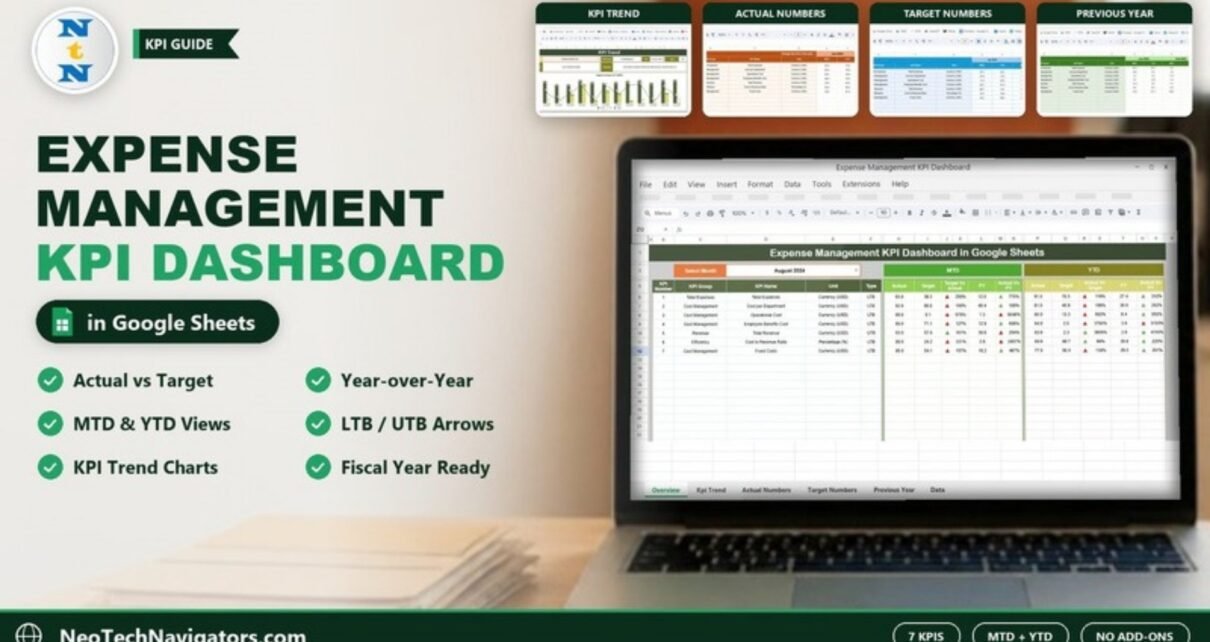
The Expense Management KPI Dashboard in Google Sheets is a monthly scorecard for cost control. It compares each expense KPI against its target and against the previous year, for the month (MTD) and the year to date (YTD), with up and down arrows that show at a glance which numbers need attention. It suits finance managers, controllers, small business owners and accountants who report on costs every month.
The workbook has six sheets: Dashboard, KPI Trend, Actual Numbers input, Target Numbers input, Previous Year Numbers input and KPI Definition. The sample file ships with seven KPIs – Total Expenses, Cost per Department, Operational Cost, Employee Benefits Cost, Total Revenue, Cost to Revenue Ratio and Fixed Costs – and you can rename or add your own. Everything is built with native Google Sheets formulas, drop-downs, conditional formatting and charts.
Below is a sheet-by-sheet walkthrough, a worked example using the numbers in the template, and the steps to load your own data.
Get the Expense Management KPI Dashboard
Why Use the Expense Management KPI Dashboard in Google Sheets
An expense figure on its own says very little. $93,000 of operating cost could be excellent or alarming depending on the budget and on what you spent in the same month last year. Most monthly cost reports show only the current number, so reviewers end up doing the comparison in their heads.
This dashboard puts all three numbers – Actual, Target and Previous Year (PY) – side by side for every KPI, for both MTD and YTD. Because each KPI is tagged as LTB (Lower the Better) or UTB (Upper the Better), the arrows read correctly for cost lines and revenue lines alike.
The Six Sheets Explained
1. Dashboard
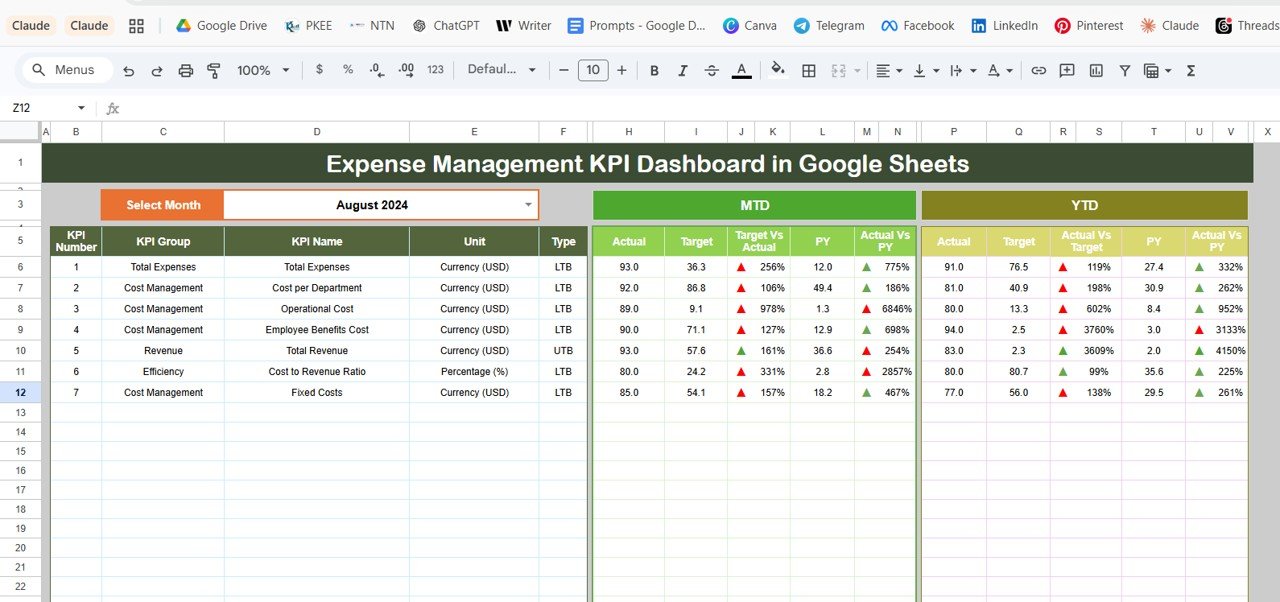
Choose a month in the Select Month drop-down at the top (cell D3) – the sample is set to August 2024 – and every figure on the sheet updates for that month. Each row shows the KPI Number, KPI Group, KPI Name, Unit and Type, followed by two blocks:
- MTD – Actual, Target, Target vs Actual, PY and Actual vs PY.
- YTD – Actual, Target, Actual vs Target, PY and Actual vs PY.
The comparison columns carry green or red up/down arrows from conditional formatting, so a cost KPI that has risen above target stands out immediately.
2. KPI Trend
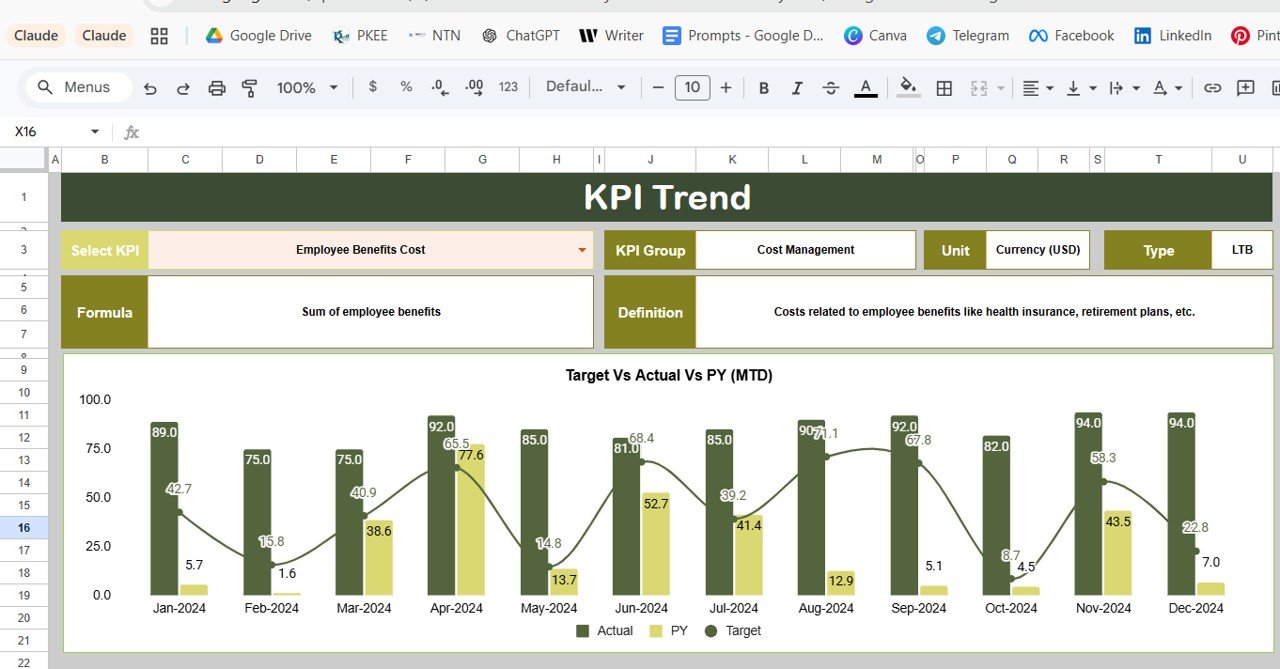
Choose a KPI in the Select KPI drop-down (cell C3). The sheet shows its KPI Group, Unit, Type, Formula and Definition, pulled from the KPI Definition sheet. In the screenshot, Employee Benefits Cost is selected: group Cost Management, unit Currency (USD), type LTB, formula “Sum of employee benefits”, defined as costs related to employee benefits such as health insurance and retirement plans.
Below the details, the Target Vs Actual Vs PY (MTD) chart plots Actual and PY as columns with Target as a line for January to December 2024, with a matching YTD chart further down. This is the view to use when you need to explain a trend rather than a single month.
3. Actual Numbers Input
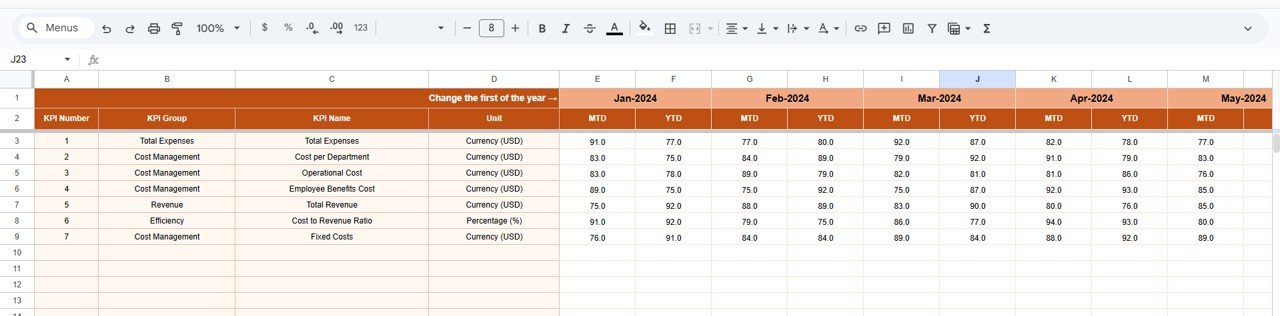
This is where you type the actual results. Each KPI is a row (KPI Number, KPI Group, KPI Name, Unit), and each month has an MTD and a YTD column. The first month of the year is set in the header (the cell next to “Change the first of the year”), so you can align the sheet with a fiscal year that starts in April or July.
4. Target Numbers Input
The target sheet uses the same layout. Enter the monthly target for each KPI as an MTD value and the cumulative target as a YTD value.
5. Previous Year Numbers Input
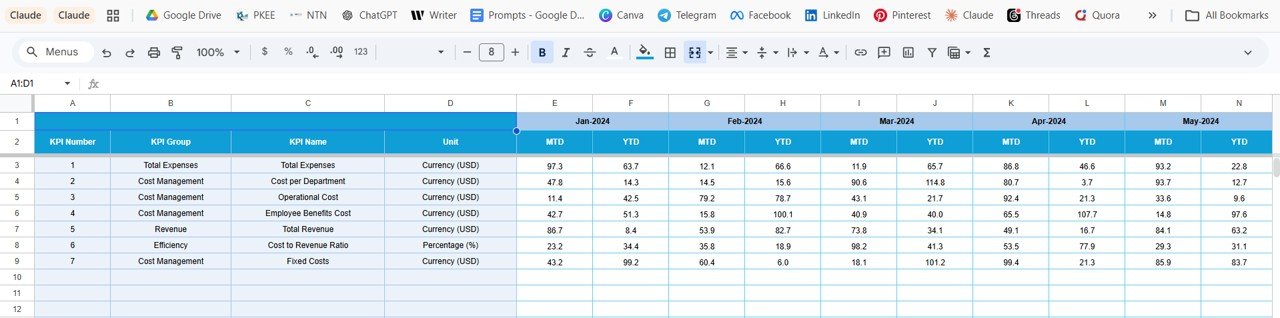
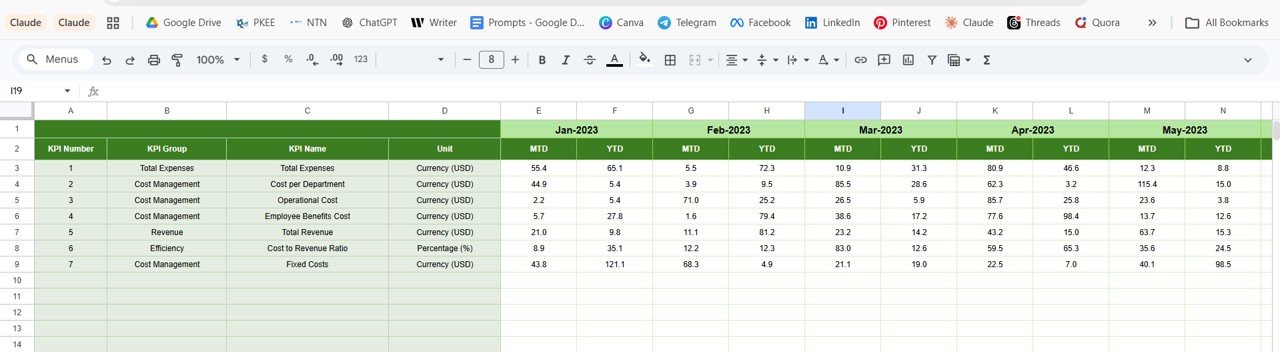
Enter last year’s figures in the same format – the sample runs from Jan-2023 – so the dashboard can show year-over-year comparisons for every KPI.
6. KPI Definition
The KPI Definition sheet is the master list. For each KPI you enter the KPI Name, KPI Group, Unit, Formula and Definition, and in the last column the Type – LTB or UTB. The Dashboard and KPI Trend sheets read from here, so this is where you add, rename or retire a KPI.
The Seven Sample KPIs
| # | KPI | KPI Group | Unit | Type (better when) |
|---|---|---|---|---|
| 1 | Total Expenses | Total Expenses | Currency (USD) | LTB – lower |
| 2 | Cost per Department | Cost Management | Currency (USD) | LTB – lower |
| 3 | Operational Cost | Cost Management | Currency (USD) | LTB – lower |
| 4 | Employee Benefits Cost | Cost Management | Currency (USD) | LTB – lower |
| 5 | Total Revenue | Revenue | Currency (USD) | UTB – higher |
| 6 | Cost to Revenue Ratio | Efficiency | Percentage (%) | LTB – lower |
| 7 | Fixed Costs | Cost Management | Currency (USD) | LTB – lower |
Each KPI’s formula and definition live in the KPI Definition sheet. Total Revenue is included as the one UTB measure so cost KPIs can be read in context, and Cost to Revenue Ratio expresses costs as a share of revenue.
Worked Example: Reading One Row
Take Total Expenses for August 2024 in the sample. The MTD Actual is 93.0, the MTD Target is 36.3 and the MTD PY is 12.0. The comparison columns divide Actual by each benchmark:
Target vs Actual (MTD) = 93.0 / 36.3 = 256%
Actual vs PY (MTD)     = 93.0 / 12.0 = 775%
Actual vs Target (YTD) = 91.0 / 76.5 = 119%
Because Total Expenses is LTB, an actual well above target is shown with a red arrow – spending is running ahead of plan. Compare Total Revenue in the same month: Actual 93.0 against a Target of 57.6 gives 161%, and because it is UTB the arrow is green.
The sample numbers are placeholders chosen to exercise the formatting, which is why some percentages look extreme. With real data the ratios will normally sit much closer to 100%.
How to Use It With Your Own Data
- Make your own copy of the Google Sheet from the link included with the download.
- On KPI Definition, list your expense KPIs with group, unit, formula, definition and LTB or UTB type.
- On Actual Numbers, set the first month of your financial year in the header.
- Enter this year’s actual MTD and YTD values for each KPI as each month closes.
- Enter the monthly and cumulative targets on Target Numbers, usually straight from your budget.
- Enter last year’s figures on Previous Year Numbers.
- Open the Dashboard, pick the month you just closed and review every red arrow; use KPI Trend to check whether it is a one-off or a pattern.
If you want to strengthen the formula skills behind sheets like this – lookups, SUMIFS and percentage comparisons – the Excel AI Mastery 100 Formulas course on NextGenTemplates Academy is a structured place to start; the same functions work in Google Sheets.
Real-World Use Cases
- Month-end cost review – a controller selects the closed month, screenshots the Dashboard for the management pack, and shares a view-only link with department heads.
- Budget follow-up – a small business owner enters the annual budget as targets and uses the YTD block to see whether cumulative spending is still within plan.
- Year-over-year efficiency story – a finance lead uses the Actual vs PY columns and the KPI Trend charts to show the board how cost per department or the cost to revenue ratio has moved since last year.
Best Practices
- Update the input sheets on the same working day after each month-end close.
- Define every KPI on the KPI Definition sheet before you enter numbers for it.
- Double-check the LTB/UTB tag – a wrong tag turns every arrow for that KPI the wrong colour.
- Keep units consistent; do not mix thousands and full values in the same row.
- Share with view-only access for reviewers and edit access only for the person entering data.
- Save a copy of the file at year-end before clearing the input sheets for the new year.
Limitations
This is a KPI scorecard, not an expense management system. It does not capture receipts, run approval workflows, connect to your bank or accounting software, or send alerts. You enter summarised monthly figures by hand, so it depends on someone owning the update each month. Teams that need transaction-level expense claims should use a dedicated expense tool and feed its monthly totals into this dashboard.
Related Templates and Guides
For Excel users, the Expense Management KPI Dashboard in Excel follows the same idea. On this blog you can explore the Budget Adherence KPI Dashboard, the Cash Flow KPI Dashboard, the Profitability Analysis KPI Dashboard and the transaction-based Revenue and Expense Monitoring Dashboard in Google Sheets.
Frequently Asked Questions
Which KPIs come with the Expense Management KPI Dashboard in Google Sheets?
The sample includes seven: Total Expenses, Cost per Department, Operational Cost, Employee Benefits Cost, Total Revenue, Cost to Revenue Ratio and Fixed Costs. You can edit or add KPIs on the KPI Definition sheet.
What do LTB and UTB mean?
LTB means Lower the Better, used for cost KPIs. UTB means Upper the Better, used for measures such as revenue. The tag decides whether an increase shows as good or bad.
How is the Target vs Actual percentage calculated?
It is Actual divided by Target. In the sample, Total Expenses for August 2024 has an Actual of 93.0 and a Target of 36.3, which gives 256%.
Can I start the year in a month other than January?
Yes. Set the first month of your financial year in the header of the Actual Numbers sheet and the months follow from there.
Does it work on a phone?
Yes, you can open it in the Google Sheets mobile app to change the month and review the figures, although data entry is easier on a computer.
Does it import data from accounting software?
No. You enter monthly MTD and YTD figures yourself, which you can take from your accounting system’s reports.
Wrapping Up
The Expense Management KPI Dashboard in Google Sheets gives you a disciplined monthly routine: enter actuals, compare them with target and last year, and follow up every red arrow. Start by listing the five to ten cost KPIs your team already discusses, add their targets from the budget, and you will have a working cost scorecard after your next month-end close.
Get the Expense Management KPI Dashboard
📅 Last updated: October 2026