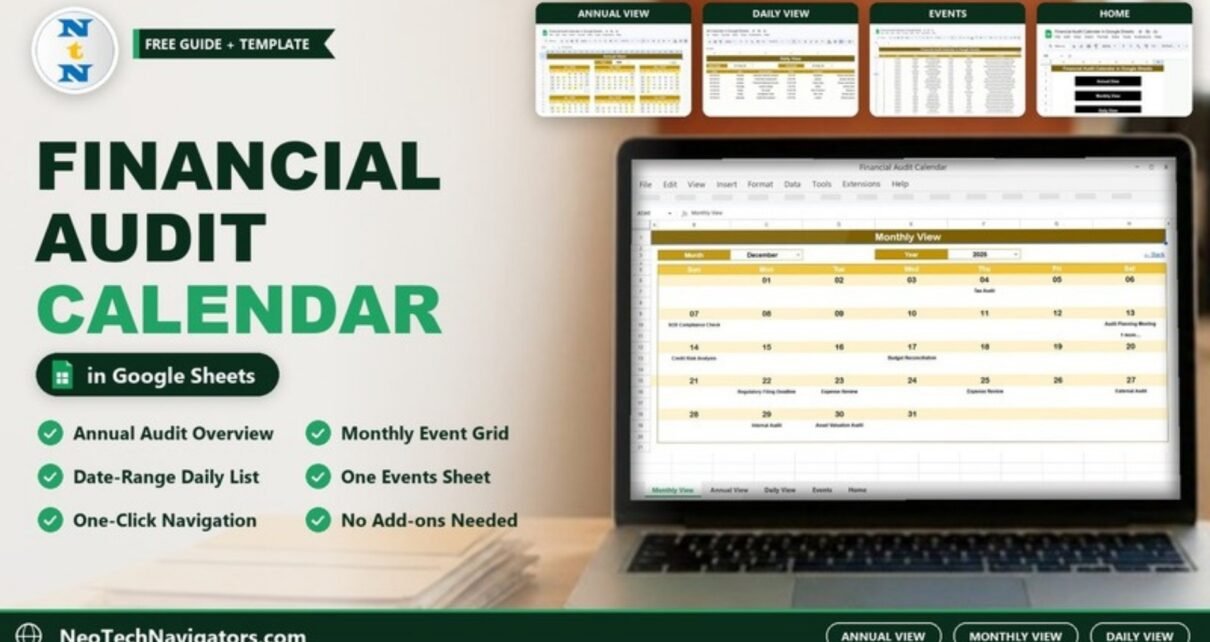
The Financial Audit Calendar in Google Sheets is a ready-made schedule for audits, reviews and finance deadlines. You enter each event once in an Events list, and the template shows it on an Annual View, a Monthly View and a date-range Daily View, so the whole team can see what is coming up and when.
It is designed for internal audit teams, finance managers, controllers, compliance officers and small accounting firms who currently juggle audit dates in email threads or scattered spreadsheets. The file has five sheets (Home, Annual View, Monthly View, Daily View and Events) and runs entirely in Google Sheets, with no add-ons or macros.
Get the Financial Audit Calendar
Why Use an Audit Calendar in Google Sheets?
Audit work runs on dates: control tests, tax audits, SOX checks, expense reviews, filing deadlines and planning meetings. When those dates live in different inboxes, things slip. A shared calendar in Google Sheets gives everyone the same list, the same views and a single place to update.
Because it is a spreadsheet, you also keep full control of the data. You can sort it, filter it, add your own columns and download a copy whenever you need an archive.
The 5 Sheets in the Financial Audit Calendar in Google Sheets
| Sheet | What it shows | Controls | Best used for |
|---|---|---|---|
| Home | Four navigation buttons | Annual View, Monthly View, Daily View, Events | Getting to any view in one click |
| Annual View | All 12 months of the selected year, with event dates highlighted | Year drop-down | Year planning and spotting busy periods |
| Monthly View | One month grid with event names on each date | Month and Year drop-downs | Weekly check-ins and coordination |
| Daily View | List of events between two dates | Start Date and End Date | Briefings and “what is due next” lists |
| Events | The event database (ID, Date, Day, Event Name, Time, Location, Description) | Add or edit rows | Entering and maintaining every audit event |
1. Home Sheet
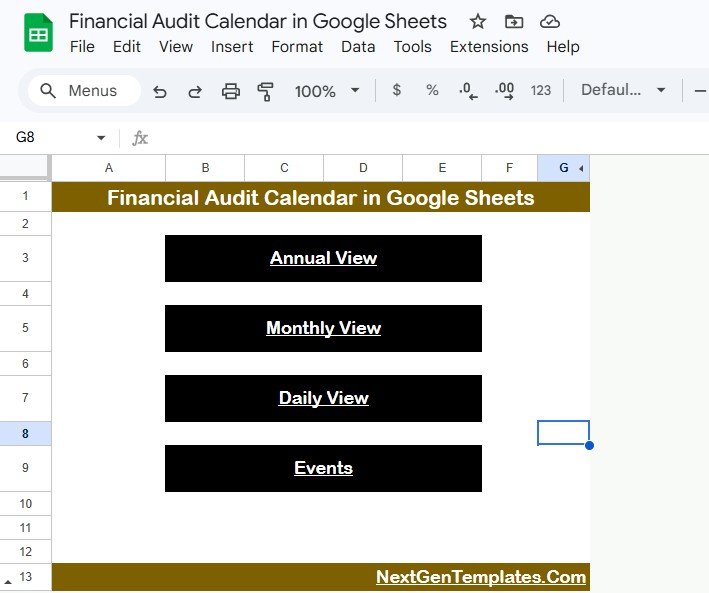
The Home sheet is the starting point. It has four large buttons (Annual View, Monthly View, Daily View and Events) that jump straight to each sheet. Every other sheet has a ← Back link in the top-right corner that returns you here.
2. Annual View
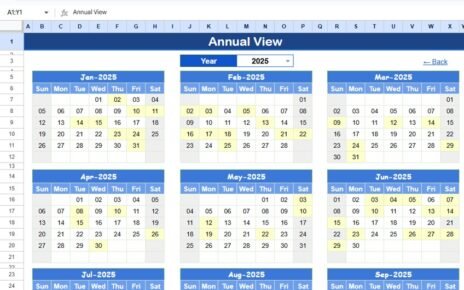
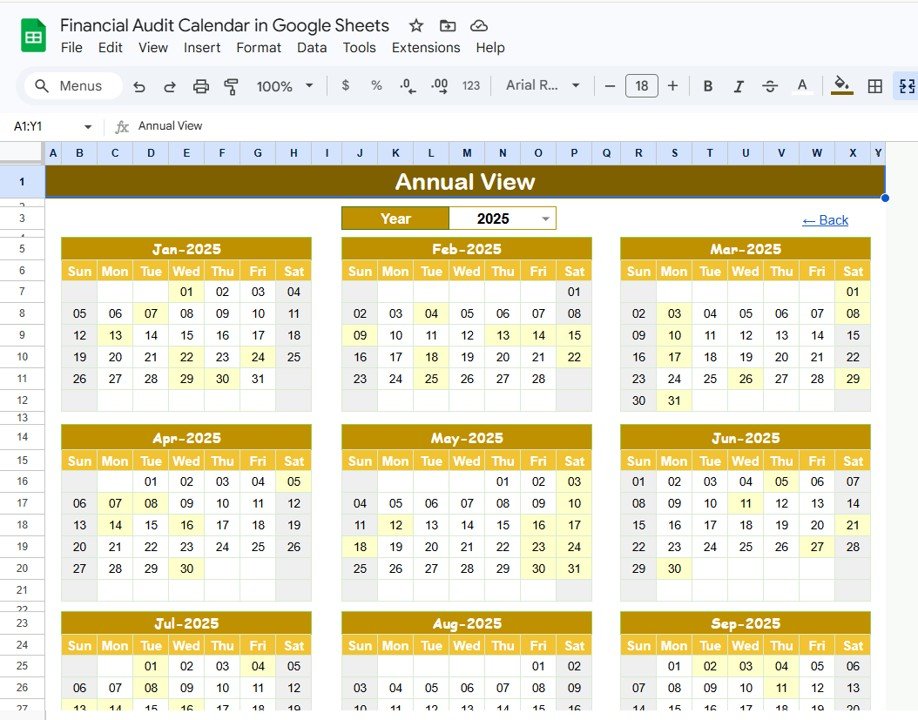
The Annual View lays out all 12 months of the year selected in the Year drop-down (2025 in the sample). Each month is a Sunday-to-Saturday grid, and dates that have an event in the Events sheet are highlighted. For example, the January 2025 grid highlights the 1st, 7th, 13th, 22nd, 24th, 29th and 30th, which are the January dates in the sample event list. It gives you a quick picture of which months are crowded and which have room for more fieldwork.
3. Monthly View
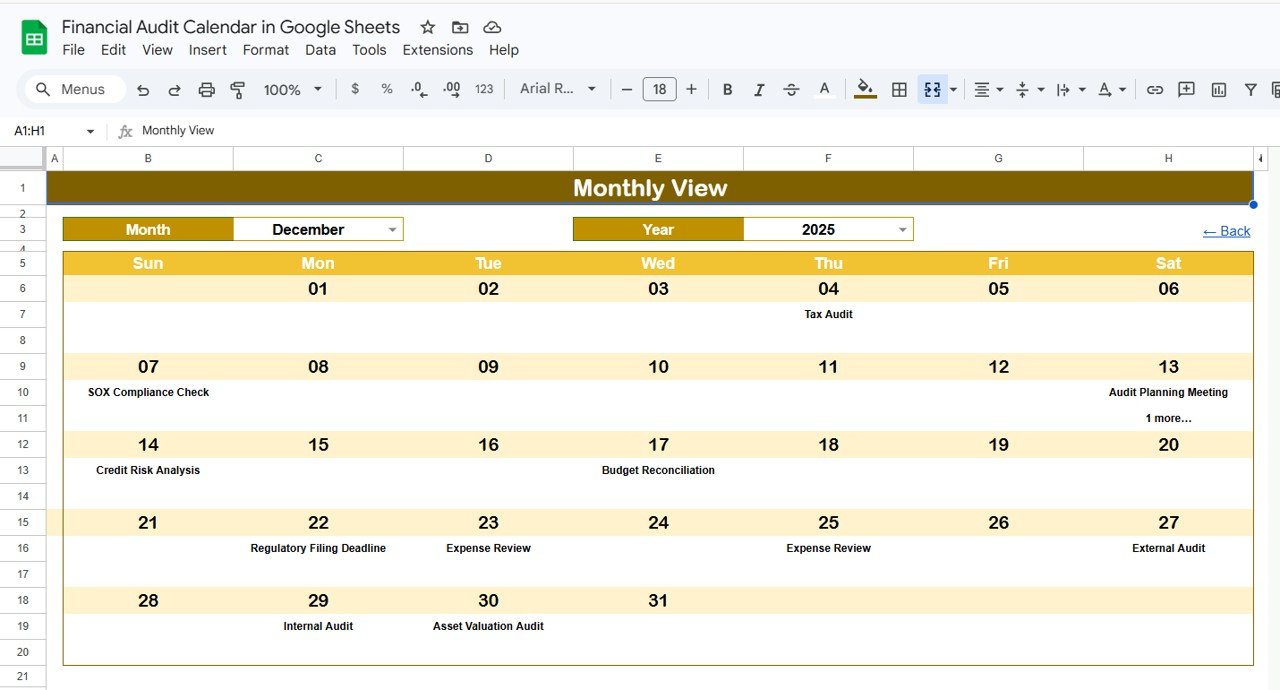
Choose a Month and Year from the two drop-downs at the top and the grid redraws with event names written under each date. In the December 2025 sample you can see entries such as Tax Audit, SOX Compliance Check, Audit Planning Meeting, Credit Risk Analysis, Budget Reconciliation, Regulatory Filing Deadline, External Audit, Internal Audit and Asset Valuation Audit. When a date has more than one event, a 1 more… note appears under the first one so nothing is hidden.
4. Daily View
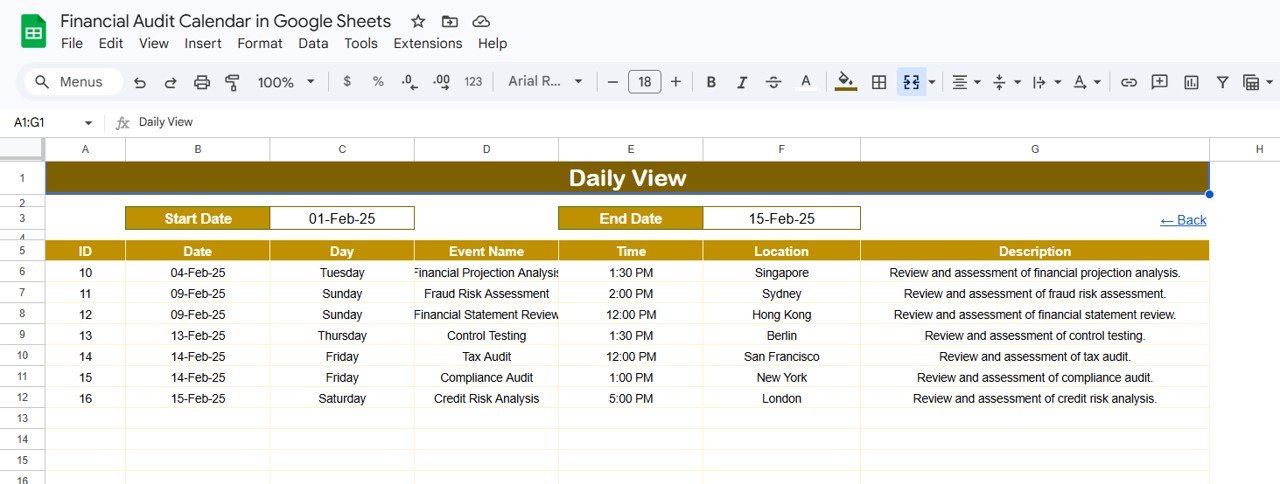
The Daily View is a filtered list. Enter a Start Date and End Date and it lists every event in that window with its ID, Date, Day, Event Name, Time, Location and Description. With 01-Feb-25 to 15-Feb-25 in the sample, it returns seven events, from Financial Projection Analysis on 4 February to Credit Risk Analysis on 15 February. Double-clicking a date cell opens the Google Sheets date picker.
5. Events Sheet
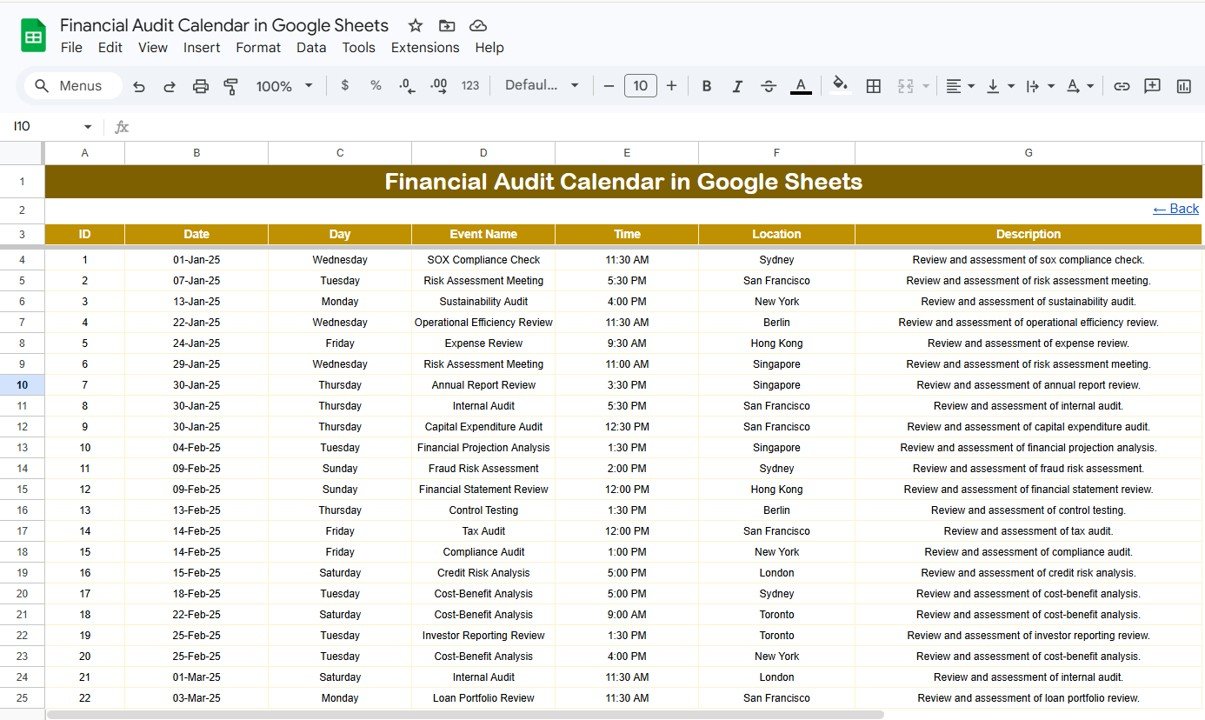
The Events sheet is the data behind every view. Each row is one event with seven columns: ID, Date, Day, Event Name, Time, Location and Description. IDs are numbered automatically and the Day column shows the weekday for each date. The sample list includes events such as Risk Assessment Meeting, Sustainability Audit, Operational Efficiency Review, Capital Expenditure Audit, Fraud Risk Assessment, Control Testing, Investor Reporting Review and Loan Portfolio Review, held in cities such as Sydney, Berlin, Singapore and New York.
How to Use It with Your Own Audit Schedule
- Open the template from the link in your download and choose File → Make a copy to save it to your Google Drive.
- Go to the Events sheet and delete the sample rows, keeping the header row.
- Add your events one per row: Date, Event Name, Time, Location and a short Description. ID and Day take care of themselves.
- Open the Annual View, pick the year and check that your event dates are highlighted.
- Use the Monthly View in your weekly meeting: select the current month and year and run through what is scheduled.
- Use the Daily View to build a list for a specific period, such as the next two weeks or a quarter-end close.
- Share the file with your team through Share in the top-right corner, giving edit access only to the people who maintain the Events sheet.
Useful Formulas for Audit Planning
The template does not need any formula work from you, but if you add a small summary area next to the Events sheet, these formulas help. They assume dates are in column B and event names in column D of the Events sheet.
Events in February 2025:
=COUNTIFS(Events!B:B,">="&DATE(2025,2,1),Events!B:B,"<="&DATE(2025,2,28))

Events due in the next 14 days:
=COUNTIFS(Events!B:B,">="&TODAY(),Events!B:B,"<="&TODAY()+14)

Number of Tax Audit events:
=COUNTIF(Events!D:D,"Tax Audit")
If you are new to spreadsheets and want to build skills like this step by step, the learning paths on NextGenTemplates Academy are a good place to start.
Real-World Use Cases
- Internal audit team: plan the year’s control testing, process reviews and follow-ups in the Annual View, then use the Monthly View in weekly stand-ups.
- Small accounting firm: record client audits and filing deadlines in the Events sheet, putting the client name in the Description, and use the Daily View to plan staff for the coming fortnight.
- Finance or compliance lead: keep SOX checks, regulatory filing deadlines, budget reconciliations and external audit visits in one shared calendar that the CFO can view at any time.
Best Practices
- Use consistent event names (for example “Internal Audit – Payroll” rather than several spellings) so lists and counts stay clean.
- Put the department, client or owner in the Description so a Daily View list tells people who is responsible.
- Protect the header rows and buttons with Data → Protect sheets and ranges so nobody breaks the layout by accident.
- Review the next month every week and the full year every quarter.
- Keep a monthly archive with File → Download → Microsoft Excel (.xlsx).
Limitations: When It Is Not the Right Tool
- It does not send reminders by email or chat. Someone needs to check the calendar, or you can copy key dates into Google Calendar.
- It is a schedule, not an audit management system. There is no workpaper storage, evidence collection, findings log or sign-off workflow.
- Access control is limited to normal Google Sheets sharing and protected ranges.
- Events are entered row by row. Bulk imports have to be pasted into the Events sheet in the same column order.
Related Templates and Guides
Prefer Excel? The same calendar is available as the Financial Audit Calendar in Excel.
For audit preparation, read the Financial Audit Preparation Checklist in Google Sheets and the Internal Audit Checklist in Google Sheets. For other scheduling needs, see the Audit Schedule Calendar in Google Sheets, the Tax Filing Calendar in Google Sheets and the Compliance Audit Tracker in Google Sheets.
Frequently Asked Questions
What views does the Financial Audit Calendar in Google Sheets include?
It has an Annual View (12 months for a selected year), a Monthly View (one month with event names on each date) and a Daily View (events between a start and end date), all fed from one Events sheet. A Home sheet links to each view.
Where do I enter new audits?
Only in the Events sheet. Add a row with the date, event name, time, location and description, and the Annual, Monthly and Daily views pick it up.
What happens if two audits fall on the same day?
The Monthly View shows the first event name and a “1 more…” note under it. The Daily View lists every event for that date in full.
Can I add columns such as Auditor or Status?
Yes. You can add columns to the right of Description in the Events sheet for things like auditor, status or priority. The calendar views will keep showing the standard fields.
Can I use it for non-financial audits?
Yes. The structure works for IT audits, quality audits, safety inspections or any dated review. Just replace the sample events with your own.
Can my whole team use it at once?
Yes. It is a normal Google Sheets file, so you can share it by link and team members can view or edit it at the same time, based on the access you give them.
Wrapping Up
The Financial Audit Calendar in Google Sheets keeps your audit dates in one Events list and shows them by year, by month and by date range, with no add-ons to install. Make a copy, replace the sample events with your own schedule, and use the Monthly View as the agenda for your next team meeting.
Get the Financial Audit Calendar in Google Sheets
📅 Last updated: October 2026