Managing office documents becomes difficult when files grow in number, versions change frequently, and multiple departments access the same documents. Emails, folders, and manual registers quickly create confusion. As a result, organizations lose control over approvals, confidentiality, and document ownership.
That is exactly where an Office Document Management Dashboard in Google Sheets becomes extremely valuable.
This ready-to-use Google Sheets dashboard helps organizations track documents, monitor approvals, analyze departments, manage confidentiality levels, and search records instantly. Instead of guessing where documents stand, teams gain complete visibility with interactive dashboards.
In this article, we will explain how the Office Document Management Dashboard in Google Sheets works, what each dashboard page shows, and how it helps organizations improve document control and compliance.
What Is an Office Document Management Dashboard in Google Sheets?
Click to Buy Office Document Management Dashboard in Google Sheets
An Office Document Management Dashboard in Google Sheets is an interactive reporting and analytics solution built inside Google Sheets to track and manage office documents.
Instead of maintaining multiple sheets or folders, this dashboard centralizes all document-related data into one structured system. As a result, users can monitor document status, versions, departments, confidentiality, and approvals in real time.
Because it runs in Google Sheets, the dashboard remains:
- Cloud-based
- Easy to share
- Simple to update
- Accessible from anywhere
Why Do Organizations Need a Document Management Dashboard?
Office documents change constantly. New versions appear, approvals move slowly, and departments handle documents differently. Without visibility, risks increase quickly.
This dashboard helps organizations:
- Track document lifecycle clearly
- Reduce approval delays
- Improve compliance and control
- Monitor confidentiality levels
- Save time on manual reporting
Therefore, document management becomes proactive instead of reactive.
Overview of the Office Document Management Dashboard
Click to Buy Office Document Management Dashboard in Google Sheets
Key Metrics Displayed on the Overview Page
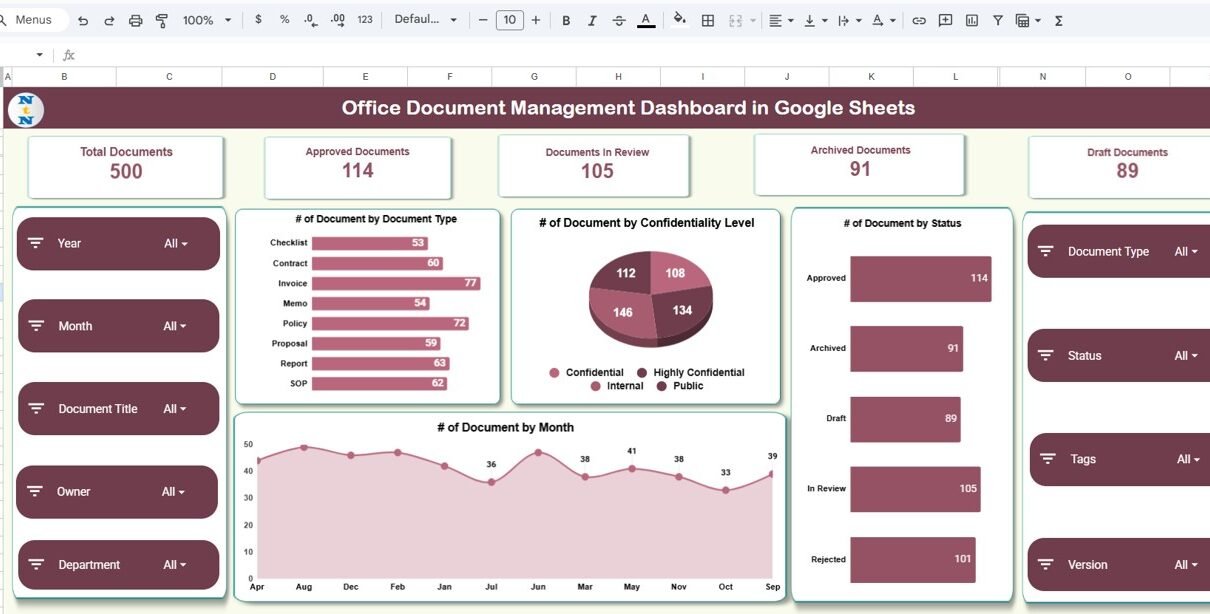
At the top of the dashboard, KPI cards show:
- Total Documents
- Approved Documents
- Documents In Review
- Archived Documents
- Draft Documents
These KPIs help users instantly understand document volume and status.
Interactive Filters (Slicers)
On the left side, slicers allow filtering by:
- Year
- Month
- Document Title
- Owner
- Department
On the right side, additional filters allow selection by:
- Document Type
- Status
- Tags
- Version
Because of these slicers, users can drill down instantly into specific document groups.
Document Analysis Charts
The overview page also includes:
-
Number of documents by document type
-
Number of documents by confidentiality level
-
Number of documents by status
-
Monthly document creation trend
As a result, patterns and workload become easy to understand.

Click to Buy Office Document Management Dashboard in Google Sheets
Department Analysis – How Do Departments Handle Documents?
Key Insights from Department Analysis
This page shows:
-
Average document version by department
-
Number of documents by department
-
Approved vs archived documents by department
-
Department-wise document type distribution
These insights help management identify:
-
Departments creating more revisions
-
Departments with approval bottlenecks
-
Departments producing high document volume

Click to Buy Office Document Management Dashboard in Google Sheets
Document Type Analysis – Which Documents Dominate?
What This Page Explains
This page displays:
-
Average version by document type
-
Number of documents by document type
-
Approved vs archived documents by document type
-
Confidentiality level distribution by document type
Using this view, teams can quickly understand:
-
Which document types change frequently
-
Which document types face approval delays
-
Which document types carry higher confidentiality

Click to Buy Office Document Management Dashboard in Google Sheets
Confidential Analysis – How Secure Are Your Documents?
The Confidential Analysis page focuses on document sensitivity and security.
Insights from Confidential Analysis
This page shows:
-
Average version by confidentiality level
-
Number of documents by confidentiality level
-
Approved vs archived documents by confidentiality level
Confidentiality levels include:
-
Public
-
Internal
-
Confidential
-
Highly Confidential
This analysis helps organizations:
-
Strengthen data protection
-
Monitor sensitive documents
-
Improve compliance control

Click to Buy Office Document Management Dashboard in Google Sheets
Search Page – How Can You Find Documents Instantly?

Raw Data Sheet – Where Does the Dashboard Get Data?
The dashboard uses a structured data table containing:
- Document ID
- Document Title
- Department
- Owner
- Document Type
- Status
- Version
- Created Date
- Modified Date
- Confidentiality Level
This structure ensures clean reporting and smooth dashboard updates.

Click to Buy Office Document Management Dashboard in Google Sheets
Advantages of Office Document Management Dashboard in Google Sheets
Using this dashboard offers several strong advantages.
Centralized Document Visibility
All document data appears in one place.
Faster Decision-Making
KPIs and charts show issues instantly.
Improved Compliance
Confidential documents remain visible and controlled.
Time-Saving Search
Instant document lookup replaces manual searching.
Cloud-Based Collaboration
Google Sheets allows real-time sharing and access.
Best Practices for Using This Dashboard
Click to Buy Office Document Management Dashboard in Google Sheets
To get maximum value, follow these best practices.
-
Update document data regularly
-
Maintain consistent document naming
-
Use confidentiality levels correctly
-
Review department trends monthly
-
Train users on slicers and filters
Who Can Use This Dashboard?
This dashboard works perfectly for:
-
Office administrators
-
HR teams
-
Legal departments
-
Operations teams
-
Compliance managers
-
Management teams
Anyone familiar with Google Sheets can use it easily.
Conclusion
Click to Buy Office Document Management Dashboard in Google Sheets
The Office Document Management Dashboard in Google Sheets is a powerful yet simple solution for tracking, analyzing, and controlling office documents.
Instead of managing scattered files and manual registers, this dashboard delivers complete visibility into document status, ownership, versions, departments, and confidentiality. With interactive filters, clear KPIs, and smart search, organizations gain full control over document management.
Visit our YouTube channel to learn step-by-step video tutorials
Youtube.com/@NeotechNavigators
Watch the step-by-step video tutorial:
Click to Buy Office Document Management Dashboard in Google Sheets