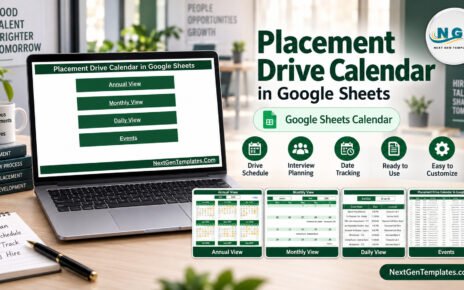
Inventory shrinkage costs businesses an estimated $112 billion annually, and irregular audit scheduling is one of the leading causes. The Inventory Audit Calendar in Google Sheets organizes audit events across 4 interactive views — Annual, Monthly, Daily, and Events — tracking 7 data fields per entry including date, time, location, and description. With auto-generated event IDs and built-in date-range filtering, this template replaces manual spreadsheet tracking in under 10 minutes.
Whether you manage a single warehouse or coordinate audits across multiple storage locations, this Google Sheets calendar gives your team a shared, real-time schedule without SaaS subscriptions or per-user fees. Below is a detailed walkthrough of every feature, view, and use case.
Get the Inventory Audit Calendar in Google Sheets
Key Features of Inventory Audit Calendar in Google Sheets
The Inventory Audit Calendar in Google Sheets tracks inventory audit events using 7 structured data fields: ID (auto-generated), Date, Day, Event Name, Time, Location, and Description. It provides 4 distinct calendar views — a 12-month annual overview, a dynamic monthly calendar with event indicators, a daily event list filtered by date range, and a master events database where all entries are stored.
Each audit entry receives an auto-generated unique ID, eliminating manual numbering errors. The calendar auto-updates when you select a different month or year from the dropdown menus — no formulas to edit. The Home sheet includes one-click navigation buttons for instant access to any view, making this a practical scheduling tool for warehouse managers, operations teams, and supply chain coordinators.
The Monthly View highlights dates with scheduled audits and shows a preview of the event name. When multiple audits fall on the same date, it displays a “more than 1…” indicator so you know to check the full list. The Daily View supports custom date-range filtering using a built-in date picker — double-click any date cell to open it. These features make it easy to manage recurring inventory schedules in Google Sheets without switching between tabs or platforms.
Template Structure — 5 Worksheets Explained
This ready-to-use calendar template in Google Sheets includes 5 worksheets designed for end-to-end inventory audit scheduling:
1. Home Sheet
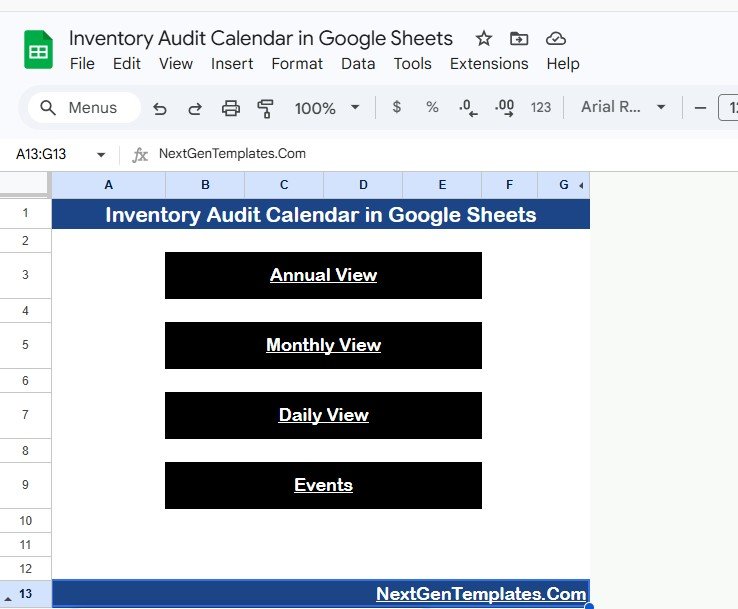
This is an index sheet with 4 navigation buttons: Annual View, Monthly View, Daily View, and Events. Click any button to jump directly to the respective sheet. It serves as the central hub for navigating the entire calendar.
Inventory Audit Calendar in Google Sheets2. Annual View Sheet
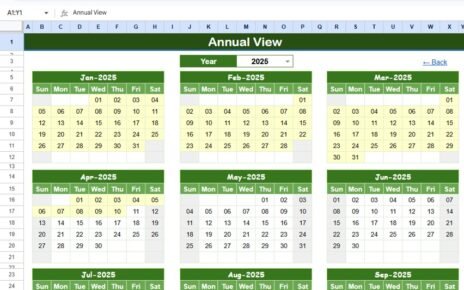
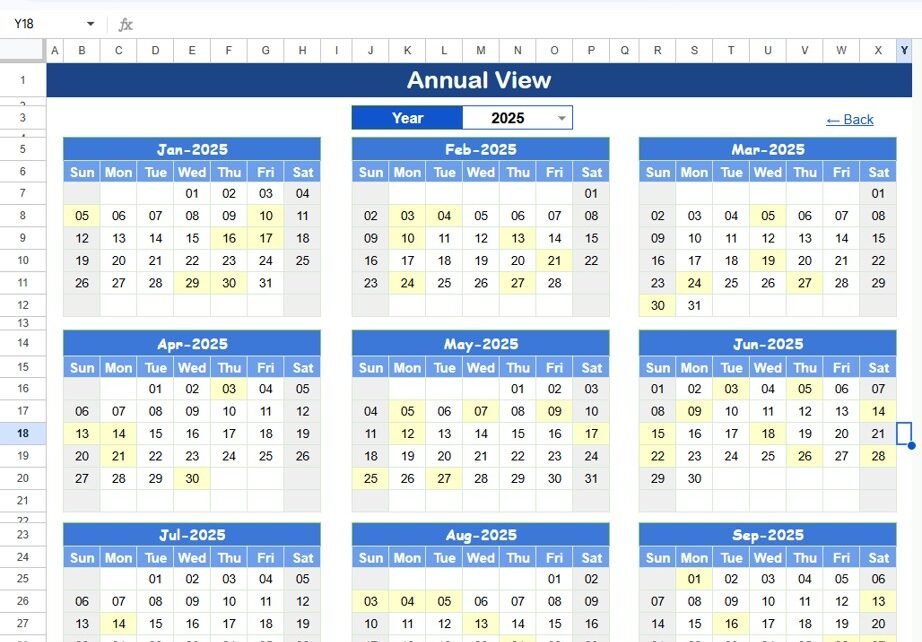
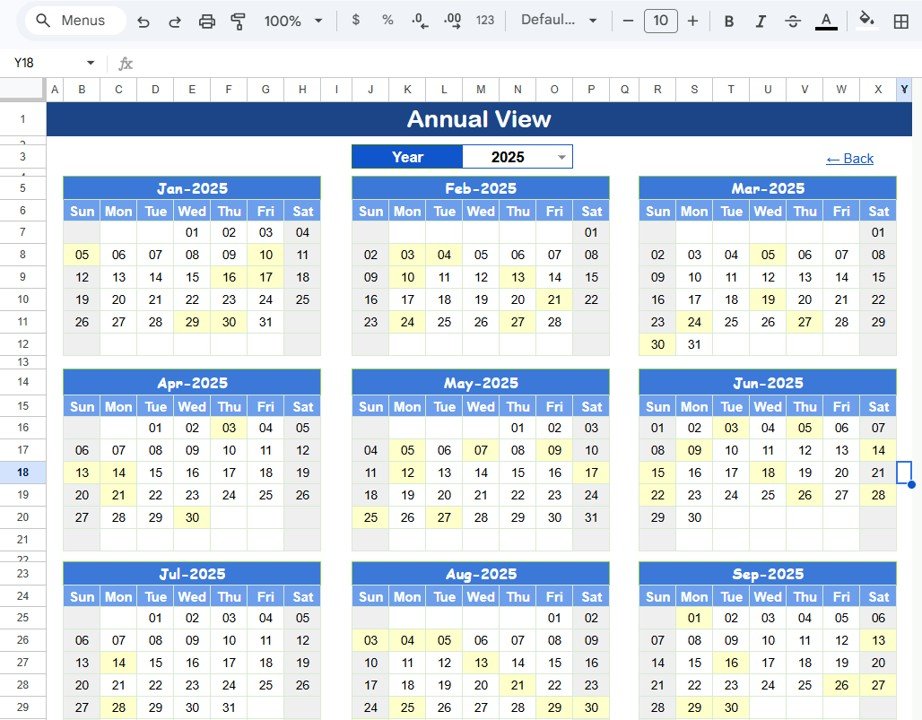
The Annual View displays all 12 months of the calendar in a single view. This layout is ideal for spotting scheduling gaps, planning quarterly audit cycles, or ensuring every warehouse location receives regular inspections throughout the year. Operations managers can print this view and pin it in the warehouse for quick reference.
 Annual View Sheet
3. Monthly View Sheet
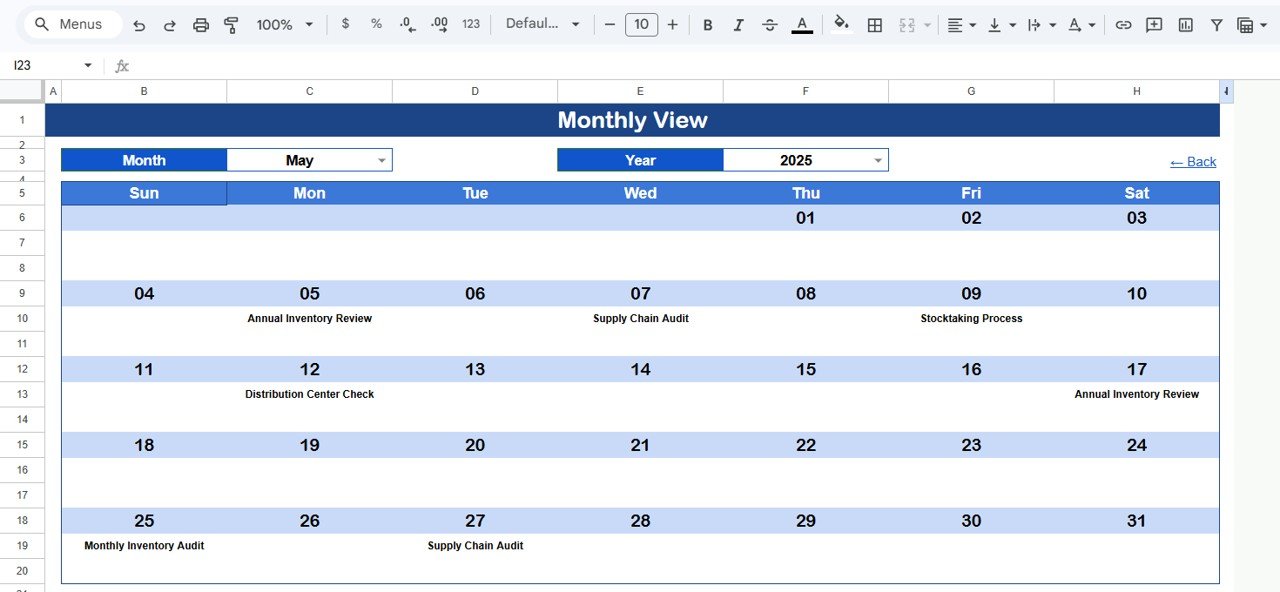
The Monthly View shows a single calendar for the selected month. Select the Month and Year from the dropdown menus at the top, and the calendar updates automatically. Each date cell displays one event name — if there are more than 1 event on any date, it shows “more than 1…” to indicate additional entries. This view gives calendar template users a visual overview of audit activity for any given month.
 Monthly View Sheet
4. Daily View Sheet
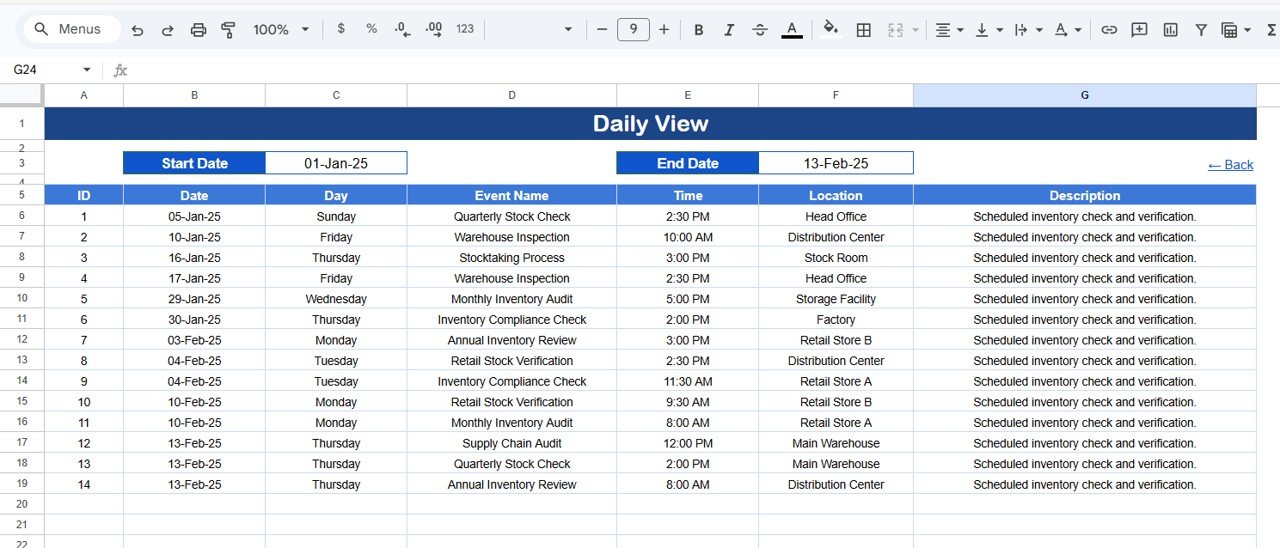
The Daily View lists all audit events within a selected date range. Enter a Start Date and End Date at the top of the sheet — double-click in the cell to open the built-in calendar date picker. The sheet automatically filters and displays all matching events with full details including event name, time, location, and description. This is particularly useful for generating daily or weekly audit reports for floor supervisors.
 Daily View Sheet
5. Events Sheet
The Events sheet is the master database for all audit entries. Each row captures the following information:
- ID — Auto-generated unique number
- Date — Date of the audit event
- Day — Day of the week (Sunday, Monday, etc.)
- Event Name — Name of the audit event
- Time — Scheduled time of the audit
- Location — Warehouse, storage area, or facility location
- Description — Short description of the audit scope
You can enter data manually to add a new event. All other views (Annual, Monthly, Daily) pull data from this sheet automatically.
Events SheetInventory Audit Calendar vs. Microsoft Excel Calendar vs. Zoho Inventory — Feature Comparison
| Feature | Inventory Audit Calendar (Google Sheets) | Microsoft Excel Calendar | Zoho Inventory |
|---|---|---|---|
| Cost | $4.99 one-time | $6.99/month (Microsoft 365) | $29/month (Standard plan) |
| Platform | Google Sheets (browser-based) | Desktop application | Cloud SaaS |
| Setup time | Under 10 minutes | 30-60 minutes | 2-4 hours |
| Real-time team collaboration | ✅ Built-in | ❌ Requires OneDrive setup | ✅ Yes |
| Mobile access | ✅ Google Sheets app | Limited (Excel mobile) | ✅ Mobile app |
| Customizable fields | ✅ Fully editable | ✅ Fully editable | ❌ Fixed fields |
| Annual + Monthly + Daily views | ✅ All 4 views included | ❌ Build manually | ❌ Not calendar-focused |
| Share with link | ✅ One-click sharing | ❌ File sharing only | ✅ Team access |
| Year-1 cost at 5 users | $4.99 total | $419.40 | $1,740 |
For teams that want a structured inventory audit schedule without paying monthly SaaS fees, the Inventory Audit Calendar in Google Sheets sits in the sweet spot.
Who Should Use This Template
✅ Perfect for:
- Warehouse managers scheduling weekly, monthly, or quarterly stock audits across 1-5 locations
- Small business owners coordinating cycle counts with limited staff
- Operations and supply chain teams assigning audit dates, times, and locations to team members
- Retail store managers planning seasonal inventory checks and year-end counts
- Quality assurance teams tracking inspection schedules alongside regular audits
❌ Not a fit if:
- You need barcode scanning, RFID integration, or automated stock-level tracking — consider a dedicated Inventory Management Dashboard
- Your organization requires automated compliance audit trails with digital signatures and chain-of-custody logs
- You manage 50+ warehouse locations and need enterprise resource planning (ERP) integration
Real-World Use Cases
Raj manages a 3-warehouse operation in Mumbai. He uses the Inventory Audit Calendar to schedule monthly cycle counts across all locations, assigning specific audit dates to each warehouse. The Annual View helps him ensure no warehouse goes more than 30 days without an audit — and the Daily View lets him print a filtered list for his floor supervisors each morning.
Linda runs inventory for a mid-size retail chain in Texas. She schedules quarterly full-stock audits and weekly spot-checks using the Events sheet. The Monthly View gives her store managers a visual calendar they can reference without logging into any SaaS platform — she just shares the Google Sheets calendar link.
Carlos is a supply chain coordinator at a food distribution company. He tracks cold storage audits, expiration date checks, and compliance inspections in one calendar. The date-range filter in Daily View lets him pull audit reports for specific inspection windows — something his previous spreadsheet couldn’t do without manual sorting.
Advantages of Inventory Audit Calendar in Google Sheets
- Zero software costs — Google Sheets is free; you only pay $4.99 once for the template
- Real-time collaboration — share the calendar link and your entire team can view and edit simultaneously
- 4 purpose-built views — Annual, Monthly, Daily, and Events cover every scheduling need from high-level planning to daily task lists
- Auto-generated IDs — no manual numbering; each event gets a unique identifier automatically
- Date-range filtering — the Daily View’s built-in date picker lets you pull reports for any custom period
- Mobile-ready — access from any device using the Google Sheets app or browser
- No learning curve — anyone familiar with spreadsheets can start using it in under 10 minutes
Opportunities for Improvement
- No recurring event automation — if you schedule the same audit every Monday, you’ll need to enter each occurrence manually. Future versions could include Apps Script automation for repeating events.
- Single-user entry point — the Events sheet doesn’t have form-based data entry. A Google Forms integration could streamline input for teams with many contributors.
- No notification system — the calendar doesn’t send email reminders before upcoming audits. Pairing it with Google Calendar or Zapier could add automated alerts.
- Limited to date-level granularity — the Monthly View shows one event per date cell. For teams scheduling 5+ audits per day, a more detailed agenda view would be beneficial.
Best Practices
- Standardize event names — use a consistent naming convention like “[Location] – [Audit Type]” (e.g., “Warehouse A – Cycle Count”) so you can sort and filter easily
- Use the Annual View for planning — at the start of each quarter, open the Annual View and verify that every location has scheduled audits for the next 90 days
- Filter Daily View before supervisor meetings — set the date range to the current week and share the filtered list with floor managers as their weekly audit checklist
- Color-code locations — add conditional formatting rules to the Events sheet to highlight different warehouse locations with distinct colors
- Back up monthly — make a copy of the file at the end of each month to maintain an audit history archive
Explore Relevant Templates
📌 Inventory Restocking Calendar in Google Sheets — Schedule and track restocking dates across suppliers and SKUs with the same 4-view layout.
📌 Corporate Meetings Calendar in Google Sheets — Manage meeting schedules with annual, monthly, and daily views.
📌 Product Development Calendar in Google Sheets — Track product milestones, review dates, and sprint deadlines.
📌 Inventory Management Dashboard in HTML — For teams needing full stock-level tracking with KPIs, charts, and trend analysis.
📌 Inventory Management System V3.0 (Excel VBA) — Full inventory management with barcode support, purchase orders, and sales tracking.
Get the Inventory Audit Calendar in Google Sheets
If you would like to sharpen your spreadsheet skills beyond this template, the NextGenTemplates Academy learning paths offer guided lessons with downloadable practice files.
Frequently Asked Questions
What data fields does the Inventory Audit Calendar track?
The Inventory Audit Calendar in Google Sheets tracks 7 fields per audit event: ID (auto-generated), Date, Day, Event Name, Time, Location, and Description. All fields are fully editable and customizable to match your audit workflow requirements.
Can I use this calendar for multiple warehouse locations?
Yes. Enter a different location for each audit event in the Events sheet. The Daily View and Monthly View display all locations together, making it straightforward to coordinate audits across multiple warehouses, storage areas, or distribution centers.
How does this compare to Zoho Inventory for audit scheduling?
Zoho Inventory costs $29/month and focuses on stock management — not audit scheduling. The Inventory Audit Calendar costs $4.99 one-time and is purpose-built for scheduling, viewing, and filtering audit events across annual, monthly, and daily timelines with no recurring fees.
Does the calendar auto-update when I change the month or year?
Yes. The Monthly View updates automatically when you select a different month or year from the dropdown menus at the top. No formulas to edit — just pick the period and the calendar refreshes to show the relevant audit events.
How long does setup take?
Setup takes under 10 minutes. Open the Google Sheets link from the PDF guide, make a copy to your Google Drive, and start entering audit events in the Events sheet. All views — Annual, Monthly, and Daily — populate automatically from your entries.
Can multiple team members edit the calendar at the same time?
Yes. Google Sheets supports real-time collaboration out of the box. Click the Share button, enter your team members’ email addresses, and everyone can view or edit the calendar simultaneously — no additional licenses, per-user fees, or software installations required.
Is this template compatible with mobile devices?
Yes. The Inventory Audit Calendar works on any device with the Google Sheets app or a mobile browser. You can view schedules, add events, and filter by date range directly from your phone or tablet while on the warehouse floor.
About the Author
Built by PK — Microsoft Certified Professional with 15+ years of Excel, Google Sheets, and Power BI experience. Founder of NextGenTemplates, reaching 300K+ subscribers across YouTube channels. Every template is hand-built and tested before release.
Conclusion
The Inventory Audit Calendar in Google Sheets gives warehouse managers, operations teams, and small business owners a structured, shareable audit schedule — without monthly SaaS fees or complex software setups. With 4 interactive views, 7 tracked data fields, and real-time collaboration built in, it replaces scattered spreadsheets and email chains with one organized calendar.
✅ Instant download · One-time payment · No subscription