In this article we have created a Business Trip Calendar in Google Sheets. This is a ready to use Calendar template in Google Sheets for teams that need one shared place to plan business trips, client visits, travel deadlines, meetings, and follow-up activities. A single business trip often includes 6-10 separate schedule items, and those items can quickly spread across email, chat, personal calendars, and expense notes. This template brings the annual plan, monthly calendar, daily date-range list, and event database together in one Google Sheets file.
The template is designed for practical business travel coordination: executive assistants can track leadership trips, sales managers can coordinate regional visits, HR teams can log employee travel events, and operations teams can plan site visits without buying a full travel management platform.
Click here to purchase the Business Trip Calendar in Google Sheets
Business Trip Calendar in Google Sheets
Key Features of Business Trip Calendar in Google Sheets
- 5 worksheet structure: Home, Annual View, Monthly View, Daily View, and Events.
- 12-month annual calendar: View the full year of business trip activity on one sheet.
- Selected-month calendar: Choose the Month and Year at the top and review the active month.
- Date-range daily list: Enter Start Date and End Date to see every event in that window.
- Central Events database: Store ID, Date, Day, Event Name, Time, Location, and Description.
- Multiple-event indicator: The Monthly View shows when a date has more than one activity.
- Google Sheets sharing: Share the template with team members using Google Drive permissions.
Template Sheets Explanation
1. Home Sheet Tab
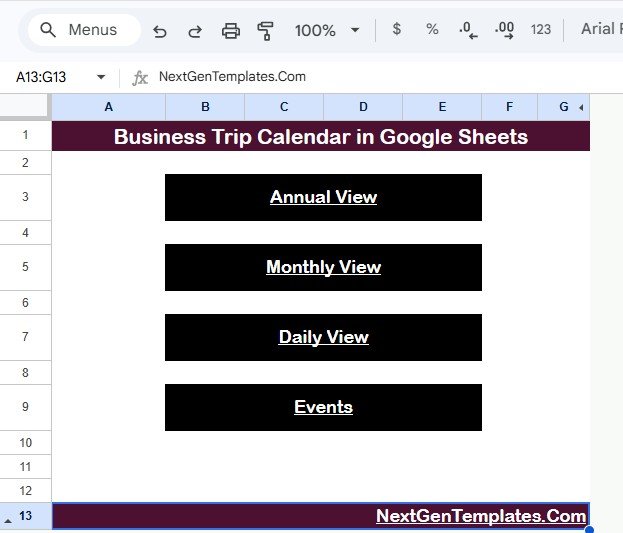
The Home sheet tab is the index sheet. It contains four navigation buttons that jump to the respective sheets: Annual View, Monthly View, Daily View, and Events. This is useful when a manager or assistant wants to move quickly between views during a planning call without searching through sheet tabs.
Business Trip Calendar in Google Sheets
2. Annual View Sheet Tab
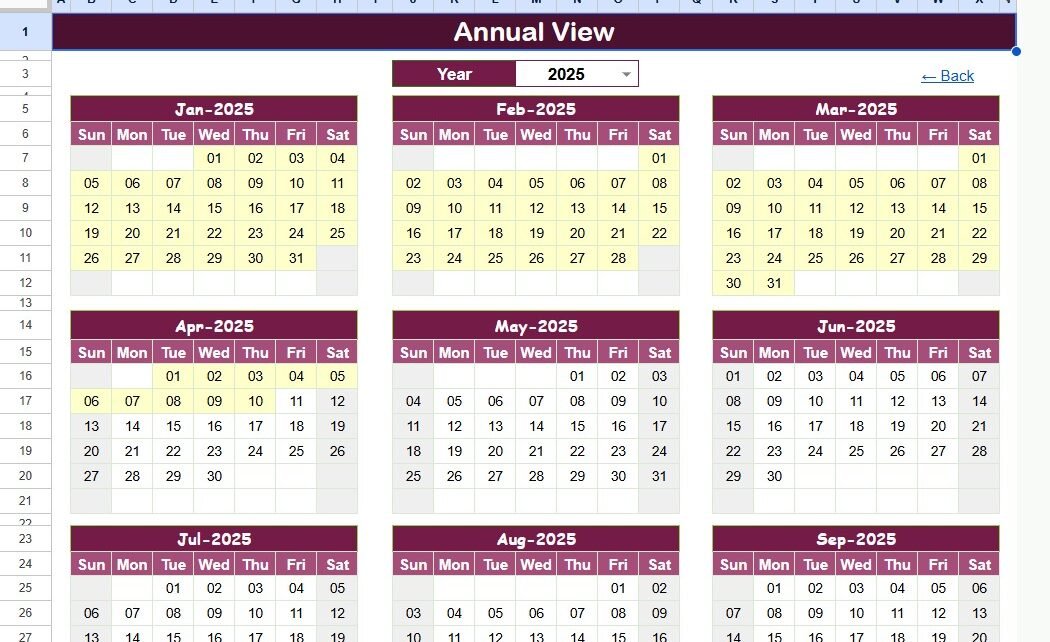
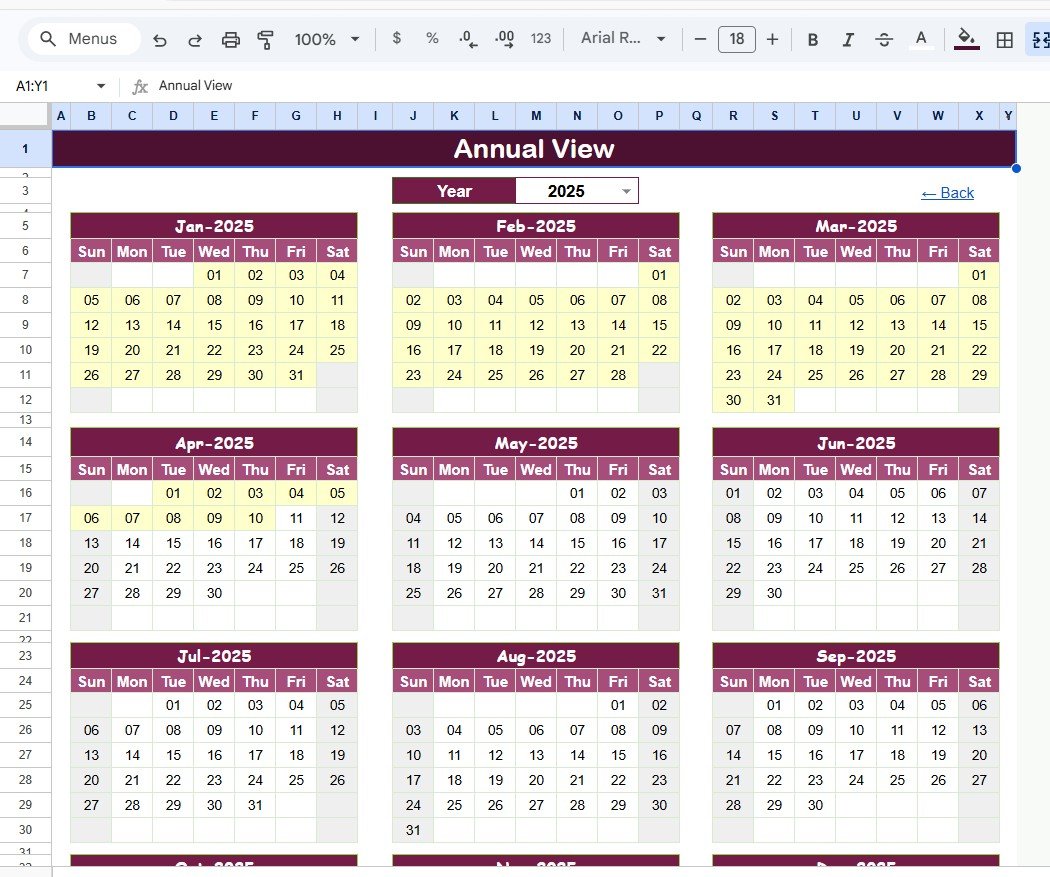
The Annual View sheet shows 12 months of calendars together. This view helps travel coordinators spot heavy travel seasons, avoid double-booking key staff, plan quarterly client visits, and understand the travel load before approving budgets. If the team runs sales visits, conferences, inspections, audits, or leadership travel, the annual view gives everyone a clean year-level picture.
Annual View Sheet tab
3. Monthly View Sheet Tab
The Monthly View sheet is a single calendar for a selected month. You can select the Month and Year from the top, and the calendar updates accordingly. The calendar shows one event on a date, and if there is more than one event on any date, it displays a more-than-one indicator. This lets a team quickly identify crowded travel days and open the Events sheet or Daily View for more detail.
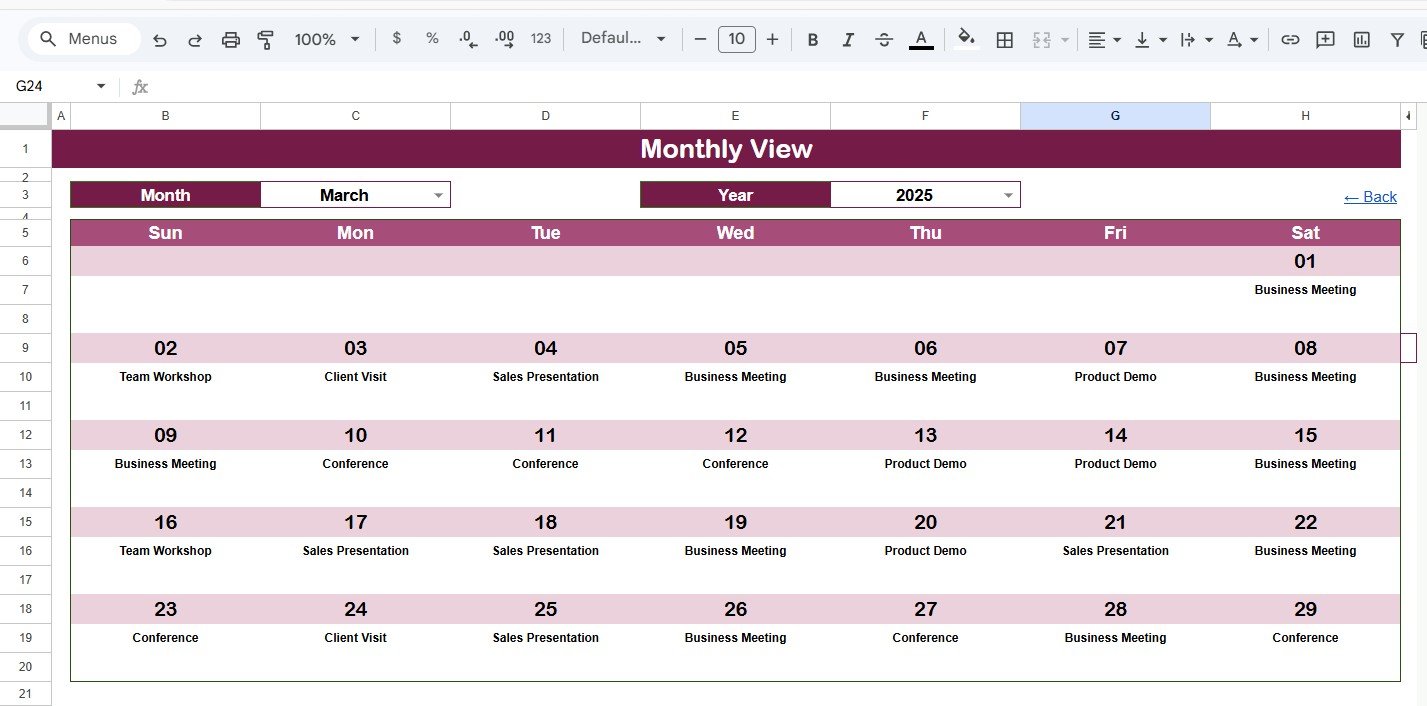
Monthly View Sheet tab
4. Daily View Sheet Tab
The Daily View sheet shows the list of events with details for a selected date range. Enter the Start Date and End Date at the top, or double-click in the date cell to open the Google Sheets date picker. This view is useful for weekly trip briefings, daily travel coordination, employee reminders, manager approvals, and checking what is coming up before a business trip starts.
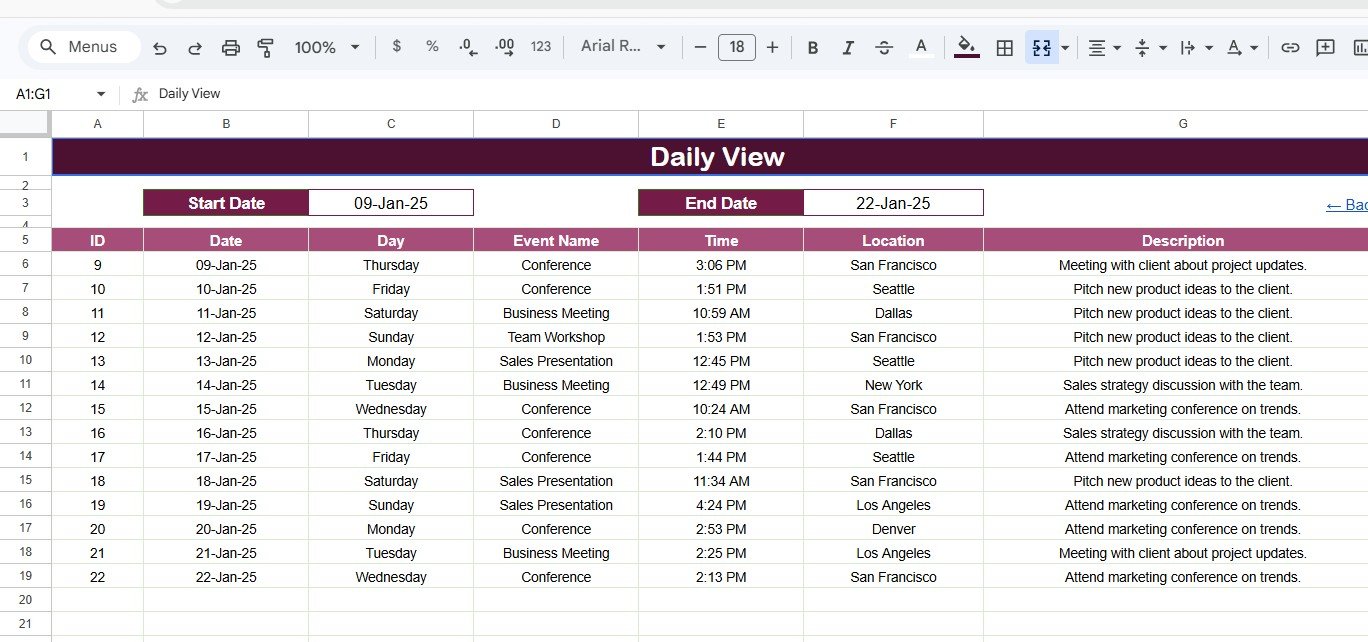
Daily View Sheet tab
5. Events Sheet Tab
The Events sheet tab is the database sheet. Here, all business trip events are captured in a structured table. The fields include ID, Date, Day, Event Name, Time, Location, and Description. The ID is auto generated, the Date stores the event date, the Day shows the weekday, Event Name stores the trip or meeting name, Time captures the scheduled time, Location stores the city, client site, office, or venue, and Description stores a short note about the event.
You can enter the data manually to add a new event. Once the event is entered, the Annual View, Monthly View, and Daily View can use the database for calendar display and filtering.
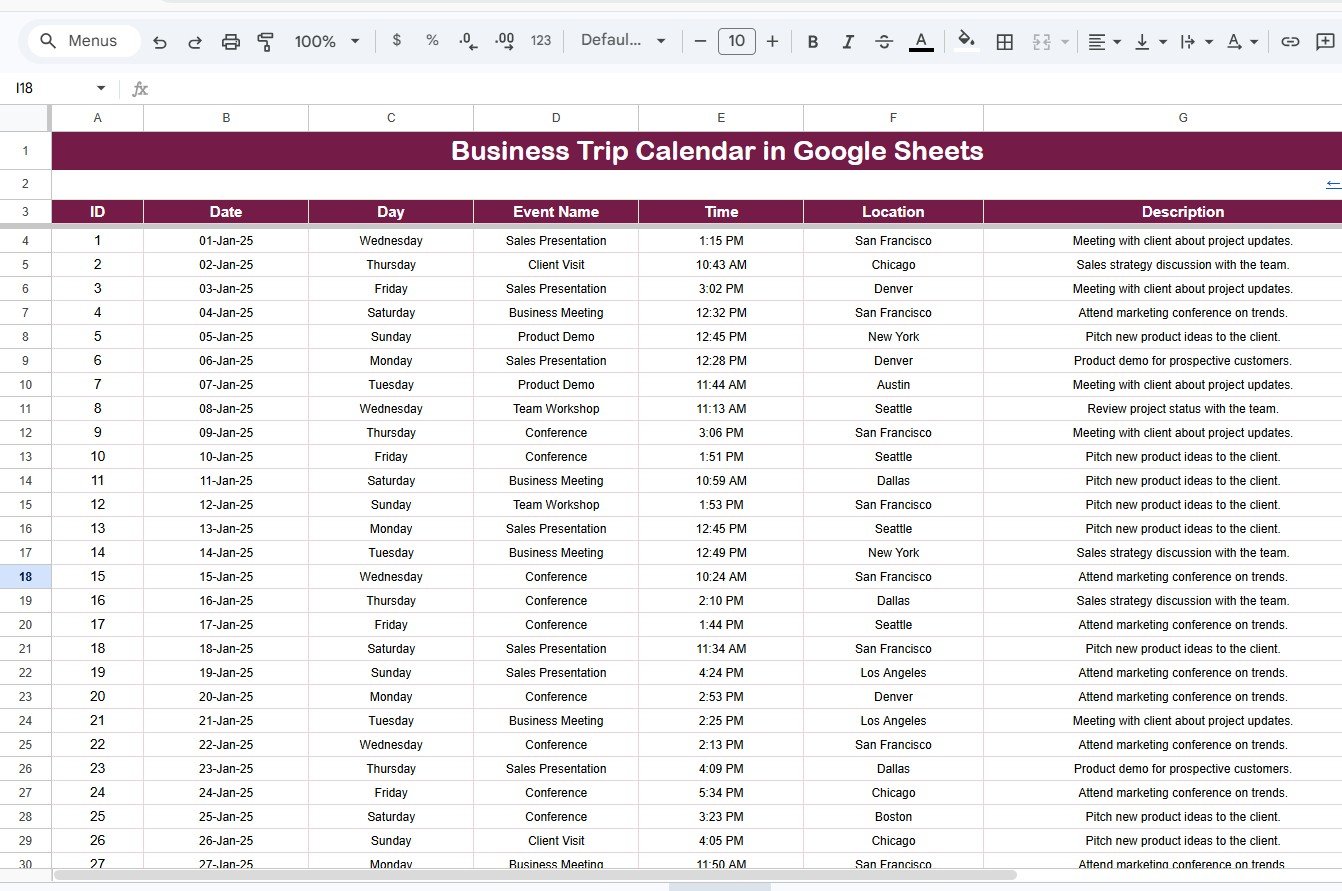
Events Sheet tab
Business Trip Calendar in Google Sheets vs. Excel Calendar vs. Paid Travel SaaS – Feature Comparison
| Feature | Business Trip Calendar in Google Sheets | Excel Calendar | Paid Travel SaaS |
|---|---|---|---|
| Cost | $4.99 one-time | $4.99-$12.99 one-time | Monthly or per-booking fees |
| Platform | Google Sheets | Microsoft Excel | Cloud travel platform |
| Setup time | Under 5 minutes | 5-15 minutes | Days or weeks for policy setup |
| Real-time team collaboration | Built in | Requires OneDrive or SharePoint | Built in |
| Mobile access | Google Sheets app or browser | Limited | Mobile app |
| Customizable fields | Fully editable | Fully editable | Plan dependent |
| Share with link | Yes | Usually attachment or cloud link | Invite based |
| Year-1 cost at 5 users | $4.99 total | $4.99-$12.99 total | Often hundreds to thousands per year |
| Best fit | Trip scheduling and visibility | Offline planning | Booking, policy, and expense automation |
This template is not trying to replace a full travel booking platform. It fits the space where a business needs a clean, shared schedule for trips and meetings, but does not need automated flight booking, card reconciliation, or approval workflows.
Who Should Use This Template
- Executive assistants coordinating leadership travel and client meetings.
- Sales managers scheduling regional visits, demos, and account reviews.
- HR teams tracking employee travel for interviews, onboarding, or training.
- Project managers planning site visits, inspection dates, or vendor meetings.
- Small businesses that need a travel calendar but do not want recurring SaaS costs.
Real-World Use Cases
Anika, executive assistant: Anika tracks travel for two directors who attend board meetings, client reviews, and partner visits. She uses the Monthly View to check conflicts and the Daily View to prepare a weekly briefing.
Marcus, sales manager: Marcus manages five account executives across three regions. Every city visit goes into the Events sheet, so the team can coordinate shared customer meetings and reduce unnecessary travel overlap.
Priya, operations coordinator: Priya plans site inspections and vendor meetings for a distributed services company. The Annual View helps her see busy months before confirming new travel dates.
Advantages of Business Trip Calendar in Google Sheets
- Fast setup: Make a copy in Google Drive and start entering events immediately.
- Shared visibility: Team members can work in the same file instead of sending calendar screenshots.
- Flexible structure: Add columns like Employee Name, Cost Center, Booking Reference, Approval Status, or Trip Type.
- Multiple planning views: Use Annual View for long-range planning, Monthly View for active coordination, Daily View for short-term details, and Events for source data.
- Low cost: At $4.99, it is a simple one-time purchase for teams that need scheduling clarity without subscription software.
Opportunities for Improvement
- No automatic flight or hotel booking: This is a scheduling template, not a booking engine.
- No built-in expense reimbursement workflow: You can add expense notes manually, but reimbursement tracking belongs in a dedicated expense tracker.
- No automated reminders: Users should still set Google Calendar reminders for time-sensitive trips.
- Manual data entry: Events are entered in the Events sheet rather than imported from a travel platform.
Best Practices
- Use consistent naming: Write event names such as “Client Visit – Chicago” or “Q3 Sales Trip – West Region” for easy filtering.
- Add context in Description: Include meeting objective, contact person, booking reference, or expense note.
- Review weekly: Open the Monthly View every Monday to spot travel conflicts early.
- Protect formulas: Use Google Sheets protected ranges to prevent accidental edits to calendar formulas. Google’s official help explains how to share and collaborate in Sheets, including permissions and protected content: Collaborate in Sheets.
- Keep one source of truth: Enter all trip activities in the Events sheet so the other views stay aligned.
Explore Relevant Templates
- Business Trip Calendar in Google Sheets – the template featured in this article.
- Travel and Expense Calendar in Google Sheets – for teams that want travel scheduling plus expense-related tracking.
- Maintenance Tasks Calendar in Google Sheets – a similar multi-view calendar for maintenance scheduling.
- Trade Show and Conference Calendar in Google Sheets – useful for event-heavy sales and marketing teams.
Frequently Asked Questions
What is the Business Trip Calendar in Google Sheets?
It is a ready-to-use Google Sheets calendar template for planning business trips, client visits, travel meetings, and related events using Annual, Monthly, Daily, and Events views.
How many worksheets are included?
The template includes 5 worksheets: Home, Annual View, Monthly View, Daily View, and Events.
Can I add multiple business trips on the same date?
Yes. Add all events in the Events sheet. The Monthly View shows one event directly and displays a more-than-one indicator when the date contains multiple events.
Can multiple team members use the template?
Yes. Since it runs in Google Sheets, you can share the file through Google Drive and assign view, comment, or edit access.
Can I customize the event fields?
Yes. You can add fields like Employee Name, Department, Cost Center, Approval Status, Booking Reference, or Trip Type depending on your workflow.
Does this replace travel management software?
No. It is best for scheduling and visibility. Teams that need automated booking, approval routing, and reimbursement workflows should use a dedicated travel platform.
About the Author
Built by PK – Microsoft Certified Professional with 15+ years of Excel, Google Sheets, and Power BI experience. Founder of NextGenTemplates, reaching 300K+ subscribers across YouTube channels. Every template is hand-built and tested before release.
Conclusion
The Business Trip Calendar in Google Sheets gives teams a simple, shared way to plan travel activity across the year, month, and selected date ranges. With a Home sheet for navigation, an Annual View for long-term planning, a Monthly View for active coordination, a Daily View for filtered details, and an Events sheet for structured data entry, it is a practical calendar system for business travel scheduling.
Click here to purchase the Business Trip Calendar in Google Sheets
Visit our YouTube channel for step-by-step video tutorials: YouTube.com/@NeoTechNavigators