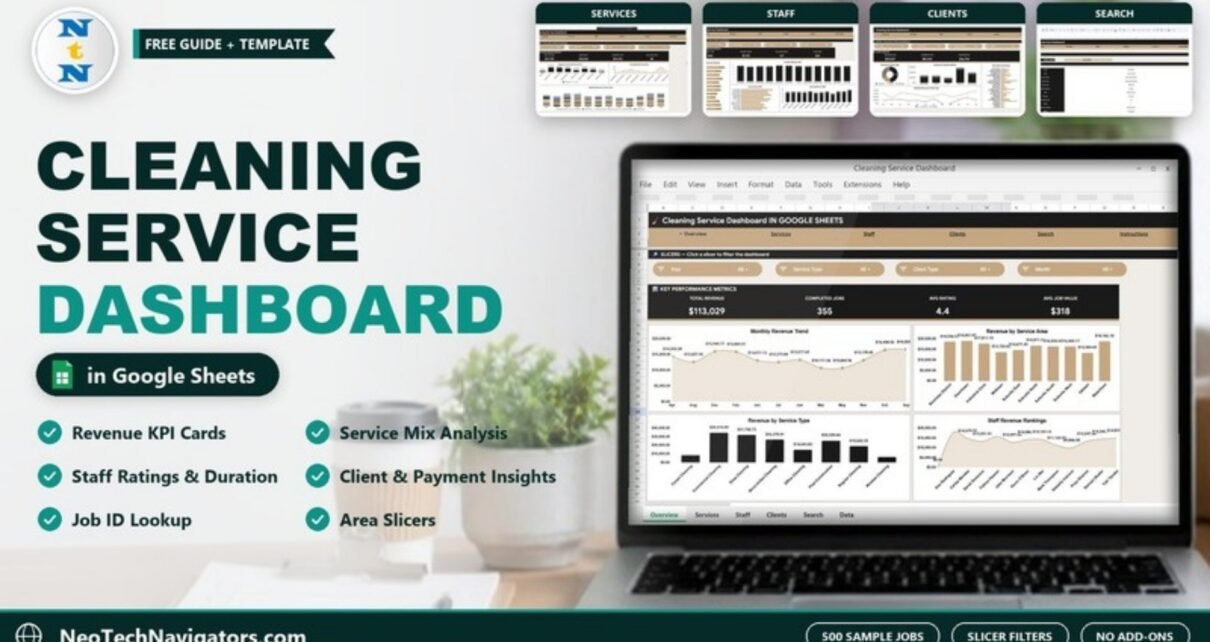
Many cleaning businesses keep job records in a notebook, a booking app export or a simple spreadsheet. The records are there, but the answers are not: which service earns the most, which staff member gets the best ratings, which area or client type is worth chasing. The Cleaning Service Dashboard in Google Sheets turns one job list into KPI cards, slicer-filtered charts and a job lookup, so those answers are a click away.
This guide walks through every page of the template as it ships with 500 sample jobs, explains what the main numbers mean, and shows how to switch to your own data. It is written for owners and managers of residential, commercial and specialist cleaning companies who already use Google Sheets and want clear reporting without a monthly software bill.
🎥 Watch the Video Tutorial
Get the Cleaning Service Dashboard
What the Cleaning Service Dashboard Solves
As a cleaning business grows from a few jobs a week to dozens a day, gut feel stops working. You need to know whether deep cleans really pay better than regular visits, whether one area keeps generating low-value jobs, and which team members clients rate highest. Building those summaries by hand each month takes hours.
This template keeps your jobs in one data sheet and builds everything else from it. A navigation bar at the top of each page links Overview, Services, Staff, Clients, Search and Instructions, and each analysis page has its own row of slicers.
Cleaning Service Dashboard in Google Sheets at a Glance
| Page | Slicers | KPI cards | Charts |
|---|---|---|---|
| Overview | Year, Service Type, Client Type, Month | Total Revenue, Completed Jobs, Avg Rating, Avg Job Value | Monthly Revenue Trend, Revenue by Service Area, Revenue by Service Type, Staff Revenue Rankings |
| Services | Year, Client Type, Area, Status | Deep Clean Rev, Regular Rev, Commercial Rev, High-Value Jobs | Revenue & Job Count by Service, Job Distribution by Service, Monthly Revenue by Service Type |
| Staff | Year, Service Type, Month, Area | Total Jobs, Highest Job Rev, Avg Duration (H), 5-Star Jobs | Staff Revenue Ranking, Average Rating by Staff, Job Count by Staff, Avg Duration by Staff |
| Clients | Year, Service Type, Payment Method, Status | Residential Rev, Commercial Rev, Industrial Rev | Revenue by Client Type, Revenue by Payment Method, Monthly Revenue by Client Type, Top Clients by Revenue |
| Search | – | – | Job lookup by Job ID |
| Data | – | – | One row per cleaning job |
Page-by-Page Walkthrough
1. Overview
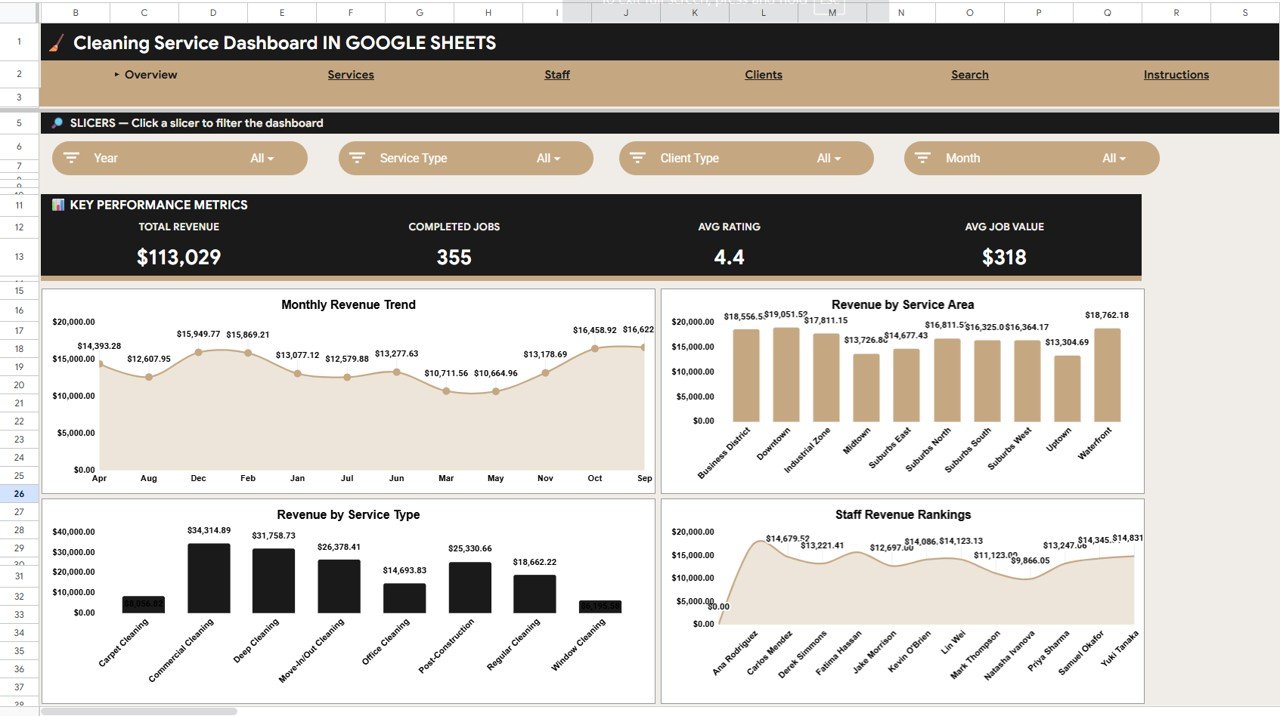
The Key Performance Metrics band shows Total Revenue $113,029, Completed Jobs 355, Avg Rating 4.4 and Avg Job Value $318. Avg Job Value is Total Revenue divided by Completed Jobs:
Avg Job Value = Total Revenue / Completed Jobs
              = $113,029 / 355
              = about $318
The four charts below the band:
- Monthly Revenue Trend – revenue for each month, with March and May the quietest in the sample (about $10,700 each). The months on this and the other monthly charts appear in alphabetical order (Apr, Aug, Dec, Feb and so on), so read the labels rather than assuming calendar order.
- Revenue by Service Area – ten areas: Business District, Downtown, Industrial Zone, Midtown, Suburbs East, Suburbs North, Suburbs South, Suburbs West, Uptown and Waterfront. Downtown and Waterfront lead.
- Revenue by Service Type – eight services: Carpet Cleaning, Commercial Cleaning, Deep Cleaning, Move-In/Out Cleaning, Office Cleaning, Post-Construction, Regular Cleaning and Window Cleaning. Commercial Cleaning is the top earner at $34,314.89.
- Staff Revenue Rankings – revenue for each of the twelve staff members.
Note that the service-type and client-type charts each add up to about $165,391, more than the $113,029 Total Revenue card. The charts appear to include jobs in every status, while the KPI band appears to count completed work only (355 completed jobs out of 500), so compare like with like when you quote figures.
2. Services
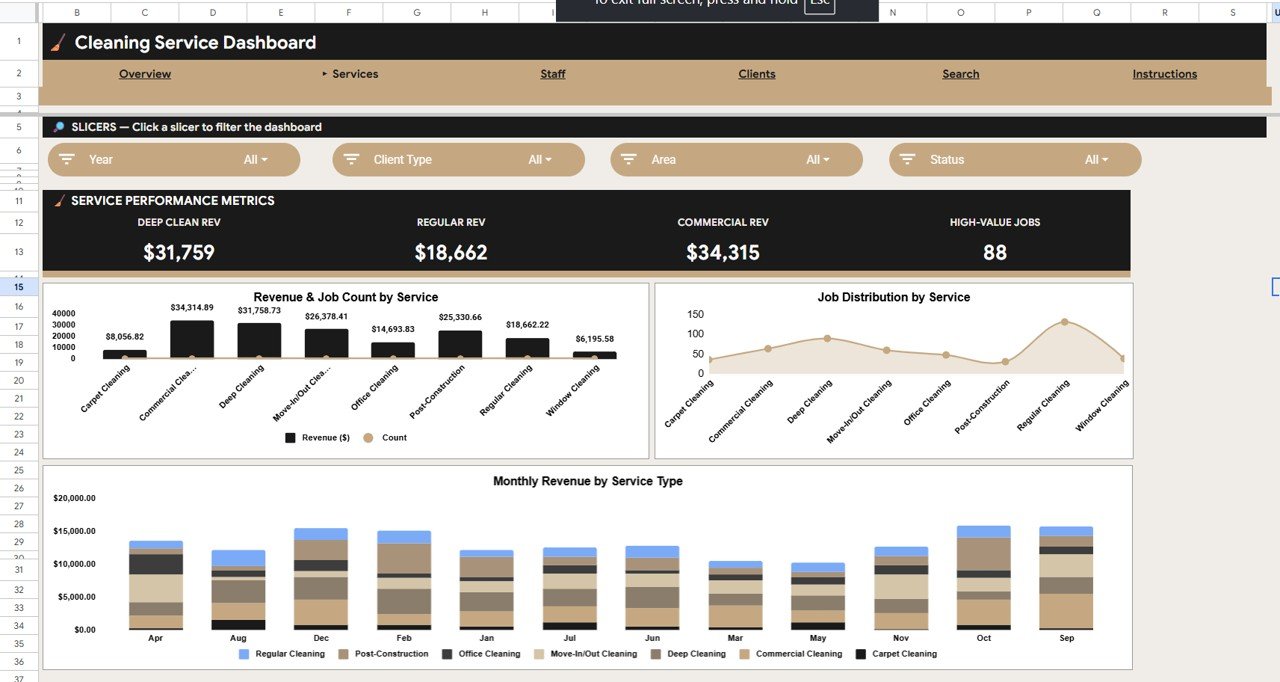
The Service Performance Metrics band shows Deep Clean Rev $31,759, Regular Rev $18,662, Commercial Rev $34,315 and High-Value Jobs 88.
- Revenue & Job Count by Service – revenue columns with job count on the same chart, so you can see whether a service earns through volume or through price.
- Job Distribution by Service – Regular Cleaning has by far the most jobs in the sample, yet it earns less than Commercial, Deep, Move-In/Out or Post-Construction work.
- Monthly Revenue by Service Type – stacked monthly columns showing how the service mix changes through the year.
3. Staff
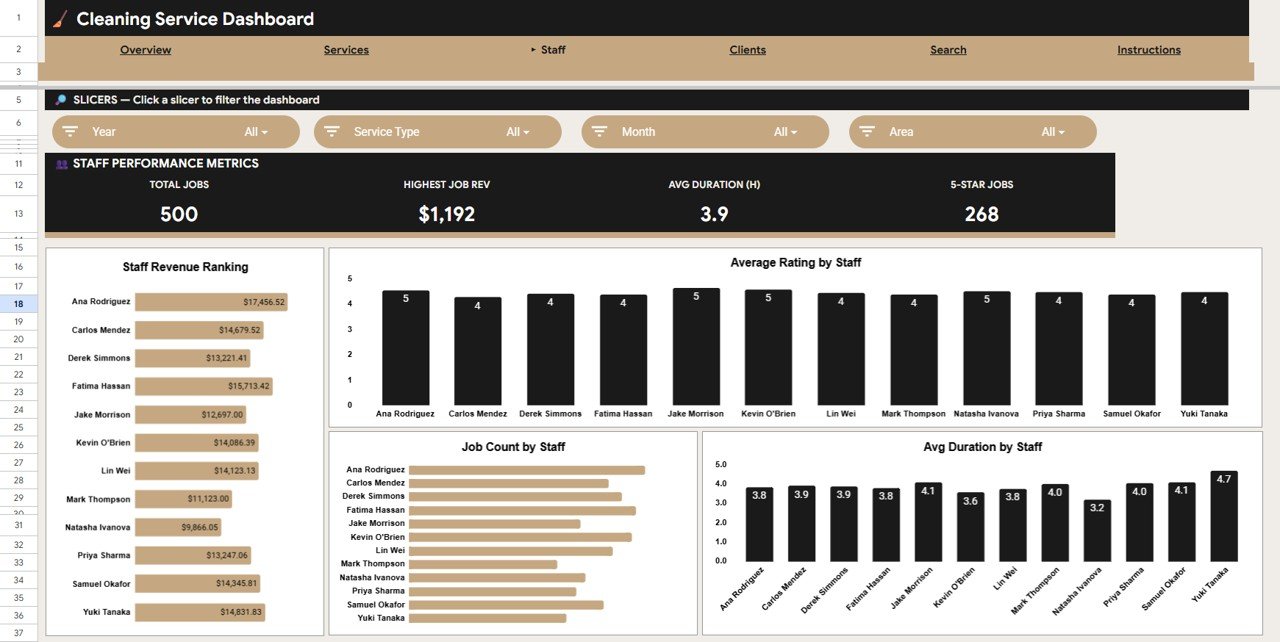
The Staff Performance Metrics band shows Total Jobs 500, Highest Job Rev $1,192, Avg Duration (H) 3.9 and 5-Star Jobs 268.
- Staff Revenue Ranking – Ana Rodriguez leads the sample at $17,456.52; Natasha Ivanova is lowest at $9,866.05.
- Average Rating by Staff – rounded average rating for each team member.
- Job Count by Staff – how the workload is shared.
- Avg Duration by Staff – from 3.2 hours (Natasha Ivanova) to 4.7 hours (Yuki Tanaka).
Read revenue and duration together: a staff member with longer average jobs may simply be assigned more deep or post-construction cleans.
4. Clients
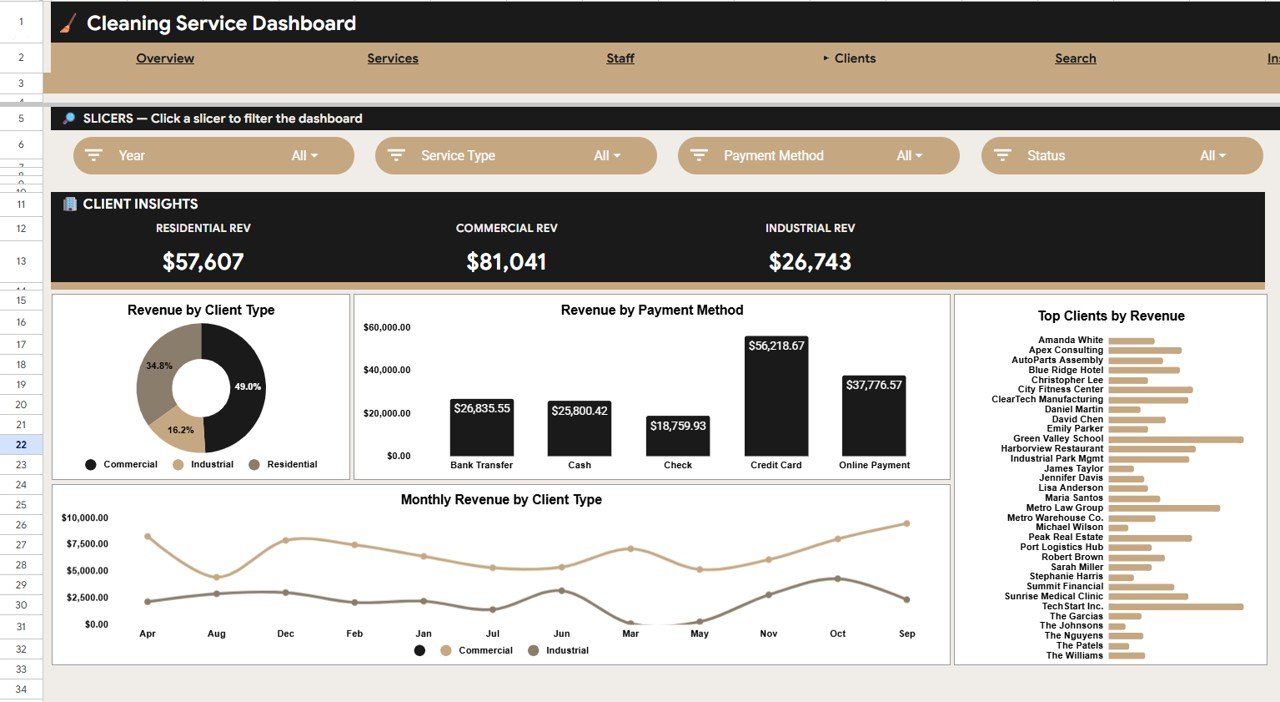
The Client Insights band shows Residential Rev $57,607, Commercial Rev $81,041 and Industrial Rev $26,743.
- Revenue by Client Type – Commercial 49.0%, Residential 34.8%, Industrial 16.2%.
- Revenue by Payment Method – Bank Transfer, Cash, Check, Credit Card and Online Payment. Credit Card is the largest at $56,218.67.
- Monthly Revenue by Client Type – monthly lines by client type.
- Top Clients by Revenue – a bar for every client, from households such as The Patels to accounts such as Green Valley School and TechStart Inc. In the sample the clients are listed alphabetically rather than sorted by revenue, so scan for the longest bars; Green Valley School and TechStart Inc. stand out.
5. Search
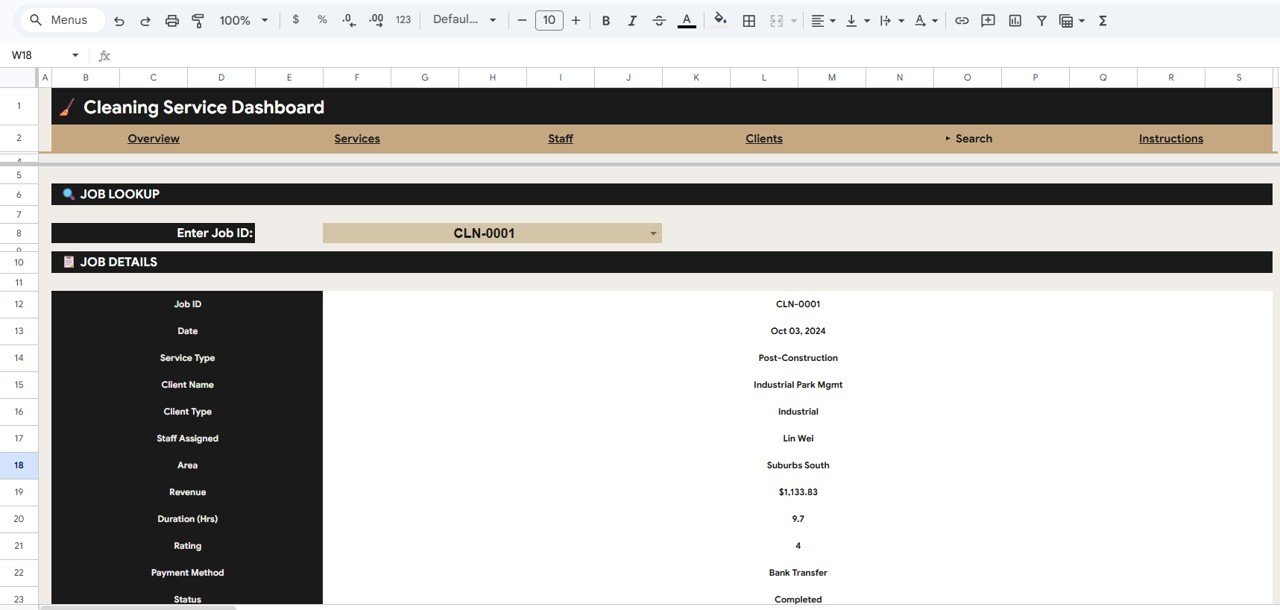
Choose a value in Enter Job ID and the Job Details block fills in Job ID, Date, Service Type, Client Name, Client Type, Staff Assigned, Area, Revenue, Duration (Hrs), Rating, Payment Method and Status. In the screenshot, CLN-0001 is a Post-Construction job for Industrial Park Mgmt on Oct 03, 2024, handled by Lin Wei in Suburbs South: $1,133.83, 9.7 hours, rating 4, paid by Bank Transfer, Completed.
6. Data Sheet
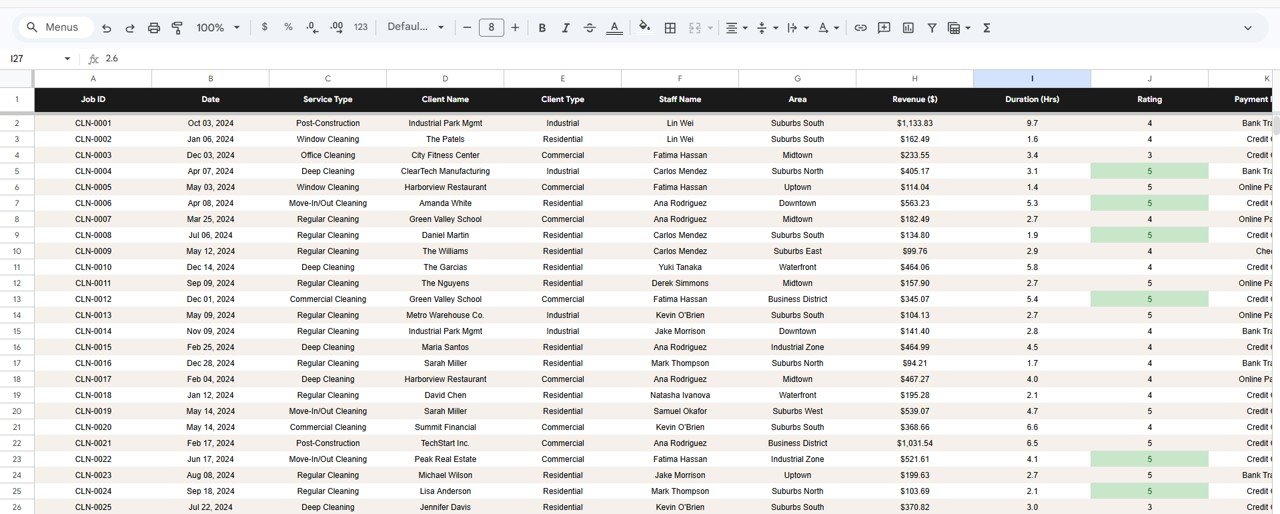
Each row is one job, with columns for Job ID, Date, Service Type, Client Name, Client Type, Staff Name, Area, Revenue ($), Duration (Hrs), Rating and Payment Method. The Search page also shows each job’s Status, so keep that field filled in for every row as well.
How to Use It With Your Own Data
- Open the PDF guide that comes with the download and use its link to make an editable copy in your Google Drive.
- Read the Instructions page, then open the data sheet and note how each column is filled in.
- Replace the sample rows with your jobs, keeping the same column order. Give every job a unique Job ID.
- Use one spelling for each service type, area, staff name and client, so each appears once in charts and slicers.
- Enter Status consistently (for example Completed) so the Completed Jobs and revenue cards count correctly.
- Go back to the Overview, set the slicers to All, and check that the totals look right.
- Add new jobs at the bottom of the data sheet each day or week; the pages update from the same table.
If you want to build reports like this yourself, the Excel Pivot Tables & Dashboards course on NextGenTemplates Academy teaches the same summarising and charting skills step by step.
Spreadsheet vs Dashboard Template vs Field-Service Software
| Need | Plain job list | This dashboard | Field-service software |
|---|---|---|---|
| Revenue by service, area and client | Manual filtering | Ready charts with slicers | Usually included |
| Staff ratings and job duration | Manual formulas | Staff page | Usually included |
| Scheduling, dispatch and routes | No | No | Yes |
| Invoicing and online payments | No | No | Yes |
| Ongoing cost | None | One-time template purchase | Usually a monthly subscription |
Real-World Use Cases
- A residential cleaning owner with a small crew checks the Staff page each month to match the highest-rated cleaners with repeat clients.
- A commercial cleaning contractor uses the Clients page to see which accounts bring the most revenue and which payment methods dominate, then follows up on slower-paying accounts.
- A company offering move-in/out and post-construction cleans compares revenue with job count on the Services page to decide which services to promote next season.
Best Practices
- Record each job on the day it is completed, including its rating once the client responds.
- Review the Services page quarterly; high-volume, low-value services are a pricing question.
- Use the Area slicer before planning routes or hiring, to see where demand is concentrated.
- Keep the status list short and fixed so completed revenue is easy to separate from scheduled or cancelled work.
- Save a copy of the file at year end before clearing old rows, so you keep a history.
Who Should Not Use This Template
This is a reporting dashboard. It does not schedule jobs, dispatch cleaners, plan routes, send invoices or take payments. Larger operations that need those functions, a client portal or mobile check-in for staff should use dedicated field-service software, and can still export job data into a sheet like this for analysis. Accuracy depends on consistent data entry; misspelled names will show up as separate bars.
Related Templates and Guides
To go deeper on your team, read the guide to the Cleaning Staff Performance Dashboard in Google Sheets. Hotels and residential services may prefer the Housekeeping Service Analytics Dashboard. For day-to-day operations, the Office Cleaning Request Tracker, the Office Cleaning Checklist and the Office Cleaning Feedback Tracker cover requests, task lists and client feedback.
Related template: Cleaning Services KPI Dashboard in Power BI for teams that report in Power BI.
Frequently Asked Questions
What KPIs does the Cleaning Service Dashboard in Google Sheets show?
The Overview shows Total Revenue, Completed Jobs, Avg Rating and Avg Job Value. The Services, Staff and Clients pages add cards such as Deep Clean Rev, High-Value Jobs, Total Jobs, Avg Duration (H), 5-Star Jobs and revenue by client type.
How is Avg Job Value calculated?
It is Total Revenue divided by Completed Jobs. In the sample, $113,029 ÷ 355 gives about $318.
Can I filter by area, service type or client type?
Yes. Each analysis page has its own slicers, such as Year, Month, Service Type, Client Type, Area, Status and Payment Method.
Can I change the service types and areas?
Yes. Type your own services, areas, staff and clients into the data sheet; the charts and slicers pick them up. Keep the spelling consistent.
Does it work on a phone?
You can open and view it in the Google Sheets mobile app, though the dashboard pages are easiest to read on a laptop or tablet.
Do I need add-ons or scripts?
No. The template uses standard Google Sheets formulas, charts and slicers.
Wrapping Up
The Cleaning Service Dashboard in Google Sheets gives a growing cleaning business a clear view of revenue by service, area, staff and client, with a job lookup for quick questions. Load last month’s jobs, compare revenue against job count on the Services page, and check the Staff page to see where your best ratings come from.
Get the Cleaning Service Dashboard
📅 Last updated: October 2026