Dental Practice Dashboard in Google Sheets is a powerful, ready-to-use analytics template built for dental clinic owners, practice managers, healthcare administrators, and financial controllers who need to monitor revenue, patient demographics, treatment performance, financial health, and patient satisfaction from a single interactive Google Sheets dashboard. This comprehensive template transforms raw dental practice data into meaningful visual insights that support faster, smarter decision-making across every level of your clinic.
Whether you run a solo dental office or manage a multi-dentist practice, this dashboard delivers premium analytics covering 6 dedicated pages with 5 high-level KPIs, interactive charts, slicer-based filtering, patient search functionality, and a structured data sheet. No software installation is needed — just open the Google Sheets link, paste your data, and start analyzing your dental practice metrics instantly.
Click here to Purchase the Dental Practice Dashboard in Google Sheets
Key Features of the Dental Practice Dashboard in Google Sheets
Click here to Purchase the Dental Practice Dashboard in Google Sheets
This Dental Practice Dashboard in Google Sheets comes packed with features designed for real-world dental clinic analytics. The dashboard offers multi-page interactive analytics across 6 sheet tabs that cover practice overview, patient demographics, financial analysis, treatment mix evaluation, patient record search, and raw data management.
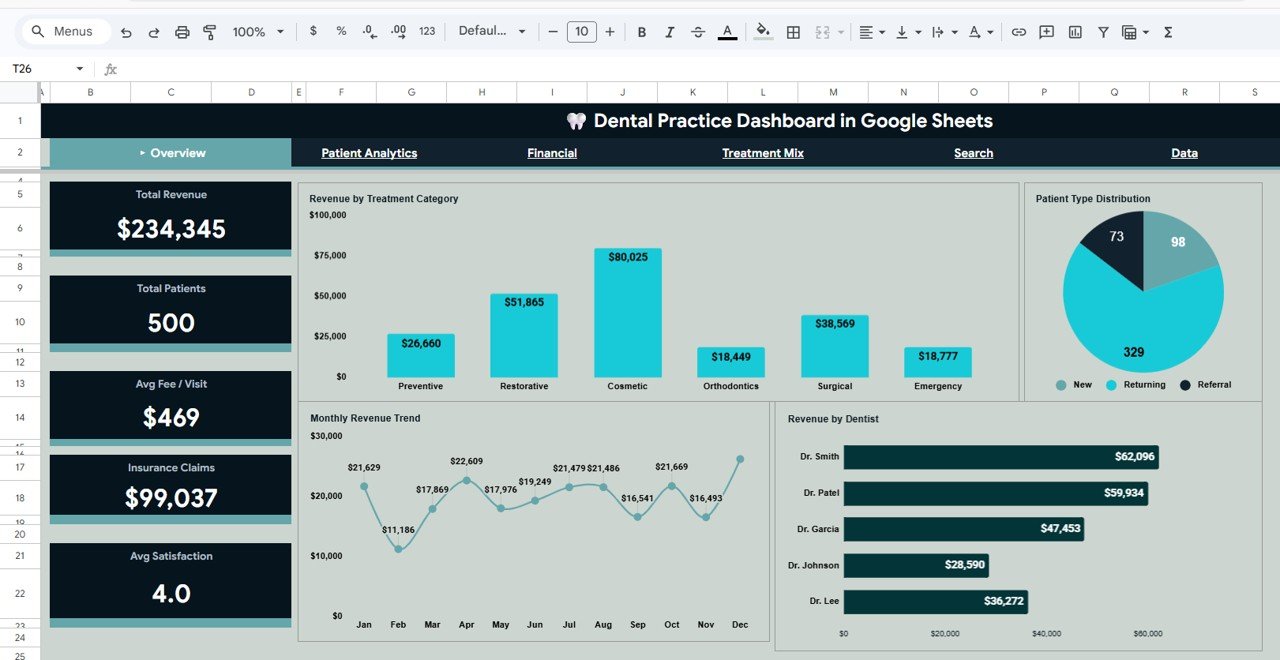
At the top of the Overview page, 5 dynamic KPI cards display Total Revenue, Total Patients, Average Fee per Visit, Insurance Claims, and Average Satisfaction Score — giving you an instant operational snapshot of your entire dental practice. The dashboard includes global slicers that allow you to filter the entire dashboard by treatment category, dentist name, patient type, and other dimensions for focused analysis.
Interactive chart visualizations including bar charts, line trends, donut charts, and comparison analyses update dynamically based on your filter selections. The Google Sheets platform enables real-time collaboration, so multiple team members can view and analyze data simultaneously from any device. For a related Excel-based solution, explore the Dental Practice Dashboard in Excel.
Dashboard Pages Explained
1. Overview Page
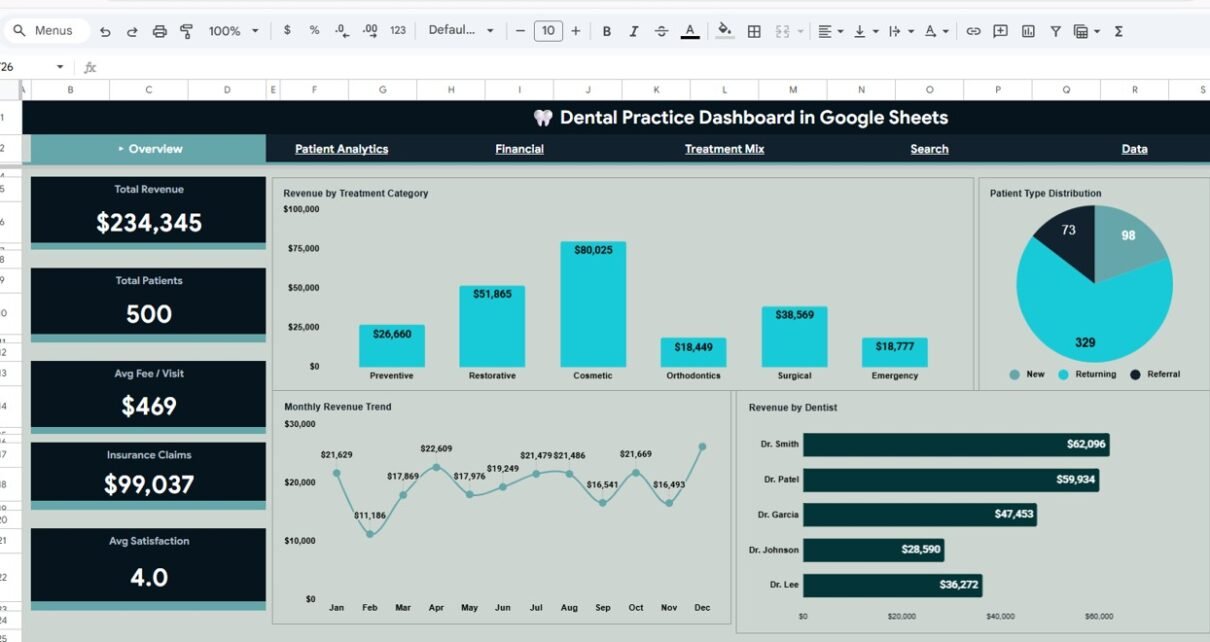
The Overview page serves as your command center for dental practice operations. At the top, five high-level KPI cards display Total Revenue, Total Patients, Avg Fee/Visit, Insurance Claims, and Avg Satisfaction. These cards provide an immediate snapshot of your entire clinic’s health and financial performance.
Below the KPI cards, you will find a rich collection of interactive charts. Revenue by Treatment Category breaks down income across different dental service types like preventive, cosmetic, orthodontic, and restorative treatments. Patient Type Distribution by Patient Type shows whether patients are new or returning. Monthly Revenue Trend by Month reveals seasonal revenue patterns and growth trajectories. Revenue by Dentist compares individual dentist performance and contribution to practice revenue. Multiple slicers are available to apply filters and see the filtered dashboard quickly.
Dental Practice Dashboard in Google Sheets
2. Patient Analytics
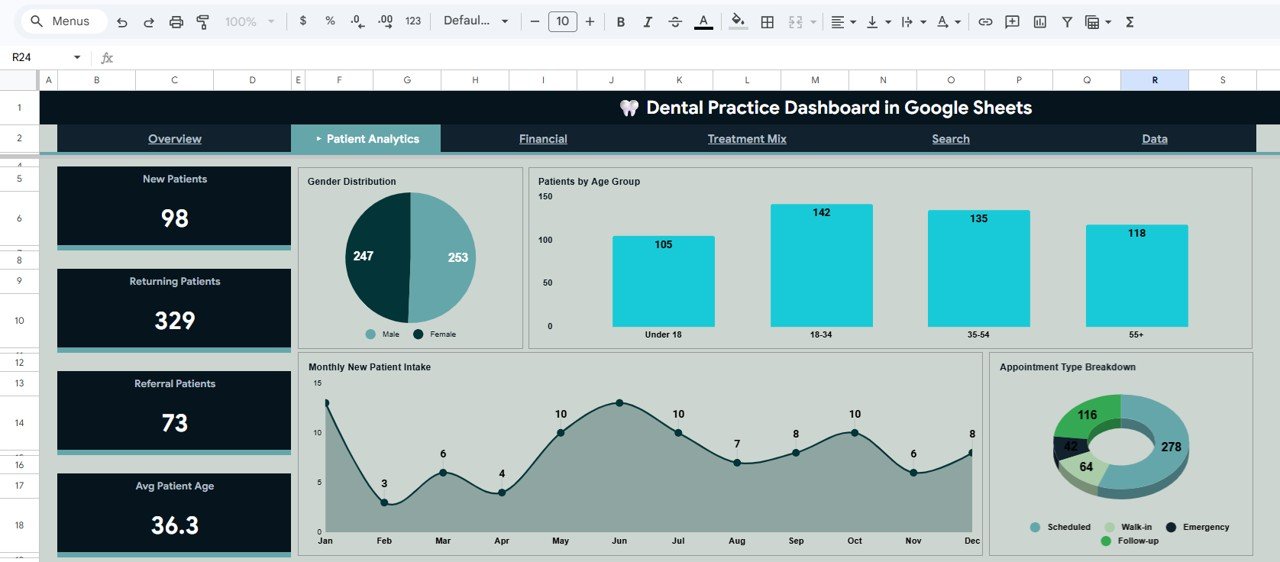
The Patient Analytics page dives deep into understanding your patient population across multiple demographic dimensions. Gender Distribution by Gender provides a breakdown of male and female patient volumes. Patients by Age Group segments your patient base into age brackets to understand which populations your dental practice serves most frequently.
Monthly New Patient Intake by Month tracks the trend of new patient acquisitions over time, helping you evaluate the effectiveness of your marketing efforts and referral programs. Appointment Type Breakdown by Appointment Type categorizes visits into consultation, follow-up, emergency, and routine categories — supporting scheduling optimization and resource allocation decisions.
Patient Analytics
3. Financial Analysis
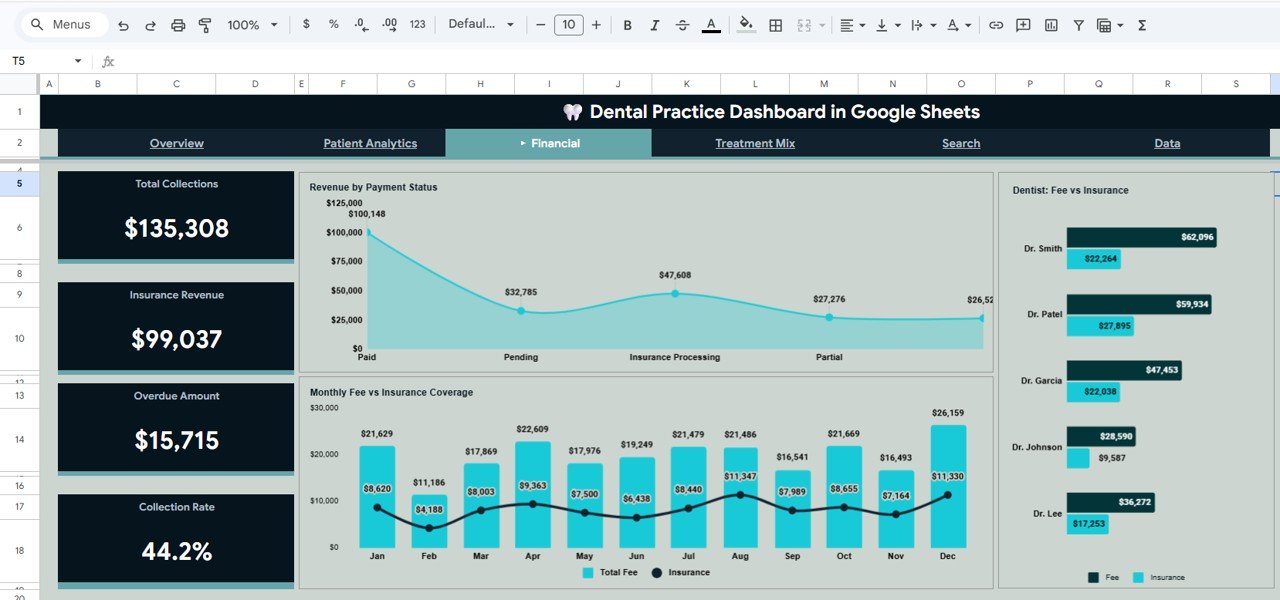
The Financial Analysis page is essential for understanding your dental practice’s revenue collection and insurance dynamics. Revenue by Payment Status visualizes how revenue is distributed across paid, pending, and overdue categories — helping you identify collection bottlenecks. Monthly Fee vs Insurance Coverage by Month compares total fees charged against insurance-covered amounts each month, revealing gaps between billed services and insurance reimbursements.
Dentist Fee vs Insurance by Dentist breaks down fee generation and insurance utilization at the individual dentist level, enabling performance benchmarking and compensation analysis. Together, these charts provide a complete financial picture of your dental practice. For Power BI analytics capabilities, check out the Dental Practice Dashboard in Power BI.
Financial Analysis
4. Treatment Mix
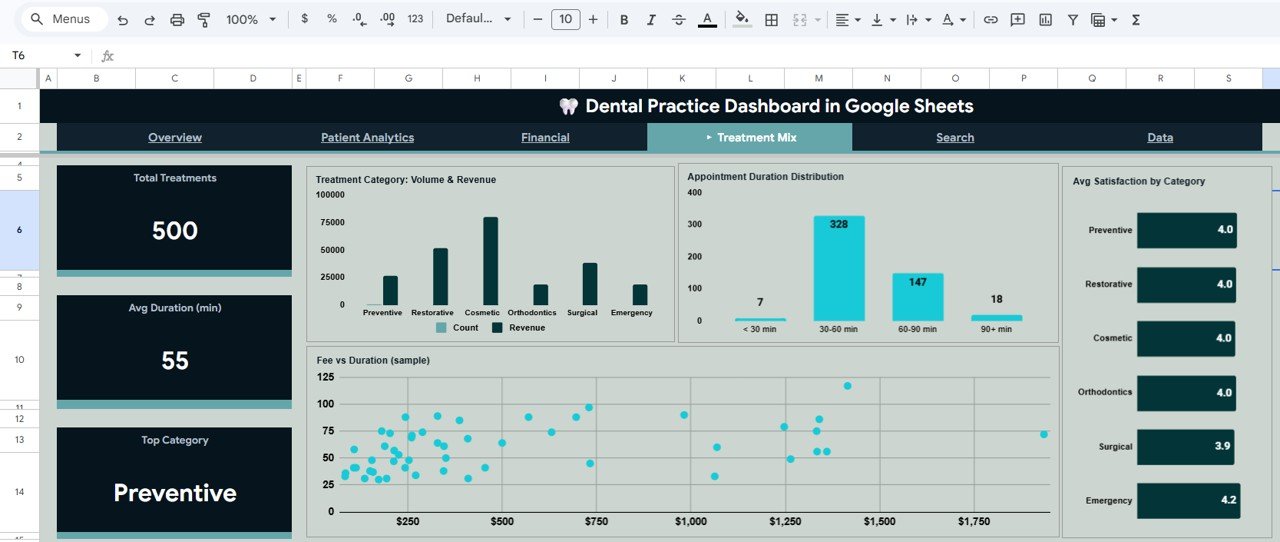
The Treatment Mix page evaluates the volume, revenue, duration, and satisfaction metrics across different treatment categories. Treatment Category Volume and Revenue by Category compares how many patients each treatment type serves and how much revenue it generates — helping you identify your most profitable services.
Appointment Duration Distribution by Duration Range shows how appointment lengths cluster across different time brackets, enabling better scheduling and chair utilization planning. Avg Satisfaction by Category reveals which treatment types receive the highest patient satisfaction ratings. Fee vs Duration by Treatment plots the relationship between treatment fees and appointment duration, helping you assess the value-per-minute of each dental service.
Treatment Mix
5. Search Page
The Search Page provides a powerful patient record lookup feature. You can select any Record ID from a dropdown and instantly view the complete patient details including Date, Patient Name, Age, Gender, Patient Type, Dentist, Category, Treatment, Fee Amount, Insurance Covered, Patient Paid, Payment Status, Appointment Type, and Duration. This is invaluable for front-desk staff, billing teams, and clinic managers who need to quickly access individual patient information without scrolling through hundreds of records. For KPI-focused tracking with targets and year-over-year trends, see the Dental Practice KPI Dashboard in Google Sheets.

Search Sheet Tab
6. Data Sheet
The Data Sheet is the structured data entry page where all dental practice records are stored. It comes pre-loaded with 500 sample records in a standardized format with columns for Date, Patient Name, Age, Gender, Patient Type, Dentist, Treatment Category, Treatment Name, Fee Amount, Insurance Covered, Patient Paid, Payment Status, Appointment Type, Duration, and Satisfaction Score. Simply replace the sample data with your own clinic data in the same format, and the entire dashboard updates automatically across all pages.
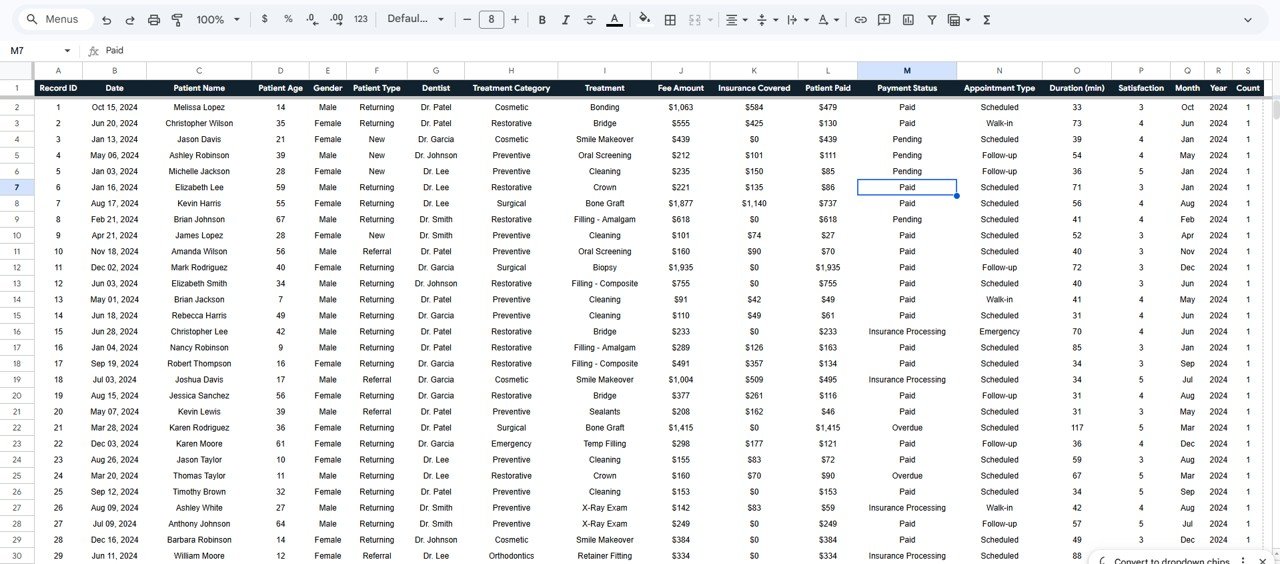
Data Sheet Tab
Advantages of the Dental Practice Dashboard in Google Sheets
This dashboard offers several significant advantages for dental professionals. First, it requires zero software installation — simply open the Google Sheets link from the PDF guide and create your own editable copy in Google Drive. This makes it ideal for dental teams that need quick access to analytics without IT overhead or licensing costs.
The multi-page structure with dedicated analysis pages for revenue overview, patient demographics, financial performance, treatment evaluation, and individual record search ensures that different stakeholders can find the insights most relevant to their role. The global slicer system means that a single selection cascades across all charts and metrics, saving time and ensuring consistency in analysis.
The cloud-based Google Sheets platform enables real-time collaboration, so practice managers, dentists, and administrative staff can all view and work with the same data simultaneously. The structured data sheet format makes monthly data updates straightforward — simply add new records and the dashboard recalculates everything automatically.
Opportunities for Improvement
While this dashboard provides excellent coverage of dental practice analytics, there are areas where users might consider enhancements. Adding predictive analytics or forecasting models for patient volumes and revenue could help with long-term business planning. Integration with dental practice management software through Google Apps Script could enable automated data imports rather than manual entry.
A dedicated staff performance page tracking dentist productivity, chair utilization rates, and appointment completion rates would add an operational dimension to the analytics. Additionally, implementing appointment scheduling visualization with calendar-based views would benefit clinics focused on optimizing their daily patient flow.
Best Practices for Using the Dental Practice Dashboard
Click here to Purchase the Dental Practice Dashboard in Google Sheets
To get the most out of this Dental Practice Dashboard in Google Sheets, follow these recommended practices. Update your data regularly — monthly or weekly uploads ensure that your KPIs and trend analyses reflect current operational reality. Use the global slicers strategically to isolate specific treatment categories, dentists, or patient types when investigating performance patterns.
Start each analysis session on the Overview page to get a high-level pulse check, then drill into the specific analysis page that addresses your current question. Leverage the Financial Analysis page for quarterly revenue reviews and insurance negotiation preparation. Use the Search Page for quick patient lookups during billing disputes or treatment follow-ups.
Share the dashboard with your team via Google Drive sharing — since it is a cloud-based Google Sheets file, anyone with access can open and explore the data independently from any device. For additional guidance on Google Sheets functionality, check the official Google Sheets Help Center for tips on using pivot tables and charts.
Explore Relevant Templates
If you found this Dental Practice Dashboard useful, you may also be interested in these related templates from our collection:
- Dental Practice Dashboard in Excel — The Excel version with pivot tables, charts, and automated formulas for dental clinic analytics.
- Dental Practice Dashboard in Power BI — Advanced Power BI analytics for dental practice performance monitoring.
- Dental Practice KPI Dashboard in Google Sheets — Track dental KPIs with targets, trends, and year-over-year comparisons in Google Sheets.
- Hospital Patient Flow Dashboard in Excel — Monitor hospital patient flow, department performance, and capacity management.
- Mental Health Services KPI Dashboard in Google Sheets — Track mental health service KPIs with monthly targets and trend analysis.
Frequently Asked Questions
Click here to Purchase the Dental Practice Dashboard in Google Sheets
What KPIs does the Dental Practice Dashboard in Google Sheets track?
The Dental Practice Dashboard in Google Sheets tracks 5 key performance indicators including Total Revenue, Total Patients, Average Fee per Visit, Insurance Claims, and Average Satisfaction Score. It also provides detailed analysis across 6 interactive pages covering revenue breakdown, patient demographics, financial analysis, treatment mix evaluation, patient record search, and raw data management.
Do I need any special software to use this Google Sheets dashboard?
No special software or installation is required. Simply open the Google Sheets copy link from the included PDF guide and the dashboard opens in your browser via Google Drive. It works on any device with internet access including desktops, laptops, tablets, and mobile phones.
Can I filter the dashboard by specific dentist or treatment category?
Yes. The dashboard includes multiple interactive slicers on the Overview page that let you filter all charts and KPIs by treatment category, dentist name, patient type, and other dimensions. When you apply a filter, all visualizations across the dashboard update instantly.
Is this dashboard suitable for multi-dentist clinics?
Absolutely. The dashboard includes Revenue by Dentist analysis on the Overview page and Dentist Fee vs Insurance comparison on the Financial page, making it ideal for practices with multiple dentists. You can filter and compare individual dentist performance across revenue, patient volume, and insurance utilization.
Can I search for individual patient records in this dashboard?
Yes. The dedicated Search Page lets you select any Record ID from a dropdown to instantly view complete patient details including date, name, age, gender, treatment, fees, insurance coverage, payment status, appointment type, and duration — all without scrolling through the data sheet.
How many records can this dashboard handle?
The template comes with 500 sample records and can scale to handle thousands of records in Google Sheets. Simply add your data rows in the Data Sheet tab and the entire dashboard recalculates and updates automatically across all 6 pages.
Conclusion
The Dental Practice Dashboard in Google Sheets is a powerful, ready-to-use analytics tool that brings clarity to complex dental clinic operations. With six dedicated analysis pages covering practice overview, patient demographics, financial performance, treatment mix evaluation, patient record search, and structured data management, this dashboard equips dental professionals with the insights they need to optimize revenue, improve patient experience, manage insurance dynamics, and make data-driven operational decisions.
Whether you are a dental clinic owner tracking revenue performance, a practice manager monitoring patient flow and appointment patterns, or a financial controller analyzing insurance utilization and payment collection, this Google Sheets dashboard delivers professional-grade analytics with zero installation and maximum flexibility.
Click here to Purchase the Dental Practice Dashboard in Google Sheets
Visit our YouTube channel for step-by-step video tutorials and dashboard walkthroughs:
Youtube.com/@NeoTechNavigators