In today’s fast-paced digital world, organizations rely heavily on DevOps practices to deliver software faster, improve system reliability, and enhance collaboration between development and operations teams. However, managing DevOps performance requires continuous monitoring of key metrics such as deployment frequency, system uptime, failure rates, and lead time.
Many organizations still track these metrics using manual spreadsheets or disconnected tools. As a result, teams struggle to gain real-time insights, identify bottlenecks, and improve delivery performance. Therefore, businesses increasingly adopt data-driven dashboards to monitor DevOps KPIs effectively.
One powerful and accessible solution is the DevOps KPI Dashboard in Google Sheets.
The DevOps KPI Dashboard in Google Sheets is a ready-to-use analytics template designed to track critical DevOps metrics using interactive charts, KPI cards, and dynamic filters. Because Google Sheets supports real-time collaboration and cloud access, teams can monitor DevOps performance from anywhere.
In this article, you will learn everything about the DevOps KPI Dashboard in Google Sheets, including its features, structure, benefits, best practices, and frequently asked questions.
What is a DevOps KPI Dashboard in Google Sheets?
A DevOps KPI Dashboard in Google Sheets is an analytical tool that helps teams monitor and evaluate DevOps performance using structured data and visual reports.
This dashboard tracks key performance indicators such as:
- Deployment frequency
- Lead time for changes
- Change failure rate
- Mean time to recovery (MTTR)
- System uptime
- Incident resolution time
Because it uses Google Sheets, teams can easily update, share, and analyze data in real time.
Why Do Organizations Need a DevOps KPI Dashboard?
Click to Buy DevOps KPI Dashboard in Google Sheets
Organizations need a DevOps dashboard to improve software delivery and operational performance.
1. Improve Deployment Speed
Teams can track deployment frequency and identify delays in the release process.
2. Reduce System Downtime
Monitoring downtime metrics helps teams quickly resolve system issues.
3. Enhance Team Productivity
By tracking KPIs, teams can improve collaboration and efficiency.
4. Identify Bottlenecks
The dashboard highlights areas where processes slow down.
5. Enable Data-Driven Decisions
Managers can use real-time insights to optimize DevOps processes.
Key Features of the DevOps KPI Dashboard in Google Sheets
The dashboard includes multiple powerful features that help teams monitor DevOps performance effectively.
How Many Worksheets Are Available in the Dashboard?
The DevOps KPI Dashboard in Google Sheets includes six structured worksheets, each designed for a specific purpose.
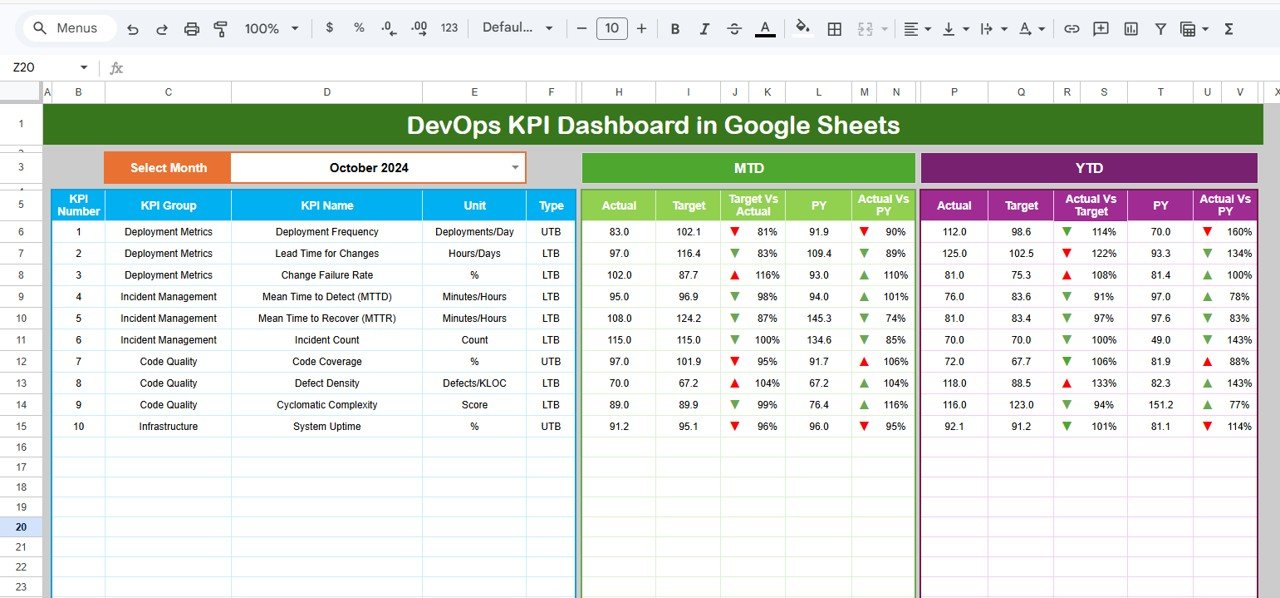
1. Dashboard Sheet Tab – What Does It Show?
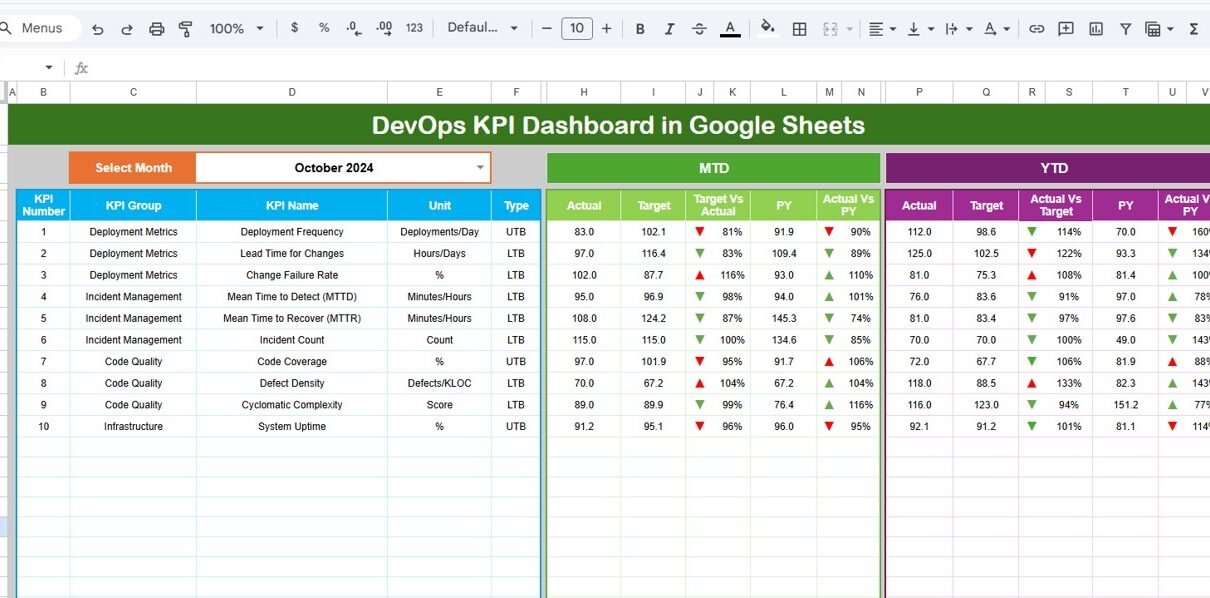
The Dashboard Sheet Tab acts as the main visualization page.
Key Features:
-
Month selection dropdown in cell D3
-
Displays all KPI data dynamically based on selected month
-
Interactive KPI cards and charts
Metrics Displayed:
-
MTD (Month-to-Date) Actual, Target, and Previous Year
-
YTD (Year-to-Date) Actual, Target, and Previous Year
Performance Comparisons:
-
Target vs Actual
-
Previous Year vs Actual
Visual Indicators:
-
Conditional formatting with up/down arrows to show performance trends
Therefore, this sheet provides a complete overview of DevOps performance in one place.
Click to Buy DevOps KPI Dashboard in Google Sheets
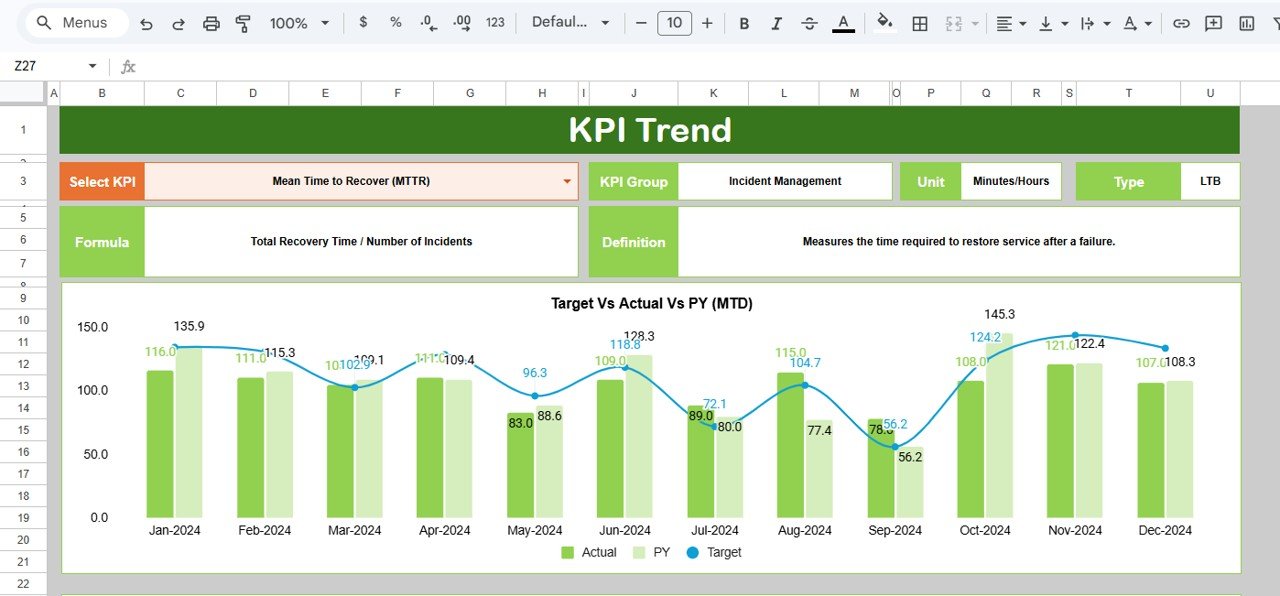
2. KPI Trend Sheet – How Does It Help?
The KPI Trend Sheet provides detailed insights into individual KPIs.
Features:
-
KPI selection dropdown in cell C3
-
Displays KPI details such as:
- KPI Group
- KPI Unit
- KPI Type (Lower the Better / Upper the Better)
- KPI Formula
- KPI Definition
This sheet helps users understand the logic and meaning behind each KPI.
Click to Buy DevOps KPI Dashboard in Google Sheets
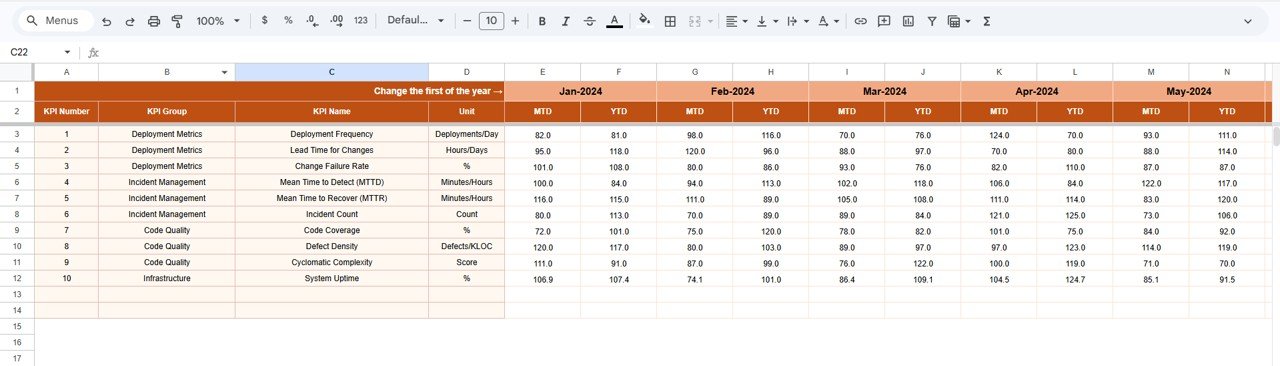
3. Actual Number Sheet – What Should You Enter?
The Actual Number Sheet stores real performance data.
Key Instructions:
-
Enter MTD and YTD actual values
-
Select the starting month in cell E1
Because this sheet feeds the dashboard, accurate data entry is essential.
Click to Buy DevOps KPI Dashboard in Google Sheets
4. Target Sheet – Why Is It Important?
The Target Sheet contains performance goals.
Features:
-
Enter monthly targets for each KPI
-
Includes both MTD and YTD targets
This sheet helps teams measure performance against predefined goals.

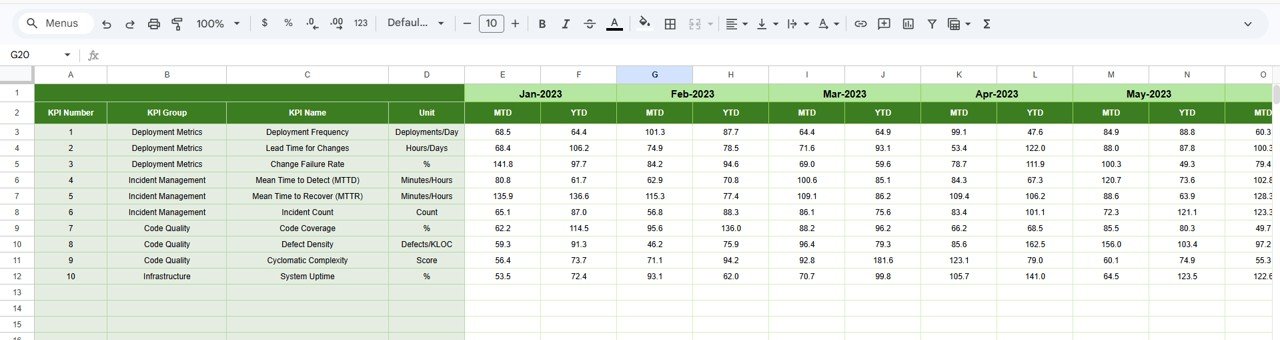
5. Previous Year Number Sheet – What Is Its Role?
The Previous Year Sheet stores historical data.
Key Purpose:
-
Compare current performance with last year
-
Identify growth trends and improvements
Therefore, teams can evaluate long-term progress.
Click to Buy DevOps KPI Dashboard in Google Sheets
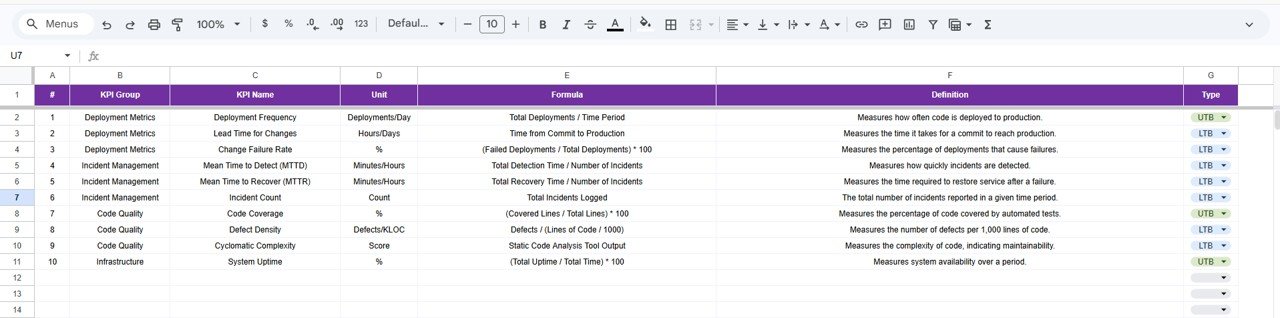
6. KPI Definition Sheet – Why Is It Critical?
The KPI Definition Sheet acts as the backbone of the dashboard.
Information Stored:
- KPI Name
- KPI Group
- Unit of Measurement
- KPI Formula
- KPI Definition
- KPI Type (Lower the Better / Upper the Better)
This sheet ensures consistency and clarity in KPI tracking.
Click to Buy DevOps KPI Dashboard in Google Sheets
Advantages of DevOps KPI Dashboard in Google Sheets
Using this dashboard offers several benefits.
1. Real-Time Collaboration
Teams can access and update data from anywhere.
2. Centralized Reporting
All DevOps metrics are available in one place.
3. Easy Customization
Users can modify formulas, charts, and KPIs.
4. Cost-Effective Solution
Google Sheets eliminates the need for expensive tools.
5. Improved Decision-Making
Managers can analyze data quickly and take action.
6. Enhanced Transparency
Teams gain clear visibility into DevOps performance.
Opportunities for Improvement in DevOps KPI Dashboard
Click to Buy DevOps KPI Dashboard in Google Sheets
Although the dashboard is powerful, teams can further improve it.
1. Automate Data Collection
Integrate tools like CI/CD pipelines for automatic data updates.
2. Add Advanced Visualizations
Include trend lines, heatmaps, and drill-down charts.
3. Improve Data Accuracy
Ensure regular validation of KPI data.
4. Integrate Alerts
Set alerts for KPI deviations.
Best Practices for the DevOps KPI Dashboard in Google Sheets
To maximize effectiveness, follow these best practices.
1. Update Data Regularly
Always keep data up to date for accurate insights.
2. Use Standard KPI Definitions
Maintain consistency across teams.
3. Monitor KPIs Frequently
Review KPIs weekly or monthly.
4. Focus on Key Metrics
Avoid tracking too many unnecessary KPIs.
5. Train Teams
Ensure all users understand how to interpret the dashboard.
How Does This Dashboard Improve DevOps Performance?
Click to Buy DevOps KPI Dashboard in Google Sheets
This dashboard helps teams:
- Track delivery performance
- Reduce system failures
- Improve deployment speed
- Enhance collaboration
- Optimize operational efficiency
As a result, organizations achieve faster and more reliable software delivery.
Conclusion
The DevOps KPI Dashboard in Google Sheets provides a powerful solution for monitoring and improving DevOps performance. Because it combines real-time data, interactive visualizations, and structured KPI tracking, teams can easily analyze performance and make informed decisions.
Moreover, the dashboard’s flexibility and ease of use make it suitable for organizations of all sizes. Therefore, businesses that adopt this dashboard can significantly improve their DevOps efficiency, reduce downtime, and enhance software delivery.
Visit our YouTube channel to learn step-by-step video tutorials