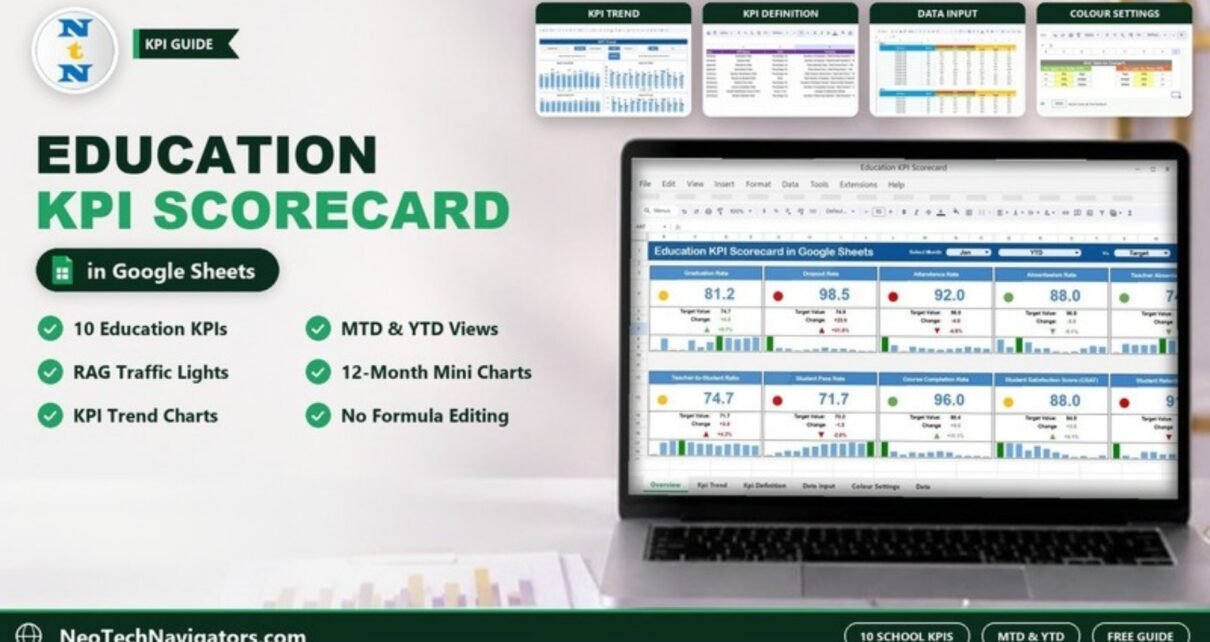
The Education KPI Scorecard in Google Sheets puts ten school performance measures on one screen, from Graduation Rate and Dropout Rate to Student Retention Rate, and colours each one green, amber or red against its target. You pick a month, choose MTD or YTD, and every card, arrow and mini bar chart updates on its own.
It is built for principals, academic coordinators, college administrators and training managers who report on student outcomes every month but do not want to rebuild a report each time. Inside you get a Scorecard sheet, a KPI Trend sheet, a KPI Definition sheet, a Data Input sheet and a Colour Settings sheet. The calculations, arrows and colours are already built in, so you only type numbers and never have to edit a formula.
Below you will find what each sheet does, the full list of ten KPIs with their formulas, a worked example using the numbers in the sample file, and an honest look at who this scorecard suits and who it does not.
🎥 Watch the Video Tutorial
Get the Education KPI Scorecard
What Problem Does an Education KPI Scorecard Solve?
Most schools already collect the numbers: attendance registers, exam results, enrolment lists, feedback surveys. The problem is that they live in different files, and by the time someone combines them for a review meeting the month is over. A scorecard fixes that by holding every KPI in the same structure (Actual, Target and Previous Year, for both MTD and YTD) and showing the result as a simple traffic light.
Instead of reading ten separate reports, a head of school can look at one screen and see that, for example, Course Completion Rate is comfortably ahead of target while Student Retention Rate is slipping. That shifts the meeting from “what are the numbers?” to “what are we doing about the red ones?”
The 10 KPIs in the Education KPI Scorecard in Google Sheets
These are the KPIs exactly as they appear in the template’s KPI Definition sheet. Each one belongs to a KPI group and is tagged UTB (Upper the Better) or LTB (Lower the Better), which decides how the colours work.
| KPI | KPI Group | What it measures | Formula (from the template) | Better when |
|---|---|---|---|---|
| Graduation Rate | Student Performance | Share of students who complete their education | (Number of Graduates / Total Enrolled Students) * 100 | Higher (UTB) |
| Dropout Rate | Student Performance | Share of students who leave before completion | (Number of Dropouts / Total Enrolled Students) * 100 | Lower (LTB) |
| Attendance Rate | Student Engagement | Share of school days students are present | (Total Attended Days / Total School Days) * 100 | Higher (UTB) |
| Absenteeism Rate | Student Engagement | Share of school days students are absent | (Total Absent Days / Total School Days) * 100 | Lower (LTB) |
| Teacher Absenteeism Rate | Teacher Performance | Share of work days teachers are absent | (Total Teacher Absent Days / Total Work Days) * 100 | Lower (LTB) |
| Teacher-to-Student Ratio | Teacher Performance | Number of students per teacher | Total Number of Students / Total Number of Teachers | Lower (LTB) |
| Student Pass Rate | Curriculum Effectiveness | Share of students who pass exams or evaluations | (Number of Students Passed / Total Enrolled Students) * 100 | Higher (UTB) |
| Course Completion Rate | Curriculum Effectiveness | Share of courses completed by students | (Number of Completed Courses / Total Courses) * 100 | Higher (UTB) |
| Student Satisfaction Score (CSAT) | Institutional Performance | Average student feedback score (1–10) | Average of Satisfaction Ratings | Higher (UTB) |
| Student Retention Rate | Institutional Performance | Share of students returning to continue their studies | (Number of Returning Students / Total Students) * 100 | Higher (UTB) |
Sheet-by-Sheet Walkthrough
1. Scorecard Sheet
This is the screen you show in meetings. The header row holds three dropdowns: Select Month, a period selector for MTD or YTD, and a Vs. selector that is set to Target in the sample. Below them sit ten KPI cards in two rows of five.
Each card shows:
- The actual value in large type, with a coloured dot (green, amber or red)
- The Target Value for the selected period
- The Change in absolute terms and as a percentage, with an up or down arrow
- A small 12-month bar chart that shows how the KPI moved across the year

2. KPI Trend Sheet
When one card looks wrong, the KPI Trend sheet tells you whether it is a one-off or a pattern. Pick a KPI from the Select KPI dropdown in cell C3 and the sheet fills in its KPI Group, Unit, Type, Formula and Definition. Four charts follow:
- Target Vs Actual (MTD)
- Actual Vs PY (MTD)
- Target Vs Actual (YTD)
- Actual Vs PY (YTD)
In the sample, Attendance Rate is selected. It sits in the Student Engagement group, is measured as Percentage (%), and is typed UTB.

3. KPI Definition Sheet
This is the master list behind everything else. Each row holds a number, KPI Group, KPI Name, Unit, Formula, Definition and Type (UTB or LTB, chosen from a dropdown). The KPI Trend sheet reads its group, unit, type, formula and definition from here, and the Type column drives the traffic-light logic.

4. Data Input Sheet
All numbers go in here. The sheet is organised in blocks: KPI-1, KPI-2 and so on. Each block has twelve rows (Jan to Dec) and six value columns: MTD Actual, MTD Target, MTD PY and YTD Actual, YTD Target, YTD PY. You type values; you do not touch formulas.

5. Colour Settings Sheet
The Colour Settings sheet holds the RAG Table for Change%, which sets the thresholds for the traffic lights:
- Upper the Better KPIs: change of 0% or less is Red, up to 10% is Amber, above 10% is Green.
- Lower the Better KPIs: change above 10% is Red, up to 10% is Amber, 0% or less is Green.
Change the yellow cells to match your institution’s tolerance, and every card picks up the new rules.

Worked Example: How the Colours Are Decided
Take Graduation Rate for January in YTD view. The Data Input sheet holds a YTD Actual of 81.2 and a YTD Target of 74.7.
Change     = Actual - Target          = 81.2 - 74.7   = +6.5
Change %   = (Actual - Target) / Target = 6.5 / 74.7   = +8.7%
Graduation Rate is Upper the Better, and +8.7% falls in the “up to 10%” band, so the card shows an amber dot. It beats target, just not by enough to turn green.
Now Dropout Rate in the same view: actual 98.5 against a target of 74.9, a change of +23.6 or +31.5%. Because Dropout Rate is Lower the Better, a rise of more than 10% turns it red. Course Completion Rate shows the opposite case: 96.0 against 86.4 is +11.1%, which is above the 10% line for a UTB KPI, so it is green.
Once you see that each card is just “how far from target, in which direction, for this KPI type”, the scorecard becomes easy to explain to anyone in the room.
How to Use It With Your Own Data
- Open the KPI Definition sheet and check the ten KPIs. Rename any that your school measures differently and set the correct UTB or LTB type.
- Go to Colour Settings and adjust the RAG thresholds if 10% is too strict or too loose for you.
- In Data Input, clear the sample numbers and enter your monthly MTD Actual, Target and PY values for each KPI block.
- Enter the YTD columns as running totals or running averages, depending on the KPI. Ratios such as attendance are usually averaged, counts are summed.
- Open the Scorecard, choose the month, pick MTD or YTD, and read the colours.
- For any red card, switch to KPI Trend, select that KPI in C3, and look at the last few months before deciding on action.
Three Real-World Use Cases
A secondary school’s monthly leadership review
The principal opens the scorecard at the start of the meeting in MTD view. Attendance Rate and Absenteeism Rate are discussed together, and the trend sheet shows whether last month’s dip was a one-off around exams or a longer slide.
A college reporting to its board each term
The registrar switches to YTD view to show Graduation Rate, Student Pass Rate and Student Retention Rate against annual targets, and uses Actual Vs PY to show progress over last year.
A training institute tracking course delivery
Course Completion Rate, CSAT and Teacher-to-Student Ratio are the three numbers the operations head watches most. Renaming a couple of KPIs in the definition sheet adapts the file to an adult-learning setting.
Best Practices
- Agree on the formula for each KPI before you start entering data. The definition sheet is there to stop two departments calculating attendance differently.
- Enter data on a fixed date each month so comparisons stay fair.
- Review MTD for operations and YTD for strategy, not one or the other.
- Do not chase amber cards that are close to target. Spend the meeting time on red ones and on any KPI that has been amber for three months running.
- Keep previous year (PY) figures from the same source system, or the Actual Vs PY charts will mislead.
Who Should Not Use This Template
This scorecard works on monthly summary figures. It is not a student information system, so it will not track individual learners, marks per subject or class timetables. If you need student-level drill-down, a gradebook or a school management system is a better fit, and the scorecard can sit on top of it as the summary layer. It also has no automatic data feed: someone has to enter or paste the monthly numbers. Very large groups with dozens of campuses may want a BI tool instead.
Related Templates and Guides
If you want a chart-heavy view instead of KPI cards, the Education KPI Dashboard in Google Sheets covers similar ground. Admissions teams may prefer the Student Enrollment KPI Dashboard, and universities can look at the University Department KPI Dashboard. For class-level results, see the Student Academic Performance Dashboard, and online providers can compare with the Online Education KPI Dashboard.
Related template: if your team works in Excel, there is also an Education KPI Scorecard in Excel.
If you want to learn how scorecards and dashboards like this are built, the Excel Pivot Tables & Dashboards course on NextGenTemplates Academy walks through the same ideas step by step.
Frequently Asked Questions
How many KPIs does the Education KPI Scorecard track?
Ten: Graduation Rate, Dropout Rate, Attendance Rate, Absenteeism Rate, Teacher Absenteeism Rate, Teacher-to-Student Ratio, Student Pass Rate, Course Completion Rate, Student Satisfaction Score (CSAT) and Student Retention Rate.
What do UTB and LTB mean?
UTB means Upper the Better: a higher value is good, as with Graduation Rate. LTB means Lower the Better: a lower value is good, as with Dropout Rate. The type decides how the traffic-light colours are applied.
Can I change the KPIs to suit my school?
Yes. Edit the names, units, formulas and types on the KPI Definition sheet, then enter matching values in Data Input. The scorecard and trend sheet read from those sheets.
How is the percentage change calculated?
It is the gap between actual and the comparison value, divided by the comparison value. For example, 81.2 against a target of 74.7 gives (81.2 − 74.7) ÷ 74.7 = +8.7%.
Does it work with Excel?
This file is built for Google Sheets. A separate Excel version of the education scorecard is available if your team works offline.
Can several staff members use it at once?
Yes. Because it runs in Google Sheets, you can share it with view or edit access and everyone sees the same numbers.
Get the Education KPI Scorecard in Google Sheets
Wrapping Up
The Education KPI Scorecard in Google Sheets gives you one page that shows how ten core school measures are doing against target, with clear colours and a trend sheet for the follow-up questions. Start by checking the KPI definitions against how your institution already measures things, enter one month of real data, and use the next leadership meeting to test it.
📅 Last updated: October 2026