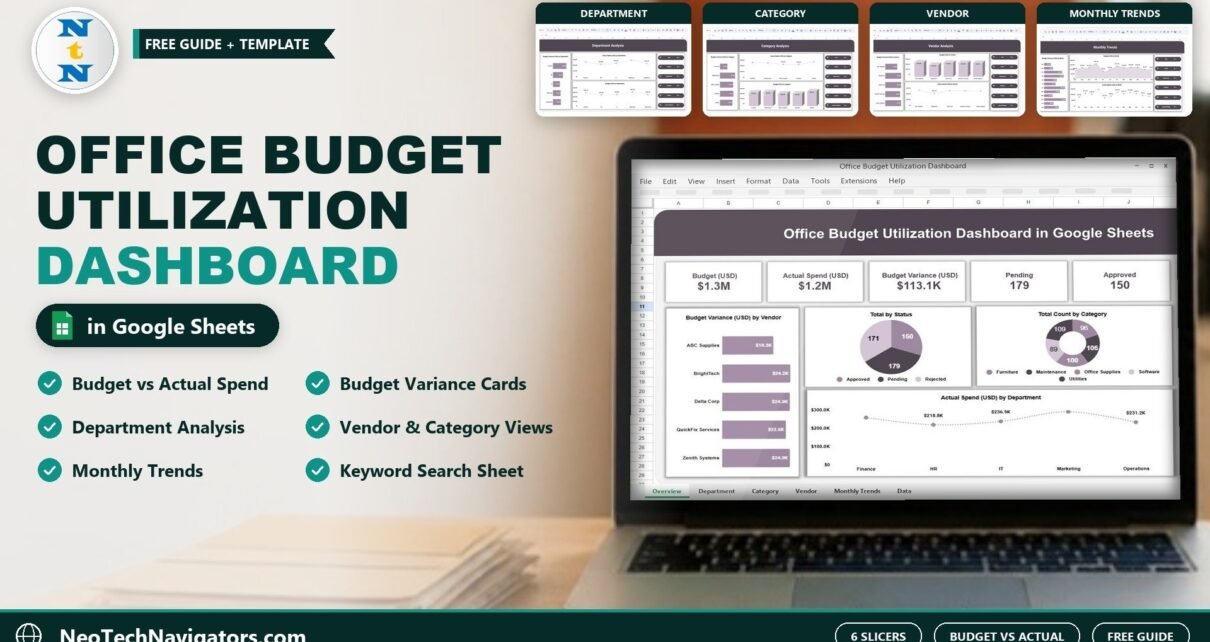
The Office Budget Utilization Dashboard in Google Sheets shows how much of your office budget has been spent, where it went and what is still waiting for approval. Five KPI cards (Budget, Actual Spend, Budget Variance, Pending and Approved) sit above charts that break spending down by vendor, department, category and month, and six slicers let you filter everything in a click.
It is aimed at finance and admin teams, office and facility managers, procurement staff and small business owners who track office spending in Google Sheets. Inside you get an Overview page, Department Analysis, Category Analysis, Vendor Analysis, Monthly Trends and a Search sheet that filters records by keyword and column.
Below is a page-by-page tour, the metrics and how they are calculated, setup steps and honest limitations.
🎥 Watch the Video Tutorial
Get the Office Budget Utilization Dashboard
What Problem Does This Office Budget Dashboard Solve?
Office spending is spread across many small requests: furniture here, a software renewal there, maintenance jobs and utility bills every month. When those requests sit in a long list, it is hard to answer basic questions such as which department is closest to its budget, which vendor is costing more than planned, or how many requests are still pending.
This dashboard reads every budget line from one table and summarises it automatically. Managers get the totals and the breakdowns they need for a monthly budget review without building pivot tables by hand.
Dashboard Pages Explained
1. Overview
The Overview page shows five cards. In the sample data: Budget (USD) $1.3M, Actual Spend (USD) $1.2M, Budget Variance (USD) $113.1K, Pending 179 and Approved 150. Below them are four charts: Budget Variance (USD) by Vendor, Total by Status (Approved, Pending, Rejected), Total Count by Category and Actual Spend (USD) by Department.
The slicer panel on the right holds Year, Month, Department, Category, Vendor and Approval Status. The same six slicers appear on every analysis page.

2. Department Analysis
This page compares Finance, HR, IT, Marketing and Operations using three charts: Budget Variance (USD) by Department, Actual Spend (USD) by Department and Budget (USD) by Department. In the sample, Finance has the largest variance at $33.0K and IT the smallest at $17.1K.

3. Category Analysis
The same three views by expense category: Furniture, Maintenance, Office Supplies, Software and Utilities. Charts are Budget Variance (USD) by Category, Actual Spend (USD) by Category and Budget (USD) by Category. Utilities carry the largest budget in the sample ($296.9K).

4. Vendor Analysis
Vendor-level views for ABC Supplies, BrightTech, Delta Corp, QuickFix Services and Zenith Systems: Budget Variance (USD) by Vendor, Budget (USD) by Vendor and Actual Spend (USD) by Vendor. Use it before contract renewals to see which suppliers take the biggest share of spend.

5. Monthly Trends
Three month-by-month charts: Budget Variance (USD) by Month, Budget (USD) by Month and Actual Spend (USD) by Month. They help you spot months with unusually high spend, such as February in the sample data, where the budget peaks at $160.7K.

6. Search by Search Keyword and Field Name
Pick a column in Select Column (for example Department), type a word in Search Keyword (for example “hr”) and the sheet lists every matching record with a Total Record count (96 for HR in the screenshot). Each row shows S.No., Date, Department, Category, Vendor, Approval Status, Budget (USD), Actual Spend (USD), Budget Variance (USD), Pending, Rejected, Approved, Total Count, Month and Year.

Metrics in the Dashboard and How They Are Calculated
| Metric | What it shows | Calculation | Better when |
|---|---|---|---|
| Budget (USD) | Total budget for the filtered records | Sum of Budget (USD) | Planning figure |
| Actual Spend (USD) | Money actually spent | Sum of Actual Spend (USD) | Within budget |
| Budget Variance (USD) | Budget left unspent (negative = overspend) | Budget (USD) − Actual Spend (USD) | Zero or positive |
| Pending | Requests waiting for a decision | Count of records with status Pending | Lower |
| Approved | Requests approved | Count of records with status Approved | Context dependent |
The variance is calculated per record. Two rows from the HR search results show both cases:
Delta Corp, Maintenance:   2,387.84 − 2,076.29 = 311.55   (under budget)
QuickFix Services, Furniture: 1,199.66 − 1,408.79 = −209.13 (over budget)
Other numbers worth tracking
The template does not show a utilization percentage card, but you can work it out from the cards: Actual Spend ÷ Budget. With the sample totals that is roughly $1.2M ÷ $1.3M, or a little over 90% of the budget used. Many teams also watch the share of requests rejected; the Total by Status chart gives you the counts for that.
How to Use It With Your Own Budget Data
- Make a copy of the file in Google Sheets (File > Make a copy).
- Replace the sample rows in the data sheet with your own records, keeping the same columns: Date, Department, Category, Vendor, Approval Status, Budget (USD), Actual Spend (USD) and the helper columns.
- Keep names consistent. Use the same spelling for each department, category and vendor so charts and slicers group correctly.
- Check the Overview cards against a quick manual total to confirm all rows are included.
- Filter with the slicers (Year, Month, Department, Category, Vendor, Approval Status) to prepare each department’s monthly review.
- Use the Search sheet when someone asks about a specific vendor or department.
Real-World Use Cases
- Monthly budget review. The office manager filters Month and Department to show each head how much of their budget is used and which requests are still pending.
- Vendor negotiation. Procurement opens Vendor Analysis before a renewal to see total spend and variance with each supplier.
- Year-end planning. Finance uses Monthly Trends and Category Analysis to set next year’s category budgets based on actual seasonal spend.
Best Practices
- Update the data weekly or at month-end so the Pending count stays accurate.
- Record both the budget and the actual amount on each line, even when they match.
- Review negative variances first; they are the overspends.
- Share a view-only link with department heads and keep edit access with the finance or admin team.
- Start a fresh copy each financial year and keep the old one as an archive.
Limitations: Who Should Not Use This Template
- It is a reporting dashboard, not an approval workflow. It shows statuses but does not route requests or send notifications.
- Data is entered or pasted manually; there is no live link to accounting software.
- Amounts are in USD in the sample. If you work in another currency, change the number formats and labels.
- Large organisations with many cost centres and multi-level approvals will be better served by an ERP or spend management system.
Related Templates and Guides
If you also want to track the items being bought, the Office Supplies Dashboard in Google Sheets is a natural partner, and the Vendor Performance Dashboard in Google Sheets covers supplier quality beyond cost. For allocating shared costs, see the Expense Allocation Tracker in Google Sheets, and plan the next cycle with the Budget Planning Calendar in Google Sheets. Building-related spend fits the Office Maintenance Dashboard in Google Sheets.
Related templates: Excel users can use the Office Budget Utilization Dashboard in Excel.
To learn how dashboards like this are put together, the Excel Pivot Tables and Dashboards course on NextGenTemplates Academy covers pivots, charts and slicers in structured lessons.
Frequently Asked Questions
What is budget utilization?
It is the share of a budget that has actually been spent, calculated as Actual Spend divided by Budget. The dashboard shows the two totals and the variance between them.
How is Budget Variance calculated in this template?
Budget minus Actual Spend for each record. A positive value means money is left; a negative value means the line went over budget.
Which filters are available?
Six slicers: Year, Month, Department, Category, Vendor and Approval Status. They appear on the Overview and every analysis page.
Can I add my own departments, categories or vendors?
Yes. Enter the new names in your data rows; the charts and slicers pick them up from the data.
How does the Search sheet work?
Choose a column such as Department, Vendor or Category, type a keyword, and the sheet lists every matching record with a total count.
Does it need add-ons or scripts?
No. It is a standard Google Sheets file that works in any browser.
Wrapping Up
The Office Budget Utilization Dashboard in Google Sheets turns a list of budget lines into a clear picture of budget, spend, variance and approvals by department, category, vendor and month. Load your own records, keep the naming consistent and use the slicers in your monthly budget meeting.
Get the Office Budget Utilization Dashboard
📅 Last updated: October 2026