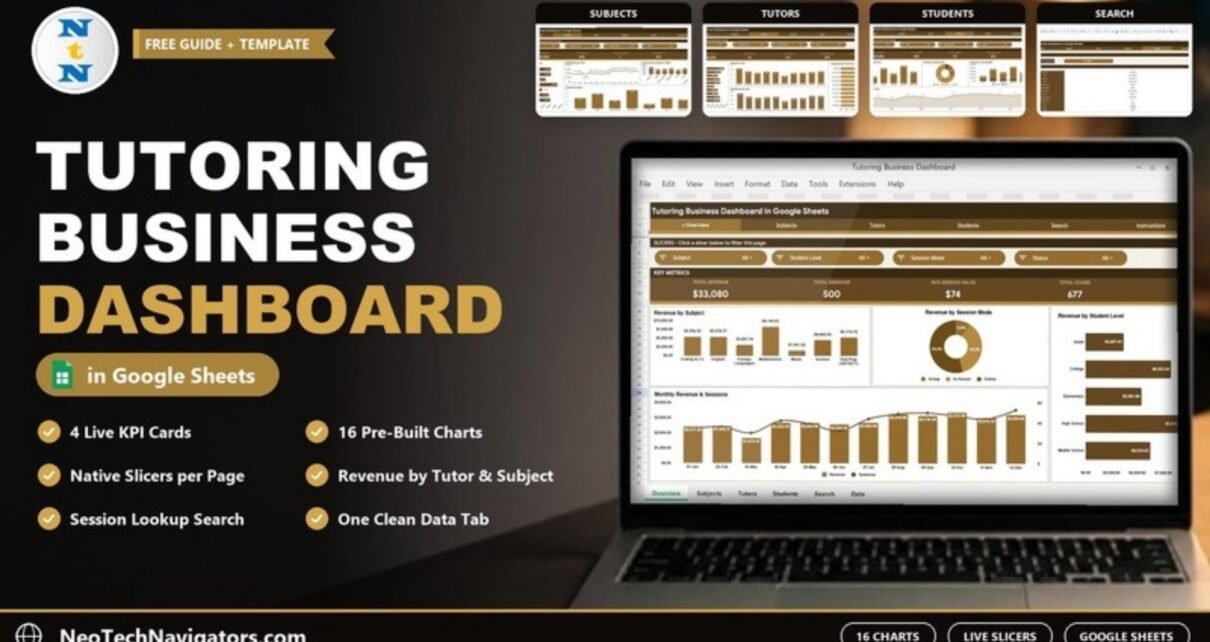
The Tutoring Business Dashboard in Google Sheets tracks 4 headline KPIs across its connected tabs, with 16 pre-built charts and clickable slicers. Setup takes under 10 minutes: paste your session records into the Data tab and every KPI card, chart, and filter recalculates on its own. There is nothing to install and no monthly subscription.
Most tutoring businesses run on either a messy spreadsheet or an expensive scheduling app that still hides the numbers that matter most: which subject earns the most, which tutor is most profitable, and whether online sessions out-earn in-person ones. This Google Sheets tutoring tracker turns one clean Data tab into four analysis pages, a session search tool, and a set of slicers, so you can answer those questions in seconds rather than rebuilding pivot tables by hand.
Get the Tutoring Business Dashboard
Key Features of the Tutoring Business Dashboard in Google Sheets
Every page reads from a single Data tab, so your figures stay consistent no matter where you look:
- 📊 4 live KPI cards – Total Revenue, Total Sessions, Average Session Value, and Total Hours update the instant you add or edit a session.
- 📈 16 pre-built charts – spread across the Overview, Subjects, Tutors, and Students tabs, covering revenue, session counts, hours, and per-session averages by subject, tutor, student level, and session mode.
- 🎚️ Native Google Sheets slicers – each analysis page has its own slicer bar (on the Overview: Subject, Student Level, Session Mode and Status), so you can filter the page without touching a formula.
- 🔍 Session search tool – pick any Session ID on the Search tab and instantly pull its 12 details, from date and tutor to revenue, payment method, and status.
- 🗃️ One clean Data tab – keep the column order, add one row per session, and the KPIs, charts, slicers, and search all stay in sync.
- ☁️ 100% browser-based – runs in Google Sheets on desktop or mobile and shares with your team through a normal Google Drive link.
In practice, the Tutoring Business Dashboard in Google Sheets gives an independent tutor or a multi-tutor centre the kind of revenue and capacity reporting that paid platforms usually bundle into a recurring per-seat fee.
Dashboard Pages Explanation
The navigation bar links the Overview, Subjects, Tutors, Students, Search and Instructions tabs, and all of them read from the Data sheet. Here is what each one does.
1. Overview Page
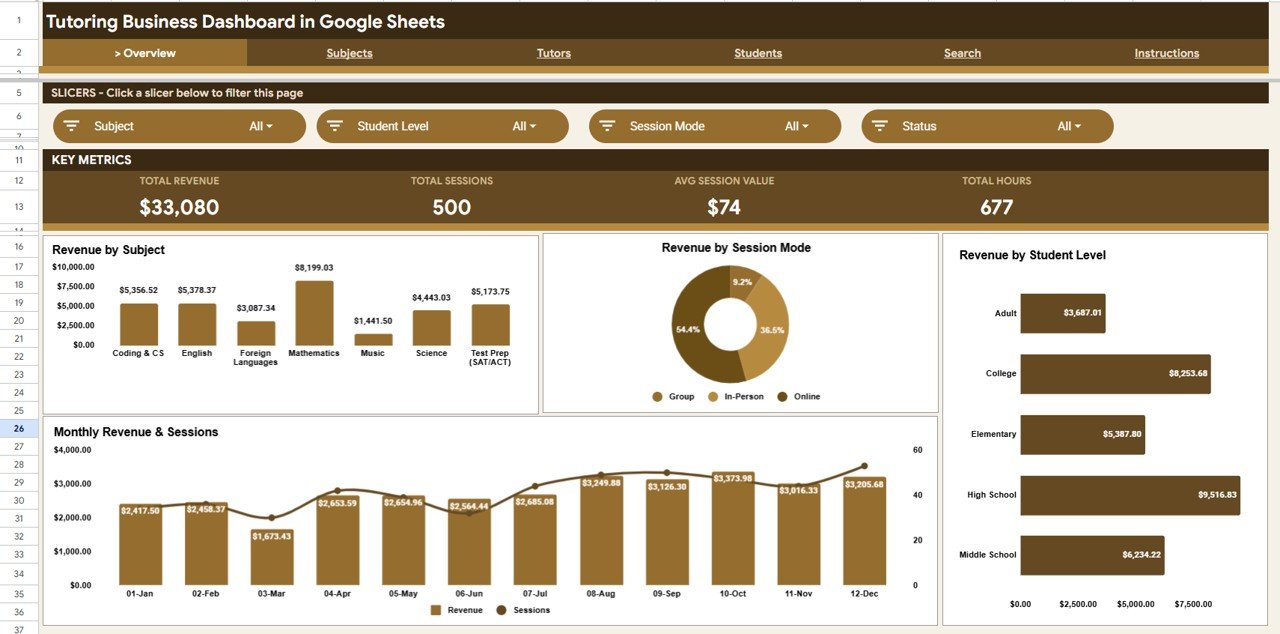
The Overview tab opens with slicers for Subject, Student Level, Session Mode and Status, followed by four KPI cards – Total Revenue, Total Sessions, Average Session Value, and Total Hours. Its charts include Revenue by Subject, Revenue by Session Mode, Revenue by Student Level, and Monthly Revenue and Sessions, so your income mix and monthly trend are visible at a glance.
2. Subjects
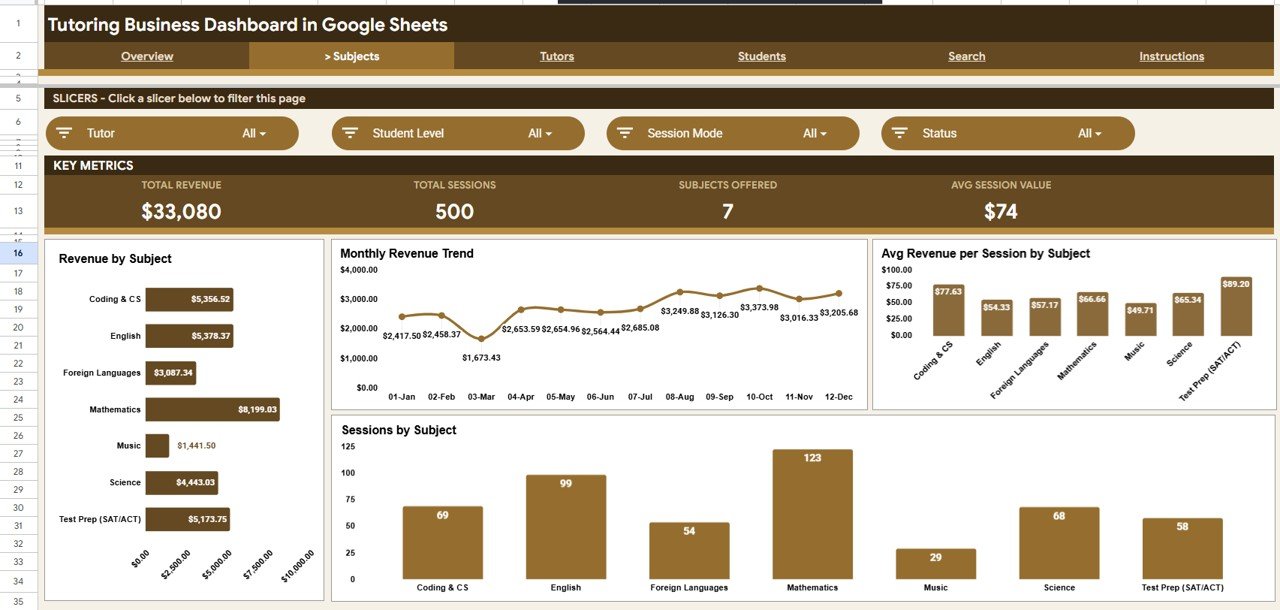
This tab breaks performance down by subject with Revenue by Subject, a Monthly Revenue Trend, Average Revenue per Session by Subject, and Sessions by Subject. It is the page you open when deciding which subjects to promote or hire more tutors for.
3. Tutors
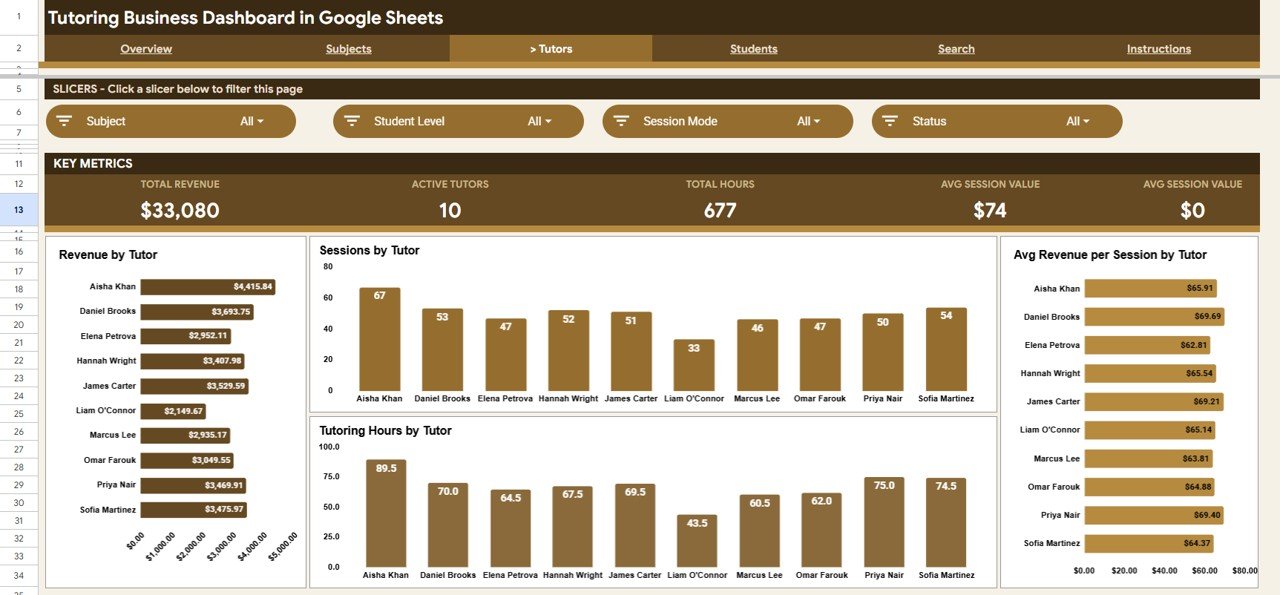
The Tutors tab measures each tutor’s contribution with Revenue by Tutor, Sessions by Tutor, Average Revenue per Session by Tutor, and Tutoring Hours by Tutor – useful for calculating payouts, planning capacity, and recognising your strongest performers.
4. Students
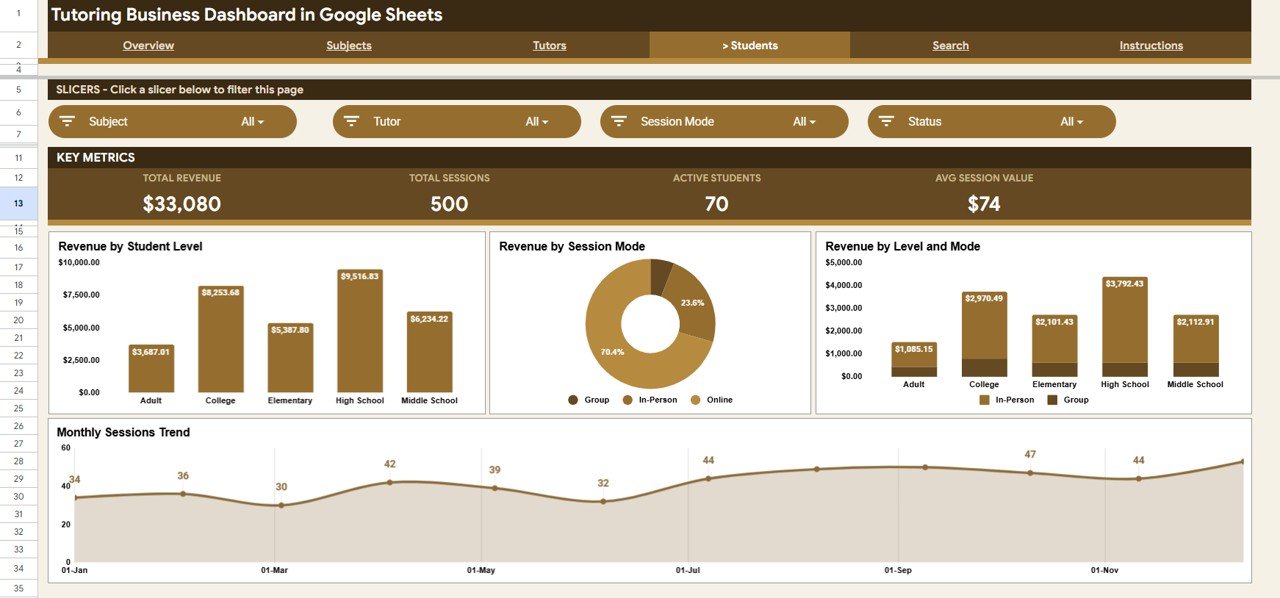
The Students tab focuses on who you teach and how, with Revenue by Student Level, Revenue by Session Mode, Revenue by Level and Mode, and a Monthly Sessions Trend – helping you see which student levels drive more income, and how online compares to in-person and group sessions.
5. Search Page
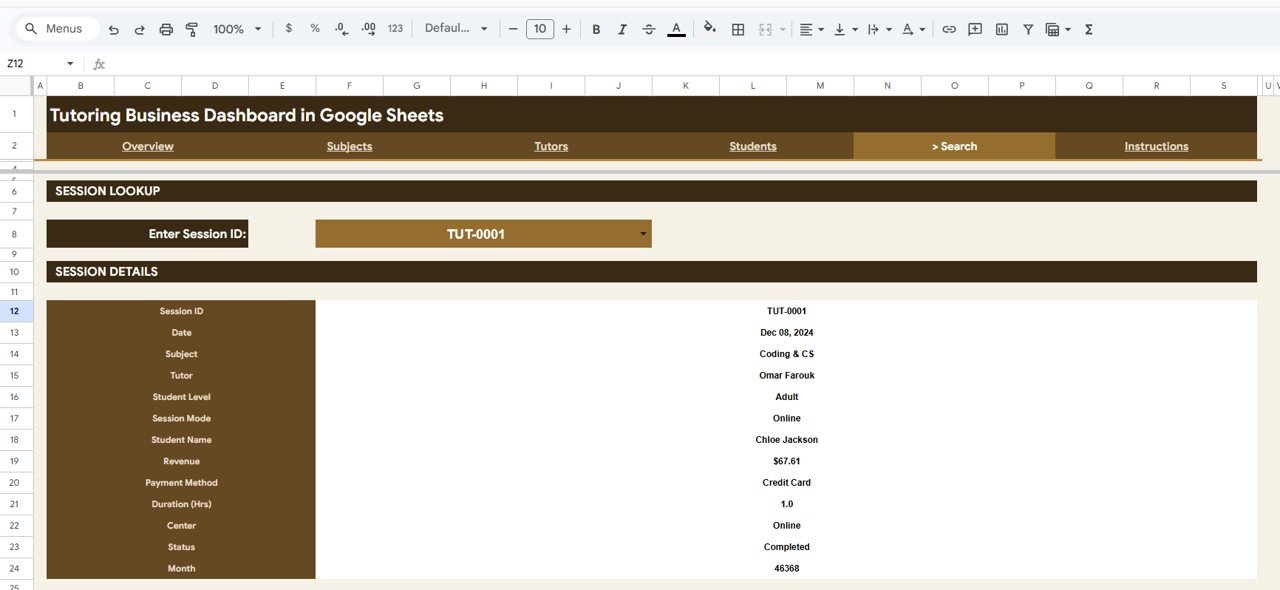
Choose a Session ID in the Session Lookup box and the Search tab instantly returns that session’s full record – Date, Subject, Tutor, Student Level, Session Mode, Student Name, Revenue, Payment Method, Duration, Center, Status, and Month – without scrolling through the raw data.
6. Data Sheet
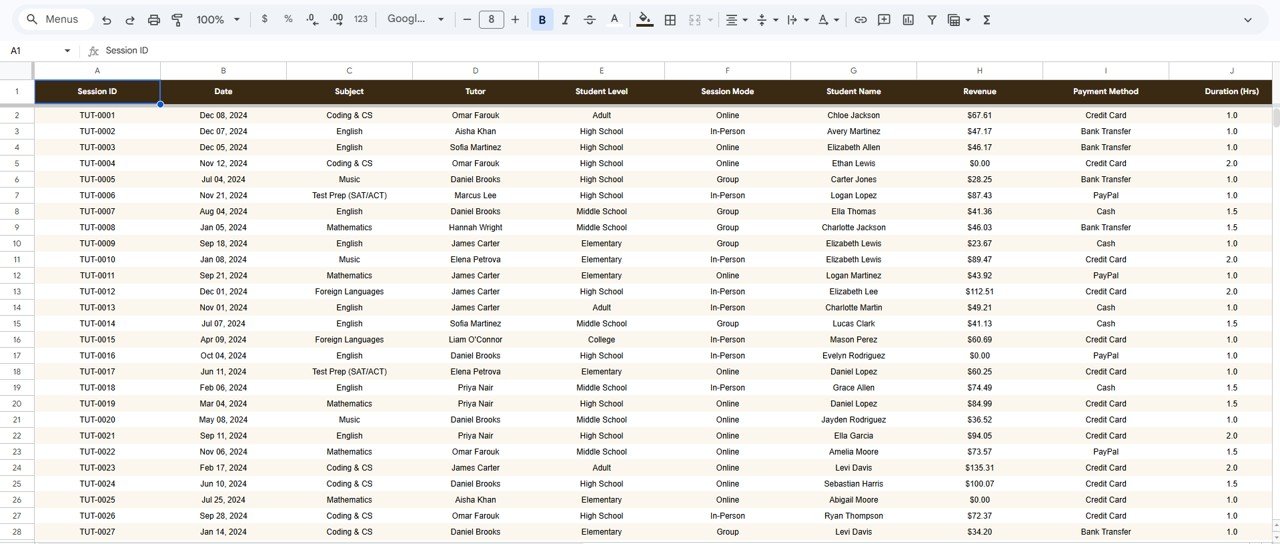
The Data tab is where everything starts. Add each tutoring session as a new row in the same column format and the KPIs, charts, slicers, and Search tab all update automatically – no formula editing required.
Tutoring Business Dashboard in Google Sheets vs. Excel vs. Paid Tutoring Software
Here is how this Google Sheets tutoring tracker compares to a Microsoft Excel dashboard and to subscription tutoring platforms such as Teachworks or TutorBird:
| Feature | Tutoring Business Dashboard (Google Sheets) | Microsoft Excel Dashboard | Teachworks / TutorBird |
|---|---|---|---|
| Cost | One-time purchase | One-time template price | Monthly subscription |
| Platform | Google Sheets (any browser) | Microsoft Excel (desktop) | Vendor web app |
| Setup time | ✅ Under 10 minutes | Under 10 minutes | Account and data setup |
| Real-time team collaboration | ✅ Built in via Google Drive | ⚠️ Needs OneDrive / 365 | ✅ Included |
| Mobile access | ✅ Google Sheets app | ⚠️ Excel mobile | ✅ Included |
| Customisable fields | ✅ Fully editable | ✅ Fully editable | ⚠️ Limited to vendor fields |
| Share with a link | ✅ One Google Drive link | ⚠️ File send / OneDrive | ✅ User logins |
| You own your data | ✅ Your Google Drive | ✅ Your file | ❌ Vendor servers |
| Scheduling, invoicing, parent portal | ❌ Not included | ❌ Not included | ✅ Included |
For tutoring centres and independent tutors who want clear revenue and session analytics without a monthly per-seat bill, the Tutoring Business Dashboard in Google Sheets sits in the sweet spot. Check current pricing on each product page before comparing costs, as plans and prices change.
Who Should Use This Template
Perfect for:
- Independent tutors tracking sessions, hours, and income across multiple subjects
- Tutoring centres with several tutors and locations that need per-tutor and per-center reporting
- Test-prep and academic coaching businesses that want a clean online vs in-person revenue split
Not a fit if:
- You need a full student information system with attendance, an LMS, and parent portals
- You require built-in payment processing or automated invoicing
- You want a fully coded web app with secure logins – in that case, browse our Mini Web Apps instead
Real-World Use Cases
A six-tutor maths and science centre can use Revenue by Tutor and Tutoring Hours by Tutor to calculate monthly payouts, and Revenue by Subject to decide where to add classes next term – without a per-seat monthly platform fee.
An independent IELTS and spoken-English tutor can log each session in the Data tab and check Revenue by Session Mode to see whether online classes out-earn in-person ones, which helps when filling the weekly timetable.
A manager running two test-prep centres can rely on Revenue by Level and Mode plus the Search tab to answer parent questions about specific sessions in seconds during a busy enrolment week, instead of digging through a long raw data sheet.
Advantages of the Tutoring Business Dashboard in Google Sheets
- 💰 One-time cost, not a subscription – a single purchase instead of a recurring monthly bill that grows as you add tutors.
- ⚡ Fast to deploy – copy the sheet, paste your sessions, and the whole dashboard is live in under 10 minutes.
- 🤝 Built for teams – share one Google Drive link so admins and tutors can view or edit together in real time.
- 📱 Works anywhere – open it from a laptop, tablet, or phone through the Google Sheets app.
- 🔨 Fully editable – every subject, tutor, level, mode, and center is read from your Data tab, so the dashboard adapts to your own list of values.
Limitations to Know
To set honest expectations, the Tutoring Business Dashboard in Google Sheets is a reporting and analytics tool, not an all-in-one management suite. It does not send invoices, take payments, or schedule classes, and it has no login-protected student or parent portal. Very large operations that need automated billing or a formal student information system will outgrow it. For most independent tutors and small-to-mid centres, though, that simplicity is the point: it stays fast, transparent, and easy to edit.
Best Practices
- Keep the Data tab column order exactly as supplied so the charts, slicers, and Search tab keep working.
- Use one row per session and a unique Session ID per row so the Search tab can find any record.
- Enter dates in a consistent format so the Monthly Revenue and Sessions charts group correctly.
- Duplicate the sheet at the start of each year if you want a clean annual file while keeping history.
- Set Google Drive sharing to the right level (view or edit) before sending the link to tutors.
Explore Relevant Templates
If you run an education or small-service business, these templates pair well with the tutoring dashboard:
- 🚗 Driving School Dashboard in Google Sheets – the same slicer-and-pivot format for a different small business.
- 👨💻 Coding Bootcamps Dashboard in Excel – cohort and revenue analytics for course-based education.
- 🏫 School Admin Dashboard in Power BI – a school-level view if you prefer Power BI.
- 🍼 Childcare Services Dashboard in Excel – a similar services analytics dashboard.
- 🎵 Music School Dashboard in Excel – per-tutor and per-subject reporting for music schools.
On this site you can also read how the Coaching & Tutoring Dashboard in Google Sheets, the Coaching Business Dashboard, the Language Schools Dashboard and the Music School Dashboard in Google Sheets handle similar education data.
If you want to build reports like this yourself, the Pivot Tables and Dashboards course on NextGenTemplates Academy walks through summarising data and laying out dashboards step by step.
Frequently Asked Questions
What KPIs does the Tutoring Business Dashboard in Google Sheets track?
The Tutoring Business Dashboard in Google Sheets tracks 4 headline KPIs – Total Revenue, Total Sessions, Average Session Value, and Total Hours – all of which update automatically the moment you add or edit a session in the Data tab.
How long does setup take?
Setup takes under 10 minutes. Make your own copy from the Google Sheets link in the download, paste your session records into the Data tab in the same column order, and every KPI, chart, and slicer updates on its own.
Do I need Excel or any software to use it?
No. The Tutoring Business Dashboard in Google Sheets runs entirely in Google Sheets, so all you need is a free Google account and a browser on desktop or mobile. There is nothing to install.
Can multiple tutors use it at the same time?
Yes. Because it lives in Google Sheets, you can share a single Google Drive link and let several tutors or admins view or edit the dashboard together, with no per-user fees.
How does this compare to Teachworks or TutorBird?
Teachworks and TutorBird are subscription platforms that include scheduling and billing, while the Tutoring Business Dashboard in Google Sheets is a one-time purchase you own. It focuses on revenue and session analytics rather than scheduling or billing automation.
Can I add my own subjects, tutors, and centers?
Yes. Every subject, tutor, student level, session mode, and center is read from your Data tab, so the dashboard adapts to your own values with no formula editing required.
Will the charts update when I add new sessions?
Yes. The chart and pivot ranges are set to expand as you add rows, so new sessions flow straight into the KPI cards, charts, slicers, and Search tab automatically.
About the Author
Built by PK – a Microsoft Certified Professional with 15+ years of Excel, Google Sheets, and Power BI experience. PK is the founder of NextGenTemplates and reaches 300K+ subscribers across YouTube channels. Every template is hand-built and tested before release.
Wrapping Up
If you want to see exactly where your tutoring income comes from – by subject, by tutor, by level, and by month – without paying for a monthly platform, this dashboard does the job. Copy it, paste in last term’s sessions, and use the Subjects and Tutors tabs to plan next term.
Get the Tutoring Business Dashboard in Google Sheets
📅 Last updated: October 2026