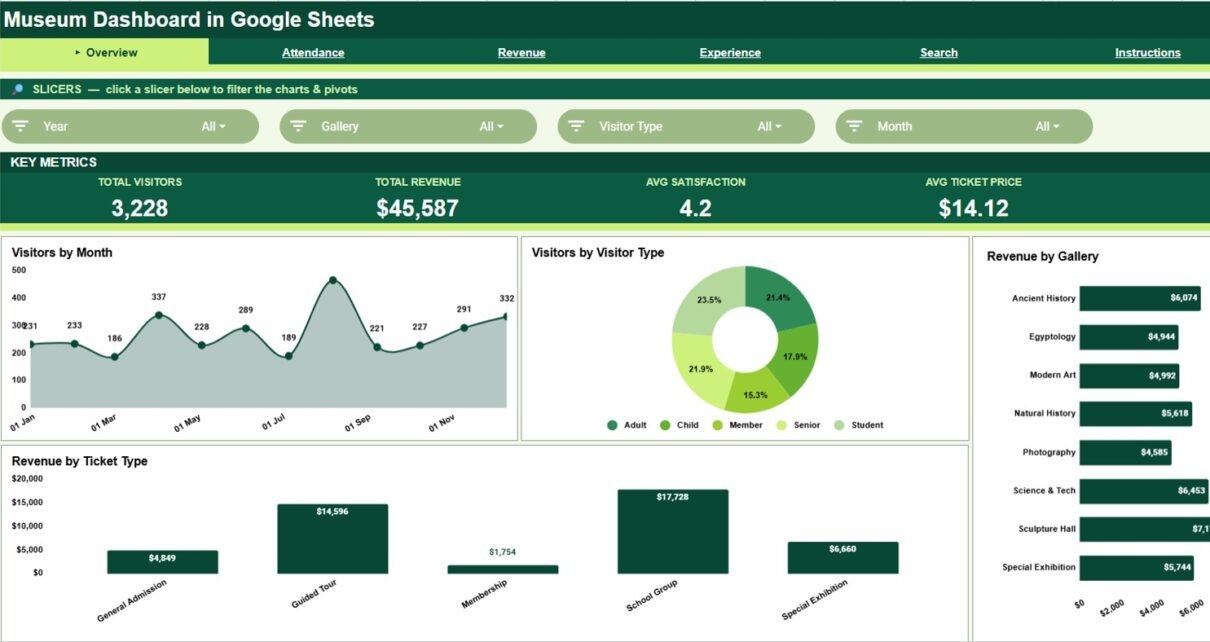
The Museum Dashboard in Google Sheets gives museum, gallery and cultural institution teams a practical way to review visitor activity, revenue, satisfaction, ticket performance and record-level details in one shared spreadsheet. It has 4 KPI cards on every dashboard page, 16 charts, slicers on every page, a Ticket ID lookup and an editable data table.
Many museums build reports from ticketing exports, front-desk logs, online sales reports and visitor surveys. That slows things down when directors need a board-ready view of attendance, gallery usage, revenue by ticket type or satisfaction trends. This Google Sheets dashboard cuts that manual work: add records to the Data Sheet tab, then use the slicers, charts and page tabs to read the museum’s story quickly.
🎥 Watch the Video Tutorial
Get the Museum Dashboard in Google Sheets
Key Features of the Museum Dashboard in Google Sheets
- Connected tabs: Overview, Attendance, Revenue, Experience, Search and Data Sheet, with an Instructions tab linked from the navigation bar.
- 4 headline cards: Total Visitors, Total Revenue, Avg Satisfaction and Avg Ticket Price on the Overview, plus four more cards on each analysis tab.
- 16 charts: four each on the Overview, Attendance, Revenue and Experience tabs, covering visitors, revenue, gallery, ticket type, channel, origin, duration and satisfaction.
- Interactive slicers: four per dashboard tab, so you can filter without rebuilding formulas or charts.
- Ticket ID lookup: review the full details of one ticket record from the Search tab.
- Google Sheets collaboration: share the dashboard with approved team members through Google Drive permissions.
- Editable data table: keep the same format and add your own museum records.
KPI Cards and Slicers by Tab
| Tab | KPI cards | Slicers |
|---|---|---|
| Overview | Total Visitors, Total Revenue, Avg Satisfaction, Avg Ticket Price | Year, Gallery, Visitor Type, Month |
| Attendance | Total Visitors, Members, International, Online Visitors | Year, Gallery, Channel, Origin |
| Revenue | Total Revenue, Special Exh. Rev, Membership Rev, Guided Tour Rev | Year, Ticket Type, Channel, Gallery |
| Experience | Avg Satisfaction, Avg Duration, Guided Tours, Total Tickets | Year, Gallery, Visitor Type, Ticket Type |
Avg Ticket Price is revenue per visitor. With the sample data, $45,587 ÷ 3,228 visitors = $14.12, which matches the Overview card.
Dashboard Pages Explained
1. Overview Page
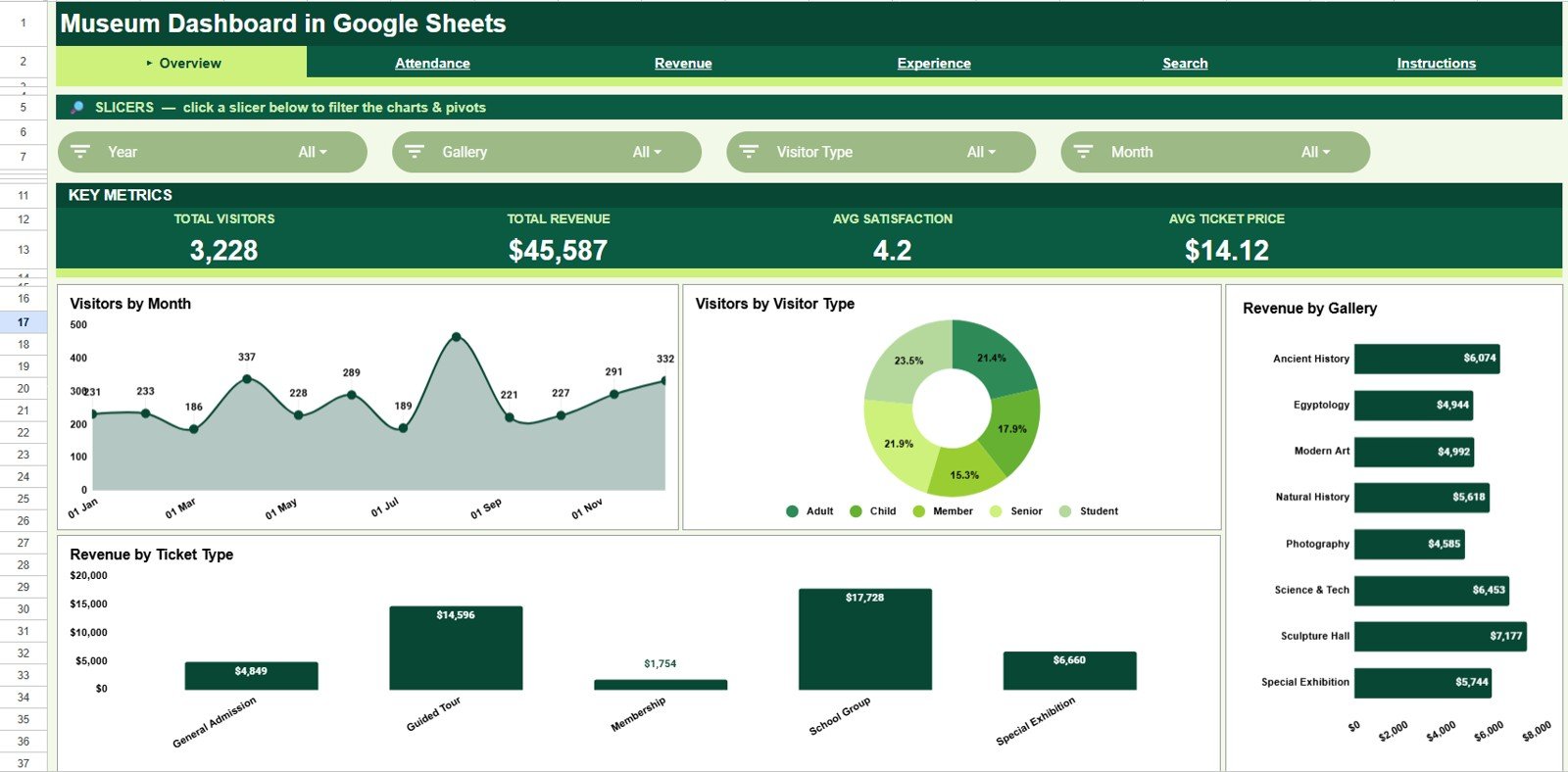
The Overview page is the leadership view. It shows Total Visitors, Total Revenue, Avg Satisfaction and Avg Ticket Price at the top, then four charts for a quick performance read.
Visitors by Month: shows attendance across months, so teams can spot seasonal peaks, slow periods and good months for exhibit launches or education programs.
Visitors by Visitor Type: shows the mix of Adult, Child, Member, Senior and Student visitors. It helps teams align pricing, guided tours and outreach with the audience they actually serve.
Revenue by Gallery: compares revenue across galleries such as Ancient History, Egyptology, Modern Art, Natural History, Photography, Science & Tech, Sculpture Hall and Special Exhibition.
Revenue by Ticket Type: splits revenue into General Admission, Guided Tour, Membership, School Group and Special Exhibition tickets, which supports pricing reviews.
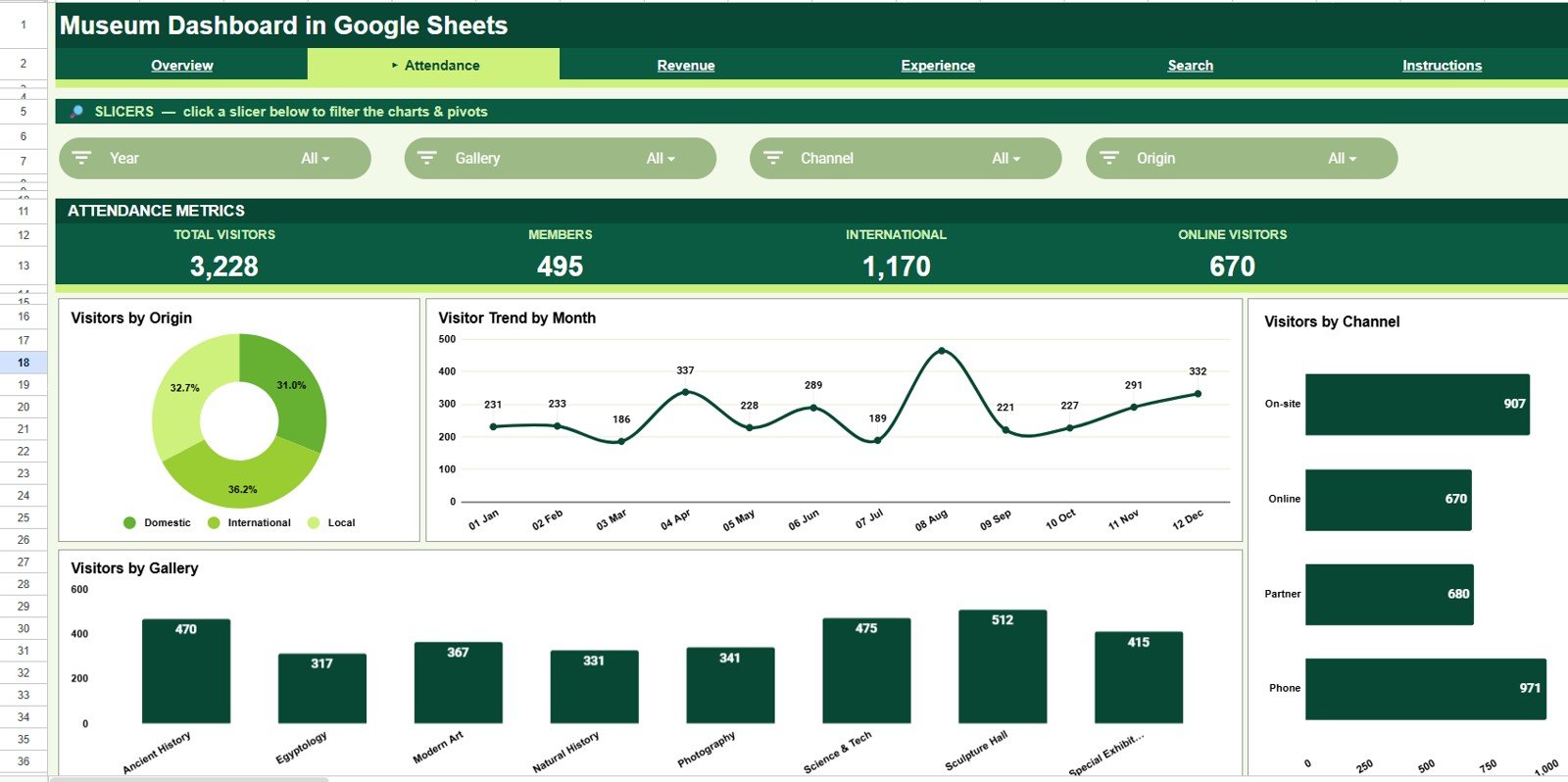
2. Attendance
The Attendance tab focuses on visitor volume and movement. It is useful for operations, marketing, tourism partnerships, school programs and staffing discussions.
Visitors by Origin: shows the split between Local, Domestic and International visitors, so museums can see which audiences respond to outreach.
Visitor Trend by Month: highlights attendance seasonality and supports guide scheduling, gallery coverage and promotional calendars.
Visitors by Channel: compares On-site, Online, Partner and Phone bookings, so teams can see which channels drive footfall.
Visitors by Gallery: compares visitor counts across galleries to find high-traffic areas, underused spaces and possible crowding.
3. Revenue
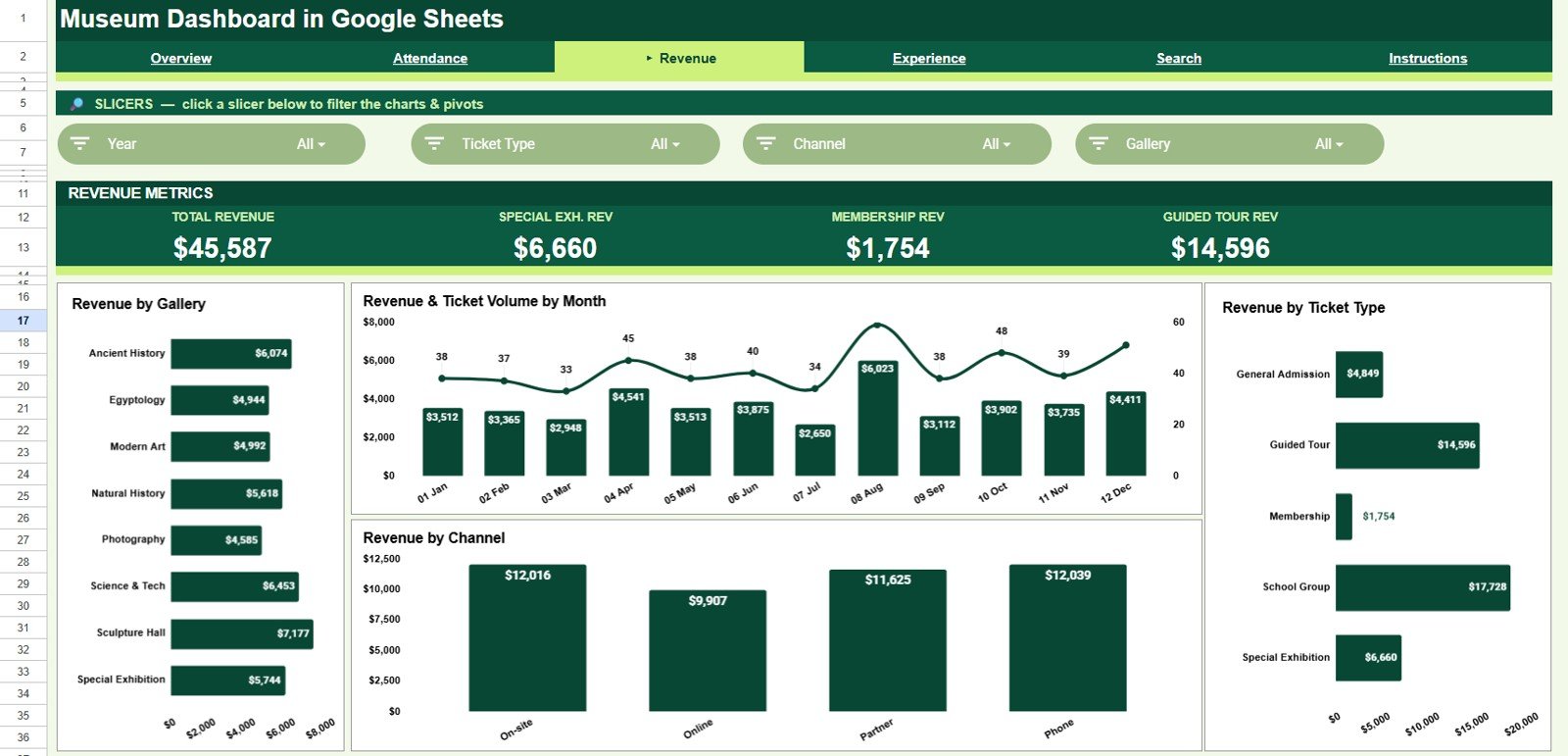
The Revenue tab is built for finance and management review. It shows where income comes from, how ticket volume relates to revenue, and which channels or ticket types deserve attention.
Revenue by Gallery: ranks galleries by revenue, so you can compare the financial side of exhibits with the attendance view.
Revenue & Ticket Volume by Month: puts revenue and ticket count on the same monthly chart, which helps separate real attendance growth from price-mix changes.
Revenue by Ticket Type: supports discount review, group ticket strategy, member benefit analysis and premium ticket decisions.
Revenue by Channel: compares On-site, Online, Partner and Phone revenue to show where marketing effort pays off.
4. Experience
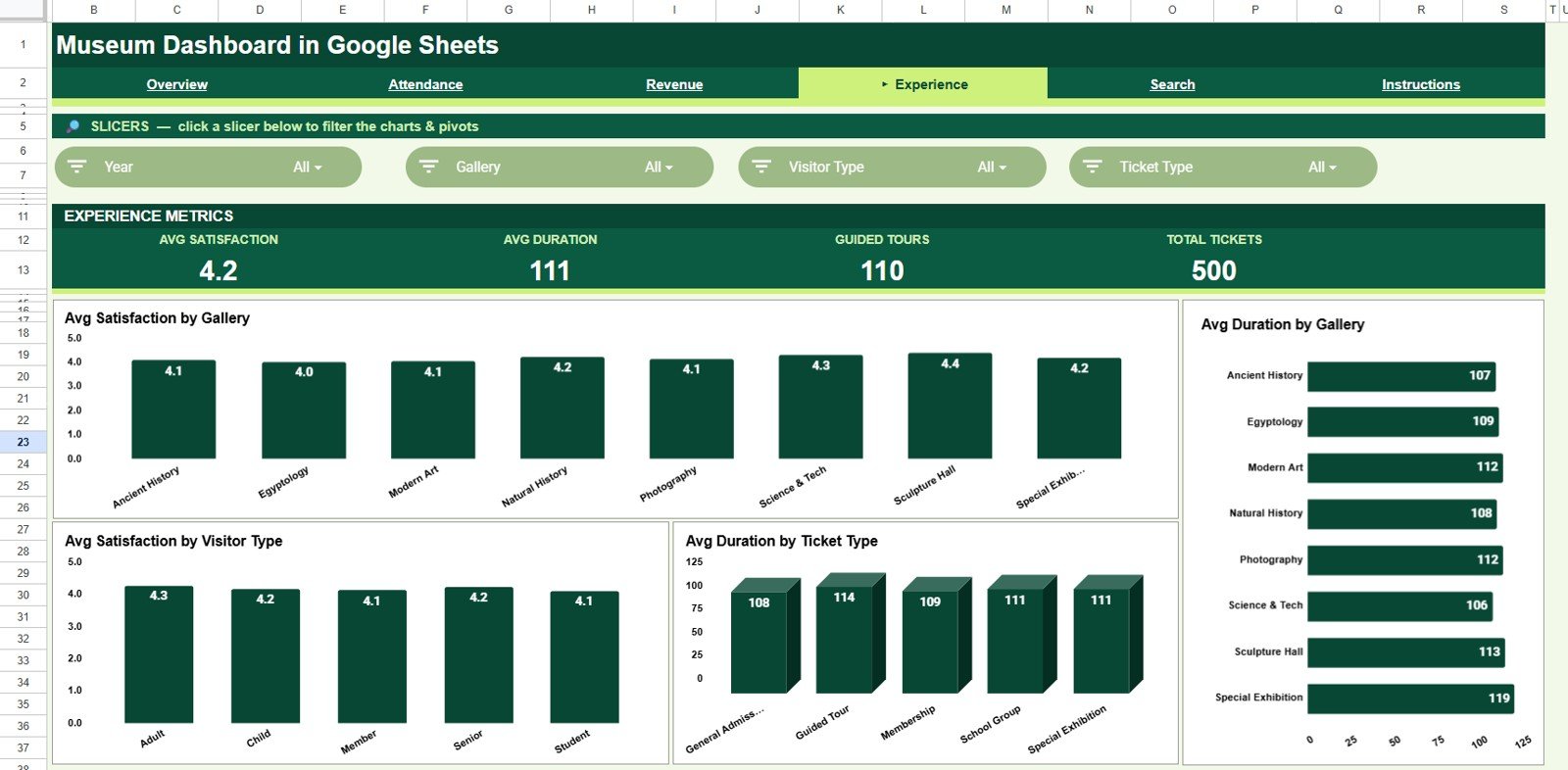
The Experience tab links visitor quality signals with gallery and ticket behaviour. It is especially useful for guest experience, curatorial, education and front-of-house teams.
Avg Satisfaction by Gallery: compares satisfaction scores by gallery to find exhibits that work well and areas where signage, interpretation or staffing could improve.
Avg Duration by Gallery: shows how many minutes visitors spend in each gallery, which points to engagement depth and possible layout issues.
Avg Satisfaction by Visitor Type: compares satisfaction across Adult, Child, Member, Senior and Student visitors.
Avg Duration by Ticket Type: compares visit length by ticket category, so you can check whether guided tours or special exhibitions match expected visit behaviour.
5. Search
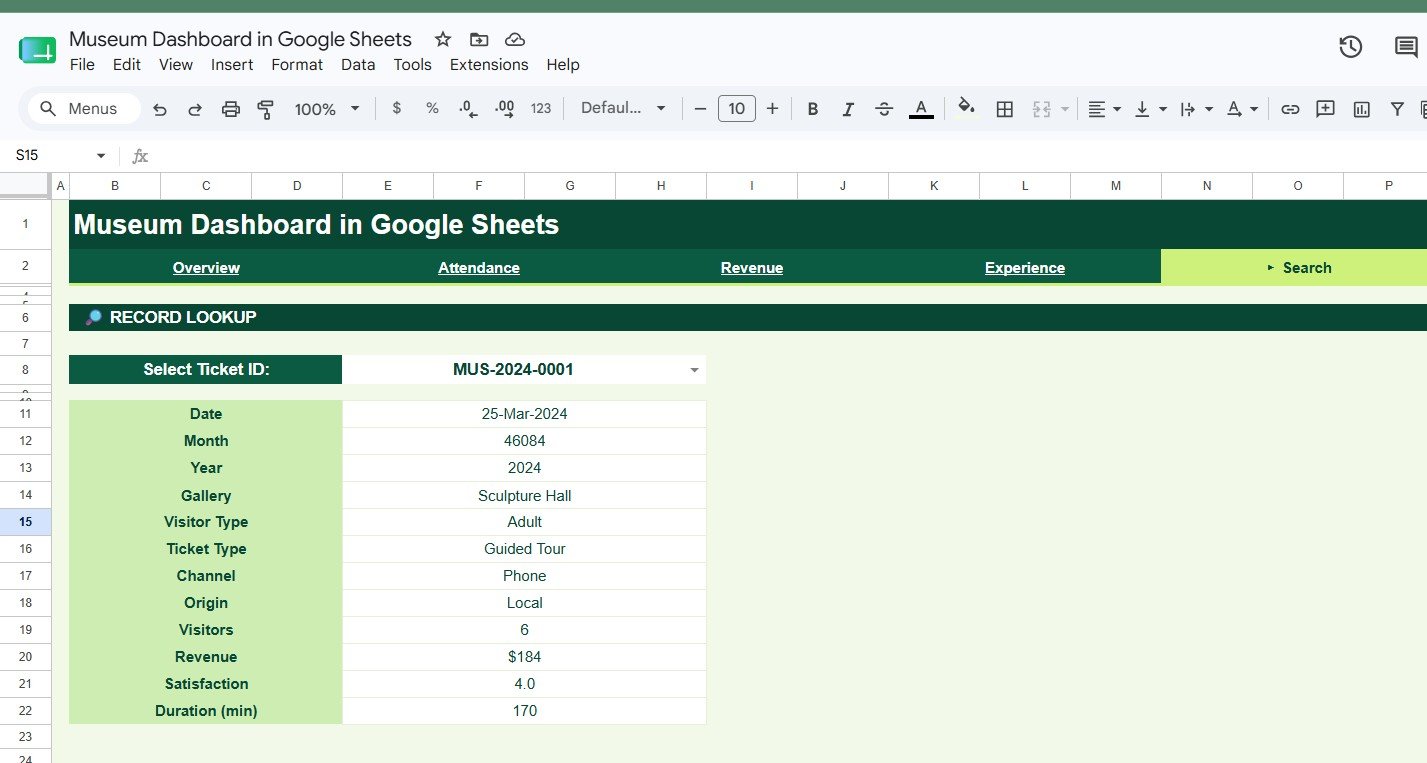
The Search tab supports record-level lookup, so a team member can review one ticket without scrolling the raw table. Select a Ticket ID and the sheet returns its Date, Month, Year, Gallery, Visitor Type, Ticket Type, Channel, Origin, Visitors, Revenue, Satisfaction and Duration (min). It is handy for front-office questions, quick audits and reconciliation checks.
6. Data Sheet Tab
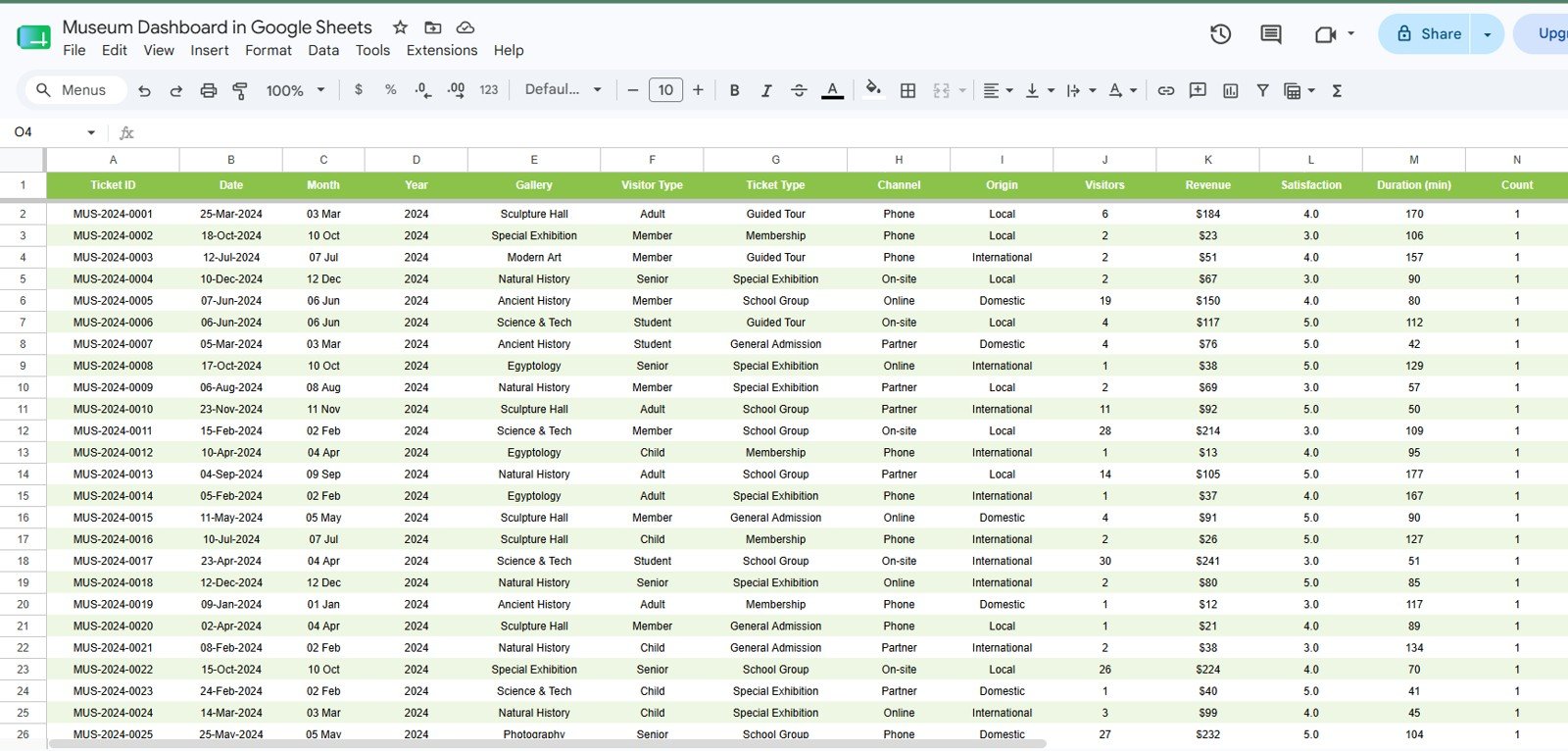
The Data Sheet tab is the input table. Its columns are Ticket ID, Date, Month, Year, Gallery, Visitor Type, Ticket Type, Channel, Origin, Visitors, Revenue, Satisfaction, Duration (min) and Count. Add records in the same format and keep one row per ticket so the cards, charts, slicers and lookup keep working.
Museum Dashboard in Google Sheets vs. Excel Dashboard vs. Museum Software
| Feature | Museum Dashboard in Google Sheets | Microsoft Excel dashboard | Paid museum software |
|---|---|---|---|
| Cost | One-time purchase | Template cost plus any Microsoft licence | Monthly or annual subscription |
| Platform | Google Sheets in the browser | Excel desktop or web | Vendor-hosted web app |
| Setup time | Copy sheet, add records, review charts | Open workbook, add data, refresh | Implementation and migration |
| Real-time collaboration | Yes, through Google Drive sharing | Best with Microsoft 365 | Usually included |
| Mobile access | Google Sheets app or browser | Layout may limit mobile use | Usually included |
| Customizable fields | Editable sheet structure | Editable workbook structure | Depends on vendor controls |
| Best fit | Lightweight reporting and team review | Offline spreadsheet reporting | Ticketing, CRM, donor and membership workflows |
Who Should Use This Template
This template suits museum directors, gallery managers, visitor-experience teams, curators, education teams, ticketing supervisors, finance staff and small cultural institutions that need a clear reporting layer in Google Sheets.
It also works for consultants building a quick reporting pack for a museum client, or nonprofit teams that report attendance, revenue and satisfaction without buying a full museum management system.
Real-World Use Cases
Marina, museum operations director: reviews the Overview and Attendance pages before monthly trustee meetings and uses visitor trends and gallery volume to explain staffing needs and exhibit demand.
Daniel, visitor-experience manager: checks satisfaction and average duration by gallery after a new exhibit opens, and uses the Experience tab to recommend signage and guided-tour changes.
Priya, ticketing and finance lead: reviews Revenue by Ticket Type and Revenue by Channel before month-end close. When a transaction needs checking, she looks up the Ticket ID on the Search tab.
Advantages of the Museum Dashboard in Google Sheets
The main advantage is speed. The team works in one shared file, and the dashboard tabs keep analysis separate from the raw input table. It is easier than rebuilding charts every month and lighter than rolling out full museum software when your immediate need is reporting.
The dashboard also stays familiar. Users can edit labels, adjust charts, add rows and share access through Google Drive. Google’s slicer documentation explains the native filter feature the template uses.
Limitations to Know
This template does not replace a live ticketing platform, CRM, donor database or access-control system. It does not scan tickets, collect payments, send donor emails or manage memberships.
For larger museums, the next step would be a controlled import process from ticketing or POS exports into the Data Sheet tab. Teams with strict governance may also want protected ranges, named editors and a monthly backup.
Best Practices
- Keep one row per ticket or visitor record in the Data Sheet tab.
- Do not rename columns unless you also update the formulas and charts.
- Use consistent names for galleries, visitor types, channels and ticket types.
- Check the Search tab after importing new data to confirm Ticket IDs are unique.
- Use Google Drive permissions so only approved editors can change source data.
- Make a monthly copy before major edits or structure changes.
Related Templates and Guides
The same dashboard is also available as the Museum Dashboard in Excel and the Museum Dashboard in Power BI.
On NeoTech Navigators, cultural organisations may also like the Arts and Culture Dashboard in Google Sheets, the Travel and Tourism Dashboard, the Event Management Analysis Dashboard and the Visitor Feedback Tracker for collecting the satisfaction data this dashboard reports on.
If you want to learn how to build and customise dashboards like this, the Excel Pivot Tables and Dashboards course on NextGenTemplates Academy covers pivots, slicers and charts in structured lessons.
Frequently Asked Questions
What does the Museum Dashboard in Google Sheets track?
Visitors, revenue, satisfaction, average ticket price, visitor type, origin, gallery, ticket type, channel, visit duration and ticket-level details.
Which tabs are included?
Overview, Attendance, Revenue, Experience, Search and Data Sheet, plus an Instructions tab linked from the navigation bar.
Do I need Excel?
No. The template is made for Google Sheets and runs in a browser with a Google account.
Can I share it with my team?
Yes. Share the Google Sheet through Google Drive permissions and control who can view or edit it.
Is this a full museum management system?
No. It is a reporting dashboard. It does not replace ticketing, donor CRM, access control or payment software.
Can I customize the dashboard?
Yes. In your own copy you can edit charts, colours, labels, formulas, fields and slicers.
About the Author
Built by PK, a Microsoft Certified Professional with 15+ years of Excel, Google Sheets and Power BI experience. He founded NextGenTemplates, and its YouTube channels reach 300K+ subscribers. Every template is built by hand and tested before release.
Wrapping Up
The Museum Dashboard in Google Sheets is a focused reporting template for museum teams that want to monitor visitors, revenue, gallery performance, ticket mix, satisfaction and individual tickets in one shared spreadsheet. Add your records to the Data Sheet, filter by gallery or visitor type, and bring the Overview page to your next trustee meeting.
Get the Museum Dashboard in Google Sheets
📅 Last updated: October 2026