Power outages in offices disrupt daily operations, reduce employee productivity, damage IT infrastructure, and increase operational costs. Therefore, organizations must track, analyze, and resolve power outages efficiently. However, many teams still rely on emails, phone calls, or unstructured Excel files, which leads to delays and poor visibility.
That is exactly where an Office Power Outage Report Tracker in Google Sheets becomes a powerful and practical solution.
This ready-to-use tracker allows facility teams, IT teams, and operations managers to log every power outage incident, analyze root causes, monitor downtime costs, and track resolution status using interactive charts and a smart search system.
In this article, we will explain how this tracker works, what charts it includes, how the search feature helps, and why organizations should adopt it for better infrastructure reliability.
What Is an Office Power Outage Report Tracker in Google Sheets?
Click to Buy Office Power Outage Report Tracker in Google Sheets
An Office Power Outage Report Tracker is a centralized system that records all power outage incidents across office buildings and locations. It captures outage severity, causes, duration, downtime cost, and resolution status.
Because the tracker is built in Google Sheets, it offers:
- Real-time collaboration
- Instant updates
- Easy access from anywhere
- No software installation
- Complete customization
As a result, teams gain full visibility into power outage patterns and infrastructure risks.
Key Features of the Power Outage Report Tracker
This tracker is a ready-to-use Google Sheets solution that includes:
- A structured Tracker Sheet Tab
- Five interactive charts
- A powerful search system
- Automatic calculations
- Real-time reporting
Let’s explore each feature in detail.
Tracker Sheet Tab
The Tracker Sheet Tab is the backbone of the entire system. Here, users record every power outage incident with complete details.
Typical fields include:
- Outage ID
- Date & Time
- Building Name
- Office Location
- Severity Level (Low, Medium, High, Critical)
- Outage Cause (Grid Failure, Equipment Fault, Weather, Maintenance, Unknown)
- Resolution Status (Open, In Progress, Resolved)
- Downtime Duration (Hours)
- Downtime Cost (USD)
- Assigned Team
- Remarks
As soon as data is entered or updated, all charts refresh automatically.
Charts Included in the Tracker
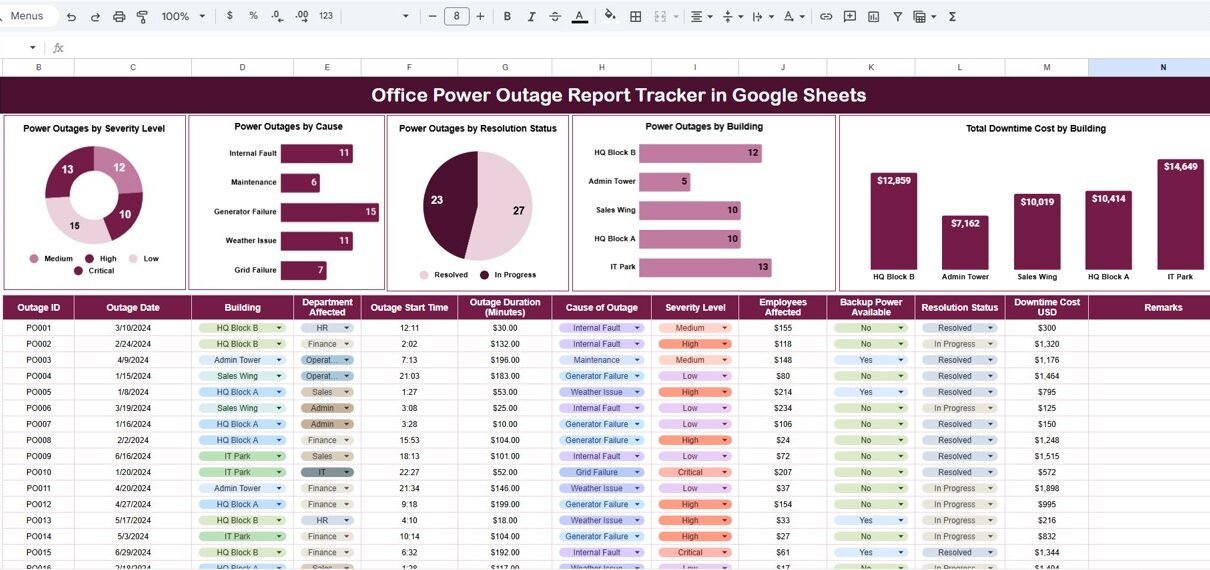
The dashboard includes five insightful charts that help teams understand outage patterns quickly.
1. Power Outages by Severity Level
This chart displays the distribution of outages by severity:
-
Low
-
Medium
-
High
-
Critical
It helps teams prioritize urgent issues and focus on high-impact outages that affect business continuity.
2. Power Outages by Cause
This chart highlights why outages occur, such as:
-
Utility grid failure
-
Internal electrical issues
-
Weather conditions
-
Maintenance activities
-
Equipment malfunction
By analyzing causes, organizations can reduce repeat incidents and plan preventive maintenance.
3. Power Outages by Resolution Status
Click to Buy Office Power Outage Report Tracker in Google Sheets
This chart shows outages categorized as:
-
Open
-
In Progress
-
Resolved
It provides instant visibility into pending issues and helps facility managers track resolution efficiency.
4. Power Outages by Building
This chart identifies buildings that experience frequent outages. As a result, management can:
-
Upgrade infrastructure
-
Improve backup power systems
-
Allocate maintenance budgets wisely
5. Total Downtime Cost by Building
This is one of the most critical charts. It shows the financial impact of outages by building.
It helps leadership understand:
-
Cost-heavy locations
-
Business risk exposure
-
ROI for infrastructure investments

Click to Buy Office Power Outage Report Tracker in Google Sheets
Search Functionality – Smart Search System
The tracker includes a powerful Search Panel that allows users to search by:
-
Search Keyword
-
Field Name (Building, Cause, Severity, Status, Location, Assigned Team)
This feature allows teams to find specific incidents instantly without scrolling through large datasets.
Benefits of the search feature:
-
Faster investigations
-
Better audit preparation
-
Quicker management reviews
-
Improved response during emergencies

Click to Buy Office Power Outage Report Tracker in Google Sheets
Why Organizations Need a Power Outage Report Tracker
Power outages impact more than electricity—they affect productivity, safety, IT systems, and revenue. Therefore, organizations need structured tracking.
This tracker helps organizations:
-
Reduce downtime
-
Identify recurring issues
-
Control outage-related costs
-
Improve infrastructure reliability
-
Support compliance and audits
As a result, decision-making becomes faster and data-driven.
Advantages of the Office Power Outage Report Tracker
Centralized outage tracking
All incidents stay in one place.
Real-time visibility
Charts update instantly as data changes.
Better root-cause analysis
Teams identify recurring outage causes quickly.
Improved response time
Open and in-progress outages remain visible.
Cost transparency
Downtime costs become measurable and actionable.
Easy to use
No technical skills required.
Opportunities for Improvement in the Tracker
Click to Buy Office Power Outage Report Tracker in Google Sheets
Although the tracker is powerful, organizations can enhance it further.
Add SLA monitoring
Track response and resolution timelines.
Integrate alerts
Send email notifications for critical outages.
Add backup power tracking
Monitor generator or UPS usage.
Include risk scoring
Rank buildings based on outage frequency and cost.
Automate data entry
Integrate with facility management systems.
Best Practices for Using the Power Outage Tracker
Click to Buy Office Power Outage Report Tracker in Google Sheets
Log outages immediately
Real-time logging improves accuracy.
Use consistent severity definitions
Avoid confusion during analysis.
Review charts weekly
Early trend detection prevents bigger failures.
Track downtime costs accurately
This strengthens investment decisions.
Assign accountability
Ensure each outage has an owner.
Conclusion
An Office Power Outage Report Tracker in Google Sheets provides a simple yet powerful way to monitor power reliability across office locations. It converts raw outage data into meaningful insights using interactive charts and smart search tools.
Because it is cloud-based, easy to maintain, and highly customizable, this tracker becomes an essential tool for facility managers, IT teams, and operations leaders. With better visibility and structured reporting, organizations can reduce downtime, control costs, and improve infrastructure resilience.
Frequently Asked Questions (FAQs)
Click to Buy Office Power Outage Report Tracker in Google Sheets
1. Who should use this tracker?
Facility managers, IT teams, operations managers, and compliance teams.
2. Can I add more outage causes?
Yes, the tracker is fully customizable.
3. Does it support multiple buildings?
Yes, it supports unlimited locations and buildings.
4. Is Google Sheets secure for this data?
Yes, with proper access control settings.
5. Can I track outage costs?
Yes, the tracker includes downtime cost analysis.
6. Can I automate alerts?
Yes, using Google Apps Script.
Visit our YouTube channel to learn step-by-step video tutorials
Youtube.com/@NeotechNavigators
Watch the step-by-step video tutorial:
Click to Buy Office Power Outage Report Tracker in Google Sheets