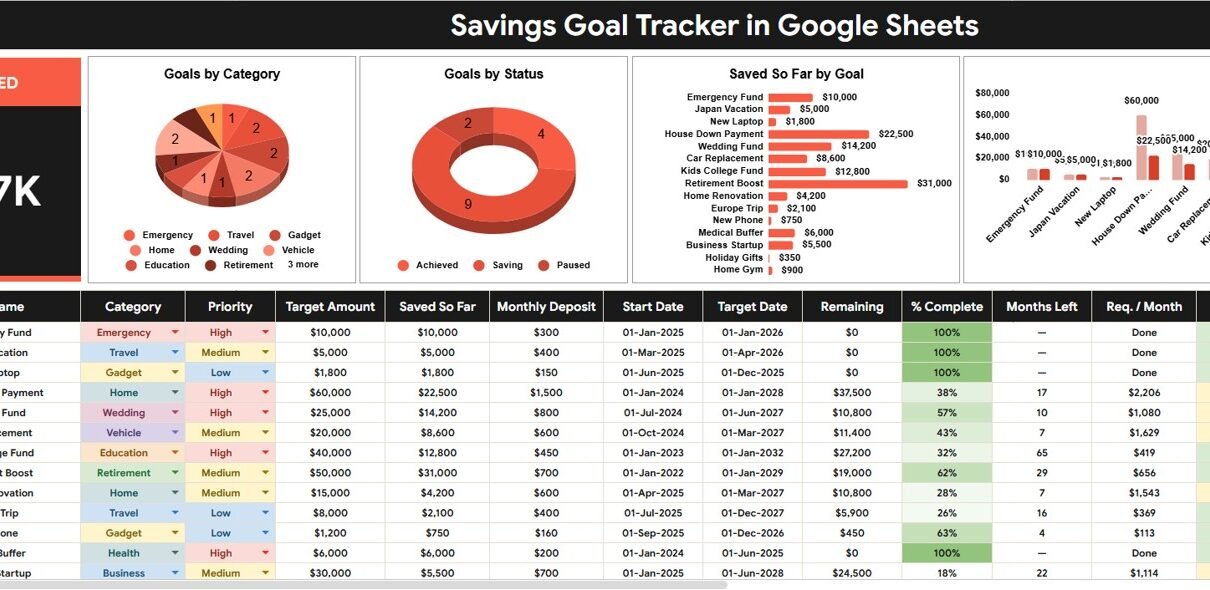
Most savings plans fail because the goal is invisible between paydays. A target sits in someone’s head, a bank balance changes, and the actual progress is hard to compare across emergency funds, travel plans, home deposits, education goals, and other priorities. The Savings Goal Tracker in Google Sheets gives you a simple way to turn those goals into a visible dashboard with 2 sheet tabs, 1 Total Saved card, 4 savings charts, multiple slicers, and 3 setup lists.
This template is built for people who want a practical tracker without buying a subscription finance app. Because it runs in Google Sheets, you can copy it to your own Drive, customize the dropdown lists, share it with a trusted partner, and review progress from a browser. Google also documents how slicers can filter charts and tables in Google Sheets, which is exactly the kind of dashboard workflow this savings tracker uses.
Get the Savings Goal Tracker in Google Sheets
Key Features of Savings Goal Tracker in Google Sheets
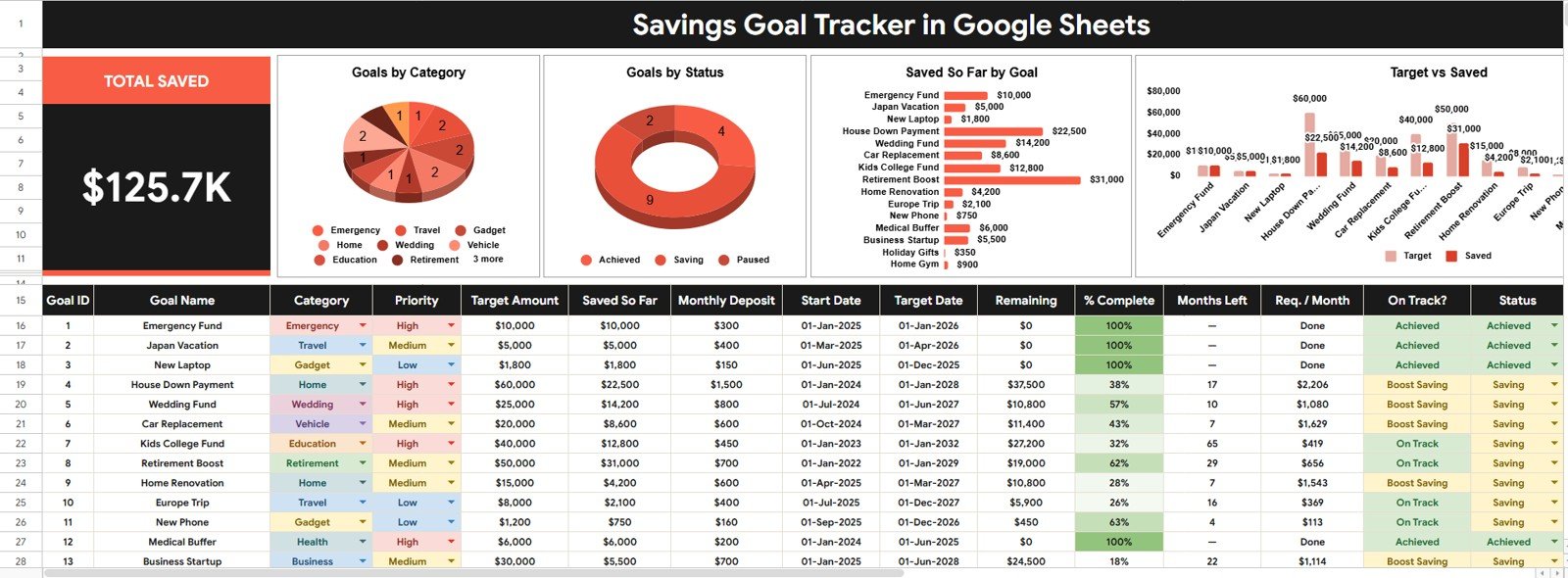
- Overview dashboard: A single page shows savings progress with a Total Saved card and chart-based analysis.
- Total Saved card: Quickly see the total amount saved across the goals currently included in your tracker.
- Goals by Category: Group goals by savings type so you can see whether money is going toward emergency, travel, home, education, family, or other categories.
- Goals by Status: Separate planned, active, paused, completed, or cancelled goals so your dashboard does not treat every goal as the same stage.
- Saved So Far by Goal: Compare saved amounts across individual goals and spot which targets are moving fastest.
- Target Amount and Saved So Far by Goal: Compare planned target and current savings side by side to understand the remaining gap.
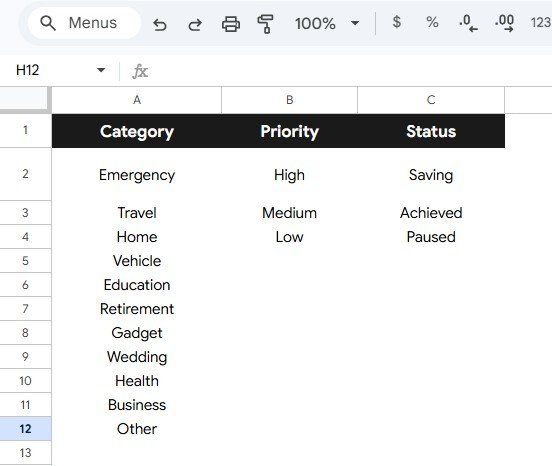
- Setup Lists tab: Edit category, priority, and status dropdown values before entering your own goal data.
- Google Sheets sharing: Share your copied file with a spouse, family member, advisor, or finance coach using Google Drive permissions.
Dashboard Pages Explanation
1 – Overview Page
The Overview Page is the main reporting sheet. The top section includes the Total Saved card, which summarizes the saved amount across your goal records. This gives you a quick answer before you start reviewing the detailed charts.
Goals by Category: This chart shows how your savings goals are distributed by category. It helps you decide whether your savings plan is balanced or overly concentrated in one type of goal.
Goals by Status: This chart shows the status mix of your goals. If too many goals are paused or planned, you can use the tracker to decide what needs action during the next review.
Saved So Far by Goal: This chart compares how much has already been saved for each goal. It is useful for seeing progress without opening each row of data manually.
Target Amount and Saved So Far by Goal: This chart compares each goal’s target amount with the amount saved so far. It gives a clear visual gap between where you are and where you want to be.
2 – Setup List
The Setup List tab controls the dropdown values used in the tracker. Instead of typing a slightly different category or status every time, you can standardize your labels first and keep the dashboard cleaner.
Category Options by Savings Goal Type: Use this area to define savings categories such as emergency fund, vacation, home deposit, education, health, family, or custom categories.
Priority Options by Priority Level: Use this list to define priority labels. This is helpful when two goals compete for the same monthly savings contribution.
Status Options by Goal Status: Use this list to define whether goals are planned, active, paused, completed, or cancelled. Clear status labels make filtered dashboard views more useful.
Savings Goal Tracker in Google Sheets vs. Microsoft Excel vs. Paid CRM/SaaS – Feature Comparison
| Feature | This Google Sheets tracker | Microsoft Excel alternative | Paid finance app or SaaS |
|---|---|---|---|
| Cost | $6.99 sale price, one-time | Template cost or custom workbook build | Often monthly or annual subscription |
| Platform | Google Sheets in Drive | Excel desktop or web | Vendor-hosted application |
| Setup time | Copy file, edit setup lists, enter goals | Open or customize workbook | Create account, configure settings, possibly connect sources |
| Real-time team collaboration | Built into Google Sheets | Available through OneDrive or SharePoint | Depends on plan |
| Mobile access | Google Sheets mobile app | Excel mobile app | Usually included |
| Customizable fields | Edit setup values and sheet labels | Editable if workbook is unlocked | Often limited by app design |
| Share with link | Yes, with Google Drive permissions | Yes, with Microsoft sharing | Vendor controlled |
| Year-1 cost at 5 users | $6.99 total before any Google Workspace costs | Template cost plus Microsoft licensing if needed | Can become recurring per user or household |
| Goal dashboard | Total saved card, 4 charts, and slicers | Must be built or customized | Depends on app features |
| Bank connection | Manual entry, no bank login required | Manual or add-in based | Often connected to external accounts |
Who Should Use This Template
This savings tracker is useful for individuals who want to see all goals in one place, couples who review household goals together, students planning for education expenses, parents saving for family milestones, and finance coaches who need a simple visual tool for clients.
It is also a good fit for users who prefer manual control. Some people do not want to connect bank accounts to a budgeting app, and others only need a clear goal tracker rather than a full personal finance platform. In those cases, a Google Sheets template is often easier to understand and easier to adapt.
Real-World Use Cases
Emergency fund planning: Track a target emergency fund amount, saved so far, priority level, and status until the goal is fully funded.
Travel savings: Create separate goals for flights, hotels, food, activities, and backup funds, then review the category and target-versus-saved charts.
Home deposit tracking: Monitor a larger long-term goal while still keeping smaller short-term goals visible on the same dashboard.
Client coaching: A finance coach can duplicate the file for each client and use the Overview Page during review calls.
Advantages of Savings Goal Tracker in Google Sheets
The biggest advantage is visibility. A savings goal becomes easier to manage when the target, saved amount, category, priority, and status are all visible together. The Total Saved card gives a quick summary, while the charts explain the details.
The second advantage is flexibility. You can rename categories, change priority labels, adjust statuses, and share the tracker with people who need access. Since it is a spreadsheet, you can also add columns or formulas if your workflow grows.
The third advantage is cost control. You pay once for the template and use your own copy. There is no monthly template subscription required after purchase.
Opportunities for Improvement
This template is intentionally simple, so it does not automatically connect to bank accounts or payment apps. Users who want transaction syncing will need a separate finance app or a custom integration.
It also depends on regular updates. The dashboard can only show accurate savings progress when the saved amount and status fields are kept current. A weekly or monthly review habit makes the tracker much more valuable.
Best Practices
- Update the saved amount on a fixed schedule, such as every payday or month end.
- Keep category names short and consistent so charts stay readable.
- Use priority values honestly so urgent goals receive attention first.
- Review paused goals monthly and decide whether to restart, cancel, or keep them parked.
- Use slicers during review sessions instead of scrolling through every row manually.
- Keep a backup copy before making major structural edits.
Explore Relevant Templates
If you want to expand your personal finance tracking setup, consider these related templates from NextGenTemplates:
- Personal Finance Net Worth Tracker in Google Sheets for assets, liabilities, liquidity, and net worth tracking.
- Budget Request & Approval Tracker in Google Sheets for structured budget requests and approvals.
- Finance KPI Scorecard in Google Sheets for finance performance tracking.
- Google Sheets tracker templates for more tracking workflows.
- Google Sheets financial tools for finance-focused templates.
If you would like to go deeper on building trackers like this, the NextGenTemplates Academy learning paths teach spreadsheet tracking skills step by step with practice files.
Get the Savings Goal Tracker in Google Sheets
Frequently Asked Questions
What is included in the Savings Goal Tracker in Google Sheets?
It includes an Overview Page with a Total Saved card, 4 savings charts, slicers, and a Setup List tab for category, priority, and status options.
Do I need Microsoft Excel?
No. This template is built for Google Sheets. You need a Google account and access to Google Sheets.
Can I customize the categories?
Yes. You can edit the Category Options list on the Setup List tab before entering your own goals.
Can I use it with a partner or family member?
Yes. After copying the file to your Google Drive, you can share it using Google Sheets sharing permissions.
Does the tracker connect to bank accounts?
No. It is designed for manual goal tracking, which keeps the template simple and avoids requiring bank login access.
Can I track completed goals?
Yes. Use the status field to mark goals as completed and keep them visible or filtered depending on your review needs.
Is this a subscription?
No. The template is a one-time purchase. You receive access to your own editable copy workflow.
About the Author
Built by PK – Microsoft Certified Professional with 15+ years of Excel, Google Sheets, and Power BI experience. Founder of NextGenTemplates, reaching 300K+ subscribers across YouTube channels. Every template is hand-built and tested before release.
Conclusion
The Savings Goal Tracker in Google Sheets is a practical template for making financial goals visible. With a Total Saved card, category and status views, saved amount comparisons, target-versus-saved analysis, and editable setup lists, it gives you a clear place to review progress and decide what to fund next.
Download the Savings Goal Tracker in Google Sheets from NextGenTemplates and start managing your savings goals with a simple, editable dashboard.