A pivot table in Google Sheets turns hundreds of transaction rows into a clean summary in a few clicks: totals by product, a country-by-product breakdown, or each country’s share of sales within every segment. No formulas are needed, and you can rearrange the summary just by dragging fields.
This pivot table guide for Google Sheets uses a real sales dataset with columns such as Segment, Country, Product, Gross Sales, Discounts, Sales, COGS and Profit. You will build three pivot tables step by step, see the exact results they produce, and learn the settings, tips and common fixes that make pivot tables reliable. A free practice file is included so you can follow along.
🎥 Watch the Video Tutorial
What Is a Pivot Table in Google Sheets?
A pivot table is an interactive summary of a data range. You choose which field goes down the side (Rows), which goes across the top (Columns), what to calculate (Values) and what to exclude (Filters). Google Sheets then groups and totals the data for you. Change a field and the summary rebuilds instantly, while the source data stays untouched.
The Sample Sales Data
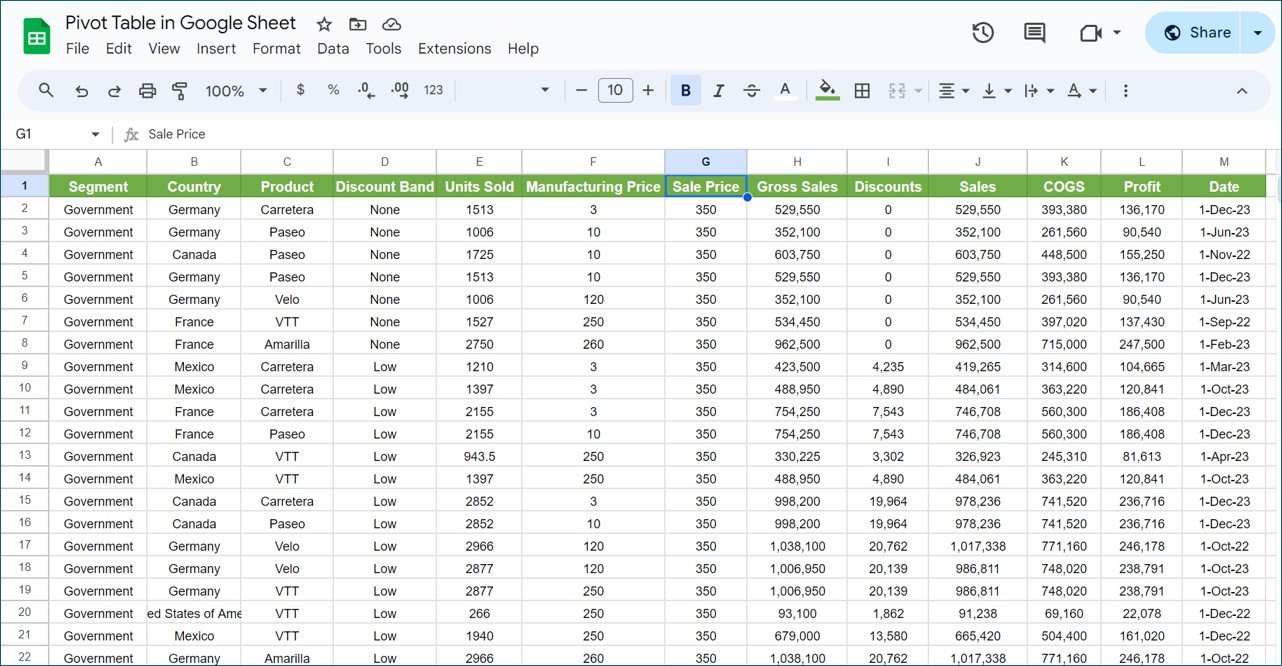
Each row is one sale. The 13 columns are:
| Column | Field | Example (row 2) |
|---|---|---|
| A | Segment | Government |
| B | Country | Germany |
| C | Product | Carretera |
| D | Discount Band | None |
| E | Units Sold | 1513 |
| F | Manufacturing Price | 3 |
| G | Sale Price | 350 |
| H | Gross Sales | 529,550 |
| I | Discounts | 0 |
| J | Sales | 529,550 |
| K | COGS | 393,380 |
| L | Profit | 136,170 |
| M | Date | 1-Dec-23 |
The numbers are consistent with each other: Gross Sales is Units Sold × Sale Price (1,513 × 350 = 529,550), Sales is Gross Sales minus Discounts, and Profit is Sales minus COGS (529,550 − 393,380 = 136,170). Knowing this helps you sanity-check the pivot results later.
How to Create a Pivot Table in Google Sheets
- Click any cell inside the data. Make sure there is one header row and no fully blank rows or columns.
- Go to Insert > Pivot table.
- Check the Data range shown in the dialog, choose New sheet and click Create.
- The Pivot table editor opens on the right. Use the Add buttons next to Rows, Columns, Values and Filters to build the summary.
Example 1: Gross Sales by Product
Question: which product brings in the most gross sales?
- Next to Rows, click Add and choose Product.
- Next to Values, click Add and choose Gross Sales. Keep Summarize by set to SUM.
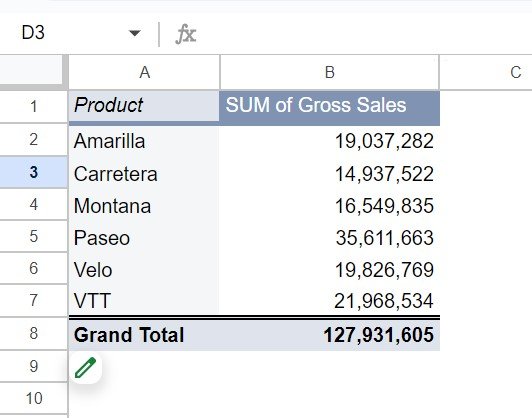
Result: Amarilla 19,037,282 · Carretera 14,937,522 · Montana 16,549,835 · Paseo 35,611,663 · Velo 19,826,769 · VTT 21,968,534. Grand Total 127,931,605. Paseo alone is about 28% of all gross sales (35,611,663 ÷ 127,931,605). To rank products, open the Product field under Rows and set Sort by to SUM of Gross Sales, descending.
Example 2: Country and Product Sales Metrics
Question: how do sales, costs and profit break down by country and product?
- Add Country to Rows, then add Product to Rows underneath it.
- Add Gross Sales, Discounts, Sales, COGS and Profit to Values, all summarised by SUM.
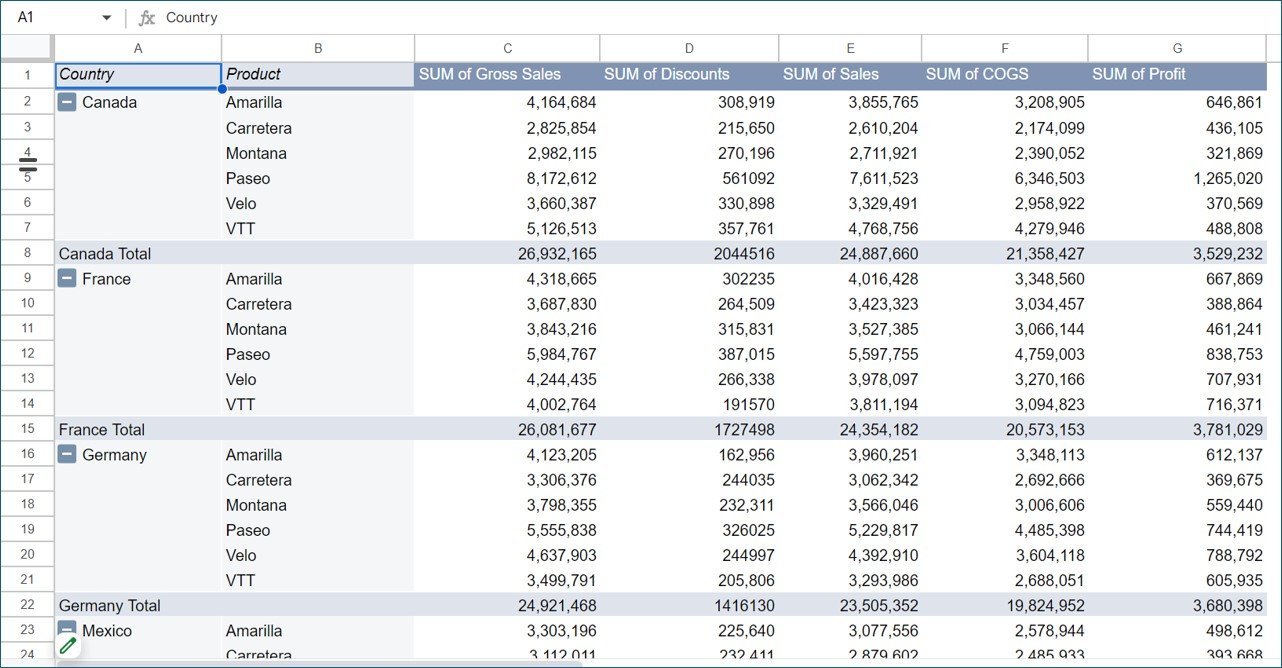
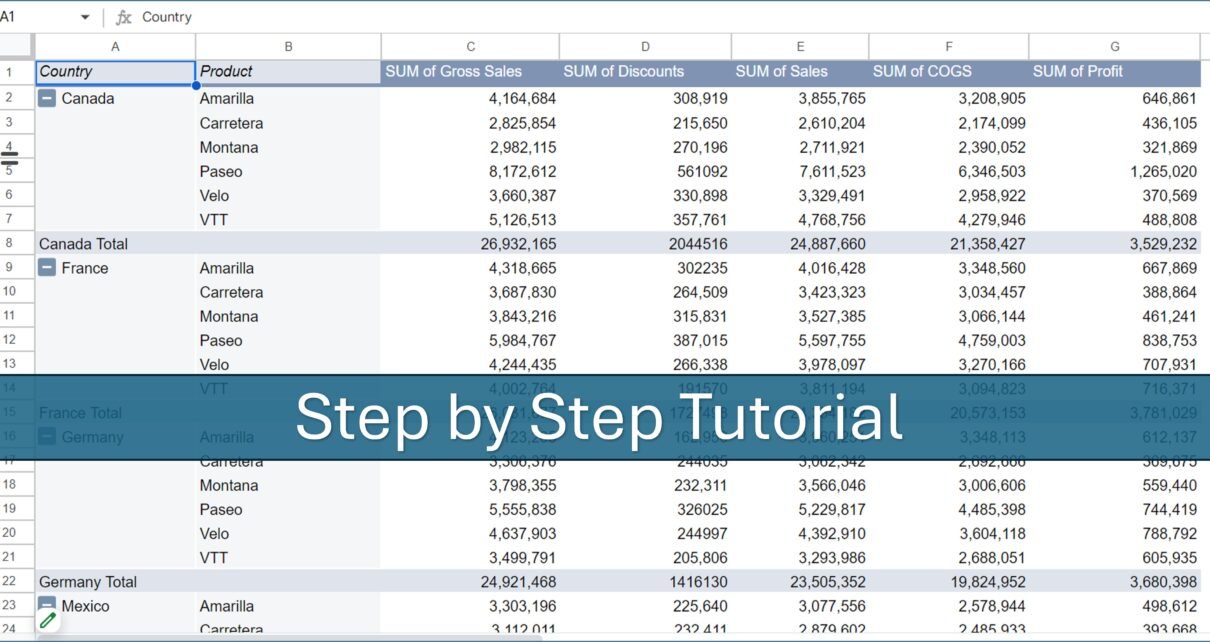
Because Country is the first row field, Sheets adds a subtotal for each country. For example, Canada Total shows Gross Sales 26,932,165, Discounts 2,044,516, Sales 24,887,660, COGS 21,358,427 and Profit 3,529,232. Within Canada, Paseo is the biggest product with 8,172,612 gross sales and 1,265,020 profit. Click the small minus icon next to a country to collapse its product rows.
Variation – profit margin with a calculated field: in Values, choose Add > Calculated field, set Summarize by to Custom and enter:
=SUM(Profit)/SUM(Sales)Format it as a percentage. For Canada this gives about 14.2% (3,529,232 ÷ 24,887,660).
Example 3: Each Country’s Share of Sales Within a Segment
Question: within each segment, what percentage of sales comes from each country?
- Add Country to Rows and Segment to Columns.
- Add Sales to Values (SUM).
- In the Sales value, change Show as from Default to % of column.
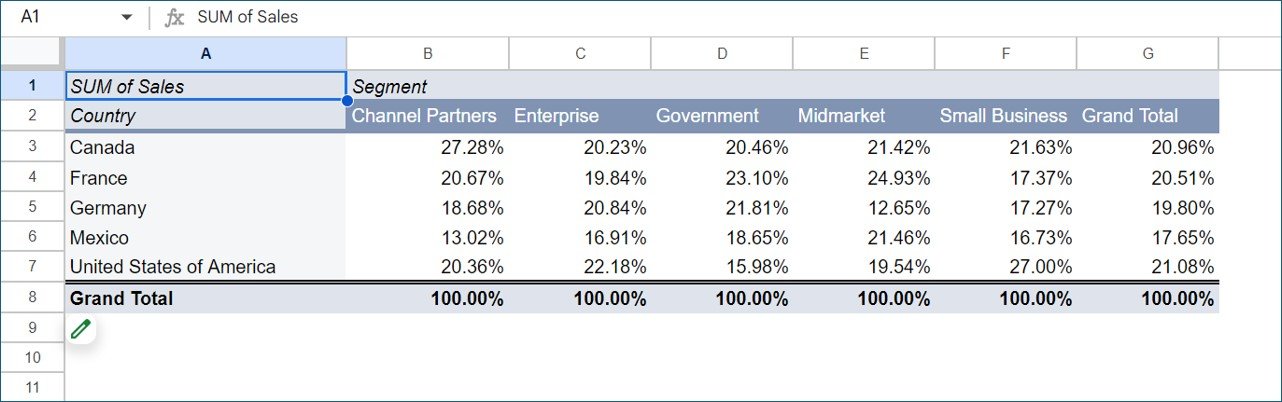
Every column now totals 100%. Reading it: Canada provides 27.28% of Channel Partners sales, the United States of America provides 27.00% of Small Business sales, and Germany provides only 12.65% of Midmarket sales. In the Grand Total column the five countries are close, from Mexico at 17.65% to the United States of America at 21.08%.
Other Show as options are % of row (each country’s sales split across segments) and % of grand total (every cell as a share of all sales).
More Useful Variations
- Monthly trend: add Date to Rows, right-click any date in the pivot and choose Create pivot date group > Year-Month.
- Top products only: add Product under Filters and untick the items you do not need, or use Filter by condition.
- Count instead of sum: set Summarize by to COUNTA to see how many sales rows each product has.
- Average discount: add Discounts to Values with Summarize by AVERAGE, broken down by Discount Band.
- Pivot chart: select the pivot table and choose Insert > Chart; the chart updates when the pivot changes.
Common Problems and Fixes
- New rows are missing from the pivot. The data range ends at the old last row. Edit the range in the editor to whole columns, for example
Sheet1!A1:M. - Values show COUNTA instead of SUM. The column contains text or blanks stored as text. Clean the numbers and set Summarize by back to SUM.
- The same item appears twice. Spelling or extra spaces differ (“Canada” vs “Canada “). Use Data > Data cleanup > Trim whitespace on the source.
- Dates will not group. Some dates are text. Format the column as a date and re-enter any left-aligned values.
- “Showing results for an empty range”. The data range in the editor is wrong or the source sheet was renamed. Reselect the range.
Best Practices and Tips
- Keep source data in a single, flat table: one header row, one record per row, no merged cells.
- Put each pivot table on its own sheet so it has room to grow.
- Rename value headers (click the header text) to plain labels like “Gross Sales” instead of “SUM of Gross Sales” when sharing.
- Double-click any value in the pivot to open a new sheet listing the source rows behind it.
- Build several small pivot tables that each answer one question, rather than one huge table.
For quick row-level checks before you summarise, read Filter and Filter View in Google Sheets. Formatting your source as a table helps too; see tables in Google Sheets. If you prefer formulas, SORT and FILTER functions and UNIQUE with COUNTIF can build similar summaries, and conditional formatting in a Google Sheets chart shows how to highlight results visually.
If you want to go further with pivot tables, pivot charts and dashboards through structured lessons, the Excel Pivot Tables & Dashboards course on NextGenTemplates Academy builds on exactly these skills.
Frequently Asked Questions
Do pivot tables in Google Sheets update automatically?
Yes. When source values change, the pivot recalculates. New rows are included only if they fall inside the pivot’s data range, so use open-ended ranges such as A1:M.
How do I show values as a percentage in a Google Sheets pivot table?
In the Values section of the pivot editor, change Show as to % of row, % of column or % of grand total.
Can I add a calculated field?
Yes. Choose Values > Add > Calculated field and write a formula using field names, such as =SUM(Profit)/SUM(Sales) for profit margin.
How much data can a Google Sheets pivot table handle?
A spreadsheet can hold up to 10 million cells, but pivot tables slow down well before that on very large ranges. For big datasets, keep only the columns you need or summarise in stages.
Can I create a chart from a pivot table?
Yes. Select any cell in the pivot table and use Insert > Chart. The chart follows the pivot when you change fields or filters.
Why does my pivot table say COUNTA instead of SUM?
Sheets picks COUNTA when a column contains text. Make sure the column holds only numbers, then switch Summarize by to SUM.
Wrapping Up
With just Rows, Columns, Values and Filters, a pivot table in Google Sheets answers most “how much, by what” questions in seconds: product totals, country breakdowns and percentage shares. Open the practice file, rebuild the three examples above, then try the variations on your own data.
Get the Pivot Table Practice File
📅 Last updated: October 2026