A Gantt chart in Google Sheets turns a plain task list into a timeline you can read at a glance: one row per activity, one column per day, and a coloured bar showing when each task starts, how long it runs and where it stands. This guide walks through the Project Plan (Gantt Chart) template we built in Google Sheets and explains every column, the formulas that drive it and how to rebuild the same logic yourself.
It is written for project coordinators, team leads, freelancers and students who want a simple project plan without paying for dedicated project software. You only type three things per task (activity name, start date and duration). The sheet works out the end date, the overall project dates and the colour of every bar.
🎥 Watch the Video Tutorial
Get the Project Plan Gantt Chart Template
What Is a Gantt Chart and Why Build It in Google Sheets?
A Gantt chart, named after Henry Gantt, places tasks on the vertical axis and time on the horizontal axis. Each task gets a bar that starts on its start date and ends on its finish date, so overlaps, gaps and late tasks are easy to spot.
Google Sheets is a good home for a small or medium project plan because:
- It is free with a Google account and runs in any browser.
- Several people can update task status at the same time, and everyone sees the same version.
- Conditional formatting can draw the bars automatically, so there is no chart object to resize or redraw.
- You can share a view-only link with clients or managers who just need to see progress.
Inside the Project Plan (Gantt Chart) Template
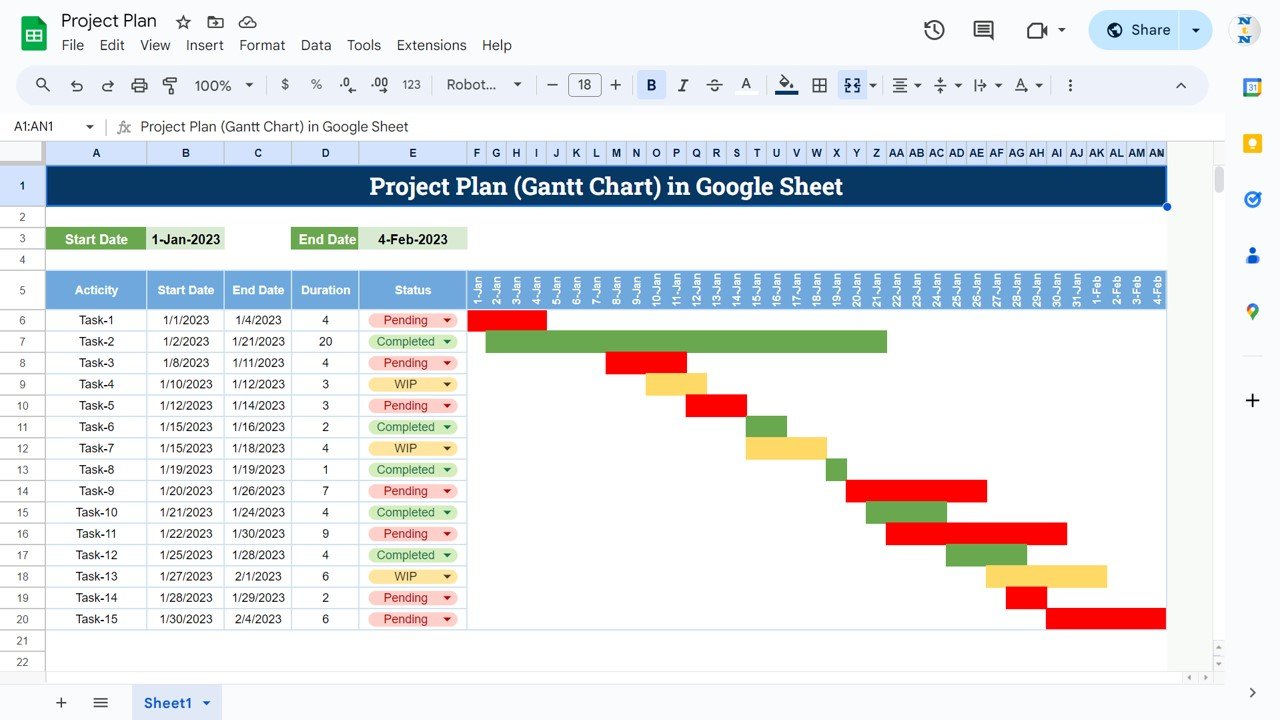
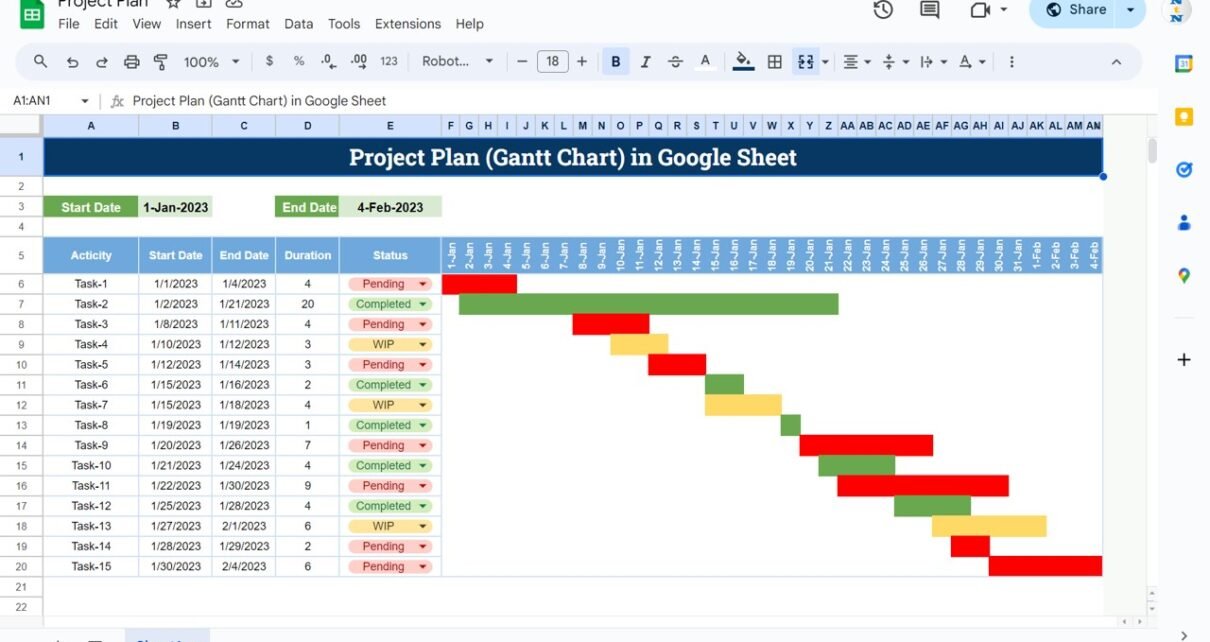
The whole plan lives on one sheet. The sample data holds 15 tasks (Task-1 to Task-15) and the timeline runs from 1-Jan to 4-Feb across columns F to AN. Here is what each part does.
Project Start Date and End Date
At the top, two cards show the Start Date (1-Jan-2023) and End Date (4-Feb-2023) of the whole project. Both are formulas, so you never type them: in the sample they equal the earliest task start date and the latest task end date, and they update by themselves when you add or move a task.
Task columns
| Column | What it holds | Filled by |
|---|---|---|
| Activity | Name of the task or activity (Task-1, Task-2 and so on in the sample) | You |
| Start Date | The date the task begins | You |
| End Date | The date the task finishes, worked out from Start Date and Duration | Formula |
| Duration | Number of days the task needs | You |
| Status | Dropdown with Pending, WIP or Completed | You |
| Timeline (F to AN) | One column per day with the Gantt bar | Formula + conditional formatting |
Status colours on the bars
The bar colour follows the Status dropdown, so the chart doubles as a progress report:
- Pending – red bar
- WIP (work in progress) – amber bar
- Completed – green bar
In the sample, Task-2 (20 days, 1/2/2023 to 1/21/2023) is green because it is completed, Task-4 and Task-7 are amber, and tasks such as Task-11 and Task-15 are still red.
The Formulas Behind the Gantt Chart
If you want to understand the template or build your own version, these are the pieces of logic involved. The formulas below reproduce the numbers shown in the screenshot, assuming tasks start in row 6 and dates in the timeline header sit in row 5.
1. End Date from Start Date and Duration
=B6+D6-1Worked example: Task-1 starts on 1/1/2023 with a Duration of 4. 1 January + 4 − 1 = 4 January, which matches the End Date of 1/4/2023. Task-2 starts on 1/2/2023 with a Duration of 20, giving 1/21/2023. The “−1” counts the start day as day one.
2. Project Start and End Date
=MIN(B6:B20)
=MAX(C6:C20)
MIN finds the earliest start (1-Jan-2023) and MAX finds the latest finish. Task-15 starts 1/30/2023 and runs 6 days, so it ends on 2/4/2023, which is the project End Date.
3. Timeline dates across the top
F5:  =$B$3
G5:  =F5+1
The first timeline column starts on the project start date and every next column adds one day. Format the header with Format > Number > Custom date and time (for example d-mmm) and rotate the text with Format > Rotation so 35 dates fit on screen.
4. Drawing the bars with conditional formatting
Select the timeline grid (F6:AN20), open Format > Conditional formatting, choose Custom formula is and add one rule per status:
=AND(F$5>=$B6, F$5<=$C6, $E6="Pending")
=AND(F$5>=$B6, F$5<=$C6, $E6="WIP")
=AND(F$5>=$B6, F$5<=$C6, $E6="Completed")
Give the rules red, amber and green fill colours. The dollar signs matter: F$5 locks the date row, while $B6, $C6 and $E6 lock the task columns, so one rule works for the whole grid.
5. Status dropdown
Select the Status column, go to Data > Data validation, choose Dropdown and add the three options Pending, WIP and Completed. Give each option a matching chip colour so the list is as readable as the bars.
How to Use the Template With Your Own Project
- Replace the sample activity names with your own tasks, in roughly the order they happen.
- Enter a Start Date for each task.
- Type the Duration in days. The End Date fills in automatically.
- Pick a Status for each task from the dropdown.
- Check the Start Date and End Date cards at the top to confirm the overall project window.
- Update the Status as work moves forward; the bars change colour straight away.
- Share the file with your team (Share > Editor) or give stakeholders view-only access.
Practical Variations
- Highlight today: add a rule
=F$5=TODAY()with a border or light fill so everyone can see where “now” falls on the plan. - Working days only: replace the End Date formula with
=WORKDAY(B6,D6-1)so weekends are skipped. Our guide on tracking project deadlines with NETWORKDAYS covers the related working-day functions. - Add an Owner column: insert a column for the person responsible and use a filter to see one person’s tasks.
- Weekly instead of daily: for long projects, make each timeline column a week (
=F5+7). The weekly project plan Gantt chart post shows this layout. - Percent complete: add a column with a percentage and show it next to the status for a finer view of progress.
Common Problems and Fixes
| Problem | Likely cause | Fix |
|---|---|---|
| Bars do not appear | Dates typed as text | Re-enter dates or use Format > Number > Date; check that they align right |
| Bars are one day too long | End Date formula missing the −1 | Use =B6+D6-1 so the start day counts as day one |
| Only the first row colours correctly | Missing or wrong $ signs in the rule | Use F$5 and $B6 exactly as shown |
| Bar colour does not change | Status typed with a different spelling | Use the dropdown so the text matches the rule exactly |
| Long tasks run off the chart | Timeline shorter than the project | Extend the date columns past AN or switch to weekly columns |
Who This Template Suits (and Who It Does Not)
It works well for small teams, event plans, marketing campaigns, academic projects and client work with up to a few dozen tasks. It is not a replacement for full project software if you need resource levelling, automatic dependency scheduling, critical path analysis or hundreds of tasks. In the sample layout, each task’s Start Date is typed in, so when one task has to wait for another, set its start date after the earlier task’s End Date.
If you want more features, the Pro Gantt Chart in Google Sheets and the Project Plan Template in Google Sheets are worth a look. For tracking several projects with KPIs, see the Project Management KPI Dashboard.
New to spreadsheets? The learning paths on NextGenTemplates Academy give you a structured route from basic formulas to dashboards.
Best Practices for Project Planning in Google Sheets
- Keep task names short and specific (“Finalise venue contract” rather than “Venue”).
- Update statuses at a fixed time, such as every Friday, so the chart stays trustworthy.
- Protect formula columns with Data > Protect sheets and ranges so nobody overwrites the End Date logic.
- Use File > Version history to see who changed a date and when.
- Keep one project per file; it keeps the timeline readable and sharing simple.
Related templates: prefer Excel? The Project Plan Gantt Chart in Excel follows the same idea.
Frequently Asked Questions
Does Google Sheets have a built-in Gantt chart?
Google Sheets has a Timeline view and a Project tasks table template, but a classic day-by-day Gantt chart is usually built with conditional formatting, as in this template. That approach gives you full control over colours and layout.
How is the End Date calculated?
End Date = Start Date + Duration − 1. A task that starts on 1 January with a duration of 4 days ends on 4 January.
Can I change the status colours?
Yes. Open Format > Conditional formatting, select the rule for Pending, WIP or Completed, and pick a new fill colour.
How many tasks can I add?
The sample shows 15 tasks. You can add more rows; just make sure the conditional formatting range and the MIN/MAX ranges for the project dates cover the new rows.
Can my team update the plan at the same time?
Yes. Share the file with edit access and each person can update their own task status. Changes appear for everyone in real time.
Can I skip weekends in the timeline?
Yes. Use WORKDAY for the End Date and, if you like, grey out Saturday and Sunday columns with a rule such as =WEEKDAY(F$5,2)>5.
Wrapping Up
A Gantt chart in Google Sheets gives you a clear, shareable project plan with just three inputs per task. The template handles the end dates, the overall project window and the colour-coded bars, so you can spend your time managing the work rather than formatting cells. Watch the video above to see it in action, then start your own plan.
Get the Project Plan Gantt Chart Template
📅 Last updated: October 2026