A Student Fee Record Template in Google Sheets keeps every student’s monthly fee payments on one page and works out the totals for you: how many students are enrolled, the total fee for the year, how much has been paid, what is still outstanding and who is eligible for exams. This guide walks through a ready-made template that does all of that with checkboxes, a few formulas and a progress bar.
It is built for school offices, coaching centres and tuition teachers who track fees month by month from April to March. You will see each section of the sheet, the exact formulas behind the summary figures, how to set it up for your own students, and the limits to keep in mind.
🎥 Watch the Video Tutorial
Get the Student Fee Record Template
What Problem the Template Solves
Fee registers kept on paper or in loose spreadsheets make simple questions slow to answer: how much is still due, which students have missed a month, and who can sit the exam. In this template you tick a box when a month is paid, and the counts, totals, balance and eligibility status update straight away.

The Summary Section at the Top
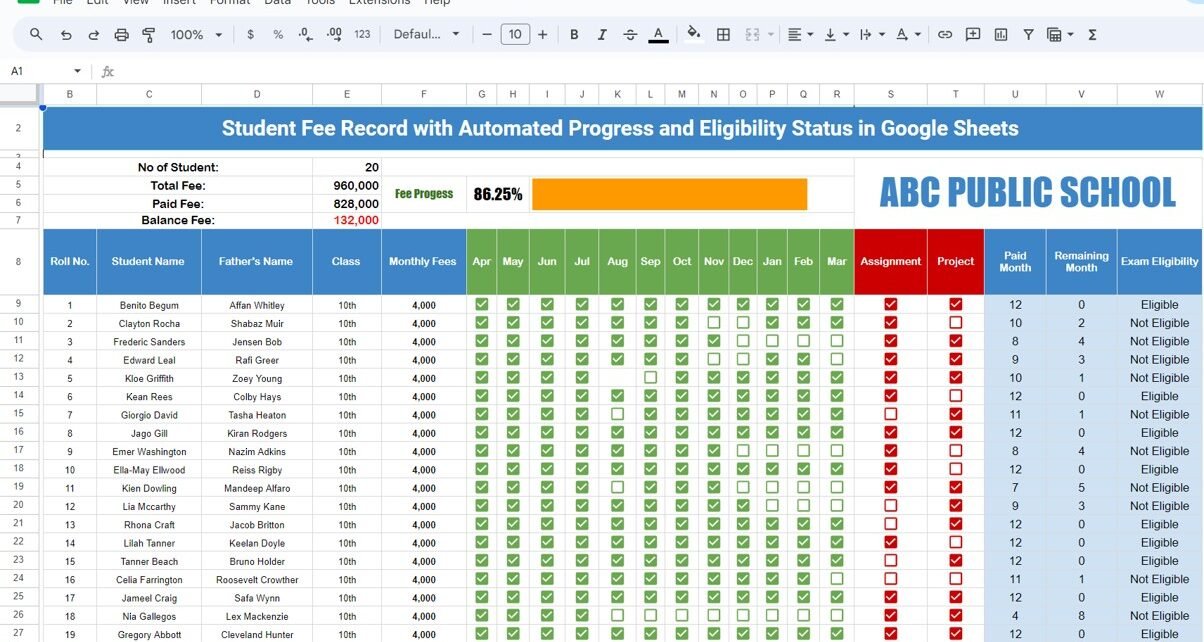
The top of the sheet shows the overall fee position. With the sample data of 20 Class 10th students paying 4,000 a month, it reads:
| Measure | What it shows | Formula | Sample value |
|---|---|---|---|
| No of Student | Number of students in the list | =COUNTA(C9:C28) |
20 |
| Total Fee | Fee due for the full year | =SUM(F9:F28)*12 |
960,000 |
| Paid Fee | Fee collected so far (higher is better) | =SUM(U9:U28)*4000 |
828,000 |
| Balance Fee | Fee still outstanding (lower is better) | =E5-E6 |
132,000 |
| Fee Progress | Share of the year’s fee collected, shown as a bar | =SPARKLINE(G5,{"charttype","bar";"max",1}) |
86.25% |
You can check the numbers: 20 students × 4,000 × 12 months = 960,000. The Paid Month column adds up to 207 months, and 207 × 4,000 = 828,000. That leaves 132,000 due, and 828,000 ÷ 960,000 = 86.25%. If you have not used in-cell bar charts before, our guide to sparklines in Google Sheets explains how the progress bar is drawn.
The Student Fee Record Table
Below the summary, each row is one student with these columns:
- Roll No., Student Name, Father’s Name and Class.
- Monthly Fees: the fee due each month (4,000 in the sample).
- Apr to Mar: one checkbox per month of the academic year. Tick it when that month is paid.
- Assignment and Project: checkboxes to record whether each was completed.
- Paid Month: how many months are ticked.
- Remaining Month: how many month checkboxes are still unticked.
- Exam Eligibility: shows Eligible or Not Eligible.
How Exam Eligibility works in the sample
In the sample data, a student shows Eligible only when all 12 months are paid and Remaining Month is 0. Anyone with an unpaid month shows Not Eligible, even with 11 months paid (for example Giorgio David and Cella Farrington). The Assignment and Project ticks do not change the status: Kean Rees has Project unticked and is still Eligible. Of the 20 sample students, 10 are Eligible and 10 are Not Eligible.
How to Use It With Your Own Students
- Make your own copy of the template in Google Drive.
- Replace the school name at the top with your own.
- Clear the sample rows and enter Roll No., Student Name, Father’s Name and Class for each student (the template has rows 9 to 28, enough for 20 students).
- Enter each student’s Monthly Fees.
- Untick all month checkboxes, then tick each month as payment is received.
- Tick Assignment and Project when they are completed, if you track them.
- Check the summary and the Exam Eligibility column before exam registration.
Why Checkboxes Work Well for Fee Records
Checkboxes in Google Sheets store TRUE when ticked and FALSE when not, so the sheet can count them with simple formulas while staff only ever click a box. That keeps data entry fast and avoids typing mistakes such as “paid”, “Paid” and “PAID” being treated differently. To add checkboxes to new columns, select the cells and use Insert > Checkbox.
3 Real-World Use Cases
- School fee office: keep one sheet per class and print the Not Eligible list before exams so the office can follow up with parents.
- Coaching or tuition centre: track monthly fees for a batch and use the Balance Fee figure to plan follow-up calls.
- Class teacher: use the Assignment and Project checkboxes alongside fee status to see which students need attention.
Best Practices
- Tick on the day you receive payment so the summary is always current.
- Keep Monthly Fees the same for everyone, or adjust the Paid Fee formula. The Paid Fee formula multiplies paid months by a fixed 4,000. If students pay different amounts, change it to
=SUMPRODUCT(F9:F28,U9:U28)so each student’s own fee is used. - Restrict editing. Use Data > Protect sheets and ranges to lock the formula columns so only checkboxes and student details can be changed.
- Keep a copy for each academic year with File > Make a copy before you reset the checkboxes.
For related school records in Google Sheets, see our student assignment tracker, the monthly attendance template with checkboxes and the school admin dashboard.
Limitations: Who Should Not Use It
- It records whether a month is paid, not partial payments, receipt numbers or payment dates.
- The layout holds 20 students per sheet. Larger schools need a copy per class or a full fee management system.
- There are no automatic reminders to parents. Those would need Apps Script or a separate tool.
- Because it is a shared spreadsheet, anyone with edit access can change a tick, so control sharing carefully.
Related template: to see which fees fall due on which date, try the School Fee Due Calendar in Google Sheets. If you are new to spreadsheets and want to build skills like these, the learning paths on NextGenTemplates Academy are a good place to start.
Frequently Asked Questions
How is Exam Eligibility decided?
In the sample data, only students with all 12 months paid (Remaining Month 0) show Eligible. Any unpaid month gives Not Eligible.
Can I use different monthly fees for different students?
Yes. Enter each student’s fee in Monthly Fees, then change the Paid Fee formula to =SUMPRODUCT(F9:F28,U9:U28) so it no longer assumes 4,000 for everyone.
Why does the academic year run from April to March?
The template follows the April to March session used by many schools. If your year starts in another month, rename the month headers. The counts still work because they are based on the checkboxes.
Can several staff members update the sheet at the same time?
Yes. Share the file from the Share button and every change appears for everyone in real time. Protect the formula ranges first.
How do I add more than 20 students?
Insert rows inside the table and extend the ranges in the summary formulas (C9:C28, F9:F28 and U9:U28) to cover the new rows, or keep a separate copy for each class.
Wrapping Up
The Student Fee Record Template in Google Sheets turns monthly checkboxes into a live summary of total fee, paid fee, balance, progress and exam eligibility. Watch the video above, then load one class of students and start ticking payments as they come in.
Get the Student Fee Record Template
📅 Last updated: October 2026