Sparklines in Google Sheets are tiny charts that live inside a single cell. They let you see a trend, a high and low point, or a pattern of wins and losses right next to the numbers, without adding a full-size chart to your sheet. All of it comes from one function: SPARKLINE.
In this tutorial you will build the three sparklines from the free practice file: a line sparkline for employee-wise daily sales, a column sparkline for product-wise quarterly margin %, and a win/loss sparkline for employee attendance. You will also get the full option list, practical variations and fixes for the most common errors.
🎥 Watch the Video Tutorial
Make a Copy of the Free Practice File
Sparklines in Google Sheets: SPARKLINE Function Syntax
=SPARKLINE(data, [options])| Argument | Meaning |
|---|---|
data |
The range or array of numbers to plot, for example B3:H3. |
options (optional) |
Pairs of setting name and value inside curly braces, for example {"charttype","column";"color","blue"}. Separate pairs with a semicolon. |
Most useful options
| Option | Works with | What it does |
|---|---|---|
charttype |
All | "line" (default), "column", "bar" or "winloss" |
color |
Line, column, win/loss | Main colour of the line or columns |
linewidth |
Line | Thickness of the line, e.g. 2 |
highcolor / lowcolor |
Column, win/loss | Colour of the highest and lowest column |
firstcolor / lastcolor |
Column, win/loss | Colour of the first and last column |
negcolor |
Column, win/loss | Colour of negative values (the “losses”) |
ymin / ymax |
Line, column | Fix the vertical scale so rows are comparable |
max, color1, color2 |
Bar | Upper limit of a bar sparkline and its two bar colours |
Example 1: Line Sparkline for Employee Wise Sales
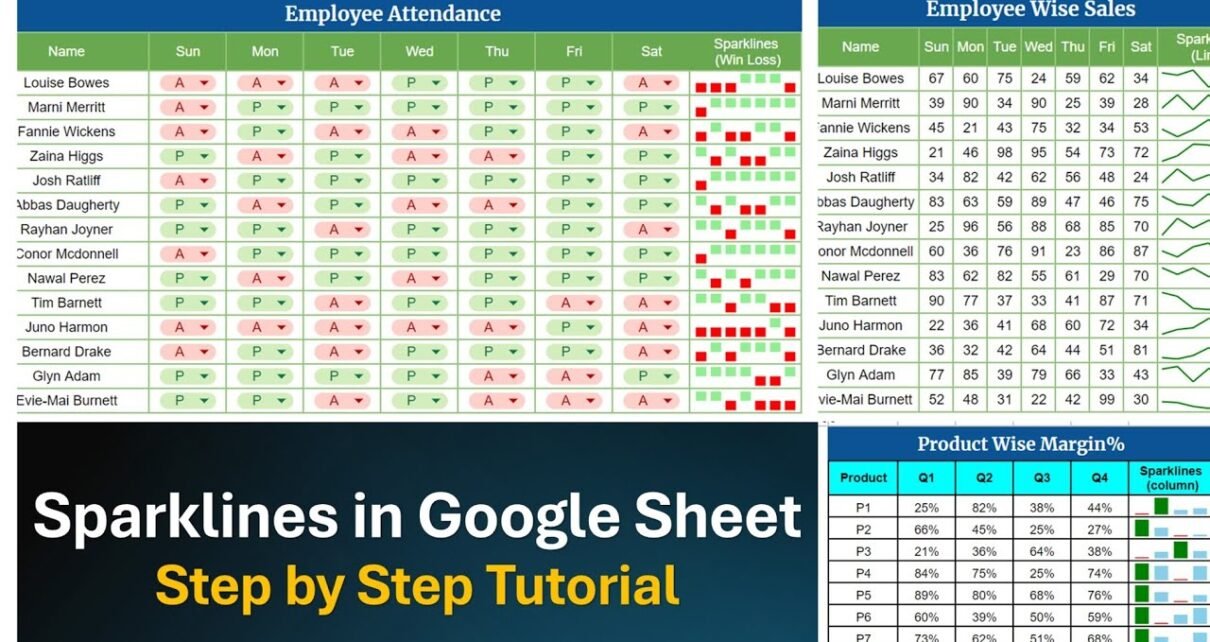
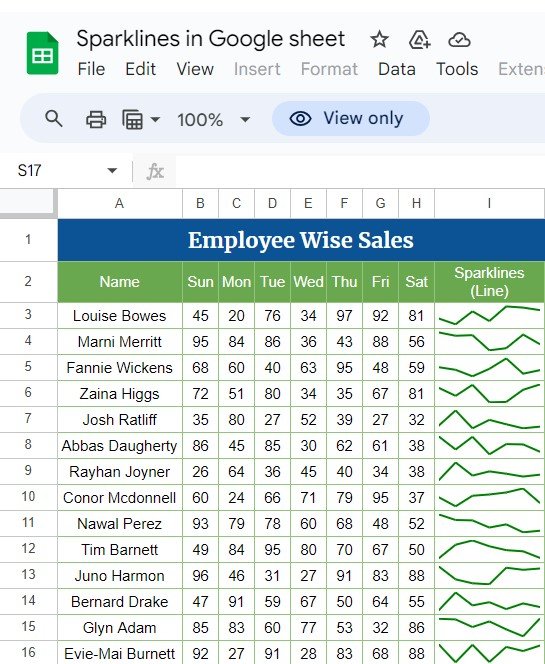
The Employee Wise Sales table lists 14 employees in A3:A16 and their sales for each day from Sun to Sat in columns B to H. Column I, headed Sparklines (Line), shows the weekly trend for each person.
In cell I3 enter:
=SPARKLINE(B3:H3,{"charttype","line";"color","green";"linewidth",2})Then drag it down to I16. Worked example: in the screenshot, Louise Bowes sold 45, 20, 76, 34, 97, 92 and 81 from Sunday to Saturday. Her sparkline dips on Monday (20), recovers on Tuesday (76), drops again on Wednesday (34), then peaks on Thursday (97) and stays high to Saturday (81), which is exactly the zig-zag you see in the small green line. The practice file fills these numbers with random sample values, so your copy will show different figures each time it recalculates.
Example 2: Column Sparkline for Product Wise Margin%
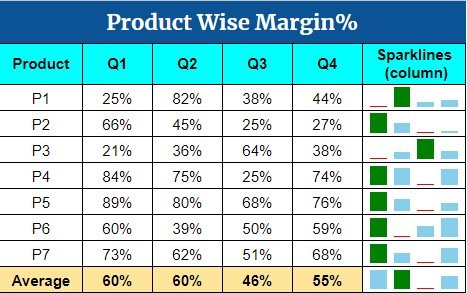
The Product Wise Margin% table lists products P1 to P7 with their margin for Q1 to Q4, plus an Average row. The last column, Sparklines (column), highlights the best quarter in dark green and the weakest quarter in red, with the other quarters in light blue.
With the products in column L and Q1 to Q4 in columns M to P, enter in Q3:
=SPARKLINE(M3:P3,{"charttype","column";"color","lightblue";"highcolor","green";"lowcolor","red"})Worked example: P1 has 25%, 82%, 38% and 44%. Q2 (82%) is the highest, so its column is green; Q1 (25%) is the lowest, so it is red. The Average row works the same way: the averages are 60%, 60%, 46% and 55%, and you can calculate each one with =AVERAGE(M3:M9). For Q1 that is (25+66+21+84+89+60+73) ÷ 7 = 59.7%, shown as 60%.
Example 3: Win/Loss Sparkline for Employee Attendance
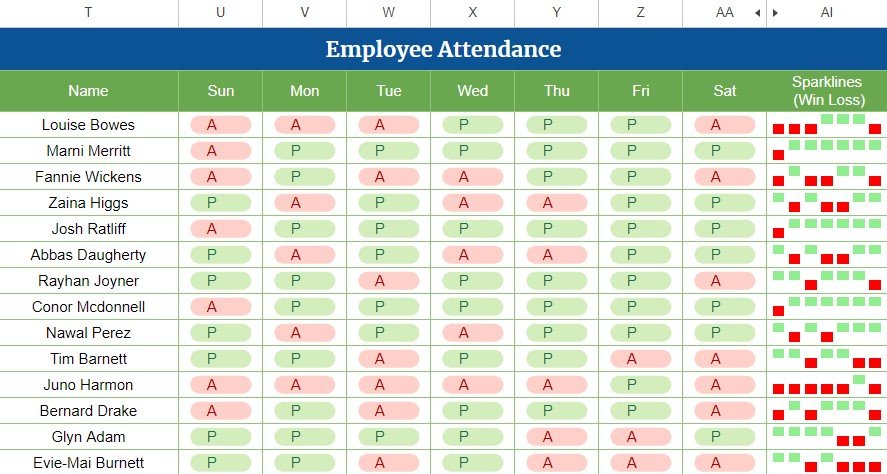
The Employee Attendance table marks each employee P (present) or A (absent) from Sun to Sat. The Sparklines (Win Loss) column turns that pattern into green squares for present days and red squares for absent days.
A win/loss sparkline needs numbers, not letters, so the practice file uses hidden helper columns (AB to AH) that convert each mark to 1 or -1. In AB3:
=IF(U3="P",1,-1)Copy it across to AH3 and down the table. Then, in the sparkline column (AI3):
=SPARKLINE(AB3:AH3,{"charttype","winloss";"color","lightgreen";"negcolor","red"})Worked example: Louise Bowes is A, A, A, P, P, P, A, which becomes -1, -1, -1, 1, 1, 1, -1. The sparkline shows three red markers, three green markers and a final red one, exactly as in the screenshot. If you prefer to skip helper columns, this single formula does the conversion inside the sparkline:
=SPARKLINE(ARRAYFORMULA(IF(U3:AA3="P",1,-1)),{"charttype","winloss";"color","lightgreen";"negcolor","red"})More Practical Variations
- Progress bar:
=SPARKLINE(C2,{"charttype","bar";"max",100;"color1","green"})draws a horizontal bar showing C2 out of 100. - Same scale for every row: add
"ymin",0;"ymax",100so a small dip in one row does not look as dramatic as a big drop in another. - Highlight the latest value: on a column sparkline,
"lastcolor","orange"makes the most recent period stand out. - Dynamic colour: build the colour with a formula, e.g.
{"color",IF(H3>B3,"green","red")}, so the line turns red when the week ended lower than it started.
Common Errors and Fixes
| Problem | Cause | Fix |
|---|---|---|
| Formula parse error | Missing quotes or wrong separator in the options | Wrap every option name and text value in double quotes and separate pairs with ; |
| Chart type does not change | Using "type" instead of "charttype" |
Use {"charttype","column"} |
| Win/loss sparkline is blank | The data contains text such as P and A | Convert to 1 and -1 with IF first |
| Sparkline looks flat | Values are very close together | Set ymin and ymax close to the data range |
| Sparkline too small to read | Row height or column width is small | Widen the column and increase the row height |
Best Practices
- Keep sparklines next to their numbers so readers can check the exact value behind any dip or peak.
- Use one style per column. Consistent colours and line widths make a table of sparklines easy to scan.
- Use colour for meaning, like green for the best quarter and red for the weakest, not just decoration.
- Do not replace real charts when people need exact values, axes or comparisons across many series.
If you build reports and dashboards regularly, the Excel Pivot Tables & Dashboards course on NextGenTemplates Academy walks through dashboard design, charts and summary tables in structured lessons.
Related Tutorials
- Visualize monthly sales with sparklines across Etsy, Amazon, Shopify and Flipkart
- 3D doughnut chart in Google Sheets for a single KPI percentage
- Gauge chart in Google Sheets
- Conditional formatting in a Google Sheets chart
Frequently Asked Questions
What types of sparklines does Google Sheets support?
Four: line (the default), column, bar and winloss. You choose one with the charttype option.
Can I add a sparkline from the Insert menu?
No. Sparklines in Google Sheets are created only with the SPARKLINE function typed into a cell.
Can a sparkline use data from another sheet?
Yes. Reference the range with the sheet name, for example =SPARKLINE('Sales Data'!B3:H3).
How do I delete a sparkline?
Select the cell and press Delete. The sparkline is just the result of the formula, so clearing the formula removes it.
Why does my win/loss sparkline show nothing?
Win/loss sparklines need positive and negative numbers. Text values like P and A must first be converted, for example with IF(U3="P",1,-1).
Wrapping Up
With one function you can add three very different visuals to a table: a line for trends, columns that flag the best and worst period, and win/loss markers for yes/no data like attendance. Make a copy of the practice file, change a few numbers or P/A marks, and watch the sparklines update.
If you need a complete attendance solution rather than a practice sheet, the Employee Attendance Tracker in Google Sheets tracks daily attendance, leave and overtime in a ready-made template.
Get the Employee Attendance Tracker
📅 Last updated: October 2026