The Federal Reserve’s 2026 Economic Well-Being report found that 63% of adults could cover a $400 emergency expense using cash or its equivalent. That also means more than one-third of adults would need another method, which is why planned savings categories matter. A sinking fund is a simple way to prepare for known future expenses before they become stressful.
The Sinking Funds Tracker in Google Sheets helps users track those savings buckets with fund names, deposit dates, contribution amounts, purposes, payment methods, statuses, slicers, and dashboard charts. Instead of mixing vacation savings, repairs, gifts, insurance, taxes, and emergency reserves in one vague total, this template separates every fund into a clearer reporting structure.
Because it runs in Google Sheets, the file can be copied to your own Drive, shared with another person, and reviewed from a browser or mobile device. Google also documents how slicers can filter charts and tables in Google Sheets, which is the same type of dashboard control used in this tracker.
Get the Sinking Funds Tracker in Google Sheets
Key Features of Sinking Funds Tracker in Google Sheets
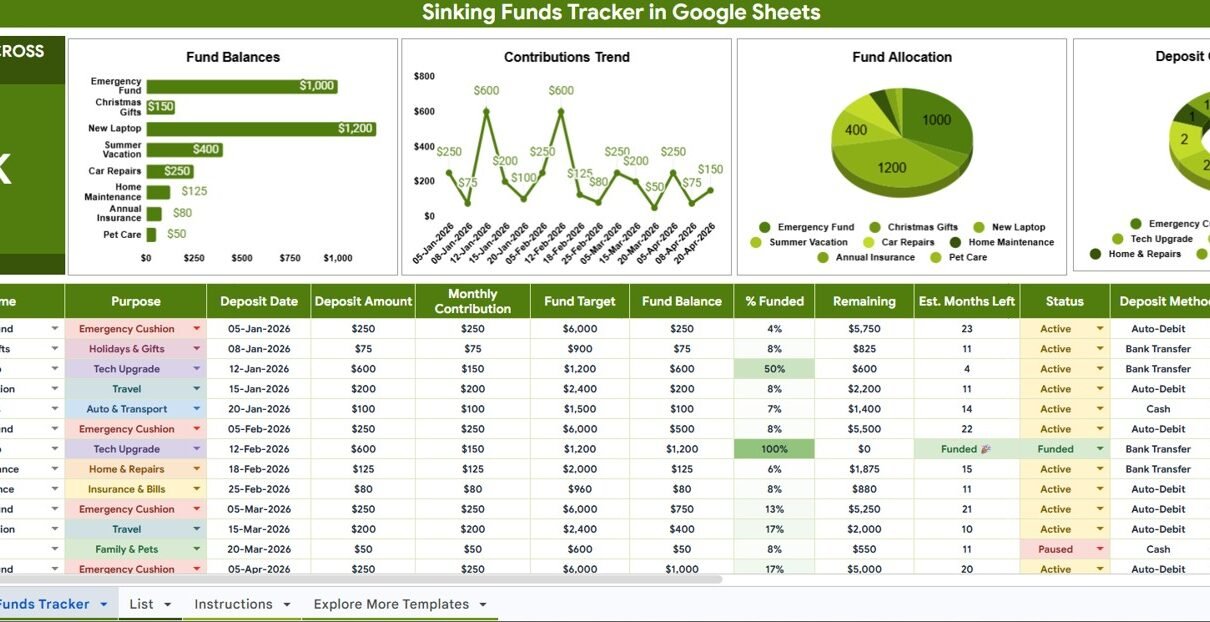
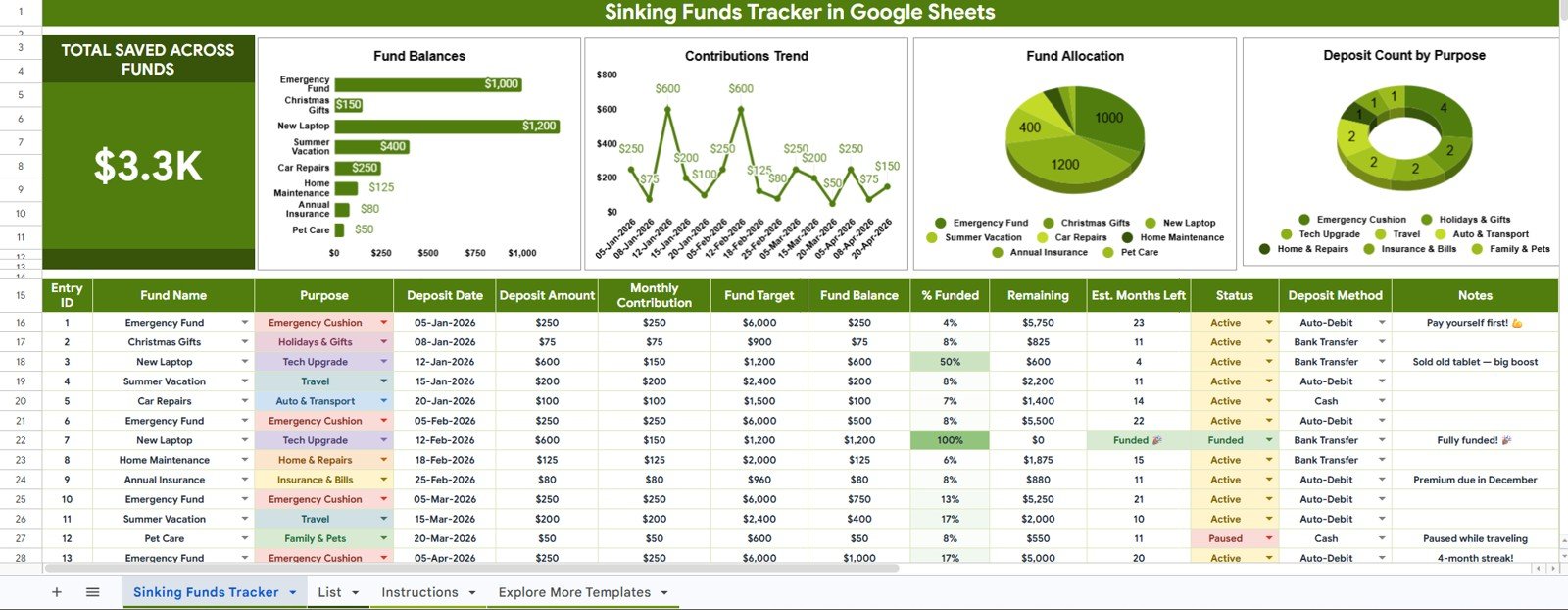
- Total Saved Across Funds card: A top-level KPI that summarizes how much has been saved across all funds.
- Fund Balance by Fund Name: A fund-level balance view that makes it easy to compare savings buckets.
- Contribution Amount by Deposit Date: A time-based view of deposit activity so users can review saving consistency.
- Fund Allocation by Fund Name: A distribution chart showing where total saved money is allocated.
- Deposit Count by Purpose: A purpose-based count that highlights what types of savings activity happen most often.
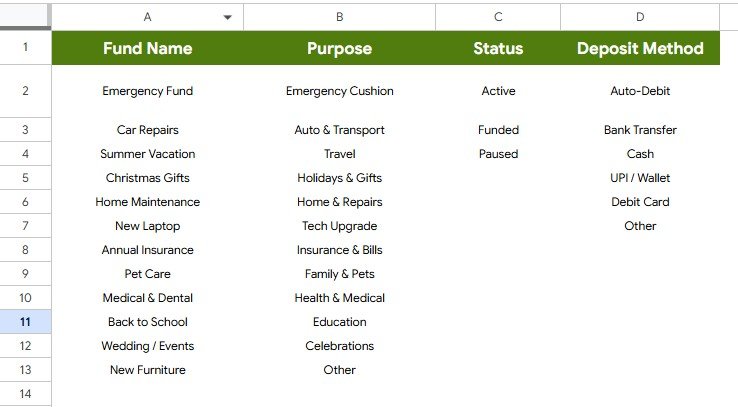
- List Sheet support: A setup sheet for fund names, purposes, statuses, deposit methods, and related analysis.
- Google Sheets workflow: Editable, shareable, and reusable without needing a monthly budgeting app subscription.
Dashboard Pages Explanation
1 – Overview Page
The Overview Page is the main dashboard sheet. At the top, the Total Saved Across Funds card gives a quick answer to the most important question: how much money has been saved across all sinking funds?
The page also includes slicers, so users can filter the dashboard quickly and focus on specific funds, purposes, methods, or statuses depending on how the data is entered. Once a slicer is applied, the card and charts can be reviewed as a focused view rather than a long transaction list.
Fund Balance by Fund Name: This chart compares the balance of each sinking fund. It helps identify which funds are ready for their upcoming expense and which funds still need more contributions.
For example, a car repair fund may be fully funded while a holiday gift fund is still behind target. Seeing every fund name side by side makes prioritization easier.
Contribution Amount by Deposit Date: This chart shows how much has been contributed over time. It is useful for checking whether deposits are happening consistently or only in occasional bursts.
A user can review the trend after each pay period and see whether the saving habit is steady enough to meet upcoming needs. Missed deposit periods become easier to spot.
Fund Allocation by Fund Name: This chart shows the share of saved money assigned to each fund. It answers whether the total savings pool is balanced or concentrated in only one or two categories.
If one fund is taking most of the available cash, the user can decide whether that is intentional or whether future deposits should be redirected to underfunded goals.
Deposit Count by Purpose: This chart counts deposits by their purpose, not just their dollar amount. It helps show where activity is happening most often across the savings plan.
This is useful because one fund might receive many small deposits while another receives fewer large deposits. The count view gives a behavior-based perspective alongside the value-based charts.
2 – List Sheet
The List Sheet supports cleaner data entry and cleaner dashboard reporting. Instead of entering inconsistent labels such as bank transfer, transfer, and online bank payment, users can keep controlled list values and make the analysis easier to read.
Fund Name by Purpose: This analysis connects fund names with saving purposes. It helps users separate planned expenses such as travel, insurance, vehicle repairs, gifts, tax savings, and emergency reserves.
When purposes are consistent, the dashboard becomes more useful because every row is grouped under a clear financial intention. This is especially helpful for households managing many small funds.
Status by Deposit Method: This analysis shows how deposit status relates to deposit method. It can separate completed, pending, scheduled, or cancelled deposits across bank transfer, cash, card, or any custom method.
For users who contribute through multiple channels, this view can quickly reveal which methods are used most often and which deposits still need follow-up.
Sinking Funds Tracker in Google Sheets vs. Microsoft Excel vs. Paid Budgeting SaaS – Feature Comparison
| Feature | This Google Sheets tracker | Microsoft Excel alternative | Paid budgeting SaaS |
|---|---|---|---|
| Cost | $6.99 one-time sale price | Template cost plus Microsoft licensing if needed | Recurring subscription pricing |
| Platform | Google Sheets in Drive | Excel desktop or web | Vendor-hosted web or mobile app |
| Setup time | Copy the file, edit lists, enter deposits | Open workbook and customize manually | Create account, configure categories, possibly connect accounts |
| Real-time team collaboration | Built into Google Sheets sharing | Available through Microsoft sharing tools | Depends on account plan |
| Mobile access | Google Sheets mobile app | Excel mobile app | Usually included |
| Customizable fields | Editable list values, labels, fund names, purposes, and methods | Editable if workbook is unlocked | Often limited by app structure |
| Share with link | Yes, through Google Drive permissions | Yes, through OneDrive or SharePoint | Usually account-based sharing |
| Year-1 cost at 5 users | $6.99 before any Google Workspace costs | Template plus any license costs | Can rise with subscriptions and users |
| Sinking fund dashboard | Card, charts, slicers, and list analysis included | Must be built or customized | Depends on app features |
| Bank automation | Manual entry only | Manual unless connected to external tools | Often available in finance apps |
Who Should Use This Template
This template is useful for people who want to plan ahead for irregular expenses without adding another subscription. Households can track funds for gifts, car maintenance, insurance, school costs, taxes, medical expenses, home repairs, and travel. Couples can share the same file and review progress together. Freelancers can create separate funds for quarterly taxes, software renewals, equipment, and slow business months.
It can also help small business owners who want a lightweight reserve tracker. A business may not need a full cash management system just to track planned reserves for equipment, license renewals, marketing campaigns, or emergency repairs. A structured Google Sheet can be enough when the workflow is simple and the user is comfortable entering deposits manually.
Real-World Use Cases
Household annual expenses: A family creates sinking funds for holiday gifts, car insurance, property tax, back-to-school spending, and appliance replacement. They review the Overview Page once per month to see which categories need more contributions.
Freelancer cash planning: A consultant creates funds for taxes, professional memberships, software renewals, and computer replacement. The deposit date chart helps confirm that money is being set aside after invoices are paid.
Small business reserves: A shop owner creates funds for inventory, maintenance, repairs, marketing, and licensing. The allocation chart helps prevent all reserve cash from sitting in only one category.
Couples budgeting: Two users share one copy in Google Drive and update deposits after each paycheck. They use slicers to review one fund at a time during a weekly finance check-in.
Advantages of Sinking Funds Tracker in Google Sheets
The first advantage is clarity. Sinking funds are easier to manage when each fund has a name, purpose, deposit history, and current balance. This tracker turns those records into charts instead of leaving users to scan rows manually.
The second advantage is flexibility. Users can rename fund categories, add their own purposes, adjust status values, and maintain deposit method options. A paid app may enforce a fixed structure, while a spreadsheet can match the household or business workflow.
The third advantage is collaboration. Since the template runs in Google Sheets, users can share the file with another person and review the same copy. This is helpful for couples, roommates, assistants, and small teams.
Opportunities for Improvement
This tracker is intentionally lightweight. It does not connect to bank accounts, credit cards, or payment providers. That means users must enter deposits manually and keep the sheet updated.
It also does not replace a complete budget, accounting system, investment tracker, or tax planner. If you need automatic transaction syncing, reconciliation, bill payment, forecasting, or tax reporting, you may need a dedicated finance app or accounting platform.
Another opportunity is target tracking. Users who want goal amount, target date, and percent-to-goal metrics may choose to add those columns manually or pair this tracker with a dedicated savings goal template.
Best Practices
- Use short, consistent fund names so chart labels stay readable.
- Update deposits immediately after transferring money to a real savings account.
- Review the Contribution Amount by Deposit Date chart after each pay cycle.
- Keep a separate real bank account or savings account structure that matches the tracker.
- Use the status field to separate completed, pending, scheduled, and cancelled deposits.
- Protect formula and chart areas before sharing edit access with others.
- Make a backup copy before changing the sheet structure.
Explore Relevant Templates
If you are building a personal finance system in Google Sheets, these related templates pair naturally with a sinking fund workflow:
- Savings Goal Tracker in Google Sheets for tracking individual savings goals and progress.
- Bill Payment Tracker in Google Sheets for due dates, bill amounts, and payment statuses.
- Personal Finance Net Worth Tracker in Google Sheets for assets, liabilities, and net worth snapshots.
- Subscription and Membership Tracker in Google Sheets for recurring expense tracking.
- Google Sheets financial tools for more spreadsheet-based finance templates.
Want to build skills like this step by step? The NextGenTemplates Academy learning paths walk you through spreadsheet tracking with practice files.
Get the Sinking Funds Tracker in Google Sheets
Frequently Asked Questions
What is a sinking fund?
A sinking fund is money set aside gradually for a known future expense. Common examples include car repairs, insurance, gifts, taxes, vacations, medical costs, and home maintenance.
What is included in the Sinking Funds Tracker in Google Sheets?
It includes an Overview Page with a Total Saved Across Funds card, four charts, slicers, and a List Sheet for setup values and supporting analysis.
Does this tracker move money automatically?
No. The tracker records and analyzes deposits that you enter. Actual transfers should still happen in your bank or savings account.
Can I customize the fund names?
Yes. The List Sheet can be edited so fund names, purposes, statuses, and deposit methods match your personal or business workflow.
Can I share this with another person?
Yes. After copying the file to Google Drive, you can share it with another person using view or edit permissions.
Is this a replacement for budgeting software?
No. It is a focused sinking fund tracker. It is best used alongside a budget or accounting process, not as a full replacement for every finance workflow.
About the Author
Built by PK – Microsoft Certified Professional with 15+ years of Excel, Google Sheets, and Power BI experience. Founder of NextGenTemplates, reaching 300K+ subscribers across YouTube channels. Every template is hand-built and tested before release.
Conclusion
The Sinking Funds Tracker in Google Sheets gives users a practical way to organize planned savings before irregular expenses arrive. The Overview Page shows total saved, fund balances, deposit trends, allocation, and deposit counts. The List Sheet keeps fund names, purposes, methods, and statuses consistent, which makes the dashboard easier to trust.
If you want a simple, editable, one-time-purchase tracker for savings buckets, this template is a useful place to start.