Warehouse managers spend an average of 6-8 hours per week compiling operational reports manually. The Warehouse Efficiency Dashboard in Google Sheets consolidates 4 core KPIs, 15+ analytical charts, and slicer-based filtering across 6 interactive pages — delivering the visibility most teams need in under 10 minutes of setup. Whether you operate a single distribution center or manage 3PL fulfillment across multiple locations, this dashboard replaces manual spreadsheet tracking with structured, visual reporting that any team member can access from a browser or phone.
Get the Warehouse Efficiency Dashboard in Google Sheets
Key Features of Warehouse Efficiency Dashboard in Google Sheets
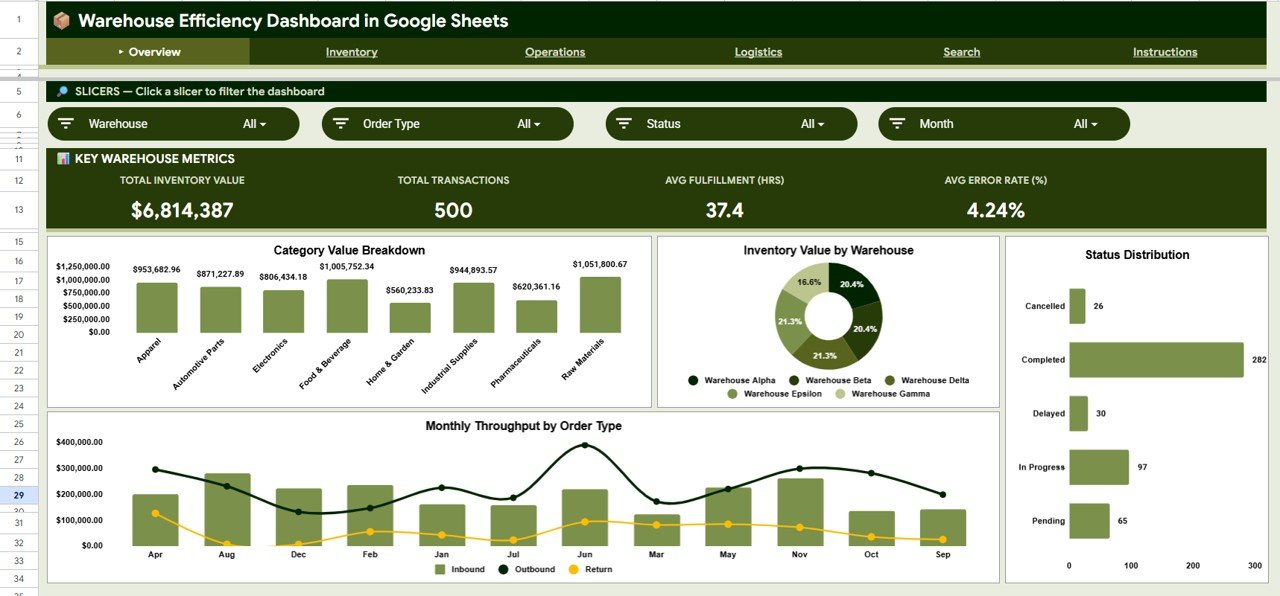
This Google Sheets dashboard delivers 6 purpose-built pages covering inventory analysis, operations monitoring, logistics tracking, and instant transaction lookup — all without add-ons or third-party integrations. The Overview page surfaces 4 KPI cards (Total Inventory Value, Total Transactions, Avg Fulfillment Hours, Avg Error Rate) alongside category and warehouse breakdowns, with interactive slicers for on-the-fly filtering by warehouse, zone, category, or date range.
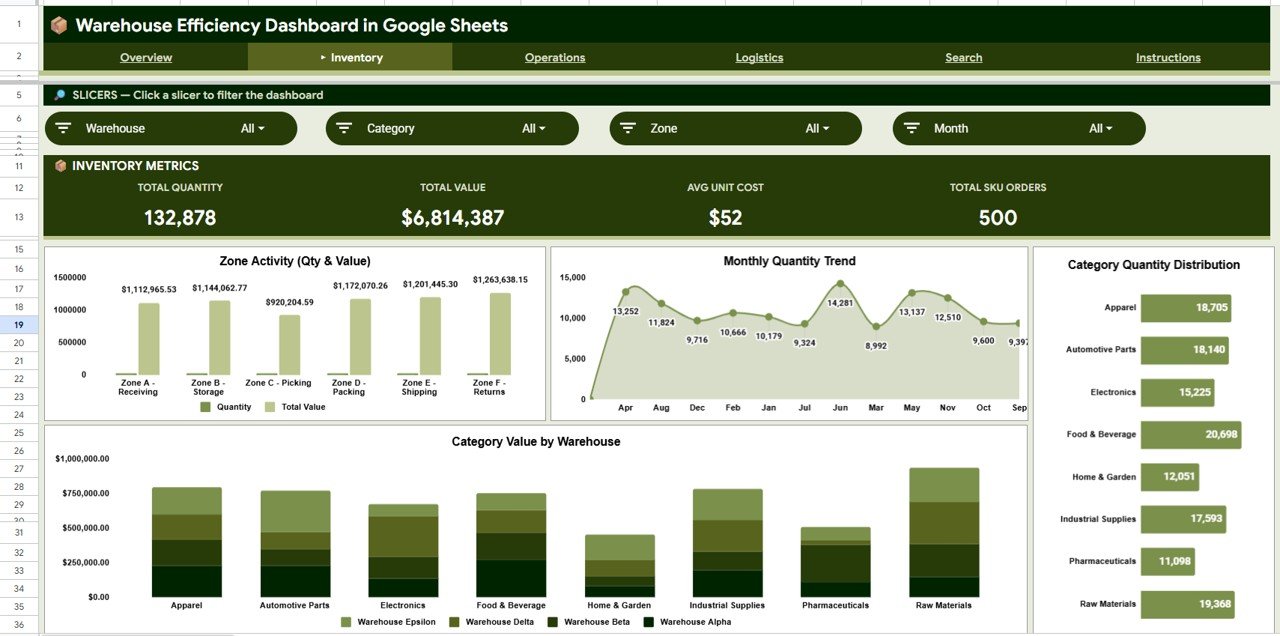
The Inventory tab analyzes stock distribution across zones, months, categories, and warehouses — helping you spot overstocking or shortages before they affect fulfillment. The Operations tab visualizes fulfillment time trends, error rate comparisons, and status distributions to identify operational bottlenecks. The Logistics tab tracks inbound and outbound value by category, month, and warehouse, giving your supply chain team a clear picture of goods flow patterns.
A dedicated Search sheet lets any team member enter a Transaction ID and instantly pull the full record — Date, Warehouse, Zone, Category, SKU, Description, Quantity, Unit Cost, Total Value, Order Type, Status, Fulfillment Time, and Error Rate. The Data sheet holds 500 sample records that you replace with your own warehouse transactions in the same column format, and every chart and card updates automatically.
Dashboard Pages Explanation
1. Overview Page
The Overview page is the command center of this warehouse dashboard. At the top, 4 KPI cards provide high-level metrics at a glance: Total Inventory Value shows the aggregate dollar value of all stock, Total Transactions counts all warehouse movements recorded, Avg Fulfillment (Hrs) calculates the average time from order to shipment, and Avg Error Rate (%) tracks the proportion of transactions with processing errors.
Below the cards, 4 analytical charts break down the data further. Total Value by Category shows how inventory value distributes across product categories. Inventory Value by Warehouse compares stock valuation across locations. Transactions by Status reveals the mix of completed, pending, and delayed orders. Monthly Throughput by Order Type tracks inbound and outbound volume over time. Multiple slicers at the top allow instant filtering of the entire page.
Warehouse Efficiency Dashboard in Google Sheets2. Inventory Page
The Inventory page provides 4 focused analytical views of your stock data. Quantity and Value by Zone shows how inventory distributes across storage zones within each warehouse, helping identifyWarehouse Efficiency Dashboard in Google Sheets unbalanced zone utilization. Quantity by Month reveals seasonal stocking patterns and helps forecast future inventory needs. Quantity by Category highlights which product groups hold the most stock. Category Value by Warehouse compares category-level valuation across locations so you can optimize where high-value items are stored.
 Inventory Analysis
3. Operations Page
The Operations page monitors fulfillment performance and error trends through 4 targeted charts. Avg Fulfillment Time by Month tracks whether order processing speed is improving or declining over time. Fulfillment Time and Error Rate by Warehouse identifies which facilities need process improvement. Average Error Rate by Zone pinpoints problem areas within a warehouse. Status Distribution by Warehouse shows the mix of completed, pending, and delayed orders at each location, enabling targeted operational interventions.Warehouse Efficiency Dashboard in Google Sheets
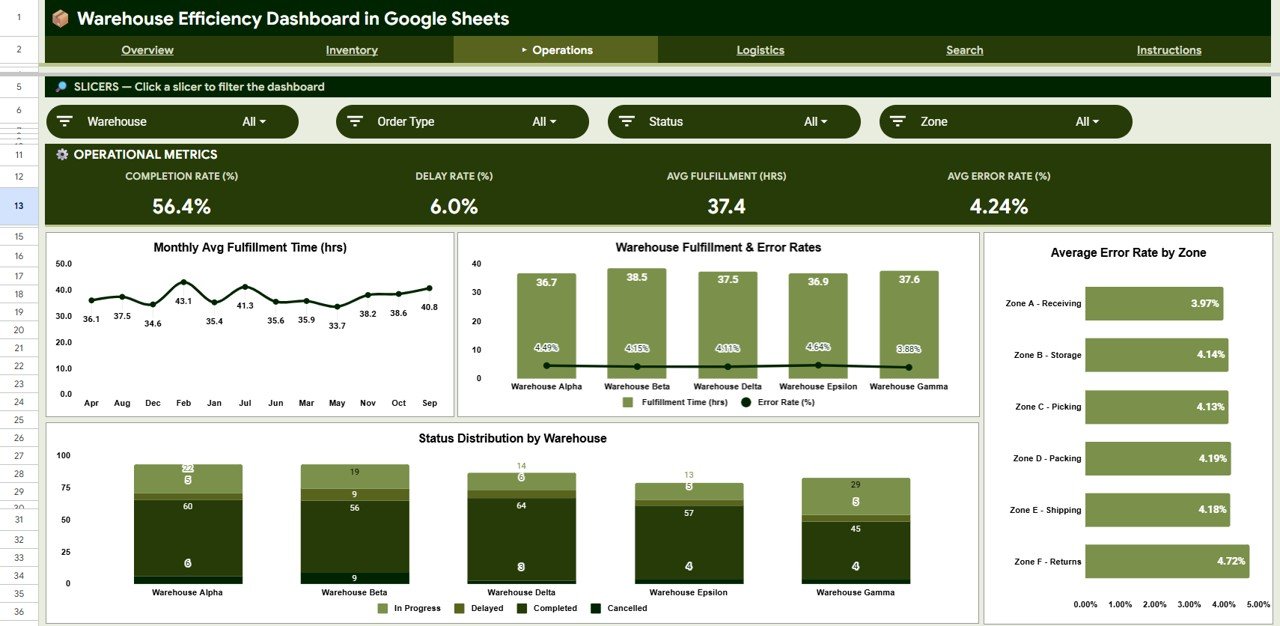 Operations Analysis
4. Logistics Page
The Logistics page tracks goods movement in and out of your warehouses through 4 visualizations. Outbound Value by Category shows which product categories are shipping the most value, useful for revenue-focused prioritization. Inbound Value by Month reveals receiving trends and helps plan dock scheduling. Outbound Value by Month tracks shipping volume patterns for capacity planning. Outbound Quantity and Value by Warehouse compares dispatch performance across locations.Warehouse Efficiency Dashboard in Google Sheets
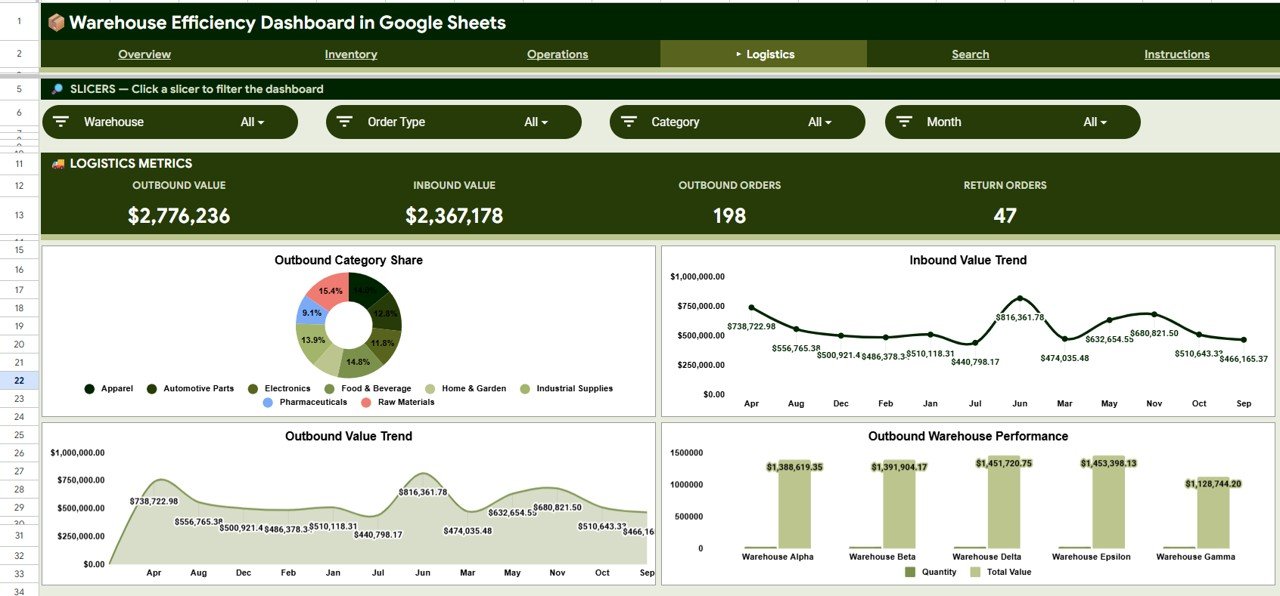 Logistics Analysis
5. Search Sheet
The Search sheet is a transaction lookup tool. Enter any Transaction ID and the sheet instantly pulls the complete record details: Transaction ID, Date, Warehouse, Zone, Category, SKU, Description, Quantity, Unit Cost, Total Value, Order Type, Status, Fulfillment Time, and Error Rate. This eliminates the need to scroll through hundreds of rows in the Data sheet when investigating a specific transaction or responding to a customer inquiry.
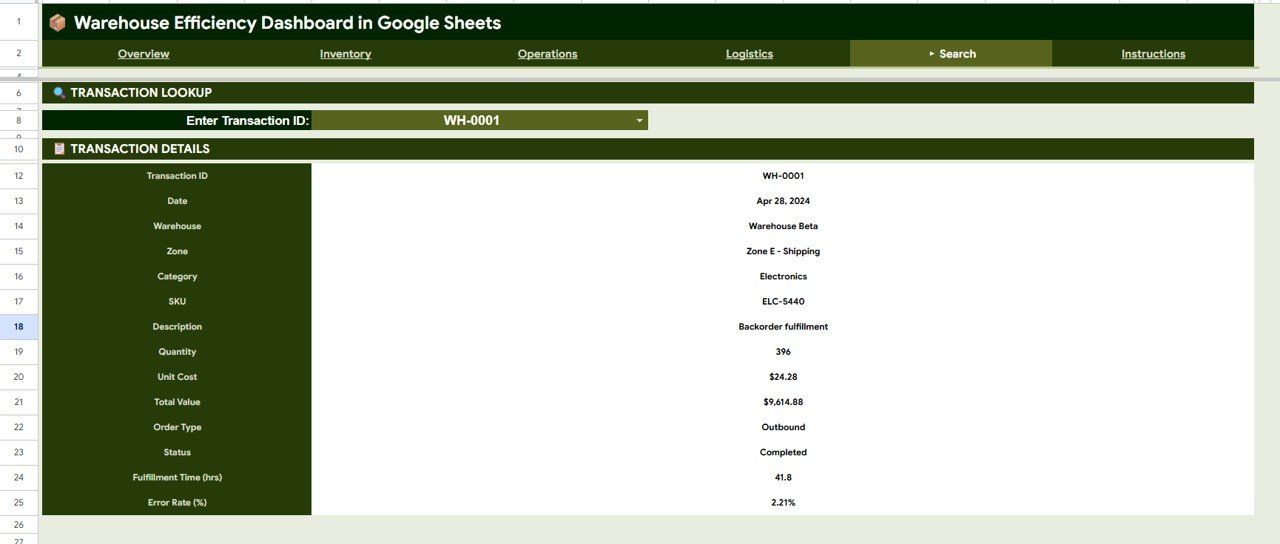 Search Sheet
6. Data Sheet
The Data sheet contains 500 rows of sample warehouse transaction data with 14 columns: Transaction ID, Date, Warehouse, Zone, Category, SKU, Description, Quantity, Unit Cost, Total Value, Order Type, Status, Fulfillment Time, and Error Rate. Replace these sample records with your actual warehouse data in the same column format and every page — Overview, Inventory, Operations, Logistics, and Search — updates automatically.Warehouse Efficiency Dashboard in Google Sheets
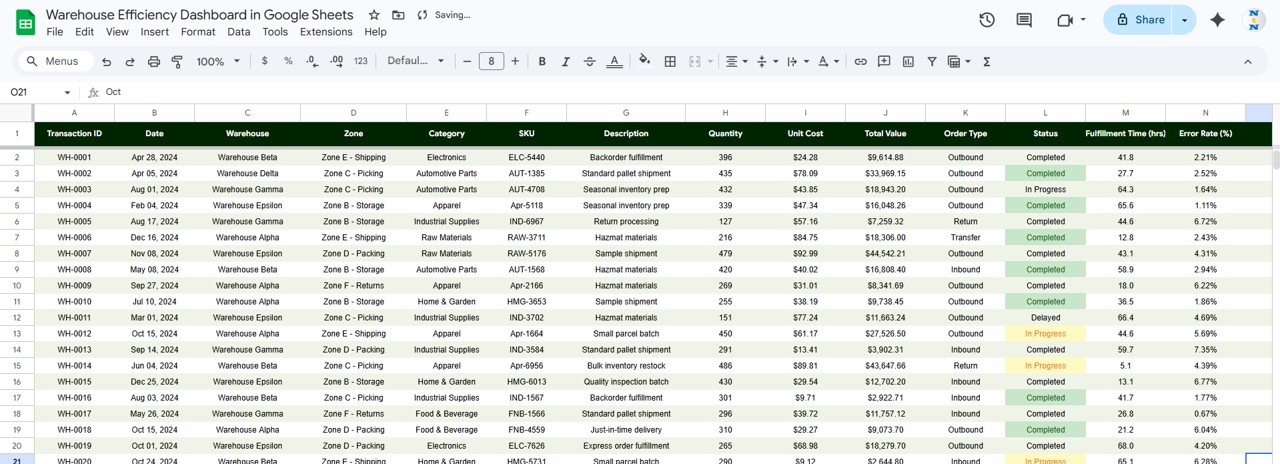 Data Sheet
Warehouse Efficiency Dashboard in Google Sheets vs. Microsoft Excel Dashboard vs. Zoho Inventory — Feature Comparison
| Feature | Warehouse Efficiency Dashboard in Google Sheets | Excel Warehouse Dashboard | Zoho Inventory |
|---|---|---|---|
| Cost | $9.99 one-time | $17.99 one-time | $29-249/month |
| Platform | Google Sheets (browser-based) | Microsoft Excel (desktop) | Web app |
| Setup time | Under 10 minutes | Under 10 minutes | 2-5 days onboarding |
| Real-time team collaboration | ✅ Built-in (Google Sheets) | Limited (file sharing) | ✅ Multi-user |
| Mobile access | ✅ Google Sheets app | Limited mobile support | ✅ Mobile app |
| Customizable fields | ✅ Fully editable formulas and layout | ✅ Fully editable | Limited to plan tier |
| Share with link | ✅ One-click sharing | ❌ File attachment needed | ✅ Role-based access |
| Year-1 cost at 5 users | $9.99 total | $17.99 total | $1,740-14,940 |
| Transaction search / lookup | ✅ Built-in Search sheet | ❌ Manual filtering | ✅ Search module |
For warehouse teams that want visual KPI tracking and inventory analysis without monthly SaaS fees, the Warehouse Efficiency Dashboard in Google Sheets sits in the sweet spot.Warehouse Efficiency Dashboard in Google Sheets
Who Should Use This Template
Perfect for:
- Warehouse managers at distribution centers tracking 50-5,000 SKUs across multiple zones
- Supply chain coordinators at mid-size companies who need a visual reporting layer without SAP or Oracle licensing
- 3PL operators managing fulfillment for multiple clients and needing per-warehouse performance comparisons
- Operations leads at e-commerce businesses monitoring pick-pack-ship efficiency and error rates
Not a fit if:
- You run an enterprise warehouse with 50,000+ SKUs needing real-time WMS integration — consider NetSuite WMS or Manhattan Associates
- Your team requires barcode scanning or IoT sensor integration — this is a reporting dashboard, not a warehouse management system
- You need SOC 2 compliance or SSO-based access control
Real-World Use Cases
Raj manages a 3PL warehouse in Pune handling fulfillment for 8 e-commerce clients. He uses the Warehouse Efficiency Dashboard to compare fulfillment time and error rates across zones, identifying that Zone C consistently runs 22% slower than Zone A. With this data, he reallocated two pickers and cut Zone C fulfillment time by 15% within a month — without investing in a $500/month WMS platform.Warehouse Efficiency Dashboard in Google Sheets
Lisa coordinates supply chain operations for a mid-size consumer electronics distributor in Ohio. She tracks inbound and outbound value by month using the Logistics tab, spotting a seasonal spike in Q4 outbound shipments. She used the data to pre-position inventory in September, reducing late shipments by 30% during peak season.Warehouse Efficiency Dashboard in Google Sheets
Amir runs warehouse ops for a regional food distributor with 3 locations. He uses the Inventory tab to compare category value across warehouses and identified $42,000 in slow-moving frozen goods at one location. He transferred stock and avoided a $12,000 write-off — all tracked inside a Google Sheets dashboard his entire team can access from their phones.
Advantages of Warehouse Efficiency Dashboard in Google Sheets
The primary advantage is cost and accessibility. At $9.99 one-time, this dashboard costs less than a single month of most inventory management SaaS subscriptions. Google Sheets runs in any browser and on the Google Sheets mobile app, so warehouse floor managers can check KPIs from a tablet during walkthroughs without needing desktop software.
Real-time collaboration means multiple team members can view and interact with the dashboard simultaneously. When a warehouse supervisor updates data, the supply chain manager sees the changes instantly — no file emailing or version conflicts. The slicer-based filtering on the Overview page enables warehouse-specific or zone-specific views without building separate reports for each location.
The built-in Search sheet saves significant time during audits or customer inquiries. Instead of filtering through hundreds of rows, enter a Transaction ID and instantly view every detail about that shipment or receipt. For teams managing 3-5 warehouses with 500-5,000 monthly transactions, this dashboard provides the analytical coverage that usually requires a $200+/month SaaS platform.
Opportunities for Improvement
This dashboard is a reporting and analysis tool, not a warehouse management system. It does not include barcode scanning, pick list generation, or real-time inventory deduction on order fulfillment. Teams needing those operational features should pair this dashboard with a WMS or use it alongside a basic inventory management tool.
Google Sheets has a cell limit of 10 million cells per spreadsheet. For warehouses processing 10,000+ transactions per month, the Data sheet may need periodic archiving to maintain performance. Large datasets (50,000+ rows) can slow down chart rendering. Consider aggregating older data into monthly summaries if the file becomes sluggish.
The dashboard currently does not include automated email alerts for KPI thresholds (e.g., when error rate exceeds 5%). Teams that need threshold-based notifications would need to add Apps Script triggers or pair the dashboard with a third-party alerting tool like Google Sheets notification rules.
Best Practices
Update the Data sheet at least weekly to keep the dashboard current. For high-volume warehouses, consider daily updates by exporting transaction logs from your WMS or ERP system and pasting them into the Data sheet. Use the slicer filters on the Overview page during weekly operations meetings to drill into specific warehouses or date ranges.
Review the Operations tab monthly to track fulfillment time and error rate trends. If you notice a warehouse or zone trending upward on error rates, investigate staffing levels, training gaps, or layout issues before the problem compounds. Use the Logistics tab for quarterly capacity planning — compare inbound and outbound volume by month to predict seasonal demand and pre-position inventory accordingly.
Share the dashboard with read-only access for stakeholders who need visibility but should not modify data. Use the Google Sheets sharing settings to give edit access only to the team members responsible for data entry. Bookmark the Search sheet tab URL for your customer service team so they can look up any transaction ID without navigating through the entire dashboard.
Explore Relevant Templates
📊 Warehouse Efficiency Dashboard in Excel — The same warehouse tracking dashboard built for Microsoft Excel users who prefer desktop-based analysis.
📊 Warehouse Efficiency Dashboard in Power BI — Advanced interactive version with drill-through pages and DAX-powered calculations for larger datasets.
📊 Supply Chain Procurement Dashboard in Google Sheets — Track procurement KPIs, supplier performance, and purchasing trends alongside your warehouse data.
📊 Trucking and Logistics Dashboard in Google Sheets — Monitor fleet utilization, delivery performance, and route efficiency to complement your warehouse operations tracking.
📊 Inventory Tracker in Google Sheets — A focused stock tracking template for teams that need detailed item-level inventory management.
📊 Warehouse Management KPI Scorecard in Google Sheets — A scorecard-style template for tracking warehouse KPIs with actual vs. target comparisons and traffic light indicators.
Browse all Google Sheets Dashboard Templates or explore Supply Chain & Logistics Templates.
To go further with the charts and slicers behind dashboards like this, the Excel Pivot Tables & Dashboards course on NextGenTemplates Academy teaches them hands-on with practice files.
Get the Warehouse Efficiency Dashboard in Google Sheets
Frequently Asked Questions
What KPIs does the Warehouse Efficiency Dashboard in Google Sheets track?
The dashboard tracks 4 core KPIs: Total Inventory Value, Total Transactions, Average Fulfillment Time (in hours), and Average Error Rate (%). All metrics update automatically when you replace the sample data with your own warehouse records.
How long does it take to set up this warehouse dashboard?
Setup takes under 10 minutes. Open the PDF guide included in your download, click the Google Sheets copy link to create your editable version in Google Drive, then replace the 500 sample rows with your warehouse transaction data.
Can I use this dashboard for multiple warehouses?
Yes. The Data sheet includes a Warehouse column, and all charts break down metrics by warehouse. Use the Overview page slicers and per-warehouse charts on the Inventory, Operations, and Logistics tabs to compare performance across locations.
How does this compare to Zoho Inventory for warehouse tracking?
Zoho Inventory starts at $29/month ($348/year) and includes WMS features this template does not. For visual KPI tracking, reporting, and performance comparison across zones and warehouses, this $9.99 one-time template covers what most mid-size teams need without monthly fees.
Does this template work on mobile devices?
Yes. Google Sheets is fully accessible through the Google Sheets mobile app on iOS and Android. You can view all dashboard pages, apply slicer filters, and use the transaction search from your phone or tablet.
Can I add more data columns or customize the charts?
Absolutely. Since this is a native Google Sheets file, you can add columns to the Data sheet, modify chart ranges, change colors, and adjust formulas. The file is fully editable with no locked cells or add-on dependencies.
Is this dashboard suitable for a small warehouse with fewer than 100 transactions per month?
Yes. The dashboard works with any volume of data. Whether you have 50 or 5,000 rows in the Data sheet, all charts and KPI cards scale automatically. Smaller datasets simply produce cleaner, easier-to-read visualizations.
About the Author
Built by PK — Microsoft Certified Professional with 15+ years of Excel, Google Sheets, and Power BI experience. Founder of NextGenTemplates, reaching 300K+ subscribers across YouTube channels. Every template is hand-built and tested before release.
Conclusion
The Warehouse Efficiency Dashboard in Google Sheets gives warehouse managers, supply chain coordinators, and 3PL operators a structured, visual reporting system for tracking inventory value, fulfillment performance, error rates, and logistics flow — all inside a familiar Google Sheets environment that runs on any device.
✅ Instant download · One-time payment · No subscription