The YouTube Channel Analytics Dashboard in HTML is a powerful, browser-based analytics template built for content creators, digital marketers, and media professionals who need a comprehensive view of their YouTube channel performance. YouTube Channel Analytics Dashboard in HTML This premium HTML dashboard includes 5 interactive pages, 15+ dynamic charts, 6 KPI summary cards, and built-in slicer filters — all running directly in your web browser with zero software installation required.
Whether you are a solo YouTuber trying to understand which content formats generate the most revenue, or a marketing agency managing multiple channels for clients, this dashboard gives you instant visibility into views, subscribers, audience demographics, content engagement, revenue trends, and traffic sources. You can explore related dashboard templates in our HTML Dashboard Templates collection on NextGen Templates.
Key Features of YouTube Channel Analytics Dashboard in HTML
- 5 Dedicated Dashboard Pages — Overview, Content Analysis, Audience Insights, Revenue Analysis, and Data View
- 6 High-Level KPI Cards — Total Views, Total Revenue, Total Subscribers Gained, Total Watch Time Hours, Average CPM, and Total Videos
- 15+ Interactive Charts — Covering views, revenue, subscribers, likes, dislikes, comments, duration, traffic sources, device types, demographics, and more
- Smart Slicer Filters — Instantly filter data across the entire dashboard by date range, category, content type, or custom dimensions
- Data View with CSV Export — Browse all records with search, sort, and pagination, then export filtered data to CSV for further analysis
- Works in Any Browser — Built with pure HTML, CSS, and JavaScript — open index.html in Chrome, Edge, Firefox, or Safari
- Fully Customizable — Replace the sample data with your own YouTube analytics export and the entire dashboard updates automatically
Dashboard Pages Explained
1. Overview Page
YouTube Channel Analytics Dashboard – Overview
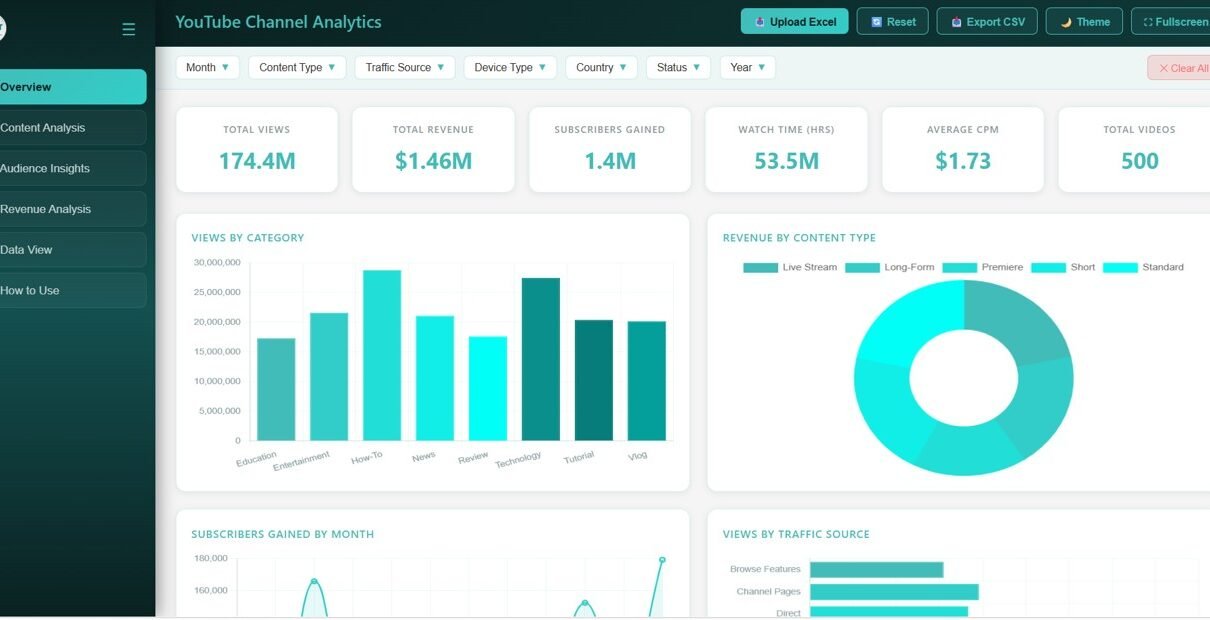
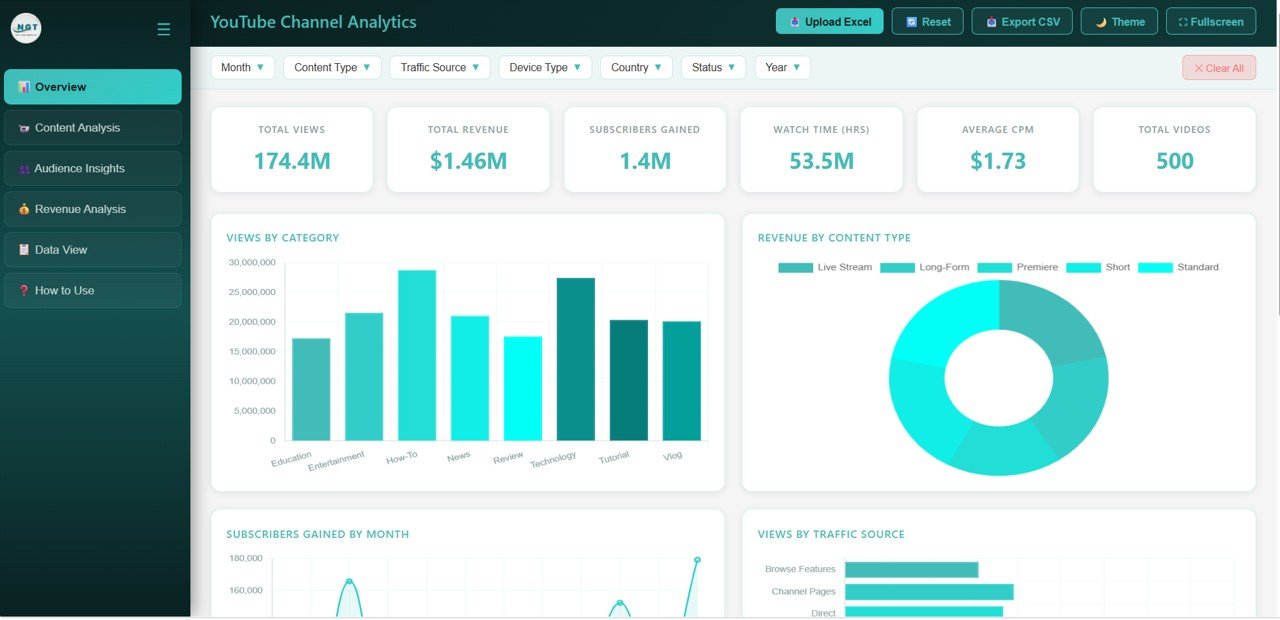
The Overview page serves as your main command center. At the top, 6 KPI cards display high-level metrics: Total Views, Total Revenue, Total Subscribers Gained, Total Watch Time Hours, Average CPM, and Total Videos. These cards give you an instant snapshot of your channel health before you dive into the detailed analysis.
Below the KPI cards, five charts provide quick visual insights. The Views by Category chart breaks down how different content categories contribute to your total viewership. Revenue by Content Type shows which video formats (tutorials, vlogs, shorts, etc.) are earning the most. Subscribers Gained by Month reveals your growth trajectory over time. Views by Traffic Source highlights whether viewers are finding you through search, browse, external links, or suggested videos. The Status Distribution chart shows how your published, scheduled, and draft content is distributed.
Multiple slicer controls at the top of the page let you filter the entire dashboard instantly — select specific date ranges, categories, or content types to drill down into the exact data you need.
2. Content Analysis Page
YouTube Channel Analytics Dashboard – Content Analysis
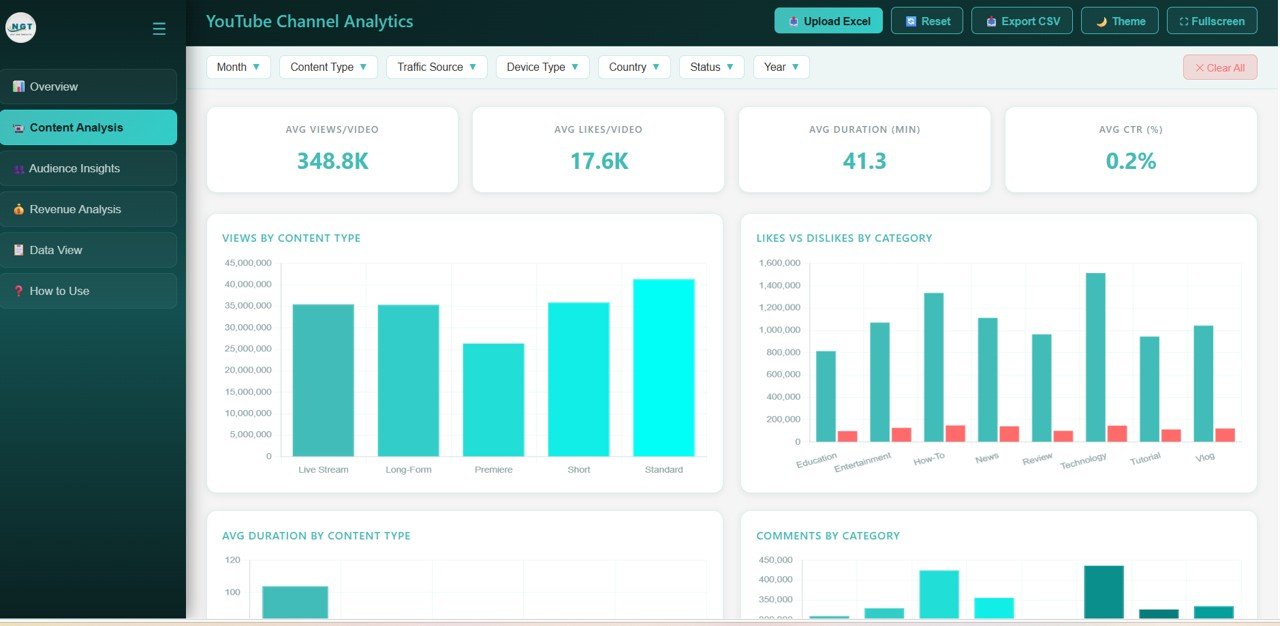
The Content Analysis page helps you understand what type of content resonates most with your audience. The Views by Content Type chart reveals which video formats attract the most viewers. Likes vs Dislikes by Category shows audience sentiment across different content themes. Average Duration by Content Type helps you identify the optimal video length for maximum engagement. Comments by Category highlights which topics spark the most conversation, while Revenue by Category connects engagement directly to earnings. This page is essential for data-driven content strategy decisions.
3. Audience Insights Page
YouTube Channel Analytics Dashboard – Audience Insights
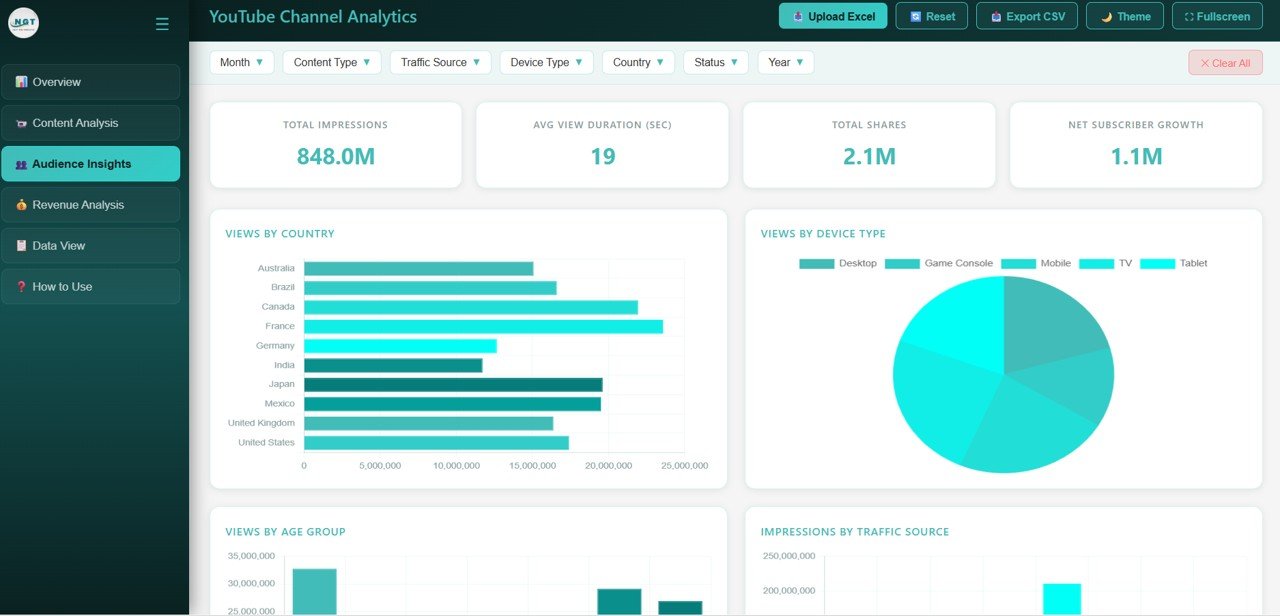
Understanding your audience is critical for growing your channel. The Audience Insights page provides five key visualizations. Views by Country shows your geographic reach and helps you identify your strongest markets. Views by Device Type tells you whether your audience is watching on mobile, desktop, tablet, or TV — which can inform your thumbnail and formatting decisions. Views by Audience Age Group reveals the age distribution of your viewers. Impressions by Traffic Source shows how viewers are discovering your content. Shares by Country highlights where your videos are being shared most, indicating organic advocacy.
4. Revenue Analysis Page
YouTube Channel Analytics Dashboard – Revenue Analysis
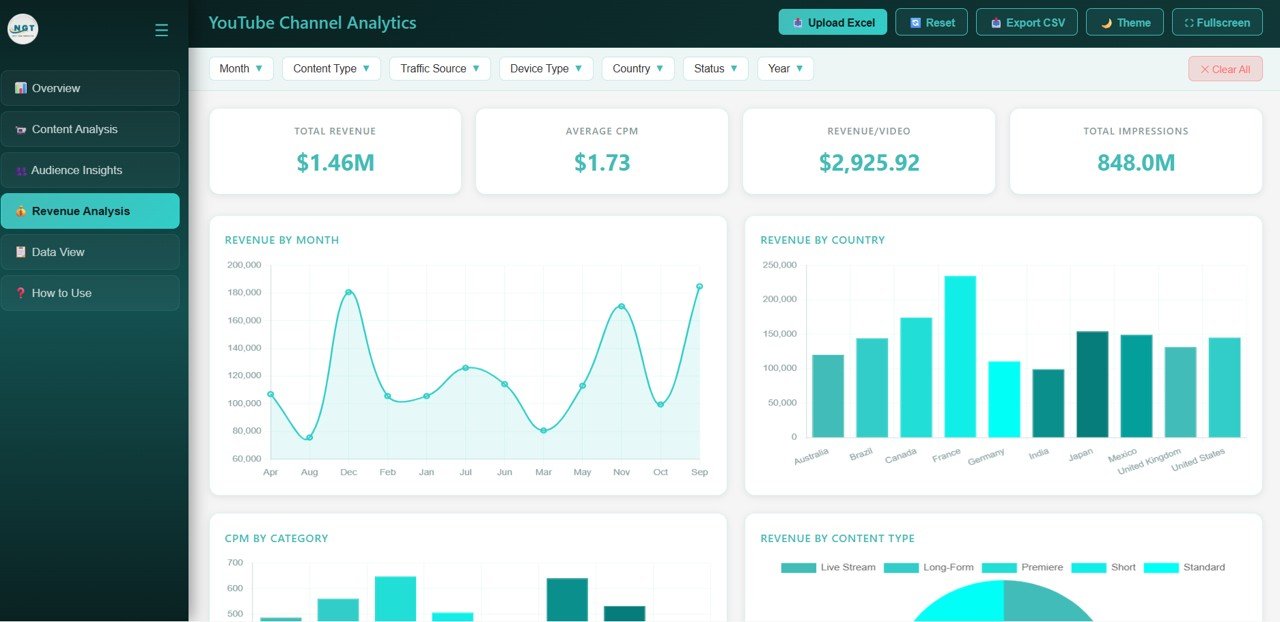
The Revenue Analysis page is dedicated to tracking your monetization performance. Revenue by Month shows your earnings trend over time, helping you spot seasonal patterns and growth trajectories. Revenue by Country identifies which geographic markets generate the most ad revenue. CPM by Category reveals which content topics command the highest ad rates. Revenue by Content Type connects your content format choices to actual earnings. Revenue by Year provides a long-term view of your channel’s financial growth. Together, these five charts give you a complete financial picture to help optimize your content for maximum earnings.
5. Data View Page
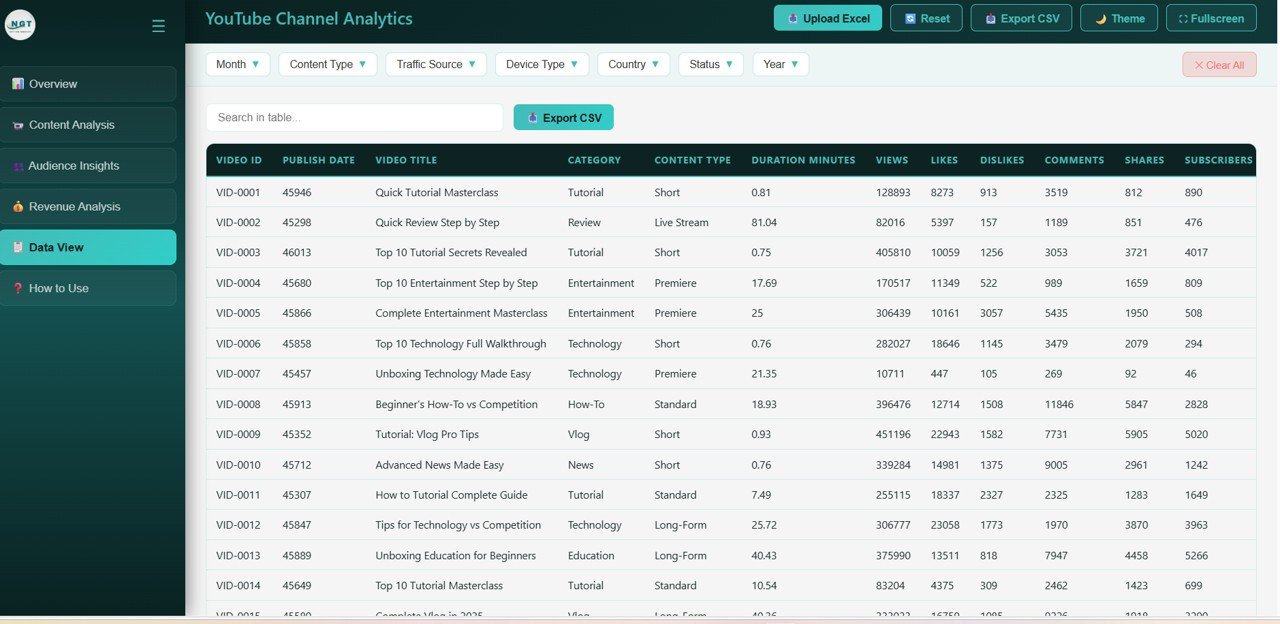
YouTube Channel Analytics Dashboard – Data View
The Data View page presents all your records in a detailed data table with full search, sort, and pagination capabilities. You can quickly find specific videos or data points using the search bar, sort any column ascending or descending, and navigate through pages of data. The built-in CSV export feature lets you download filtered data for further analysis in Excel, Google Sheets, or any spreadsheet tool. This is especially useful for sharing specific data subsets with team members or clients.
Advantages of YouTube Channel Analytics Dashboard in HTML
This dashboard offers several significant advantages over other analytics tools. First, it requires absolutely no software installation — just open it in your browser. Second, it consolidates data that YouTube Studio spreads across multiple screens into one unified interface with 5 focused pages. Third, the interactive slicer filters let you explore your data much faster than navigating through YouTube’s native analytics. Fourth, the CSV export on the Data View page makes it easy to share data with collaborators. Fifth, since it runs entirely offline, there are no API limits, no authentication headaches, and your data stays completely private on your own computer.
If you prefer working with other platforms, check out the YouTube Channel Analytics Dashboard in Power BI for advanced DAX calculations and drill-through functionality, or the YouTube Channel Analytics Dashboard in Excel for pivot table-based analysis within familiar spreadsheet software.
Opportunities for Improvement
While this dashboard covers the most important YouTube analytics dimensions, there are areas where you could extend it further. Adding a Competitor Comparison page would let you benchmark your channel against others in your niche. Integrating real-time data through YouTube API would eliminate the manual data import step. A dedicated Shorts Analytics section could help creators who rely heavily on YouTube Shorts format. Adding funnel visualization for subscriber conversion (impressions → clicks → views → subscribers) would provide deeper growth insights.
Best Practices for Using This Dashboard
To get the most value from the YouTube Channel Analytics Dashboard in HTML, follow these best practices. Update your data regularly — weekly exports from YouTube Studio keep your dashboard current and trends accurate. Use the slicer filters strategically to compare different time periods, such as this month vs last month, to spot changes quickly. Pay special attention to the CPM by Category chart on the Revenue Analysis page — this reveals which content topics are most profitable, not just most viewed. Use the Content Analysis page to identify underperforming content types and make data-driven decisions about what to create next. Finally, leverage the CSV export to create custom reports for sponsors or brand partners who want proof of your channel’s performance.
For more analytics dashboard options, explore our Digital Marketing Campaign Dashboard in HTML for broader marketing analytics, or the Amazon FBA Seller Dashboard in HTML if you also sell products on Amazon. You can also browse our full collection of HTML dashboard templates for other business domains.
Explore Relevant Templates
- YouTube Channel Analytics Dashboard in Power BI — Advanced Power BI interactivity with DAX calculations
- YouTube Channel Analytics Dashboard in Excel — YouTube analytics with familiar Excel pivot tables
- Digital Marketing Campaign Dashboard in HTML — Comprehensive marketing analytics across channels
- Amazon FBA Seller Dashboard in HTML — Track Amazon seller metrics in the same premium HTML format
- Crypto Portfolio Dashboard in HTML — Monitor crypto investments with interactive charts
Frequently Asked Questions
What KPIs does the YouTube Channel Analytics Dashboard in HTML track?
This dashboard tracks 6 key performance indicators on the Overview page: Total Views, Total Revenue, Total Subscribers Gained, Total Watch Time Hours, Average CPM, and Total Videos. Across all 5 pages, it visualizes 15+ metrics covering content performance, audience demographics, traffic sources, and revenue breakdowns.
Do I need any special software to use this HTML dashboard?
No. This dashboard is built with pure HTML, CSS, and JavaScript. Simply open the index.html file in any modern web browser like Chrome, Edge, Firefox, or Safari. No Excel, Power BI, or any other software installation is required.
Can I customize the dashboard with my own YouTube data?
Yes. The template includes a data file where all sample records are stored. Replace it with your own YouTube analytics data exported from YouTube Studio, and the entire dashboard — all charts, KPIs, filters, and tables — updates automatically.
Is this template suitable for agencies managing multiple YouTube channels?
Absolutely. You can structure your data to include multiple channels and use the slicer filters to switch between channels or view aggregated performance across all channels simultaneously. The CSV export feature also makes it easy to create client-specific reports.
What is the best dashboard template for tracking YouTube revenue and CPM?
The YouTube Channel Analytics Dashboard in HTML includes a dedicated Revenue Analysis page that tracks revenue by month, country, category, content type, and year — along with CPM comparisons by category. For Power BI users, the Power BI version offers additional drill-through and DAX calculation capabilities.
How is this different from YouTube Studio’s built-in analytics?
YouTube Studio spreads analytics across multiple screens and limits historical comparisons. This dashboard consolidates everything into 5 focused pages with cross-filtering capabilities, offline access, CSV export, and the ability to customize the layout and data structure to match your specific reporting needs.
Conclusion
The YouTube Channel Analytics Dashboard in HTML is the most comprehensive browser-based analytics template for YouTube creators and marketers. With 5 interactive pages, 15+ dynamic charts, 6 KPI summary cards, smart slicer filters, and CSV export capability, it gives you everything you need to track, analyze, and optimize your YouTube channel performance — all without installing any software.
Click here to Purchase YouTube Channel Analytics Dashboard in HTML
Visit our YouTube channel for step-by-step video tutorials:
👉 Youtube.com/@NeoTechNavigators