The Employee Turnover Dashboard in HTML is a browser-based HR analytics template that shows who is leaving your organisation, why they leave and which teams are most affected. It is built for HR managers, HR business partners and people analytics teams who need a clear attrition report without setting up Excel models, Power BI or a paid HR analytics tool.
It opens as a single index.html file in Chrome, Edge, Firefox or Safari. Inside are five pages (Overview, Attrition Analysis, Department Insights, Workforce Demographics and Data View), KPI cards at the top of each analysis page, around 20 charts, five global filters and a searchable employee table with CSV export.
🎥 Watch the Video Tutorial
Get the Employee Turnover Dashboard in HTML
What Problem Does This Turnover Dashboard Solve?
Most HR teams can tell you how many people left last year. Far fewer can quickly say which departments lose the most people, whether exits are mostly voluntary, how long leavers stayed or how satisfaction and pay differ between teams. That information usually sits in an HRIS export that nobody has time to turn into charts.
This dashboard does that work for you. Load an employee list with status, department, tenure, salary, satisfaction and exit details, and the template calculates the headline turnover figures and draws the charts. Because it runs from local files in the browser, you do not need to upload staff data to a third-party analytics service.
Key Metrics on the Employee Turnover Dashboard in HTML
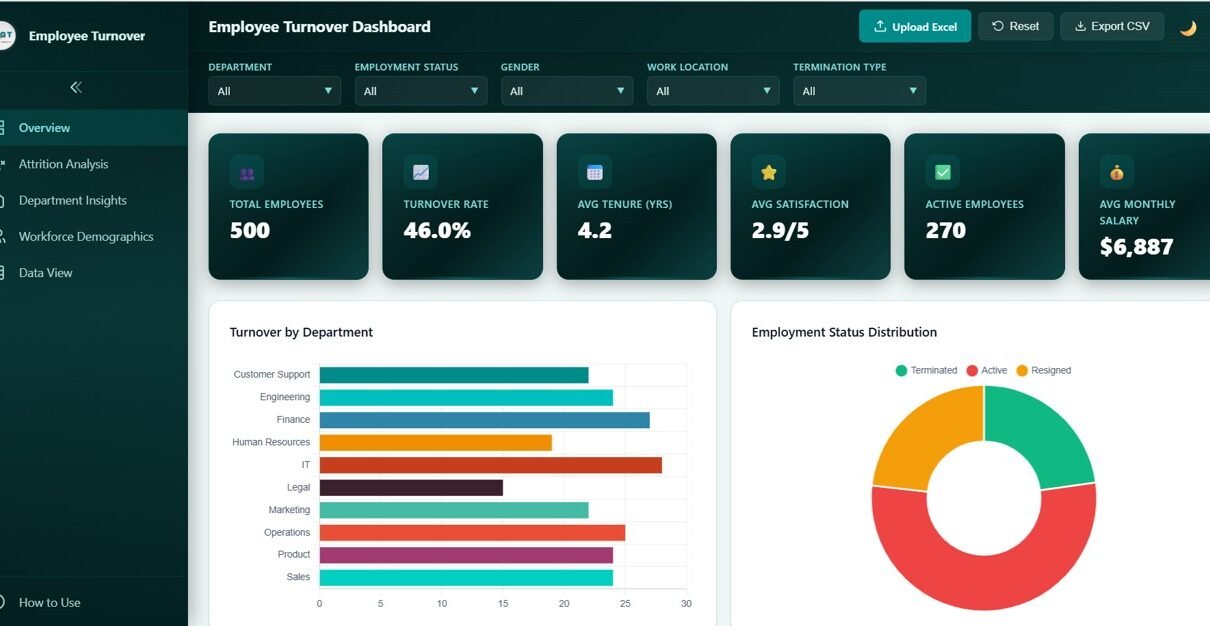
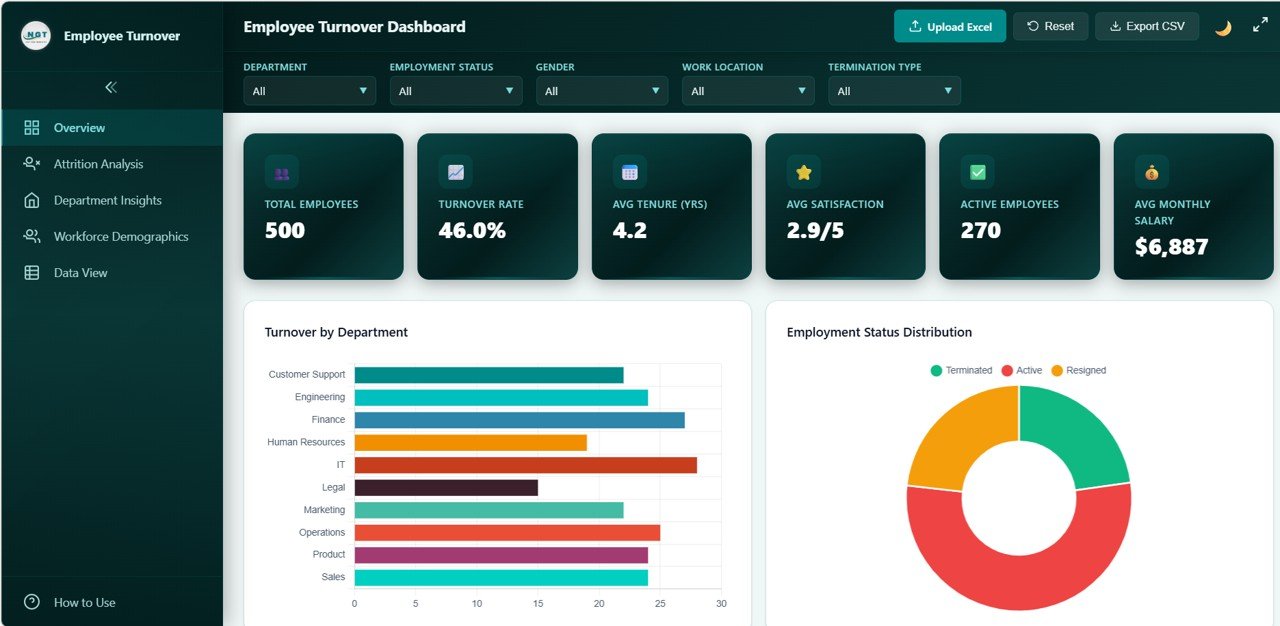
Each analysis page starts with its own row of KPI cards. The values below are from the included sample data of 500 employees, with no filters applied.
| Page | KPI card | Sample value | What it tells you |
|---|---|---|---|
| Overview | Total Employees | 500 | All employee records in view |
| Overview | Turnover Rate | 46.0% | Share of employees who are no longer active (500 − 270 = 230 leavers ÷ 500) |
| Overview | Avg Tenure (Yrs) | 4.2 | Average years of service |
| Overview | Avg Satisfaction | 2.9/5 | Average satisfaction score |
| Overview | Active Employees | 270 | Employees still in the business |
| Overview | Avg Monthly Salary | $6,887 | Average monthly pay |
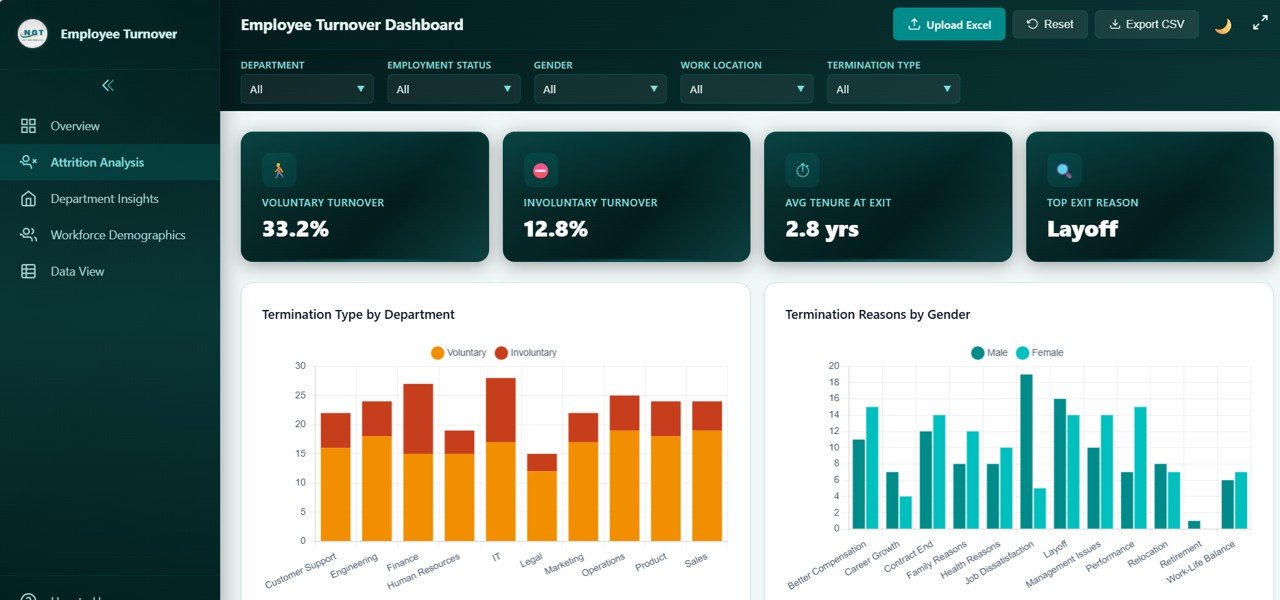
| Attrition Analysis | Voluntary Turnover / Involuntary Turnover | 33.2% / 12.8% | The 46.0% turnover split by exit type |
| Attrition Analysis | Avg Tenure at Exit | 2.8 yrs | How long leavers stayed on average |
| Attrition Analysis | Top Exit Reason | Layoff | The most frequent termination reason |
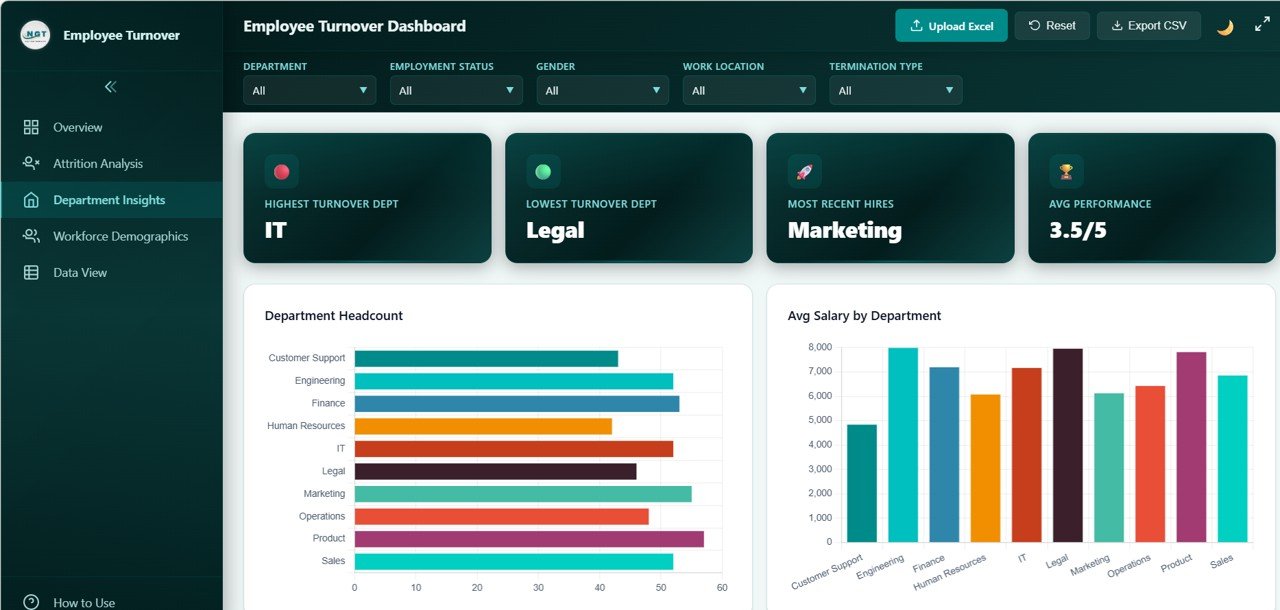
| Department Insights | Highest / Lowest Turnover Dept | IT / Legal | Where attrition is worst and best |
| Department Insights | Most Recent Hires | Marketing | The department with the newest joiners |
| Department Insights | Avg Performance | 3.5/5 | Average performance rating |
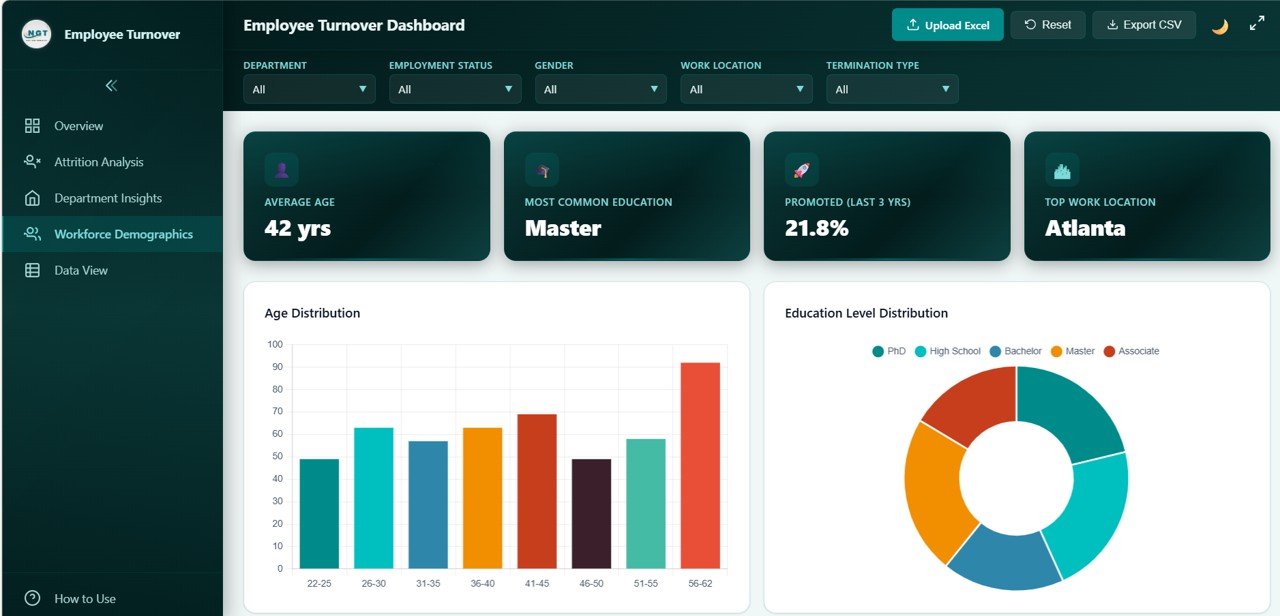
| Workforce Demographics | Average Age / Most Common Education | 42 yrs / Master | Profile of the workforce |
| Workforce Demographics | Promoted (Last 3 Yrs) / Top Work Location | 21.8% / Atlanta | Career movement and the largest location |
Note how the cards tie together: voluntary (33.2%) plus involuntary (12.8%) turnover equals the 46.0% Turnover Rate on the Overview page.
Global Filters and Toolbar
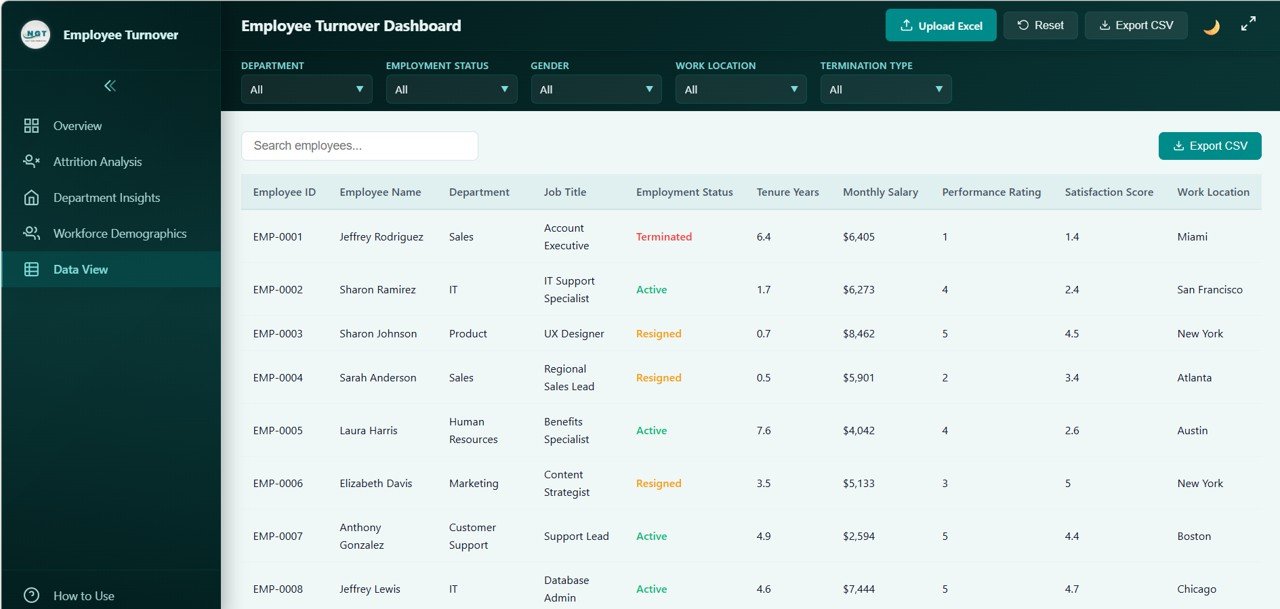
Five dropdown filters run across the top of every page: Department, Employment Status, Gender, Work Location and Termination Type. Pick a value and every card and chart on the page recalculates. The toolbar also has Upload Excel, Reset and Export CSV buttons, a light/dark mode toggle and a full-screen button. A How to Use link sits at the bottom of the side menu.
Dashboard Pages Explained
1. Overview
The Overview shows the six headline KPIs, then charts for Turnover by Department and Employment Status Distribution (Active, Terminated and Resigned). Further down the page are Termination Reasons Breakdown, Turnover Trend by Hire Year and Gender Distribution. In the sample, IT and Finance show the most leavers and Legal the fewest.
2. Attrition Analysis
This page explains why people leave. Termination Type by Department stacks voluntary and involuntary exits for each of the ten departments. Termination Reasons by Gender compares twelve reasons (Better Compensation, Career Growth, Contract End, Family Reasons, Health Reasons, Job Dissatisfaction, Layoff, Management Issues, Performance, Relocation, Retirement and Work-Life Balance) for men and women. The page also includes Satisfaction Score Distribution, Turnover by Tenure Range and Attrition by Work Location.
In the sample, Job Dissatisfaction is the most common reason among men, while Better Compensation and Performance rank highest among women. Gaps like that are worth raising with your managers.
3. Department Insights
Compare departments side by side. Department Headcount shows team sizes, with Product the largest in the sample. Avg Salary by Department shows pay levels, with Engineering and Legal near the top and Customer Support lowest. The page continues with Avg Satisfaction by Department, Performance Rating by Department and Overtime Hours by Department.
4. Workforce Demographics
This page profiles the people in the data. Age Distribution groups employees from 22-25 up to 56-62, and Education Level Distribution splits them into PhD, High School, Bachelor, Master and Associate. Below are Marital Status Distribution, Avg Salary by Education Level and Training Hours by Department. In the sample, the 56-62 age band is the largest group, which is a useful prompt for succession planning.
5. Data View
The Data View lists every employee record in a table with a Search employees box, sortable columns, pagination and its own Export CSV button. Visible columns include Employee ID, Employee Name, Department, Job Title, Employment Status, Tenure Years, Monthly Salary, Performance Rating, Satisfaction Score and Work Location. Use it to check the people behind any number on the charts.
How to Use It with Your Own HR Data
- Download and unzip the file, then open index.html in a modern browser. The sample data loads straight away.
- Export an employee list from your HR system. Match the column names used in the template (see the Data View columns above and the included sample data).
- Load your file with the Upload Excel button, or replace the sample data file in the download folder, as described in the template’s How to Use guide.
- Check the Overview cards. If the Total Employees and Active Employees counts match your HR system, the data has loaded correctly.
- Use the five filters to focus on one department, location or termination type, and click Reset to clear them.
- Use Export CSV to save employee records for follow-up work in a spreadsheet.
If you also build HR reports in Excel and want to understand how filters, summaries and charts fit together, the Excel Pivot Tables and Dashboards course on NextGenTemplates Academy covers the same ideas step by step.
Real-World Use Cases
- Quarterly people review: an HR manager filters to the last quarter’s leavers, shows leadership the top exit reasons and the departments with the highest voluntary turnover, and agrees two retention actions.
- Department-level retention plan: an HR business partner filters to one department and compares its satisfaction, salary and overtime with the rest of the company to understand why people leave.
- HR consultant or trainer: uses the sample data to teach attrition analysis, then loads a client’s anonymised export to deliver a quick diagnostic.
Best Practices
- Keep reasons consistent. Agree a fixed list of termination reasons in your HR system so the Termination Reasons charts stay meaningful.
- Separate voluntary and involuntary exits. They need different actions. Voluntary exits point to engagement or pay; involuntary exits point to hiring quality or restructuring.
- Refresh monthly. Load a fresh export each month and keep the CSV exports so you can compare periods.
- Read satisfaction and pay together. A team with low pay and high satisfaction is a different problem from one with high pay and low satisfaction.
- Protect personal data. Even though the file runs locally, anonymise names before sharing it outside HR.
Limitations: Who Should Not Use It
This is a snapshot analysis tool, not an HR system. It does not connect live to Workday, BambooHR or other HRIS platforms, and it does not predict who will leave next. The turnover rate is calculated from the records you load, so for an annual rate you need to load the right period yourself. Large enterprises that need row-level security, scheduled refresh and audit trails will be better served by Power BI or their HRIS reporting module.
Related Dashboards and Guides
To track HR metrics against targets, see the HR KPI Dashboard in Google Sheets. To make exits smoother and more consistent, use the Employee Offboarding Tracker in Google Sheets. Other browser-based HR views include the Training and Development Dashboard in HTML and the Staffing Agency Dashboard in HTML, and the Office Utilization Dashboard in HTML covers workspace use.
Related templates: if you prefer another tool, there is also an Employee Turnover Dashboard in Excel and an Employee Turnover Dashboard in Power BI.
Frequently Asked Questions
Do I need any software to run the Employee Turnover Dashboard in HTML?
No. Open index.html in Chrome, Edge, Firefox or Safari. There is nothing to install and no account to create.
How is the turnover rate calculated?
In the sample it is the share of employees who are not active: 230 leavers out of 500 employees gives 46.0%. It recalculates whenever you apply a filter.
What is the difference between voluntary and involuntary turnover?
Voluntary turnover is when employees choose to leave, for example resigning for better pay. Involuntary turnover is when the employer ends the job, for example a layoff or performance exit. The Attrition Analysis page shows both.
Can I use my own employee data?
Yes. Load your data with the Upload Excel button or replace the sample data file, keeping the same column names, and every chart, card and table updates.
Is my employee data sent anywhere?
The dashboard is a set of files you open locally in your browser; it does not need a server, a login or a cloud account. As with any file containing staff records, keep your copy in a secure location and share it only with people who should see the data.
Can I export the filtered list of employees?
Yes. The toolbar and the Data View page both have an Export CSV button, so you can save the employee records to a CSV file and open them in Excel or Google Sheets. Apply your filters first if you only need part of the list, and check the exported file before sharing it.
Wrapping Up
The Employee Turnover Dashboard in HTML turns a plain employee export into a clear picture of who is leaving, from which teams and why. Open it in your browser, load your own data, and start your next people review with the Attrition Analysis and Department Insights pages.
Get the Employee Turnover Dashboard in HTML
📅 Last updated: October 2026