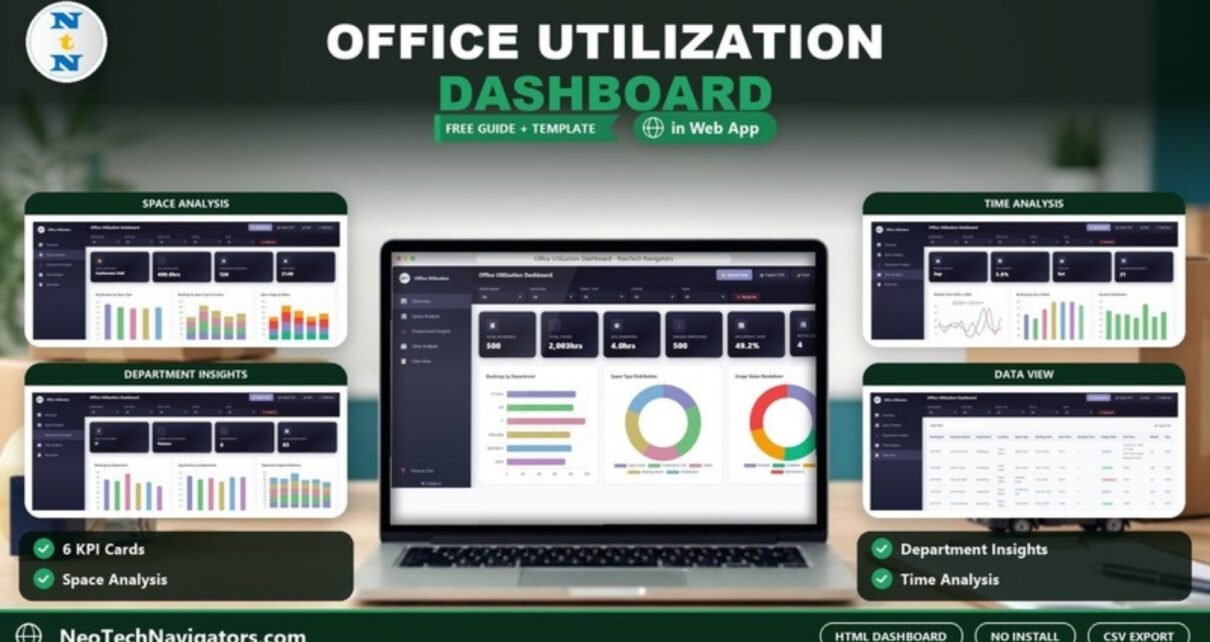
The Office Utilization Dashboard in HTML shows how your office space is really being used: how many bookings are made, for how long, by which departments, in which locations and on which days. It is built for facility managers, office administrators, operations leads and workplace strategy teams who need evidence before changing a hybrid work policy, consolidating floors or renewing a lease.
The dashboard runs in a web browser from a single download. It has five pages (Overview, Space Analysis, Department Insights, Time Analysis and Data View) plus a How to Use page, six KPI cards on the Overview and its own summary cards on every other page. This guide explains each page, what the utilisation KPIs mean, how to replace the sample data with your booking records, and what the template does not do.
🎥 Watch the Video Tutorial
Get the Office Utilization Dashboard in HTML
Why Measure Office Utilization?
With hybrid work, many offices are busy on some days and quiet on the rest. Some spaces are always booked while others sit available or under maintenance. Without data, decisions about desks, rooms and floors are guesswork. A utilisation dashboard turns booking records into clear answers: which spaces are under-used, which departments need more room, and which days and hours carry the load.
Filters and Toolbar
Every page shares the same filter bar: Department, Location, Space Type, Status and Year, plus a Reset All button. The header has Upload Data, Export CSV, a Dark theme switch and Fullscreen. The left sidebar switches pages and can be collapsed.
The Six KPIs Explained
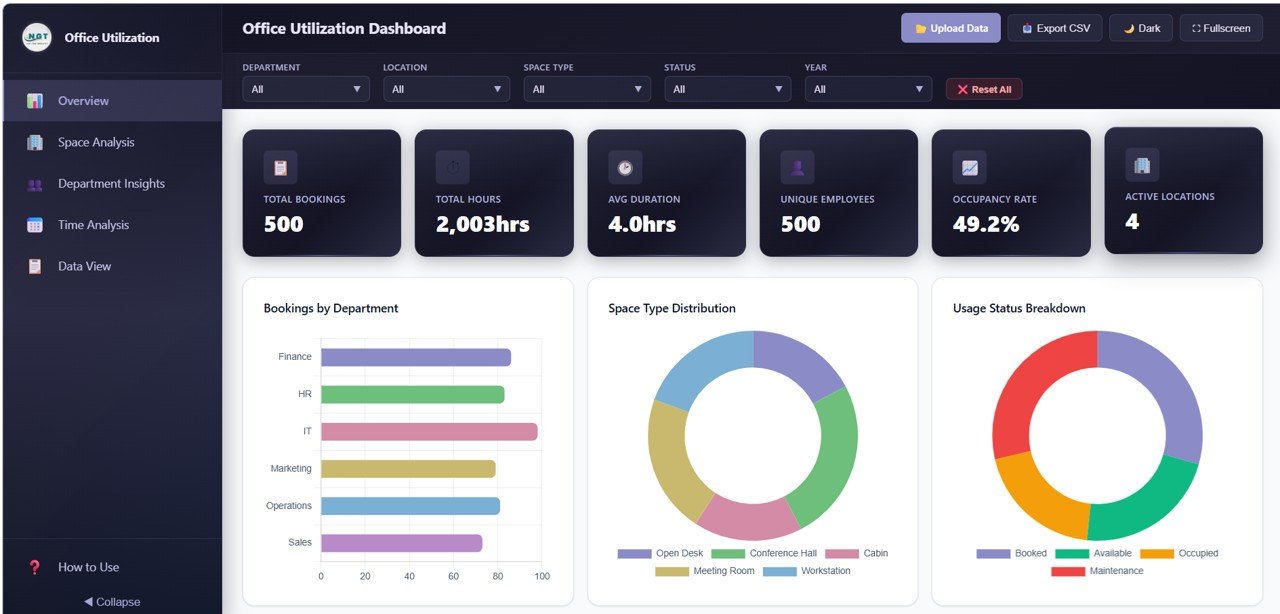
In the sample data the Overview cards read: Total Bookings 500, Total Hours 2,003hrs, Avg Duration 4.0hrs, Unique Employees 500, Occupancy Rate 49.2% and Active Locations 4.
| KPI card | What it measures | How it is worked out | Better when |
|---|---|---|---|
| Total Bookings | Number of space reservations | Count of booking records | Context metric |
| Total Hours | Hours that spaces were booked | Sum of Duration (hrs) | Closer to available hours |
| Avg Duration | Average length of a booking | Total Hours ÷ Total Bookings (2,003 ÷ 500 = 4.0) | Matches the space type |
| Unique Employees | How many different people booked space | Distinct count of employees | Higher means wider adoption |
| Occupancy Rate | How much of the space capacity is in use | Calculated by the dashboard from the booking records | Higher, short of overcrowding |
| Active Locations | Number of sites with bookings | Distinct count of locations | Context metric |
Worked example of the idea behind occupancy: a floor has 10 meeting rooms available 9 hours a day for 20 working days, which is 1,800 available hours. If bookings add up to 990 hours, occupancy is 990 ÷ 1,800 = 55%. If those 990 hours come from 660 bookings, the average duration is 1.5 hours. Define your available hours clearly before you quote an occupancy figure.
Dashboard Pages Explained
1. Overview
The Overview page shows the six KPI cards and the charts Bookings by Department (Finance, HR, IT, Marketing, Operations and Sales), Space Type Distribution (Open Desk, Conference Hall, Cabin, Meeting Room and Workstation), Usage Status Breakdown (Booked, Available, Occupied and Maintenance), Bookings by Month and Bookings by Location. The filter bar updates the whole page.
2. Space Analysis
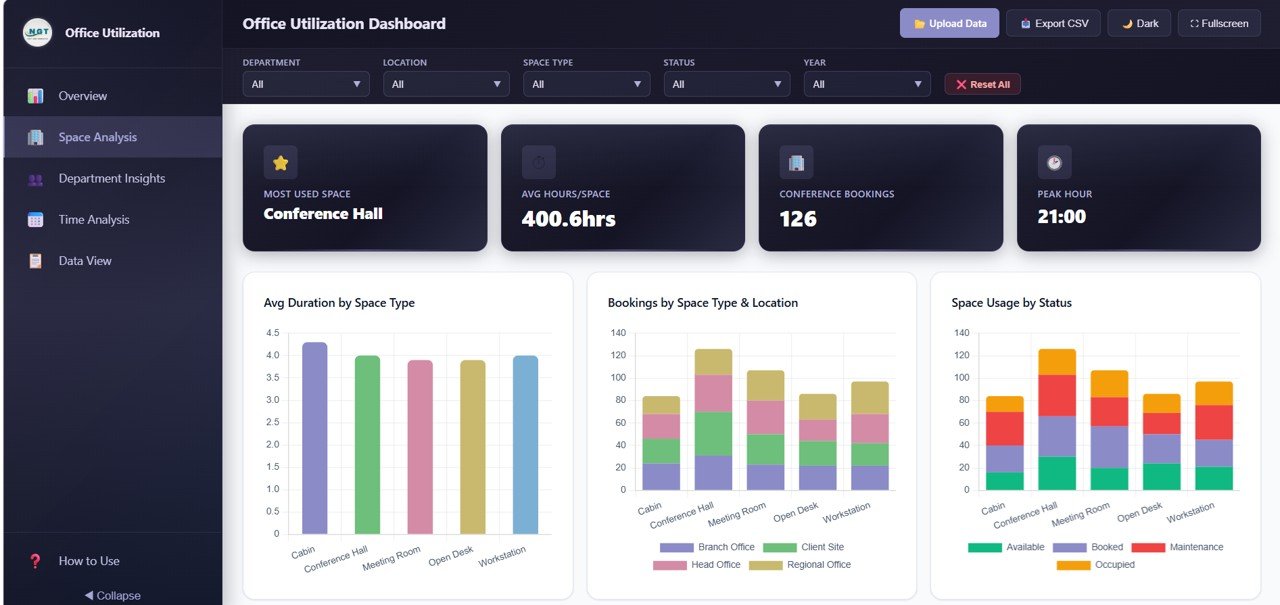
Space Analysis looks at the spaces themselves. Its cards show Most Used Space (Conference Hall), Avg Hours/Space (400.6hrs, which is 2,003 hours across five space types), Conference Bookings (126) and Peak Hour (21:00 in the sample). The charts are Avg Duration by Space Type, Bookings by Space Type & Location (Branch Office, Client Site, Head Office and Regional Office), Space Usage by Status and Bookings by Hour of Day. The status chart shows which space types spend the most time under maintenance or sitting available.
3. Department Insights
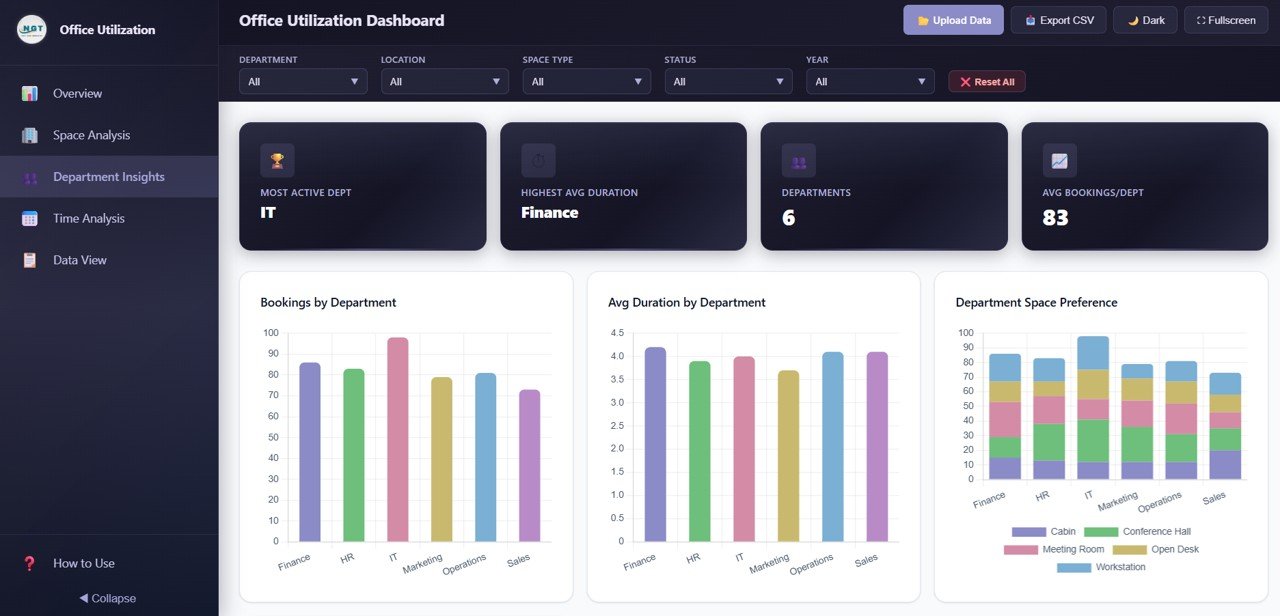
Department Insights shows how each team uses space. Its cards show Most Active Dept (IT), Highest Avg Duration (Finance), Departments (6) and Avg Bookings/Dept (83). The charts are Bookings by Department, Avg Duration by Department, Department Space Preference and Department by Location. It is the evidence you need when a department asks for more meeting rooms or when you plan neighbourhood seating.
4. Time Analysis
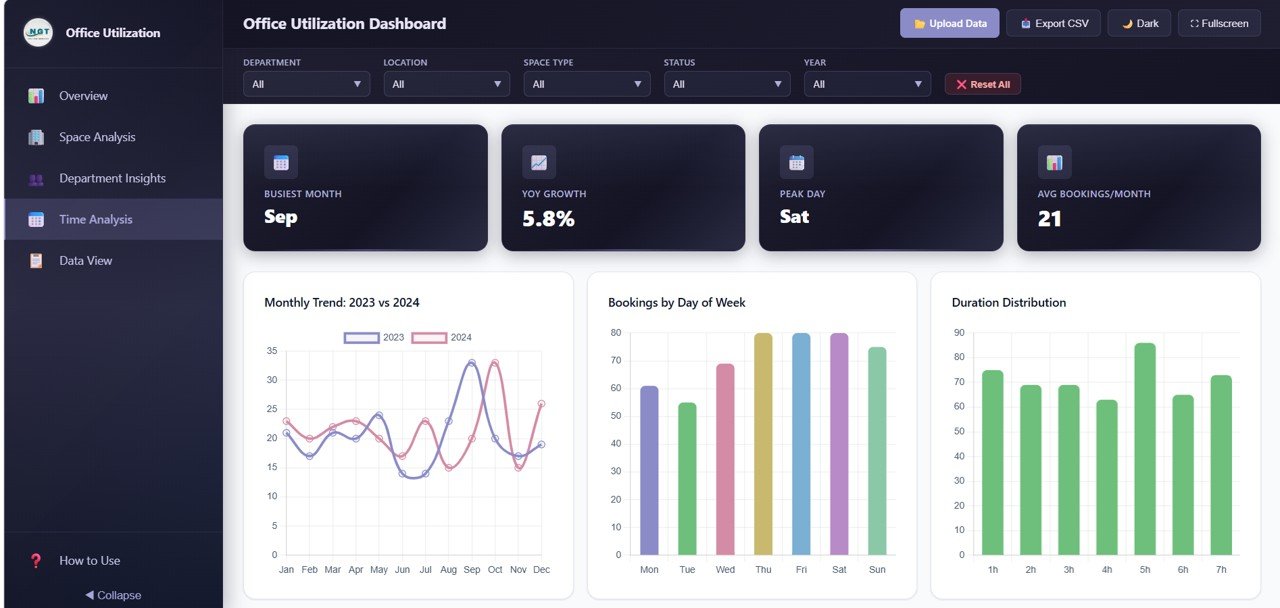
Time Analysis covers patterns over time. Its cards show Busiest Month (Sep), YoY Growth (5.8%), Peak Day (Sat) and Avg Bookings/Month (21). The charts are Monthly Trend: 2023 vs 2024, Bookings by Day of Week, Duration Distribution (bookings of 1h to 7h) and Bookings by Quarter and Year. The day-of-week chart is usually the most important in hybrid offices because it shows which days carry the load.
5. Data View
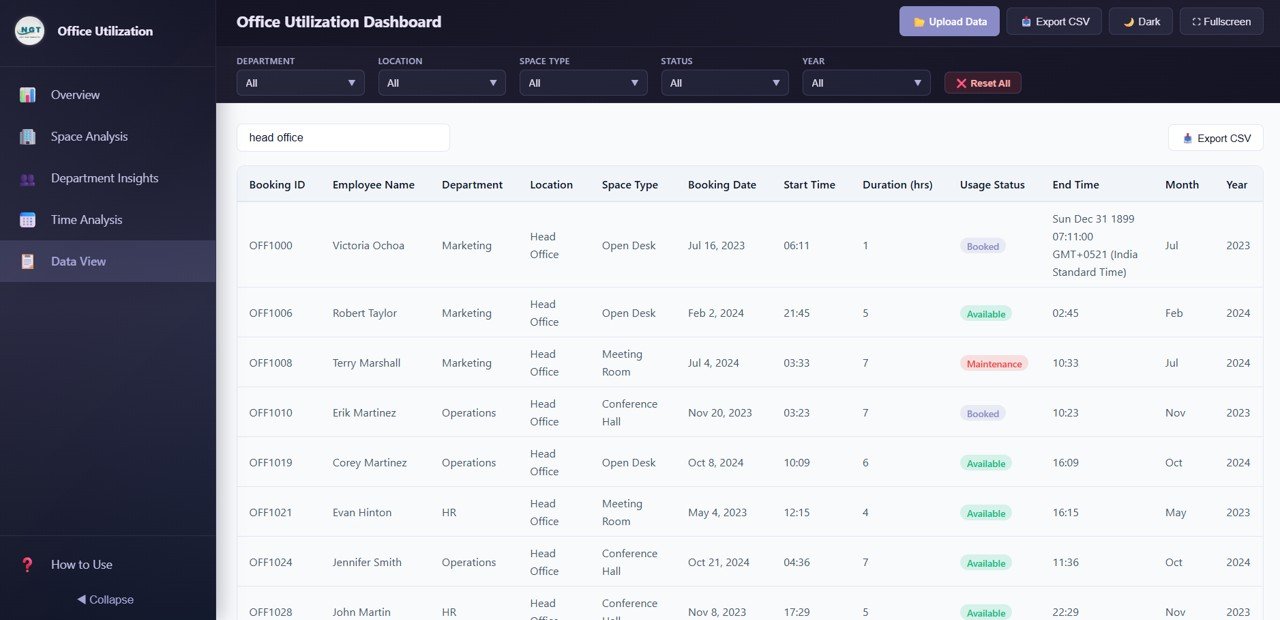
Data View lists every booking record with a search box and an Export CSV button. The columns are Booking ID, Employee Name, Department, Location, Space Type, Booking Date, Start Time, Duration (hrs), Usage Status, End Time, Month and Year.
How to Use It with Your Own Booking Data
- Unzip the download and open index.html in Chrome, Edge, Firefox or Safari. The dashboard loads with sample data, and the How to Use page in the sidebar summarises the steps.
- Export your bookings from your room booking system or calendar for the period you want to review.
- Match your export to the columns used by the dashboard: Booking ID, Employee Name, Department, Location, Space Type, Booking Date, Start Time, Duration (hrs), Usage Status, End Time, Month and Year.
- Keep names consistent for departments, locations and space types, and use the same status values (Booked, Available, Occupied, Maintenance) unless you also change the charts.
- Click Upload Data to load your file, or replace the records in the data file included in the package and refresh the browser. Check that Total Bookings matches the record count in your export.
- Review the Overview, then Time Analysis for weekday and hourly patterns and Space Analysis for space types that sit available or in maintenance.
If you want to build the same kind of booking summaries in a spreadsheet, the Pivot Tables and Dashboards course on NextGenTemplates Academy walks through it step by step.
Three Real-World Use Cases
- Hybrid policy review: HR and facilities use Bookings by Day of Week to see which weekdays carry the least demand and plan a reduced service on those days.
- Lease renewal: a finance lead uses the Occupancy Rate and Bookings by Location to argue for giving up an under-used site or floor at renewal time.
- Space mix planning: an office manager compares Space Type Distribution with Avg Duration by Space Type to decide whether to convert some open desks into meeting rooms or cabins.
Best Practices
- Update booking data weekly, or at least monthly, so trends stay current.
- Record usage status consistently so Booked, Occupied, Available and Maintenance mean the same thing in every location.
- Define available hours clearly before quoting an occupancy rate.
- Share department views with department heads so decisions are based on the same numbers.
- Review the Monthly Trend and YoY Growth with leadership before major space changes.
Limitations and Who Should Not Use It
This dashboard analyses booking records. It does not connect to occupancy sensors or badge systems and does not update in real time, so a booked room that sits empty is not detected unless your data records it. Organisations that need live floor maps or desk sensors should look at a dedicated workplace platform. For most offices that already export bookings from a calendar or booking tool, it gives a clear picture without new software.
Choose the Version That Fits Your Team
| Version | Best for |
|---|---|
| HTML (this post) | Opening in any browser with no software installation |
| Google Sheets | Shared, cloud-based updates by several people |
| Excel | Desktop analysis and easy editing |
| Power BI | Larger data sets and organisation-wide reporting |
Related guides: the Office Space Utilization Dashboard in Google Sheets, the Meeting Room Utilization Dashboard, the Meeting Room Booking Tracker for capturing bookings in the first place, and the Energy and Utility Dashboard in HTML if you want to compare space use with energy costs.
Frequently Asked Questions
How do you measure office space utilization?
Compare the hours spaces were actually used with the hours they were available, and look at it by space type, department, location and day of week. Booking records are the most common starting point.
What is a good office occupancy rate?
There is no single target. Very low rates suggest you have more space than you need; rates close to 100% mean people struggle to find space. Track your own trend and compare locations and days rather than chasing a fixed number.
Do I need Excel or Power BI to use this dashboard?
No. It is built with HTML, CSS and JavaScript and opens in any modern browser on Windows, macOS or Linux.
How do I replace the sample data?
Use the Upload Data button, or replace the records in the included data file with your own using the same columns, save, and refresh the browser. All KPIs and charts update.
Can I see which departments use the most space?
Yes. The Department Insights page shows bookings, average duration, space type preference and location for each department, with cards for the most active department and the one with the highest average duration.
Can I export the data?
Yes. The Export CSV button saves the filtered booking records.
Wrapping Up
The Office Utilization Dashboard in HTML turns booking records into clear evidence about how your workplace is used. Load a quarter of bookings, check the weekday and peak-hour patterns and the usage status mix, and use the department and location views to plan your next space decision with numbers rather than impressions.
Get the Office Utilization Dashboard in HTML
📅 Last updated: October 2026