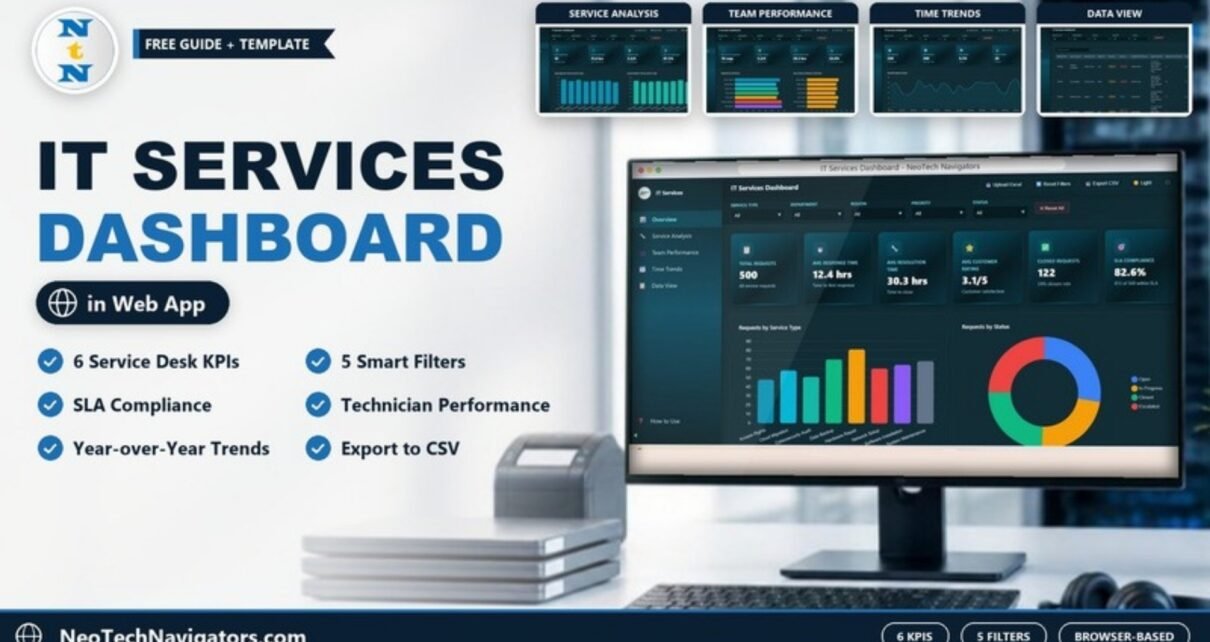
Service desk data usually lives in a ticketing export that nobody has time to analyse. The IT Services Dashboard in HTML turns that export into a browser-based report: six KPI cards for volume, speed, satisfaction, closure and SLA compliance, followed by pages for service types, technicians, monthly trends and the raw records.
It is aimed at IT managers, service desk leads and MSP owners who want a clear picture of their support operation without buying a BI licence. Because it runs in a web browser, there is no server or database to set up. The dashboard has five pages in a left-hand menu (Overview, Service Analysis, Team Performance, Time Trends and Data View), a How to Use page, and five filters that apply across the report.
🎥 Watch the Video Tutorial
Get the IT Services Dashboard in HTML
What Problem Does an IT Services Dashboard Solve?
A ticket list answers “what is open right now”. Managers need different answers: are we meeting SLA, which service types are slow, which technicians are overloaded, and is demand growing year on year? This dashboard calculates those answers from the same ticket records and lets you narrow them with filters, so a weekly service review takes minutes instead of an afternoon in a spreadsheet.
The 6 KPIs on the Overview Page
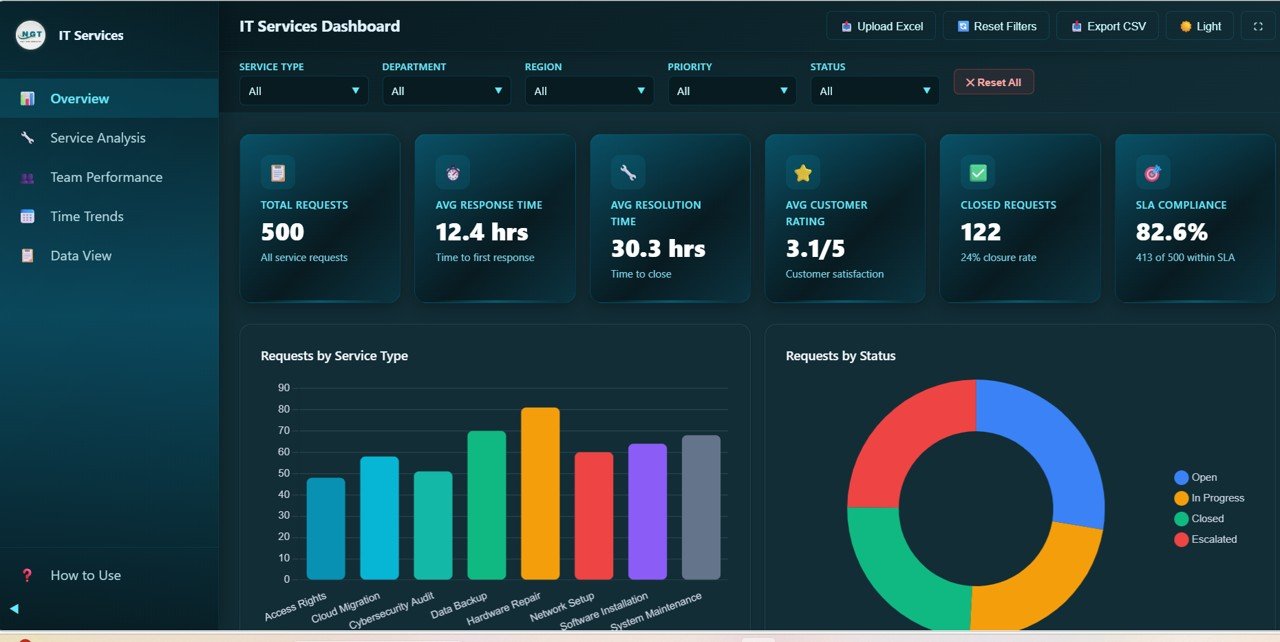
The sample data contains 500 service requests. Each card shows a value and a short explanation, and the numbers fit together as shown below.
| KPI | What it measures | How it is calculated | Sample value | Better when |
|---|---|---|---|---|
| Total Requests | All service requests in the current filter | Count of requests | 500 | Context only |
| Avg Response Time | Time to first response | Average of Response Time (hrs) | 12.4 hrs | Lower |
| Avg Resolution Time | Time to close | Average of Resolution Time (hrs) | 30.3 hrs | Lower |
| Avg Customer Rating | Customer satisfaction | Average rating on a 5-point scale | 3.1/5 | Higher |
| Closed Requests | Completed work and closure rate | Count with status Closed; closure rate = Closed ÷ Total (122 ÷ 500) | 122 (24% closure rate) | Higher |
| SLA Compliance | Share of requests handled within SLA | Requests within SLA ÷ Total (413 ÷ 500) | 82.6% | Higher |
Inside the Dashboard: Page by Page
1. Overview
Across the top are five drop-down filters – Service Type, Department, Region, Priority and Status – and a Reset All button. The header also has Upload Excel, Reset Filters, Export CSV, a light/dark theme toggle and a full-screen button.
Below the KPI cards, charts break requests down by service type, status, department, priority and region. The sample covers eight service types: Access Rights, Cloud Migration, Cybersecurity Audit, Data Backup, Hardware Repair, Network Setup, Software Installation and System Maintenance. Statuses are Open, In Progress, Closed and Escalated.
2. Service Analysis
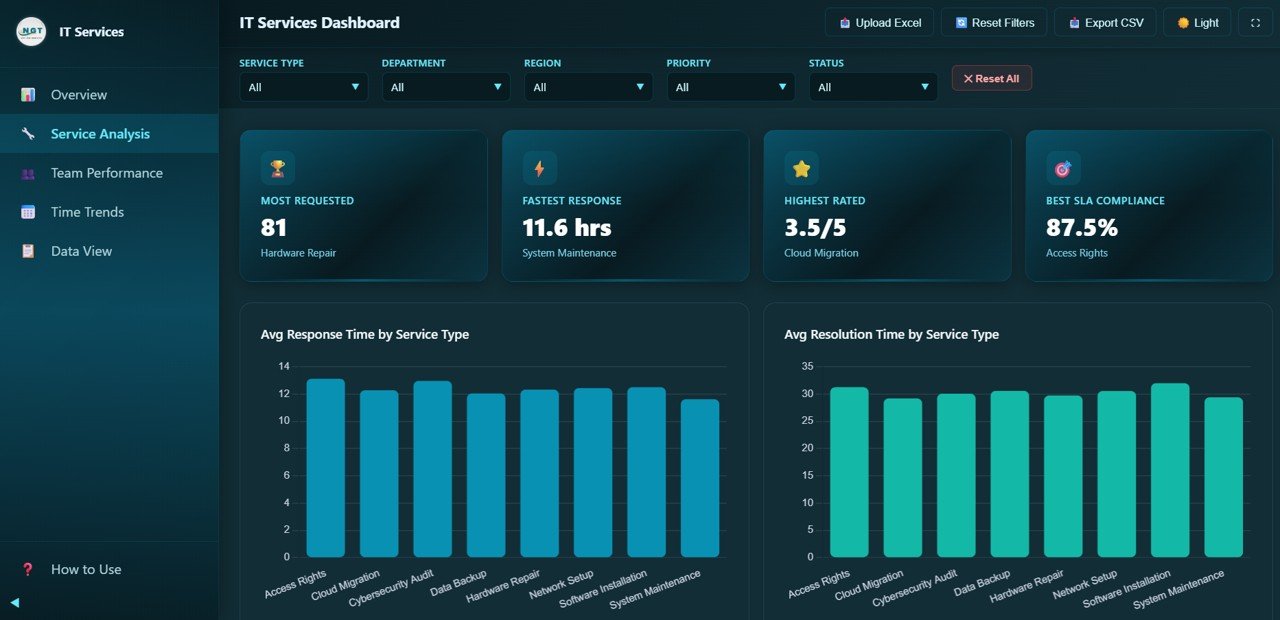
Four highlight cards summarise the service portfolio: Most Requested (Hardware Repair, 81 requests), Fastest Response (System Maintenance, 11.6 hrs), Highest Rated (Cloud Migration, 3.5/5) and Best SLA Compliance (Access Rights, 87.5%). Charts then compare average response time and average resolution time by service type, followed by customer rating and SLA compliance by service type.
This is the page for setting realistic SLA targets: if one service type consistently takes longer to resolve, it may need a different target or a dedicated specialist.
3. Team Performance
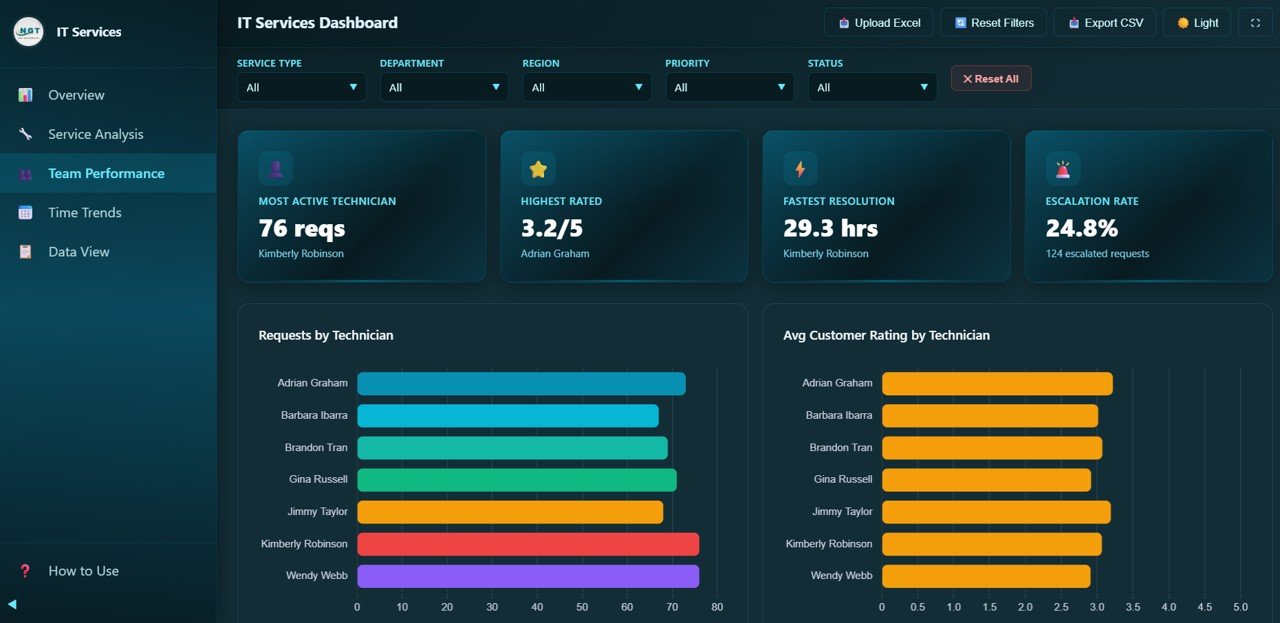
Cards show the Most Active Technician (Kimberly Robinson, 76 requests), Highest Rated (Adrian Graham, 3.2/5), Fastest Resolution (Kimberly Robinson, 29.3 hrs) and the overall Escalation Rate (24.8%, or 124 escalated requests out of 500). Charts compare requests and average customer rating across seven technicians – Adrian Graham, Barbara Ibarra, Brandon Tran, Gina Russell, Jimmy Taylor, Kimberly Robinson and Wendy Webb – with further charts for resolution time and escalation rate by technician.
4. Time Trends
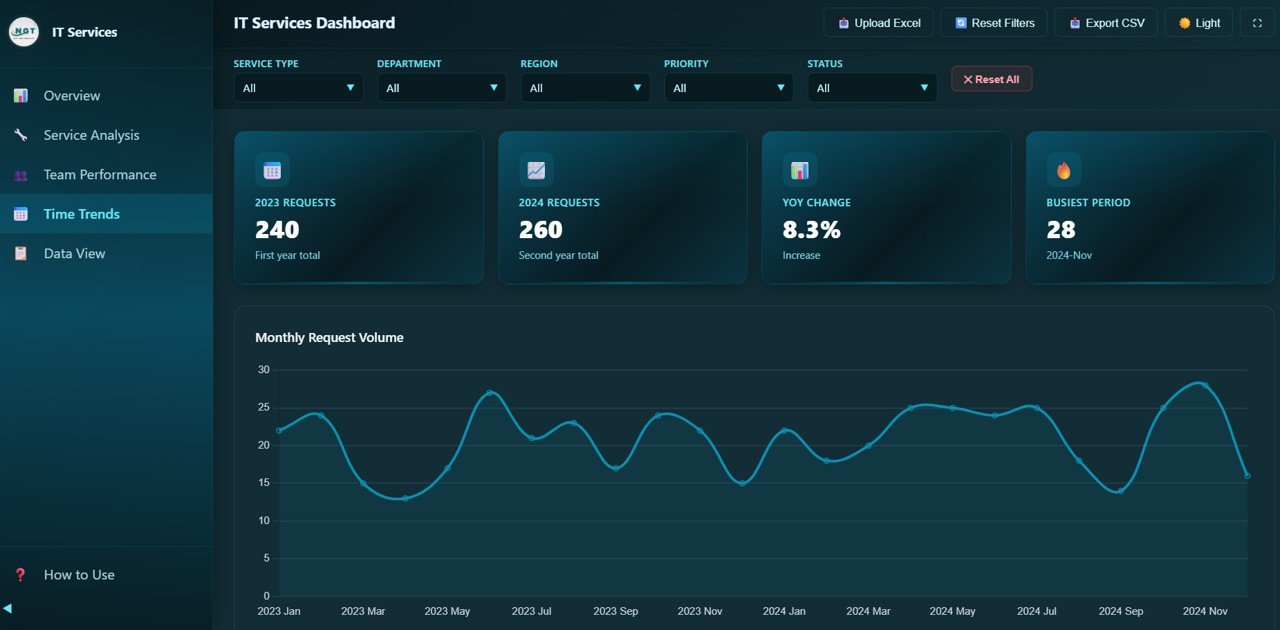
Year-over-year cards show 2023 Requests (240), 2024 Requests (260), YoY Change (8.3% increase, because 260 ÷ 240 – 1 = 8.3%) and the Busiest Period (2024-Nov, 28 requests). The Monthly Request Volume line runs from January 2023 to December 2024, and further charts track average response time, average customer rating and status distribution by month.
5. Data View
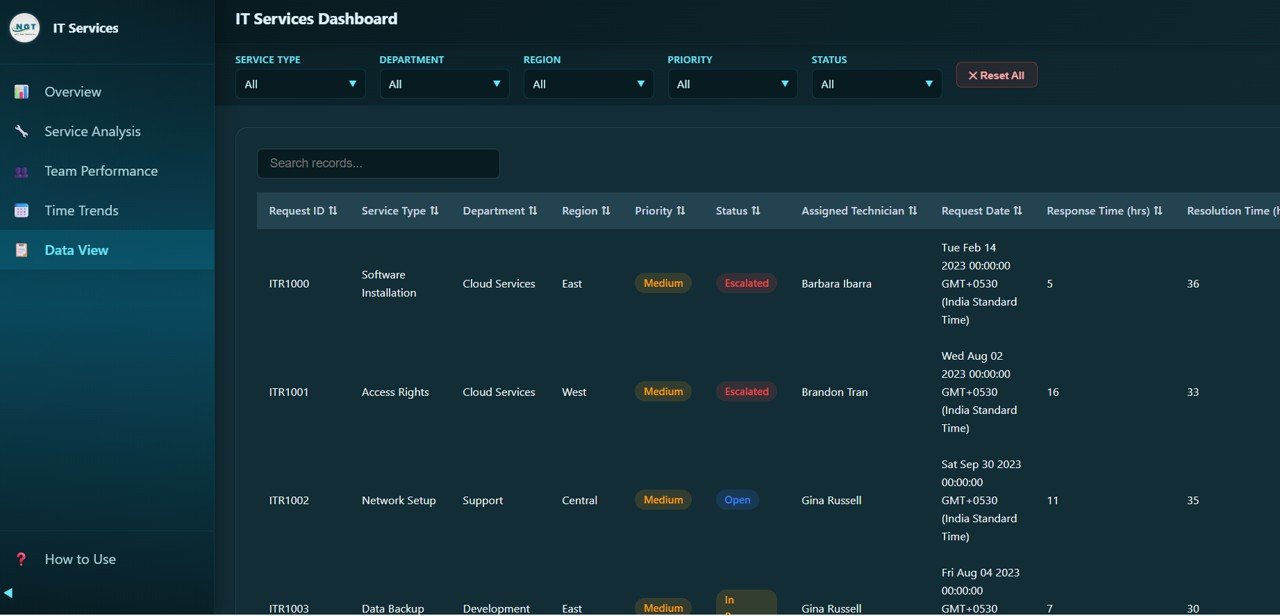
The Data View lists every request in a table with a Search records box and sortable columns, including Request ID (for example ITR1000), Service Type, Department, Region, Priority, Status, Assigned Technician, Request Date, Response Time (hrs) and Resolution Time. Use it to check individual tickets behind a number, and use Export CSV to take a filtered list into Excel or Google Sheets.
How to Use It With Your Own Data
- Download and unzip the files, then open the dashboard in Chrome, Edge or Firefox.
- Open the How to Use page and note the required columns and format.
- Export your tickets from your helpdesk tool and arrange them in the same columns (Request ID, Service Type, Department, Region, Priority, Status, Assigned Technician, Request Date, Response Time, Resolution Time and the rating and SLA fields).
- Load the file with Upload Excel or replace the sample data as described on the How to Use page.
- Check the Overview KPIs against a number you already know, such as last month’s ticket count.
- Use the filters to review one department, region or priority at a time, and press Reset All to return to the full view.
- Refresh the data weekly or monthly so Time Trends stays current.
Real-World Use Cases
- Weekly service review: the service desk lead filters Priority = High and checks SLA compliance and escalations before the team meeting.
- Capacity planning: an IT manager sees 2024 volume up 8.3% on 2023 with a November peak and schedules extra cover for that month.
- MSP client reporting: a managed service provider filters by Department and exports a CSV to attach to the monthly client report.
Best Practices
- Read response and resolution together. Fast first responses with slow resolutions usually mean tickets are acknowledged but not owned.
- Watch the escalation rate. Rising escalations per technician often point to training needs or unclear routing.
- Use the ratings carefully. A small number of ratings per technician can swing averages, so compare over a longer period.
- Keep category names consistent in your source data so service types and departments group correctly.
- Combine filters. Department plus Priority is often more revealing than either alone.
Limitations: Who Should Not Use It
- It is a reporting dashboard, not a ticketing system. It does not create, assign or update tickets.
- Data is refreshed by loading a new file, not through a live connection to your helpdesk.
- SLA compliance depends on how your source data marks a request as within SLA; the dashboard does not set SLA targets for you.
- Very large ticket histories may be slower in a browser than in a dedicated BI tool such as Power BI.
Related Guides and Templates
Prefer a spreadsheet? The IT Services Dashboard in Google Sheets covers the same topic, and the IT Support Ticket Dashboard in Google Sheets focuses on ticket handling. For KPI-level monitoring, see the IT KPI Dashboard and the IT Infrastructure KPI Dashboard. If you need a simple log of requests before you analyse them, try the IT Support Request Tracker in Google Sheets.
The same report is also available as the IT Services Dashboard in Power BI. If you want to learn how to build dashboards like this from your own data, the pivot tables and dashboards course on NextGenTemplates Academy walks through it step by step.
Frequently Asked Questions
What KPIs does the IT Services Dashboard in HTML show?
Six: Total Requests, Avg Response Time, Avg Resolution Time, Avg Customer Rating, Closed Requests and SLA Compliance.
Which filters are available?
Service Type, Department, Region, Priority and Status, with a Reset All button to clear them.
Do I need a server or Power BI to use it?
No. It opens in a modern web browser such as Chrome, Edge or Firefox, and the data is processed locally.
How is SLA Compliance calculated?
It is the share of requests marked as handled within SLA. In the sample, 413 of 500 requests gives 82.6%.
Can I export the data?
Yes. The Export CSV button exports records so you can work with them in Excel or Google Sheets.
Can I track technician performance?
Yes. The Team Performance page shows requests, ratings, resolution time and escalations for each technician.
Wrapping Up
Good IT service management depends on seeing speed, quality and demand together. The IT Services Dashboard in HTML gives you six clear KPIs, service and technician comparisons, year-over-year trends and the records behind every number, all in a browser. Load your latest ticket export, check SLA compliance by service type, and bring the Team Performance page to your next service review.
Get the IT Services Dashboard in HTML
📅 Last updated: October 2026