The CRM Dashboard in HTML is a browser-based sales analytics template that shows your deal pipeline, win rate, account manager performance, industry mix and lead-source results in one place. It runs entirely in a web browser – no installation, plugins or BI licence – so you open the HTML file and start exploring.
It is built for sales managers, CRM administrators, account executives and founders who want a clear weekly view of the pipeline without building reports by hand. The template has five pages – Overview, Account Managers, Industry Breakdown, Pipeline & Sources and Data View – with KPI cards on every page, interactive charts, six filters, an Upload Excel button for your own data and Export CSV.
Below you will find what each page shows, a table of the CRM KPIs and how they are calculated, how to use the dashboard with your own data, real-world use cases and the honest limitations of an HTML dashboard.
🎥 Watch the Video Tutorial
What Problem Does a CRM Dashboard Solve?
Most CRMs store plenty of data but make it hard to see the story. Sales leaders end up exporting deals to spreadsheets every week to answer the same questions: How big is the pipeline? Which stage is stuck? Which lead sources actually close? Who on the team needs coaching? A CRM dashboard answers those questions on one screen. In this template a filter bar on every page – Industry, Lead Source, Stage, Status, Account Manager and Month – narrows every card and chart in a click, and Reset clears them.
Inside the CRM Dashboard in HTML: Page by Page
1. Overview
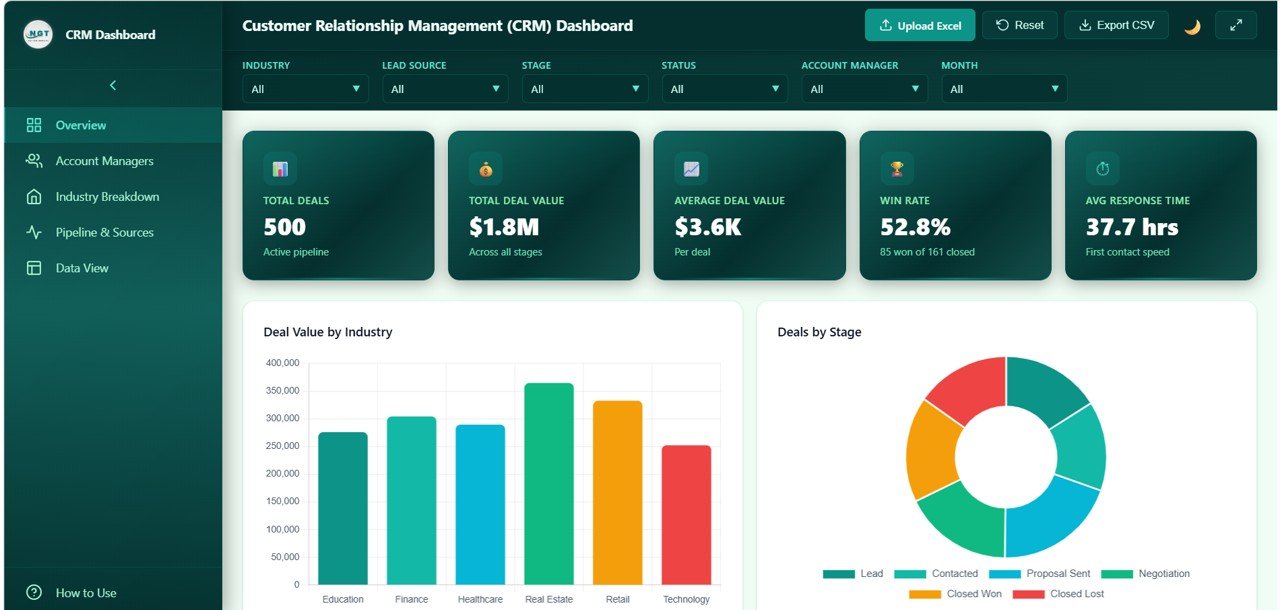
The Overview page is the command centre. Five KPI cards sit across the top; with the sample data of 500 deals they read Total Deals 500, Total Deal Value $1.8M, Average Deal Value $3.6K, Win Rate 52.8% (85 won of 161 closed) and Avg Response Time 37.7 hrs (first contact speed). Below them are five charts: Deal Value by Industry, Deals by Stage, Deal Value by Month, Deals by Lead Source and Avg Win Probability by Industry.
2. Account Managers
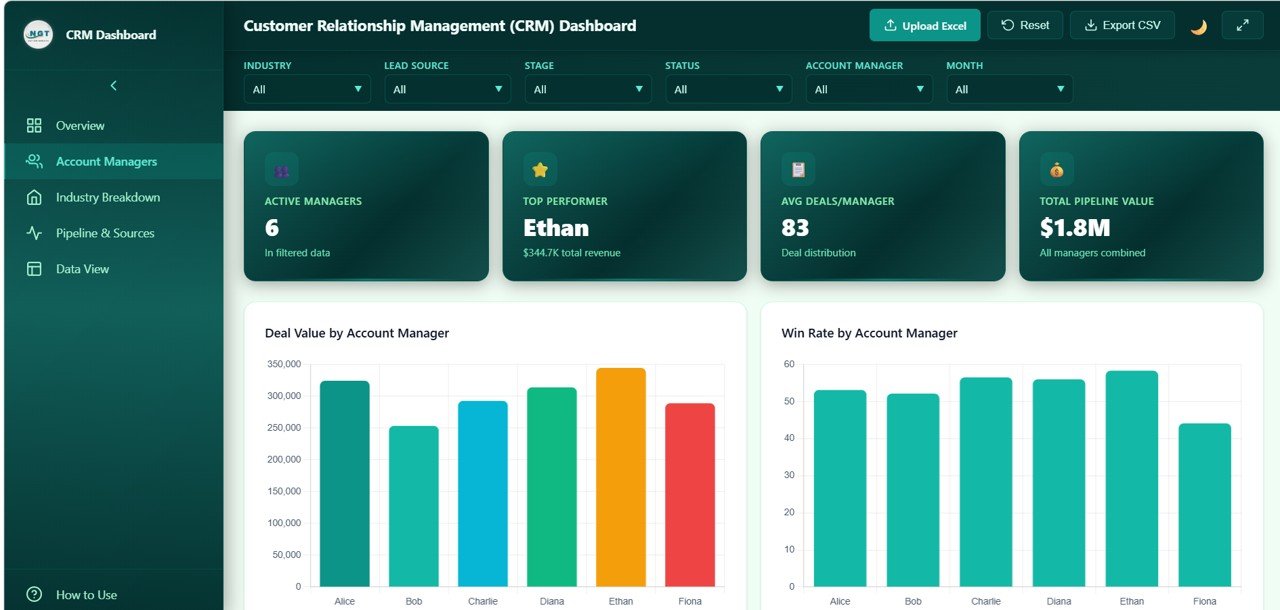
This page compares the six account managers in the sample (Alice, Bob, Charlie, Diana, Ethan and Fiona). Its KPI cards show Active Managers (6), Top Performer (Ethan, $344.7K total revenue), Avg Deals/Manager (83) and Total Pipeline Value ($1.8M). The charts are Deal Value, Win Rate, Avg Response Time, Stage Distribution and Avg Deal Value – each by account manager – so you can see who brings in the most value, who closes most effectively, who responds fastest, and whether workload is balanced.
3. Industry Breakdown
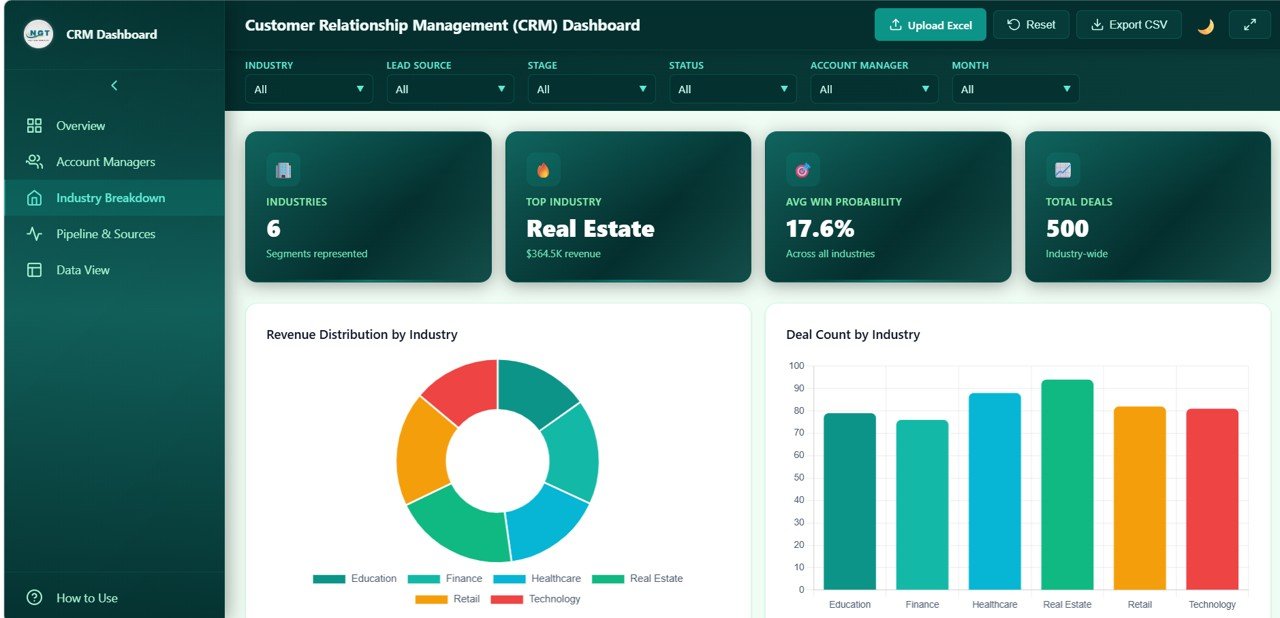
The Industry Breakdown page covers six industries: Education, Finance, Healthcare, Real Estate, Retail and Technology. Its KPI cards show Industries (6), Top Industry (Real Estate, $364.5K revenue), Avg Win Probability (17.6% across all industries) and Total Deals (500). The charts are Revenue Distribution, Deal Count, Win Rate, Avg Response Time and Avg Deal Value by industry. Use it to decide which verticals deserve more sales and marketing effort and which produce many leads but few wins.
4. Pipeline & Sources
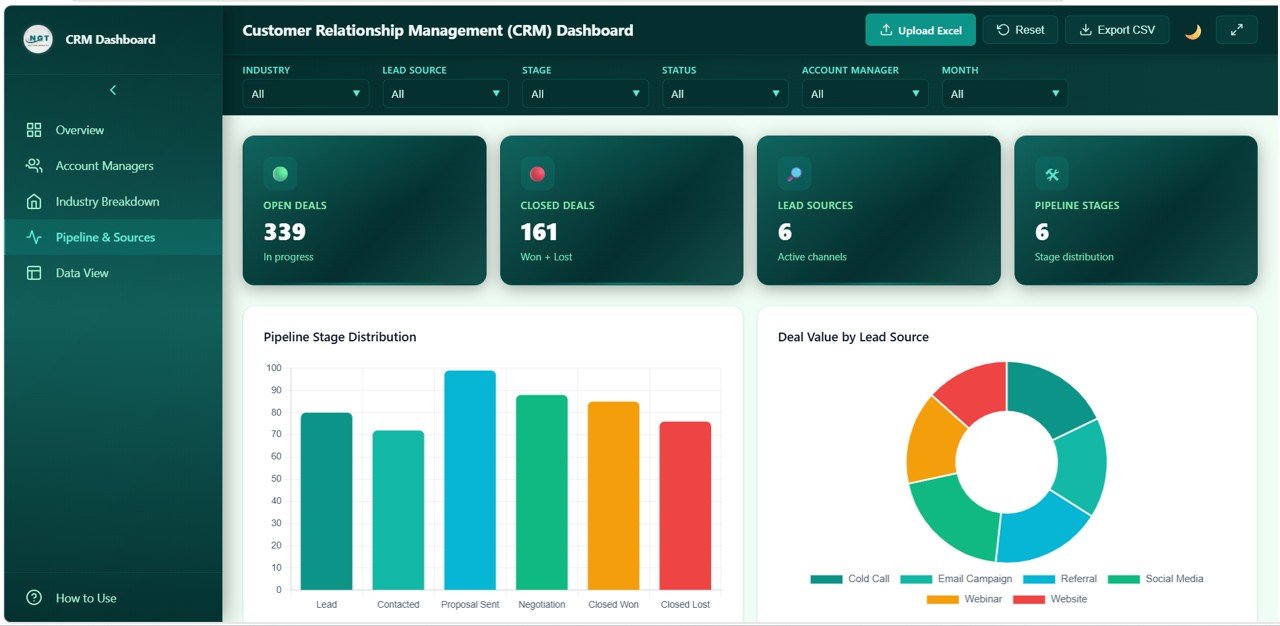
This page focuses on funnel health and lead quality. Its KPI cards show Open Deals (339, in progress), Closed Deals (161, won + lost), Lead Sources (6) and Pipeline Stages (6). The six stages are Lead, Contacted, Proposal Sent, Negotiation, Closed Won and Closed Lost; the six lead sources are Cold Call, Email Campaign, Referral, Social Media, Webinar and Website. Charts include Pipeline Stage Distribution, Deal Value by Lead Source, Win Rate by Lead Source, Monthly Deals by Status and Avg Response Time by Lead Source.
5. Data View
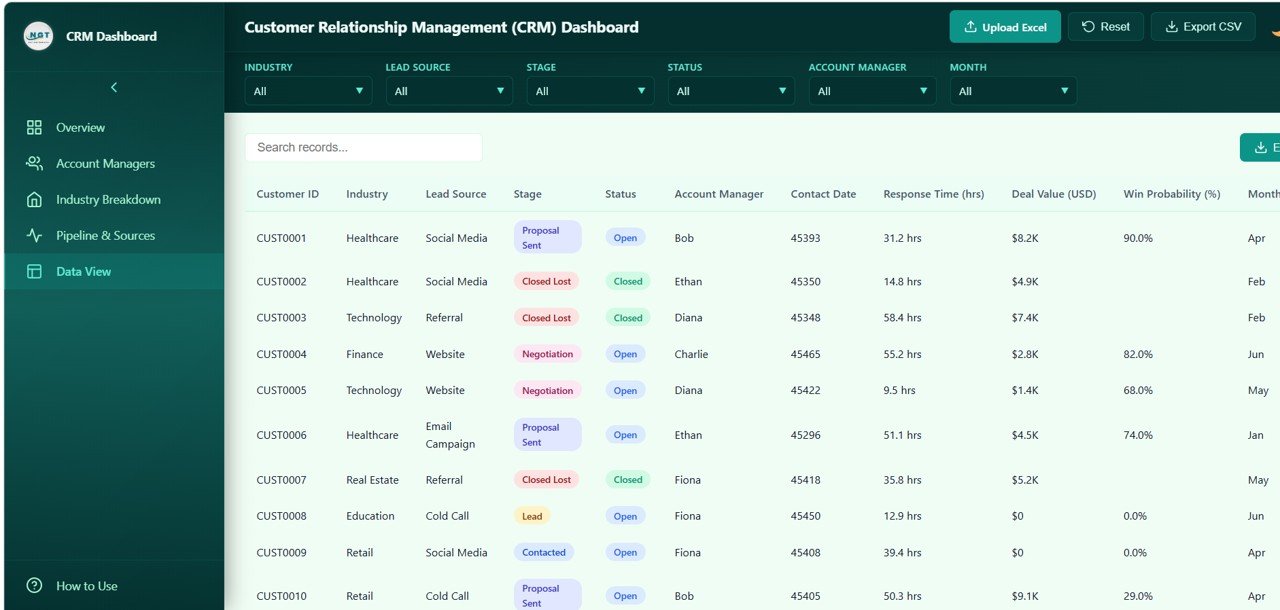
Data View is a searchable table of every CRM record with the columns Customer ID, Industry, Lead Source, Stage, Status (Open or Closed), Account Manager, Contact Date, Response Time (hrs), Deal Value (USD), Win Probability (%) and Month. Search for a specific deal, sort by any column, and export the filtered records to CSV for further analysis or an executive report.
CRM KPIs Tracked
| KPI (Overview) | What it measures | Formula | Better when |
|---|---|---|---|
| Total Deals | Size of the opportunity pipeline | Count of deal records (500 in the sample) | Higher (with healthy quality) |
| Total Deal Value | Combined value of all opportunities, across all stages | Sum of Deal Value (USD) | Higher |
| Average Deal Value | Typical size of one opportunity | Total Deal Value ÷ Total Deals ($1.8M ÷ 500 ≈ $3.6K) | Higher |
| Win Rate | How often closed deals are won | Closed Won deals ÷ closed deals (won + lost) × 100 (85 ÷ 161 = 52.8%) | Higher |
| Avg Response Time | How quickly the team makes first contact | Average of Response Time (hrs) per deal | Lower |
Read the KPIs together. A rising Total Deal Value with a falling Win Rate often means the pipeline is being padded with weak opportunities; a long Avg Response Time on one lead source usually explains its low conversion. Note that Win Rate only counts deals that have closed, so the 339 open deals do not drag it down.
How to Use It with Your Own Data
- Open the HTML file in Chrome, Edge or Firefox.
- Explore the sample data first and read the How to Use panel so you understand which fields drive each chart.
- Export your deals from your CRM into Excel with matching columns: Customer ID, Industry, Lead Source, Stage, Status, Account Manager, Contact Date, Response Time (hrs), Deal Value (USD), Win Probability (%) and Month.
- Click Upload Excel and select your file, keeping the same column names and formats as the sample.
- Check the KPI cards against a figure you already know, such as last month’s total deal value.
- Use the filters in your weekly pipeline meeting, press Reset to clear them, and use Export CSV when you need a list.
Real-World Use Cases
Weekly sales pipeline review
A sales manager opens the Overview on Monday, sets the Month filter to the current month and walks the team through Deals by Stage. Deals stuck in Proposal Sent or Negotiation become the action list for the week.
Coaching account managers
Before one-to-ones, a team lead compares win rate and response time per rep on the Account Managers page. A rep with high deal value but slow responses gets a different coaching plan from one who responds fast but rarely closes.
Choosing where to spend marketing budget
A founder uses Pipeline & Sources to compare deal value and win rate across Cold Call, Email Campaign, Referral, Social Media, Webinar and Website, then shifts budget from channels that create many low-value leads to those that close.
Best Practices
- Refresh the data on a fixed schedule (weekly is enough for most teams) so everyone trusts the numbers.
- Clean stage and source names in your CRM export; “Referral” and “referral ” will show as two sources.
- Record response time in hours for every record, as the template does.
- Close or remove dead deals so pipeline value reflects real opportunities.
- Pair the dashboard with action: every review should end with named follow-ups.
Who Should Not Use This Template
The CRM Dashboard in HTML is a reporting layer, not a CRM. It does not store contacts, send emails or sync with your CRM automatically – you upload an Excel export of your data. Teams that need live, real-time pipeline data, forecasting models or row-level security for many users will be better served by a BI tool connected directly to their CRM. For small and mid-sized teams that want clear, shareable pipeline reporting without a BI licence, it is a good fit.
Related Dashboards and Guides
For other views of customer and sales performance, see the CRM KPI dashboard in Google Sheets, the CRM KPI scorecard, the customer service dashboard in HTML, the marketing dashboard in HTML, and the CRM and sales pipeline management system web app if you need data entry as well as reporting.
Related template on NextGenTemplates: the Customer Satisfaction Dashboard in HTML for customer satisfaction and service analysis.
If you would like to build pipeline reports like this yourself in Excel, the Pivot Tables and Dashboards course on NextGenTemplates Academy covers summarising, slicing and charting sales data step by step.
Frequently Asked Questions
What does the CRM Dashboard in HTML track?
Five headline KPIs – Total Deals, Total Deal Value, Average Deal Value, Win Rate and Avg Response Time – plus page-level cards and charts by industry, stage, month, lead source and account manager across five pages.
Do I need to install anything?
No. Open the HTML file in a modern browser such as Chrome, Edge or Firefox. No plugins or BI software are required.
Can I use my own CRM data?
Yes. Click Upload Excel and choose an export of your own pipeline that uses the same columns as the sample, and the KPIs and charts update.
How is Win Rate calculated?
Closed Won deals divided by all closed deals (Closed Won plus Closed Lost). In the sample that is 85 of 161, or 52.8%. Open deals are not included.
Which filters are available?
Industry, Lead Source, Stage, Status, Account Manager and Month. They apply to every page, and Reset clears them.
Does it connect live to Salesforce or HubSpot?
No. It works from an uploaded Excel export rather than a live connection, which keeps it simple and private but means you refresh the data yourself.
Wrapping Up
A good CRM dashboard turns a long list of deals into clear answers: how big the pipeline is, where it is stuck, which sources close and who needs support. The CRM Dashboard in HTML delivers that across five browser-based pages with KPI cards, six filters, Excel upload and CSV export. Upload your own export, review it weekly with your team, and turn each insight into a follow-up.
📅 Last updated: October 2026