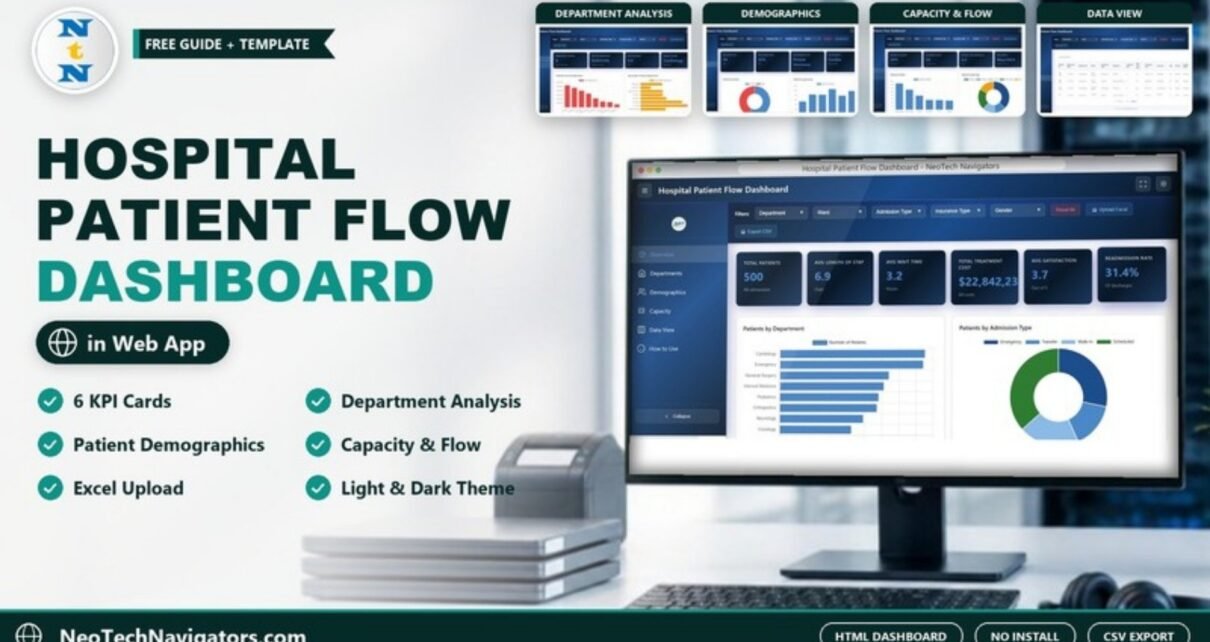
The Hospital Patient Flow Dashboard in HTML is a browser-based analytics template for hospital administrators, operations managers and healthcare analysts who need to see how patients move through departments, wards and beds. It summarises patient volume, average length of stay, wait times, treatment cost, satisfaction scores and readmission rate on one screen, then lets you drill into departments, demographics and capacity.
Because it is a standalone HTML dashboard, there is nothing to install: you unzip the download, open the HTML file in Chrome, Edge, Firefox or Safari, and explore five analysis pages (Overview, Departments, Demographics, Capacity and Data View) plus a built-in How to Use page. This guide explains every page, how each KPI is worked out, how to load your own data, and the limits you should know about before using it for operational decisions.
Get the Hospital Patient Flow Dashboard in HTML
Why Patient Flow Needs Its Own Dashboard
Patient flow is the movement of patients from admission through treatment to discharge. When it slows down, the symptoms show up everywhere: longer waits, full wards, delayed discharges and staff under pressure. Most hospitals already hold the underlying data in admission and discharge records, but it sits in tables that are hard to read quickly. A patient flow dashboard turns those records into a small set of operational indicators and shows which department, ward or admission route is causing the bottleneck.
Filters and Toolbar
A filter bar runs across the top of every page with five dropdowns: Department, Ward, Admission Type, Insurance Type and Gender. Next to them are Reset All, Upload Excel (to load your own data) and Export CSV. A sidebar on the left switches between pages and can be collapsed, and the header has full-screen and light/dark theme buttons.
The Six KPIs on the Overview Page
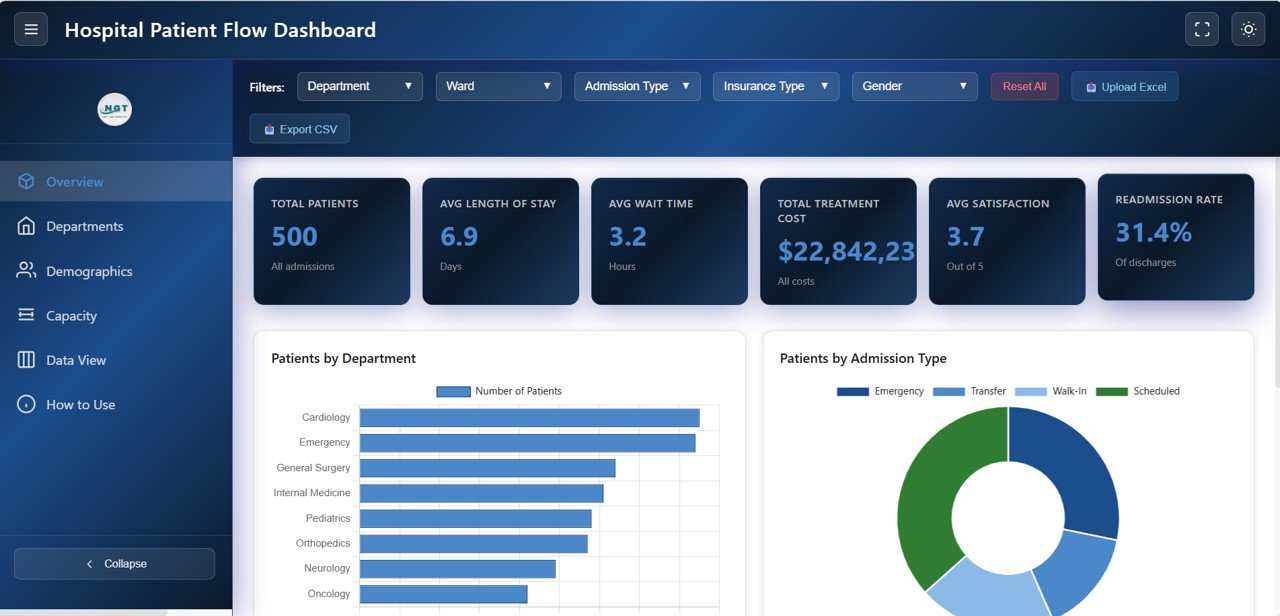
In the sample data the Overview cards read: Total Patients 500, Avg Length of Stay 6.9 days, Avg Wait Time 3.2 hours, Total Treatment Cost about $22.8 million, Avg Satisfaction 3.7 out of 5 and Readmission Rate 31.4% of discharges.
| KPI card | What it measures | How it is worked out | Better when |
|---|---|---|---|
| Total Patients | Number of admissions in the current filter | Count of patient records | Context metric (compare with capacity) |
| Avg Length of Stay | How many days a patient stays on average | Average of the Length of Stay column | Lower, without raising readmissions |
| Avg Wait Time | Average wait in hours | Average of the Wait Time (hrs) column | Lower |
| Total Treatment Cost | Combined treatment cost for the selection | Sum of the Treatment Cost column | Lower for the same case mix |
| Avg Satisfaction | Patient-reported experience on a 1–5 scale | Average of satisfaction scores | Higher |
| Readmission Rate | Share of discharges that were readmissions | Readmitted records as a percentage of discharges | Lower |
Worked example: if 400 patients spent a combined 1,800 days in hospital, the average length of stay is 4.5 days. If 24 of those discharges were later readmitted, the readmission rate is 6%. Read the two together: shortening stays is only an improvement if readmissions do not rise at the same time.
Dashboard Pages Explained
1. Overview
The Overview page combines the six KPI cards with charts for Patients by Department, Patients by Admission Type (Emergency, Transfer, Walk-In and Scheduled), Monthly Patient Admissions and Discharge Status Distribution. The sample covers eight departments, with Cardiology and Emergency the busiest. Any filter you pick in the top bar updates every card and chart together.
2. Departments
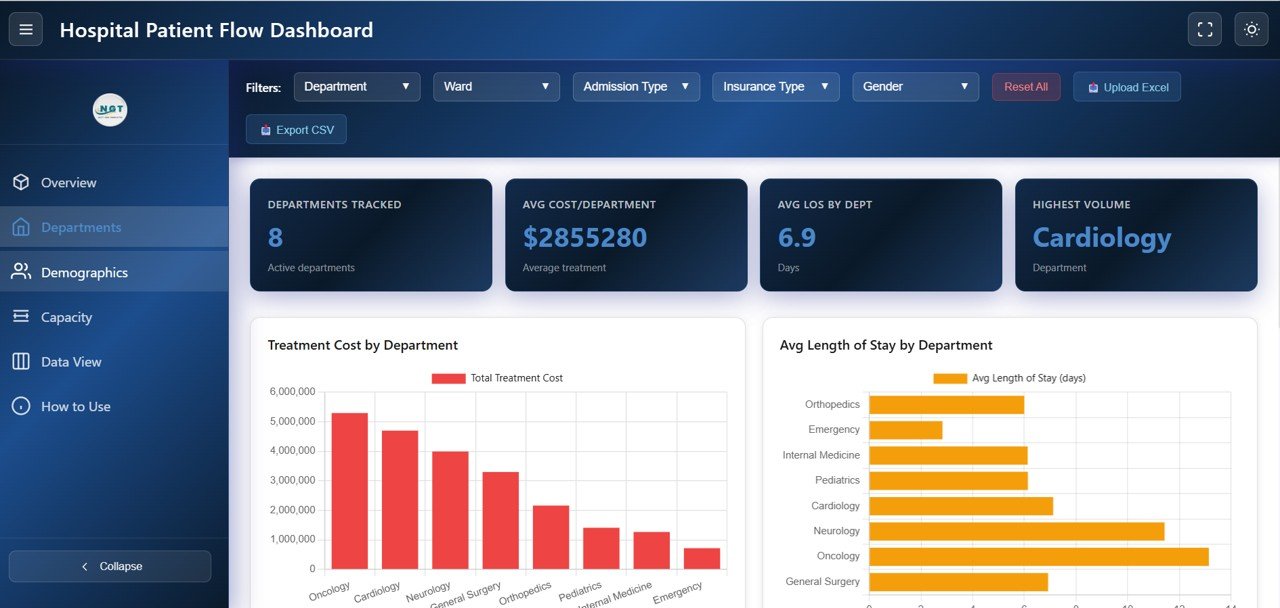
The Departments page (Department Analysis) compares Cardiology, Emergency, General Surgery, Internal Medicine, Pediatrics, Orthopedics, Neurology and Oncology. Four cards show Departments Tracked (8), Avg Cost/Department, Avg LOS by Dept (6.9 days) and Highest Volume (Cardiology). The charts cover Treatment Cost by Department, Avg Length of Stay by Department, Avg Wait Time by Department, Satisfaction Score by Department and Readmission Rate by Department. In the sample, Oncology has both the highest treatment cost and the longest average stay. It is the page to open in a monthly operations review, because it shows whether a long wait in one department lines up with lower satisfaction or a higher readmission rate.
3. Demographics
The Demographics page shows who the hospital serves. Its cards show Avg Patient Age (49 years), Male-Female Ratio (43% male), Top Insurance Type (Private Insurance) and Top Diagnosis (Cardiac). Below them are Patients by Gender, Patients by Age Group, Patients by Insurance Type and Patients by Diagnosis Category. Planning teams use it for payer mix and specialty staffing discussions.

4. Capacity
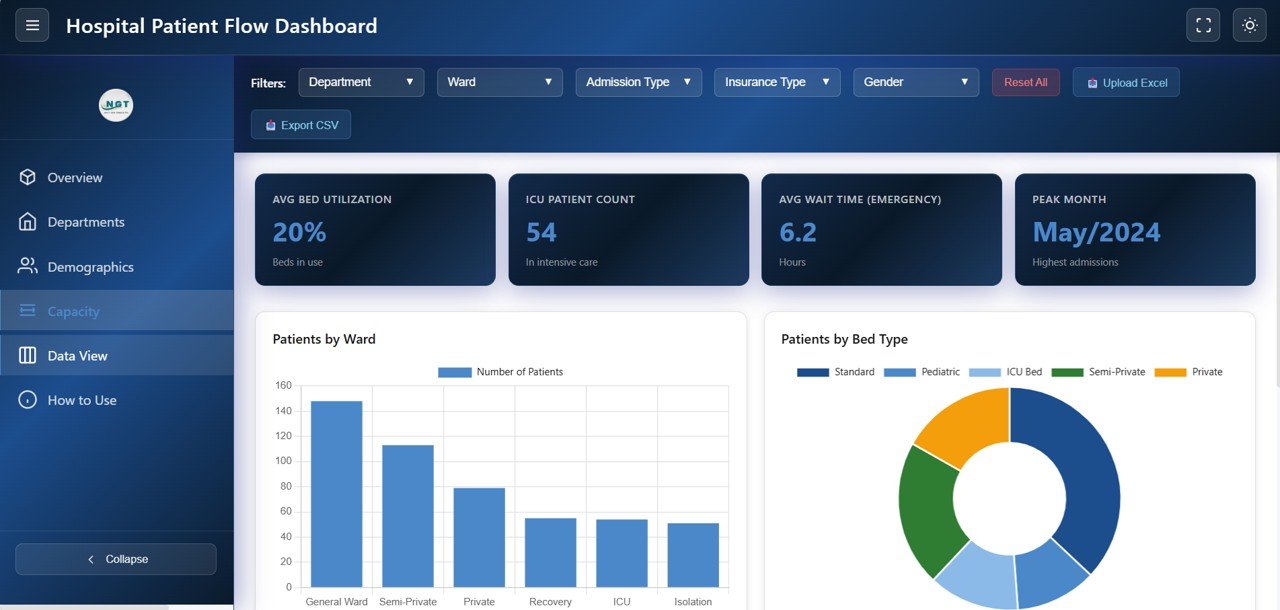
The Capacity page (Capacity and Flow) focuses on beds and wards. Its cards show Avg Bed Utilization (20%), ICU Patient Count (54), Avg Wait Time (Emergency) (6.2 hours) and Peak Month (May/2024). The charts are Patients by Ward (General Ward, Semi-Private, Private, Recovery, ICU and Isolation), Patients by Bed Type (Standard, Pediatric, ICU Bed, Semi-Private and Private), Avg Wait Time by Admission Type and the Length of Stay Distribution. The distribution chart is especially useful: a long tail of very long stays often explains a high average better than the average itself.
5. Data View
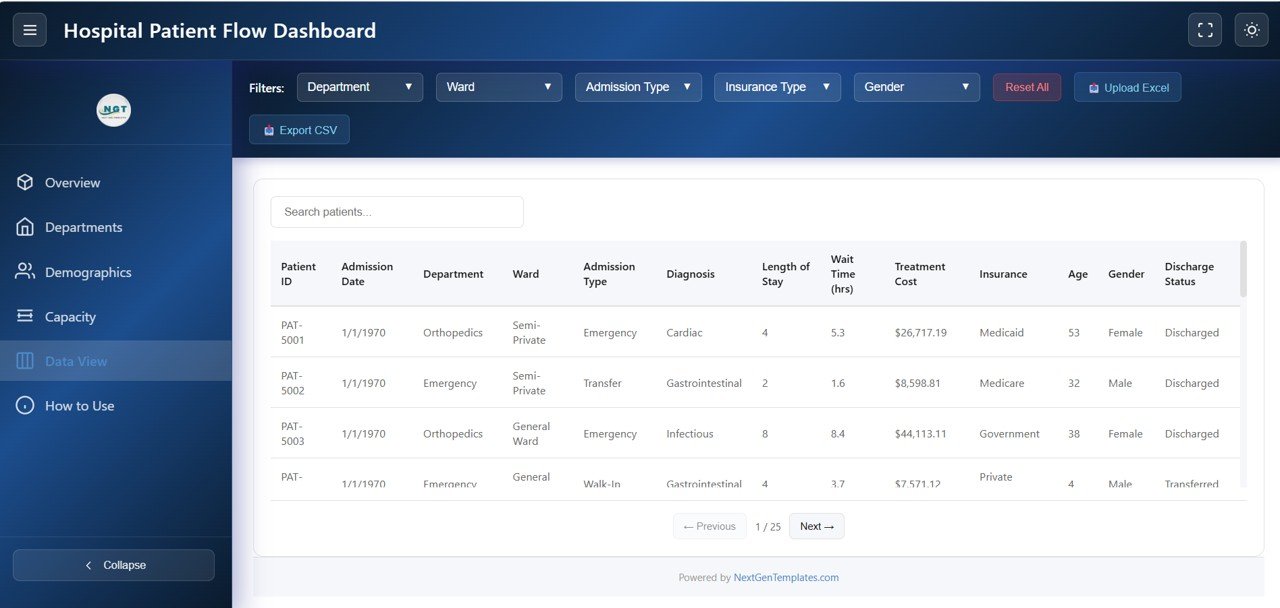
Data View lists every record in a table with a Search patients box and page-by-page navigation (the 500 sample records fill 25 pages). The columns are Patient ID, Admission Date, Department, Ward, Admission Type, Diagnosis, Length of Stay, Wait Time (hrs), Treatment Cost, Insurance, Age, Gender and Discharge Status. Use Export CSV to save the filtered rows for a report or further analysis in a spreadsheet.
How to Use the Dashboard with Your Own Data
- Unzip the download and open the HTML file (index.html) in a modern browser. It opens with sample data so you can explore first, and the How to Use page in the sidebar summarises the steps.
- Prepare your data in Excel using the same columns as the Data View table: Patient ID, Admission Date, Department, Ward, Admission Type, Diagnosis, Length of Stay, Wait Time (hrs), Treatment Cost, Insurance, Age, Gender and Discharge Status, plus the remaining fields in the sample file such as bed type, satisfaction score and readmission.
- Remove names and any direct identifiers before loading. Use coded IDs like PAT-5001 instead of names.
- Click Upload Excel and choose your .xlsx file, then check that Total Patients matches the record count in your source file.
- Start on the Overview page, apply the Department, Ward or Admission Type filter you need, then open the page that answers your question: Departments for performance, Capacity for beds.
- Use Export CSV to save the filtered records when you need to attach evidence to a report.
If you also analyse the exported CSV in Excel, the Pivot Tables and Dashboards course on NextGenTemplates Academy shows how to build your own summaries and charts from data like this.
Three Real-World Use Cases
- Monthly operations meeting: the operations manager walks through the Departments page, focusing on the department with the longest average wait and the highest readmission rate.
- Bed planning: a capacity planner uses Patients by Ward, Patients by Bed Type and the Peak Month card to show where occupancy pressure builds.
- Quality review: a quality team tracks Readmission Rate by Department each quarter alongside satisfaction scores to choose where to focus improvement work.
Best Practices
- Refresh the data on a fixed cycle, monthly at minimum, so trends are comparable.
- Agree definitions first: when wait time starts and ends, and what counts as a readmission.
- Always read length of stay and readmission rate together.
- Upload one comparable period at a time (for example one month or one quarter) so the cards compare like with like.
- Store the file and data on approved internal drives and share it only with authorised staff.
Limitations and Who Should Not Use It
This is an analytics and reporting template, not a clinical system. It does not connect to an EHR or update in real time; it shows the data you upload. It does not provide clinical guidance or forecasts, and the filter bar has no date-range picker, so period comparisons are done by uploading the period you want. Large hospital groups that need live bed boards, role-based access and audit trails should use their EHR’s reporting tools or an enterprise BI platform. Smaller hospitals, clinics and analysts who want a quick, visual monthly review are the best fit.
HTML vs. Excel vs. Google Sheets vs. Power BI
| Version | Strengths | Consider when |
|---|---|---|
| HTML (this post) | No software needed, opens in any browser, Excel upload and CSV export | You want a ready-made, view-focused dashboard |
| Excel | Familiar, easy to edit formulas and charts | Your team works mainly in Excel |
| Google Sheets | Cloud sharing and collaboration | Several people update the data |
| Power BI | Larger data volumes and data modelling | You already use Power BI |
For wider hospital reporting, see the Healthcare Analytics Dashboard in HTML, the Hospital Operations KPI Dashboard in Google Sheets, the Hospital Emergency KPI Dashboard and the Hospital Operations KPI Scorecard.
Frequently Asked Questions
What is a patient flow dashboard?
It is a report that tracks how patients move from admission to discharge, using measures such as admissions, wait time, length of stay, bed usage and readmissions, so managers can find and fix bottlenecks.
Which KPIs does this dashboard track?
The Overview shows Total Patients, Avg Length of Stay, Avg Wait Time, Total Treatment Cost, Avg Satisfaction and Readmission Rate. The Departments, Demographics and Capacity pages add their own cards, such as Highest Volume department, Avg Patient Age, Avg Bed Utilization, ICU Patient Count and Peak Month.
Do I need special software to open it?
No. It runs in any modern browser such as Chrome, Edge, Firefox or Safari.
How is the readmission rate shown?
The card shows readmissions as a percentage of discharges in the current filter (31.4% in the sample). Make sure your data uses one consistent readmission definition before you compare departments.
Is it safe to load patient data?
The dashboard runs locally in your browser, but you are still responsible for data protection. Load anonymised records without names or identifiers, keep the file on approved drives and follow your organisation’s privacy rules.
Can I export the data?
Yes. The Export CSV button saves the currently filtered records for use in Excel, Google Sheets or other tools.
Wrapping Up
The Hospital Patient Flow Dashboard in HTML gives operations teams a fast, installation-free way to see where patients wait, how long they stay and which departments need attention. Upload an anonymised month of data, compare departments on wait time and readmissions, and bring the Capacity page to your next bed-planning meeting.
Get the Hospital Patient Flow Dashboard in HTML
📅 Last updated: October 2026