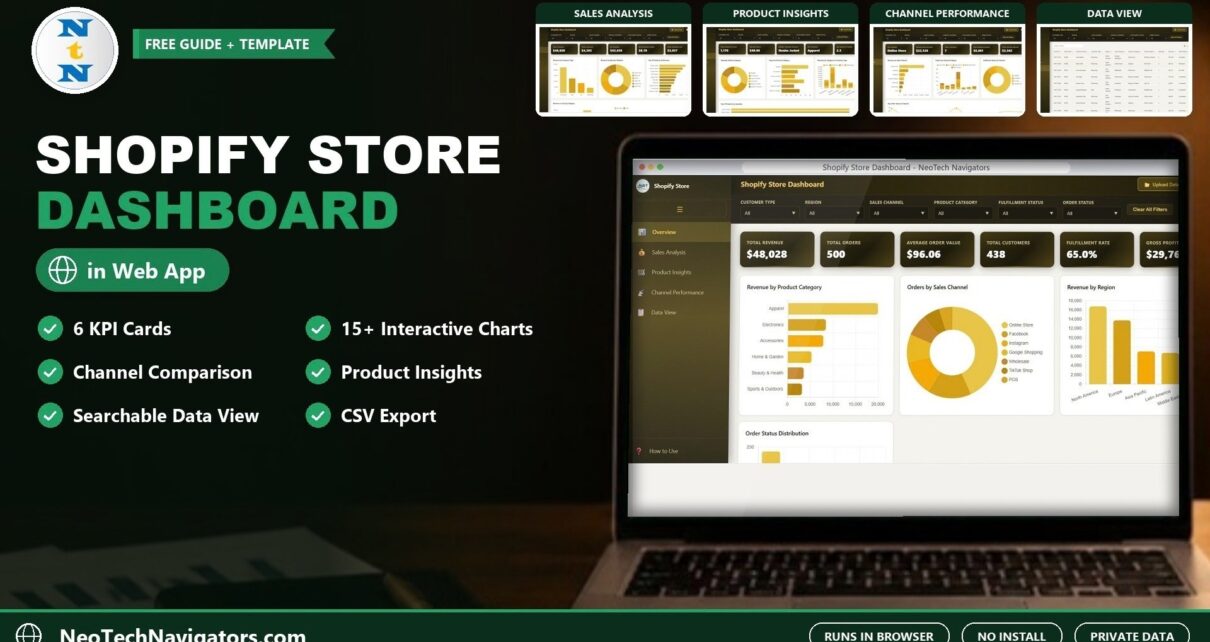
The Shopify Store Dashboard in HTML is a browser-based analytics template that turns a Shopify order export into a clean, interactive report. You open one index.html file in Chrome, Edge, Firefox or Safari and get revenue, orders, fulfilment, product and channel insights without installing software, paying for a BI licence or uploading your data to a cloud service.
It is aimed at Shopify store owners, e-commerce managers and analysts who want a weekly performance view they fully control. Inside are five pages (Overview, Sales Analysis, Product Insights, Channel Performance and a searchable Data View), six KPI cards, more than 15 charts and slicers that filter each page by category, region, channel, status or month.
This guide explains what each page shows, how the KPIs are defined, how to load your own Shopify data and where an HTML dashboard fits compared with Excel, Google Sheets or Power BI.
🎥 Watch the Video Tutorial
Get the Shopify Store Dashboard in HTML
What Problem Does the Shopify Store Dashboard in HTML Solve?
Shopify’s built-in analytics are good for a quick glance, but many store owners hit the same limits: reports are split across screens, deeper reports sit behind higher plans, and comparing channels, regions and product categories side by side takes a lot of clicking and exporting.
An HTML dashboard solves this by putting the questions you ask every week on one set of pages:
- Which product categories and products actually drive revenue and profit?
- Which sales channel and region are growing, and which are slipping?
- Are orders being fulfilled on time, or is a backlog building up?
- Are returning customers spending more than new ones?
Because everything runs locally in the browser, your order data never leaves your computer. That is a real advantage for owners who are cautious about connecting third-party apps to their store.
Dashboard Pages Explained
1. Overview: Your Store at a Glance
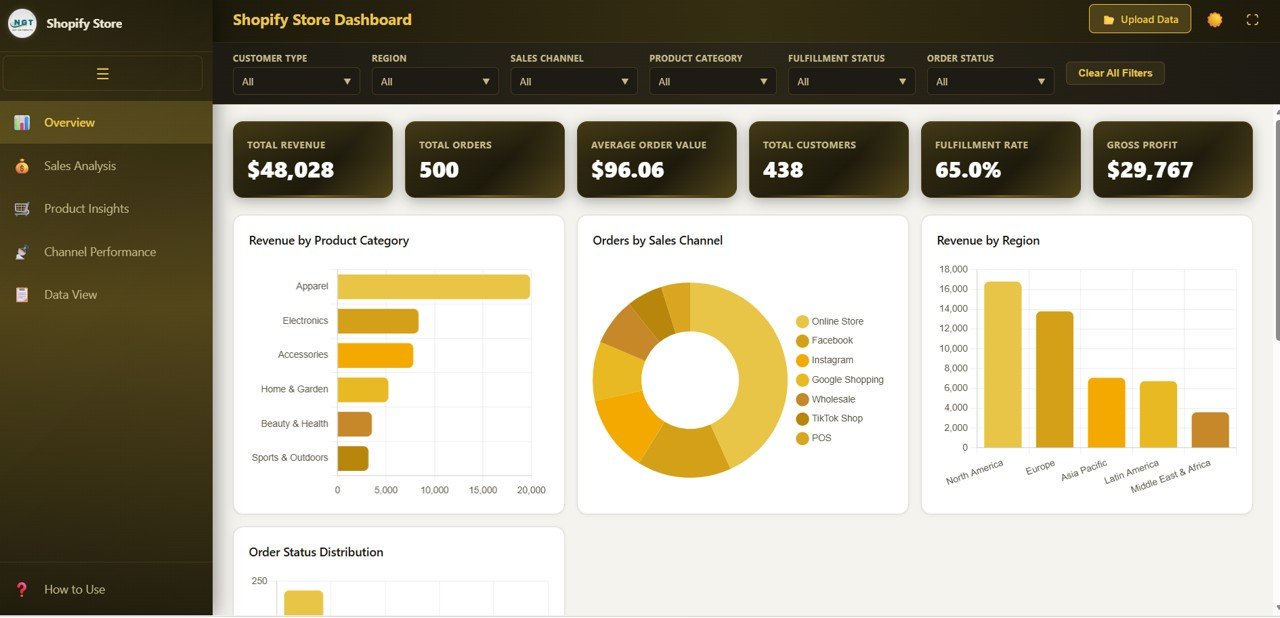
The Overview page starts with the six KPI cards: Total Revenue, Total Orders, Average Order Value, Total Customers, Fulfillment Rate and Gross Profit. Below them are five charts: Revenue by Product Category, Orders by Sales Channel, Revenue by Region, Order Status Distribution and Monthly Revenue Trend. Slicers let you narrow the whole page to a single category, region, channel or month.
2. Sales Analysis: Who Buys and How They Pay
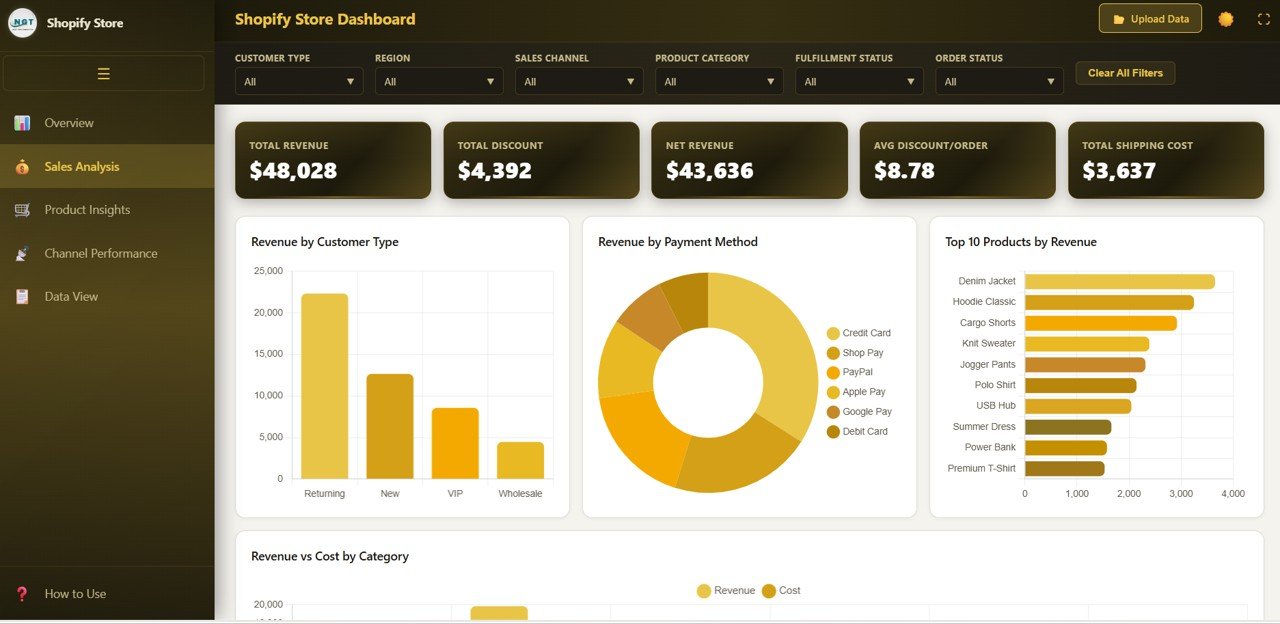
This page shows Revenue by Customer Type (new versus returning), Revenue by Payment Method, Top 10 Products by Revenue and Revenue vs Cost by Category. The last chart is the most useful for pricing decisions, because a category with high revenue but a thin gap to cost is not as healthy as it looks.
3. Product Insights: Volume, Price and Mix
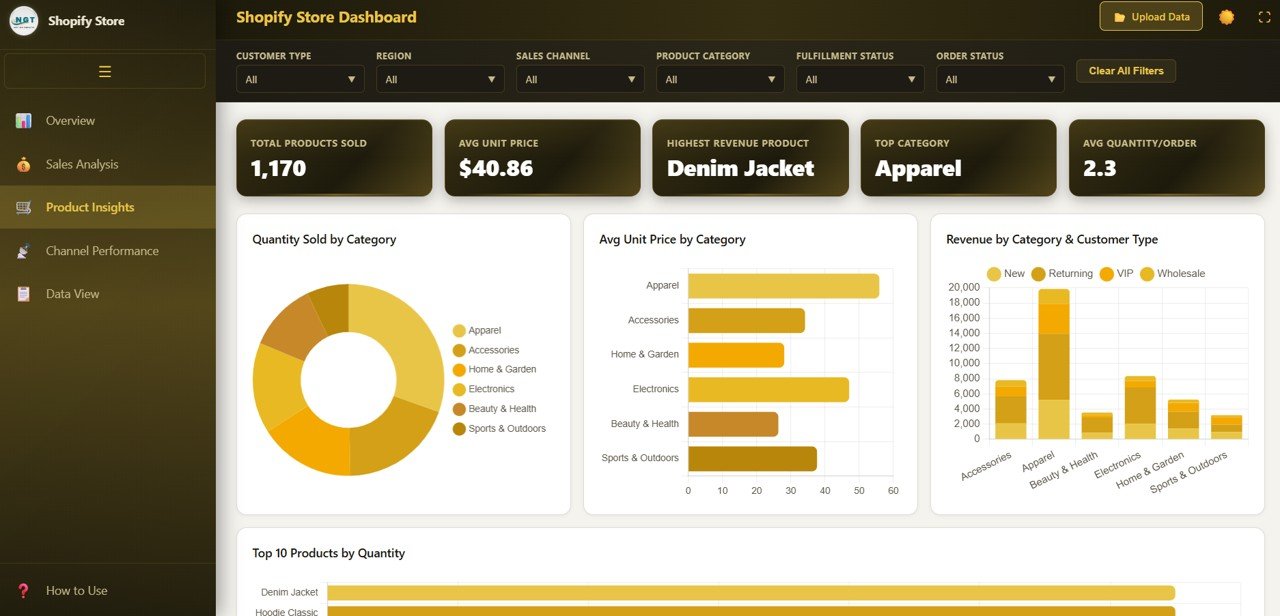
Product Insights covers Quantity Sold by Category, Avg Unit Price by Category, Revenue by Category and Customer Type and Top 10 Products by Quantity. Comparing the top 10 by quantity with the top 10 by revenue on the previous page quickly shows which items are volume drivers and which are profit drivers.
4. Channel Performance: Online Store, POS, Social and Marketplaces
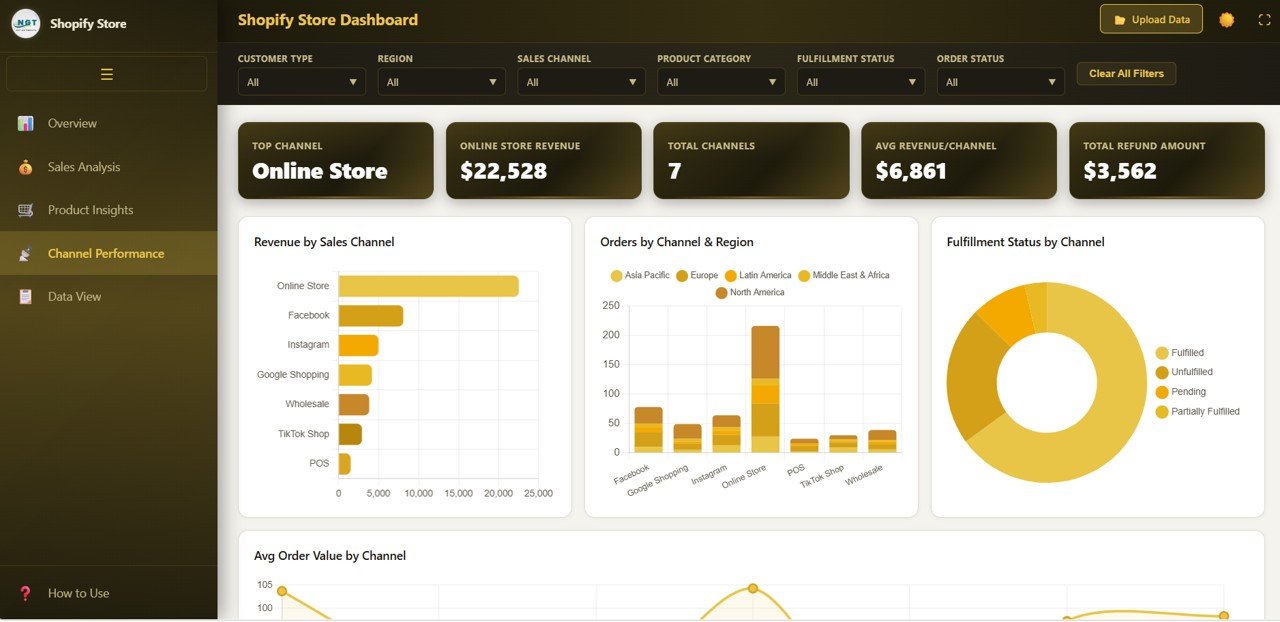
If you sell through more than one Shopify channel, this page compares them with Revenue by Sales Channel, Orders by Channel and Region, Fulfillment Status by Channel and Avg Order Value by Channel. It is the page to open before deciding where to spend next month’s marketing budget.
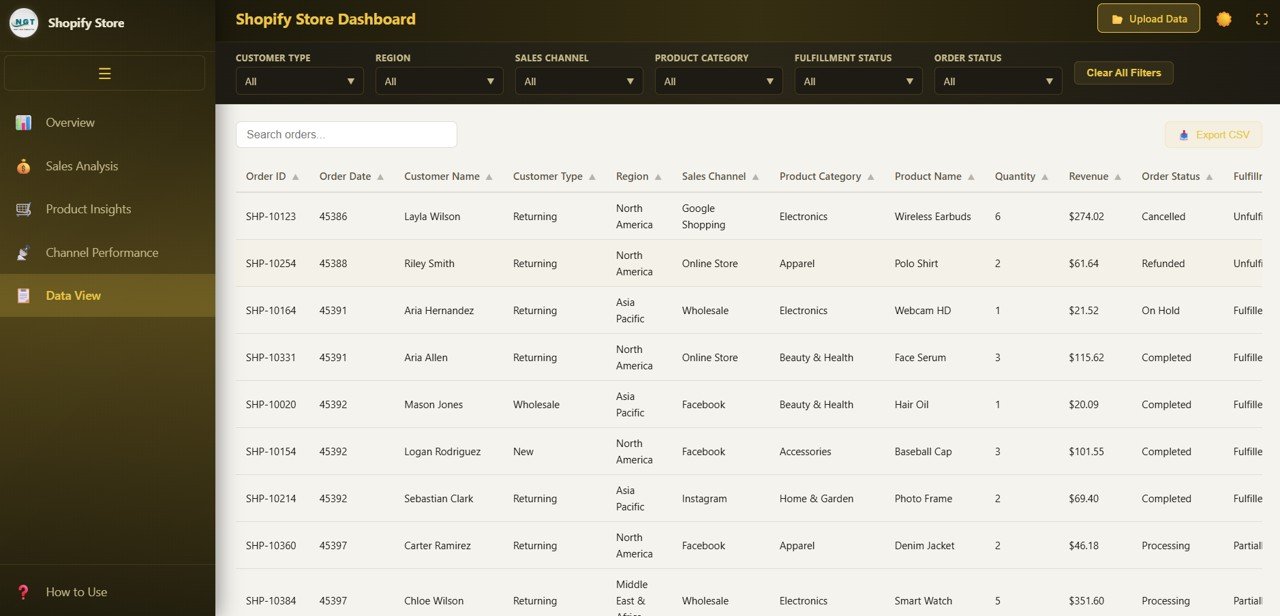
5. Data View: Every Order, Searchable
The Data View is a full table of the underlying records with search, column sorting, pagination and a CSV export button. Use it to check a specific order behind a chart or to export a filtered list for your accountant or a Google Sheets analysis.
The Six KPIs and How to Read Them
The table below uses the standard e-commerce definitions for each KPI card, so you know exactly what you are looking at and which direction is good.
| KPI | What it measures | Formula | Better when |
|---|---|---|---|
| Total Revenue | Sales value of all orders in the current filter | Sum of order revenue | Higher |
| Total Orders | Number of orders placed | Count of orders | Higher |
| Average Order Value | Typical basket size | Total Revenue ÷ Total Orders | Higher |
| Total Customers | Distinct buyers in the period | Count of unique customers | Higher |
| Fulfillment Rate | Share of orders that have been fulfilled | Fulfilled Orders ÷ Total Orders | Higher |
| Gross Profit | Revenue left after product cost | Total Revenue − Total Cost | Higher |
A quick worked example: if a filtered view shows $48,000 revenue from 600 orders and $30,000 product cost, then Average Order Value is $48,000 ÷ 600 = $80 and Gross Profit is $48,000 − $30,000 = $18,000 (a 37.5% gross margin). If 570 of those 600 orders are fulfilled, Fulfillment Rate is 95%.
How to Use It With Your Own Shopify Data
- Unzip the download. You get a folder containing
index.htmland a data file with sample orders. - Open the sample first. Double-click
index.htmlto see how every page behaves before changing anything. - Export your orders. In Shopify go to Admin > Orders > Export and download the orders for the period you want as CSV.
- Map the columns. Match your export’s columns to the template’s data format (date, product, category, channel, region, customer type, payment method, quantity, price, cost, status). Keep the column headers exactly as the sample uses them.
- Replace the sample data. Paste your mapped rows into the data file, save it, and refresh the browser.
- Check totals. Compare Total Revenue and Total Orders with Shopify’s own report for the same dates. If they match, the rest of the dashboard is reliable.
- Repeat weekly. Export new orders, append them and refresh. Keep a dated copy of each data file so you can compare snapshots later.
HTML vs Excel vs Google Sheets vs Power BI
| Option | Needs | Best for |
|---|---|---|
| HTML dashboard | Any modern browser | Private, offline, zero-install reporting on any computer |
| Excel dashboard | Microsoft Excel | Users who want pivot tables and to edit formulas directly |
| Google Sheets dashboard | Google account | Teams who want shared, cloud-based editing |
| Power BI dashboard | Power BI Desktop | Larger datasets, DAX measures and scheduled refresh |
The same Shopify layout is also available as a Shopify Store Dashboard in Excel and a Shopify Store Dashboard in Power BI, and we have written up the Shopify Store Dashboard in Google Sheets for teams that prefer working in the cloud.
Real-World Use Cases
Solo store owner doing a Monday review
A one-person store exports last week’s orders every Monday, refreshes the dashboard and checks three things: Monthly Revenue Trend, Top 10 Products by Revenue and Fulfillment Rate. Ten minutes gives a clear plan for the week.
Brand selling on several channels
A brand selling through its online store, POS at pop-up events and social storefronts uses Channel Performance to see that POS has a higher average order value but lower volume, and plans more events accordingly.
Analyst preparing a monthly report
An e-commerce analyst filters the dashboard to one month, takes screenshots for a slide deck and uses the Data View CSV export to send detailed order lists to finance. Sellers on other platforms can follow the same routine with our Amazon FBA seller dashboard in HTML or Etsy seller analytics dashboard in HTML.
Best Practices
- Refresh on a fixed day. Weekly updates keep trends meaningful and avoid big catch-up exports.
- Include product cost. Gross Profit and Revenue vs Cost are only accurate if your data includes a cost per item.
- Combine slicers. Filtering by one category and one region together often reveals problems a single filter hides.
- Watch Fulfillment Rate closely. A falling rate usually shows up before customer complaints do.
- Keep dated backups. Save a copy of the data file before each update so you can roll back or compare periods.
- Combine stores carefully. You can merge several stores into one data file, but add a store or channel column so you can still separate them.
Limitations to Know Before You Buy
- No live Shopify connection. Data is loaded from an export, not pulled automatically from the Shopify API. If you need real-time numbers, an app or a Power BI setup with scheduled refresh is a better fit.
- Column mapping takes a few minutes. Shopify’s export format does not match the template one-to-one, so the first load needs some tidying.
- Single currency. Stores selling in several currencies should convert amounts before loading.
- Desktop recommended. The layout is responsive, but the charts are easiest to read on a laptop or larger screen.
Customising the dashboard further (new charts, a date-range picker or theme changes) needs basic HTML, CSS and JavaScript knowledge.
If you want to understand the reporting ideas behind dashboards like this one, such as choosing the right chart, building KPI cards and slicing data, the Excel Pivot Tables and Dashboards course on NextGenTemplates Academy covers them step by step. For a broader template that is not Shopify-specific, see our e-commerce dashboard in HTML.
Download the Shopify HTML Dashboard
Frequently Asked Questions
Do I need coding skills to use the Shopify Store Dashboard in HTML?
No. You open index.html in a browser and replace the sample data with your mapped Shopify export. Coding knowledge is only needed if you want to add new charts or change the design.
How do I get my data out of Shopify?
Go to Admin > Orders > Export, choose the date range and download a CSV. Then match its columns to the template’s data format and refresh the dashboard.
Is my store data uploaded anywhere?
No. The dashboard runs entirely on your computer in the browser. Nothing is sent to a server.
Can I track more than one Shopify store?
Yes. You can combine several stores’ orders in one data file. Adding a column that identifies each store keeps them separable when you filter.
Does the dashboard update automatically?
It recalculates every KPI and chart when you load an updated data file and refresh the page. It does not pull new orders from Shopify on its own.
Which browsers are supported?
Current versions of Chrome, Edge, Firefox and Safari on Windows, Mac, Linux or Chromebook.
Wrapping Up
The Shopify Store Dashboard in HTML gives you a private, install-free view of revenue, profit, products, channels and fulfilment from a single file. Export last month’s orders, load them into the template and compare the totals with Shopify. Once they match, make the dashboard part of your weekly routine. For KPI-focused tracking in the cloud, the e-commerce KPI dashboard in Google Sheets is a good companion.
📅 Last updated: October 2026