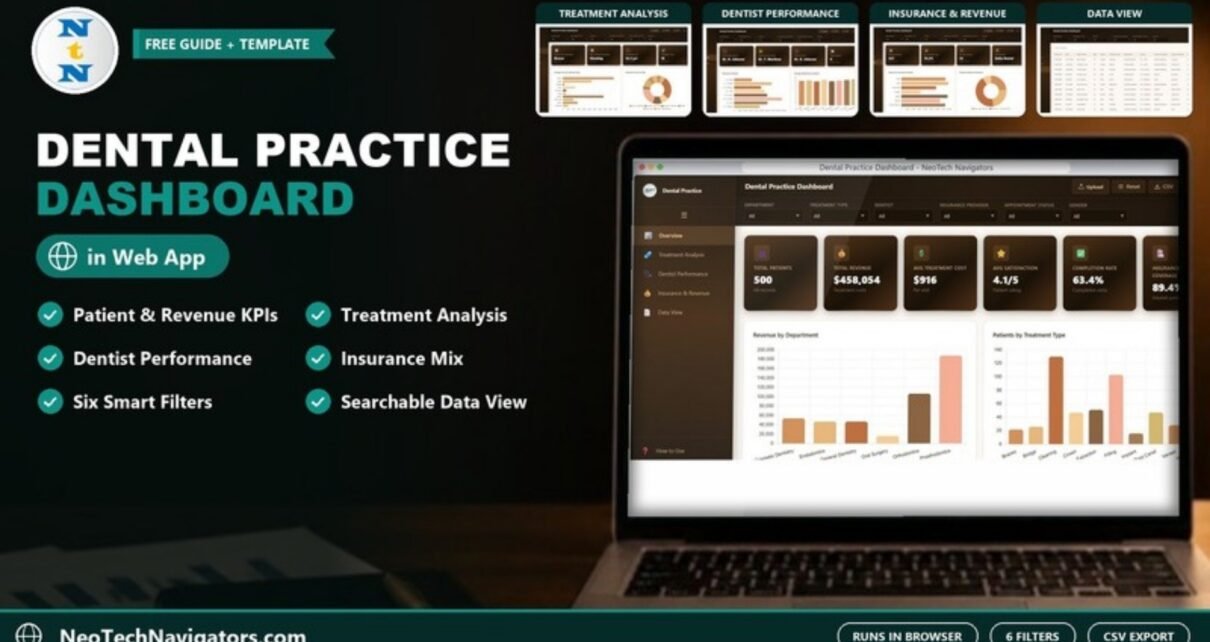
Running a dental practice produces a steady stream of data: who came in, which treatment they had, which dentist saw them, who paid and how. The Dental Practice Dashboard in HTML turns that stream into one browser-based report with KPI cards, charts and a searchable record table, so a practice owner or clinic manager can answer everyday questions in seconds instead of rebuilding a spreadsheet report each month.
This guide is for dental clinic owners, practice managers, multi-chair clinics and healthcare administrators who want a clear performance view without installing BI software. Below you will find what each of the five pages shows, the exact KPIs on the cards, how to load your own clinic records, and where the template fits (and where it does not).
🎥 Watch the Video Tutorial
Get the Dental Practice Dashboard in HTML
What Problem This Dental Dashboard Solves
Most clinics already keep a visit log in a practice system or a spreadsheet. The difficulty is turning it into answers: Which department brings in the most revenue? Which treatment is most common, and which is most expensive? Which dentist sees the most patients, and whose patients are most satisfied? How much of the patient base is insured, and which provider matters most?
The dashboard reads one patient-visit table and builds every summary from it. Because it is a plain HTML file, it opens in Chrome, Edge, Firefox or Safari with no Excel, Power BI or paid licence. A left sidebar links the five pages (Overview, Treatment Analysis, Dentist Performance, Insurance & Revenue and Data View) plus a How to Use guide, and the header carries Upload, Reset and CSV buttons along with a theme toggle and full-screen button.
Six filters that work across the dashboard
Every page has the same filter bar at the top: Department, Treatment Type, Dentist, Insurance Provider, Appointment Status and Gender. Pick a value (for example Department = Orthodontics) and the cards and charts recalculate for that slice. Reset returns everything to “All”.
Dental Practice Dashboard in HTML: Pages at a Glance
| Page | KPI cards | Charts / content |
|---|---|---|
| Overview | Total Patients, Total Revenue, Avg Treatment Cost, Avg Satisfaction, Completion Rate, Insurance Coverage | Revenue by Department, Patients by Treatment Type, Appointment Status by Category, Monthly Revenue Trend, Revenue by Referral Source |
| Treatment Analysis | Highest Cost Treatment, Most Common Treatment, Avg Patient Age, Treatment Types | Average Cost by Treatment Type, Treatment Count by Type, Treatment Distribution by Department, Cost Range Distribution, Treatment by Visit Type |
| Dentist Performance | Top Revenue Dentist, Highest Rated Dentist, Busiest Dentist, Total Dentists | Revenue by Dentist, Average Satisfaction by Dentist, Patient Count by Dentist, Completion Rate by Dentist |
| Insurance & Revenue | Insured Patients, Avg Coverage Rate, Self-Pay Patients, Top Provider | Revenue by Insurance Provider, Payment Method Distribution, Average Coverage by Provider, Patient Count by Insurance, Revenue by Gender |
| Data View | None | Searchable, sortable, paginated record table with CSV export |
Page 1: Overview
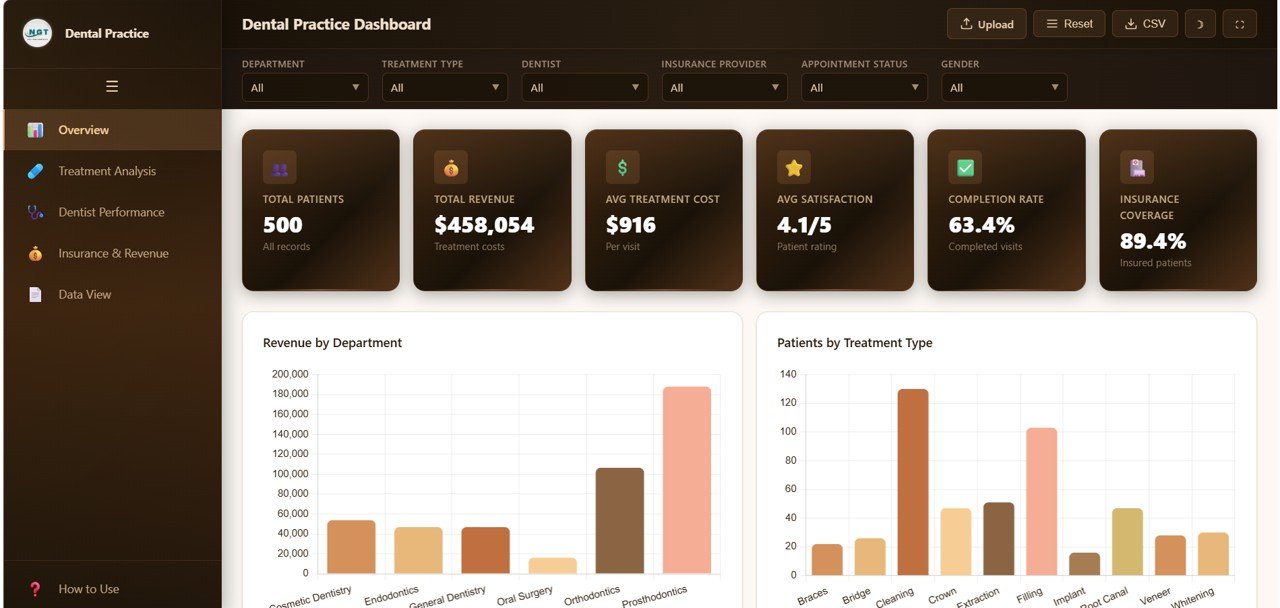
The Overview is the page you open first. With the 500 sample records it shows Total Patients 500, Total Revenue $458,054, Avg Treatment Cost $916 per visit, Avg Satisfaction 4.1/5, Completion Rate 63.4% of visits and Insurance Coverage 89.4% of patients.
Below the cards, Revenue by Department compares Cosmetic Dentistry, Endodontics, General Dentistry, Oral Surgery, Orthodontics and Prosthodontics. In the sample data Prosthodontics leads and Orthodontics comes second. Patients by Treatment Type counts visits for Braces, Bridge, Cleaning, Crown, Extraction, Filling, Implant, Root Canal, Veneer and Whitening, with Cleaning and Filling clearly the busiest. Further down, the Appointment Status, Monthly Revenue Trend and Referral Source charts show booking outcomes, seasonality and which acquisition channels bring revenue.
The Overview KPIs explained
| KPI | What it measures | How it is calculated | Better when |
|---|---|---|---|
| Total Patients | Number of visit records in the current filter | Count of rows (500 in the sample) | Higher, if capacity allows |
| Total Revenue | Value of treatments delivered | Sum of Treatment Cost | Higher |
| Avg Treatment Cost | Average value of one visit | Total Revenue ÷ Total Patients ($458,054 ÷ 500 ≈ $916) | Depends on treatment mix |
| Avg Satisfaction | Patient rating out of 5 | Average of the satisfaction scores | Higher |
| Completion Rate | Share of visits recorded as completed | Completed visits as a percentage of all visits | Higher |
| Insurance Coverage | Share of patients with an insurance provider | Insured patients ÷ Total Patients (447 ÷ 500 = 89.4%) | Context: shows payer mix, not quality |
Page 2: Treatment Analysis
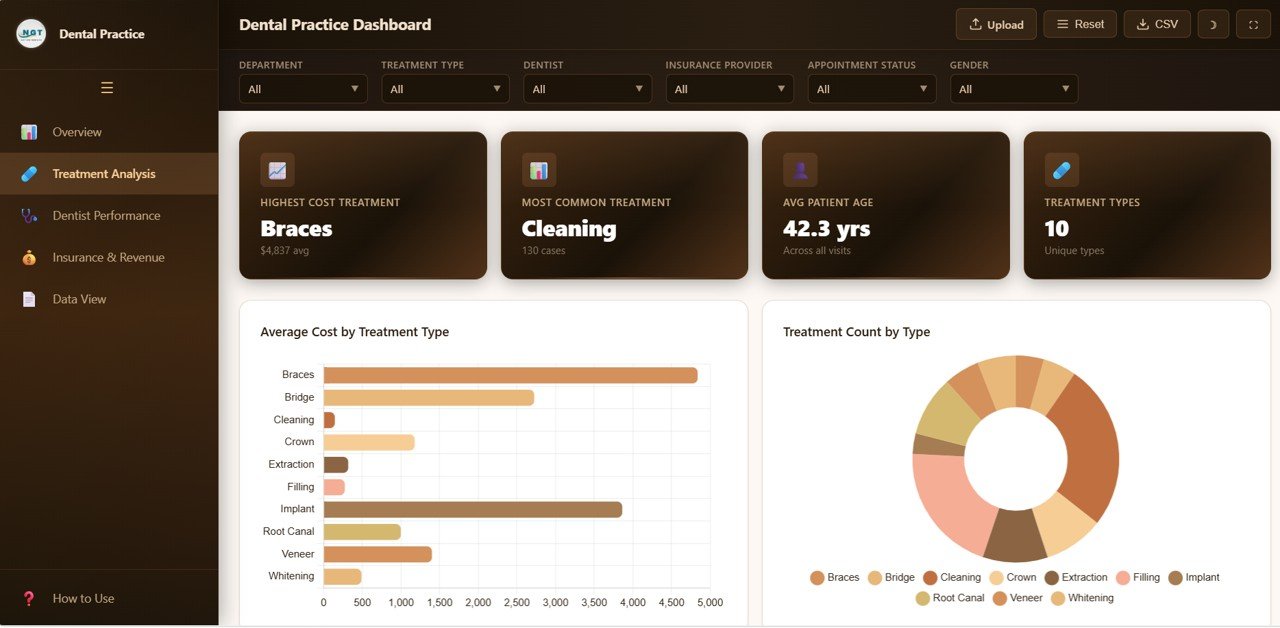
This page answers “what are we actually doing in the chair?”. Its cards name the Highest Cost Treatment (Braces, at a $4,837 average in the sample), the Most Common Treatment (Cleaning, 130 cases), the Avg Patient Age (42.3 years) and the number of Treatment Types (10).
Average Cost by Treatment Type is a horizontal bar chart that makes the price ladder obvious: Braces and Implant sit far above Bridge, Veneer, Crown and Root Canal, while Cleaning, Filling and Extraction are low-value, high-volume work. Treatment Count by Type is a donut chart of the same ten treatments. Read the two together: a treatment that is common but cheap (Cleaning) keeps chairs busy, while a rare but expensive one (Implant) moves revenue. Lower on the page, Treatment Distribution by Department, Cost Range Distribution and Treatment by Visit Type round out the picture.
Page 3: Dentist Performance
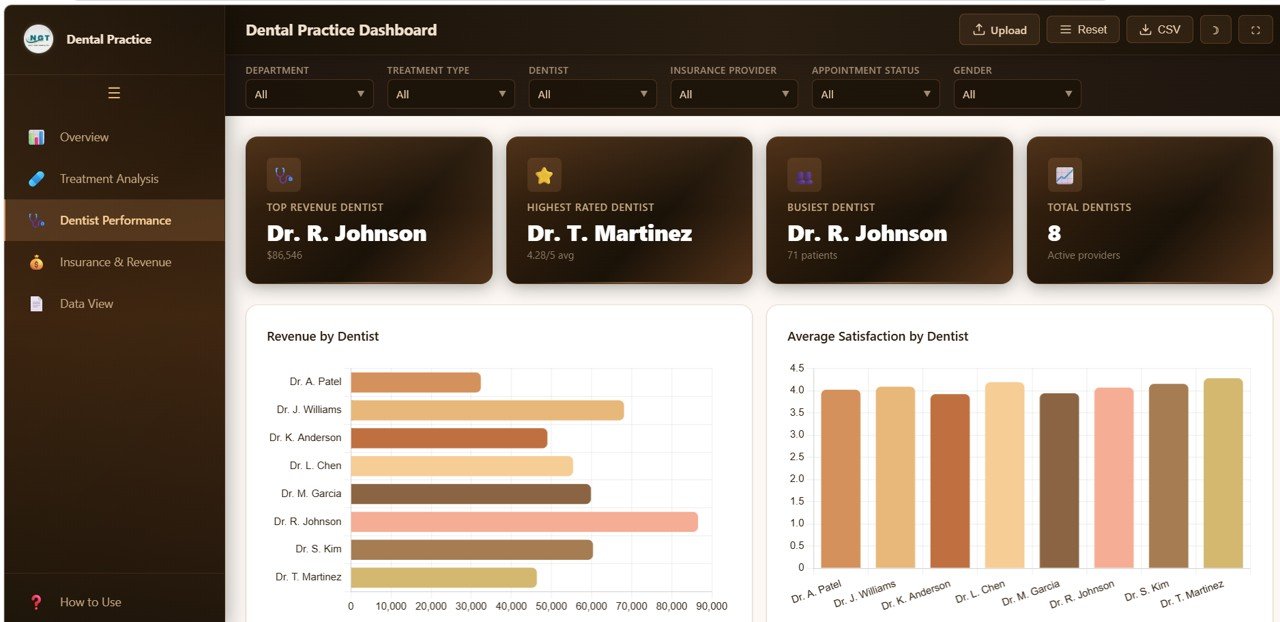
The Dentist Performance page compares the eight dentists in the sample (Dr. A. Patel, Dr. J. Williams, Dr. K. Anderson, Dr. L. Chen, Dr. M. Garcia, Dr. R. Johnson, Dr. S. Kim and Dr. T. Martinez). The cards show the Top Revenue Dentist (Dr. R. Johnson, $86,546), the Highest Rated Dentist (Dr. T. Martinez, 4.28/5 average), the Busiest Dentist (Dr. R. Johnson, 71 patients) and Total Dentists (8 active providers).
Revenue by Dentist and Average Satisfaction by Dentist sit side by side, followed by Patient Count by Dentist and Completion Rate by Dentist. The useful habit here is to look at volume and quality together. A dentist with high revenue but average satisfaction may be overloaded; a dentist with top ratings and a light caseload may have room for more bookings.
Page 4: Insurance & Revenue
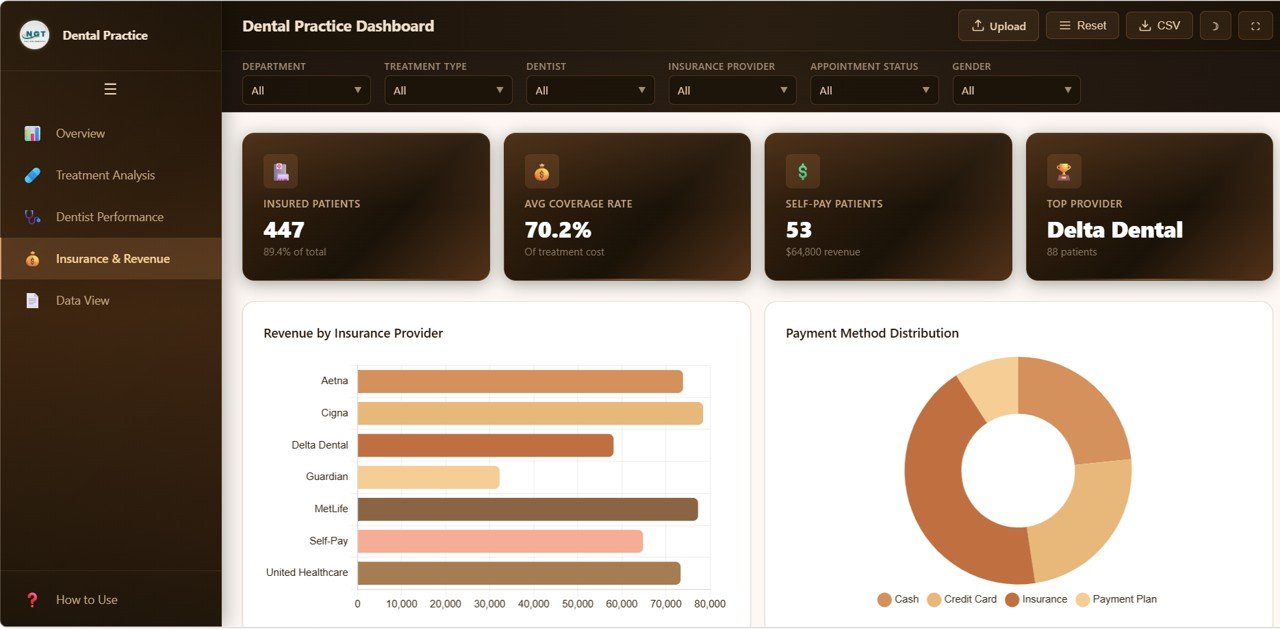
This page is about who pays. The cards show Insured Patients (447, which is 89.4% of the total), Avg Coverage Rate (70.2% of treatment cost), Self-Pay Patients (53, worth $64,800 in revenue) and the Top Provider (Delta Dental, 88 patients).
Revenue by Insurance Provider covers Aetna, Cigna, Delta Dental, Guardian, MetLife, Self-Pay and United Healthcare. Note that the provider with the most patients is not automatically the one bringing in the most revenue, which is exactly the kind of gap this chart exposes. Payment Method Distribution splits visits across Cash, Credit Card, Insurance and Payment Plan. Average Coverage by Provider, Patient Count by Insurance and Revenue by Gender complete the page.
Page 5: Data View
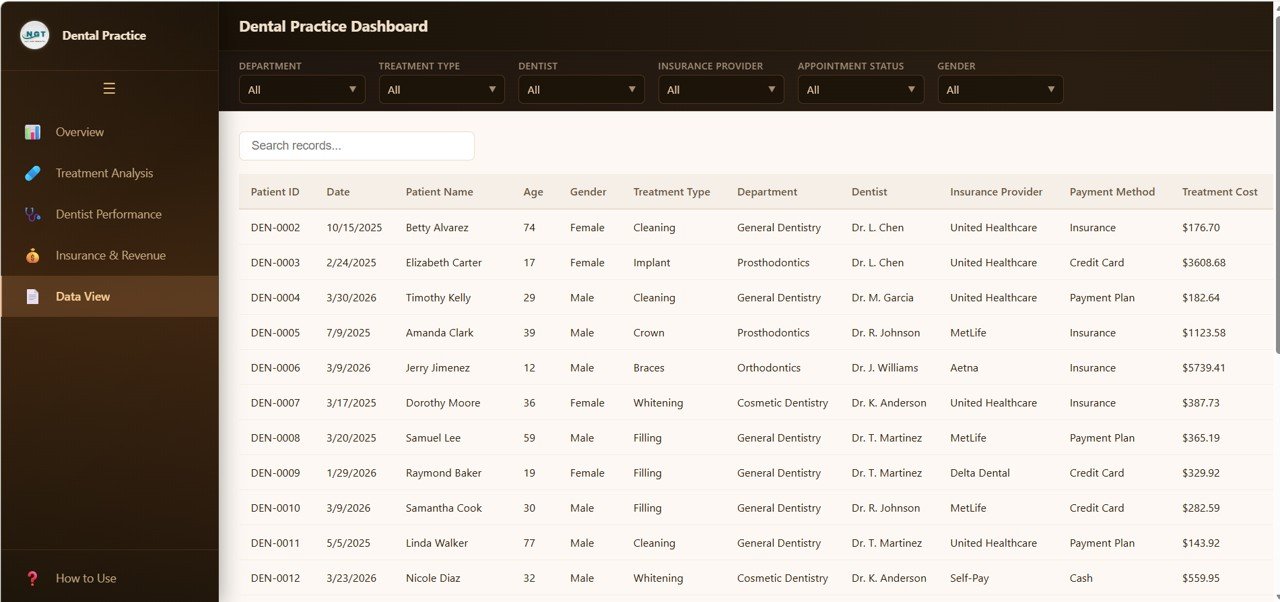
The Data View shows the underlying records in a table with a Search records box, column sorting and pagination. Visible columns include Patient ID (DEN-0002, DEN-0003 and so on), Date, Patient Name, Age, Gender, Treatment Type, Department, Dentist, Insurance Provider, Payment Method and Treatment Cost. Filters from the top bar apply here too, so you can narrow the table to one dentist or provider and export just those rows with the CSV button for a meeting or follow-up in Excel or Google Sheets.
How to Use It With Your Own Clinic Data
- Download and unzip the file, then open index.html in Chrome, Edge, Firefox or Safari.
- Explore the five pages with the sample data so you know what each chart expects.
- Open the How to Use page in the sidebar and follow its steps for loading your own records.
- Prepare your visit log with the same columns as the sample (Patient ID, Date, Patient Name, Age, Gender, Treatment Type, Department, Dentist, Insurance Provider, Payment Method, Treatment Cost and the remaining fields shown in Data View). Keep department, dentist and provider names spelled consistently.
- Load your records the way the How to Use page describes (the header has an Upload button, and Reset returns the filters to “All”). Check that Total Patients matches your row count before you trust the other cards.
- Use the filters for the question at hand, then export the filtered rows from Data View with CSV if you need them elsewhere.
Three Real-World Use Cases
- Monthly owner review. A two-dentist practice opens the Overview, checks revenue against last month on the Monthly Revenue Trend, and uses Revenue by Referral Source to decide whether a paid ad channel is worth keeping.
- Provider one-to-ones. A clinic manager filters by Dentist before each quarterly review and discusses patient count, satisfaction and completion rate with that dentist using the same numbers everyone else sees.
- Insurance contract talks. Before renegotiating with a payer, the practice compares that provider’s revenue, patient count and average coverage on the Insurance & Revenue page and exports the matching rows as evidence.
Best Practices
- Refresh the data on a fixed rhythm, weekly or monthly, so trends compare like with like.
- Standardise names (for example always “Dr. L. Chen”, never “Chen” in some rows) or the dentist charts will split one person into two.
- Read volume and value together: Treatment Count with Average Cost, Patient Count with Revenue.
- Treat satisfaction as a direction, not a verdict. Small samples per dentist move a lot from month to month.
- Keep patient names out of any CSV you share outside the clinic, and follow your local health-data privacy rules.
Who Should Not Use This Template
Be honest about the fit. This is a reporting dashboard, not practice-management software. It does not book appointments, store clinical notes, send reminders or submit insurance claims. It works from the data you load, so it is only as current as your last update. Large dental groups that need live feeds from a practice system, role-based logins or audit trails will be better served by a BI platform or by a full system such as the Dental Clinic Management System web app. If you need appointment scheduling in a spreadsheet, see the Dental Clinic Appointment Calendar in Google Sheets.
Related Dental and Healthcare Dashboards
Prefer a spreadsheet? The same topic is covered in the Dental Practice Dashboard in Google Sheets, and if you prefer a KPI-focused layout there is the Dental Practice KPI Dashboard in Google Sheets. For other browser-based healthcare reports, look at the Healthcare Analytics Dashboard in HTML and the Hospital Patient Flow Dashboard in HTML.
Related templates: Dental Practice Dashboard in Excel · Dental Practice Dashboard in Power BI
If you would like to build dashboards like this yourself, the Excel Pivot Tables & Dashboards course on NextGenTemplates Academy walks through summarising raw records into KPI cards and charts step by step.
Frequently Asked Questions
Do I need Excel or Power BI to use the Dental Practice Dashboard in HTML?
No. It is an HTML file that runs in a modern browser such as Chrome, Edge, Firefox or Safari. Unzip the download and open index.html.
Which KPIs does the dental dashboard show?
The Overview shows six: Total Patients, Total Revenue, Avg Treatment Cost, Avg Satisfaction, Completion Rate and Insurance Coverage. The other pages add cards such as Highest Cost Treatment, Top Revenue Dentist, Avg Coverage Rate and Self-Pay Patients.
Can I filter the dashboard by dentist or insurance provider?
Yes. The filter bar on every page includes Department, Treatment Type, Dentist, Insurance Provider, Appointment Status and Gender.
How do I replace the sample data with my clinic’s records?
Follow the How to Use page inside the dashboard. Keep the same column structure as the sample records, load your data, and refresh the page. All cards, charts and the Data View update from your records.
Can I export the data?
Yes. The CSV button exports records, and the Data View lets you search and filter first so you export only the rows you need.
Is it suitable for a multi-location dental group?
It can be, if you keep the data per location or add a location field to your records, but there is no built-in location filter. Groups that need live data from several sites will usually outgrow a file-based dashboard.
Wrapping Up
The Dental Practice Dashboard in HTML gives a practice a clear, shareable view of patients, revenue, treatments, dentists and insurance from one visit log, with nothing to install. Start by loading one month of your own records, compare the Overview with what you expected, and use the Dentist Performance and Insurance pages for your next team or payer review.
Get the Dental Practice Dashboard in HTML
📅 Last updated: October 2026