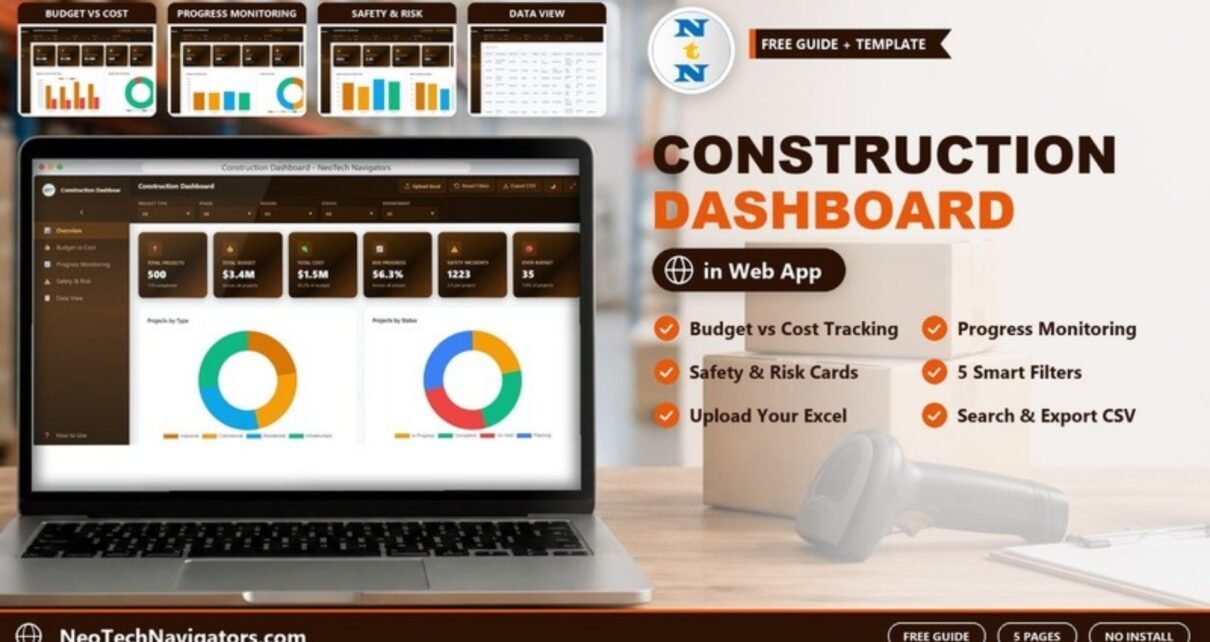
The Construction Dashboard in HTML is a browser-based dashboard for construction portfolios. It opens in Chrome, Edge or Firefox with no software to install and reports on projects, budgets, costs, progress and safety incidents across five pages, with five filters that apply to every chart.
It is aimed at project managers, contractors, construction directors and safety officers who keep project data in a spreadsheet and want a clean, shareable view of it. This guide explains every page using the real figures from the sample data (500 projects), the KPI cards and how they are calculated, and how to load your own projects.
🎥 Watch the Video Tutorial
Get the Construction Dashboard in HTML
What Problem Does It Solve?
Construction data is usually spread across cost sheets, progress reports and safety logs. By the time someone combines them for a monthly review, the numbers are already out of date. This dashboard puts the three views a construction leader needs – money, progress and safety – on one screen, and lets you slice them by project type, phase, region, status and department in a couple of clicks.
Layout and Controls
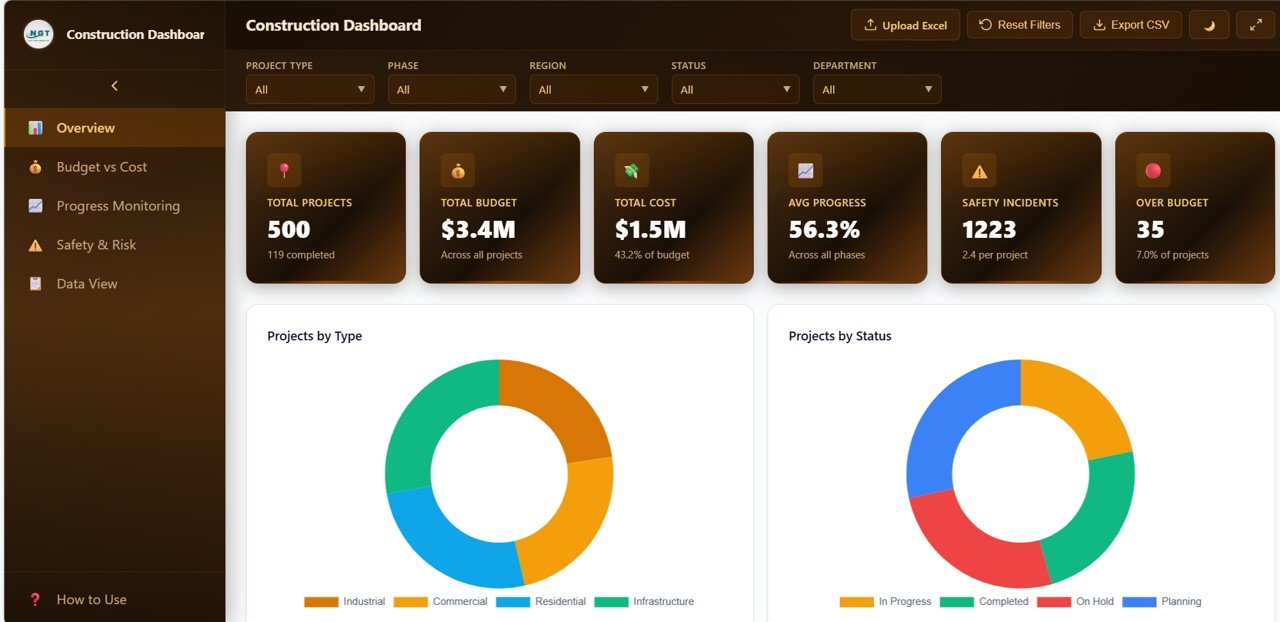
A sidebar on the left switches between the five pages: Overview, Budget vs Cost, Progress Monitoring, Safety & Risk and Data View, plus a How to Use link. Across the top you will find:
- Five filters – Project Type, Phase, Region, Status and Department. Each defaults to All and filters every page.
- Upload Excel – a button for loading your own data file.
- Reset Filters – clears all filters in one click.
- Export CSV – downloads the data.
- A light/dark theme toggle and a full-screen button.
The Five Pages of the Construction Dashboard in HTML
1. Overview
Six KPI cards summarise the portfolio: Total Projects 500 (119 completed), Total Budget $3.4M, Total Cost $1.5M (43.2% of budget), Avg Progress 56.3%, Safety Incidents 1,223 (2.4 per project) and Over Budget 35 (7.0% of projects).
Below them, charts show Projects by Type (Industrial, Commercial, Residential, Infrastructure), Projects by Status (In Progress, Completed, On Hold, Planning), Budget vs Cost by Region, Projects by Region and Monthly Project Count.
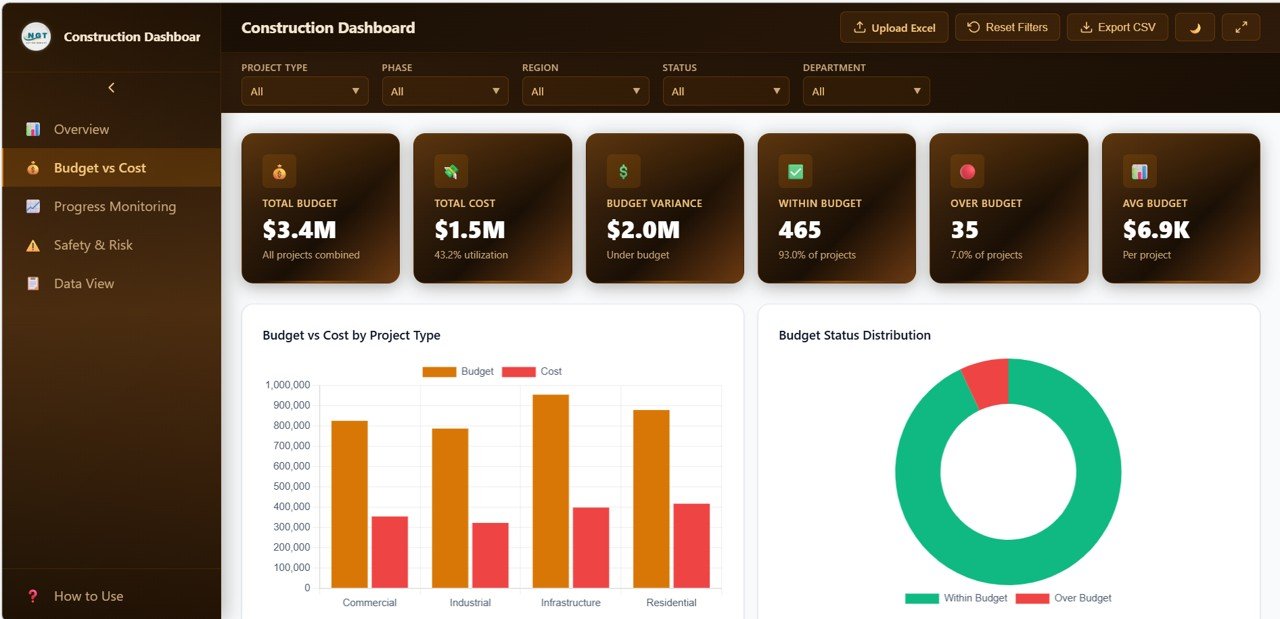
2. Budget vs Cost
The cards here are Total Budget $3.4M, Total Cost $1.5M (43.2% utilization), Budget Variance $2.0M under budget, Within Budget 465 projects (93.0%), Over Budget 35 (7.0%) and Avg Budget $6.9K per project.
Charts: Budget vs Cost by Project Type (Commercial, Industrial, Infrastructure, Residential), Budget Status Distribution (Within Budget vs Over Budget), Budget vs Cost by Department, Cost Incurred by Phase and Monthly Budget vs Cost Trend.
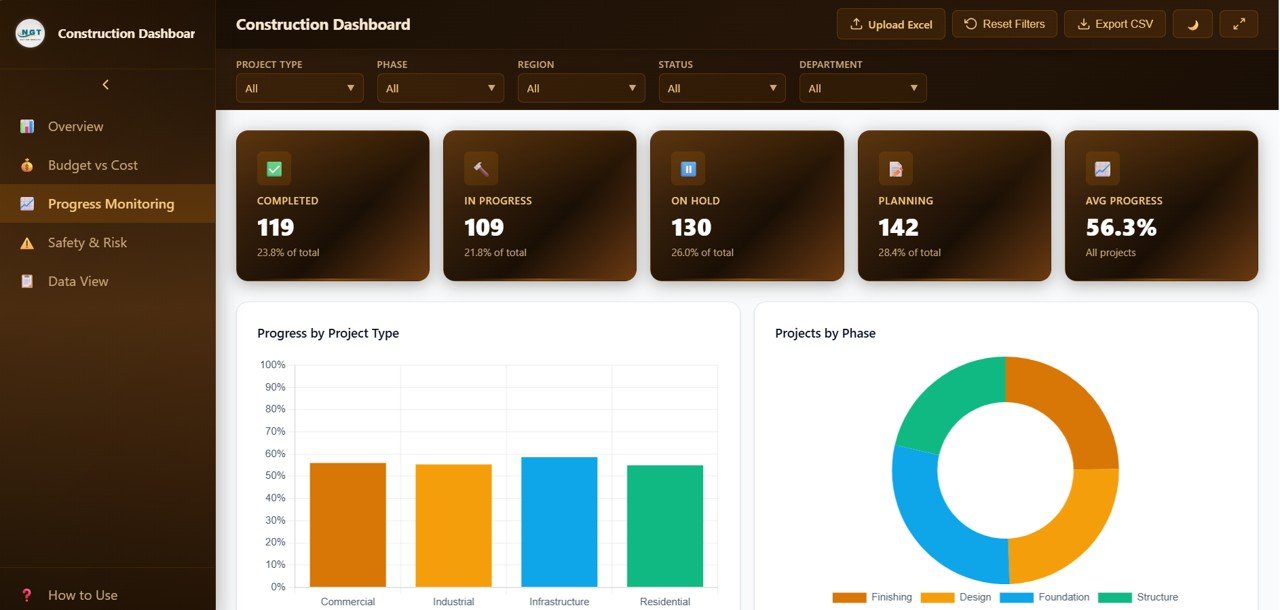
3. Progress Monitoring
Status cards show Completed 119 (23.8%), In Progress 109 (21.8%), On Hold 130 (26.0%), Planning 142 (28.4%) and Avg Progress 56.3%. The four status counts add up to the 500 projects on the Overview.
Charts: Progress by Project Type (all four types sit between roughly 55% and 59% in the sample), Projects by Phase (Design, Foundation, Structure, Finishing), Average Progress by Region, Status Distribution by Department and Monthly Average Progress Trend.
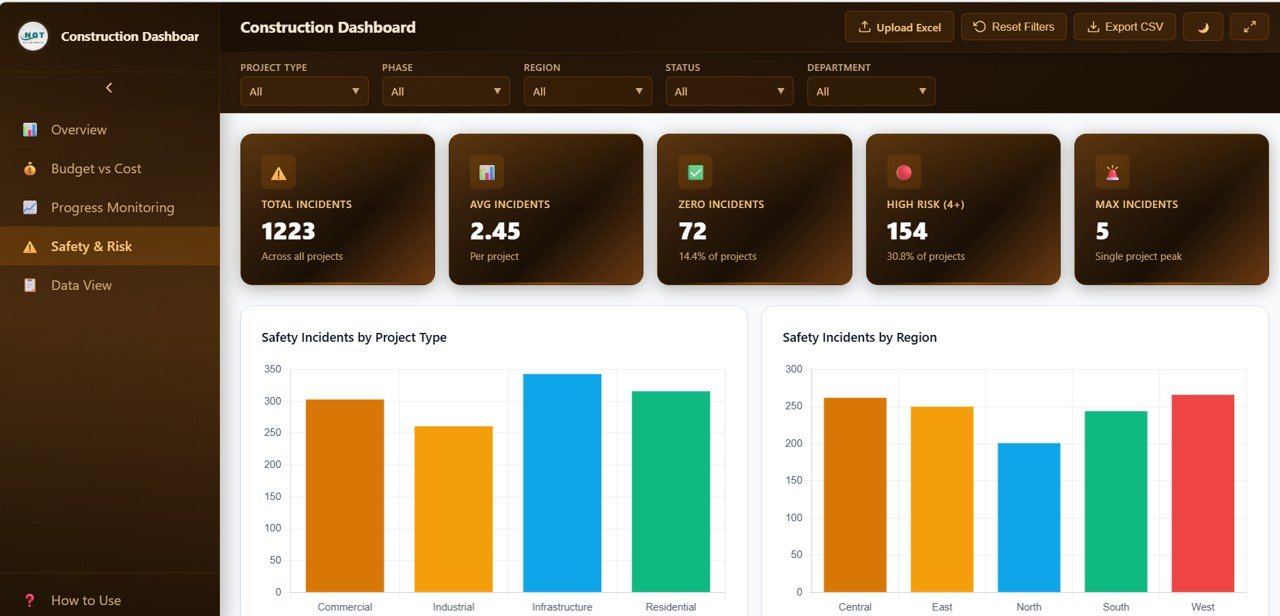
4. Safety & Risk
Cards: Total Incidents 1,223, Avg Incidents 2.45 per project, Zero Incidents 72 projects (14.4%), High Risk (4+) 154 projects (30.8%) and Max Incidents 5 on a single project.
Charts: Safety Incidents by Project Type (Infrastructure is highest in the sample), Safety Incidents by Region (Central, East, North, South, West, with West highest and North lowest), Incident Distribution, Safety Incidents by Department and Monthly Safety Incidents Trend.
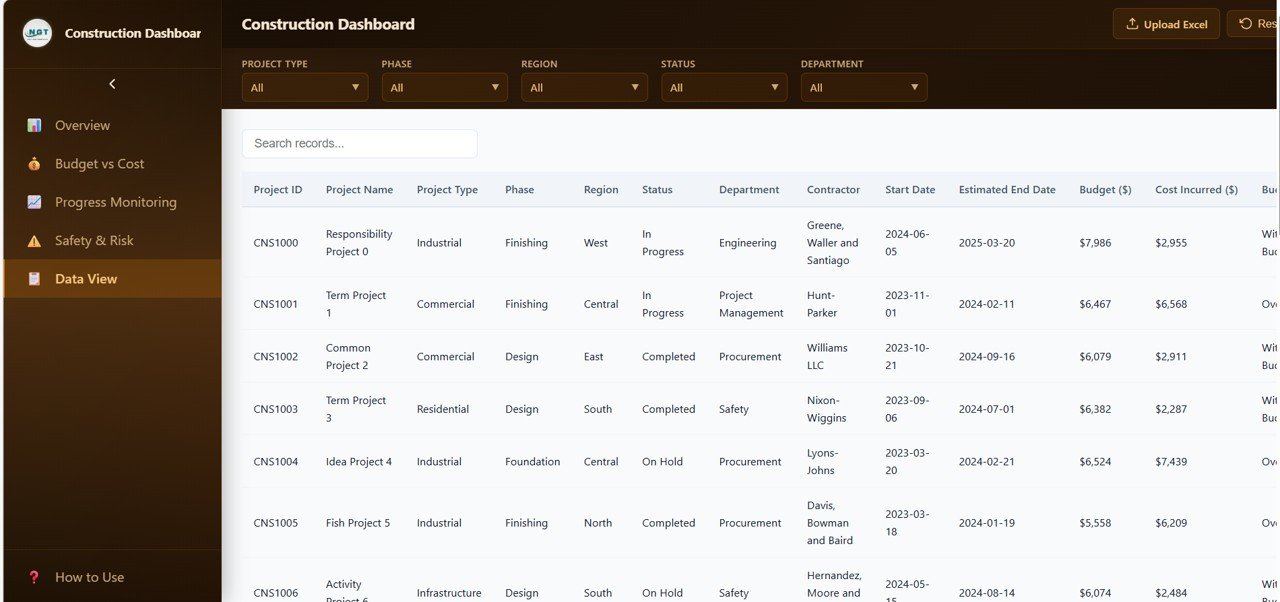
5. Data View
A searchable table of every project with the columns Project ID (CNS1000 …), Project Name, Project Type, Phase, Region, Status, Department, Contractor, Start Date, Estimated End Date, Budget ($), Cost Incurred ($) and budget status. Type in Search records… to find a project, sort by any column, page through results, and use Export CSV to take the filtered list into another tool.
KPI Cards at a Glance
The table below shows how the main cards relate to the data. The percentages reproduce the sample values.
| KPI | What it measures | How it is derived | Better when |
|---|---|---|---|
| Total Projects | Projects in the current filter | Count of Project IDs (500) | – |
| Total Cost (% of budget) | Spend against plan | Total Cost ÷ Total Budget (shown as 43.2%) | In line with progress |
| Over Budget | Projects whose cost exceeds budget | Count; 35 ÷ 500 = 7.0% | Lower |
| Within Budget | Projects at or under budget | Count; 465 ÷ 500 = 93.0% | Higher |
| Avg Progress | Average completion across projects | Average of project progress (56.3%) | Higher |
| Avg Incidents | Safety incidents per project | 1,223 ÷ 500 = 2.45 | Lower |
| Zero Incidents | Projects with no incidents | Count; 72 ÷ 500 = 14.4% | Higher |
| High Risk (4+) | Projects with four or more incidents | Count; 154 ÷ 500 = 30.8% | Lower |
Note that a low cost-to-budget ratio is only good news if progress is also on track: 43.2% of budget spent against 56.3% average progress suggests spending is running behind completion in the sample data.
How to Use It With Your Own Data
- Open the HTML file in a modern browser (Chrome, Edge or Firefox).
- Read the How to Use page in the sidebar for the dashboard’s own instructions.
- Prepare your project list in Excel with the same columns as the Data View (Project ID, Project Name, Project Type, Phase, Region, Status, Department, Contractor, dates, Budget, Cost Incurred and so on).
- Click Upload Excel and load your file.
- Check the Overview: Total Projects should equal your row count.
- Use the filters to review one region, department or phase at a time, then Reset Filters to return to the full portfolio.
- Export CSV from the Data View when you need a filtered list for a meeting or report.
Real-World Use Cases
1. Monthly portfolio review
A construction director filters by region and compares Budget vs Cost and Avg Progress before the monthly board meeting.
2. Safety committee
A safety officer uses the High Risk (4+) card and Safety Incidents by Department chart to decide where to schedule toolbox talks and site inspections.
3. Contractor and phase follow-up
A project controls team filters to the Foundation phase and On Hold status, then searches the Data View by contractor to chase delayed work.
Best Practices
- Update costs and progress on a fixed cycle (weekly or monthly) so trends are comparable.
- Use the same category names for type, phase, region, status and department in every upload.
- Review Over Budget and High Risk (4+) projects first – they are the exceptions that need action.
- Keep a dated copy of each exported CSV as a monthly snapshot.
Limitations
The dashboard reports on the data you load; it does not connect live to scheduling or accounting systems, track tasks or resources, or replace project-control software. Because it is a single HTML file, sharing means sending the file or hosting it on an internal server rather than co-editing it like a spreadsheet. If your team needs to edit the data together, the Google Sheets version may suit you better.
Related Dashboards and Guides
For a spreadsheet-based option, see the Construction Dashboard in Google Sheets. Cost-focused teams can compare it with the Construction Project Cost Dashboard in HTML and the Construction Progress & Cost Control Dashboard. For safety KPIs with targets, read the Construction Safety KPI Dashboard in Google Sheets, and for project-level management the Construction Project Management Dashboard.
Related template: Construction Dashboard in Power BI.
To learn how to design dashboards like this from your own data, the Excel Pivot Tables & Dashboards course on NextGenTemplates Academy walks through summaries, charts and filters step by step.
Frequently Asked Questions
What is the Construction Dashboard in HTML?
A five-page interactive dashboard that runs in a web browser and reports on construction projects, budgets, costs, progress and safety incidents, with filters for project type, phase, region, status and department.
Do I need to install anything?
No. Open the HTML file in a modern browser such as Chrome, Edge or Firefox.
How do I load my own project data?
Use the Upload Excel button at the top of the dashboard, with your columns laid out like the Data View table. The How to Use page in the sidebar has the dashboard’s own instructions.
Which project statuses and phases does it use?
Statuses are In Progress, Completed, On Hold and Planning. Phases are Design, Foundation, Structure and Finishing.
Can I export the data?
Yes. Export CSV downloads the data, and the Data View lets you search, sort and page through records first.
Is there a Google Sheets, Excel or Power BI version?
Yes. NextGenTemplates also offers the Construction Dashboard in Google Sheets, Excel and Power BI.
Wrapping Up
The Construction Dashboard in HTML gives you a fast, install-free view of budget, progress and safety across your whole construction portfolio. Upload your current project list, start with the Over Budget and High Risk cards, and use the filters to take each region or department through the same review.
Get the Construction Dashboard in HTML
📅 Last updated: October 2026