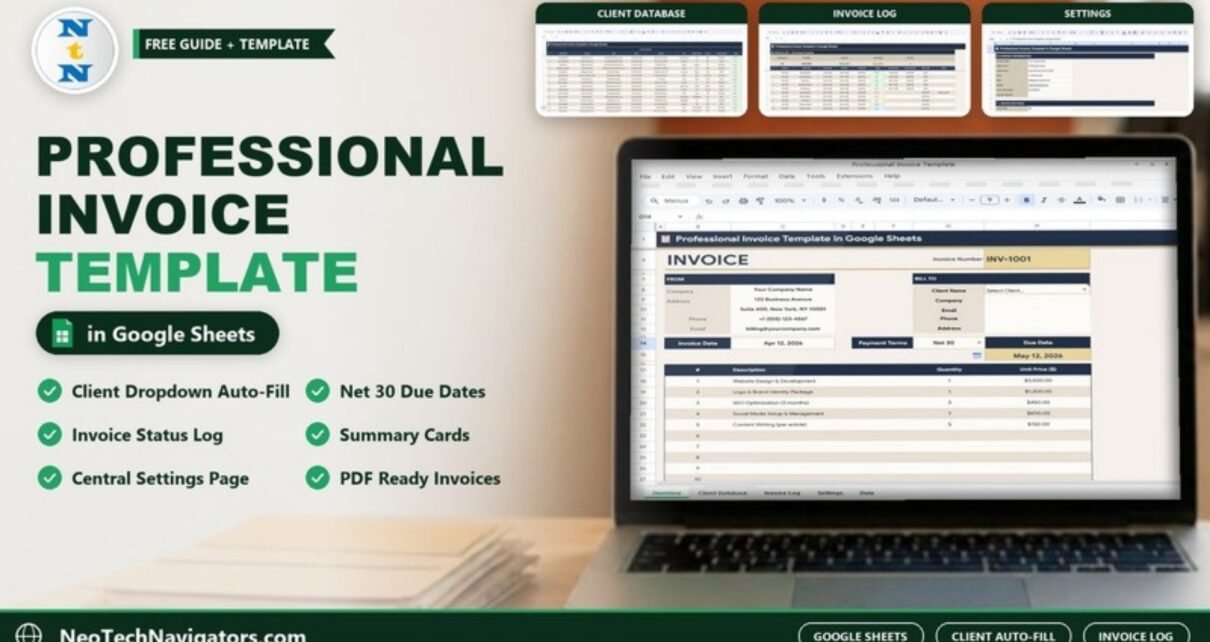
The Professional Invoice Template in Google Sheets gives you a complete billing workbook instead of a single blank invoice page. You pick a client from a dropdown, add your line items, and the invoice fills in the client’s company, email, phone and address for you. A separate log then tracks every invoice from Draft to Paid.
It is built for freelancers, consultants, agencies and small businesses who bill a handful to a few dozen clients a month and want something more organised than a Word file, without paying for accounting software. Inside you get four connected sheets: Invoice, Client Database, Invoice Log and Settings.
This guide walks through each sheet using the sample data that ships with the template, shows the simple formulas behind the numbers, and explains how to set it up with your own clients.
🎥 Watch the Video Tutorial
Get the Professional Invoice Template
What Problem Does This Invoice Template Solve?
Most small businesses start invoicing by copying last month’s document and editing it. That works until you retype a client’s address wrong, reuse an invoice number, or lose track of who has paid. The usual result is a folder of PDFs and no single place that answers “how much am I still owed?”
This template separates the job into three parts. Client details live in one table, so they are typed once. Invoices are created from that table, so they stay consistent. Every invoice is then recorded in a log with its status, payment date and balance, so your receivables are always visible.
The Four Sheets Inside the Template
| Sheet | What it does | Key fields |
|---|---|---|
| Invoice | Builds the printable invoice | Invoice Number, From, Bill To, Invoice Date, Payment Terms, Due Date, line items |
| Client Database | Master list of clients that feeds the dropdown | Client Name, Company, Email, Phone, Address, City, State/Province, Country, Outstanding ($), Status |
| Invoice Log | Tracks every invoice and payment | Five summary cards plus Invoice #, Status, Payment Date, Amount Paid ($), Balance ($), Notes |
| Settings | One place for company and invoice defaults | Company Information, Invoice Settings, Payment Information |
1. Invoice Sheet
The Invoice sheet is the page you send to the client. The top shows a large INVOICE heading and the Invoice Number (INV-1001 in the sample), built from the prefix and next number you set in Settings.
The FROM block shows your Company, Address, Phone and Email, pulled from Settings. The BILL TO block starts with a Client Name dropdown (“Select Client…”). Once you choose a client, Company, Email, Phone and Address fill in from the Client Database.
Below that sit Invoice Date, a Payment Terms dropdown and the Due Date. In the sample the invoice is dated Apr 12, 2026 with Net 30 terms, so the due date shows May 12, 2026 — exactly 30 days later.
The line items table has #, Description, Quantity and Unit Price ($) columns. The sample lines are Website Design & Development (1 × $3,500), Logo & Brand Identity Package (1 × $1,200), SEO Optimization (3 months) (3 × $450), Social Media Setup & Management (1 × $800) and Content Writing (per article) (5 × $150).
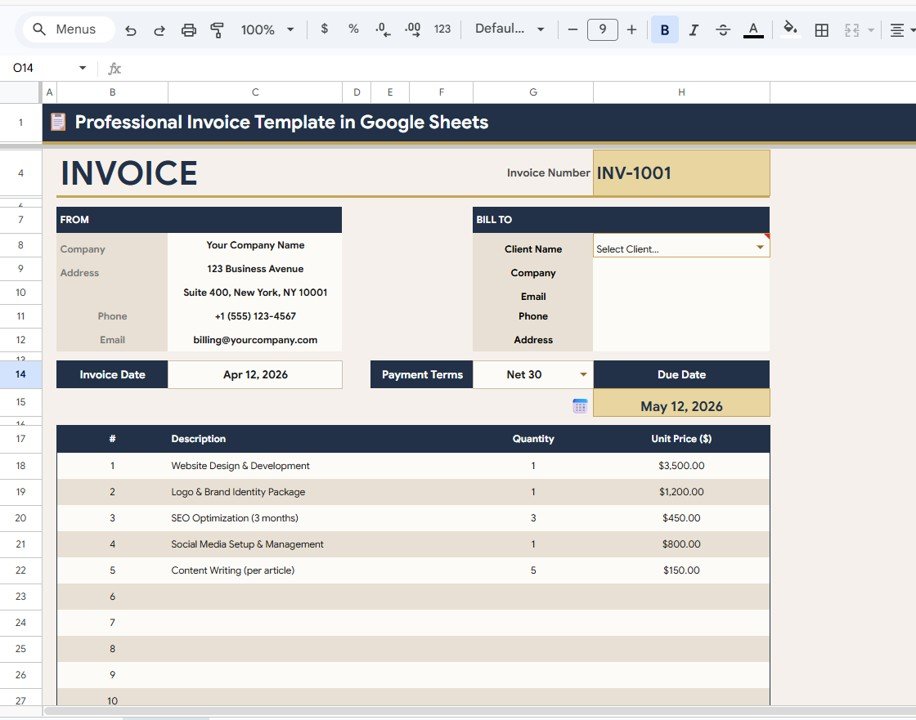
A quick sanity check on the sample lines: Quantity × Unit Price gives $3,500 + $1,200 + $1,350 + $800 + $750 = $7,600 before tax. If you ever want to verify a line yourself, the logic is simply:
Line amount = Quantity * Unit Price
Due Date    = Invoice Date + 30   (for Net 30 terms)
2. Client Database
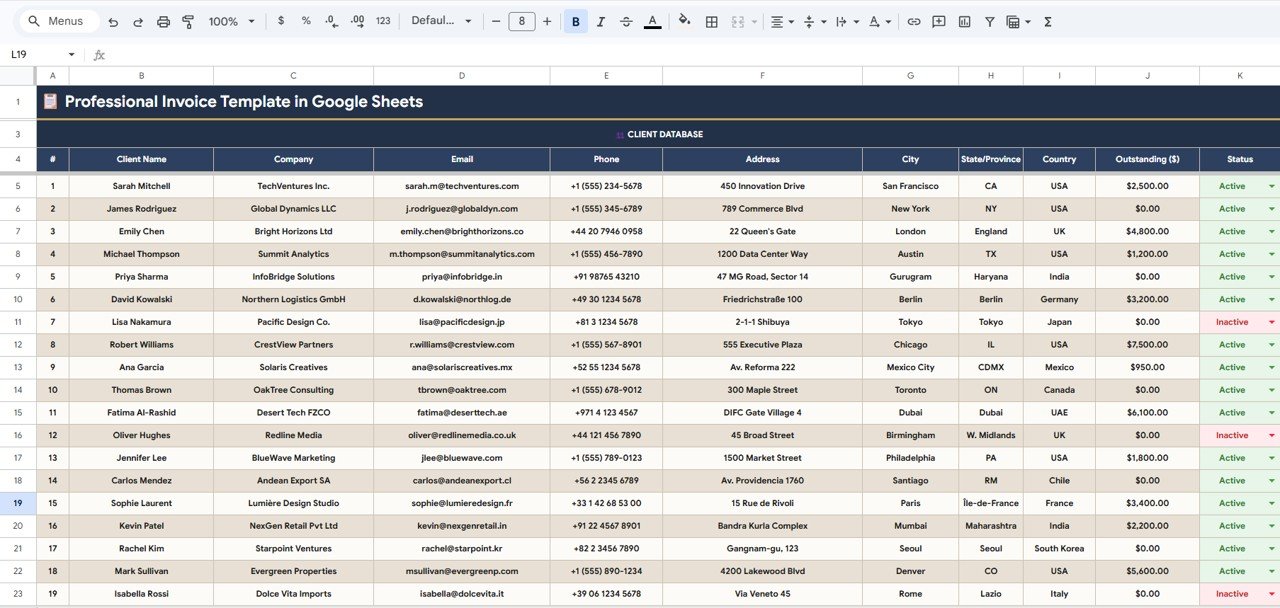
The Client Database is the list the invoice dropdown reads from. Each row holds Client Name, Company, Email, Phone, Address, City, State/Province, Country, Outstanding ($) and a Status dropdown set to Active or Inactive.
The sample includes clients across the USA, UK, India, Germany, Japan, Mexico, Canada, UAE, France, Chile, South Korea and Italy, such as Sarah Mitchell of TechVentures Inc. (San Francisco, $2,500.00 outstanding) and Robert Williams of CrestView Partners (Chicago, $7,500.00 outstanding). Clients you no longer work with, like Lisa Nakamura in the sample, can be marked Inactive instead of deleted, so your history stays intact.
3. Invoice Log — All Invoices Tracking
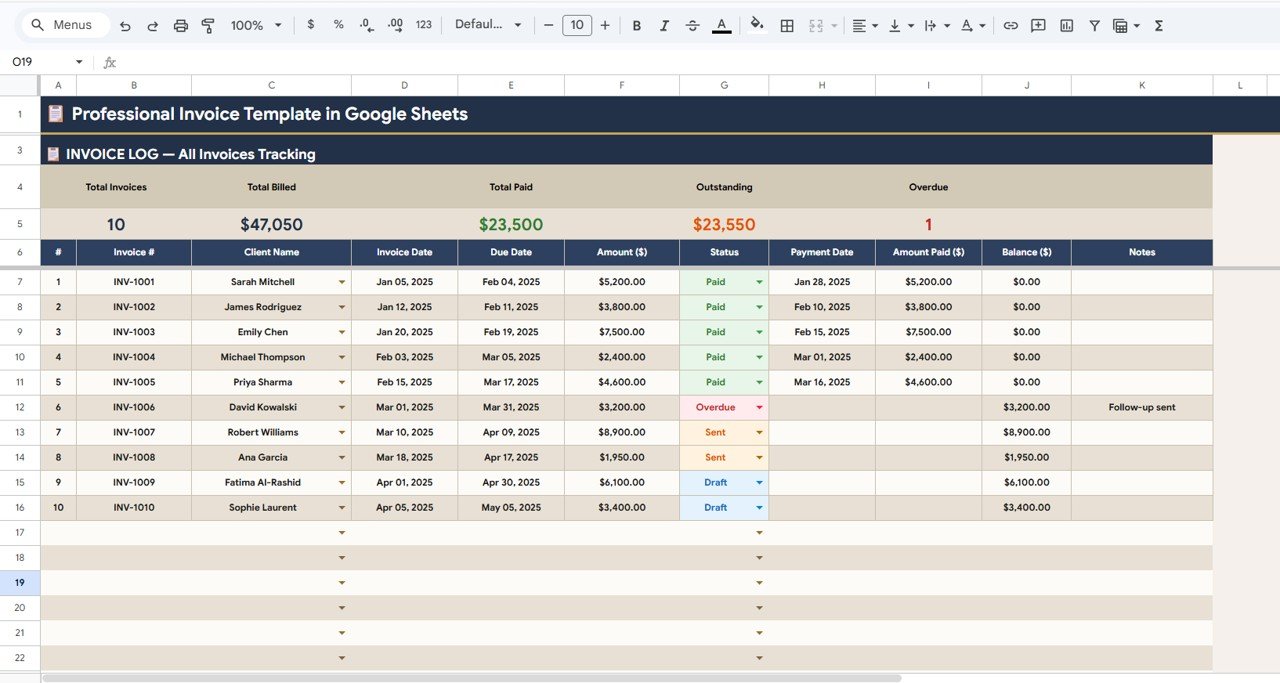
The Invoice Log is where you follow the money. Five summary cards sit at the top: Total Invoices, Total Billed, Total Paid, Outstanding and Overdue. Below them, each invoice row records Invoice #, Client Name, Invoice Date, Due Date, Amount ($), Status, Payment Date, Amount Paid ($), Balance ($) and Notes.
Status is a dropdown with four values: Paid, Overdue, Sent and Draft. In the sample, INV-1006 for David Kowalski is Overdue with the note “Follow-up sent”.
How the Summary Card Numbers Add Up
The sample log has ten invoices (INV-1001 to INV-1010). Here is how each card ties back to the table, so you can trust the numbers when you replace the sample data:
| Card | Sample value | How it is derived |
|---|---|---|
| Total Invoices | 10 | Count of invoice rows |
| Total Billed | $47,050 | Sum of Amount ($) |
| Total Paid | $23,500 | Sum of Amount Paid ($) — the five Paid invoices |
| Outstanding | $23,550 | Sum of Balance ($), i.e. Total Billed − Total Paid |
| Overdue | 1 | Number of invoices with Status = Overdue |
If you want to rebuild the same logic in your own sheet, these Google Sheets formulas give the same results on the sample columns (Amount in F, Status in G, Amount Paid in I, Balance in J):
Balance per row:  =F7-I7
Total Billed:     =SUM(F7:F)
Total Paid:       =SUM(I7:I)
Outstanding:      =SUM(J7:J)
Overdue count:    =COUNTIF(G7:G,"Overdue")
Note that the Overdue card counts invoices; the money still owed on that invoice ($3,200.00 in the sample) is included in Outstanding.
4. Settings
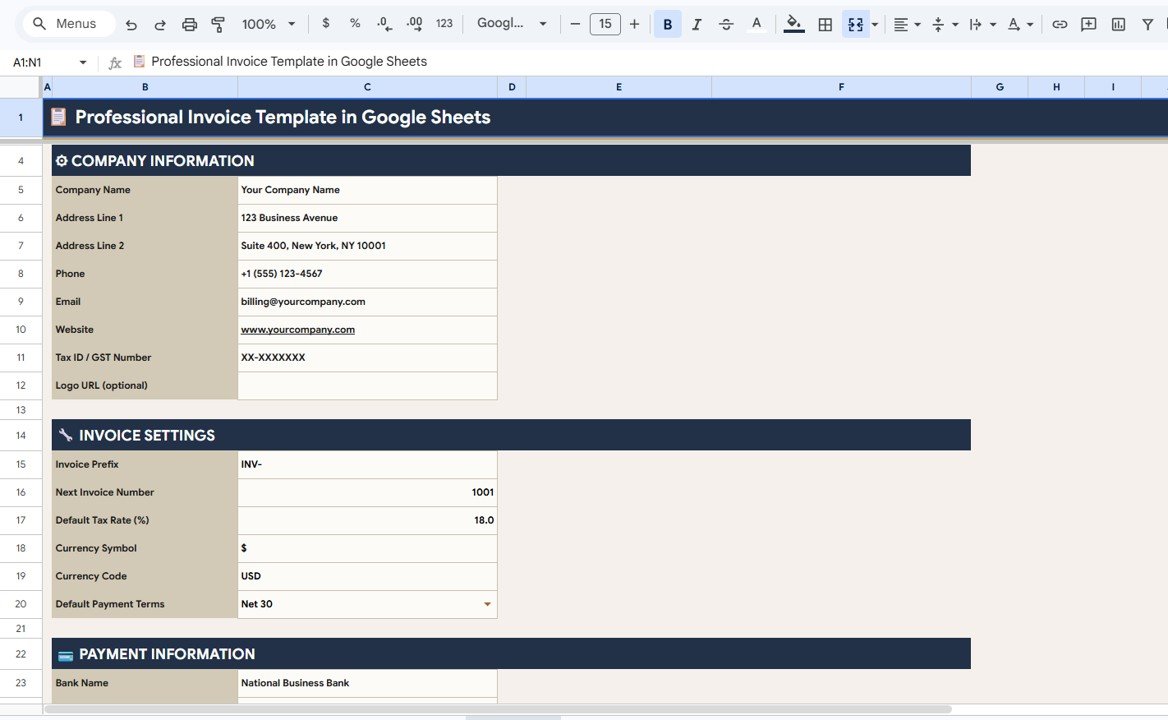
Settings holds everything you would otherwise retype on every invoice. It has three sections:
- Company Information — Company Name, Address Line 1, Address Line 2, Phone, Email, Website, Tax ID / GST Number and Logo URL (optional).
- Invoice Settings — Invoice Prefix (INV-), Next Invoice Number (1001), Default Tax Rate (%) (18.0 in the sample), Currency Symbol ($), Currency Code (USD) and Default Payment Terms (Net 30, chosen from a dropdown).
- Payment Information — starting with Bank Name, so your payment details appear consistently.
How to Use the Template With Your Own Data
- Open your copy in Google Drive and go to Settings. Replace the placeholder company name, address, phone, email, website and Tax ID / GST Number with yours.
- Under Invoice Settings, set your Invoice Prefix, the Next Invoice Number you want to start from, your Default Tax Rate (%), currency symbol and code, and your usual payment terms.
- Go to Client Database, clear the sample rows and enter your clients. Keep names spelled exactly as you want them to appear on invoices.
- Open the Invoice sheet, choose a client from the Client Name dropdown and check that their details fill in.
- Set the Invoice Date and Payment Terms, then add your line items with Description, Quantity and Unit Price.
- Download or print the invoice with File > Download > PDF (or File > Print) and send it to your client.
- Record the invoice in the Invoice Log with status Draft or Sent. When the client pays, change the status to Paid and fill in Payment Date and Amount Paid ($).
- Check the summary cards once a week and follow up on anything Overdue, using the Notes column to record what you did.
Real-World Use Cases
- Freelance designer or developer billing several retainer clients each month, who needs to see at a glance which projects have been paid.
- Small digital agency sending mixed invoices (design, SEO, content) to clients in different countries, with one shared sheet the whole team can open.
- Independent consultant who wants a clean, consistent invoice layout and a running total of outstanding fees before tax season.
Best Practices
- Fill in Settings before creating your first invoice so every invoice starts with the right company details and terms.
- Never reuse an invoice number. Let the prefix and Next Invoice Number drive numbering.
- Update the log the day a payment arrives; stale statuses make the Outstanding card misleading.
- Use the Notes column for reminders sent, partial payments or disputes.
- Rely on File > Version history in Google Sheets if someone overwrites a row by mistake.
Limitations and Who Should Not Use It
This is a spreadsheet invoicing system, not full accounting software. It does not post entries to a general ledger, reconcile bank feeds or file tax returns. Businesses that need multi-currency conversion on a single invoice, automatic payment collection or audited books should use dedicated accounting software alongside or instead of it. If you send hundreds of invoices a month, a database-backed tool will scale better.
Related Guides and Templates
If you prefer to build your own, our guide on creating an invoice calculator in Google Sheets covers the core formulas, and tracking freelance invoices with payment status shows a lighter tracker. For reporting on billing performance, see the Client Billing Dashboard in Google Sheets and the Client Billing & Invoice Management Dashboard. The Invoice Payment Checklist in Google Sheets is useful for the collection side.
Related template: Client Billing & Invoice Management Dashboard in Google Sheets.
If you are new to spreadsheets and want structured lessons before customising templates, the learning paths on NextGenTemplates Academy are a good place to start.
Frequently Asked Questions
How do I make an invoice in Google Sheets?
Set up your company details once, keep a list of clients, and build a page with Bill To fields, dates and line items where each line multiplies quantity by unit price. This template does that for you: choose a client from the dropdown, add line items and download the sheet as a PDF.
Can I change the tax rate and currency?
Yes. The Settings sheet has Default Tax Rate (%), Currency Symbol and Currency Code fields. The sample uses 18.0%, $ and USD, but you can enter any values that match your business.
How does the client auto-fill work?
The Client Name dropdown on the Invoice sheet reads from the Client Database. When you select a name, the Company, Email, Phone and Address fields fill in from that client’s row.
Does the template track overdue invoices?
Yes. Each invoice in the Invoice Log has a Status of Paid, Overdue, Sent or Draft, and the Overdue card shows how many invoices are currently marked Overdue.
How is Outstanding calculated?
Outstanding is the total of the Balance column, where Balance is Amount minus Amount Paid. In the sample, $47,050 billed minus $23,500 paid leaves $23,550 outstanding.
Do I need advanced Google Sheets skills?
No. You only type in Settings, the Client Database, the invoice line items and the log. The layout and calculations are already built.
Wrapping Up
The Professional Invoice Template in Google Sheets brings invoice creation, a client list, payment tracking and company settings into one cloud workbook. Fill in Settings, load your clients and send your first invoice today — then let the Invoice Log tell you exactly who still owes you money.
Get the Professional Invoice Template in Google Sheets
📅 Last updated: October 2026