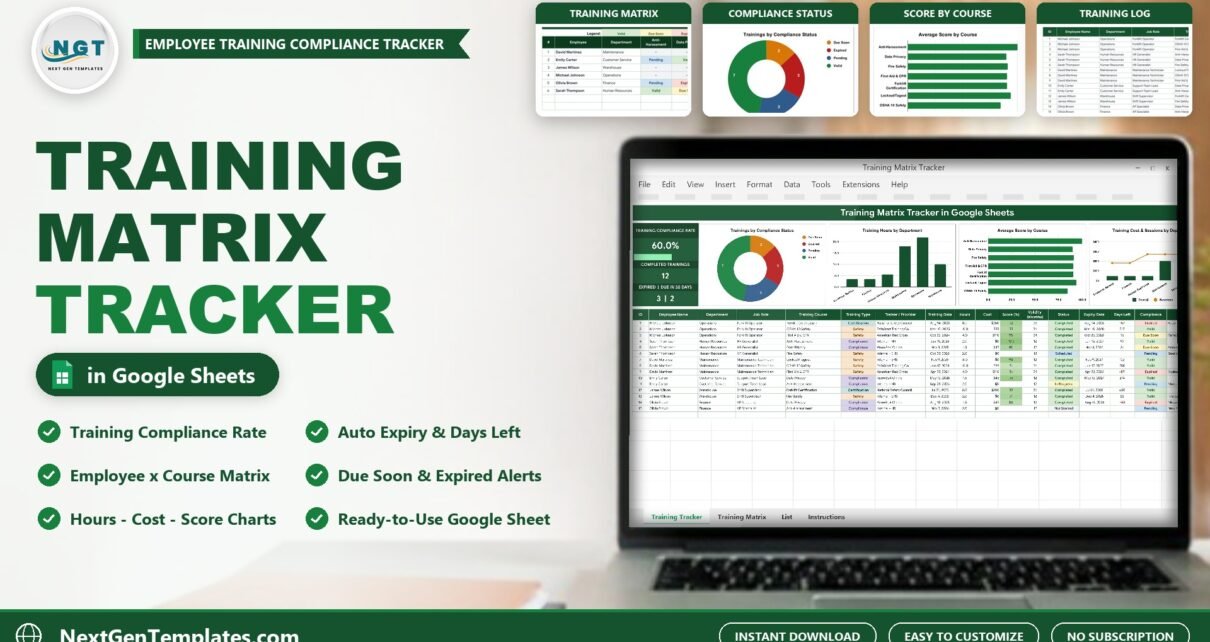
This training matrix template for Google Sheets answers the three questions every HR or safety lead gets asked: who is trained, who is due for a renewal, and whose certificate has already expired. The Training Matrix Tracker in Google Sheets logs every training once, calculates the expiry date, days left and compliance status by itself, and then builds a colour-coded employee x course training matrix from that log. The sample file holds 15 training records for 6 employees across 7 courses, and replacing it with your own records takes about 10 minutes.
Most teams start with a spreadsheet of names and course dates. The trouble is that a plain list never tells you what is about to expire, and building a matrix by hand means retyping the same data twice. This tracker does both jobs from one log, and it stays a Google Sheet you fully control and can share with a link.
Watch the Training Matrix Template in Google Sheets: Employee Training Tracker walkthrough
Get the Training Matrix Tracker in Google Sheets
This belongs to our one-page Google Sheets tracker line: KPI cards and charts at the top, a data-entry log below, plus an automatic matrix tab. It is not a multi-page analytics dashboard. For a broader view of training programmes, read our guide to the Corporate Training Dashboard in Google Sheets.
Key Features of the Training Matrix Template
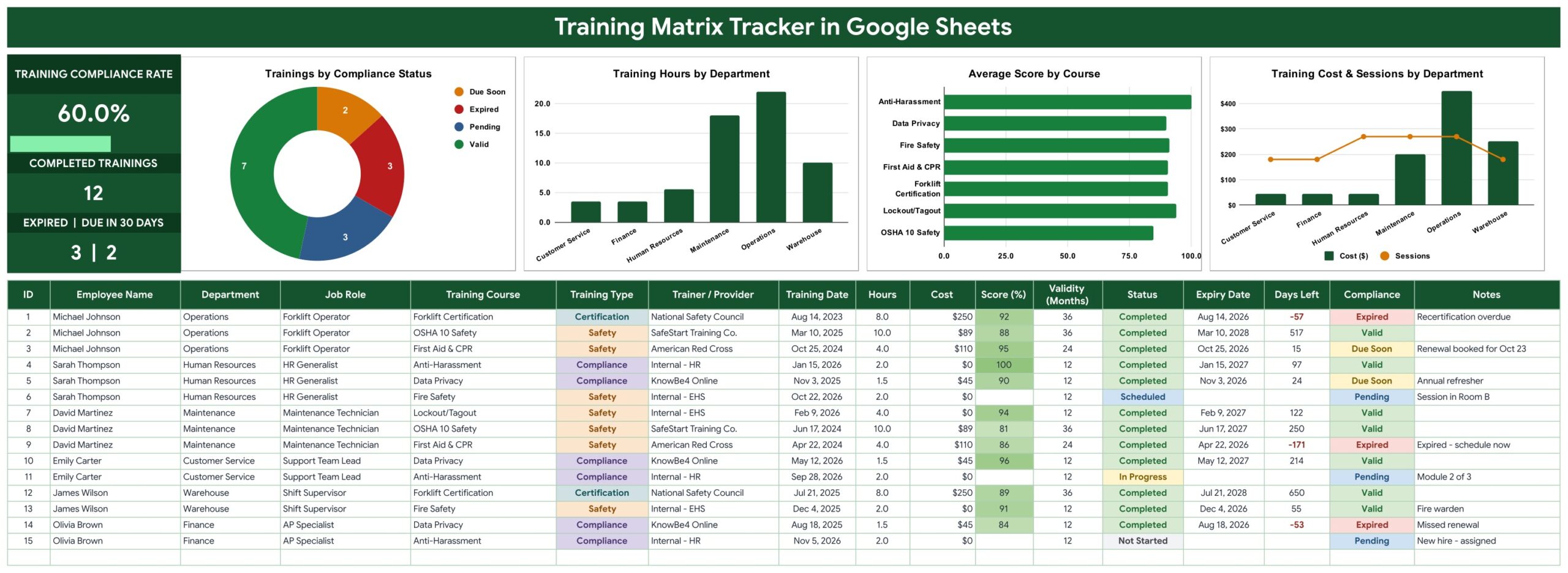
- Training Compliance Rate card. The share of training records that are Valid or Due Soon, with a progress bar under it. In the sample, 9 of 15 records gives 60.0%.
- Completed Trainings card. A live count of records with Status Completed (12 in the sample).
- Expired | Due in 30 Days card. Two numbers side by side, 3 and 2 in the sample, so the renewals that need attention are the first thing you see.
- Automatic expiry and days left. Expiry Date is Training Date plus Validity (Months). Days Left counts down from today and turns negative once a certificate has expired.
- Compliance status. Valid, Due Soon (expires within 30 days), Expired, or Pending for trainings that are not completed yet.
- An employee training matrix that builds itself. One row per employee, one column per course, every cell coloured by compliance and a Compliance % per person.
- Four charts. Trainings by Compliance Status, Training Hours by Department, Average Score by Course and Training Cost & Sessions by Department.
- Dropdowns that grow. Department, Training Course, Training Type and Status read from the List tab, rows 2 to 500. Google explains the mechanism in its help page on in-cell dropdown lists.
Tracker Structure: Every Tab Explained
The Google Sheet has five tabs: Training Tracker, Training Matrix, List, Instructions and Explore More Templates. You receive a PDF with the “Make a copy” link, which creates your own editable version in Google Drive.
Tab 1: Training Tracker (the employee training tracker)
The left column holds the three KPI cards. Beside them, Trainings by Compliance Status is a donut chart splitting every record into Valid (7), Expired (3), Pending (3) and Due Soon (2). Training Hours by Department shows where training time goes; in the sample, Operations and Maintenance take most of the hours because forklift and safety courses are long. Average Score by Course shows how people perform in each assessment, and Training Cost & Sessions by Department puts cost columns and a sessions line in one chart.
Below the charts is the 17-column log: ID, Employee Name, Department, Job Role, Training Course, Training Type, Trainer / Provider, Training Date, Hours, Cost, Score (%), Validity (Months), Status, Expiry Date, Days Left, Compliance and Notes. Training Type uses Certification, Safety and Compliance in the sample, and Status uses Completed, Scheduled, In Progress and Not Started.
How the automatic columns work
- ID: numbered automatically for every filled row.
- Expiry Date: Training Date plus Validity (Months). Leave Validity blank or 0 for a course that never expires.
- Days Left: days from today to the Expiry Date; negative when the certificate has already expired.
- Compliance: only a Completed training counts. Past expiry is Expired, expiring within 30 days is Due Soon, otherwise Valid. Scheduled, In Progress and Not Started rows are Pending.
Tab 2: Training Matrix – Employee x Course Compliance
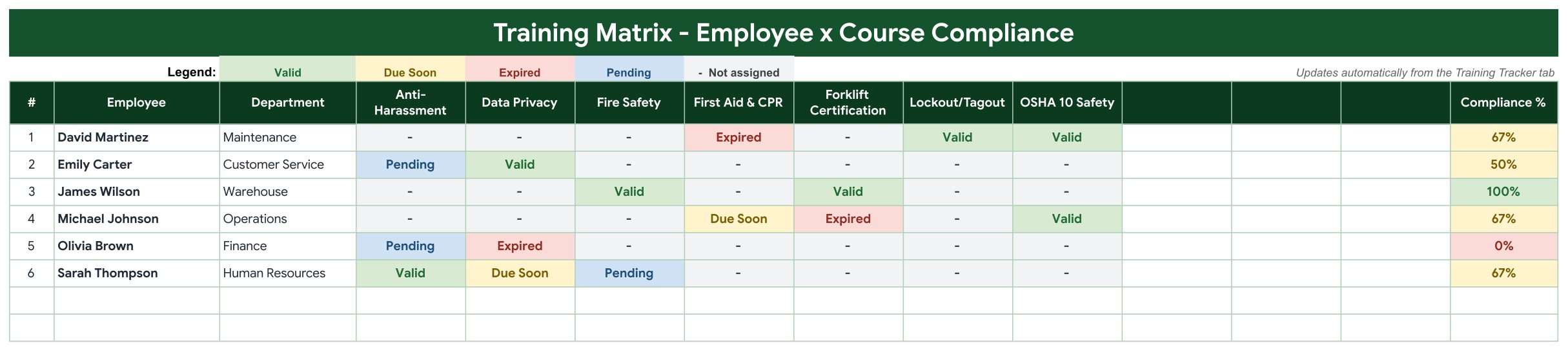
This is the part most people build by hand. Here it builds itself from the Training Tracker tab: Employee and Department on the left, one column per course (Anti-Harassment, Data Privacy, Fire Safety, First Aid & CPR, Forklift Certification, Lockout/Tagout and OSHA 10 Safety in the sample) and a Compliance % on the right. Green is Valid, amber is Due Soon, red is Expired, blue is Pending, and a dash means the course is not assigned to that person. Compliance % is Valid plus Due Soon courses out of assigned courses, so in the sample James Wilson is at 100% and Olivia Brown at 0%. The matrix shows up to 10 courses side by side.
Tab 3: Instructions
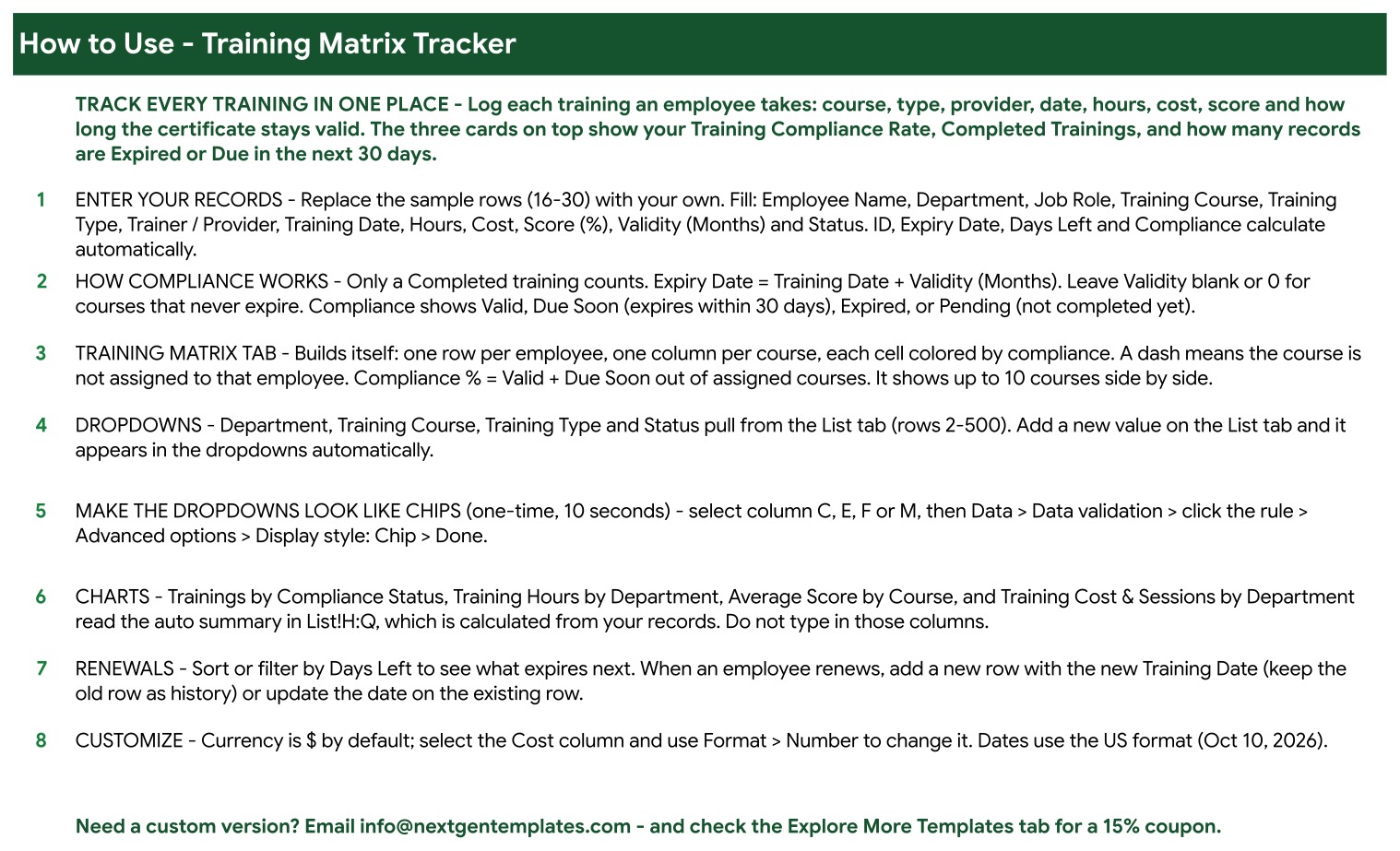
A How to Use page inside the file covers entering records, how compliance works, the matrix tab, the List-tab dropdowns, switching dropdowns to chip style, the charts, renewals and changing the currency.
Tab 4: Explore More Templates
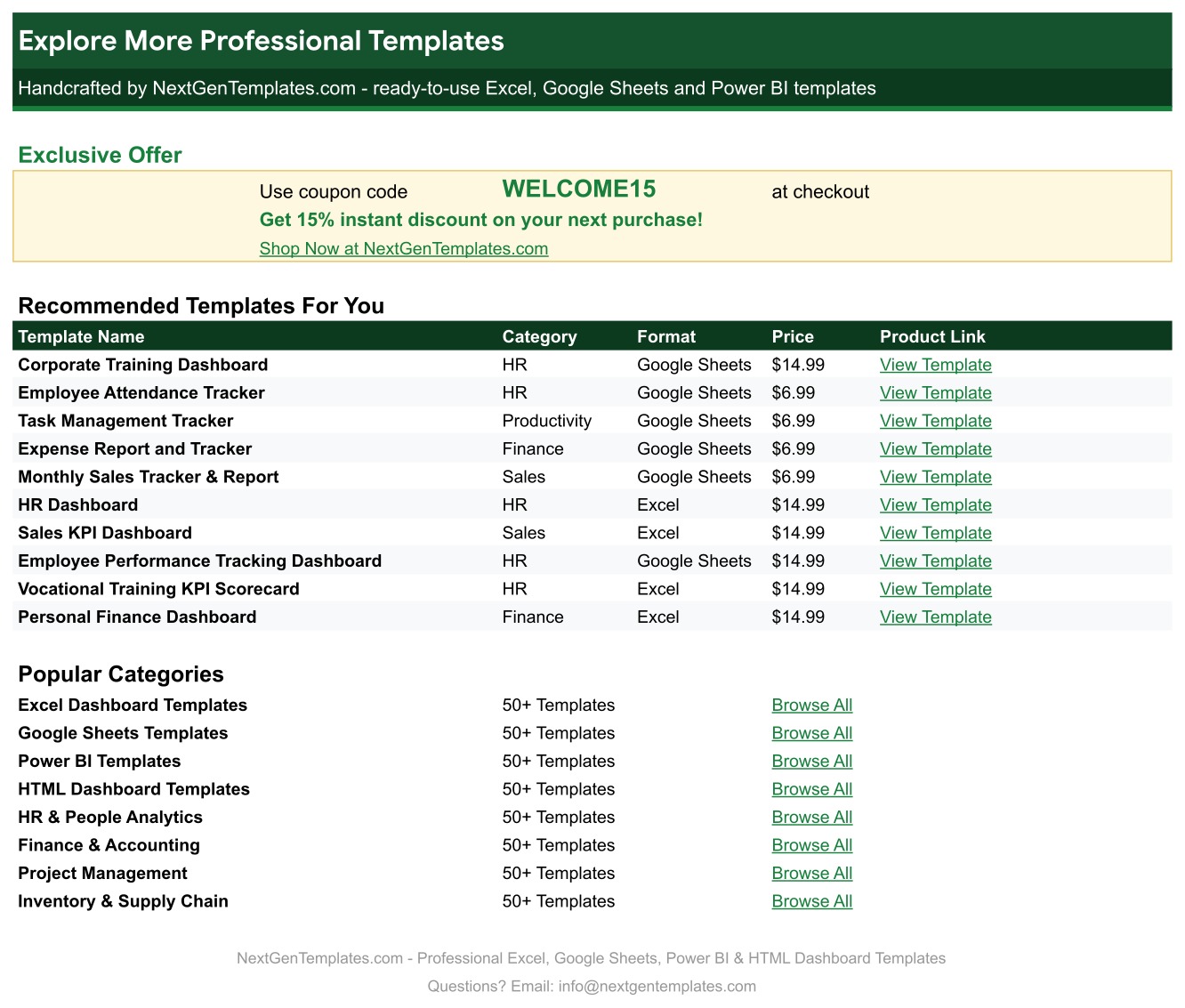
Recommended templates, popular categories and a WELCOME15 coupon for 15% off a future purchase. The List tab, not pictured, holds the Department, Training Course, Training Type and Status values.
Training Matrix Template vs. Excel vs. LMS Software: Feature Comparison
| Feature | Training Matrix Tracker (Google Sheets) | Training matrix in Excel | LMS / training management software |
|---|---|---|---|
| Cost | ✅ One-time payment | One-time, plus an Excel licence | Monthly subscription, usually per user |
| Platform | ✅ Any browser, free Google account | Excel desktop or Microsoft 365 | Web app |
| Setup time | ✅ About 10 minutes | About 10 minutes | Days to weeks |
| Real-time team collaboration | ✅ Google Sheets sharing | Limited outside OneDrive | ✅ Per seat |
| Automatic expiry and days left | ✅ Built in | Build it yourself | ✅ Yes |
| Employee x course matrix | ✅ Builds itself | Often typed by hand | ✅ Yes |
| Customizable fields | ✅ Every column and dropdown | ✅ Yes | Fixed by the vendor |
| Course delivery and quizzes | No, records only | No | ✅ Yes |
For teams that need to know who is trained, who is due and who has expired, without paying for a full LMS, this tracker sits in the sweet spot.
Who Should Use This Template
Perfect for:
- HR teams and office managers tracking mandatory training
- Safety coordinators managing certificates such as forklift, first aid, fire safety and lockout/tagout
- Team leads who want an employee training tracker they can share with a link
- Anyone searching for a training tracker template before committing to an LMS subscription
Not a fit if:
- You need to deliver online courses, quizzes or e-signatures
- You need certificates synced automatically from an external provider, or automatic email reminders
How to Set Up the Training Matrix Template
- Open the PDF from your download and click the link to make your own copy.
- Review the Department, Training Course, Training Type and Status lists on the List tab.
- Replace sample rows 16 to 30 with your records. ID, Expiry Date, Days Left and Compliance fill themselves.
- Open the Training Matrix tab: every employee and course appears automatically.
- Each week, sort or filter by Days Left and book the Due Soon and Expired renewals.
- When someone renews, add a new row with the new Training Date to keep the history, or update the date on the existing row.
Real-World Use Cases
A warehouse safety coordinator with 40 staff logs forklift, first aid and fire safety certificates. A Monday sort by Days Left shows what expires this month, so renewals are booked before a certificate lapses.
An HR generalist preparing for an audit opens the Training Matrix tab. In one view she sees who is at 100% and who still has Pending or Expired courses, and the Compliance % column becomes her follow-up list.
A maintenance manager planning next year’s budget compares Training Hours by Department with Training Cost & Sessions by Department to see where training money and time actually go.
Advantages of the Training Matrix Tracker
- One log, two views. Enter a training once and both the tracker and the matrix update.
- No expiry maths. Expiry dates and days left are calculated for you, and the colours make overdue items obvious.
- Audit-friendly history. Keep old rows when someone renews, so you can show when each course was completed.
- Fully editable. Add courses, departments and training types on the List tab without touching a formula.
Opportunities for Improvement
- No email reminders. The tracker flags Due Soon and Expired items but does not send messages.
- Ten-course matrix. The matrix shows up to 10 courses side by side; larger catalogues need a second copy or a filtered view.
- Manual entry. Records are typed or pasted; there is no sync with a training provider.
Best Practices
- Set Validity (Months) for every course that needs a refresher, so expiry is calculated.
- Use the Status dropdown honestly: only Completed trainings count towards compliance.
- Keep course names consistent through the List tab so the matrix groups them correctly.
- Review Days Left weekly and note booked renewals in the Notes column.
Explore Relevant Templates
- Corporate Training Dashboard in Google Sheets: multi-page training analytics.
- Vocational Training Dashboard in Google Sheets: see our Vocational Training Dashboard guide.
- Employee Performance Tracking Dashboard in Google Sheets: pair training with performance.
- Training Schedule Request Tracker in Excel: collect and schedule training requests.
If you would like to get better at building trackers like this one, the NextGenTemplates Academy learning paths cover the spreadsheet skills step by step, with practice files.
Frequently Asked Questions
What is a training matrix template?
A training matrix is a grid of employees against courses that shows who has completed which training and whether it is still valid. This training matrix template builds that grid automatically from your training log in Google Sheets.
How is compliance calculated?
Only Completed trainings count. A record past its expiry date is Expired, one expiring within 30 days is Due Soon, otherwise it is Valid. Not-yet-completed trainings show as Pending. Each employee’s Compliance % is Valid plus Due Soon courses out of their assigned courses.
Does the status update by itself?
Yes. Days Left counts from today, so a Valid certificate becomes Due Soon and then Expired as the date passes, without you editing the row.
How many courses can the matrix show?
Up to 10 courses side by side. The sample uses 7, leaving three columns ready for new courses.
Can several people use the employee training tracker at once?
Yes. It is a normal Google Sheet, so you can share it with edit or view access and everyone sees the same live data.
Can I change the currency?
Yes. Currency is US dollars by default. Select the Cost column and choose Format, Number to switch to any other currency.
About the Author
Built by PK, Microsoft Certified Professional with 15+ years of Excel, Google Sheets and Power BI experience. Founder of NextGenTemplates, reaching 300K+ subscribers across YouTube channels. Every template is hand-built and tested before release.
Conclusion
If your training records live in a spreadsheet today, this training matrix template turns them into live compliance figures, automatic expiry dates and a colour-coded employee x course matrix, without a subscription. Log each training once and let the tracker do the rest.
Get the Training Matrix Tracker in Google Sheets
✅ Instant download · One-time payment · No subscription
Last updated: October 2026