This attendance sheet template in Google Sheets gives you a ready monthly register: pick the month start date, mark each day with a dropdown, and the sheet counts Present, Leave and Absent days for every employee and for the whole team. It suits small businesses, team leads, HR staff, coaching centres and schools that want something simpler than an HR system.
Below you will see how the sheet is laid out, a worked example using the real sample data, the formulas behind the counts, and how to set it up with your own names.
🎥 Watch the Video Tutorial
Get the Attendance Sheet Template
Inside the Attendance Sheet Template in Google Sheets
Month Start Date
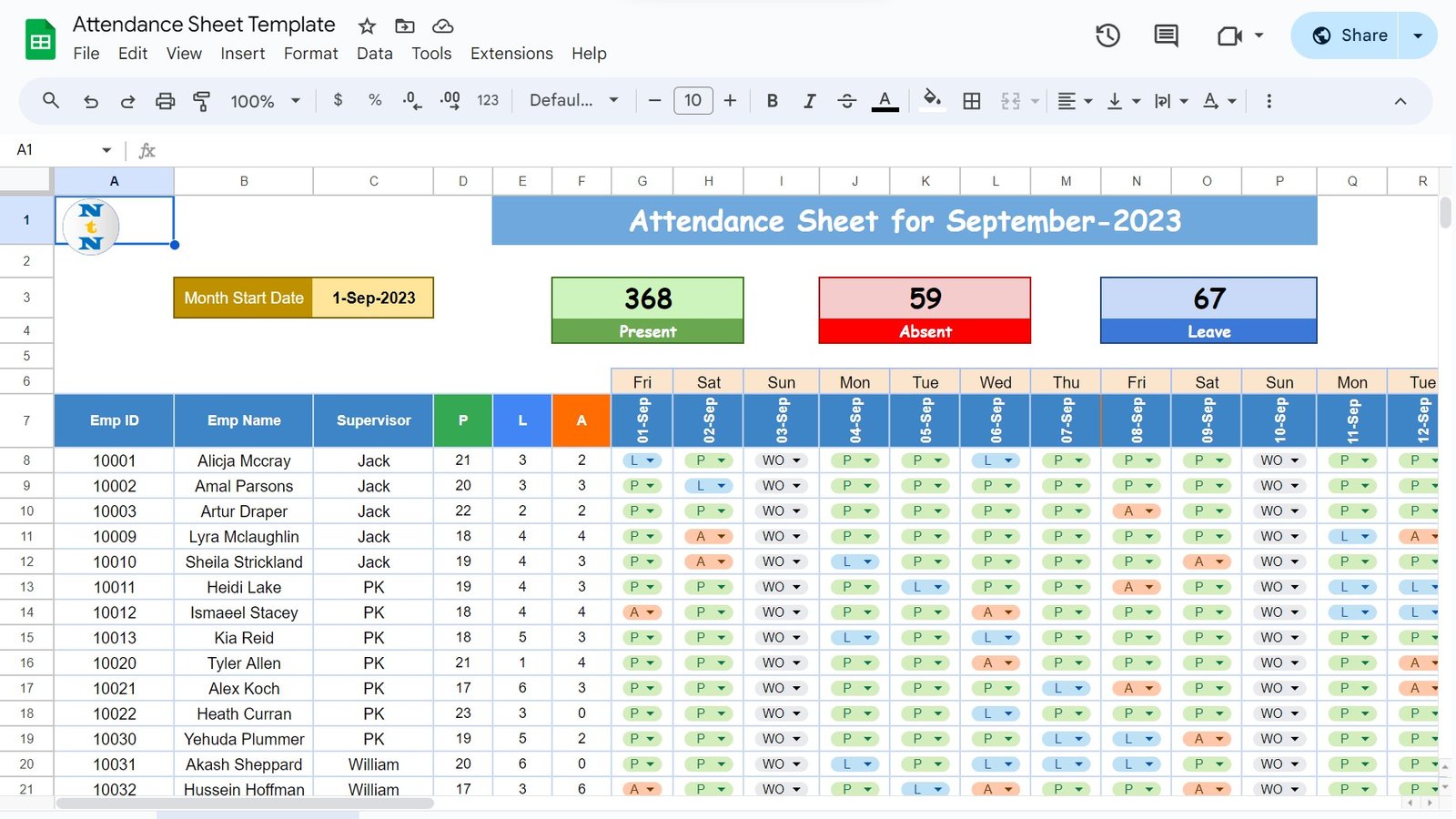
Cell C3, labelled Month Start Date, holds the first date of the month (1-Sep-2023 in the sample). The dates and day names across the grid follow this cell, so changing it sets up a new month.
Team totals: Present, Absent, Leave
Three summary boxes at the top show the total number of days marked Present, Absent and Leave for everyone in the sheet. For September 2023 the sample shows 368 Present, 59 Absent and 67 Leave. Together that is 494 marked days, which matches 19 employees (rows 8 to 26) × 26 working days.
Employee details
The header row (row 7) has Emp ID, Emp Name and Supervisor, followed by three count columns: P (present), L (leave) and A (absent). In the sample, supervisors are Jack, PK and William, which makes it easy to filter a team.
Daily grid
Columns G to AK cover up to 31 days. Row 6 shows the day name (Fri, Sat, Sun…) and row 7 shows the date (01-Sep, 02-Sep…). Each cell under a date has a dropdown with four codes:
| Code | Meaning | Counted in |
|---|---|---|
| P | Present | P column and Present total |
| L | Leave | L column and Leave total |
| A | Absent | A column and Absent total |
| WO | Week Off | Not counted as present, leave or absent |
Each code has its own colour (green for P, blue for L, orange for A, grey for WO), so patterns such as repeated absences are visible at a glance.
Worked Example from the Sample
September 2023 has 30 days and four Sundays. In the sample, the Sundays are marked WO (you can see 3 and 10 September in the screenshot), and every employee’s P + L + A comes to 26, which is 30 days minus the four week offs. Here are three employees from the sheet:
| Emp ID | Emp Name | Supervisor | P | L | A | P + L + A |
|---|---|---|---|---|---|---|
| 10001 | Alicja Mccray | Jack | 21 | 3 | 2 | 26 |
| 10022 | Heath Curran | PK | 23 | 3 | 0 | 26 |
| 10031 | Akash Sheppard | William | 20 | 6 | 0 | 26 |
For each person, P + L + A adds up to the 26 working days, which is a quick way to check that no day was left blank. If you want an attendance percentage, add a column with =D8/(D8+E8+F8); for Alicja Mccray that is 21 ÷ 26 = 80.8%. (This percentage column is an optional add-on, not part of the sample layout.)
The Formulas Behind the Counts
You can reproduce the template’s logic with a few standard functions. These assume the first employee is in row 8 and the daily grid runs from G to AK.
Count P, L and A for one employee
=COUNTIF($G8:$AK8,"P")
=COUNTIF($G8:$AK8,"L")
=COUNTIF($G8:$AK8,"A")
Team totals
=SUM(D8:D26)
=COUNTIF(G8:AK26,"A")
Either approach works: add up the per-employee columns, or count the codes in the whole grid.
Dates and day names from the Month Start Date
G7:  =$C$3
H7:  =IF(G7="","",IF(MONTH(G7+1)=MONTH($C$3),G7+1,""))
G6:  =IF(G7="","",TEXT(G7,"ddd"))
The IF check stops the dates at the end of the month, so a 30-day month leaves the last column empty.
How to Use It with Your Own Data
- Make your own copy with File > Make a copy.
- Type the first date of the month in C3.
- Replace the sample Emp ID, Emp Name and Supervisor values with your team. Insert rows inside the range if you have more people, so the formulas extend.
- Mark weekly offs as WO first, then mark each working day as P, L or A from the dropdown.
- Check the P, L and A columns at month end, then duplicate the tab for the next month and change C3.
Real-World Use Cases
- Small office or shop: a supervisor marks the team daily and shares the sheet with the owner for payroll.
- Classroom or coaching batch: replace Emp ID with roll numbers and Supervisor with the batch or section.
- Field or site teams: each supervisor updates their own rows from a phone using the Google Sheets app.
Best Practices
- Update the sheet the same day; filling a month from memory leads to errors.
- Use only the dropdown codes. A typed “p ” with a space will not be counted.
- Protect the header rows and formula columns with Data > Protect sheets and ranges.
- Keep one tab per month so past months stay unchanged.
Limitations
- It records day-level status, not check-in and check-out times. For hours worked, see the guide below.
- Half-days and late marks are not separate codes in the sample; you can add them to the dropdown list and a matching COUNTIF.
- Very large teams (hundreds of employees across many sites) are better served by a dedicated HR or biometric system.
For other ways to track attendance, see the attendance sheet with checkboxes to count workdays, the weekly attendance sheet in Google Sheets and how to track employee leave days in Google Sheets. For a visual summary, the employee attendance dashboard turns attendance data into charts.
If you want to get comfortable with COUNTIF, TEXT and date formulas like the ones above, the Excel AI Mastery: 100 Formulas course on NextGenTemplates Academy walks through them with examples.
Related templates: Attendance Tracker in Google Sheets · Employee Attendance Dashboard in Google Sheets
Frequently Asked Questions
How do I make an attendance sheet in Google Sheets?
Put names in rows and the month’s dates in columns, add a dropdown with codes such as P, L, A and WO, and count each code per row with COUNTIF. This template has that structure ready.
Can I use this template for students?
Yes. Replace Emp ID with roll numbers and Supervisor with the class or section. The P, L, A and WO codes work the same way.
How do I change the month?
Type the first date of the new month in cell C3; the dates and day names in the grid follow it. Duplicate the tab first if you want to keep the previous month.
Is Week Off counted as absent?
No. WO days are not counted in the P, L or A columns. In the sample, each employee’s P + L + A equals 26, the 30 days of September 2023 minus four week offs.
Can I add half-day or late codes?
Yes. Edit the dropdown in Data > Data validation, add the new code, and add a COUNTIF column for it.
Can several people update the sheet together?
Yes. Share it from the Share button; edits appear in real time and the version history shows who changed what.
Wrapping Up
A monthly grid with four codes and a few COUNTIF formulas covers what most small teams need from an attendance register. Set the month start date, add your team, and mark today’s attendance.
Get the Attendance Sheet Template
📅 Last updated: October 2026