Do you need an easy way to calculate overtime pay in Google Sheets? Whether you’re handling payroll or just organizing your own time tracking, this guide will make calculating overtime simple. In this article, we’ll walk through a clear example, covering the formulas step-by-step so you can use them right away!
Get the Employee Overtime Request Tracker in Google Sheets
Why Calculate Overtime Pay in Google Sheets?
Using Google Sheets for payroll and time management can save time and reduce errors, especially when calculating overtime. By automating calculations, you’ll spend less time on manual work and get accurate results each time. So, let’s get started!
Example Data Setup
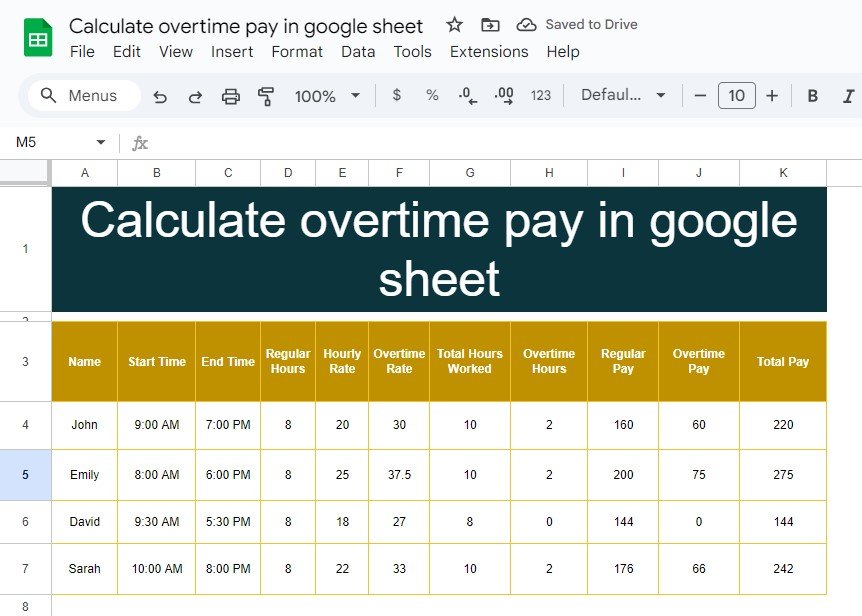
To demonstrate how to calculate overtime pay, we’ll use the following data. This table includes each employee’s start time, end time, regular hours, hourly rate, and overtime rate. Here’s what our sample data looks like:
Now, let’s go through the calculations step-by-step.

Step-by-Step Solution with Formulas
We’ll use three simple formulas to calculate regular pay, overtime pay, and total pay in Google Sheets.
-
Calculate Regular Pay
The Regular Pay is based on regular hours worked and the hourly rate. To make sure we’re only counting up to the regular hours allowed, we’ll use this formula:
=MIN(Total Hours Worked, Regular Hours) * Hourly Rate
Explanation:
MIN(Total Hours Worked, Regular Hours) ensures that if an employee worked more than the regular hours (e.g., 8), only the allowed regular hours are used to calculate regular pay.
Then, this value is multiplied by Hourly Rate to get the regular pay.
Example Calculation: For John, who worked 10 hours but has 8 regular hours, the formula will look like this:
=MIN(10, 8) * 20
Result: $160 for regular pay.

-
Calculate Overtime Pay
Overtime pay is based on any hours worked beyond regular hours, which we multiply by the overtime rate. Here’s the formula:
=Overtime Hours * Overtime Rate
Explanation:
Overtime Hours is the difference between Total Hours Worked and Regular Hours.
We multiply overtime hours by Overtime Rate to calculate the additional amount for overtime.
Example Calculation: For John, who worked 2 overtime hours at a $30 rate, the formula would be:
=2 * 30
Result: $60 for overtime pay.

-
Calculate Total Pay
Finally, to find the Total Pay (regular pay plus overtime pay), use this simple addition formula:
=Regular Pay + Overtime Pay
Example Calculation: For John, who has a regular pay of $160 and overtime pay of $60, the formula would look like this:
=160 + 60
Result: $220 total pay.

Summary of Results
As you can see, Google Sheets calculates each employee’s pay accurately, separating regular and overtime hours.
Tips to Make Your Overtime Calculations Easier
Here are a few quick tips to keep in mind while working in Google Sheets:
- Drag the formula down: After entering the formula in one cell, click the cell’s corner and drag down to apply it to all employees.
- Double-check rates: Make sure overtime rates and hourly rates are entered correctly.
- Use cell references: Instead of typing numbers directly, use cell references to ensure calculations are dynamic and update automatically.
By following these steps, you’ll have a fast and efficient method to calculate overtime pay. Plus, you’ll save time on manual entries and ensure consistent, error-free payroll calculations.
Want to build skills like this step by step? The Excel AI Mastery: 100 Formulas course on NextGenTemplates Academy walks you through it with practice files.
Get the Employee Overtime Request Tracker in Google Sheets
View this post on Instagram
Follow along with the free practice file by making your own copy of this template.