The Subscription Box Dashboard in Google Sheets turns one order table into a full reporting suite: 4 interactive analysis pages, each with its own row of KPI cards and slicers, 15 pre-built charts, an order Search sheet and a single Data sheet for input. Setup takes under 10 minutes, and the template costs $9.99 as a one-time purchase instead of $39–$119 per month for platform analytics.
Most subscription box founders run their numbers across order exports, payment reports and a half-finished spreadsheet — which makes simple questions like “which plan actually earns more?” surprisingly hard to answer. This dashboard answers them in a browser tab that any team member can open.
🎥 Watch the Video Tutorial
Get the Subscription Box Dashboard
Key Features of the Subscription Box Dashboard in Google Sheets
- Headline KPI cards — the Overview page shows Total Revenue, Boxes Shipped, Active Subscriptions and Avg Order Value, and every other analysis page adds its own four cards (for example Total Discounts, New vs Returning Revenue and Churn Rate).
- 15 pre-built charts across 4 pages — covering revenue by box type, plan, region, channel and month, plus order mix, new vs returning customers and subscription status.
- Four slicers on every page — filter by Year plus page-specific fields such as Box Type, Plan, Region, Channel, Customer Type or Status, with no formulas to touch.
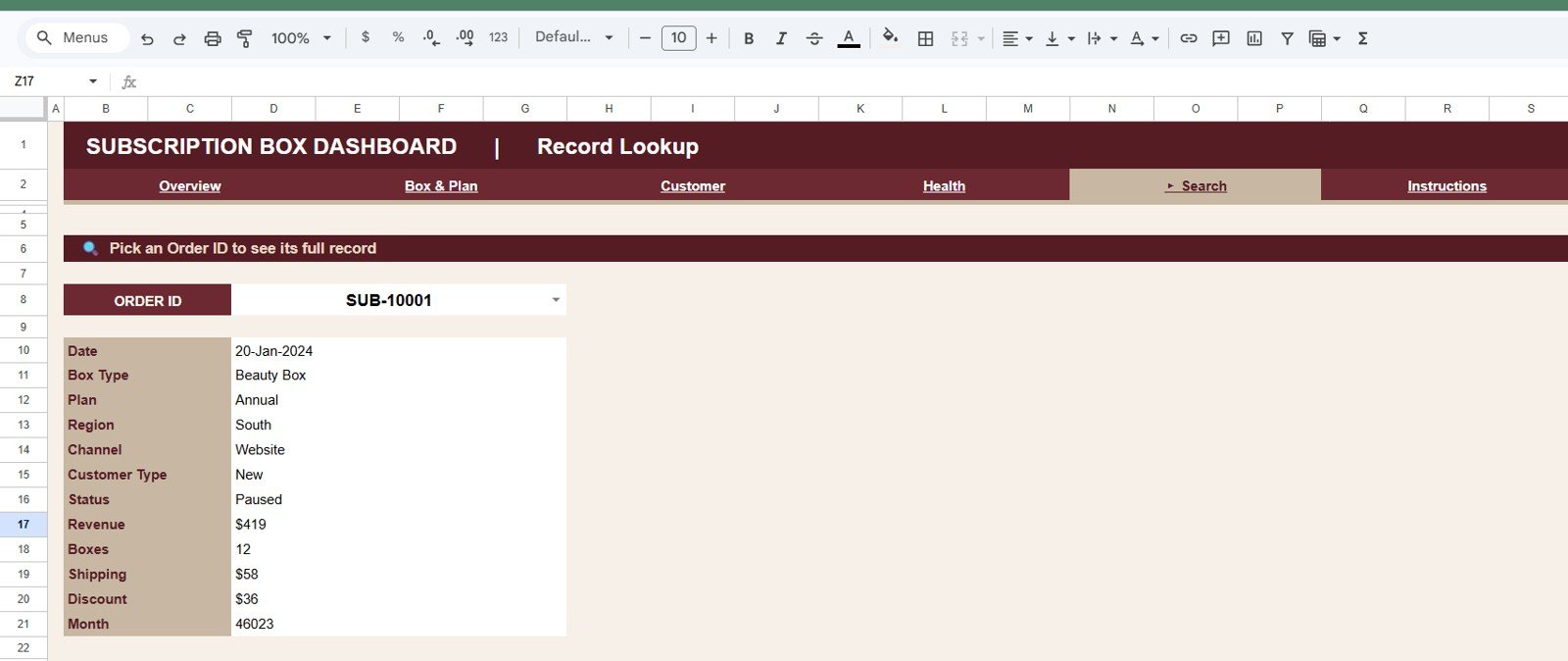
- Order Search sheet — pick any Order ID and instantly see its Date, Box Type, Plan, Region, Channel, Customer Type, Status, Revenue, Boxes, Shipping, Discount and Month.
- One Data sheet input — paste your orders in the given format and every KPI, chart and lookup refreshes automatically.
- 100% native Google Sheets — no add-ons, no Apps Script setup, works in any browser and the Google Sheets mobile app.
KPI Cards on Each Page
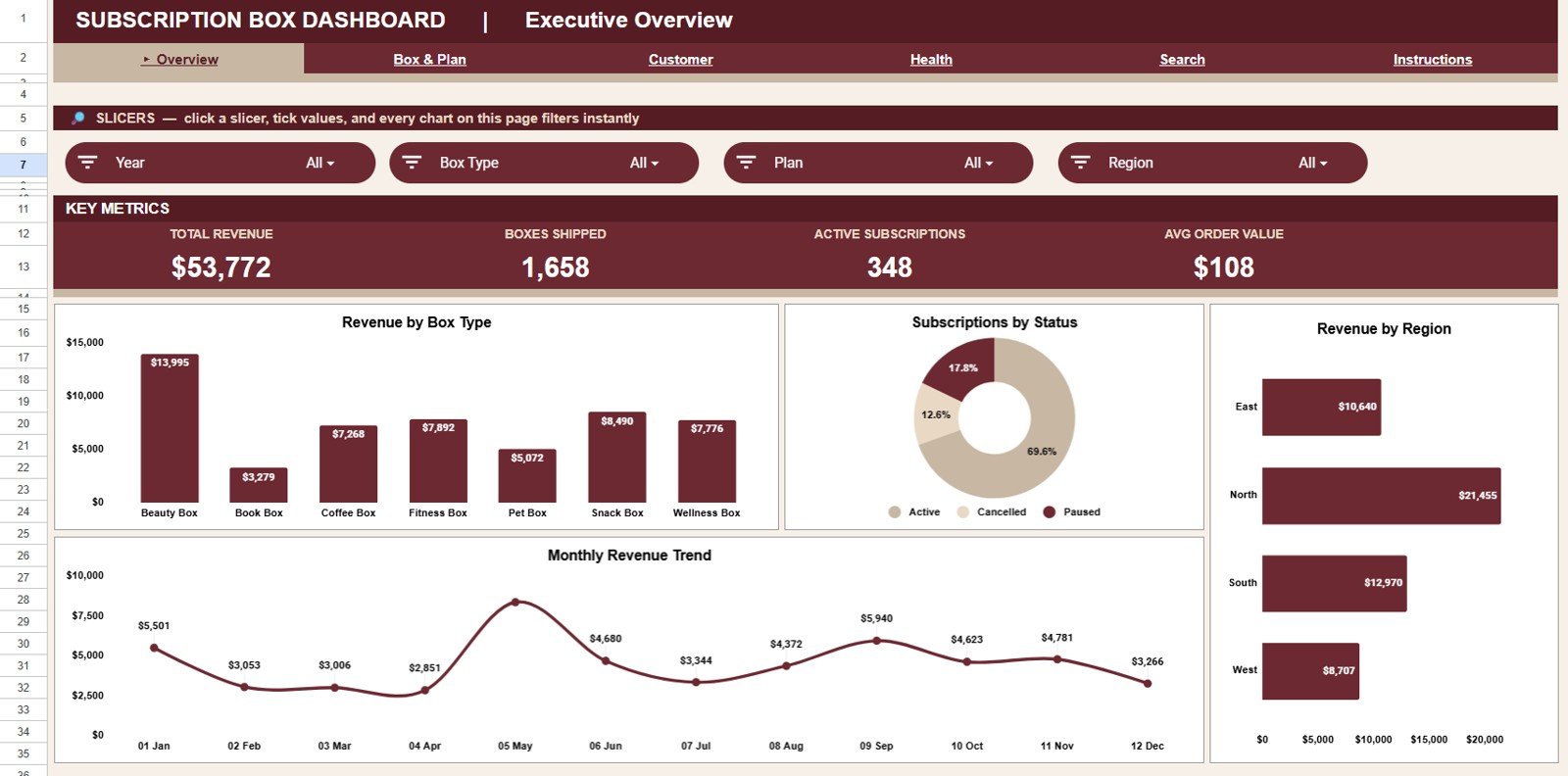
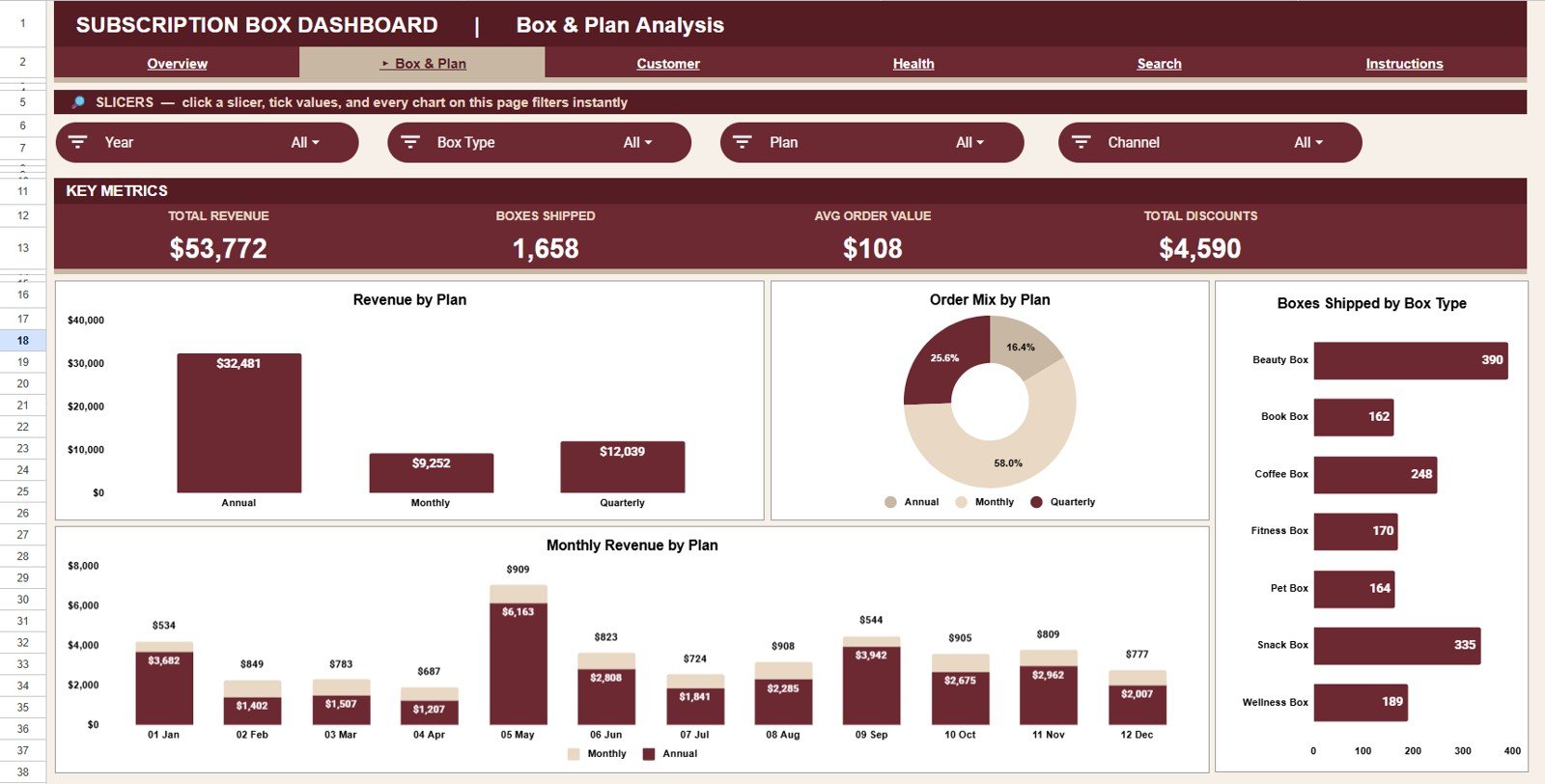
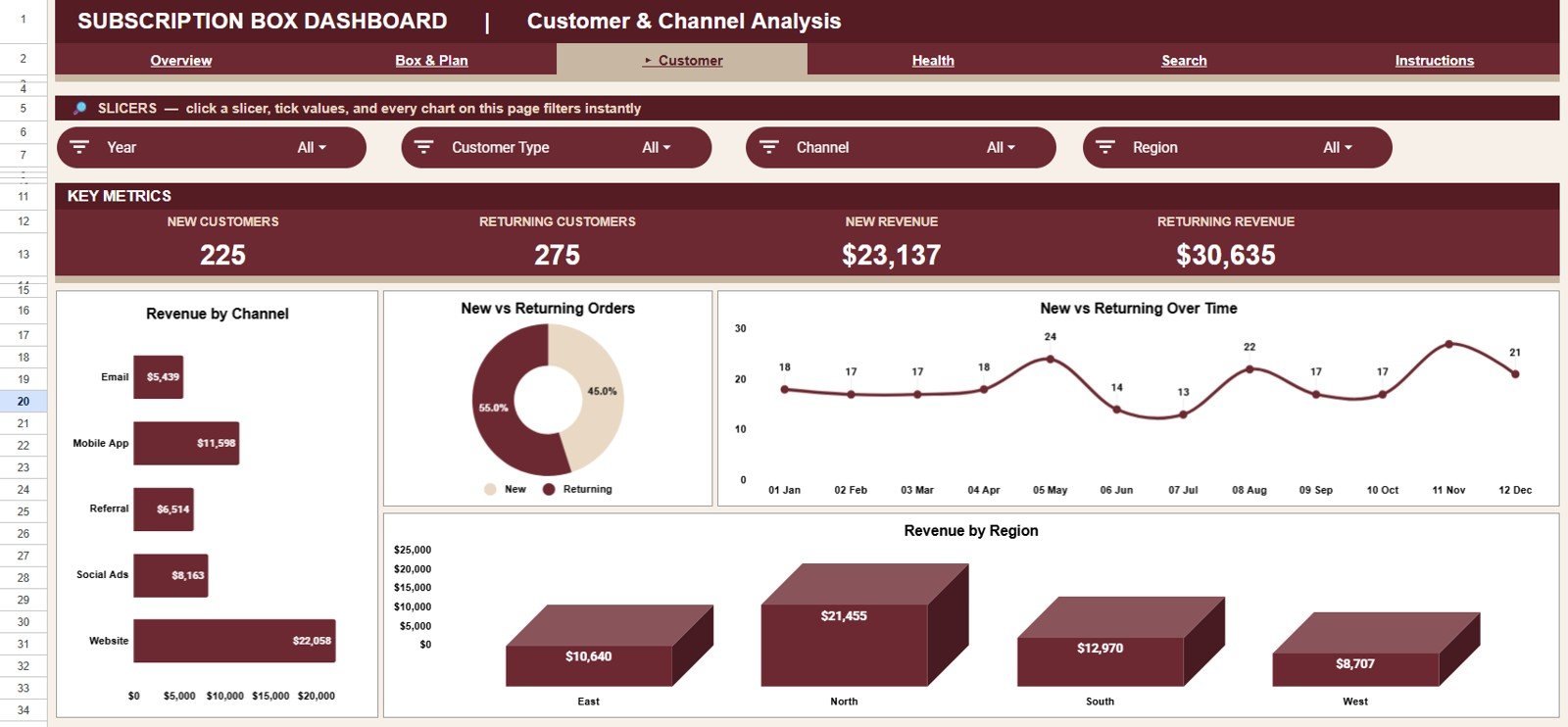
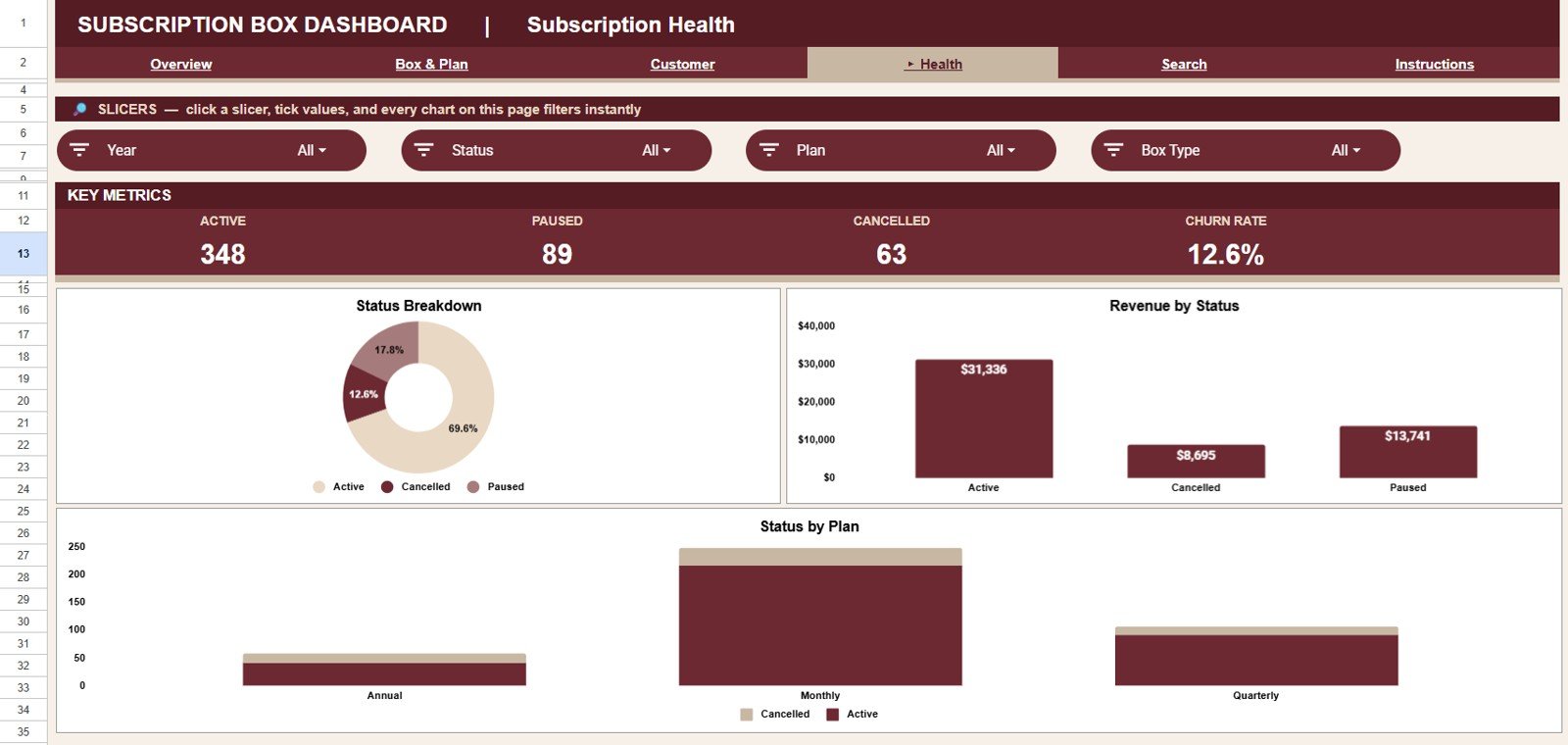
Every number below is visible on the sample data in the screenshots (500 orders), so you can check the logic yourself.
| Page | KPI cards | Sample value | How it is worked out |
|---|---|---|---|
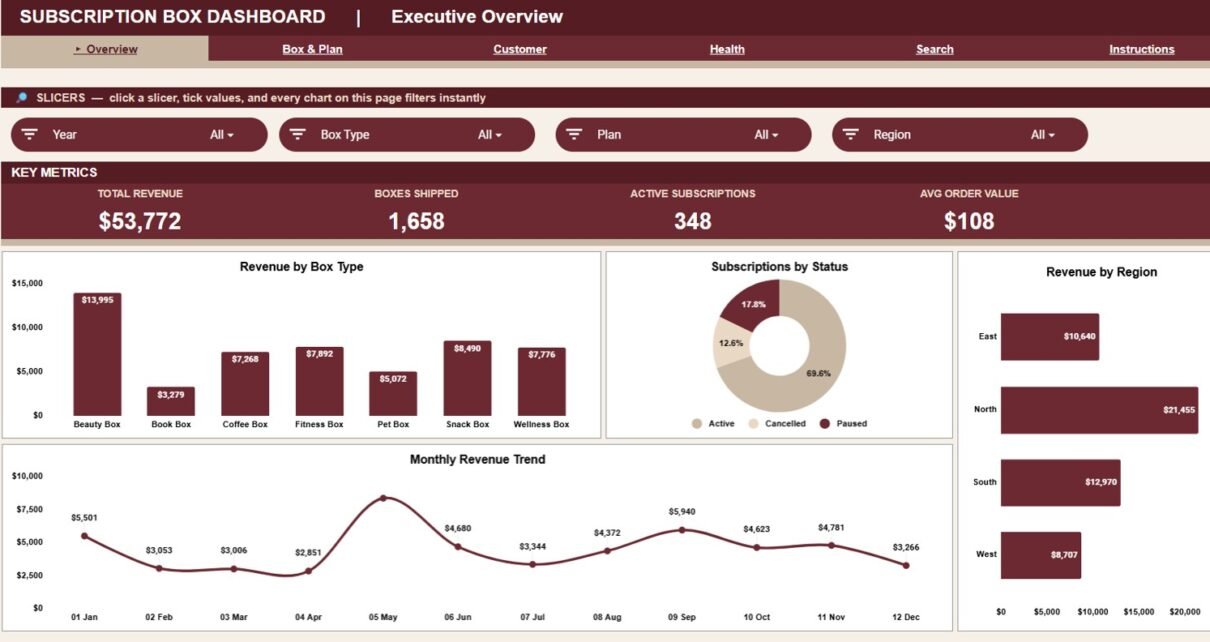
| Overview | Total Revenue · Boxes Shipped · Active Subscriptions · Avg Order Value | $53,772 · 1,658 · 348 · $108 | Avg Order Value = Total Revenue ÷ number of orders ($53,772 ÷ 500 ≈ $108) |
| Box & Plan | Total Revenue · Boxes Shipped · Avg Order Value · Total Discounts | $53,772 · 1,658 · $108 · $4,590 | Total Discounts = sum of the Discount column |
| Customer | New Customers · Returning Customers · New Revenue · Returning Revenue | 225 · 275 · $23,137 · $30,635 | Orders and revenue split by Customer Type (New / Returning) |
| Health | Active · Paused · Cancelled · Churn Rate | 348 · 89 · 63 · 12.6% | Churn Rate = Cancelled ÷ all subscriptions (63 ÷ 500 = 12.6%) — lower is better |
Dashboard Pages Explanation
1. Overview Page
The Overview page (Executive Overview) opens with the four headline cards and slicers for Year, Box Type, Plan and Region. Charts include Revenue by Box Type, Subscriptions by Status, Revenue by Region and Monthly Revenue Trend: together they show your product mix across seven box types, your retention picture, your strongest regions (East, North, South, West) and the month-by-month revenue line on a single screen.
2. Box & Plan Analysis
This tab answers the product-strategy questions. Revenue by Plan and Order Mix by Plan show which billing plan (Annual, Monthly or Quarterly) carries your business, Monthly Revenue by Plan reveals how each plan trends over the year, and Boxes Shipped by Box Type tells your fulfillment team exactly where the volume goes. Slicers here are Year, Box Type, Plan and Channel.
3. Customer & Channel Analysis
This tab focuses on acquisition and loyalty. Revenue by Channel compares Email, Mobile App, Referral, Social Ads and Website sales; New vs Returning Orders and New vs Returning Over Time track repeat-purchase behaviour; and Revenue by Region shows where your subscribers live. Slicers are Year, Customer Type, Channel and Region.
4. Subscription Health
This tab is your churn radar. Status Breakdown shows how many subscriptions are Active, Paused or Cancelled; Revenue by Status quantifies how much money each status represents; and Status by Plan reveals whether a specific plan is quietly driving your cancellations. Slicers are Year, Status, Plan and Box Type.
5. Search Sheet Tab
The Search sheet (Record Lookup) lets you pick an Order ID from a dropdown and view the full record instantly: Date, Box Type, Plan, Region, Channel, Customer Type, Status, Revenue, Boxes, Shipping, Discount and Month — handy for answering customer emails without digging through raw rows.
6. Data Sheet Tab
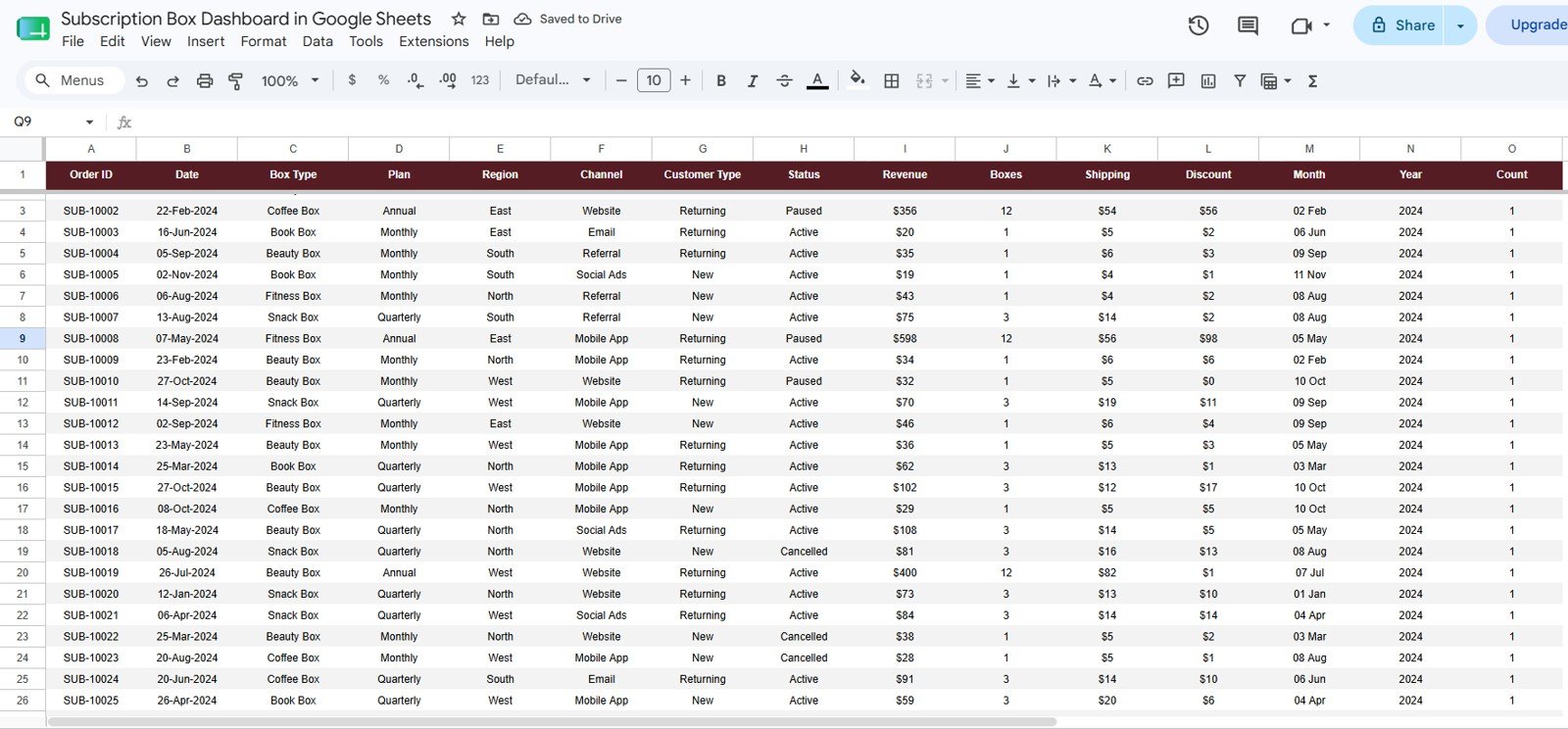
The Data sheet is the single input point for the whole template. Its columns are Order ID, Date, Box Type, Plan, Region, Channel, Customer Type, Status, Revenue, Boxes, Shipping, Discount, Month, Year and Count. Add your orders in the same format and every page, KPI card, chart, slicer and the Search sheet updates automatically.
How to Use It With Your Own Data
- Make your own copy of the Google Sheet from the link in your download.
- Export your orders from Shopify, WooCommerce or your store platform.
- Paste them into the Data sheet using the same column order, keeping status values as Active, Paused or Cancelled and plans as Annual, Monthly or Quarterly (or edit the labels consistently).
- Open the Overview page and use the slicers to check the numbers look right.
- Repeat the paste on a fixed schedule — weekly works for most box businesses.
Subscription Box Dashboard in Google Sheets vs. Excel Dashboard vs. Cratejoy/Subbly — Feature Comparison
| Feature | Subscription Box Dashboard in Google Sheets | Microsoft Excel Dashboard | Cratejoy / Subbly Analytics |
|---|---|---|---|
| Cost | $9.99 one-time ✅ | $17.99 one-time + Excel license | $39–$119 / month platform fees |
| Platform | Any browser, free Google account ✅ | Desktop Excel required | Locked to their platform |
| Setup time | Under 10 minutes ✅ | Under 15 minutes | Full store migration required |
| Real-time team collaboration | Native Google Sheets sharing ✅ | Limited (OneDrive co-authoring) | Per-seat pricing |
| Mobile access | Google Sheets app ✅ | Excel mobile (limited) | Yes |
| Customizable fields & charts | Fully editable ✅ | Fully editable | Fixed reports only |
| Share with a link | Yes ✅ | File-based sharing | Account required |
| Order-level search lookup | Built-in Search sheet ✅ | Depends on template | Yes |
| Year-1 cost at 5 users | $9.99 total ✅ | $17.99 + licenses | $468–$1,428+ |
For subscription box sellers who want real analytics without monthly platform fees, this Google Sheets dashboard sits in the sweet spot.
Who Should Use This Template
Perfect for:
- Subscription box founders on Shopify, WooCommerce, Etsy or their own site who track orders in spreadsheets
- Small e-commerce teams (1–20 people) needing shared, browser-based reporting without new software
- Side-hustle box sellers who want partner-ready charts from day one
- Operations managers planning inventory around Boxes Shipped by Box Type and region
Not a fit if:
- You need automated API syncs from Stripe or Recharge — this template uses manual paste-in data entry
- You require cohort-level churn modelling or LTV forecasting — this dashboard reports statuses and revenue, not predictive analytics
Real-World Use Cases
A specialty coffee subscription box. Every Monday the founder pastes the weekly Shopify export into the Data sheet, then opens Subscription Health to catch paused and cancelled plans early and send a targeted win-back email — without paying for platform analytics.
A quarterly book box run as a side business. Box & Plan Analysis shows how revenue and order mix split between Annual, Monthly and Quarterly plans, so the seller can see which plan earns more per order and lead with it on the landing page.
A snack box brand shipping to four regions. The fulfillment lead uses New vs Returning Over Time to see whether loyal customers are growing, and Boxes Shipped by Box Type to plan packaging inventory before each shipping cycle.
Advantages of the Subscription Box Dashboard in Google Sheets
- Cost saving — $9.99 once versus $468–$1,428+ per year for subscription platform analytics at 5 users.
- Low learning curve — if your team can use Google Sheets, they can use this dashboard; slicers replace formulas entirely.
- Store-agnostic — works with orders from Shopify, WooCommerce, Etsy, Amazon or offline sales, because the input is just a table.
- Real collaboration — share one link and your whole team sees the same live numbers, with Google’s built-in version history as a safety net.
- Faster decisions — the four analysis pages answer plan, channel, region and churn questions that normally take an hour of pivoting.
Limitations to Know Before You Buy
Data entry is manual, so if you process hundreds of orders daily you will want to automate the export-paste step or connect a sync tool. The dashboard reports current statuses rather than predictive churn scores, and any extra fields you track (for example SKU-level costs) need small manual extensions to the Data sheet. Google Sheets also slows down with very large files, so long histories are better archived yearly.
Best Practices
- Update the Data sheet on a fixed schedule so trends stay honest.
- Keep the column format identical to the sample rows — the fastest path to a broken chart is a renamed column.
- Use the slicers to review one plan or region at a time in monthly business reviews; per Google’s own documentation, slicers filter the connected charts and tables on a sheet at once.
- Check the Subscription Health page first each week — paused subscriptions are your cheapest win-back opportunity.
- Archive completed years into a separate tab or file to keep the dashboard fast.
If you want to build dashboards like this yourself, the Excel Pivot Tables & Dashboards course on NextGenTemplates Academy walks through the summary-table and chart logic step by step — the same ideas carry straight over to Google Sheets.
Explore Relevant Templates
- Subscription Box KPI Dashboard in Google Sheets — a KPI-focused take on the same business model
- Subscription Retention KPI Dashboard in Google Sheets — deeper retention and churn tracking
- Subscription Business Dashboard in Google Sheets — SaaS-style recurring revenue tracking
- Subscription Business KPI Dashboard in Google Sheets — KPI-card focused variant
- Subscription Business Dashboard in HTML — a standalone browser dashboard version
Also available as: Subscription Box Dashboard in Excel · Subscription Box Dashboard in Power BI
Frequently Asked Questions
What KPIs does the Subscription Box Dashboard in Google Sheets track?
The Overview page tracks Total Revenue, Boxes Shipped, Active Subscriptions and Avg Order Value. The other pages add Total Discounts, New and Returning Customers, New and Returning Revenue, and Active, Paused, Cancelled and Churn Rate, alongside 15 charts.
How long does setup take?
Under 10 minutes. Open the copy link in your download, make your own copy in Google Drive and paste your orders into the Data sheet. Every card and chart recalculates instantly.
How does this compare to Cratejoy or Subbly?
Cratejoy and Subbly charge $39–$119 per month and require running your store on their platform. This dashboard costs $9.99 once and works with order data from any store — Shopify, WooCommerce, Etsy or offline sales.
Can I filter by box type, plan or region?
Yes. Every analysis page has four slicers. Year appears on all of them, and the others cover Box Type, Plan, Region, Channel, Customer Type or Status depending on the page.
Do I need add-ons or Apps Script knowledge?
No. The dashboard uses only native Google Sheets features — summaries, charts and slicers. If you can copy and paste data, you can run it.
Can I add my own columns or charts?
Yes. The file is fully editable — you can add columns to the Data sheet, restyle charts or duplicate a page for a custom analysis, since nothing is locked or hidden.
About the Author
Built by PK — Microsoft Certified Professional with 15+ years of Excel, Google Sheets and Power BI experience. Founder of NextGenTemplates, reaching 300K+ subscribers across YouTube channels. Every template is hand-built and tested before release.
Wrapping Up
If you run a subscription box business and your reporting still lives in scattered exports, the Subscription Box Dashboard in Google Sheets gives you KPI cards on every page, 15 charts, slicer filtering and order-level search for less than the cost of a single month of platform analytics. Paste in last month’s orders and you will know which box, plan and channel to back next.
Get the Subscription Box Dashboard
Instant download · One-time payment · No subscription
📅 Last updated: October 2026