The Subscription Business Dashboard in Google Sheets gives you one place to watch the numbers that decide whether a recurring-revenue business is growing or leaking: subscribers, monthly recurring revenue (MRR), churn, retention, lifetime and customer satisfaction. It is built for SaaS founders, subscription box operators, membership sites and the finance or customer success people who report on them.
Inside the file you get six tabs – Overview, Revenue Analysis, Churn & Retention, Plan Breakdown, Search and Data – connected by a navigation bar at the top of every sheet. Everything runs on native Google Sheets formulas and charts, so there are no add-ons, macros or scripts to approve. You paste your subscriber list into the Data tab and the KPI cards and charts recalculate.
This guide walks through each tab using the real sample numbers in the template, explains how each KPI is calculated, and shows how to load your own subscriber data.
🎥 Watch the Video Tutorial
Get the Subscription Business Dashboard
What the Subscription Business Dashboard in Google Sheets Solves
Most subscription businesses can tell you their revenue for last month. Far fewer can answer the follow-up questions quickly: which plan carries the business, how many subscribers are on trial or paused, which acquisition channel brings in customers who cancel, and whether new signups are outpacing churn. Those answers usually sit in a billing export that nobody has time to pivot every week.
This template turns that export into a fixed set of views. Each tab answers one family of questions, and the KPI cards on the left of every analysis tab give you the headline figure before you read the charts.
The Six Tabs Explained
1. Overview
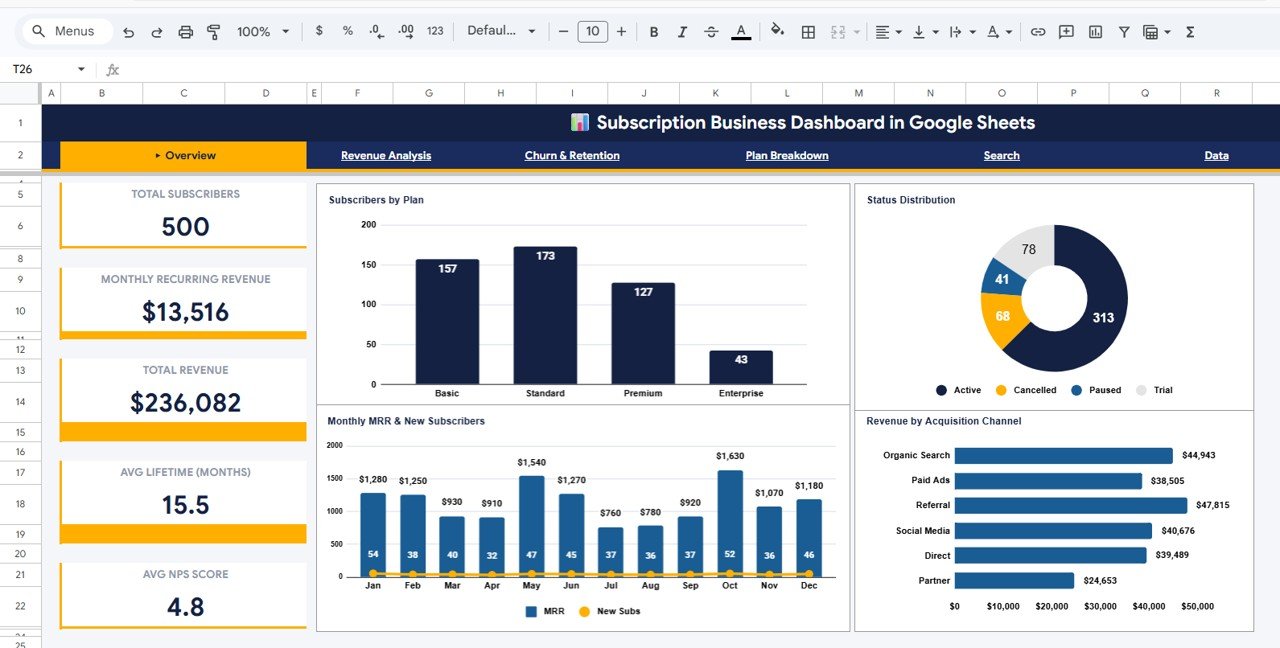
The Overview tab shows five KPI cards: Total Subscribers (500 in the sample), Monthly Recurring Revenue ($13,516), Total Revenue ($236,082), Avg Lifetime (Months) (15.5) and Avg NPS Score (4.8).
Four charts sit beside the cards:
- Subscribers by Plan – Basic 157, Standard 173, Premium 127, Enterprise 43.
- Status Distribution – a donut of Active (313), Trial (78), Cancelled (68) and Paused (41).
- Monthly MRR & New Subscribers – MRR bars for January to December with a new-subscriber line, so you can see whether revenue moves with acquisition.
- Revenue by Acquisition Channel – Referral leads the sample at $47,815, followed by Organic Search, Social Media, Direct, Paid Ads and Partner.
2. Revenue Analysis
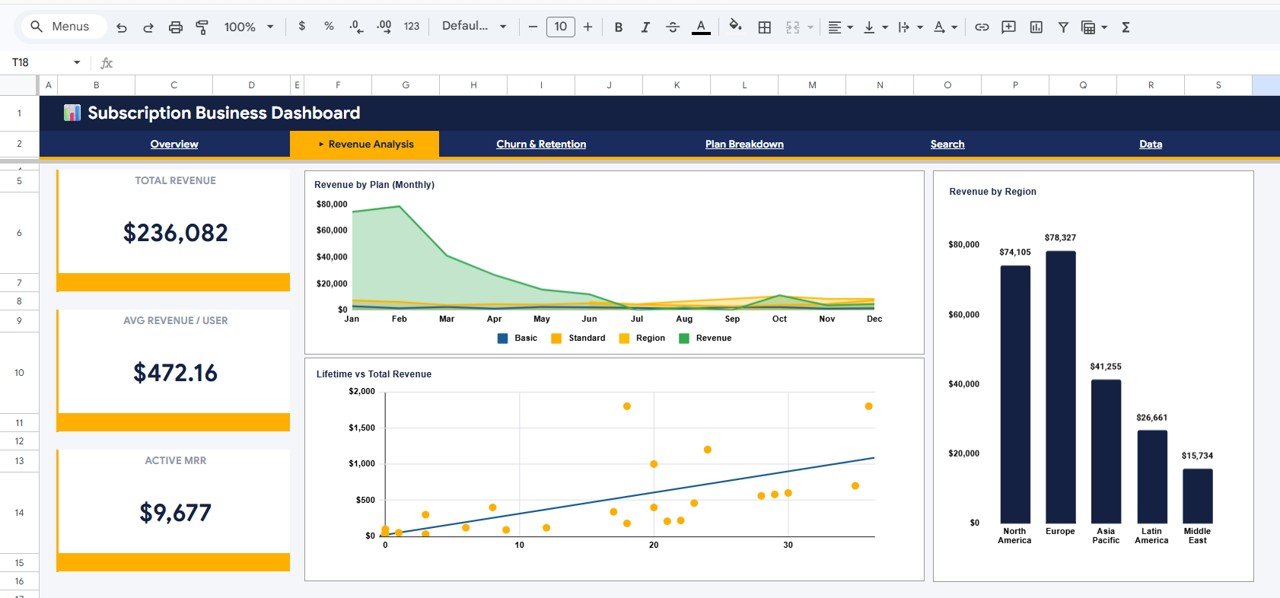
This tab focuses on where the money comes from. Its cards show Total Revenue ($236,082), Avg Revenue / User ($472.16) and Active MRR ($9,677). The charts are:
- Revenue by Plan (Monthly) – an area chart of monthly revenue by plan.
- Lifetime vs Total Revenue – a scatter plot with a trend line, showing that subscribers who stay longer generate more revenue.
- Revenue by Region – Europe ($78,327) and North America ($74,105) lead, followed by Asia Pacific, Latin America and Middle East.
3. Churn & Retention
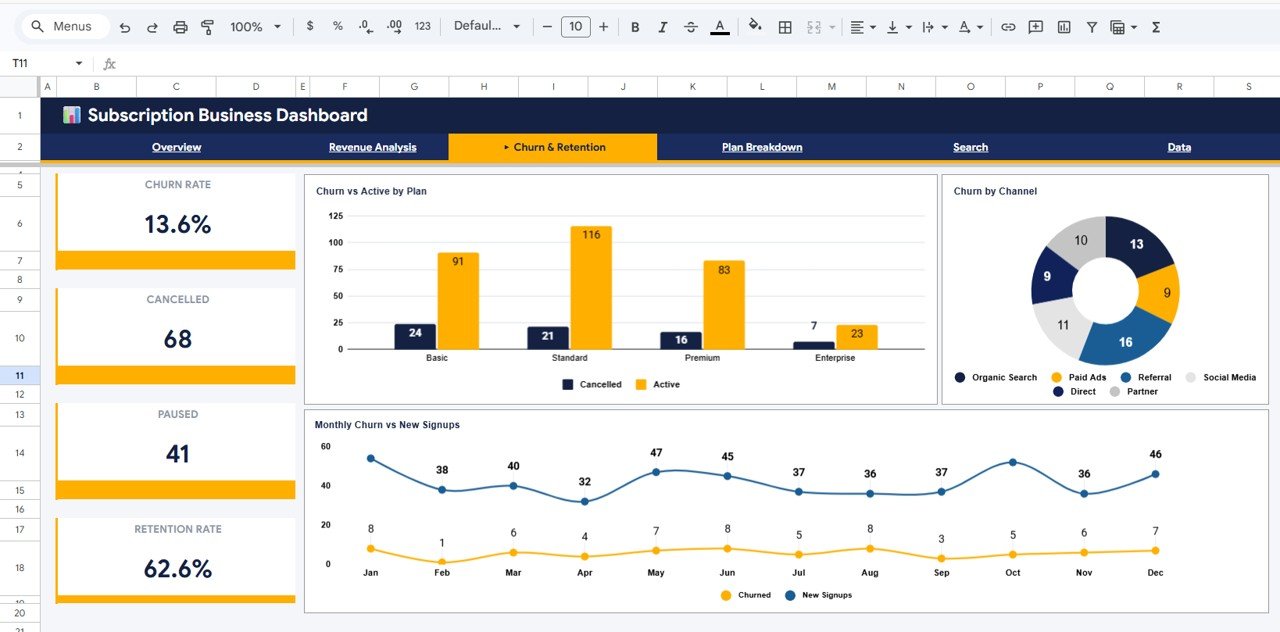
The retention tab is the one most subscription teams will open first each month. The cards show Churn Rate (13.6%), Cancelled (68), Paused (41) and Retention Rate (62.6%). The charts are:
- Churn vs Active by Plan – cancelled versus active subscribers for Basic, Standard, Premium and Enterprise.
- Churn by Channel – which acquisition channels produce the most cancellations (Referral shows 16 in the sample).
- Monthly Churn vs New Signups – two lines that tell you whether the subscriber base is growing net of cancellations.
4. Plan Breakdown
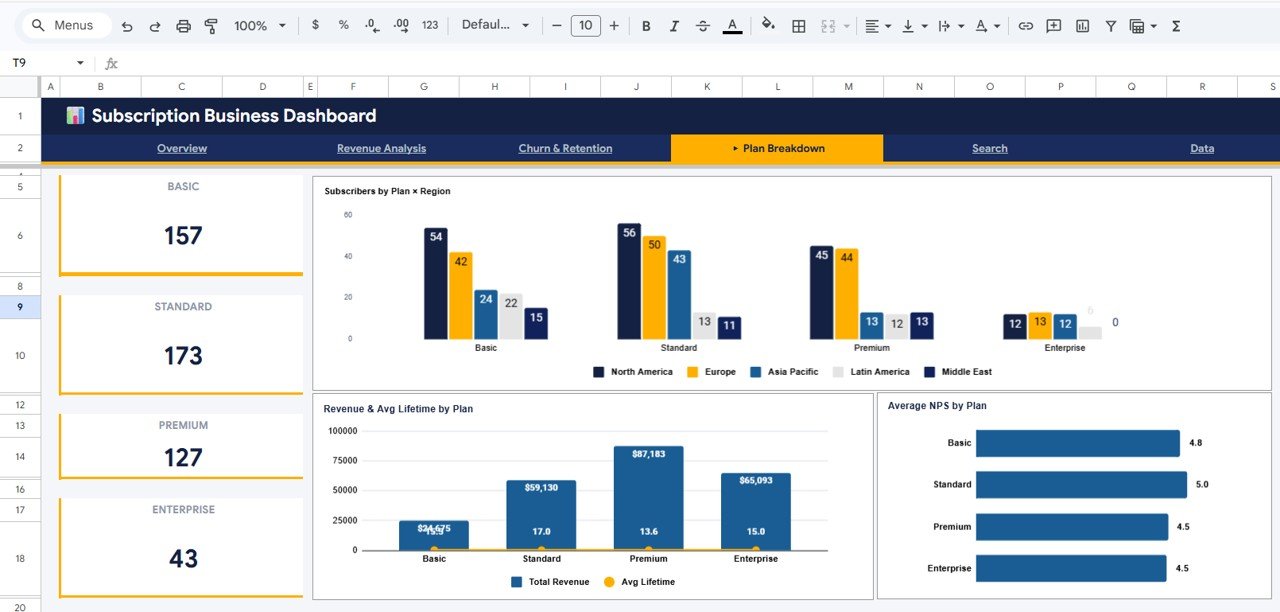
Plan Breakdown compares your pricing tiers side by side. Four cards show the subscriber count per plan (Basic 157, Standard 173, Premium 127, Enterprise 43). The charts are Subscribers by Plan × Region, Revenue & Avg Lifetime by Plan (Premium earns the most in the sample at $87,183) and Average NPS by Plan (Standard scores highest at 5.0).
5. Search (Subscriber Lookup)
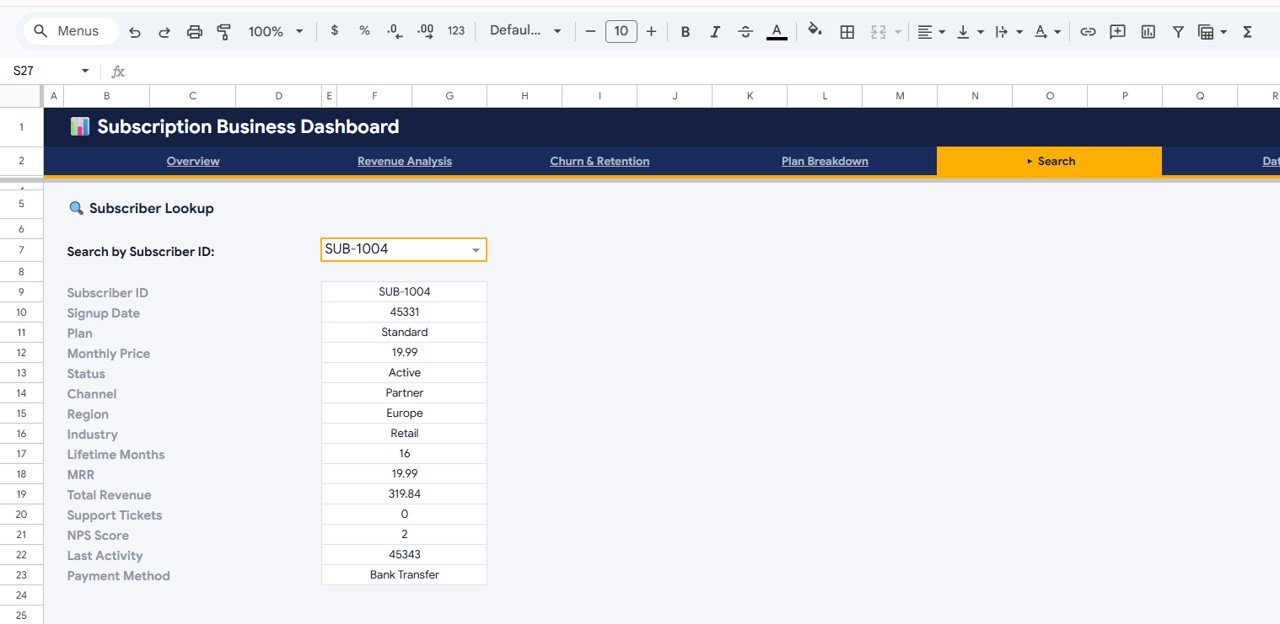
The Search tab is a one-record view. Pick a value from the Search by Subscriber ID drop-down and the sheet returns 15 fields for that subscriber: Subscriber ID, Signup Date, Plan, Monthly Price, Status, Channel, Region, Industry, Lifetime Months, MRR, Total Revenue, Support Tickets, NPS Score, Last Activity and Payment Method. It is handy before a renewal call or when someone asks about a single account.
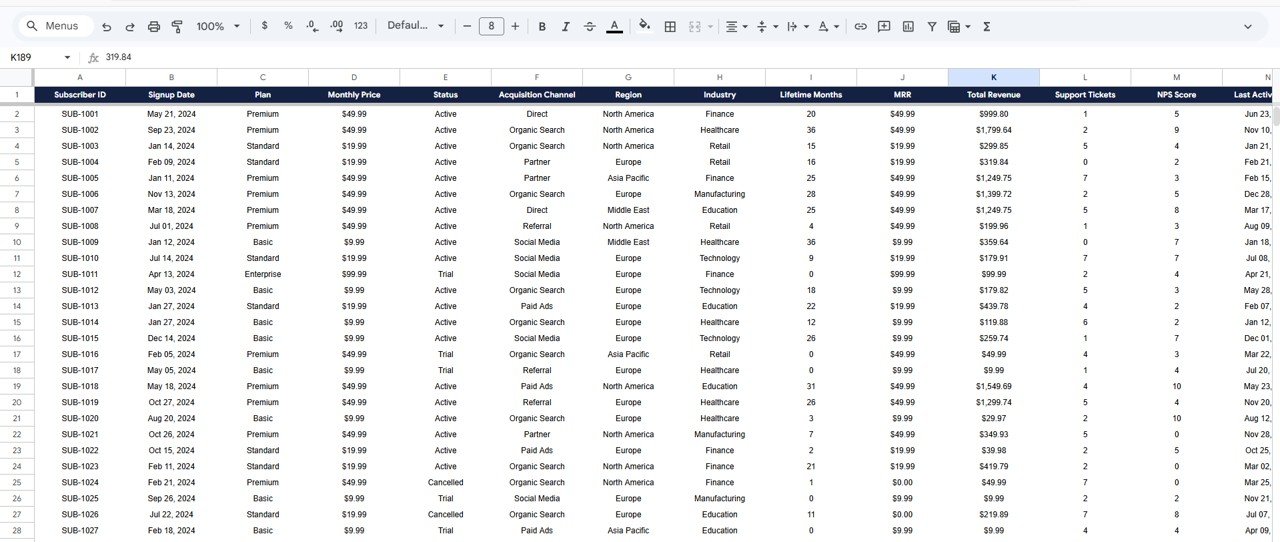
6. Data
The Data tab holds one row per subscriber. The columns visible in the template are Subscriber ID, Signup Date, Plan, Monthly Price, Status, Acquisition Channel, Region, Industry, Lifetime Months, MRR, Total Revenue, Support Tickets, NPS Score and Last Activity, with Payment Method further right. In the sample, plan prices are $9.99 (Basic), $19.99 (Standard), $49.99 (Premium) and $99.99 (Enterprise), cancelled subscribers carry an MRR of $0.00, and for subscribers with at least one month of lifetime, Total Revenue equals Monthly Price multiplied by Lifetime Months (for example SUB-1001: $49.99 × 20 = $999.80). Trial rows with 0 lifetime months show one month’s price.
Subscription KPIs in the Dashboard
The table below lists the KPIs shown on the cards and how each one ties back to the sample data. The calculations reproduce the figures in the screenshots.
| KPI | What it measures | How it is calculated (sample) | Better when |
|---|---|---|---|
| Total Subscribers | Size of the subscriber base | Count of rows in Data = 500 | Higher |
| Monthly Recurring Revenue | Recurring revenue per month | Sum of the MRR column = $13,516 | Higher |
| Total Revenue | Revenue earned over each subscriber’s lifetime | Sum of Total Revenue = $236,082 | Higher |
| Avg Revenue / User | Lifetime revenue per subscriber | Total Revenue ÷ Total Subscribers = $236,082 ÷ 500 = $472.16 | Higher |
| Churn Rate | Share of subscribers who cancelled | Cancelled ÷ Total Subscribers = 68 ÷ 500 = 13.6% | Lower |
| Retention Rate | Share of subscribers still active | Active ÷ Total Subscribers = 313 ÷ 500 = 62.6% | Higher |
| Avg Lifetime (Months) | How long subscribers stay | Average of Lifetime Months = 15.5 | Higher |
| Avg NPS Score | Average satisfaction score per subscriber | Average of the NPS Score column = 4.8 | Higher |
Note that the retention rate counts only Active subscribers, so trial (78) and paused (41) accounts lower it. Also, the Avg NPS Score is a plain average of the per-subscriber score column, not the classic Net Promoter Score formula (% promoters minus % detractors). Keep that in mind if you compare it with an NPS figure from a survey tool.
If you want a quick way to rebuild the same churn and retention logic yourself, the formulas are simple:
Churn Rate     = COUNTIF(Data!E:E,"Cancelled") / COUNTA(Data!A2:A)
Retention Rate = COUNTIF(Data!E:E,"Active")    / COUNTA(Data!A2:A)
Here column E is Status and column A is Subscriber ID, matching the Data tab layout.
How to Use It With Your Own Data
- Make your own copy of the Google Sheet from the link included with the download.
- Export your subscribers from your billing system (Stripe, Chargebee, Paddle or a spreadsheet) with one row per subscriber.
- Rename or reorder your export columns to match the Data tab headers exactly – Subscriber ID, Signup Date, Plan, Monthly Price, Status and so on.
- Use the same status words as the template (Active, Trial, Cancelled, Paused) so the churn and retention cards count correctly.
- Paste your rows into the Data tab over the sample rows, keeping the header row intact.
- Open the Overview, then each analysis tab, and check that the KPI cards match a total you already know, such as your current MRR.
- Use the Search tab to spot-check two or three subscribers against your billing system.
Real-World Use Cases
- SaaS founder’s monthly review – compare MRR, churn rate and retention rate month to month, and use Monthly Churn vs New Signups to confirm the base is growing net of cancellations.
- Subscription box pricing decisions – use Plan Breakdown to see whether a premium tier earns enough revenue and keeps subscribers long enough to justify its place in the lineup.
- Marketing channel quality check – put Revenue by Acquisition Channel next to Churn by Channel to see which channels bring subscribers who stay, not just subscribers who sign up.
Best Practices
- Refresh the Data tab on a fixed day each month so month-on-month comparisons are fair.
- Keep plan names and status values consistent; a stray “cancelled” in lowercase or “Canceled” spelling can split a category.
- Read churn and NPS together – a plan with low NPS and high churn is usually the first place to investigate.
- Look at trial and paused counts, not just active and cancelled. A large paused group is churn that has not happened yet.
- Keep an untouched copy of the original template before you change any formulas.
Limitations and Who Should Not Use It
This is a reporting template, not a billing system. It does not connect to Stripe or any payment platform automatically, so the data is only as current as your last paste. It works at the subscriber level rather than the invoice level, so it is not designed for cohort retention curves, revenue recognition or detailed expansion and contraction MRR. Very large subscriber lists (tens of thousands of rows) will make Google Sheets slower; at that size a BI tool is the better fit.
Related Templates and Guides
If you prefer working offline, the Subscription Business Dashboard in Excel covers the same topic. On this blog, you can compare it with the browser-based Subscription Business Dashboard in HTML, the SaaS Metrics Dashboard in Google Sheets, and the Subscription Retention KPI Dashboard if you prefer a month-by-month KPI scorecard. Customer success teams may also like the SaaS Customer Success Dashboard in Google Sheets, which adds health scores and CSM portfolios.
If you would like to build dashboards like this yourself, the Excel Pivot Tables and Dashboards course on NextGenTemplates Academy walks through summarising raw data and turning it into charts step by step.
Frequently Asked Questions
What KPIs does the Subscription Business Dashboard in Google Sheets show?
The Overview shows Total Subscribers, Monthly Recurring Revenue, Total Revenue, Avg Lifetime (Months) and Avg NPS Score. Other tabs add Avg Revenue / User, Active MRR, Churn Rate, Retention Rate, and Cancelled and Paused counts.
How is churn rate calculated in this template?
Churn rate is the number of subscribers with a Cancelled status divided by total subscribers. In the sample that is 68 ÷ 500 = 13.6%.
Can I use it for a membership site or subscription box?
Yes. Any business with recurring plans can use it, as long as your data has one row per subscriber with a plan, monthly price, status and lifetime in months.
Do I need add-ons or scripts?
No. The dashboard uses native Google Sheets formulas and charts only, so there is nothing to install or authorise – you just open your copy in Google Sheets.
How do I look up a single subscriber?
Open the Search tab and choose a Subscriber ID from the drop-down. The sheet shows that subscriber’s plan, price, status, channel, region, lifetime, MRR, revenue, tickets, NPS score, last activity and payment method.
Does it connect to Stripe automatically?
No. You export your subscriber data and paste it into the Data tab. That keeps the template simple and portable, but it means you refresh it on your own schedule.
Wrapping Up
The Subscription Business Dashboard in Google Sheets gives a small subscription team a clear monthly picture: how many subscribers you have, what they pay, how many you are losing, and which plans, regions and channels matter most. Start by pasting last month’s subscriber export into the Data tab and checking the MRR card against your billing system – once that matches, the rest of the dashboard is ready to use.
Get the Subscription Business Dashboard
📅 Last updated: October 2026