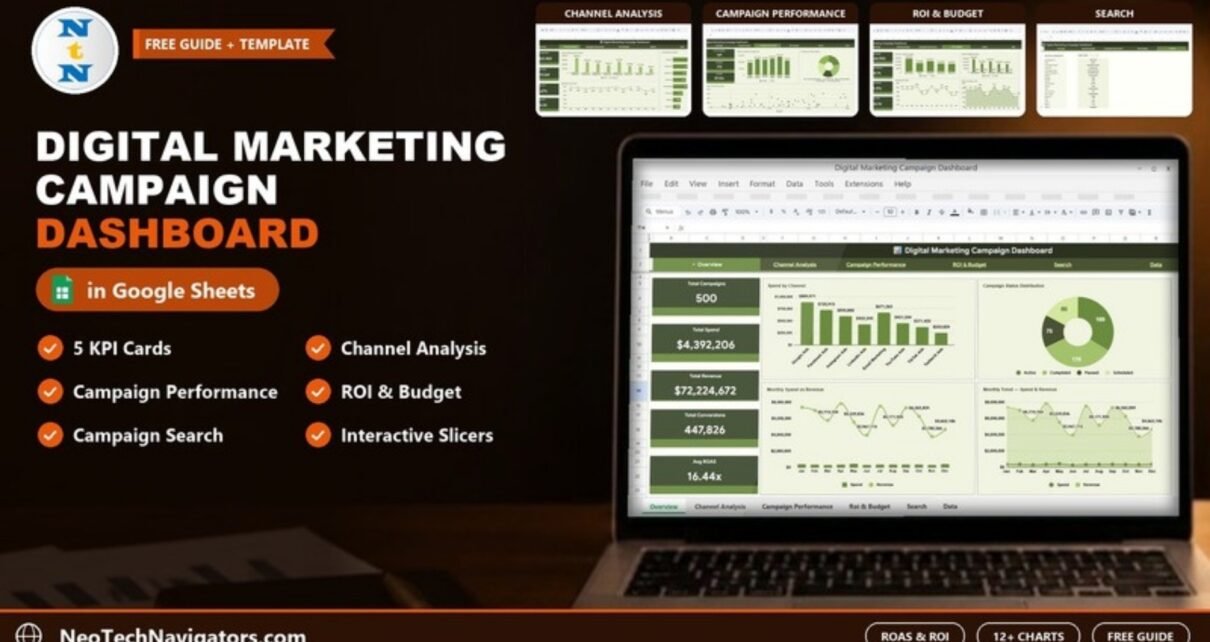
The Digital Marketing Campaign Dashboard in Google Sheets brings search, social, video and email campaign data into one workbook so you can see spend, revenue, conversions and return on ad spend (ROAS) without jumping between ad platforms. It is built for in-house marketers, small agencies and founders who report on campaigns every week and want a clear, shareable view.
The template has six pages, linked by a navigation bar at the top: Overview, Channel Analysis, Campaign Performance, ROI & Budget, Search and Data. Below you will find what each page shows, how the core marketing KPIs are calculated, how to load your own campaign data, and where this kind of spreadsheet dashboard stops being the right tool.
🎥 Watch the Video Tutorial
Get the Digital Marketing Campaign Dashboard
What Problem Does a Digital Marketing Campaign Dashboard Solve?
Every ad platform reports on itself. Google Ads shows Google Ads, Meta shows Facebook and Instagram, your email tool shows email. To answer simple questions such as "which channel gives us the best return?" or "is the Middle East region getting value from its budget?" you need the numbers side by side, in the same definitions. This dashboard does that from one structured data sheet, with charts and KPI cards that update when the data changes.
The KPIs Behind the Dashboard
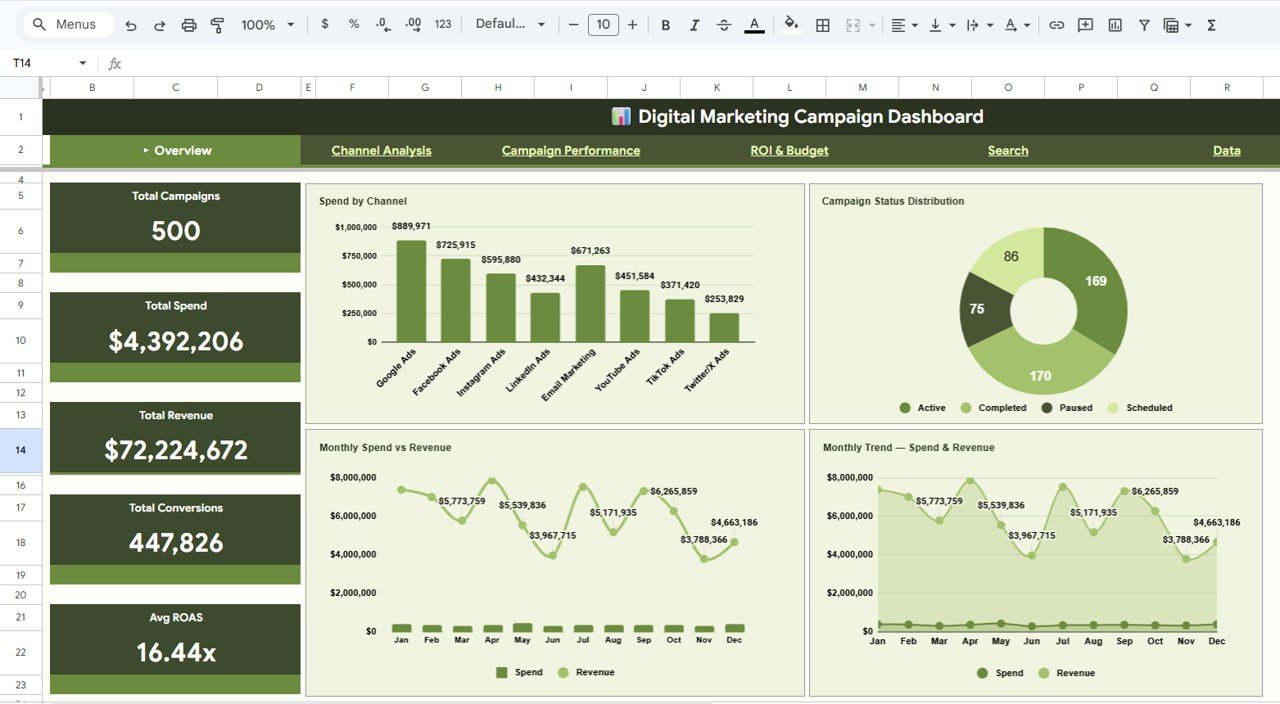
The Overview page shows five KPI cards: Total Campaigns (500 in the sample), Total Spend ($4,392,206), Total Revenue ($72,224,672), Total Conversions (447,826) and Avg ROAS (16.44x). The other pages add their own cards, such as Total Impressions, Total Clicks, Avg CTR, Avg CPC, Total Budget, Budget Utilization, Overall ROAS and Avg CPM. The data sheet also stores CTR, Conv. Rate, CPC, CPM and ROAS for each campaign. Here is how these metrics work.
| KPI | What it measures | Formula | Better when |
|---|---|---|---|
| Total Spend | Money actually spent on campaigns | Sum of Spend | Within budget |
| Total Revenue | Revenue attributed to campaigns | Sum of Revenue | Higher |
| Total Conversions | Purchases, sign-ups or leads recorded | Sum of Conversions | Higher |
| Avg ROAS / Overall ROAS | Revenue earned for each unit of ad spend | Total Revenue ÷ Total Spend | Higher |
| Avg CTR | Share of impressions that became clicks | Clicks ÷ Impressions | Higher |
| Avg CPC | Average cost of one click | Spend ÷ Clicks | Lower |
| Avg CPM | Cost per thousand impressions | Spend ÷ Impressions × 1000 | Lower |
| Budget Utilization | Share of the planned budget actually spent | Total Spend ÷ Total Budget | Close to plan |
| Conv. Rate | Share of clicks that converted | Stored per campaign in the Data sheet | Higher |
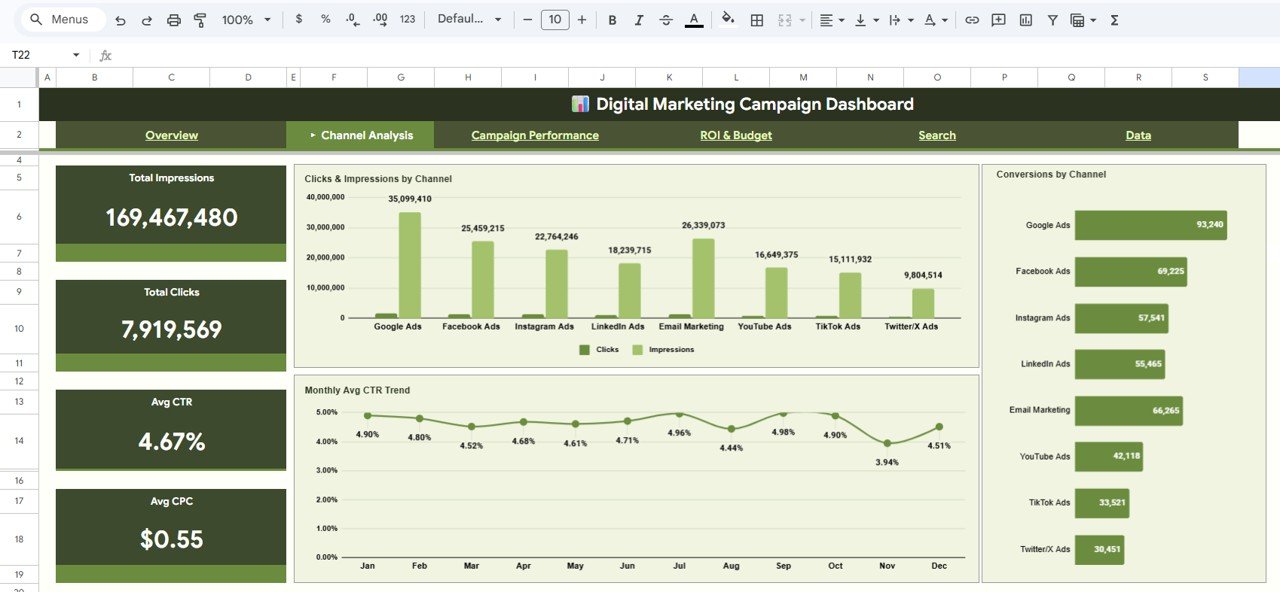
Check it against the sample: $72,224,672 revenue ÷ $4,392,206 spend = 16.44, the Avg ROAS card. 7,919,569 clicks ÷ 169,467,480 impressions = 4.67%, the Avg CTR card. $4,392,206 ÷ 7,919,569 clicks = $0.55, the Avg CPC card, and $4,392,206 ÷ $5,626,900 total budget = 78.1%, the Budget Utilization card.
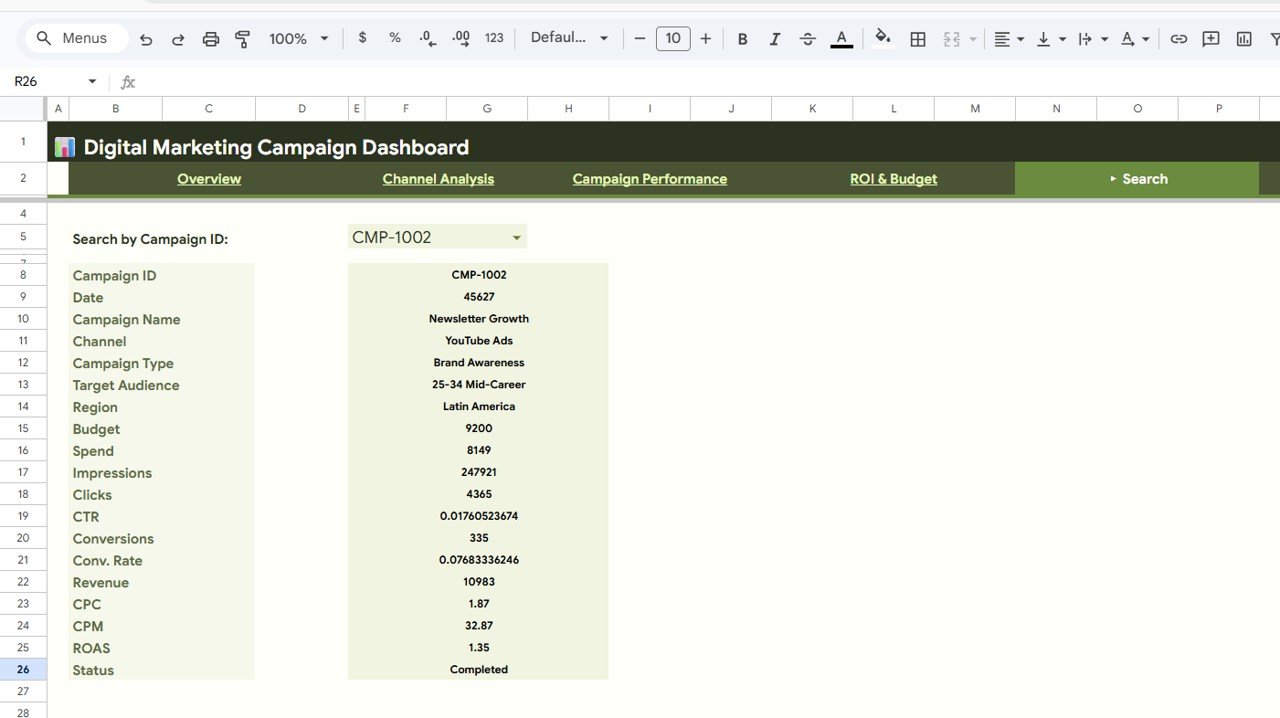
Single-campaign example: campaign CMP-1002 on the Search sheet spent 8,149, earned 10,983 in revenue, got 247,921 impressions and 4,365 clicks. Its ROAS is 10,983 ÷ 8,149 = 1.35, CTR is 4,365 ÷ 247,921 = 1.76%, CPC is 8,149 ÷ 4,365 = 1.87 and CPM is 8,149 ÷ 247,921 × 1000 = 32.87, exactly the values the sheet shows. In Google Sheets the ROAS cell for a row is simply =Revenue_cell/Spend_cell.
Dashboard Pages Explained
1. Overview
The Overview page is the summary for managers and clients. Next to the five KPI cards it shows Spend by Channel, Campaign Status Distribution (Active 169, Completed 170, Scheduled 86 and Paused 75 in the sample), Monthly Spend vs Revenue and Monthly Trend — Spend & Revenue. In the sample, Google Ads has the highest spend at $889,971.
2. Channel Analysis
This page compares eight channels: Google Ads, Facebook Ads, Instagram Ads, LinkedIn Ads, Email Marketing, YouTube Ads, TikTok Ads and Twitter/X Ads. Four cards show Total Impressions, Total Clicks, Avg CTR and Avg CPC, next to the Clicks & Impressions by Channel, Monthly Avg CTR Trend and Conversions by Channel charts. A channel with high impressions but few conversions is usually a candidate for tighter targeting or a smaller budget.
3. Campaign Performance
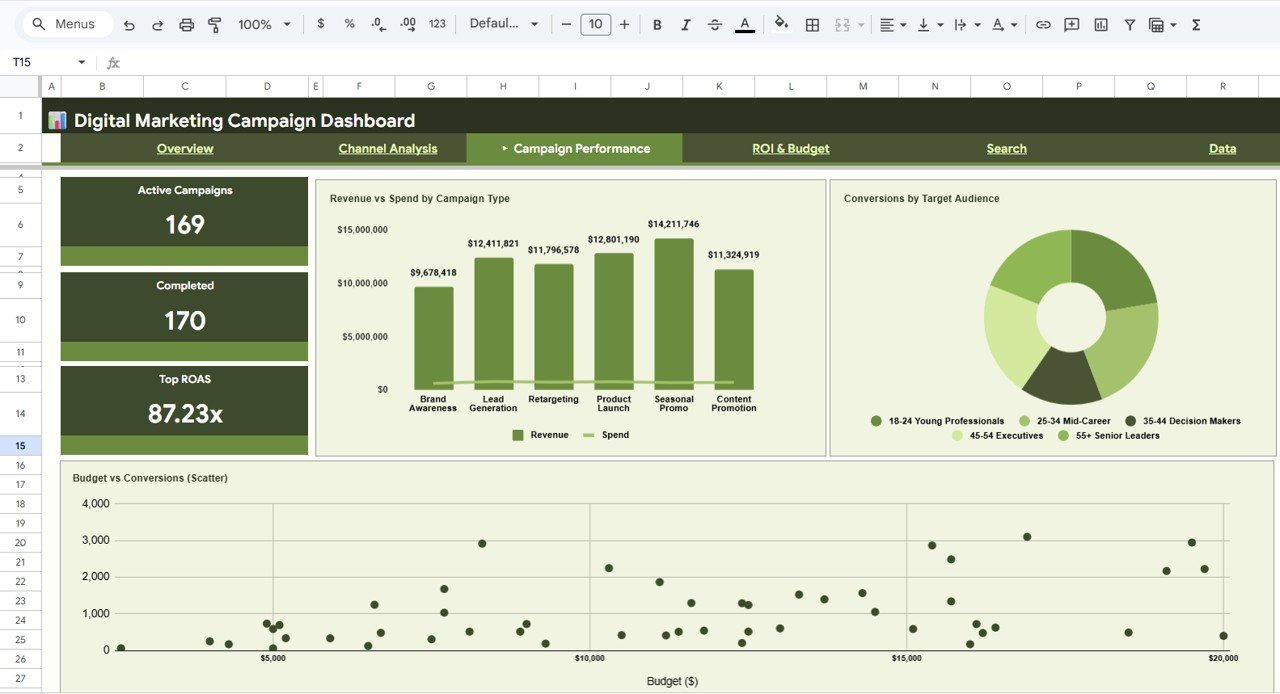
Here the focus moves to strategy and audience. Three cards show Active Campaigns, Completed and Top ROAS (87.23x in the sample). The charts are Revenue vs Spend by Campaign Type (Brand Awareness, Lead Generation, Retargeting, Product Launch, Seasonal Promo and Content Promotion), Conversions by Target Audience (18-24 Young Professionals, 25-34 Mid-Career, 35-44 Decision Makers, 45-54 Executives and 55+ Senior Leaders) and a Budget vs Conversions (Scatter) chart. The scatter is a useful reality check on whether bigger budgets actually produce proportionally more conversions.
4. ROI & Budget
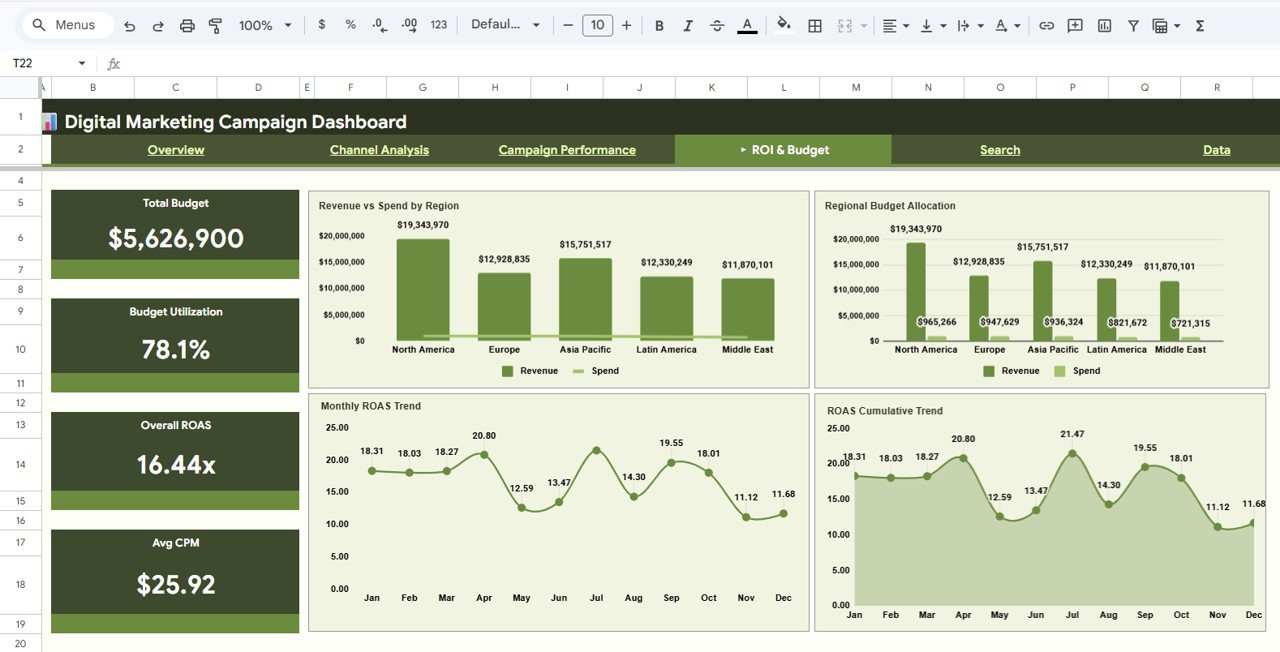
The ROI & Budget page answers the finance questions. Its cards show Total Budget ($5,626,900), Budget Utilization (78.1%), Overall ROAS (16.44x) and Avg CPM ($25.92). The charts are Revenue vs Spend by Region and Regional Budget Allocation for North America, Europe, Asia Pacific, Latin America and Middle East, plus Monthly ROAS Trend and ROAS Cumulative Trend, which plots the month-by-month ROAS as an area chart. Use the regional charts to see where revenue per unit of spend is strongest before you move budget.
5. Search
Pick a Campaign ID from the Search by Campaign ID dropdown and the Search sheet shows that campaign’s full record: Campaign ID, Date, Campaign Name, Channel, Campaign Type, Target Audience, Region, Budget, Spend, Impressions, Clicks, CTR, Conversions, Conv. Rate, Revenue, CPC, CPM, ROAS and Status. It is handy in client calls when someone asks about one specific campaign.
6. Data
The Data sheet feeds everything else. Each row is one campaign with the same fields listed above. Replace the sample rows with your own and every chart and card refreshes.
How to Use It with Your Own Campaign Data
- Open the PDF guide included with your download and use the link to make an editable copy in Google Drive.
- Export campaign results from each ad platform for the same date range.
- Map each export to the Data sheet columns. Keep channel names consistent (always "Google Ads", never a mix of "Google" and "SEM").
- Paste the rows into the Data sheet, replacing the sample data, and keep the column order unchanged.
- Check that Total Spend on the Overview matches the sum of your platform invoices for the period.
- Review the pages in order — Channel Analysis, then Campaign Performance, then ROI & Budget — and note the two or three actions you will take.
If you need a refresher on building the summaries behind dashboards like this, the Pivot Tables and Dashboards course on NextGenTemplates Academy covers the techniques step by step.
Three Real-World Use Cases
- Agency monthly report: an agency pastes each client’s campaign export into its own copy and shares the Overview and ROI & Budget pages as the monthly report.
- Budget reallocation: an e-commerce marketer sees on the ROI & Budget page that one region returns less revenue per unit of spend than the rest and moves part of its budget to the stronger regions the next month.
- Channel test review: a startup trying LinkedIn Ads for the first time compares its clicks and conversions against Google Ads on the Channel Analysis page before deciding whether to continue.
Best Practices
- Update data on a fixed day each week so trends are comparable.
- Use one attribution rule for revenue across all channels, or ROAS comparisons will mislead.
- Watch the Monthly ROAS Trend for early warnings, and compare it with Budget Utilization before asking for more budget.
- Use the Search sheet for quick audits of a single under-performing campaign.
- Archive old campaigns to a separate tab once a year to keep the file fast.
Limitations: When This Is Not the Right Tool
This is a manual-entry dashboard. It does not connect directly to Google Ads, Meta or your email platform, so someone has to paste the data in. It reports what you give it and does not perform multi-touch attribution. Teams running hundreds of campaigns a day, or needing live data, are better served by a connector-based BI setup. For a smaller, focused view of return on spend, the Marketing ROI Dashboard in Google Sheets may be enough.
Which Version Should You Choose?
| Version | Best for |
|---|---|
| Google Sheets (this post) | Cloud sharing with clients and teams, no software to install |
| Excel | Desktop analysis in Microsoft Excel |
| Power BI | Larger data sets and interactive filtering |
| HTML | A browser-based dashboard you can open from a single file |
For other marketing views, see the Digital Marketing KPI Dashboard in Google Sheets, the Multichannel Marketing KPI Dashboard and the Marketing Campaign Calendar in Google Sheets for planning launches.
Frequently Asked Questions
How do I track digital marketing campaign performance in Google Sheets?
Keep one row per campaign with channel, region, budget, spend, impressions, clicks, conversions and revenue, then calculate ROAS, CTR, CPC and conversion rate and chart them by channel and month. This dashboard provides that structure and the charts ready-made.
What is a good ROAS?
It depends on your margins. A ROAS of 3 means 3 in revenue for every 1 spent, which can be profitable for a high-margin product and loss-making for a low-margin one. Work out your break-even ROAS from your gross margin and compare against that.
Can I track several channels in one dashboard?
Yes. The sample data covers eight channels, from Google Ads to Twitter/X Ads, and any channel name you enter in the Data sheet appears in the channel charts.
Does it pull data from Google Ads or Meta automatically?
No. You paste exported data into the Data sheet. That keeps it simple and free of add-ons, but it does mean a short manual update each week.
Is it suitable for agencies?
Yes. Agencies can keep one copy per client and share view-only access, using the Overview and ROI & Budget pages as the core of a monthly report.
Do I need advanced Google Sheets skills?
No. The formulas, charts and Search lookup are already built. You only need to paste data in the right columns.
Wrapping Up
The Digital Marketing Campaign Dashboard in Google Sheets gives you one place to compare channels, campaign types, audiences and regions on the metrics that matter: spend, revenue, conversions and ROAS. Load last month’s campaigns, check the totals against your platform reports, and bring the ROI & Budget page to your next planning meeting.
Get the Digital Marketing Campaign Dashboard
📅 Last updated: October 2026