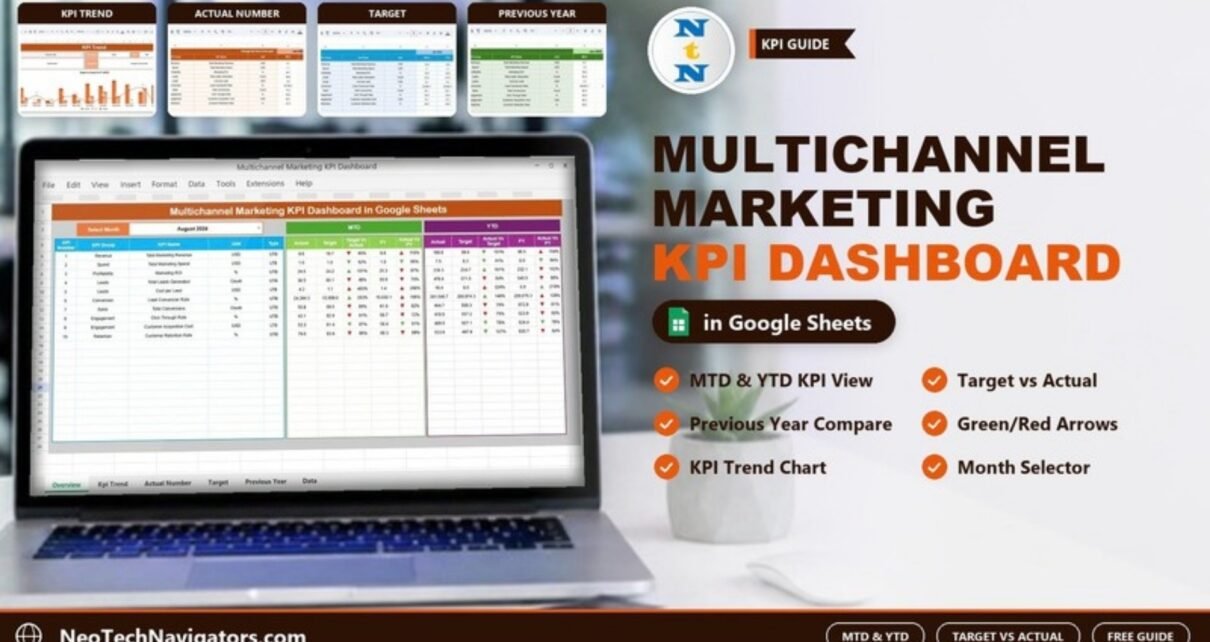
Most marketing teams now run email, social media, paid ads, the website and sometimes offline campaigns at the same time. The trouble is that each channel reports in its own tool, so nobody sees the whole picture and budget decisions get made on gut feel. A Multichannel Marketing KPI Dashboard in Google Sheets pulls the combined numbers into one place and compares every KPI against its target and last year.
This guide is for marketing managers, growth teams, agency owners and small businesses who report monthly to a manager or client. It walks through the six tabs of the template, how the month selector and the up and down arrows work, the ten KPIs the template ships with and their formulas, how to load your own data, and the honest limits of a spreadsheet dashboard.
🎥 Watch the Video Tutorial
Get the Multichannel Marketing KPI Dashboard
What Is a Multichannel Marketing KPI Dashboard?
It is a single Google Sheets file that tracks marketing KPIs across all your channels: revenue, spend, ROI, leads, conversions, engagement and retention. Instead of opening the email tool, the ads manager and the social analytics one by one, you enter each month’s combined numbers once and the dashboard shows month-to-date (MTD) and year-to-date (YTD) results, the percentage against target and the percentage against last year.
Because it is a Google Sheet, the whole team can open it in a browser, comment on it and share a view-only link with leadership. No BI licence is needed.
The Six Tabs Inside the Template
| Tab | What it does | What you change |
|---|---|---|
| Dashboard | MTD and YTD actual, target and previous year (PY) for every KPI, with arrows | Month dropdown in cell D3 |
| KPI Trend | Details and a Target Vs Actual Vs PY (MTD) chart for one KPI | KPI dropdown in cell C3 |
| Actual Number | Monthly MTD and YTD actual values | First month of the year in cell E1, then monthly actuals |
| Target | Monthly MTD and YTD targets | Target values |
| Previous Year Number | Last year’s MTD and YTD values for year-over-year comparison | Last year’s numbers |
| KPI Definition | KPI group, name, unit, formula, definition and type (UTB/LTB) | Your KPI list |
1. Dashboard
This is the page you present. Pick a month from the Select Month dropdown in cell D3 and every figure refreshes. Each KPI row shows its number, group, name, unit and type, followed by two blocks:
- MTD: Actual, Target, Target Vs Actual, PY, Actual Vs PY
- YTD: Actual, Target, Actual Vs Target, PY, Actual Vs PY
The comparison columns are percentages of actual divided by the benchmark. For example, in August 2024 the MTD Total Marketing Revenue is 9.6 against a target of 10.7, so the comparison reads 90%. Each percentage carries a green or red up or down arrow, so KPIs that miss target or fall behind last year stand out during a review meeting.

2. KPI Trend
Choose one KPI in cell C3 to see its KPI group, unit, type (UTB or LTB), formula and definition, plus a Target Vs Actual Vs PY (MTD) chart covering all twelve months. Use it to check whether a bad month is a one-off or part of a slide.

3. Actual Number
The input sheet for real results. Select the first month of your year in cell E1 (useful if your financial year starts in April), then fill in the MTD and YTD actuals for each KPI and month.

4. Target
Holds the MTD and YTD target for each KPI and month, in the same layout as Actual Number, so the dashboard can calculate the gap.

5. Previous Year Number
Stores last year’s values so you can report year-over-year growth and spot seasonal patterns.

6. KPI Definition
The reference library: KPI group, KPI name, unit, formula, definition and type (UTB = upper the better, LTB = lower the better). Agreeing these definitions once stops arguments later about how a number was calculated.

The 10 KPIs in the Template
These are the ten KPIs listed on the KPI Definition tab, with the formula, definition and type exactly as the template defines them. You can rename, add or remove KPIs to match your own channels.
| # | KPI | Group | Unit | What it measures | Formula | Better when |
|---|---|---|---|---|---|---|
| 1 | Total Marketing Revenue | Revenue | USD | Revenue from all channels | Sum Revenue | Higher (UTB) |
| 2 | Total Marketing Spend | Spend | USD | Total marketing cost | Sum Spend | Lower (LTB) |
| 3 | Marketing ROI | Profitability | % | Return on marketing spend | (Rev-Cost)/Cost | Higher (UTB) |
| 4 | Total Leads Generated | Leads | Count | Leads from all channels | Sum Leads | Higher (UTB) |
| 5 | Cost per Lead | Leads | USD | Average cost per lead | Spend/Leads | Lower (LTB) |
| 6 | Lead Conversion Rate | Conversion | % | Lead to customer rate | Conversions/Leads | Higher (UTB) |
| 7 | Total Conversions | Sales | Count | Converted customers | Sum Sales | Higher (UTB) |
| 8 | Click Through Rate | Engagement | % | Ad click rate | Clicks/Impressions | Higher (UTB) |
| 9 | Customer Acquisition Cost | Engagement | USD | Cost to acquire customer | Spend/Customers | Lower (LTB) |
| 10 | Customer Retention Rate | Retention | % | Customer retention level | Retained/Total | Higher (UTB) |
The UTB/LTB type matters when you read the results: for Cost per Lead, Total Marketing Spend and Customer Acquisition Cost a result above target is bad news, while for revenue, leads and conversion rate it is good news.
Other KPIs worth tracking
These are not in the template, but many teams add them as extra rows on the KPI Definition tab: Return on Ad Spend (attributed revenue ÷ ad spend), Email Open Rate (opens ÷ delivered emails) and Social Engagement Rate ((likes + comments + shares) ÷ reach).
How to Use It with Your Own Data
- Make a copy of the file in your Google Drive and rename it for your team or client.
- On KPI Definition, review the ten KPIs and adjust the group, name, unit, formula, definition and UTB or LTB type to suit your business.
- On Actual Number, set the first month of your year in cell E1.
- Enter this year’s targets on Target and last year’s results on Previous Year Number.
- Each month, export the totals from each channel tool, combine them, and enter them on Actual Number.
- Open Dashboard, choose the month in cell D3, and review the KPIs that missed target first.
- Use KPI Trend to check the history of any KPI before deciding to move budget.
Three Real-World Use Cases
- In-house marketing team: a single monthly review deck replaced by one shared sheet, with channel owners sending their totals to one person who updates the Actual Number tab.
- Agency reporting: one copy per client, shared view-only, so the client always sees MTD and YTD progress against the agreed targets.
- Small business owner: a simple way to see whether marketing spend, cost per lead and customer acquisition cost are moving the right way, without paying for a BI tool.
Best Practices
- Update numbers on a fixed date each month so comparisons are fair.
- Set targets you can explain; a target nobody believes is ignored.
- Read trends over three or more months before cutting a channel.
- Keep definitions consistent with your ad and email tools, for example how clicks and impressions are counted for Click Through Rate.
- Limit the dashboard to the KPIs that drive decisions; the template’s ten is a sensible size.
Limitations: Who Should Not Use It
This is a monthly KPI dashboard with manual data entry. It tracks combined totals rather than a separate row per channel, it does not connect to Google Ads, Meta or your CRM out of the box, and it does not do multi-touch attribution. If you need daily automated data feeds or attribution modelling, a BI tool with connectors is the better fit. You can add automation later with Google Apps Script, but plan the time for it.
Related Dashboards and Learning
If you track one channel in more depth, see the Email Marketing KPI Dashboard, the PPC Campaign KPI Dashboard or the Social Media ROI KPI Dashboard. For a funnel view, the Marketing Funnel and Conversion Dashboard shows where leads drop off, and the Marketing KPI Scorecard gives a one-page summary.
Prefer Excel? The same layout is available as the Multichannel Marketing KPI Dashboard in Excel. If you want to build dashboards like this yourself, the Excel Pivot Tables and Dashboards course on NextGenTemplates Academy teaches the structure step by step.
Frequently Asked Questions
Who should use a multichannel marketing KPI dashboard?
Marketing managers, growth teams, agencies and business owners who run more than one channel and need one monthly view of results against targets.
Which KPIs does the template include?
Ten: Total Marketing Revenue, Total Marketing Spend, Marketing ROI, Total Leads Generated, Cost per Lead, Lead Conversion Rate, Total Conversions, Click Through Rate, Customer Acquisition Cost and Customer Retention Rate. You can change them on the KPI Definition tab.
Does it show MTD and YTD?
Yes. The Dashboard shows both, each with target and previous-year comparisons.
Does it pull data automatically from Google Ads or Meta?
No. You enter monthly totals. Connecting APIs is possible with Google Apps Script but is not included.
Can my financial year start in a month other than January?
Yes. Select the first month of your year in cell E1 of the Actual Number tab.
Is it safe to share with clients?
Share a view-only link or publish only the Dashboard tab, and keep edit access for the people who enter data.
Wrapping Up
A multichannel marketing dashboard in Google Sheets gives you one honest monthly view of your marketing: actual against target, this year against last, with arrows that flag the KPIs needing attention. Check the ten KPI definitions first, load targets and last year’s numbers, then spend your review time on the KPIs that are off track.
Get the Multichannel Marketing KPI Dashboard
📅 Last updated: October 2026