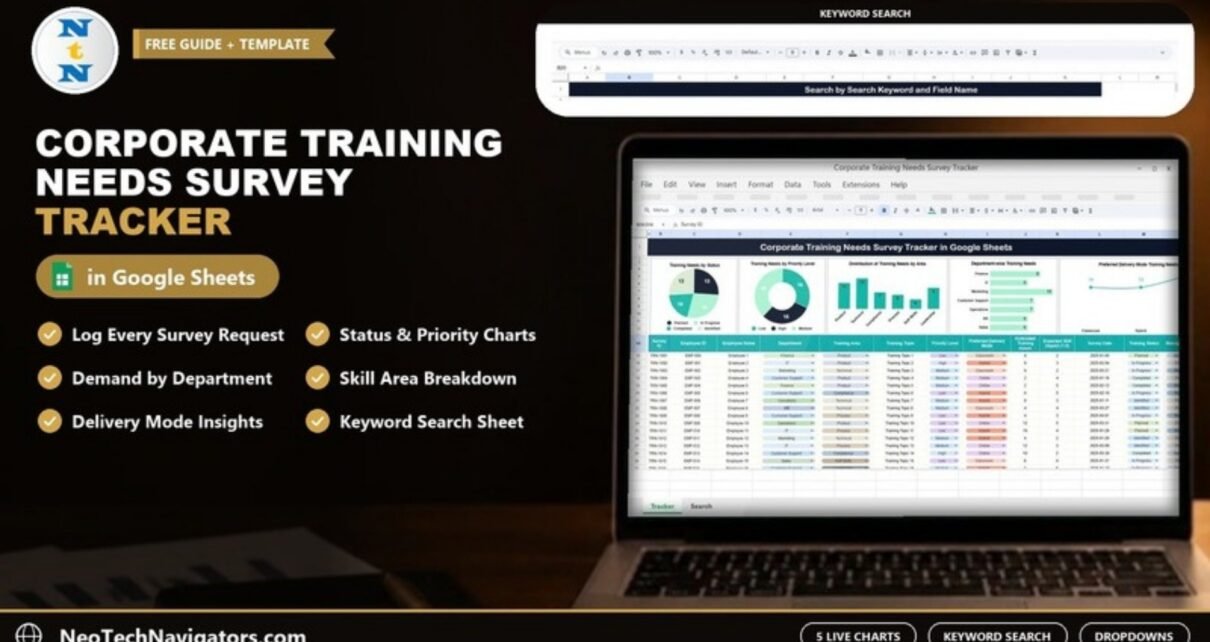
The Corporate Training Needs Survey Tracker in Google Sheets gives HR and Learning & Development teams one place to log every training request that comes out of an employee survey, then see the results as five live charts. Instead of reading through survey exports line by line, you can see at a glance which departments need training, which skill areas come up most, how urgent each request is and how people prefer to learn.
This guide is for HR managers, L&D coordinators and department heads who run training needs surveys once or twice a year and need to turn the answers into a plan. It walks through the tracker sheet, every chart, the keyword search sheet, a step-by-step setup for your own data, real use cases and the limits you should know about before you buy.
🎥 Watch the Video Tutorial
Get the Training Needs Survey Tracker
What Problem Does a Training Needs Survey Tracker Solve?
Most companies already ask employees what training they want. The problem comes after the survey closes. Responses sit in a form export, managers send extra requests by email, and nobody can say with confidence whether Finance needs compliance training more than Sales needs product training. Budgets then follow whoever asks loudest.
A structured tracker fixes that by giving every request the same fields: who asked, which department, what skill area, how urgent, how they want to learn, how many hours it needs and where it stands. Once the data is consistent, the charts answer the planning questions for you:
- Which departments are asking for the most training?
- Which skill areas (Product, Technical, Compliance and so on) dominate demand?
- How many requests are high priority versus low priority?
- Should the next programme be run in a classroom, online or as a hybrid?
- How many requests are still only identified, and how many are already planned, in progress or completed?
What Is Inside the Corporate Training Needs Survey Tracker
The template has two working areas: the main tracker sheet with the chart panel across the top, and a separate search sheet. Here is a quick summary before we go through each part.
| Part | What it shows | What you do there |
|---|---|---|
| Chart panel | Five charts: status, priority level, training area, department and delivery mode | Read only; charts refresh from the tracker data |
| Tracker table | One row per training need, with Survey ID, employee, department, training details, status and approval columns | Enter or paste survey responses and update status |
| Search sheet | Filtered list of matching records plus a Total Record count | Pick a column, type a keyword |
The Tracker Sheet: Columns Explained
The tracker table holds one row per training need. The sample data uses Survey IDs such as TRN-1001 and Employee IDs such as EMP-500. The columns shown in the screenshot are:
- Survey ID: a unique reference for each response.
- Employee ID and Employee Name: who raised the need.
- Department: Finance, IT, Marketing, Customer Support, Operations, HR and Sales in the sample, chosen from a dropdown.
- Training Area: Product, Technical, Compliance, Process, Soft Skills or Leadership.
- Training Topic: the specific course or subject requested.
- Priority Level: Low, Medium or High.
- Preferred Delivery Mode: Classroom, Hybrid or Online.
- Estimated Training Hours: how long the training is expected to take.
- Expected Skill Impact (1-5): a simple score of how much the training should improve the skill.
- Survey Date: when the need was captured.
- Training Status: Identified, Planned, In Progress or Completed.
- Manager Approval: Approved, Pending or Rejected.
Most of these columns use dropdown chips, so values stay consistent and the charts count them correctly.

The Five Charts and What They Tell You
The sample file contains 50 training needs, and every chart adds up to that total. Here is what each chart shows using the sample numbers.
1. Training Needs by Status
A pie chart that splits requests into Planned (13), In Progress (14), Completed (10) and Identified (13). Use it in monthly reviews to see how many needs are still sitting at the Identified stage without a plan.
2. Training Needs by Priority Level
A donut chart showing Low (16), High (15) and Medium (19). If the High slice keeps growing while Completed stays flat, that is a signal to bring forward the urgent programmes.
3. Distribution of Training Needs by Area
A column chart by skill area: Product 11, Technical 13, Compliance 7, Process 6, Soft Skills 4 and Leadership 9. In the sample, Technical and Product training clearly lead demand.
4. Department-wise Training Needs
A bar chart by department: Finance 8, IT 6, Marketing 10, Customer Support 7, Operations 7, HR 6 and Sales 6. Marketing raises the most training needs in the sample data.
5. Preferred Delivery Mode Training Needs
A line chart comparing Classroom, Hybrid and Online preferences. Classroom and Hybrid show 15 each in the sample, and the line peaks at Online, which accounts for the remaining 20 of the 50 needs. This helps you decide between booking a trainer, licensing an online course or combining both.
Search by Search Keyword and Field Name
The second sheet is a simple search tool. You choose a column in Select Column (for example Department), type a value in Search Keyword (for example “hr”) and the sheet lists every matching record with all its columns. A Total Record box shows how many rows matched.
In the screenshot below, searching the Department column for “hr” returns 6 records, which matches the HR bar in the department chart. This is handy when a department head asks, “What did my team request?” and you need the answer during the meeting.

How to Use It With Your Own Data
- Make your copy. Open the file and use File > Make a copy so you have your own editable version in Google Drive.
- Update the dropdown lists. Replace the sample departments, training areas and topics with your own names. Keep the spelling consistent, because the charts count exact matches.
- Clear the sample rows. Delete the sample responses in the tracker table, but keep the header row and any formula or dropdown setup.
- Load your survey responses. If you collect answers in Google Forms, copy the response columns into the matching tracker columns. Give each response a Survey ID.
- Set priority and skill impact. Agree with managers on what High, Medium and Low mean, and score Expected Skill Impact from 1 to 5 the same way across teams.
- Track progress. As programmes are approved and delivered, update Manager Approval and Training Status. The charts refresh on their own.
- Review and share. Use the charts in your monthly L&D review and the search sheet to answer department-specific questions.
Real-World Use Cases
Annual training plan for a mid-size company
An HR team runs a survey in January, loads 200 responses and sees that Compliance and Technical training dominate. They book two compliance sessions in Q1, plan technical courses for Q2 and use the status chart to report progress to leadership each month.
Department-level skill gap review
A Customer Support manager searches the Department column for their team, sees which Product topics were requested and which are still Pending approval, and builds a short onboarding refresh around them.
Choosing a delivery format
An L&D coordinator checks the delivery mode chart before signing a vendor contract. If Online leads, a self-paced platform may give better reach than booking classroom days.
Best Practices
- Run the survey at least twice a year so the tracker reflects current needs, not last year’s.
- Keep one standard list of training areas and topics, and add new ones deliberately.
- Write a one-line definition of each priority level and share it with managers.
- Move requests to Planned only when a date or vendor is agreed.
- Review Pending approvals every month so requests do not stall.
- Restrict edit access to HR and L&D; share a view-only link with department heads.
Who Should Not Use This Tracker (Limitations)
- It is not a learning management system. It does not host courses, enrol learners or issue certificates. If you need that, use an LMS and keep this tracker for planning.
- There is no budget column. If you need to track training spend, add a cost column or use a dedicated budget template.
- Survey collection is manual. The tracker does not create the survey for you; you copy responses in from Google Forms or another tool.
- Very large companies with thousands of responses per cycle may find Google Sheets slow and might prefer a database-backed HR system.
Related Templates and Guides
If you assess skills before running the survey, the employee skill assessment tracker pairs well with this file. For a more formal assessment workflow, see the training needs assessment tracker in Google Sheets. Once programmes are scheduled, the training schedule request tracker helps you manage session bookings, and the employee training effectiveness dashboard shows whether the training worked. You can also compare this with the learning and development performance dashboard for a wider L&D view.
Related template: the Training Needs Assessment Tracker in Google Sheets on NextGenTemplates.
If you are new to spreadsheets and want to go further with structured lessons, the learning paths on NextGenTemplates Academy take you from the basics to building your own trackers and reports step by step.
Frequently Asked Questions
What is a training needs survey tracker?
It is a spreadsheet that records each training request collected from employees, with department, skill area, priority, delivery preference and status, so HR can analyse demand and plan programmes.
Can I connect it to Google Forms?
The template does not link to a form automatically, but you can collect answers in Google Forms and copy the response columns into the tracker table. Keep the same values as the dropdowns so the charts count them.
Can I change the departments and training areas?
Yes. Edit the dropdown lists to match your organisation. Use the same spelling in every row so each chart groups the data correctly.
What do the Training Status values mean?
Identified means the need has been captured, Planned means a session is scheduled, In Progress means training is under way and Completed means it has been delivered.
Can several people update the tracker at once?
Yes. Because it is a Google Sheets file, HR and L&D team members can edit it at the same time, and you can give view-only access to managers.
Does it track training costs?
No. The template focuses on needs, priority and status. You can add a cost column yourself if you want to estimate budgets.
Wrapping Up
A training survey is only useful if the answers turn into a plan. The Corporate Training Needs Survey Tracker in Google Sheets gives every request a consistent structure, five charts that answer the main planning questions and a search sheet for department-level follow-ups. Start by loading your latest survey responses, agree on priority definitions with managers and review the charts each month.
Get the Corporate Training Needs Survey Tracker
📅 Last updated: October 2026