Employee ideas drive innovation, improve processes, and strengthen workplace culture. However, many organizations still manage employee suggestions through emails, paper forms, or scattered spreadsheets. Because of this, valuable ideas often get ignored, delayed, or lost. As a result, employee engagement drops and improvement opportunities disappear.
An Employee Suggestion Submission Tracker in Google Sheets solves this challenge effectively. This ready-to-use tracker helps organizations collect, track, analyze, and implement employee suggestions in a structured and transparent way. Moreover, it provides visual insights through dynamic charts and a smart search feature, making suggestion management simple and efficient.
In this article, you will learn how this tracker works, what charts it includes, how the search system improves productivity, and how organizations can use it to build a strong culture of continuous improvement.
Get the Employee Suggestion Submission Tracker in Google Sheets
What Is an Employee Suggestion Submission Tracker in Google Sheets?
An Employee Suggestion Submission Tracker is a centralized system that records all employee ideas from submission to implementation. It captures important details such as suggestion category, department, status, cost, and impact. Because it is built in Google Sheets, it updates instantly and supports real-time collaboration.
This tracker helps organizations:
- Encourage employee participation
- Track suggestion status transparently
- Control implementation costs
- Identify high-impact ideas
- Improve engagement and innovation
Since Google Sheets runs in the cloud, teams can access and update the tracker anytime, from anywhere.
Key Features of the Employee Suggestion Submission Tracker
This ready-to-use tracker includes:
- A structured Tracker Sheet Tab
- Five insightful charts
- A powerful search system
- Clean data design for easy maintenance
Let’s explore each feature in detail.
Tracker Sheet Tab
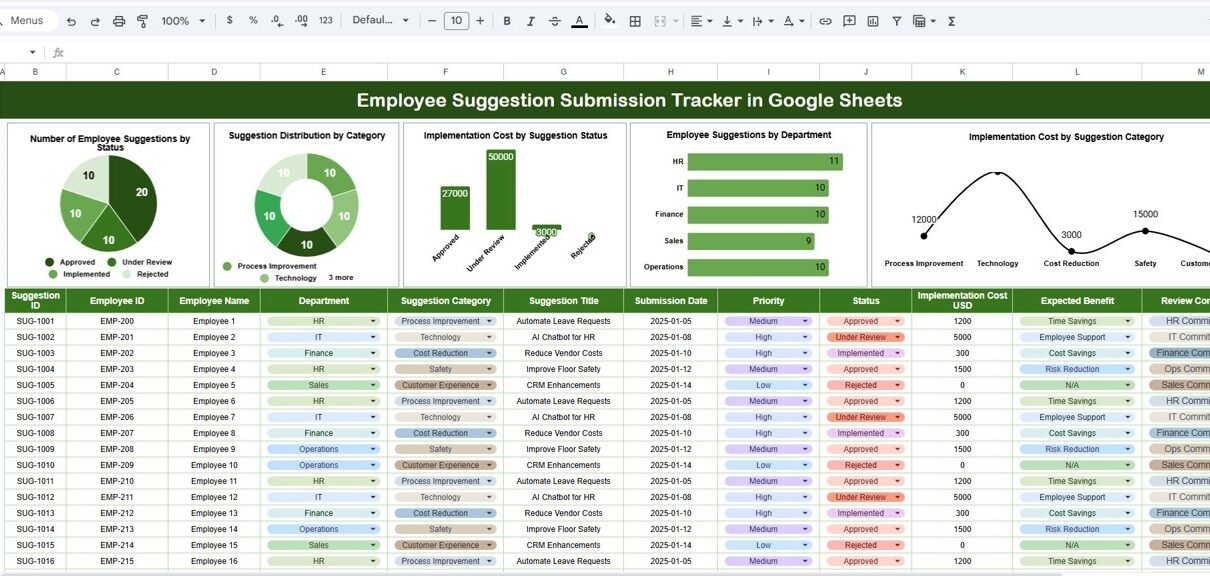
The Tracker Sheet Tab is the foundation of the entire system. You enter all employee suggestions in this sheet. Typical fields include:
- Suggestion ID
- Employee Name
- Department
- Suggestion Category
- Suggestion Description
- Submission Date
- Suggestion Status (Submitted, Under Review, Approved, Implemented, Rejected)
- Implementation Cost
- Reviewer / Assigned Team
- Comments
Once you add or update data, all charts refresh automatically. Therefore, managers always see the latest insights without manual calculations.
This structured layout ensures clarity, accountability, and consistency across the organization.
Charts Included in the Tracker
The dashboard contains five powerful charts, each designed to highlight a different aspect of employee suggestions.
Number of Employee Suggestions by Status
This chart shows how many suggestions fall under each status:
- Submitted
- Under Review
- Approved
- Implemented
- Rejected
Because of this chart, managers can quickly identify backlogs and delays. For example, a large number of “Under Review” suggestions signals the need for faster evaluation.
Suggestion Distribution by Category
This chart displays suggestions by category, such as:
- Process Improvement
- Cost Reduction
- Workplace Safety
- Technology Enhancement
- Employee Welfare
- Customer Experience
With this insight, organizations understand which areas employees focus on most. As a result, leadership can align improvement initiatives with employee priorities.
Implementation Cost by Suggestion Status
This chart compares implementation cost across suggestion statuses. It helps answer questions like:
- How much budget supports approved ideas?
- How much cost involves implemented suggestions?
- Are rejected ideas consuming review resources?
Because cost visibility improves, organizations control budgets more effectively.
Employee Suggestions by Department
This chart shows how many suggestions come from each department. It helps managers:
- Identify highly engaged departments
- Spot departments that need encouragement
- Compare innovation levels across teams
When leaders see department-wise participation, they can design targeted engagement programs.
Implementation Cost by Suggestion Category
This chart highlights how much each suggestion category costs to implement. It helps decision-makers:
- Balance cost versus impact
- Prioritize low-cost, high-value ideas
- Control spending on improvement initiatives
This chart supports smarter budgeting and planning.

Search Functionality – Search by Keyword and Field Name
The tracker includes a smart search feature that saves time and effort.
You simply enter:
-
Search Keyword (e.g., department name, employee name, category)
-
Field Name (e.g., Department, Status, Category, Employee Name)
The tracker instantly displays matching records.
This feature helps users:
- Locate specific suggestions quickly
- Prepare reports for management meetings
- Respond to employee queries instantly
- Perform audits and reviews efficiently
Because searching becomes effortless, productivity increases significantly.

Advantages of Employee Suggestion Submission Tracker in Google Sheets
Encourages Employee Participation
Employees feel valued when ideas get tracked and reviewed properly.
Improves Transparency
Everyone knows the status of each suggestion.
Saves Time
Automated charts and search reduce manual work.
Supports Data-Driven Decisions
Managers evaluate ideas using real data instead of opinions.
Controls Implementation Cost
Cost tracking prevents budget overruns.
Improves Workplace Culture
A structured suggestion system builds trust and engagement.
Opportunities for Improvement in Employee Suggestion Tracking
Even though the tracker is powerful, organizations can enhance it further.
Add Impact Scoring
Score suggestions based on expected benefit.
Automate Notifications
Send alerts when suggestion status changes.
Track Implementation Benefits
Measure cost savings or productivity improvement.
Add Voting Mechanism
Allow employees to vote on ideas.
Integrate with HR or Project Tools
Connect suggestions to execution platforms.
These enhancements turn the tracker into a full innovation management system.
Best Practices for Using the Employee Suggestion Tracker
Promote the Tracker Regularly
Encourage employees to submit ideas consistently.
Define Clear Categories
Clear categories improve analysis accuracy.
Review Suggestions Weekly
Quick reviews maintain employee trust.
Track Implementation Costs Carefully
Accurate cost data supports better decisions.
Share Success Stories
Highlight implemented ideas to motivate others.
Use Charts in Leadership Reviews
Visual insights support faster decisions.
Conclusion
An Employee Suggestion Submission Tracker in Google Sheets helps organizations capture ideas, manage innovation, and strengthen employee engagement. It provides clear visibility into suggestion status, cost, category, and department-wise participation. Because the tracker is easy to use, cloud-based, and visually rich, it becomes an essential tool for HR teams, managers, and leadership.
With structured data, powerful charts, and a smart search system, organizations transform employee ideas into meaningful improvements. As a result, teams feel heard, processes improve, and innovation becomes part of everyday culture.
Building trackers like this one is a handy spreadsheet skill, and the NextGenTemplates Academy learning paths lay out a clear order to learn it, with practice files along the way.
Get the Employee Suggestion Submission Tracker in Google Sheets
Frequently Asked Questions (FAQs)
1. Who should use this tracker?
HR teams, improvement committees, managers, and leadership teams.
2. Can I customize categories and statuses?
Yes, the tracker is fully customizable.
3. Does it support multiple departments?
Yes, it works for organizations of any size.
4. Can multiple users update it simultaneously?
Yes, Google Sheets supports real-time collaboration.
5. Is it suitable for remote teams?
Yes, remote teams can access it easily.
6. Do I need technical skills to use it?
No, basic Google Sheets knowledge is enough.