Accounting Firm Client Management System Web App is a 24-screen practice management template for accounting firms that want one browser-based workspace for clients, recurring compliance jobs, documents, queries, timesheets, invoices, receipts, expenses, ledgers and reports. Missed accounting deadlines have real cost: the IRS failure-to-file penalty can reach 5% of unpaid tax per month, capped at 25%, according to IRS penalty guidance. That is exactly why firms need clean due-date visibility, owner accountability and document follow-up before work slips.
This template is designed as a Google Apps Script-style web app workflow. Google documents that Apps Script projects can be deployed as web apps through the deployment process, which makes this format useful for teams that want an editable, account-owned system instead of another monthly SaaS subscription. You can review Google guidance here: Google Apps Script web apps.
Download the Accounting Firm Client Management System Web App from NextGenTemplates when you want a ready accounting-practice operating system that still leaves room for customization.
Get the Accounting Firm Client Management System Web App
🚀 Try the Live Demo Before You Buy
We have deployed this web app in our own Google account so you can test every screen and every role — with real sample data — before purchasing. No signup, no email required.
🔑 Test Login Credentials
Sign in with any of the 7 roles below to explore the practice dashboard, compliance calendar, jobs, billing and admin screens exactly as your firm’s team would see them.
💡 What you get after purchase: The full source code (Code.gs + Index.html) plus a step-by-step deployment guide so you can deploy your own private instance in your own Google account in under 15 minutes.
Key Features of Accounting Firm Client Management System Web App
- 24 connected screens: Login, dashboard, compliance calendar, jobs, queries, clients, contacts, services, engagements, document requests, library, timesheets, team, invoices, receipts, expenses, ledger, reports, notifications, users, master lists, import/export, audit log and settings.
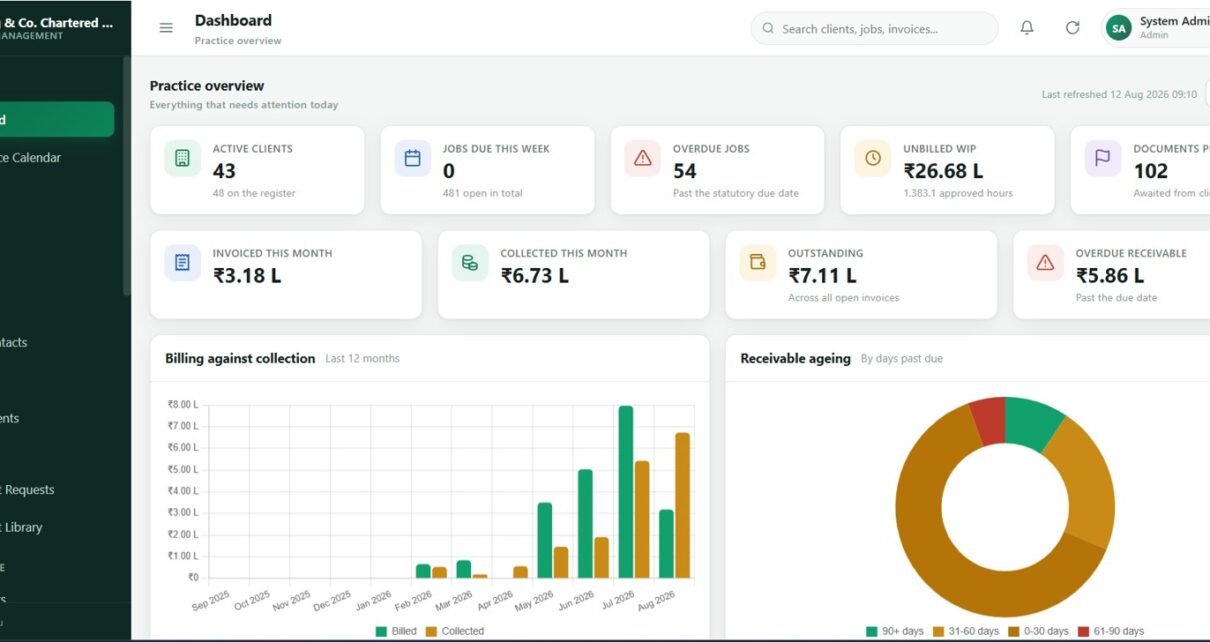
- Practice dashboard: Track active clients, jobs due this week, overdue jobs, unbilled WIP, pending documents, invoiced value, collected value, outstanding value and overdue receivables.
- Compliance workflow: Organize filing dates, service lines, assigned staff, due periods, priority, status and progress from one job register.
- Client follow-up control: Manage queries, document requests, reminders, response due dates, owners and client contacts.
- Timesheet and WIP visibility: Log staff time, billable hours, billing value, approval status and billed/unbilled work.
- Billing and collections: Connect invoices, receipts, expenses, tax deducted, outstanding balances and client ledger views.
- Admin-ready controls: Maintain users, team roles, master lists, import/export tools, audit history and firm settings.
Dashboard Pages Explanation
1. Login Page
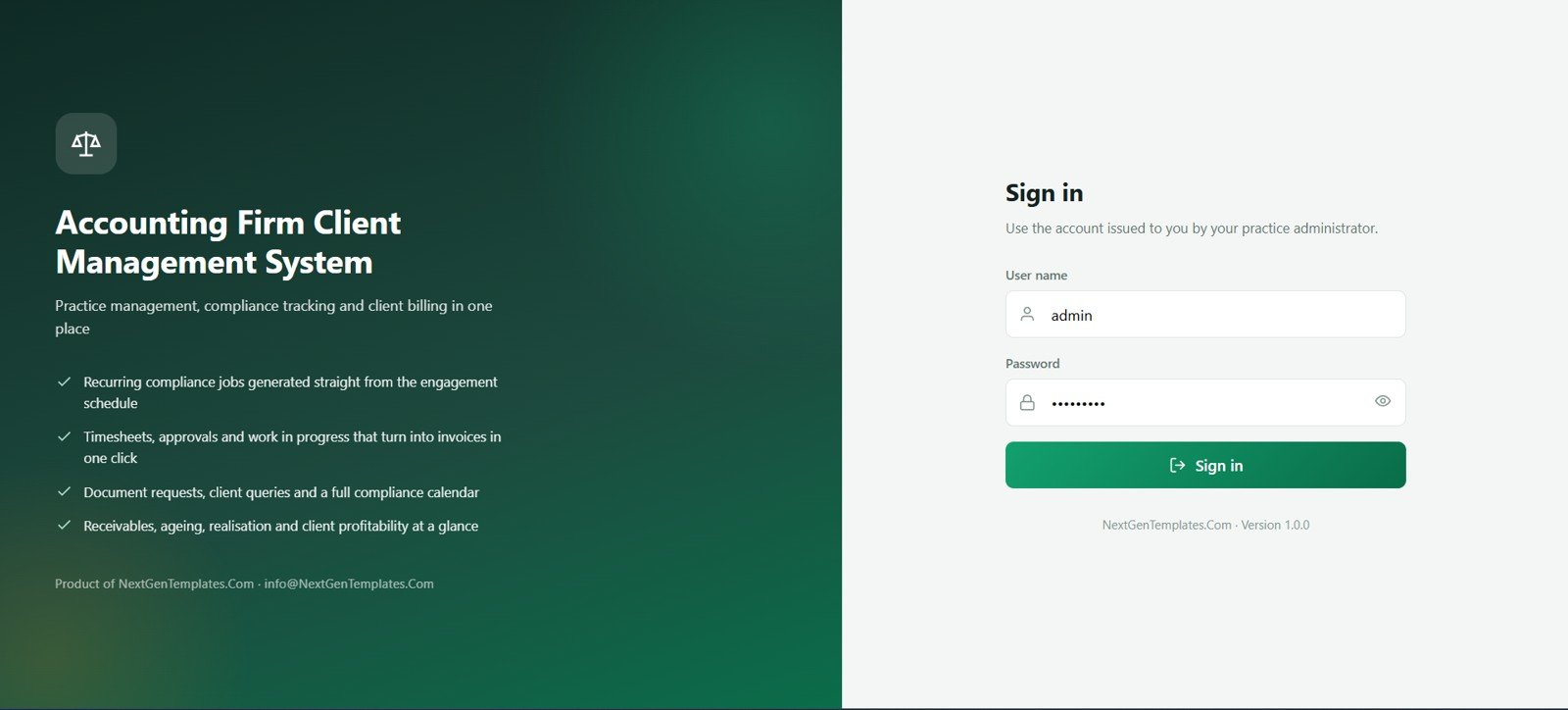
The login screen gives the system a clean entry point for partners, managers, accountants, billing executives and auditors. It keeps daily practice work behind a controlled sign-in flow instead of scattered sheets or shared links.
Use this as the front door for role-aware access, firm branding and user accountability before staff reach client, job or billing data.
2. Dashboard
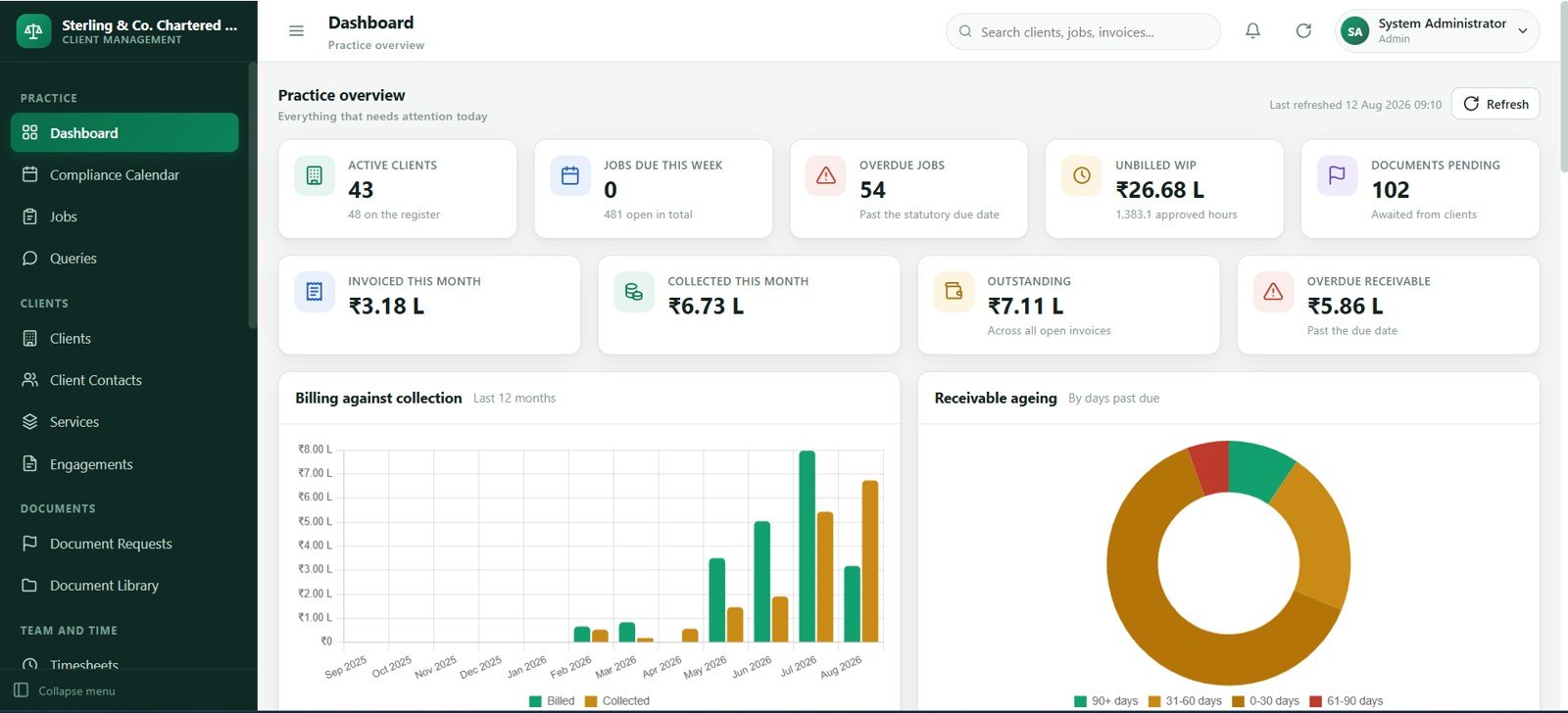
The dashboard summarizes the health of the practice with cards for active clients, due jobs, overdue jobs, pending documents, invoices, collections and receivables. It helps partners see what needs action without opening every module.
Charts and recent activity areas make workload, billing and collection pressure easier to review during morning meetings.
3. Compliance Calendar
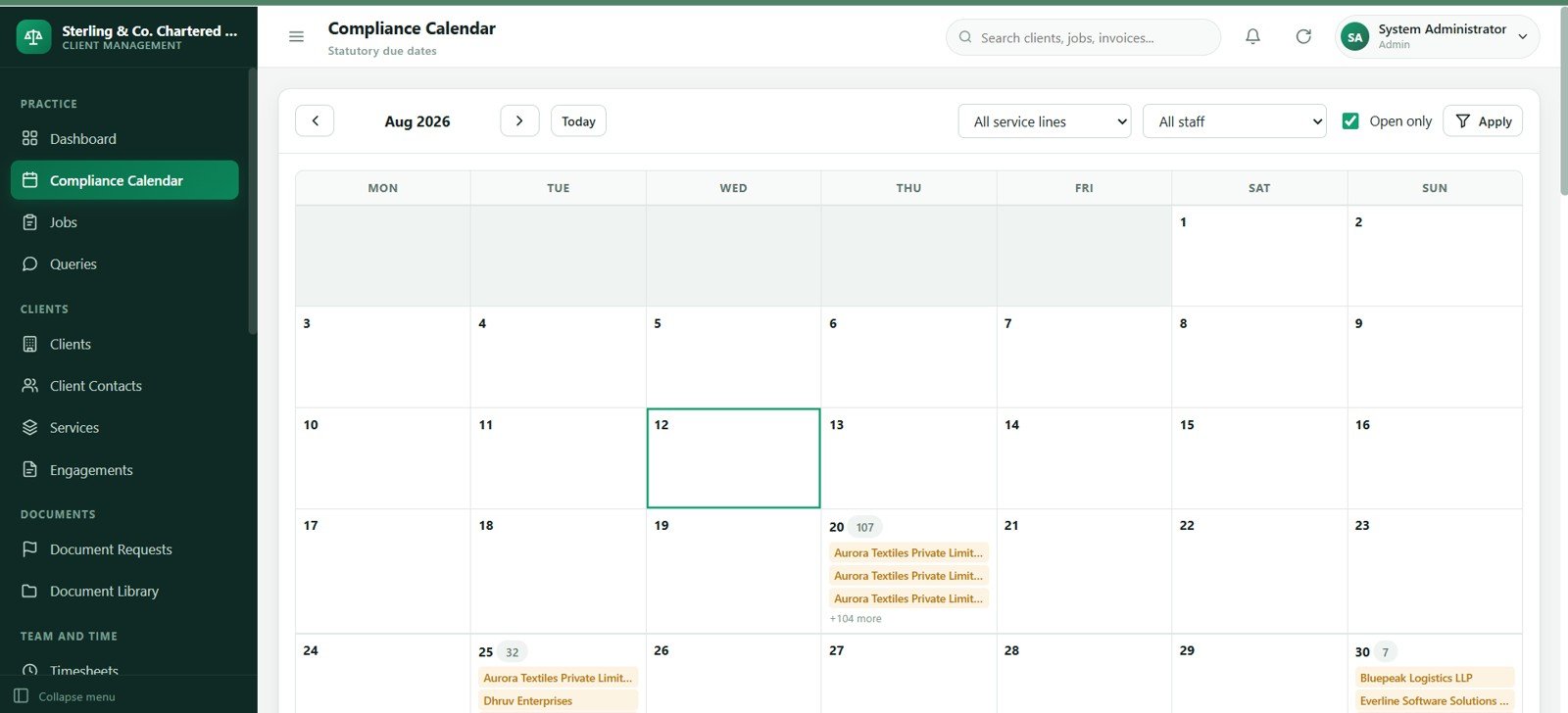
The compliance calendar turns recurring statutory and client-service deadlines into a month-by-month operating view. Staff can scan due dates by client, service, assigned owner or status before deadline pressure builds.
This page is especially helpful for tax filing seasons, monthly compliance tasks, payroll cycles, return preparation and recurring advisory work.
4. Jobs
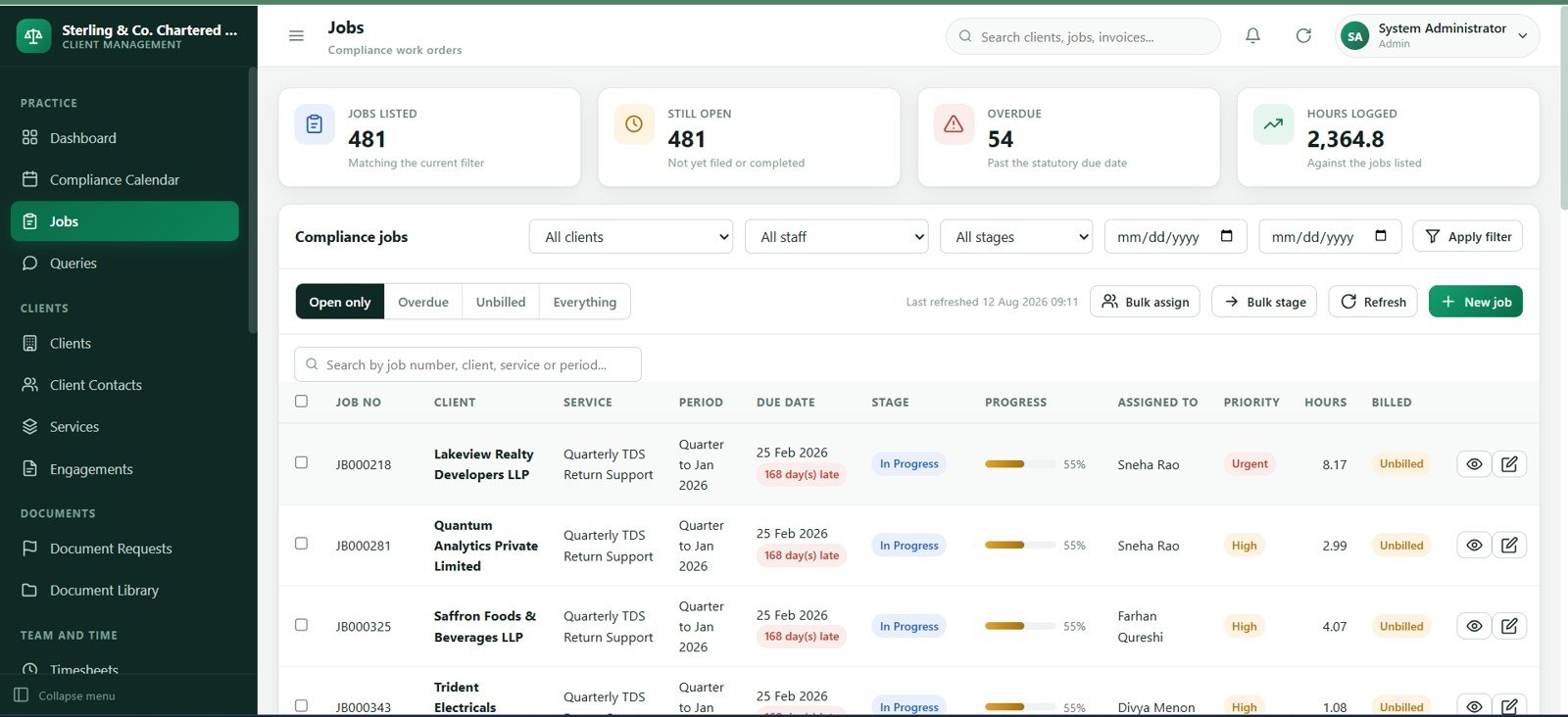
The jobs screen is the main execution register for client work. Each row can track the client, service, period, due date, assigned staff, priority, stage, progress, hours and billing status.
Managers can use it to spot overdue work, rebalance staff capacity and confirm whether completed work has moved into billing.
5. Queries
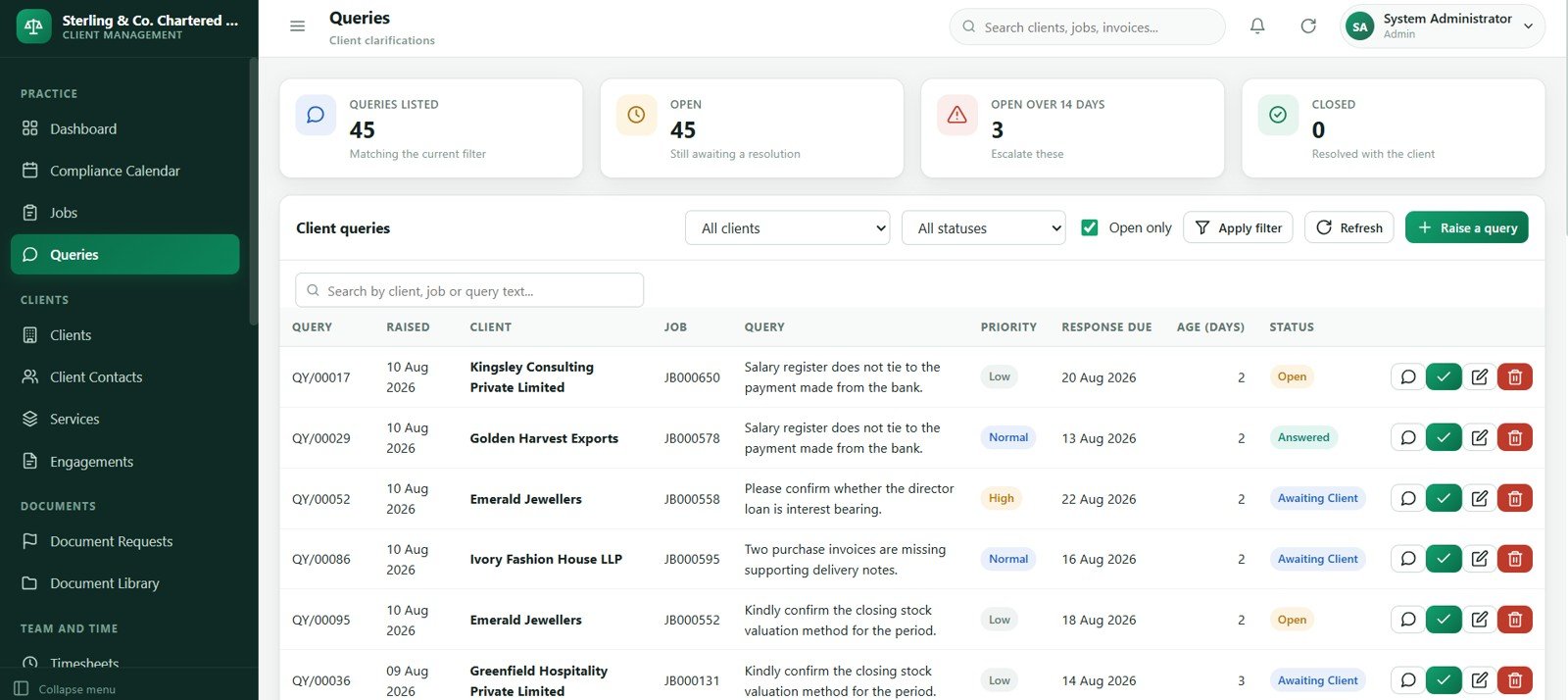
The queries module records open questions raised by staff or clients. It can track query type, owner, status, response due date, reminder count and resolution notes.
This prevents client follow-ups from living only in email threads and helps teams connect unresolved queries back to delayed jobs or documents.
6. Clients
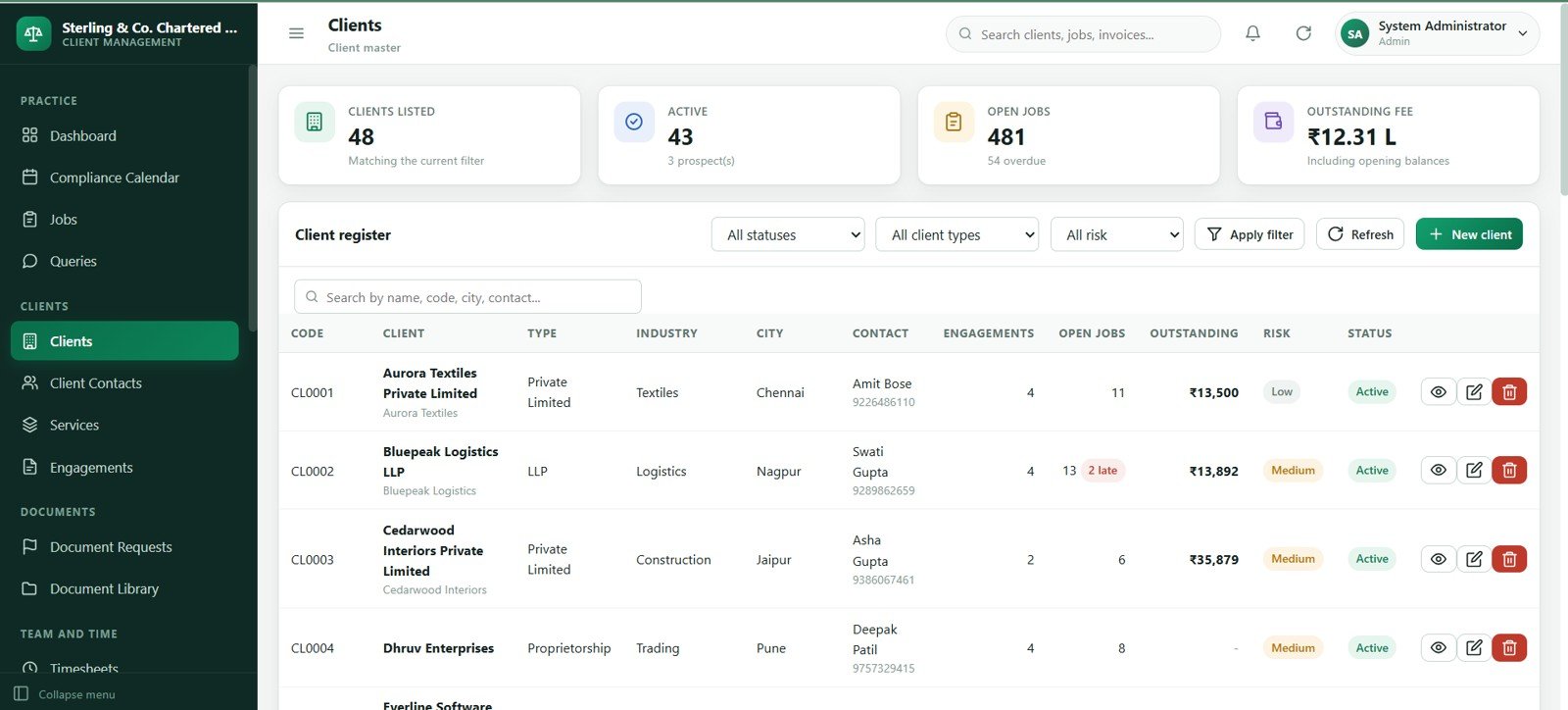
The clients screen keeps the master record for each business or individual client. It is the place to maintain client status, entity details, tax identifiers, assigned manager, onboarding date and service relationship notes.
Clean client records make the rest of the app easier to use because jobs, engagements, documents, invoices and ledgers all depend on accurate client data.
7. Client Contacts
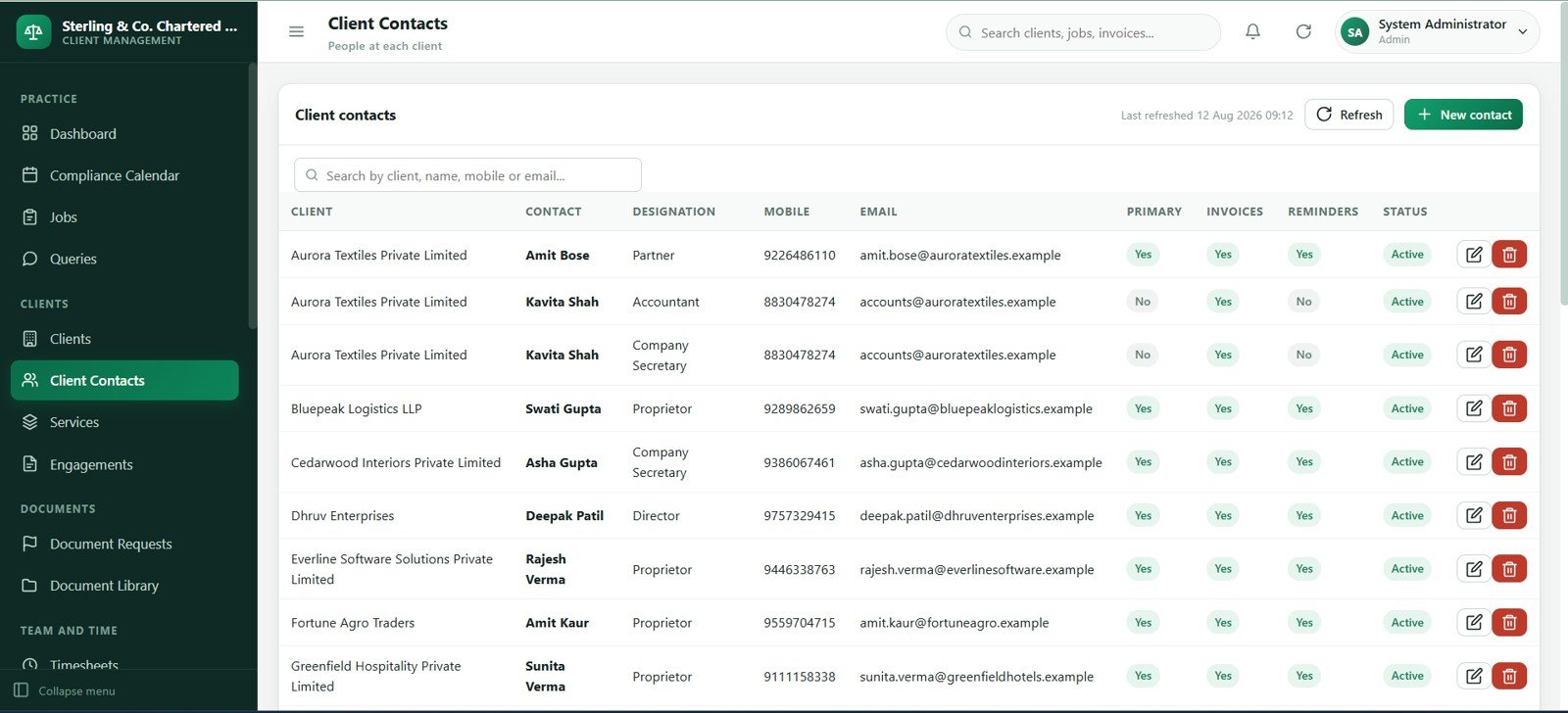
The client contacts page stores decision makers, finance contacts, document providers and escalation contacts separately from the client master. This avoids confusion when one client has multiple people involved in tax, audit, payroll or bookkeeping work.
Teams can use primary-contact flags, phone numbers, email addresses and roles to speed up reminders and reduce misdirected requests.
8. Services
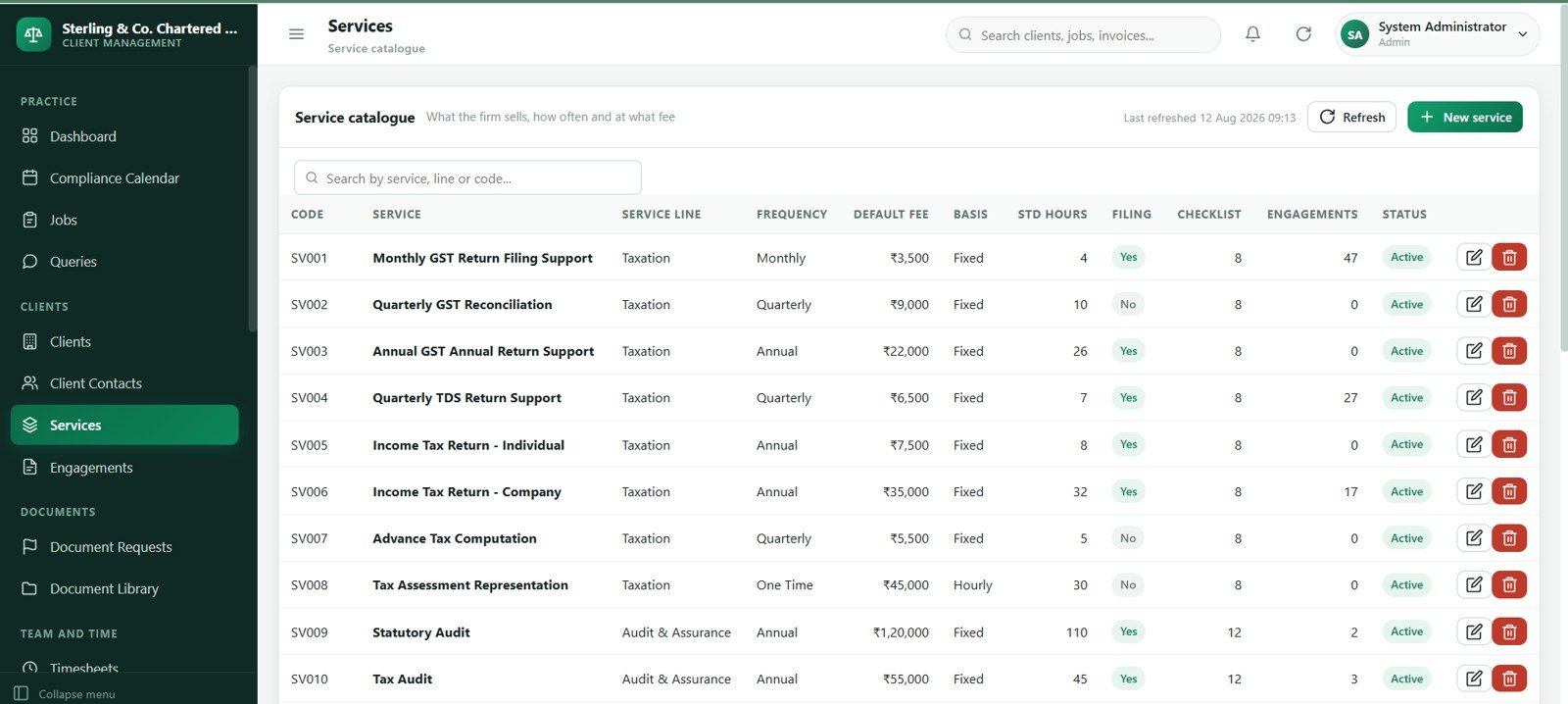
The services screen defines what the firm sells and delivers, such as bookkeeping, tax returns, payroll, advisory, audit support or compliance filing. Each service can carry frequency, billing basis, default fee and responsible department.
A maintained service catalog creates consistency across engagements, jobs, billing and reports.
9. Engagements
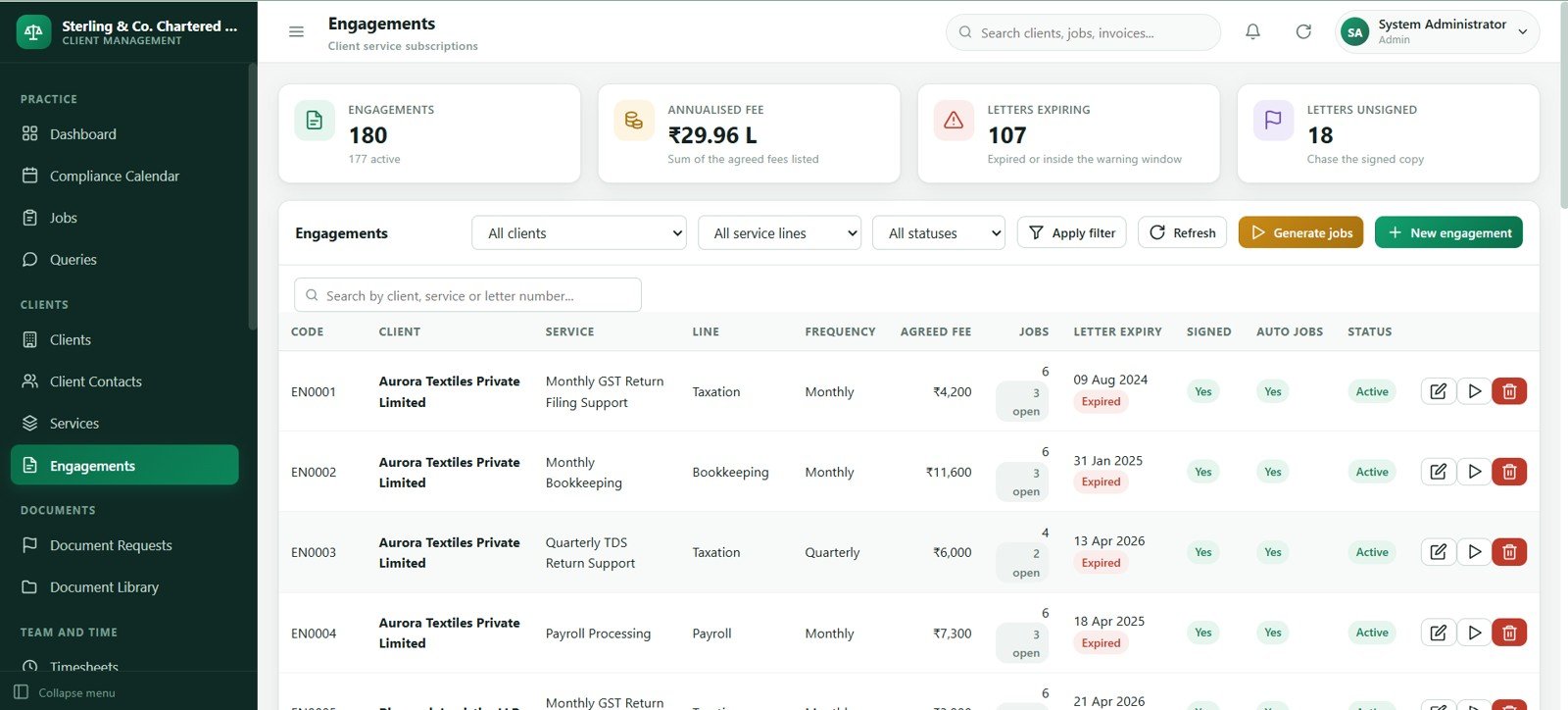
The engagements page connects clients to active services. It can hold the engagement start date, agreed fee, billing frequency, manager, service status and renewal notes.
This helps firms know exactly which clients receive which services, what should be billed and when recurring work should appear in the jobs list.
10. Document Requests
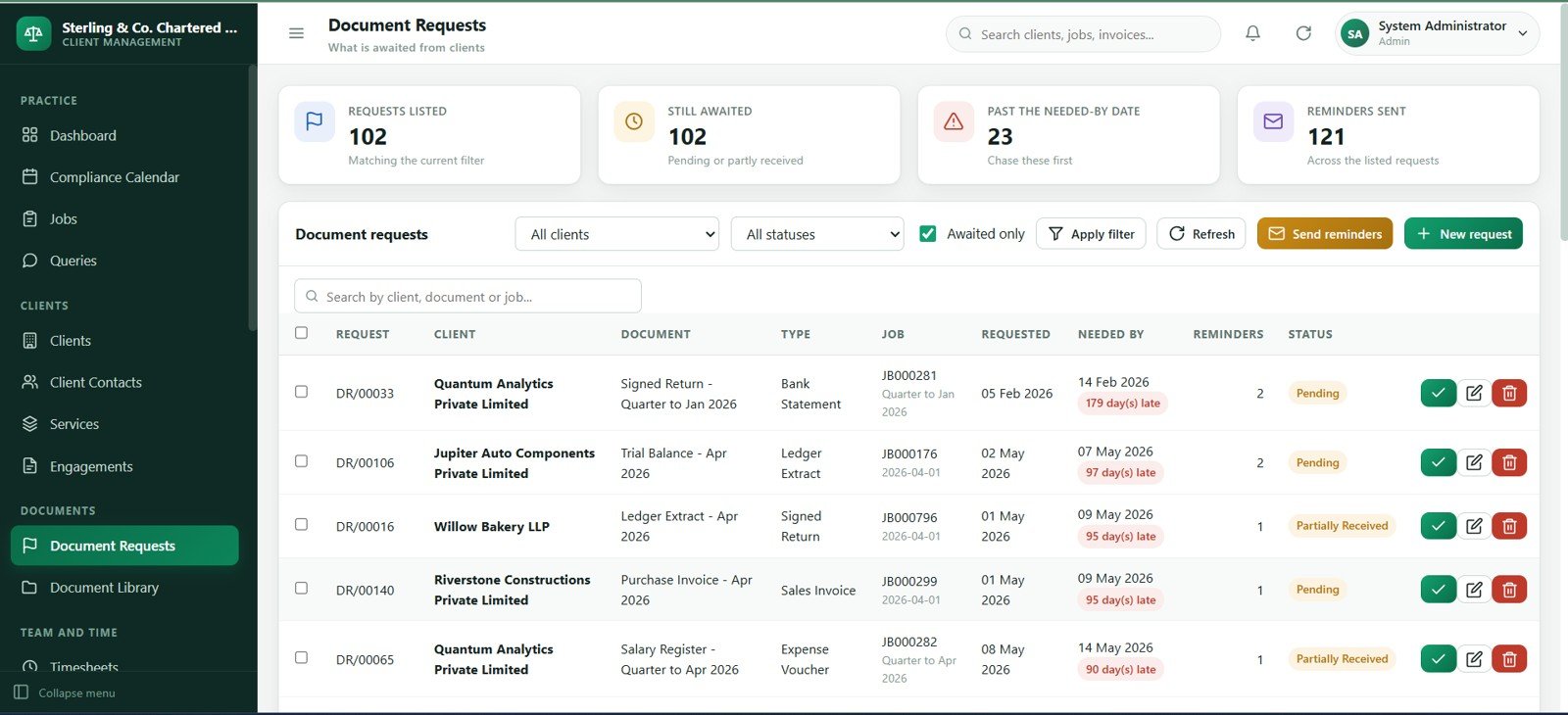
The document requests module tracks what the firm needs from clients before work can move forward. It can capture request type, client, service, period, due date, assigned owner, status and reminder history.
This is one of the most practical screens for reducing bottlenecks because missing documents often create late jobs, delayed billing and repeated manual follow-up.
11. Document Library
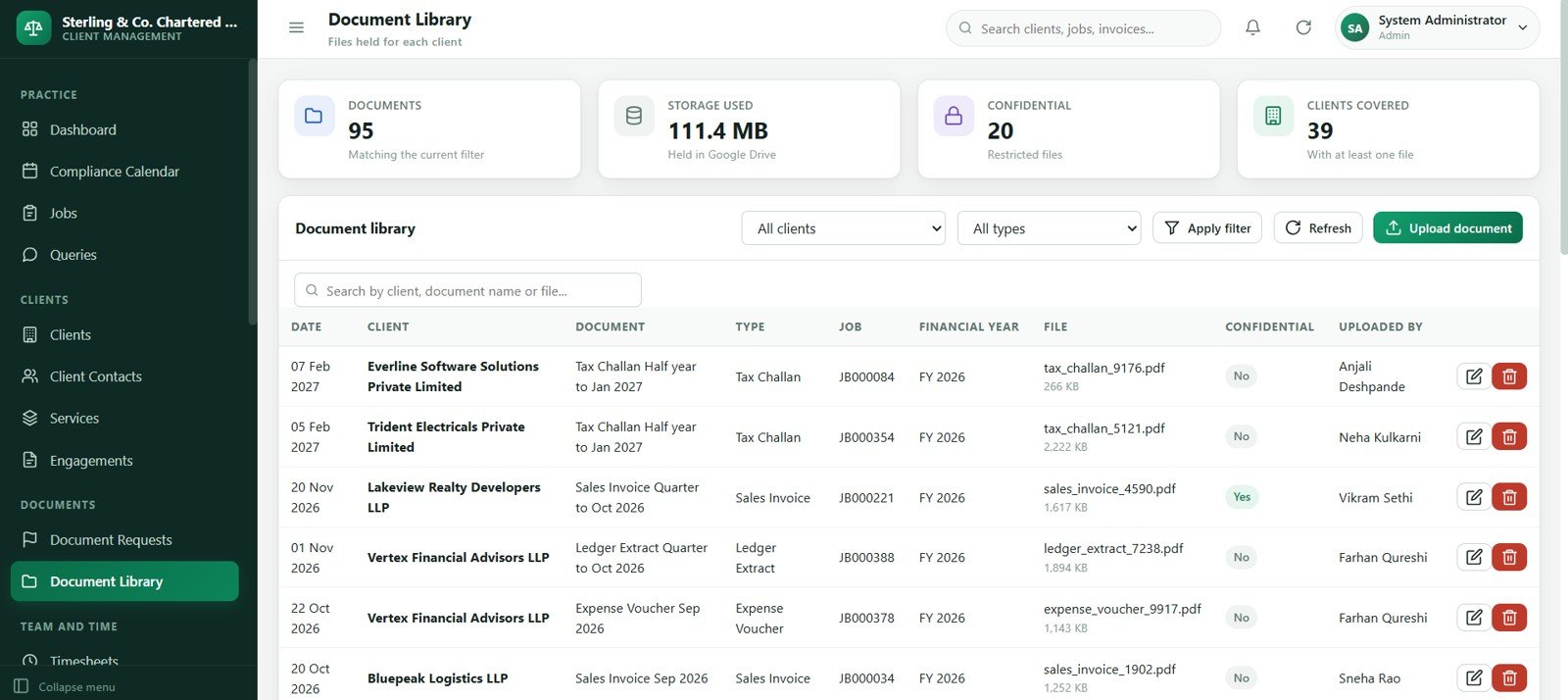
The document library keeps document records organized by client, service, period and document type. It is built to make supporting files easier to find after request fulfillment.
Use it as a structured reference list for received documents, file links, review status and retention notes.
12. Timesheets
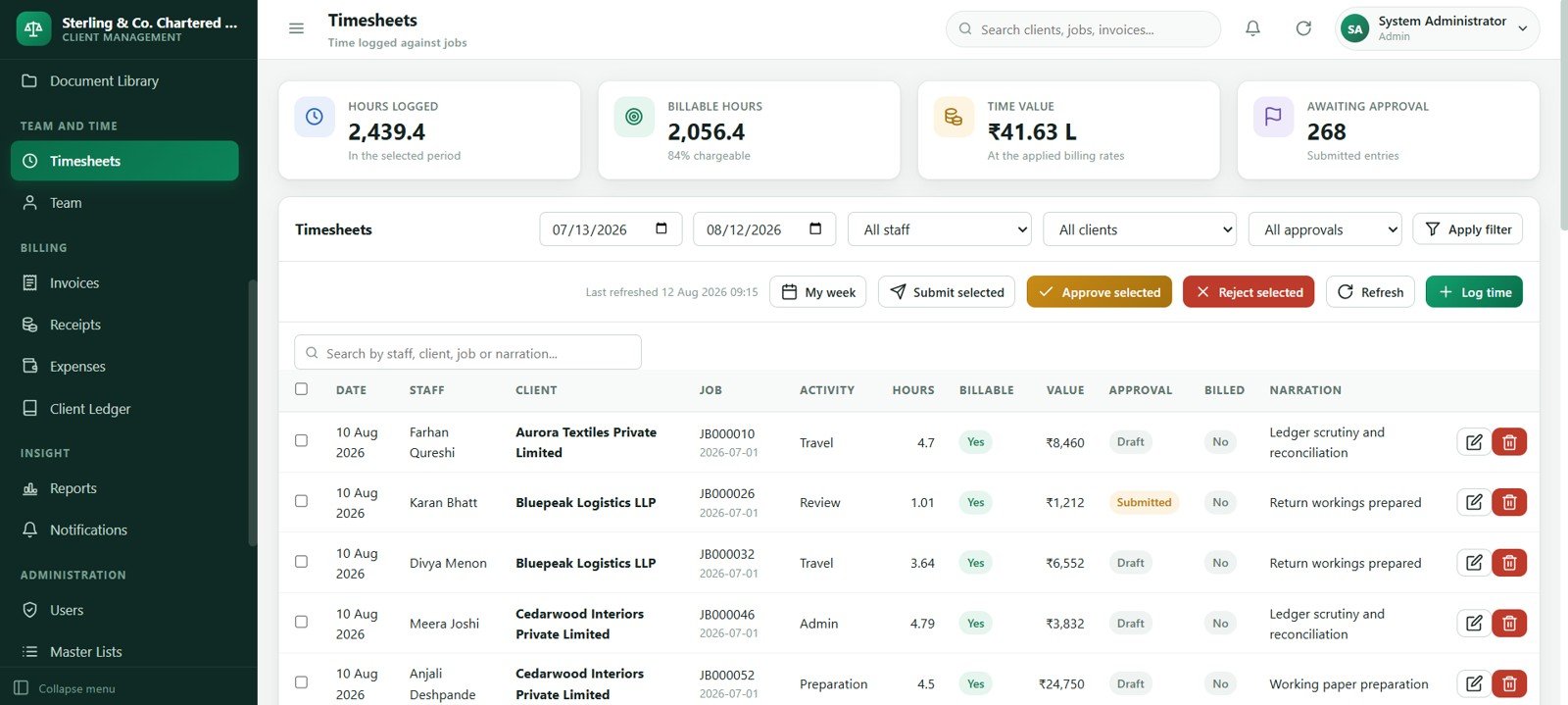
The timesheets page records staff work by client, job, service and date. It can distinguish billable and non-billable hours, approval status, billing rate and billed status.
For practice owners, this creates better visibility into unbilled WIP, staff utilization and work that should be converted into invoices.
13. Team
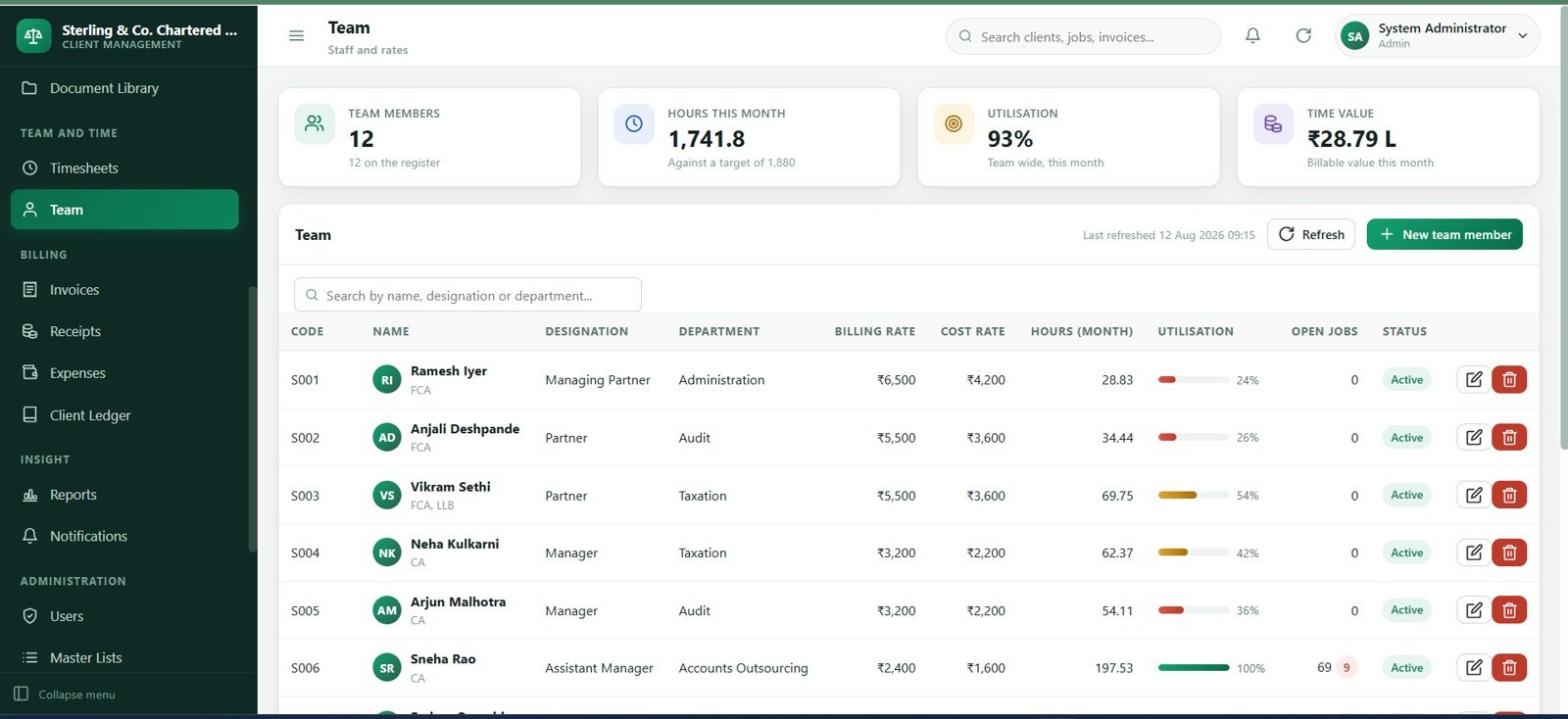
The team module maintains staff profiles, roles, managers, departments, hourly rates, active status and workload ownership. It supports better assignment decisions because jobs and timesheets can point back to real team members.
Managers can use this screen to understand who owns client work and where capacity may be tight.
14. Invoices
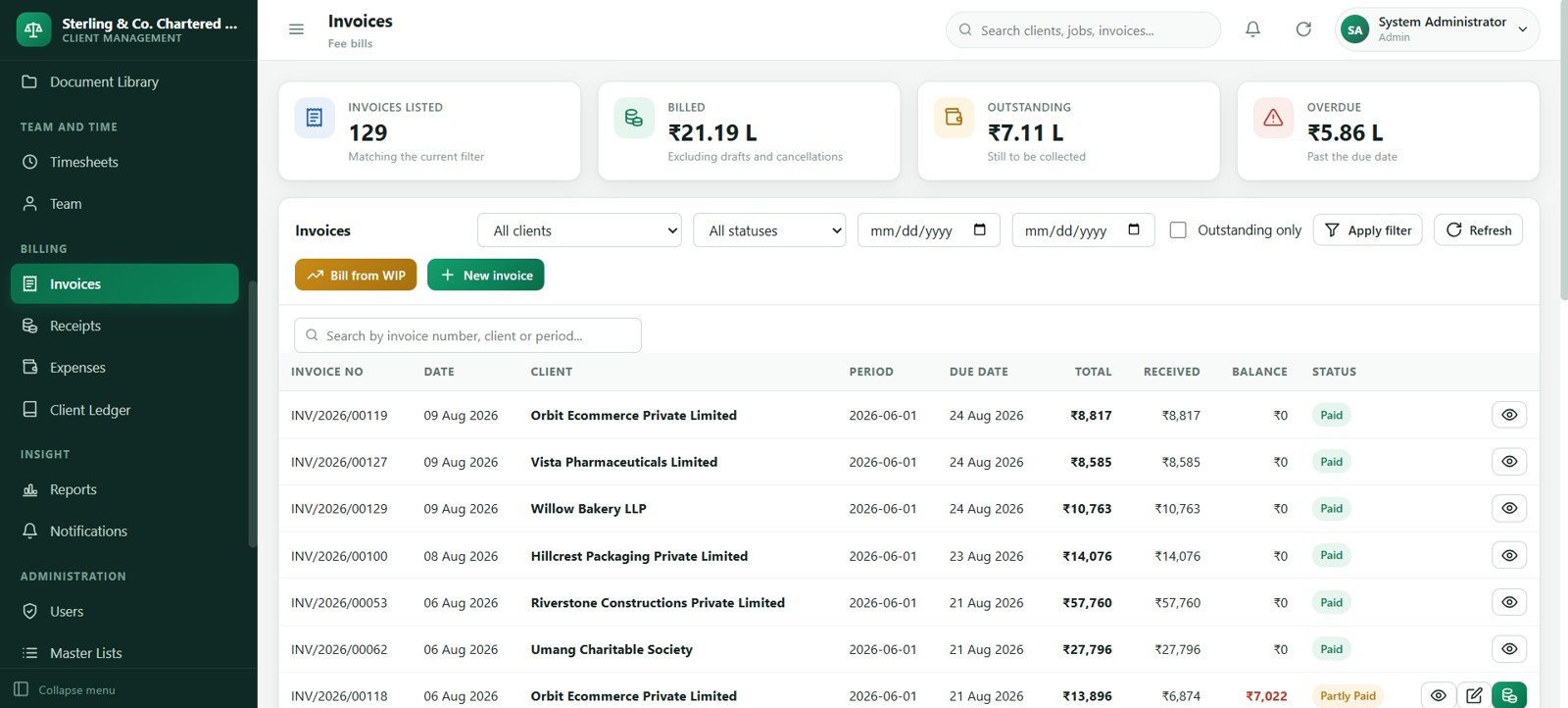
The invoices screen tracks invoice number, client, service, billing period, invoice date, due date, tax, amount, status and outstanding balance. It helps convert completed work and approved WIP into revenue records.
Use the invoice register to review uncollected fees, ageing and client-level billing history before collection follow-up.
15. Receipts
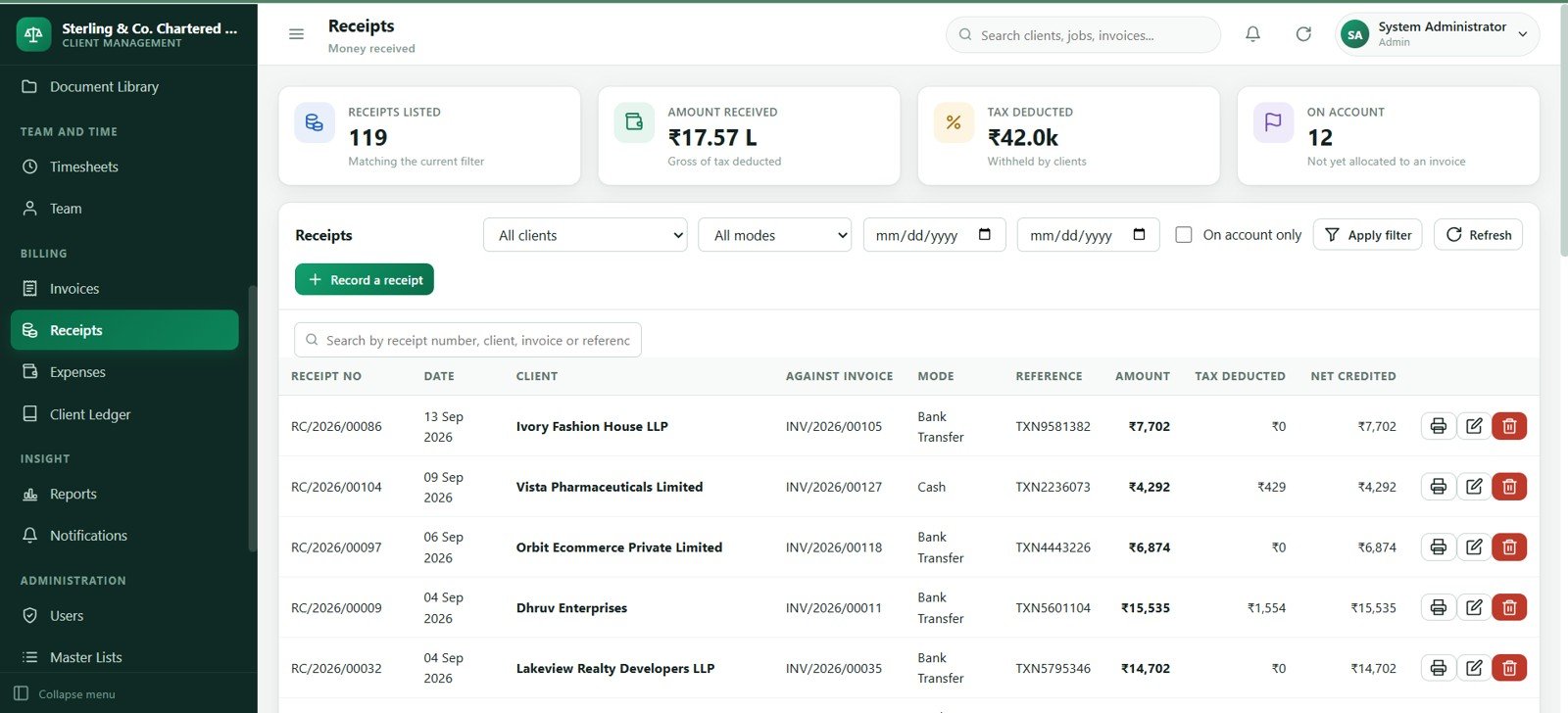
The receipts page records client payments, payment dates, methods, bank references, allocations, tax deducted or withholding amounts and notes. It keeps cash collection visible alongside invoice activity.
When receipts are consistently recorded, the client ledger can show cleaner balances and collection teams have fewer reconciliation gaps.
16. Expenses
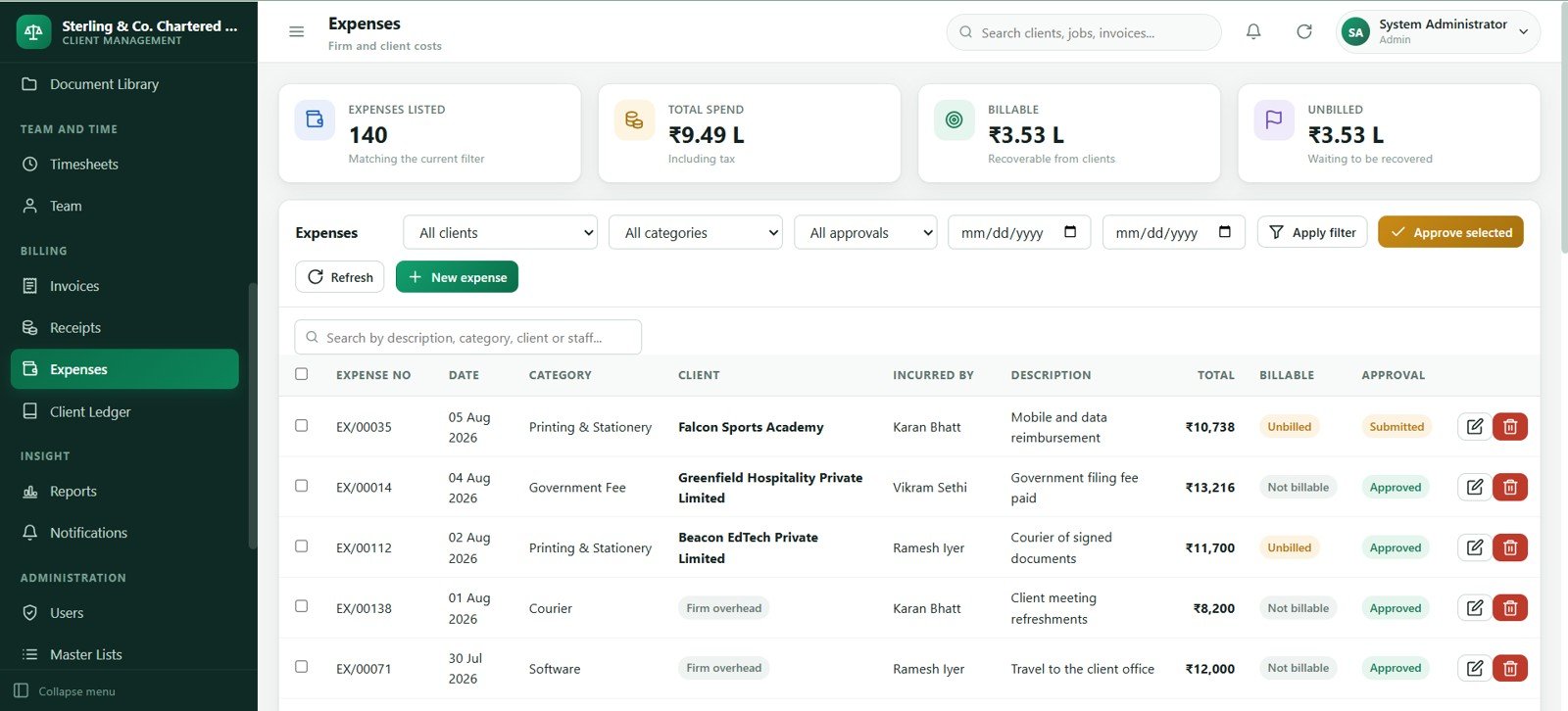
The expenses screen records practice costs such as software, travel, subscriptions, office costs, subcontractors and reimbursable items. It can track vendor, category, date, payment method, amount and payment status.Accounting Firm Client Management System Web App
This gives small firms a simple operating-expense register next to client revenue and billing information.Accounting Firm Client Management System Web App
17. Client Ledger
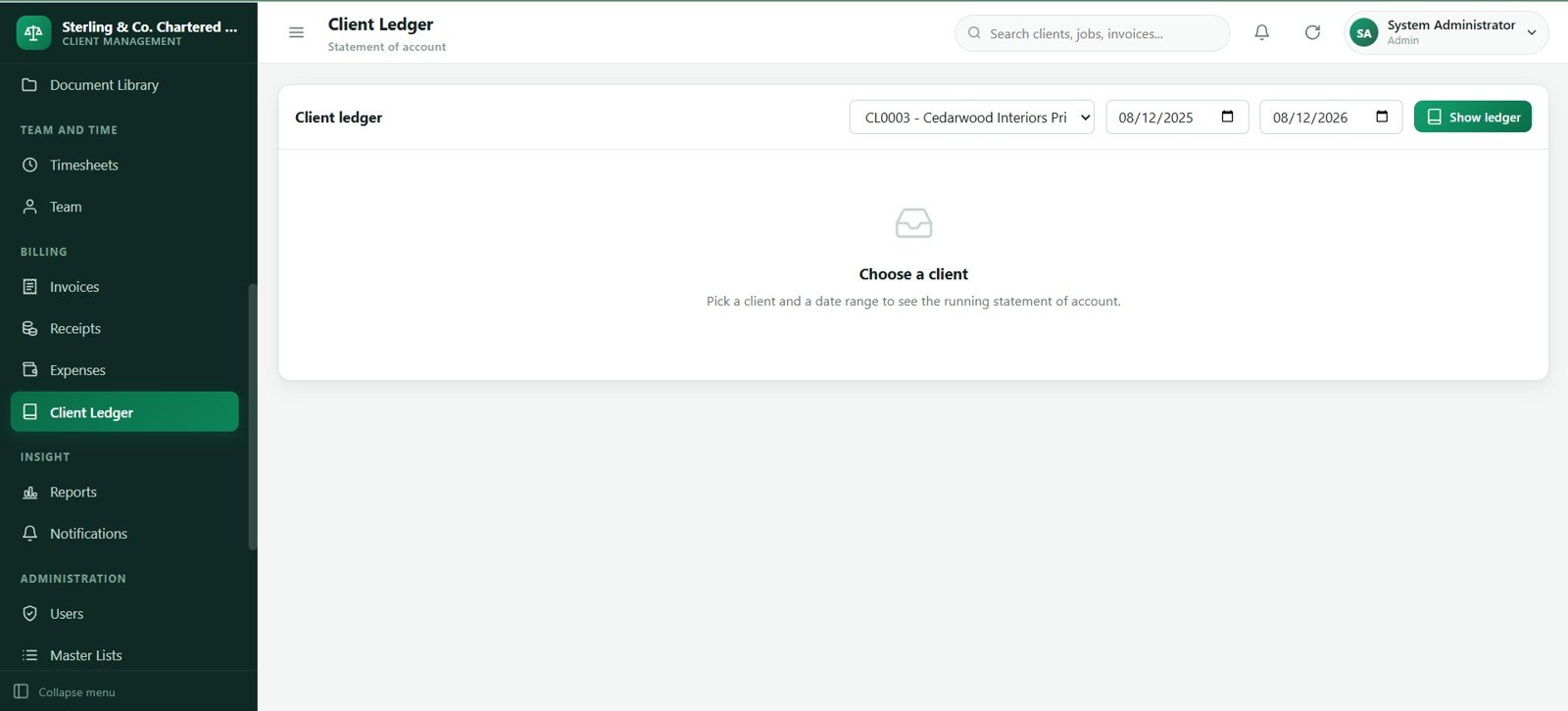
The client ledger brings invoices, receipts, adjustments and balances into one statement-style view. It helps the firm understand what each client owes and what has already been collected.Accounting Firm Client Management System Web App
This is useful before sending statements, making collection calls or reviewing client profitability.
18. Reports
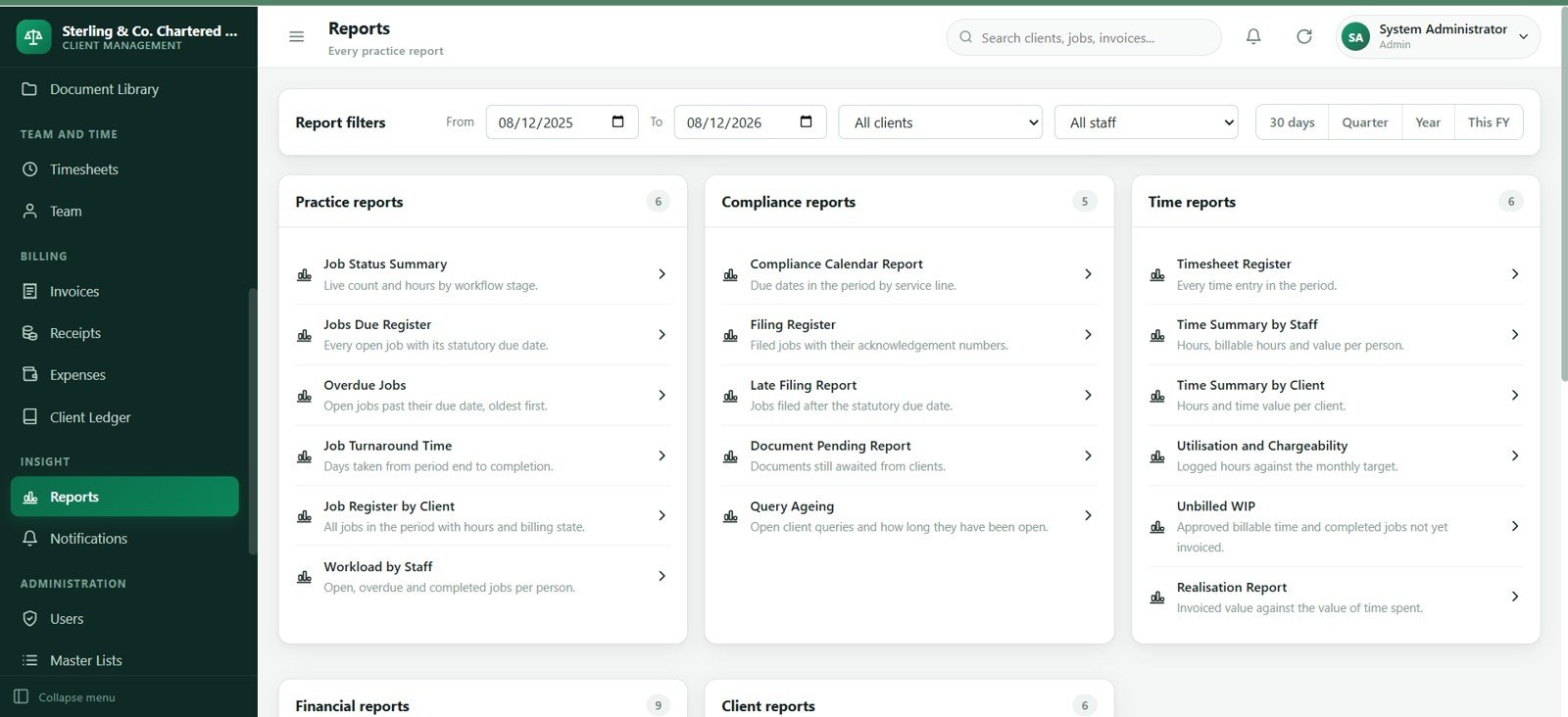
The reports page centralizes practice reporting options for workload, overdue jobs, document status, queries, timesheets, billing, collections, receivables and staff productivity. It gives managers a reporting menu without rebuilding pivot tables every time.
Use this screen for weekly reviews, partner updates and operational follow-up.
19. Notifications
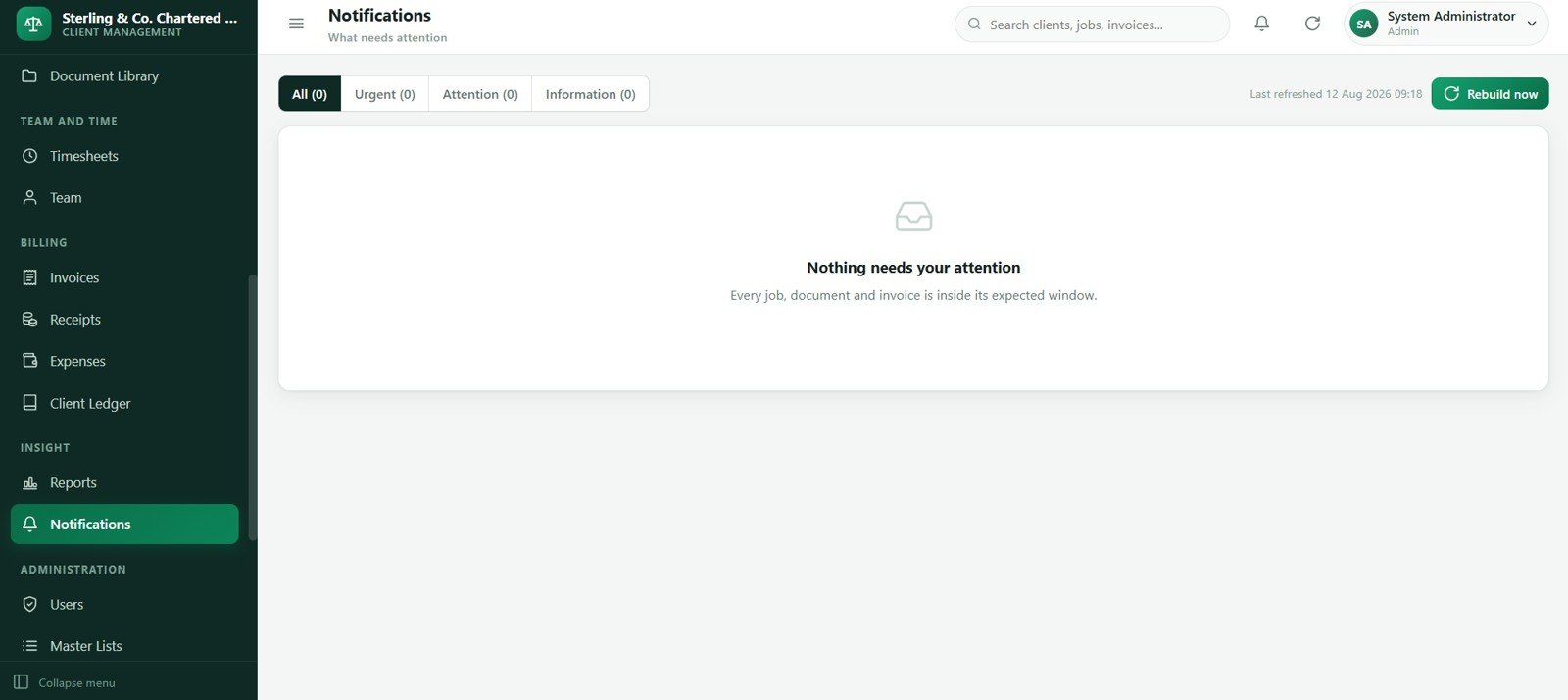
The notifications screen lists system reminders and action prompts for due jobs, overdue work, missing documents, open queries and overdue invoices. It works as a practical inbox for operational follow-up.Accounting Firm Client Management System Web App
Partners and managers can use notifications to focus attention on exceptions instead of reviewing every record manually.Accounting Firm Client Management System Web App
20. Users
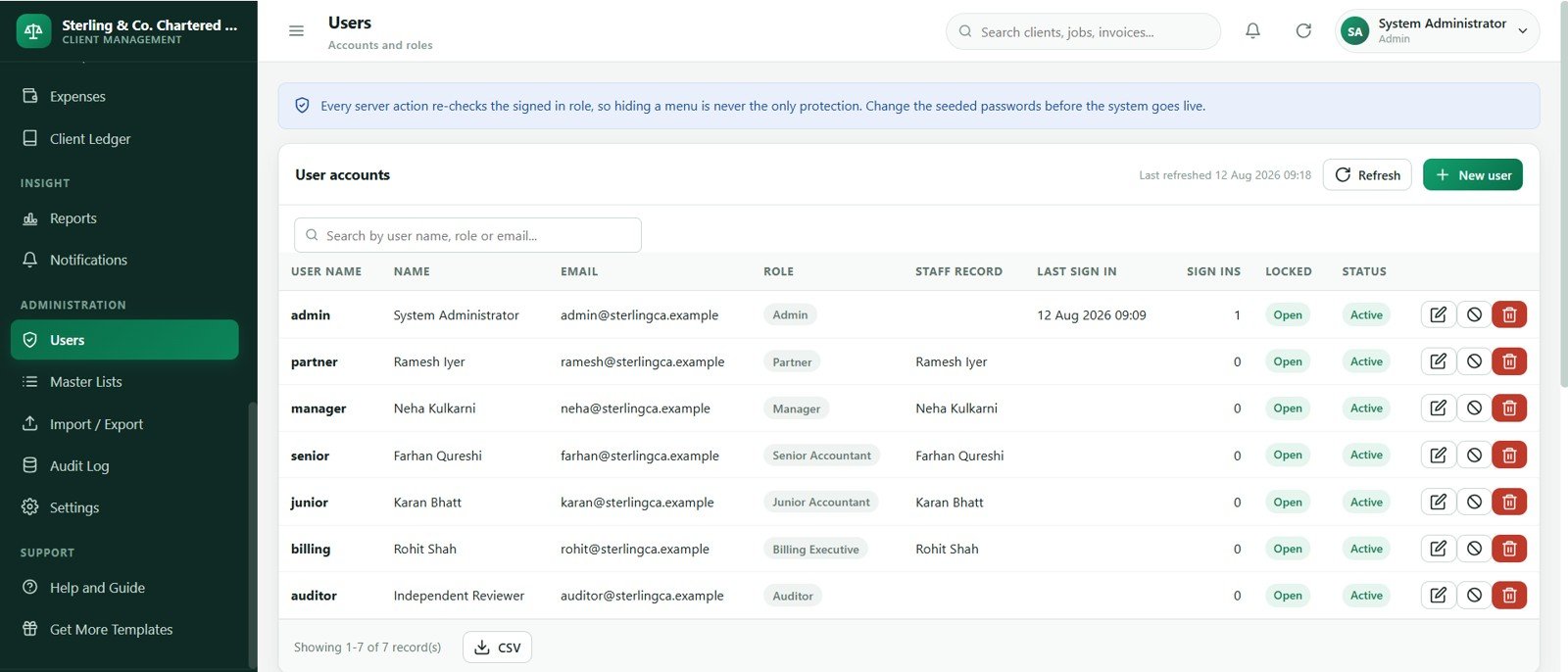
The users screen supports account setup for firm staff and defined roles such as Admin, Partner, Manager, Senior Accountant, Junior Accountant, Billing Executive and Auditor. This makes ownership and accountability easier to enforce.
It is also the right place to review active users before handing the app to a larger team.
21. Master Lists
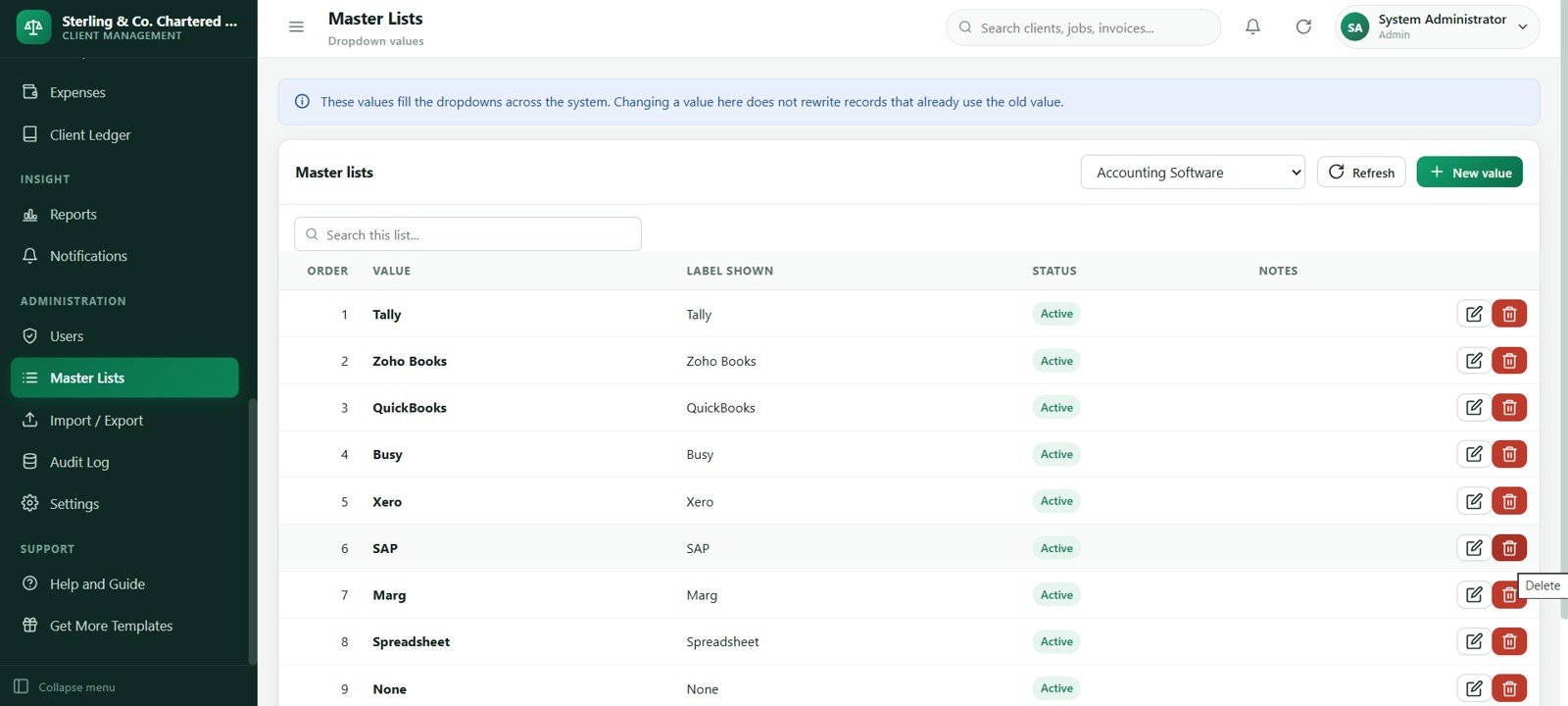
The master lists page keeps dropdown values and shared labels consistent across the app. Examples include job stages, service categories, document types, priority values, payment modes, expense categories and billing statuses.
Consistent lists make filtering, reporting and staff adoption much smoother.
22. Import / Export
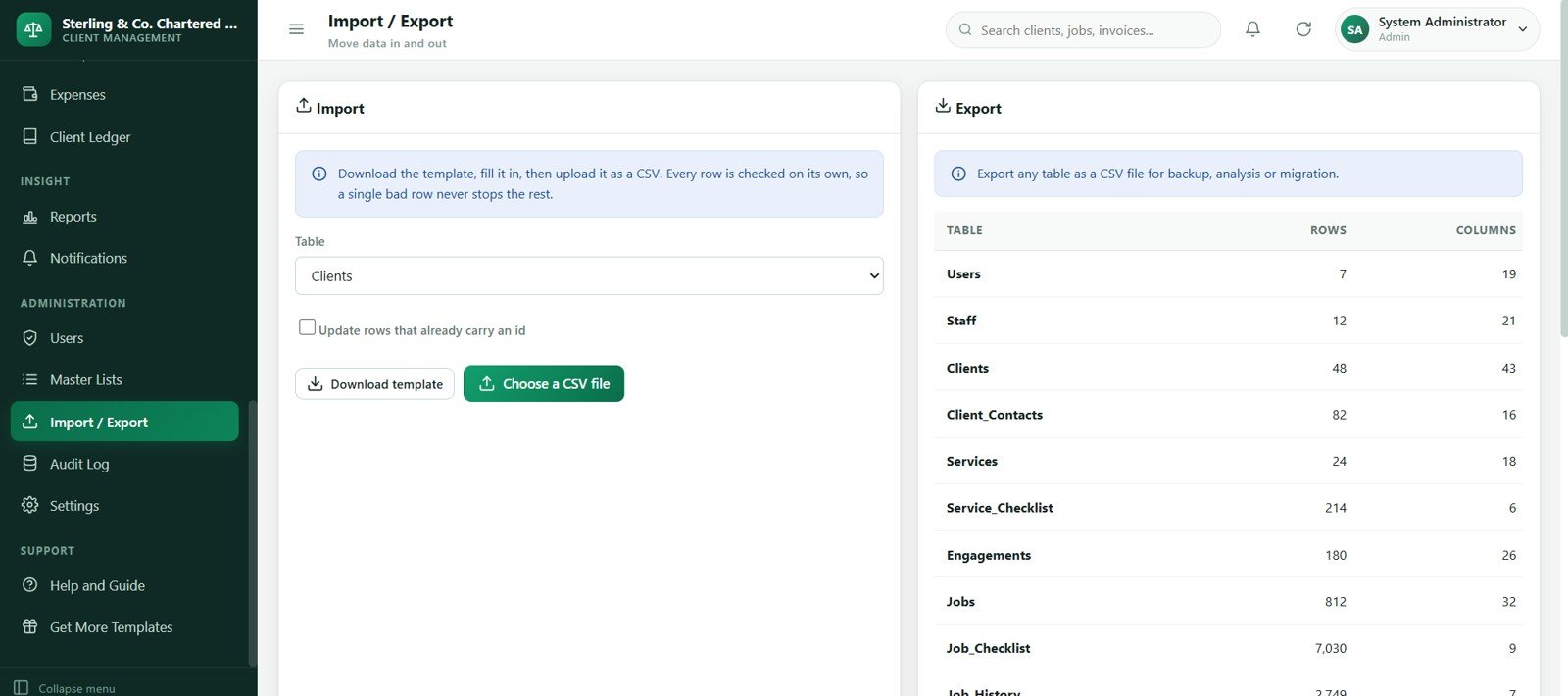
The import/export screen supports faster setup and cleaner data movement. Firms can use it to bring in starter records, export operational lists or prepare backup files for review.
This is especially helpful when migrating from spreadsheet trackers or when partners want periodic extracts outside the web app.
23. Audit Log
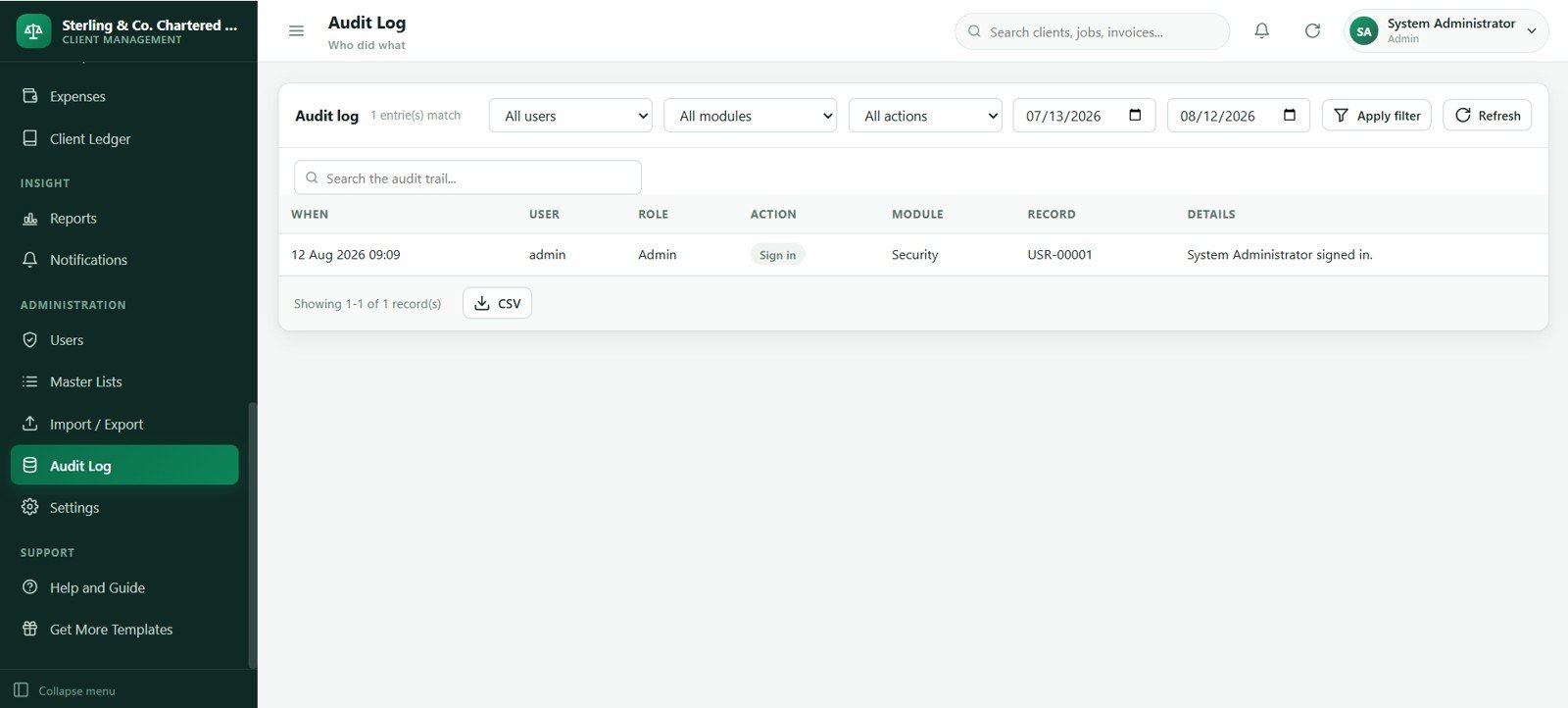
The audit log records what changed, who changed it, when it happened and which module was affected. That history is useful when a due date, invoice status, receipt amount or client record needs review.Accounting Firm Client Management System Web App
For small accounting firms, this creates a basic accountability trail without requiring a heavy enterprise system.Accounting Firm Client Management System Web App
24. Settings
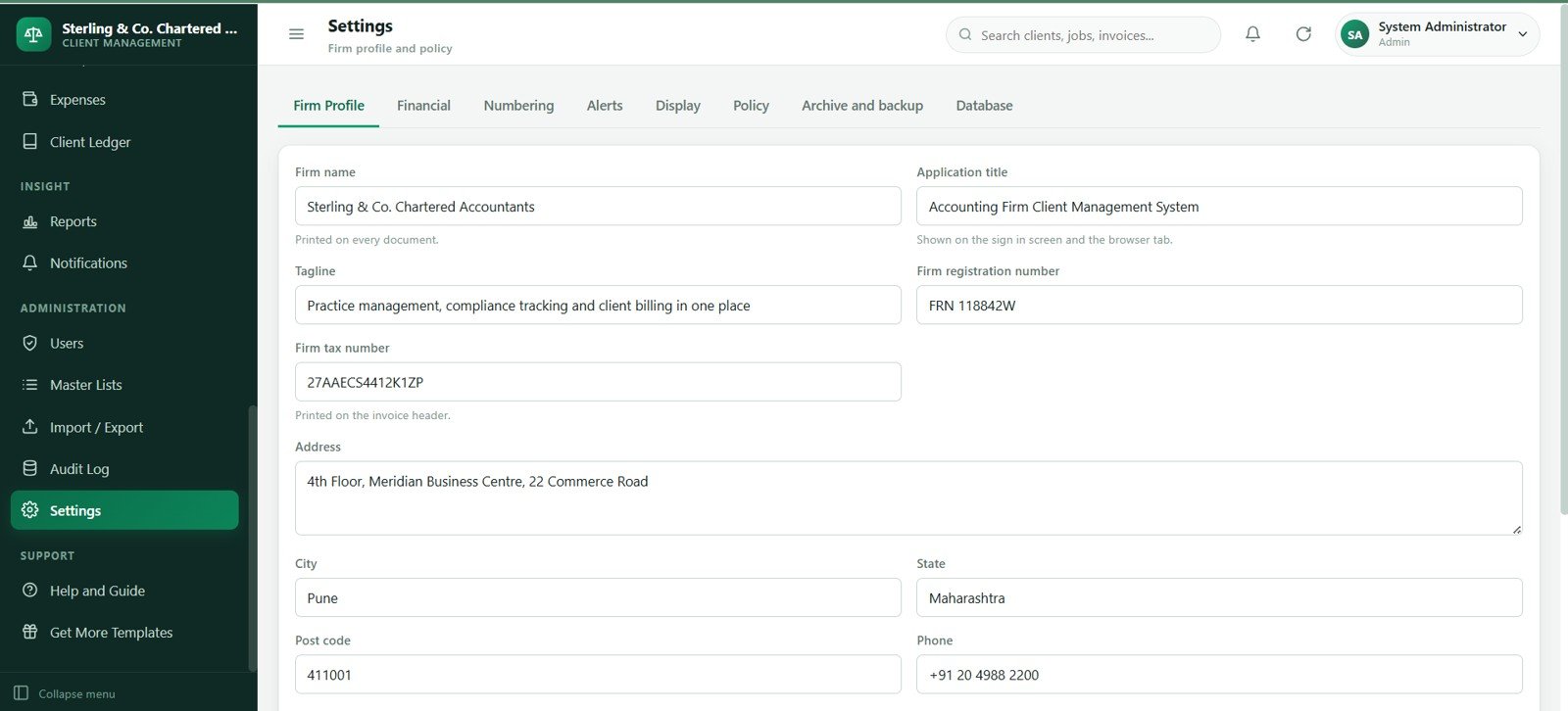
The settings screen controls firm profile details, display preferences, currency labels, tax labels, numbering formats, document policies and default values. It is where the template can start feeling like your own internal system.
Complete this page during setup before inviting staff to use live client data.
Accounting Firm Client Management System Web App vs. Spreadsheet Tracker vs. Paid Practice Management SaaS – Feature Comparison
| Feature | This web app template | Spreadsheet tracker | Paid practice management SaaS |
|---|---|---|---|
| Cost model | One-time template purchase | Low software cost, high internal setup time | Recurring monthly or annual subscription |
| Client master data | Dedicated client and contact screens | Usually maintained across multiple tabs | Usually strong, but vendor controlled |
| Job tracking | Client, service, period, due date, owner, progress and status | Possible, but formula and filter discipline matters | Usually strong |
| Document follow-up | Document request and library modules included | Often handled by email or ad hoc trackers | Usually included on higher plans |
| Timesheets and WIP | Timesheet and billing status workflow included | Possible but easy to separate from jobs | Common, with recurring seat cost |
| Billing visibility | Invoices, receipts, expenses and client ledger screens | Often split from operational tracking | Strong, plan-dependent |
| Customization | Editable source package and master lists | Very editable but easier to break | Limited to vendor settings and plan features |
| Best fit | Small and mid-sized firms that want a customizable internal system | Solo operators or early-stage tracking | Firms that want hosted support and packaged vendor features |
Who Should Use This Template
- Accounting firms that manage recurring compliance jobs for many clients.
- Bookkeeping practices that need client, document, time and billing control in one place.
- Tax offices that want better visibility into deadlines, queries and missing information.
- Outsourced finance teams that need a lightweight internal operations system.
- Consultants building a custom client-management workflow for accounting teams.
Real-World Use Cases
Practice owner: Review dashboard cards every morning to see overdue jobs, pending documents, unbilled WIP and overdue receivables before assigning follow-up.
Tax manager: Filter the compliance calendar and jobs register by service, due period and staff member during filing season.
Billing executive: Use timesheets, invoices, receipts and the client ledger to turn completed work into billing and collection action.
Operations coordinator: Keep client contacts, document requests, queries and notifications organized so staff are not relying only on inbox memory.
Advantages of Accounting Firm Client Management System Web App
- One connected workspace: The workflow keeps operational records closer together than a stack of disconnected spreadsheets.
- Lower upfront risk than custom software: You start from 24 ready screens instead of a blank development project.
- Better deadline visibility: Jobs, calendar entries, queries and document requests all support due-date review.
- Billing discipline: Timesheets, invoices, receipts and ledger views make WIP and collections easier to monitor.
- Customizable foundation: Firms can adapt services, master lists, settings and workflows to match their practice.
Opportunities for Improvement
- Add a client-facing portal if clients need to upload documents directly.
- Integrate email or SMS reminders if automatic outbound communication is required.
- Connect a payment gateway if the firm wants to collect invoice payments inside the workflow.
- Build regional compliance packs for specific tax jurisdictions and filing calendars.
- Add advanced permission rules if a larger firm needs department-level or client-level restrictions.Accounting Firm Client Management System Web App
Best Practices
- Clean your client, contact and service lists before importing starter data.
- Define job statuses and priorities clearly so all staff use the same language.
- Assign one owner to every open job, query and document request.
- Review overdue jobs, pending documents and overdue receivables at least weekly.
- Use the audit log during review instead of changing important records without notes.
- Test the deployment with sample data before adding live client information.
Explore Relevant Templates
- Accounting Firm Client Management System Web App – the full 24-screen web app template.
- Accounting Firm Revenue Dashboard in Google Sheets – useful for revenue, WIP and billing analysis.
- Tax Deduction and Receipt Tracker in Google Sheets – useful for tax document and deductible expense tracking.
- Bank Account Balance Tracker in Google Sheets – useful for account balance review.
- Browse Web App templates for more Google Apps Script-style systems.
Teams that want stronger spreadsheet and reporting skills alongside a system like this can follow the NextGenTemplates Academy learning paths, which include practice files.
Get the Accounting Firm Client Management System Web App
Frequently Asked Questions
What is included in the Accounting Firm Client Management System Web App?
It includes 24 screens for login, dashboard, compliance calendar, jobs, queries, clients, contacts, services, engagements, document requests, document library, timesheets, team, invoices, receipts, expenses, client ledger, reports, notifications, users, master lists, import/export, audit log and settings.
Is this a monthly SaaS product?
No. It is a downloadable template sold as a one-time product through NextGenTemplates.
Does this replace accounting software?
No. It is designed for practice operations around clients, work, documents, time, billing and reporting. It does not replace a certified accounting ledger, tax filing system, payroll product or bank-feed accounting package.
Can I customize services, statuses and dropdown lists?
Yes. The Services, Master Lists and Settings screens are intended to help firms adapt labels, service lines, statuses, categories and defaults.
Can this help with unbilled WIP?
Yes. Timesheets, jobs, invoices and the dashboard are structured to make unbilled work easier to identify before billing review.
Who is this best for?
It is best for small and mid-sized accounting firms, bookkeeping practices, tax offices, outsourced finance teams and consultants who want a customizable client-management web app foundation.
About the Author
This template is built by PK, a Microsoft Certified Professional with 15+ years of Excel, Google Sheets and Power BI experience. PK is the founder of NextGenTemplates and teaches spreadsheet, dashboard and automation workflows to an audience of more than 300K YouTube subscribers.
Conclusion
The Accounting Firm Client Management System Web App gives accounting firms a structured way to manage clients, recurring jobs, compliance dates, documents, queries, staff time, WIP, invoices, receipts, expenses, ledgers and reports. It is not a replacement for accounting software, but it is a strong operating layer for firms that want better workflow visibility without starting from scratch.Accounting Firm Client Management System Web App
Last updated: August 12, 2026.