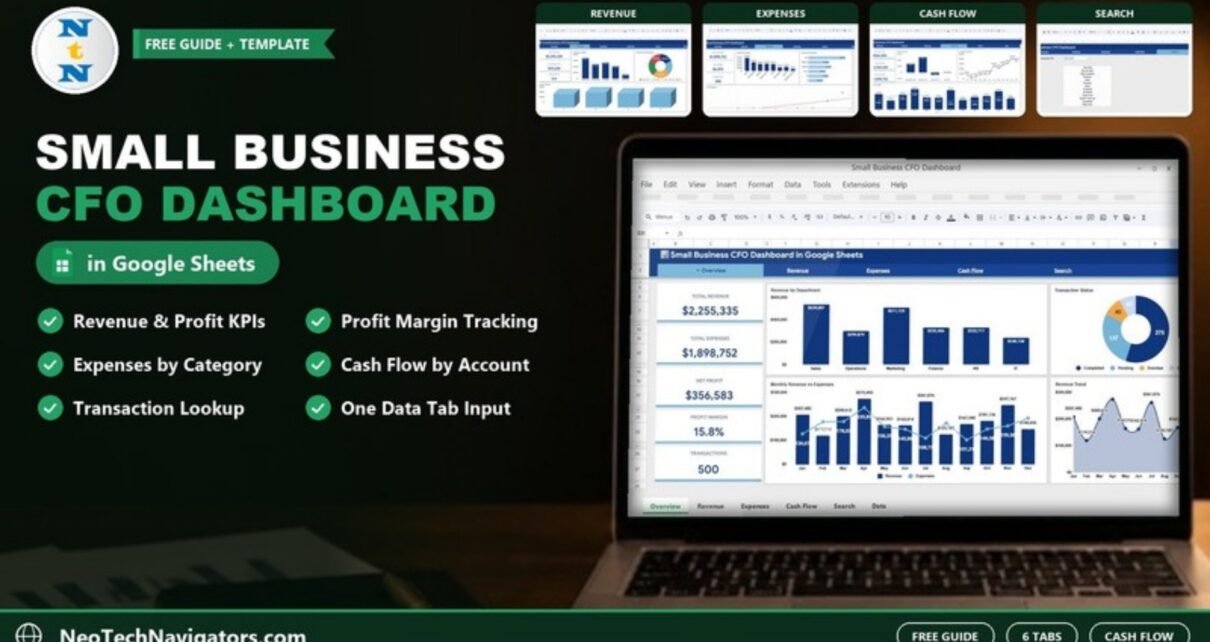
The Small Business CFO Dashboard in Google Sheets gives a small business owner the numbers a finance lead would report every month: total revenue, total expenses, net profit, profit margin and transaction count, plus separate pages for revenue, expenses, cash flow and a transaction lookup.
It is designed for owners, founders, freelancers with growing client work, and bookkeepers who already record transactions in a spreadsheet and want clear reporting without accounting software. This guide walks through all six tabs – Overview, Revenue, Expenses, Cash Flow, Search and Data – using the real figures from the sample file, shows how each KPI is calculated, and explains how to load your own transactions.
Get the Small Business CFO Dashboard
Why a Small Business Needs a CFO-Style Dashboard
Most small businesses know their bank balance but not their margin, which department drives revenue, or which month the cash position dips. A CFO-style dashboard answers four questions every month: Are we profitable? Where does the money come from? Where does it go? Is cash building up or running down? The template answers each one on its own page, all fed from one transaction list.
How the Small Business CFO Dashboard in Google Sheets Is Organised
A navigation bar at the top of every tab links to Overview, Revenue, Expenses, Cash Flow, Search and Data, so you can move between pages with one click. Every number comes from the Data tab.
1. Overview
Five KPI cards run down the left side: Total Revenue $2,255,335, Total Expenses $1,898,752, Net Profit $356,583, Profit Margin 15.8% and Transactions 500. The charts are:
- Revenue by Department – Sales $539,007, Marketing $511,129, HR $332,717, Finance $332,466, Operations $299,879 and IT $240,138.
- Transaction Status – Completed 275, Pending 137, Overdue 46 and Cancelled 42 (together the 500 transactions).
- Monthly Revenue vs Expenses – revenue columns with an expense line for January to December.
- Revenue Trend – monthly revenue as an area chart, peaking in April at $273,495.

2. Revenue
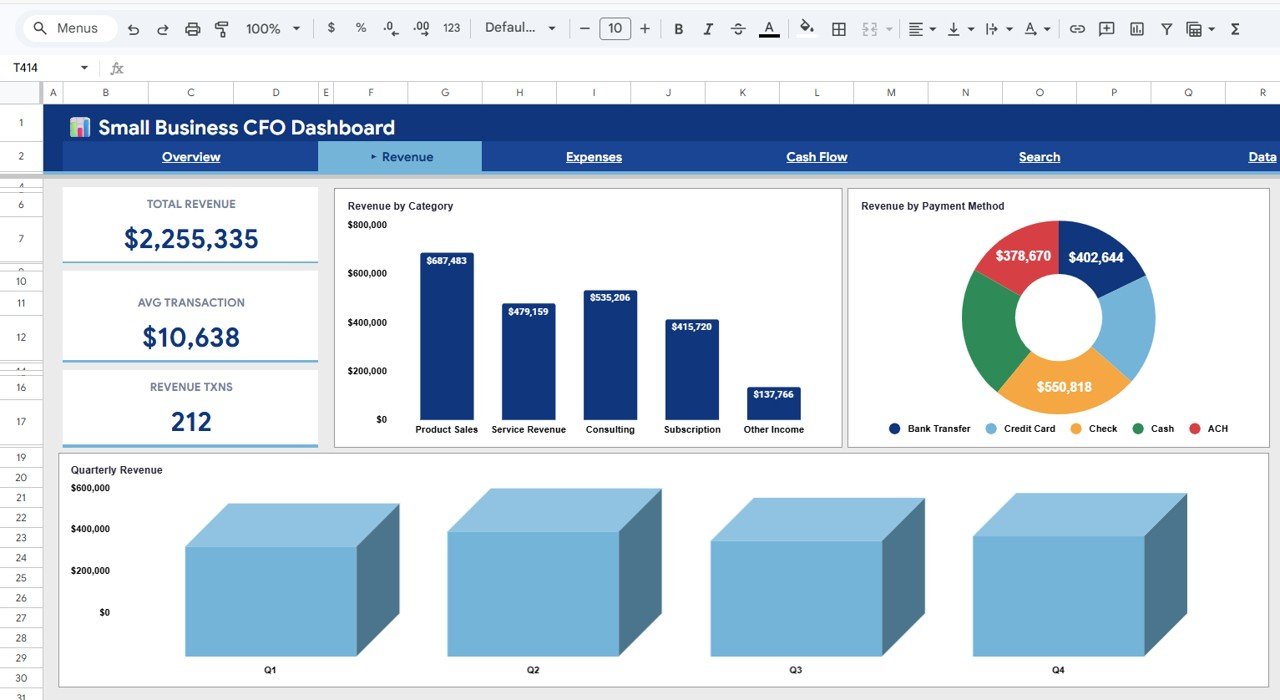
Cards show Total Revenue $2,255,335, Avg Transaction $10,638 and Revenue Txns 212. Charts:
- Revenue by Category – Product Sales $687,483, Consulting $535,206, Service Revenue $479,159, Subscription $415,720 and Other Income $137,766.
- Revenue by Payment Method – Bank Transfer, Credit Card, Check, Cash and ACH (labelled slices in the sample include Check $550,818, Bank Transfer $402,644 and ACH $378,670).
- Quarterly Revenue – Q1 to Q4 side by side.
3. Expenses
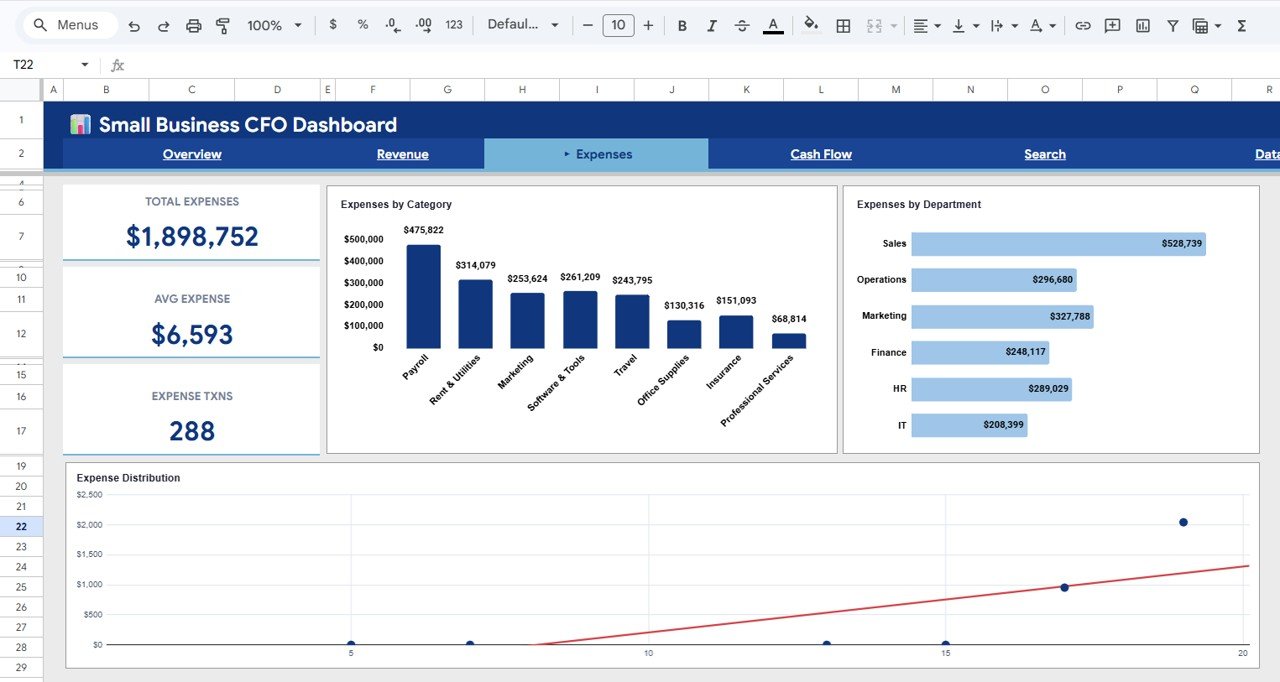
Cards show Total Expenses $1,898,752, Avg Expense $6,593 and Expense Txns 288. Charts:
- Expenses by Category – Payroll $475,822 is the largest, followed by Rent & Utilities $314,079, Software & Tools $261,209, Marketing $253,624, Travel $243,795, Insurance $151,093, Office Supplies $130,316 and Professional Services $68,814.
- Expenses by Department – Sales $528,739, Marketing $327,788, Operations $296,680, HR $289,029, Finance $248,117 and IT $208,399.
- Expense Distribution – a scatter chart with a trend line.
4. Cash Flow
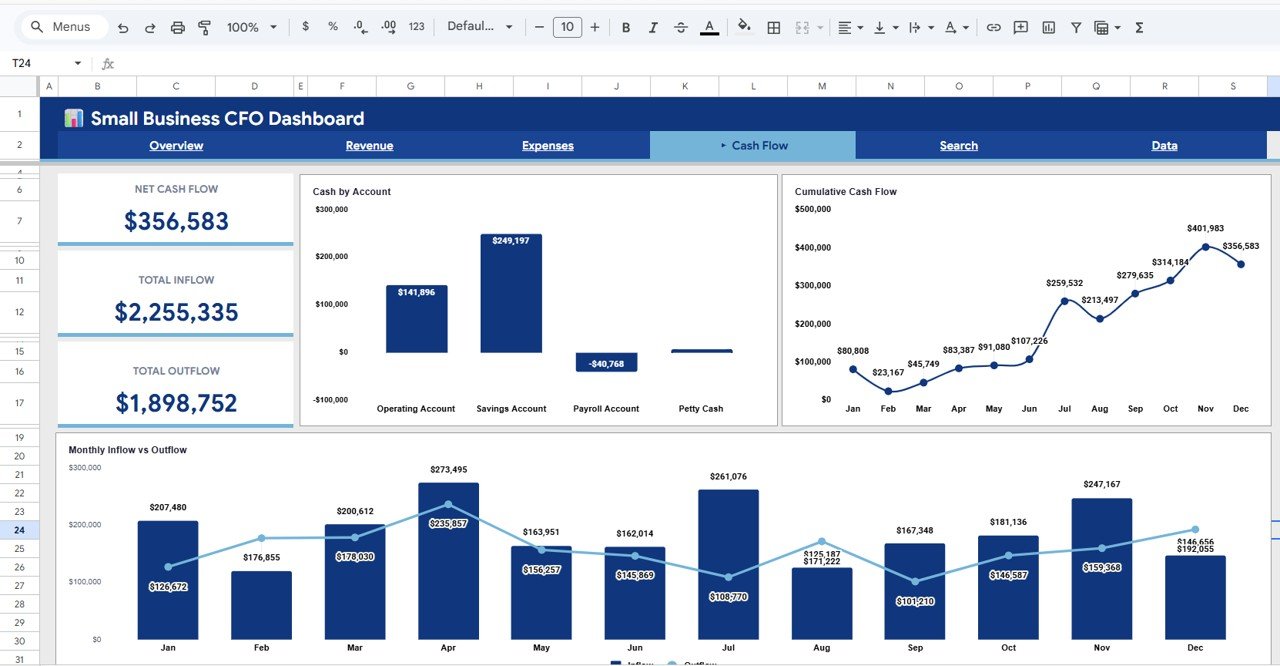
Cards show Net Cash Flow $356,583, Total Inflow $2,255,335 and Total Outflow $1,898,752. Charts:
- Cash by Account – Savings Account $249,197, Operating Account $141,896, Payroll Account –$40,768 and Petty Cash.
- Cumulative Cash Flow – the running cash position, starting at $80,808 in January, peaking at $401,983 in November and ending the year at $356,583.
- Monthly Inflow vs Outflow – inflow columns and an outflow line for each month.
The numbers tie together: January inflow of $207,480 minus outflow of $126,672 equals $80,808, the first point on the cumulative chart, and the final cumulative value equals Net Profit on the Overview.
5. Search
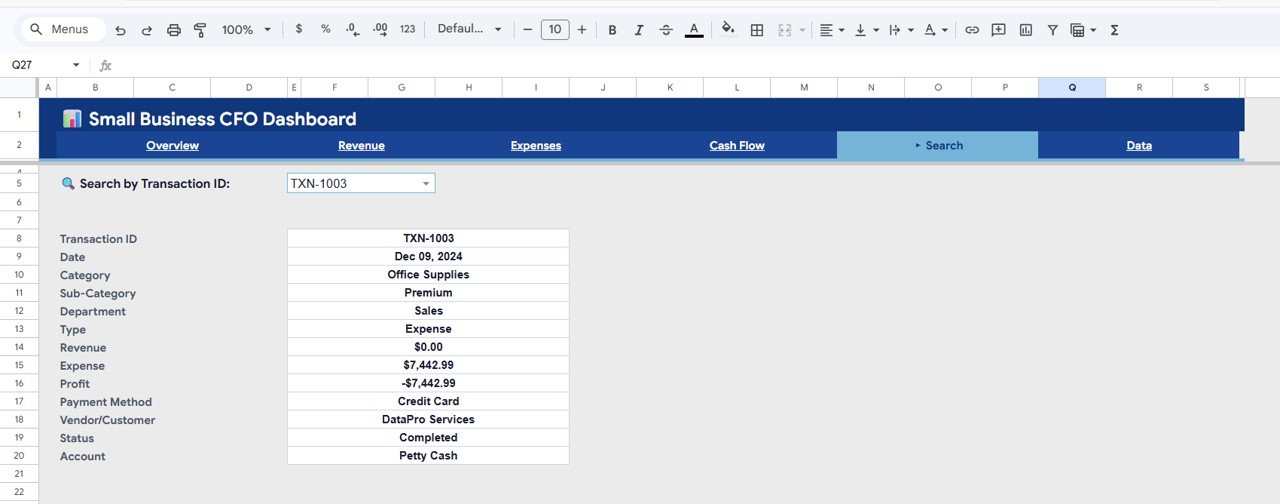
Pick an ID in the Search by Transaction ID dropdown and the tab lists the full record: Transaction ID, Date, Category, Sub-Category, Department, Type, Revenue, Expense, Profit, Payment Method, Vendor/Customer, Status and Account. In the screenshot, TXN-1003 is an Office Supplies expense of $7,442.99 dated Dec 09, 2024, paid by Credit Card to DataPro Services from Petty Cash, with status Completed.
6. Data
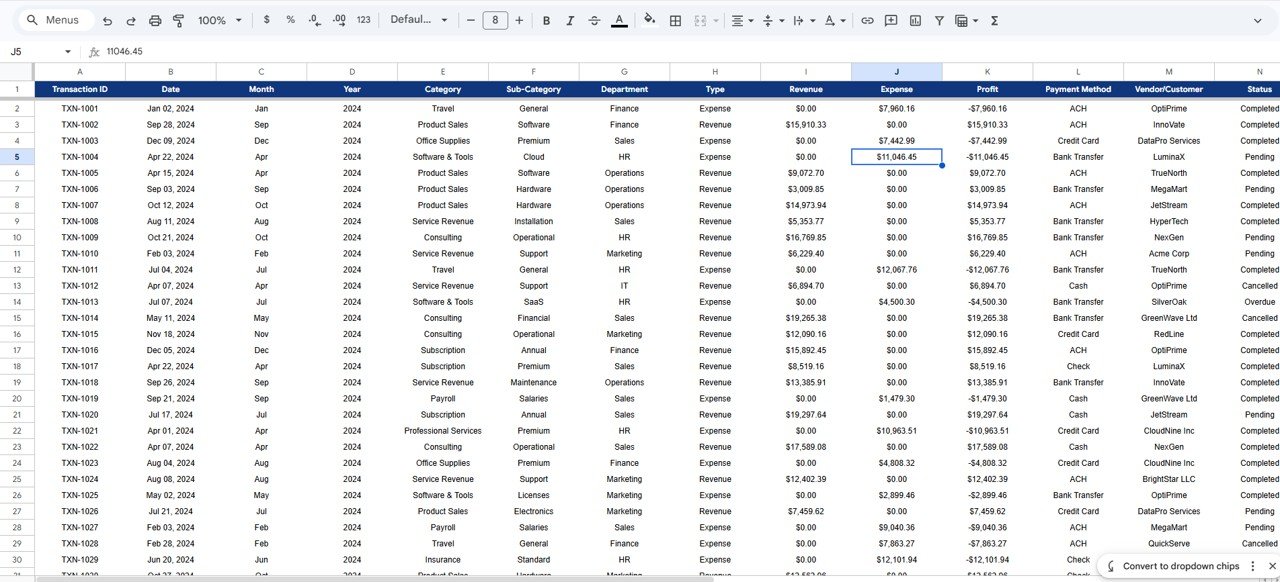
The Data tab is the transaction register. Its columns include Transaction ID, Date, Month, Year, Category, Sub-Category, Department, Type (Revenue or Expense), Revenue, Expense, Profit, Payment Method, Vendor/Customer and Status, plus the Account used on the Cash Flow tab. Profit on each row is Revenue minus Expense, so an expense row shows a negative profit.
KPI Definitions
Each card is a simple calculation on the Data tab. The sample values below can be reproduced from the other cards.
| KPI | What it measures | Formula | Better when |
|---|---|---|---|
| Total Revenue | All income recorded | Sum of Revenue ($2,255,335) | Higher |
| Total Expenses | All costs recorded | Sum of Expense ($1,898,752) | Lower, relative to revenue |
| Net Profit | What is left after expenses | Total Revenue − Total Expenses = $356,583 | Higher |
| Profit Margin | Profit per dollar of revenue | Net Profit ÷ Total Revenue = 356,583 ÷ 2,255,335 = 15.8% | Higher |
| Transactions | Number of records | Count of Transaction IDs (500 = 212 revenue + 288 expense) | – |
| Avg Transaction | Average revenue per sale | Total Revenue ÷ Revenue Txns = 2,255,335 ÷ 212 = $10,638 | Higher |
| Avg Expense | Average size of an expense | Total Expenses ÷ Expense Txns = 1,898,752 ÷ 288 = $6,593 | Lower |
How to Use It With Your Own Data
- Make a copy of the file (File → Make a copy).
- Clear the sample rows on the Data tab and keep the header row unchanged.
- Enter one row per transaction with a unique Transaction ID, the date, category, sub-category, department and type.
- Put the amount in the right column – Revenue for income, Expense for costs – and leave the other as zero.
- Fill Payment Method, Vendor/Customer, Status and Account so the payment, status and cash-by-account charts work.
- Open the Overview and check that Transactions equals your row count and Total Revenue matches your own records.
- Review the Cash Flow tab monthly, especially any account showing a negative balance.
Real-World Use Cases
1. Monthly owner review
An agency owner checks Profit Margin and Expenses by Category on the first working day of each month and decides where to cut costs.
2. Bookkeeper reporting
A bookkeeper keeps the Data tab up to date for a client and shares the Overview link view-only, so the client sees results without editing the data.
3. Cash planning
A founder uses Cumulative Cash Flow and Cash by Account to time equipment purchases for months when cash is building up.
Best Practices
- Record transactions at least weekly; monthly entry hides short-term cash dips.
- Do not add or rename columns on the Data tab – the formulas depend on the layout.
- Keep category and department names consistent so totals group correctly.
- Follow up Pending and Overdue items from the Transaction Status chart every week.
- Share view-only access with stakeholders who only need to read the dashboard.
Limitations
This is a management dashboard, not accounting software. It does not do double-entry bookkeeping, tax returns, invoicing or bank reconciliation, and it does not connect to your bank automatically. It also has no budget-vs-actual or forecast page. Use it alongside your accounting system as the place where you read the numbers, not as the official ledger.
Related Dashboards and Guides
For a browser-based version of the same dashboard, see the Small Business CFO Dashboard in HTML. For deeper cash reporting, read the Cash Flow Dashboard in Google Sheets, and for a formal profit statement the Profit and Loss Templates in Google Sheets guide. Owners who track operational KPIs too can use the Small Business KPI Dashboard in Google Sheets, and teams managing supplier bills can add the Accounts Payable KPI Dashboard.
Prefer Excel? The same dashboard is available as the Small Business CFO Dashboard in Excel.
If you want to learn how to build summary dashboards like this yourself, the Excel Pivot Tables & Dashboards course on NextGenTemplates Academy covers it step by step.
Frequently Asked Questions
What KPIs does the Small Business CFO Dashboard in Google Sheets show?
Total Revenue, Total Expenses, Net Profit, Profit Margin and Transactions on the Overview, plus Avg Transaction, Revenue Txns, Avg Expense, Expense Txns, Net Cash Flow, Total Inflow and Total Outflow on the other tabs.
How is Profit Margin calculated?
Net Profit divided by Total Revenue. In the sample, $356,583 ÷ $2,255,335 = 15.8%.
Do I need to write any formulas?
No. You enter transactions on the Data tab and every card and chart updates on its own.
How do I track cash flow in Google Sheets with this template?
Record each transaction with its Account. The Cash Flow tab then shows cash by account, the cumulative cash position by month and monthly inflow versus outflow.
Can I look up a single transaction?
Yes. Select its ID on the Search tab to see every field, including vendor or customer, payment method, status and account.
Can I use it for more than one business?
Yes. Make a separate copy of the file for each business so their data stays apart.
Wrapping Up
The Small Business CFO Dashboard in Google Sheets turns a plain transaction list into a monthly finance review: profit and margin on the Overview, sources and uses of money on the Revenue and Expenses tabs, and the cash position on the Cash Flow tab. Load this year’s transactions, confirm the totals match your books, and make the four dashboard tabs part of your monthly close.
Get the Small Business CFO Dashboard in Google Sheets
📅 Last updated: October 2026