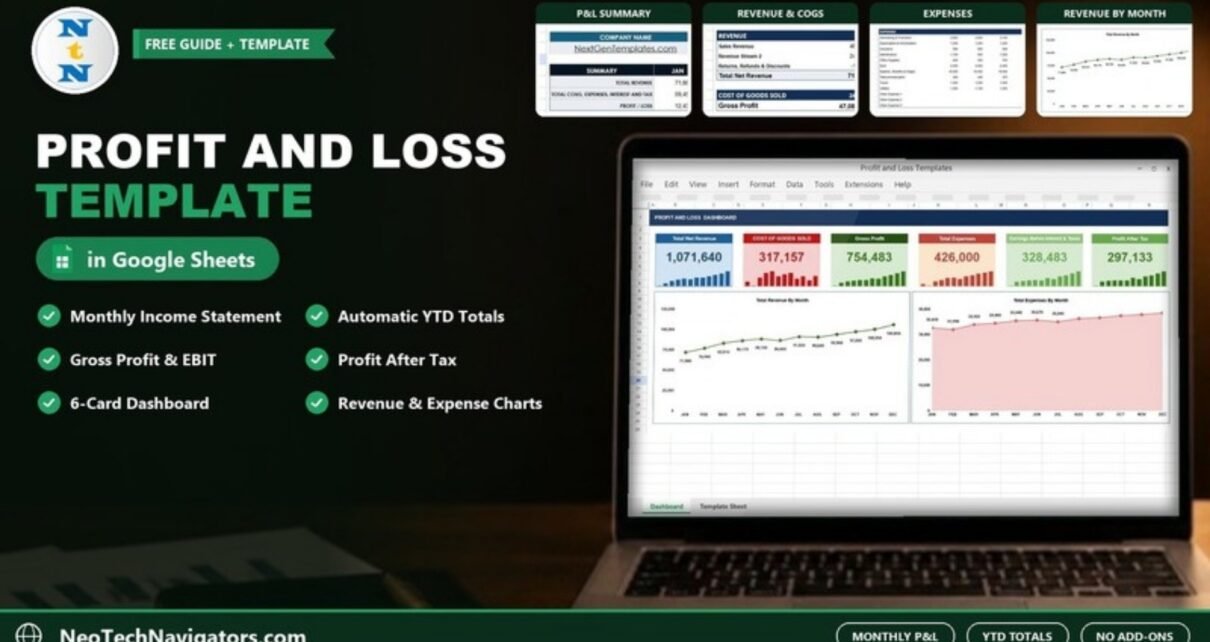
The Profit and Loss Template in Google Sheets gives you a complete monthly income statement for a full year, plus a one-page dashboard that shows revenue, costs and profit at a glance. You enter revenue and expense figures for each month; the template calculates net revenue, gross profit, total expenses, EBIT and profit after tax, with year-to-date (YTD) totals for every line.
It is designed for small business owners, freelancers, startup founders and bookkeepers who want a clear P&L without accounting software. If you can type numbers into a spreadsheet, you can use it.
This guide walks through both tabs using the real sample figures, shows how the numbers connect with a worked example, and explains how to set it up for your own business.
🎥 Watch the Video Tutorial
Get the Profit and Loss Template for Google Sheets
What Is a Profit and Loss Template?
A profit and loss statement (also called an income statement or P&L) shows how much money a business earned, what it spent, and what is left as profit over a period. A template gives you the structure and formulas so you only need to fill in the figures. The standard flow is:
Net Revenue  - Cost of Goods Sold  = Gross Profit
Gross Profit - Operating Expenses  = EBIT
EBIT         - Interest - Income Tax = Profit After Tax
This Google Sheets version follows exactly that flow, month by month from January to December, with a YTD column at the end.
Tab 1: Template Sheet (the Full P&L Table)
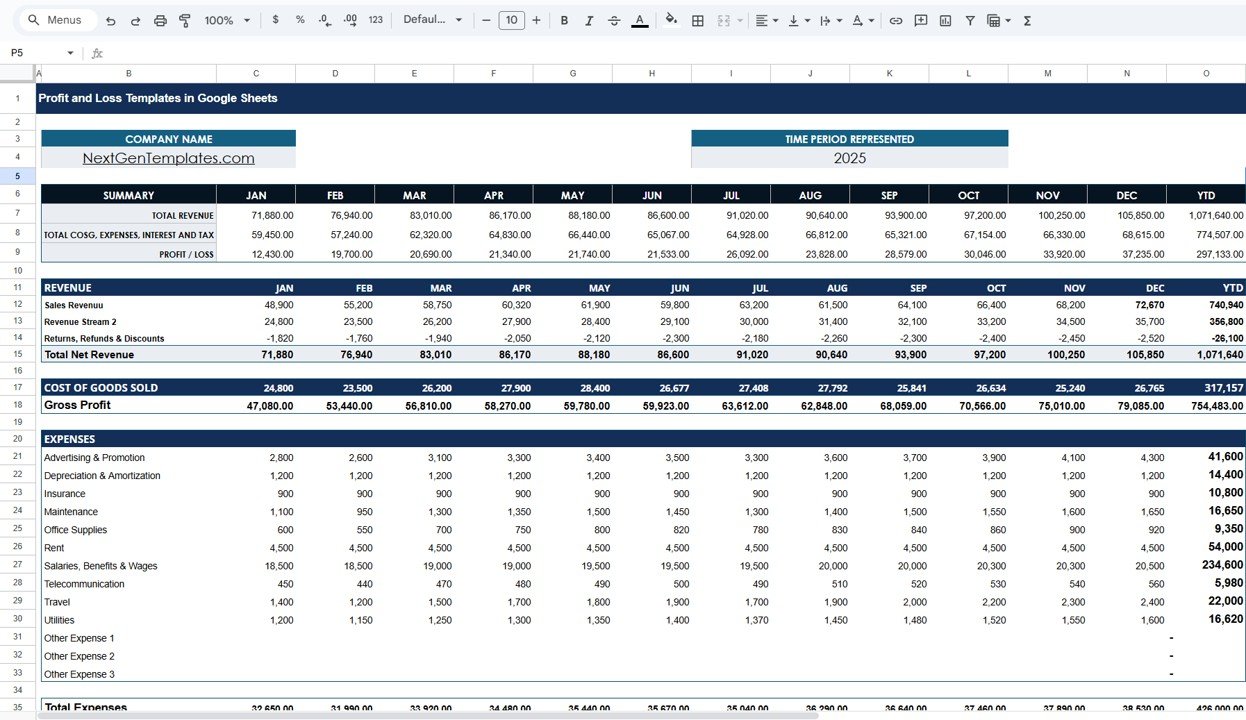
At the top you enter your Company Name and the Time Period Represented (2025 in the sample). The sheet is then split into clear sections.
Summary Section
Three rows give the headline view for every month and the year: Total Revenue, the combined total of COGS, expenses, interest and tax, and Profit / Loss. In the sample, total revenue for the year is 1,071,640, combined costs are 774,507 and profit is 297,133.
Revenue Section
- Sales Revenue: your main income (740,940 YTD in the sample)
- Revenue Stream 2: a second income line (356,800 YTD)
- Returns, Refunds & Discounts: entered as negative values (-26,100 YTD)
- Total Net Revenue: the sum of the three (1,071,640 YTD)
Cost of Goods Sold and Gross Profit
One row for Cost of Goods Sold (317,157 YTD) and one for Gross Profit (754,483 YTD), which is Total Net Revenue minus COGS.
Expenses Section
The sample lists ten named expense lines plus three spare rows:
| Expense line | YTD (sample) |
|---|---|
| Advertising & Promotion | 41,600 |
| Depreciation & Amortization | 14,400 |
| Insurance | 10,800 |
| Maintenance | 16,650 |
| Office Supplies | 9,350 |
| Rent | 54,000 |
| Salaries, Benefits & Wages | 234,600 |
| Telecommunication | 5,980 |
| Travel | 22,000 |
| Utilities | 16,620 |
| Other Expense 1, 2 and 3 | Empty, ready for your own lines |
| Total Expenses | 426,000 |
Earnings, Interest and Taxes
Below expenses come Earnings Before Interest & Taxes (EBIT), Interest Expense, Profit Before Taxes, Income Taxes and finally Profit After Tax.
Worked Example: January in the Sample
Here is how the January column adds up, using the figures in the screenshot:
Sales Revenue                     48,900
Revenue Stream 2                + 24,800
Returns, Refunds & Discounts      - 1,820
Total Net Revenue               = 71,880

Cost of Goods Sold              - 24,800
Gross Profit                    = 47,080

Total Expenses                  - 32,650
EBIT                            = 14,430

Profit / Loss (Summary row)     = 12,430
The difference between EBIT (14,430) and the final profit (12,430) is the 2,000 of interest and income tax for January. You can confirm it from the summary row: 24,800 + 32,650 + 2,000 = 59,450, which is exactly the January figure for total COGS, expenses, interest and tax.
For the full year, the same logic gives an EBIT of 328,483 (754,483 minus 426,000) and a profit after tax of 297,133.
Two Ratios You Can Add Yourself
The template shows amounts, not percentages. Two quick margin formulas are worth adding in spare cells (the cell names below are placeholders for your YTD cells):
Gross margin = Gross_Profit / Total_Net_Revenue     → 754,483 / 1,071,640 = 70.4%
Net margin   = Profit_After_Tax / Total_Net_Revenue → 297,133 / 1,071,640 = 27.7%
Tab 2: Dashboard Sheet
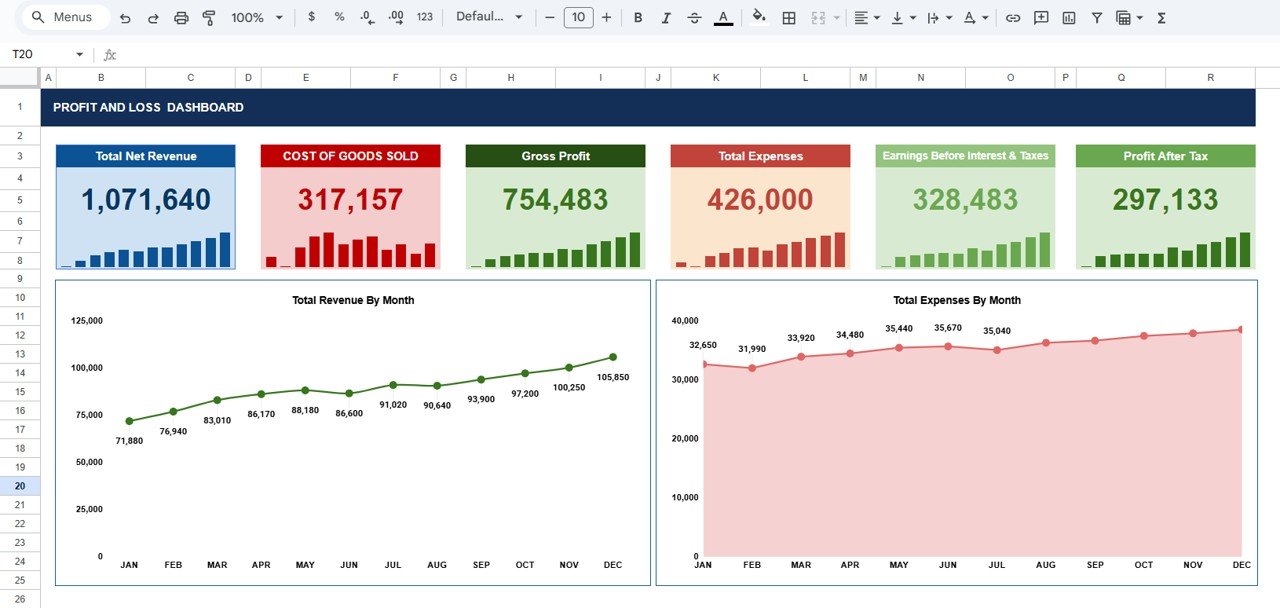
The Profit and Loss Dashboard turns the table into six cards and two charts. Each card shows the YTD figure with a small monthly column chart underneath.
| Card | Sample value | What it tells you |
|---|---|---|
| Total Net Revenue | 1,071,640 | Income after returns, refunds and discounts |
| Cost of Goods Sold | 317,157 | Direct cost of what you sold |
| Gross Profit | 754,483 | What remains to cover running costs |
| Total Expenses | 426,000 | Operating spending for the year |
| Earnings Before Interest & Taxes | 328,483 | Profit from operations |
| Profit After Tax | 297,133 | The bottom line |
The two charts are:
- Total Revenue By Month: a line chart that climbs from 71,880 in January to 105,850 in December in the sample.
- Total Expenses By Month: an area chart starting at 32,650 in January and generally rising through the year, with small dips in February (31,990) and July (35,040).
How to Use It With Your Own Numbers
- Make a copy with File > Make a copy.
- Type your business name in Company Name and the year in Time Period Represented.
- Rename revenue and expense lines to match your business (for example, change “Revenue Stream 2” to “Service Income”). Use the Other Expense rows for anything missing.
- Clear the sample numbers in the monthly input cells only. Leave total, gross profit, EBIT and profit rows alone, because they hold formulas.
- Enter each month’s figures from your bank statements, invoices or bookkeeping records. Enter returns and discounts as negative numbers.
- Open the Dashboard tab to check the cards and charts after each month.
If you want to build reports like this from scratch, the pivot tables and dashboards course on NextGenTemplates Academy teaches summary tables and charts step by step.
Three Real-World Use Cases
- Online store: track product sales in Sales Revenue, shipping income in Revenue Stream 2 and refunds in the returns line to see true net revenue.
- Consultancy or agency: with little or no COGS, the focus shifts to Salaries, Benefits & Wages and Rent, the two biggest lines in the sample.
- Startup preparing for investors: share the dashboard monthly to show revenue growth and how expenses scale with it.
Best Practices
- Close each month on the same day and enter figures promptly.
- Keep expense names consistent from month to month; do not split one cost across two lines.
- Review gross profit monthly. A falling gross profit with rising revenue usually means costs or discounts are creeping up.
- Compare the two dashboard charts. Expenses rising faster than revenue is an early warning.
- Keep a copy of each finished year before starting a new one.
Limitations: When You Need More Than a Template
This is a management P&L, not an accounting system. It does not record individual transactions, track invoices, handle double-entry bookkeeping or produce a balance sheet or cash flow statement. It also does not calculate tax for you; you enter the tax amount. If you are VAT/GST registered, need audited accounts or have many transactions a day, use proper accounting software and treat this template as a simple monthly summary on top.
Related Templates and Guides
Prefer Excel? See the Profit and Loss (P&L) Template in Excel. For day-to-day tracking that feeds your P&L, read the income expense dashboard in Google Sheets, the expense report and tracker and the guide on creating a monthly expense report with Google Sheets formulas. Restaurants can use the dedicated restaurant P&L dashboard.
Frequently Asked Questions
What is included in this Profit and Loss Template in Google Sheets?
Two tabs: a Template Sheet with monthly revenue, COGS, expense, EBIT, interest, tax and profit rows plus YTD totals, and a Dashboard Sheet with six KPI cards and two monthly charts.
Can I add more revenue or expense categories?
Yes. Rename existing lines or use the three Other Expense rows. If you insert new rows, check that the total rows still include them.
Does it calculate totals automatically?
Yes. Net revenue, gross profit, total expenses, EBIT, profit and the YTD column all update when you enter monthly figures.
How do I enter returns and discounts?
As negative numbers in the Returns, Refunds & Discounts row, as the sample does (for example -1,820 in January).
Do I need accounting knowledge to use it?
Basic knowledge is enough. You need to know which costs are direct (COGS) and which are operating expenses.
Is this the same as a balance sheet?
No. A P&L shows income and costs over a period. A balance sheet shows assets, liabilities and equity at a point in time.
Wrapping Up
A Profit and Loss Template in Google Sheets is the quickest way to see whether your business is making money each month and where the money goes. Enter your figures, check the six dashboard cards, and use the revenue and expense charts to plan the next quarter.
Get the Profit and Loss Template for Google Sheets
📅 Last updated: October 2026