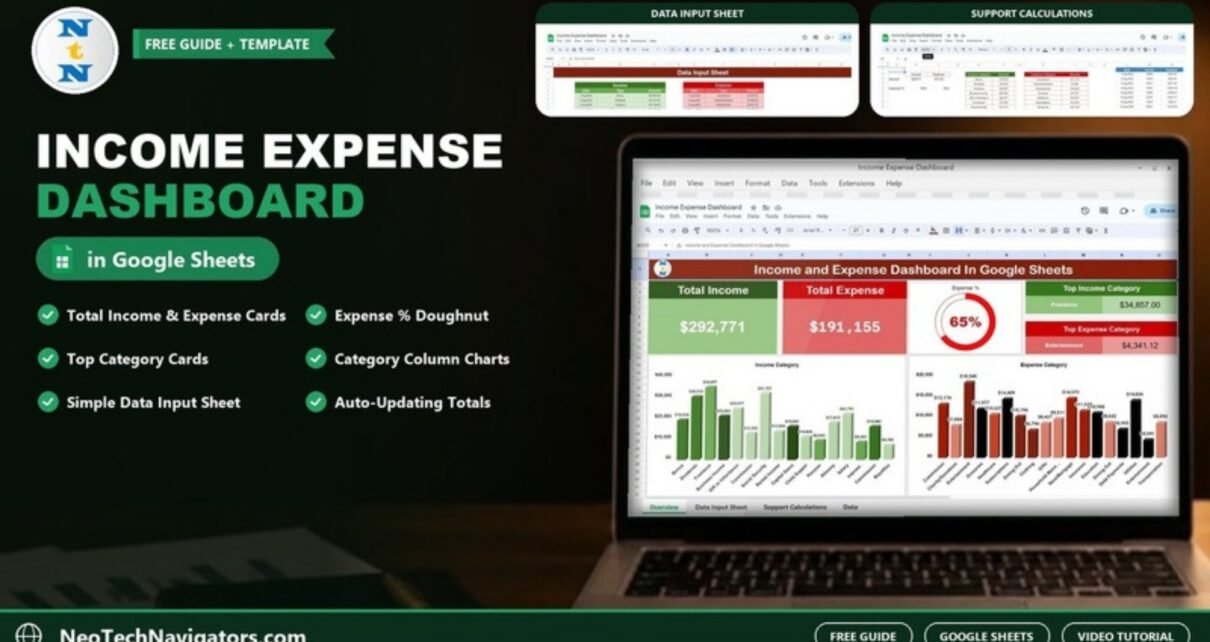
An Income Expense Dashboard in Google Sheets turns a simple list of money in and money out into a one-page picture of your finances: total income, total expenses, the share of income you spend, your biggest categories and how each category compares. This guide walks through a ready-made dashboard built from three tabs: Dashboard, Data Input Sheet and Support.
It is written for freelancers, small business owners and households who already track money in a spreadsheet and want a clearer view without learning accounting software. You will see what each tab does, the calculations behind the cards, how to load your own data and the limits worth knowing before you start.
🎥 Watch the Video Tutorial
Get the Income and Expense Dashboard
What Problem the Income Expense Dashboard Solves
Most people record transactions but rarely step back to see the totals. A list of 40 entries does not tell you quickly whether you are saving, which income source matters most or where the money goes. The dashboard answers those questions automatically every time you add a row, so a monthly review takes minutes instead of an evening with a calculator.
The Dashboard Tab
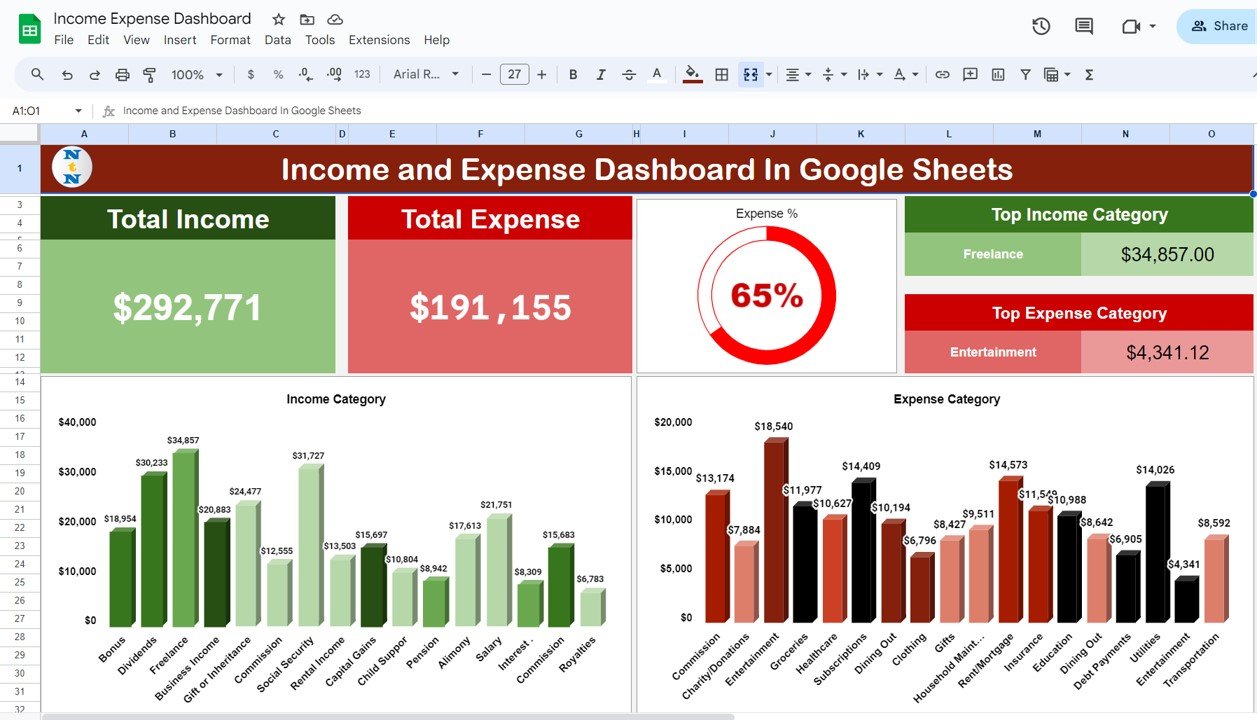
The Dashboard tab is the page you look at. With the sample August 2024 data loaded it shows:
- Total Income card: $292,771.
- Total Expense card: $191,155.
- Expense % doughnut: 65%, meaning expenses equal 65% of income.
- Top Income Category card: Freelance, $34,857.00.
- Top Expense Category card: Entertainment in the sample data.
- Income Category column chart: one bar per income type, from Bonus ($18,954) to Royalties ($6,783).
- Expense Category column chart: one bar per expense type, with Entertainment ($18,540) the tallest.
The Data Input Sheet
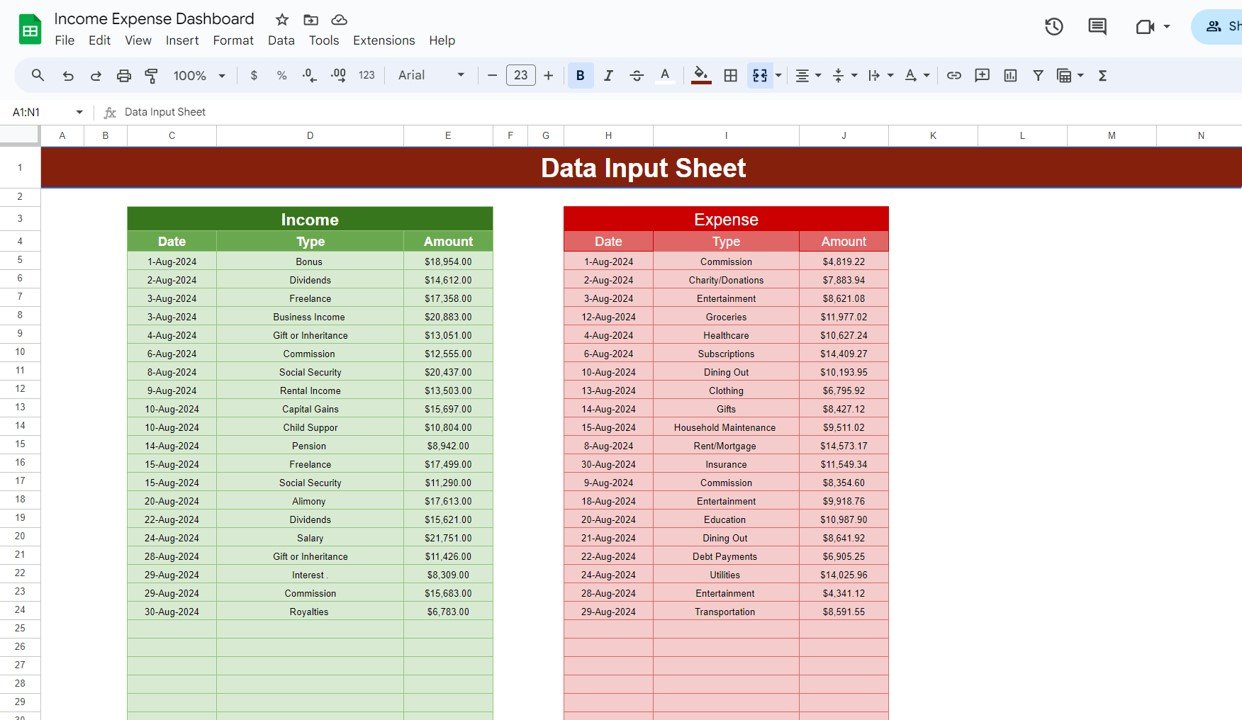
This is the only tab you type into. It has two side-by-side tables:
- Income with Date, Type and Amount columns (for example 1-Aug-2024, Bonus, $18,954.00).
- Expense with Date, Type and Amount columns (for example 1-Aug-2024, Commission, $4,819.22).
The sample holds 20 income rows and 20 expense rows, with empty formatted rows underneath for new entries.
The Support Tab: How the Numbers Are Calculated
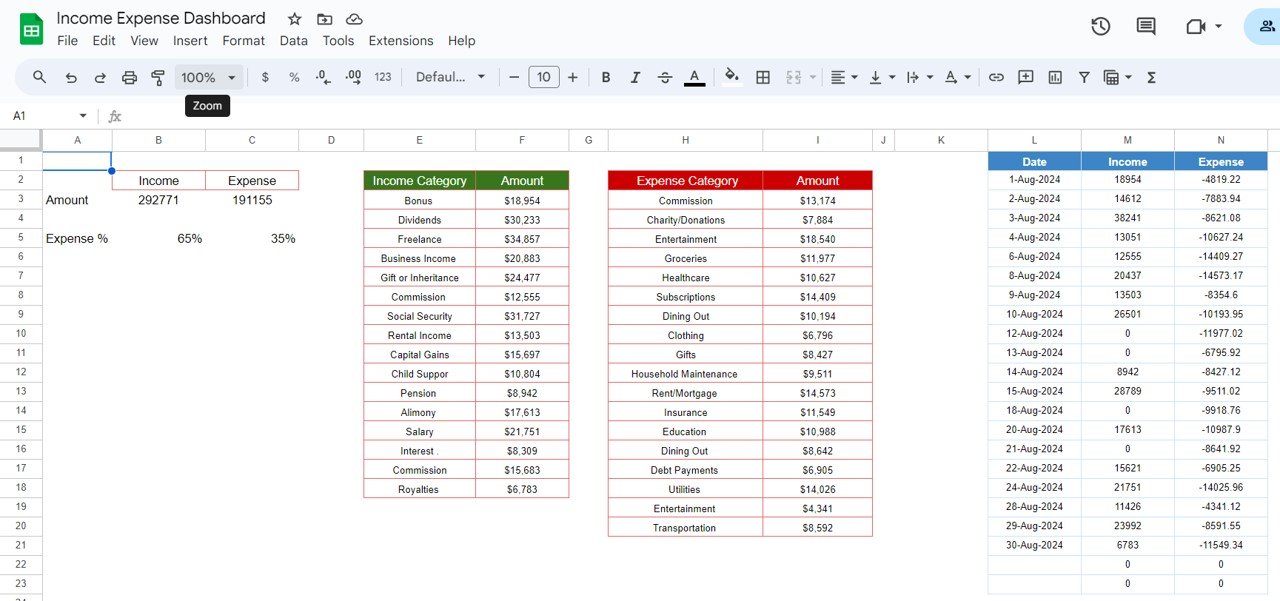
The Support tab holds the working calculations that feed the charts and cards:
- Amount: total income (292771) and total expense (191155).
- Expense %: 65% spent and 35% remaining, the two slices of the doughnut.
- Income Category and Expense Category tables: each type with its summed amount, which drive the two column charts.
- A Date / Income / Expense table that lists each date with that day’s income and expenses (expenses stored as negative numbers) for a date-wise view.
The key calculations
| Measure | What it shows | How it is worked out | Sample value |
|---|---|---|---|
| Total Income | All money received | Sum of the Income Amount column | $292,771 |
| Total Expense | All money spent | Sum of the Expense Amount column | $191,155 |
| Expense % | Share of income that was spent (lower is better) | Total Expense ÷ Total Income | 65% |
| Remaining share | Share of income left over | 1 − Expense % | 35% |
| Category totals | Amount per income or expense type | Sum of Amount for each Type | Freelance $34,857 |
You can check the Freelance figure yourself: the Data Input Sheet has two Freelance rows, $17,358 and $17,499, which add up to $34,857. If you want to build similar category totals from scratch, our guide to tracking daily expenses with SUMIF shows the formula pattern.
How to Use It With Your Own Data
- Make your own copy of the file in Google Drive so you can edit it.
- Open the Data Input Sheet and clear the sample rows in both tables (keep the headers and formatting).
- Enter each income item with its date, type and amount in the Income table.
- Enter each expense the same way in the Expense table.
- Use exactly the same spelling for a type every time, such as “Dining Out”, so it is grouped under one category.
- Open the Dashboard tab. The cards and charts update on their own.
3 Real-World Use Cases
- Freelancer: log client payments by type (project fees, retainers, royalties) and monthly costs, then check the Expense % before deciding whether to take on new tools or subscriptions.
- Household budget: record salary and other income alongside rent, groceries, utilities and education, and use the Expense Category chart to spot the two or three costs worth cutting.
- Small side business: keep sales income separate from stock, delivery and marketing costs to see at a glance whether the month made money.
Best Practices
- Keep category names consistent. In the sample data, Commission appears twice in the Income Category table and Dining Out and Entertainment each appear twice in the Expense Category table. Split categories like this usually mean a type was entered with slightly different spelling or a trailing space, and they also make the Top Category cards less reliable. A drop-down list (Insert > Drop-down) on the Type column prevents this.
- Enter real dates, not text, so the date-wise figures sort correctly.
- Update weekly. Small, regular entries are easier than reconstructing a month from bank statements.
- Keep a backup with File > Make a copy before major clean-ups.
For other ways to organise personal and business money in Google Sheets, see our step-by-step budget tracker guide, the monthly expense report tutorial and the expense report and tracker.
Limitations: Who Should Not Use It
- It is a summary dashboard, not accounting software. There is no double-entry bookkeeping, invoicing, tax calculation or bank sync.
- The cards show totals for all rows entered. If you need month-by-month and year-by-year comparisons, a template built for that is a better fit.
- Larger businesses with many accounts, multiple currencies or audit requirements should use dedicated finance software.
Related template: if you want monthly and yearly views, look at the Income and Expenses Monthly and Yearly View in Google Sheets. And if you would like to learn how dashboards like this are built, the Pivot Tables and Dashboards course on NextGenTemplates Academy covers summary tables and charts step by step.
Frequently Asked Questions
What does the Expense % on the dashboard mean?
It is total expenses divided by total income. In the sample, $191,155 ÷ $292,771 ≈ 65%, so 35% of income was left over.
Can I add my own income and expense categories?
Yes. Type a new category in the Type column of the Data Input Sheet and it appears in the category tables and charts. Keep the spelling identical each time you use it.
Do I need any formulas or add-ons to use it?
No. You only enter Date, Type and Amount. The Support tab does the calculations and the Dashboard tab updates automatically.
Can I share the dashboard with my partner or accountant?
Yes. Use the Share button in Google Sheets and choose Viewer or Editor access for each person.
Is my financial data private in Google Sheets?
The file is private to your Google account unless you share it. Turn on two-step verification for your Google account and share only with people you trust.
Wrapping Up
The Income Expense Dashboard in Google Sheets gives you totals, an expense ratio and category charts from three simple columns per table. Watch the video above to see it in action, then load a month of your own transactions and review the Expense % and the largest categories.
Get the Income and Expense Dashboard
📅 Last updated: October 2026