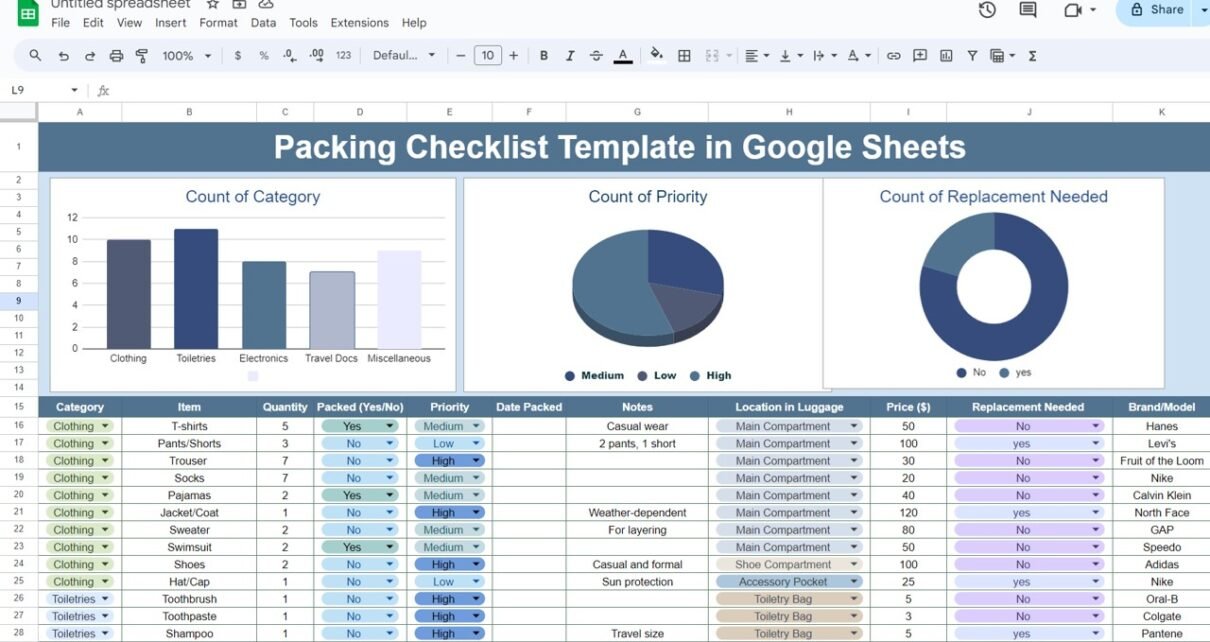
Most packing mistakes are small: the charger left on the desk, the passport in the wrong bag, the sunscreen you meant to replace. A Packing Checklist Template in Google Sheets fixes that by turning your packing list into a table you can tick off, sort by priority and share with whoever is travelling with you.
This guide covers a free, ready-made template with 45 sample items across five categories and three charts that summarise your list. It suits holiday travellers, families packing for several people, and anyone who travels often for work. You will see every column, how the charts are counted, a few formulas to check your progress, and how to adapt it for your own trip.
Make a Free Copy of the Template
What the Packing Checklist Template in Google Sheets Includes
| Part | What it shows |
|---|---|
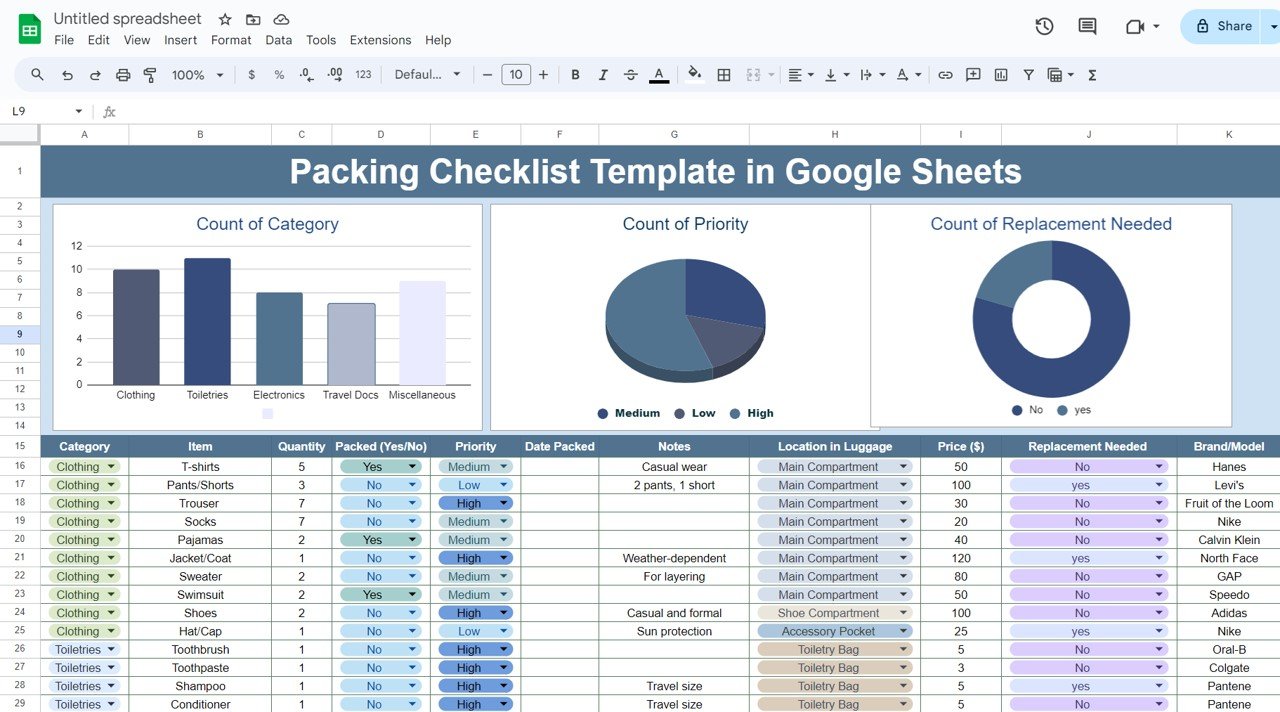
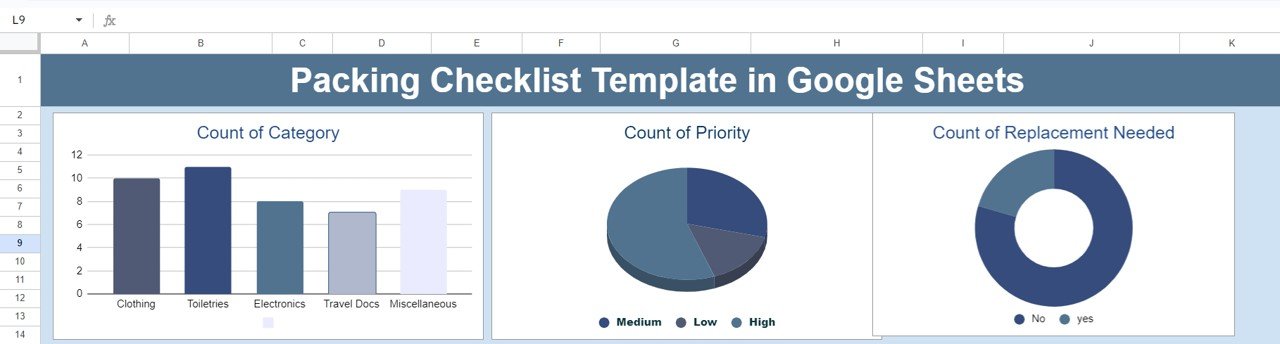
| Count of Category (column chart) | How many items you have in each category |
| Count of Priority (3D pie chart) | How your items split across High, Medium and Low priority |
| Count of Replacement Needed (doughnut chart) | How many items are marked yes or No for replacement |
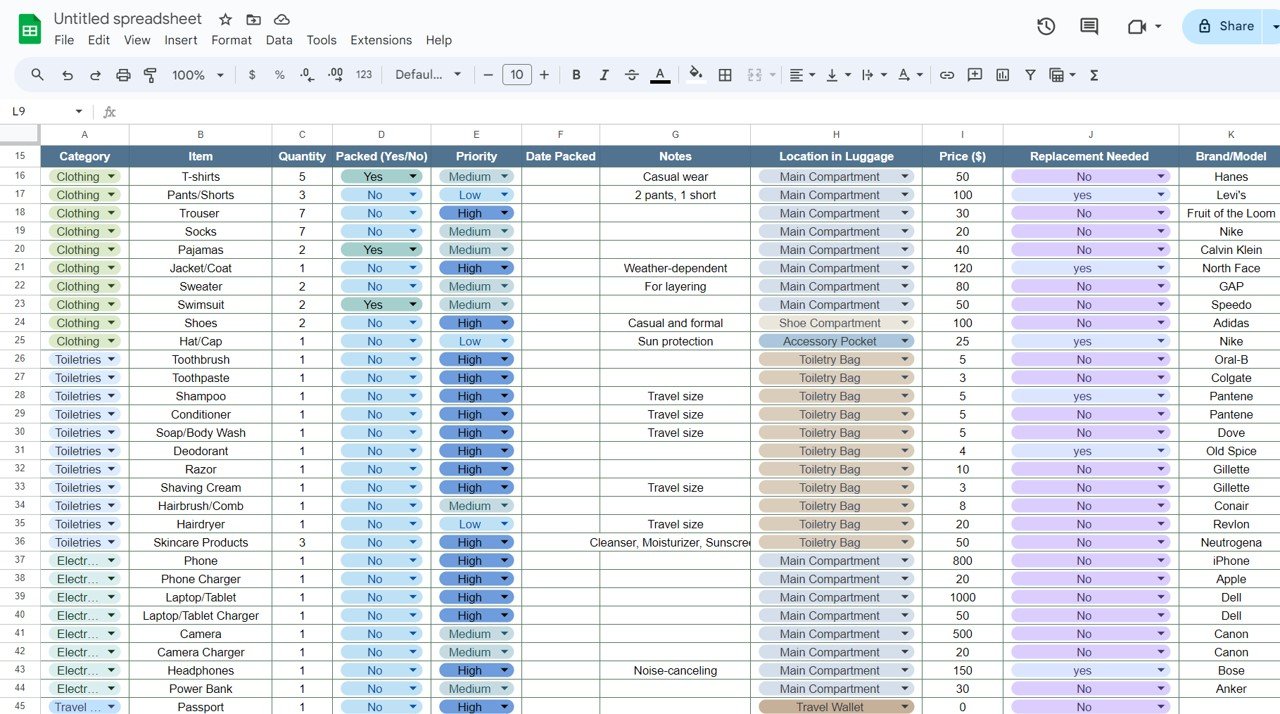
| Packing table | One row per item with quantity, packed status, priority, location in luggage, price and brand |
The Three Summary Charts
Count of Category
A column chart counts items in each category. The sample list has five: Clothing (10 items), Toiletries (11), Electronics (8), Travel Docs (7) and Miscellaneous (9). A glance tells you whether one bag is going to be overloaded.
Count of Priority
A 3D pie chart splits items into High, Medium and Low. High-priority items are the ones you cannot travel without, such as the passport, phone and charger, so pack and check those first.
Count of Replacement Needed
A doughnut chart compares items marked yes (needs replacing before the trip) with No. Use the yes slice as your shopping list.
The Packing Table, Column by Column
| Column | What to enter | Sample value |
|---|---|---|
| Category | Drop-down: Clothing, Toiletries, Electronics, Travel Docs, Miscellaneous | Clothing |
| Item | Name of the item | T-shirts |
| Quantity | How many to pack | 5 |
| Packed (Yes/No) | Drop-down: Yes or No | Yes |
| Priority | Drop-down: High, Medium or Low | Medium |
| Date Packed | The day you packed it | (blank in the sample) |
| Notes | Any detail worth remembering | Casual wear |
| Location in Luggage | Drop-down, for example Main Compartment, Shoe Compartment, Accessory Pocket, Toiletry Bag or Travel Wallet | Main Compartment |
| Price ($) | Value of the item, useful for insurance or replacement budgets | 50 |
| Replacement Needed | Drop-down: yes or No | No |
| Brand/Model | Brand or model, handy if you need to rebuy it | Hanes |
Formulas to Check Your Packing Progress
The template does the counting in its charts. If you also want a progress number or a replacement budget, you can add these formulas anywhere outside the table. In the sample, the table starts in row 16 and runs to row 60 (45 items), with Category in column A, Packed in column D, Price in column I and Replacement Needed in column J.
Percentage packed
=COUNTIF(D16:D60,"Yes")/COUNTA(B16:B60)Format the cell as a percentage (Format > Number > Percent).
Percentage packed for one category
=COUNTIFS(A16:A60,"Clothing",D16:D60,"Yes")/COUNTIF(A16:A60,"Clothing")Worked example: in the sample, 3 of the 10 Clothing items are marked Yes (T-shirts, Pajamas and Swimsuit), so the result is 30%.
Cost of items that need replacing
=SUMIFS(I16:I60,A16:A60,"Clothing",J16:J60,"yes")Worked example: three Clothing items are marked yes for replacement: Pants/Shorts ($100), Jacket/Coat ($120) and Hat/Cap ($25). The formula returns 245. Remove the Category condition to get the total for the whole list.
High-priority items still not packed
=COUNTIFS(E16:E60,"High",D16:D60,"No")Your target is zero before you leave the house.
How to Use It for Your Own Trip
- Click Make a Free Copy of the Template above. Sign in to your Google account and Google Sheets saves a copy in your own Drive.
- Delete items you do not need and add your own, choosing a Category for each.
- Set the Priority: High for anything you cannot travel without.
- Mark Replacement Needed as yes for anything worn out or running low, and buy those first.
- While packing, switch Packed to Yes and choose the Location in Luggage so you know where to find it later.
- Before you leave, sort or filter by Packed = No (Data > Create a filter) to see what is left.
Real-World Use Cases
- Family holiday: share one copy with your partner and split the list; add a “Person” note so everyone knows what they are responsible for.
- Frequent business traveller: keep a master copy, duplicate the sheet for each trip and reset Packed to No.
- Beach or adventure trip: use the Replacement Needed column to plan purchases such as sunscreen or swimwear a week before departure.
Tips and Limitations
- Keep drop-down values consistent: the charts count exact values, so pick from the drop-down rather than typing “Y” or “done”.
- Add new categories carefully: if you add a category such as “Medicines”, add it to the drop-down too so it appears in the Count of Category chart.
- Prices are optional: leave Price blank if you do not need a replacement budget.
- Offline use: turn on offline access in Google Drive if you want to check the list on a plane.
- Not a trip planner: the template tracks items only. It does not handle itineraries, bookings or budgets for the whole trip.
Related Travel Checklists
For a simpler list focused only on packing, see the Travel Packing Checklist in Google Sheets. Travelling with children? The packing essentials for kids checklist and the family trip checklist cover the extras. Driving instead of flying? Try the road trip checklist, and keep passports and visas in order with the pre-travel documentation checklist.
If you would like to get faster with COUNTIFS, SUMIFS and the other formulas used above, the Excel AI Mastery: 100 Formulas course on NextGenTemplates Academy teaches them step by step, and they work the same way in Google Sheets.
Frequently Asked Questions
Is the Packing Checklist Template free?
Yes. The button on this page opens a “make a copy” link, and the copy is saved to your own Google Drive.
Can I use it on my phone?
Yes. Open the copy in the Google Sheets app and change the drop-downs as you pack.
How do I reuse the list for the next trip?
Right-click the sheet tab, choose Duplicate, and set every Packed value back to No in the new copy.
Why does my new item not appear in the Count of Category chart?
The category may be typed differently from the drop-down value, or it may be a new category. Pick it from the drop-down, or add the new value to the drop-down options.
Can two people update the checklist at the same time?
Yes. Use Share to give your travel partner edit access, and both of you will see changes instantly.
Wrapping Up
This Packing Checklist Template in Google Sheets keeps every item, its location in your luggage and anything you still need to buy in one place, with charts that show the shape of your list at a glance. Make a copy, trim the sample list to fit your trip, and start marking items as packed a few days before you leave.
Make a Free Copy of the Template
Travelling for work? See the Business Travel Checklist in Google Sheets.
📅 Last updated: October 2026