Office stationery plays a small but critical role in day-to-day business operations. Pens, notebooks, printer paper, markers, files, and other supplies support productivity across departments. However, when organizations manage stationery requests through emails, verbal requests, or manual registers, confusion increases. Requests get lost, approvals delay, costs rise, and inventory goes out of control.Office Stationery Request Tracker in Google Sheets
An Office Stationery Request Tracker in Google Sheets solves these problems with a simple, structured, and ready-to-use system. It helps organizations track stationery requests, control costs, monitor approvals, and analyze department-wise usage using charts and search tools. Moreover, because this tracker works in Google Sheets, teams collaborate in real time without investing in expensive inventory software.Office Stationery Request Tracker in Google Sheets
Get the Office Stationery Request Tracker in Google Sheets
In this article, we explain how the tracker works, its charts, search functionality, benefits, improvement opportunities, and best practices for managing office stationery efficiently.Office Stationery Request Tracker in Google Sheets
What Is an Office Stationery Request Tracker in Google Sheets?
An Office Stationery Request Tracker is a centralized log that records all stationery requests raised by employees or departments. It captures important information such as:
- Request ID
- Request Date
- Employee Name
- Department
- Stationery Item Name
- Quantity Requested
- Approval Status
- Approved By
- Request Status
- Cost per Item
- Total Cost
- Remarks
Because the tracker uses Google Sheets, updates happen instantly and reports stay accurate.
This tracker helps:
- Admin teams
- Procurement teams
- Office managers
- Finance departments
- HR & operations teams
It brings transparency, accountability, and cost control into stationery management.
Key Features of the Office Stationery Request Tracker
This ready-to-use tracker includes:
A structured Tracker Sheet Tab
Five insightful Charts
powerful Search system
Clean layout for daily usage
Cost tracking in USD
Let’s explore each part in detail.
Tracker Sheet Tab
The Tracker Sheet is where users enter stationery request data. Every request gets recorded here.
Charts – Visual Insights
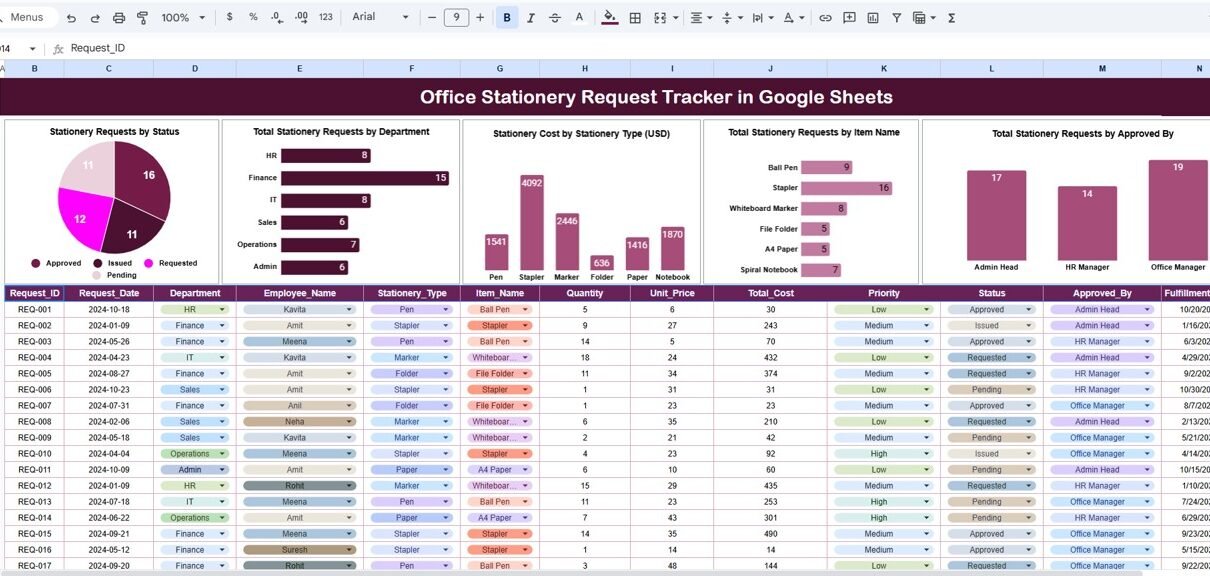
The tracker includes five charts that help admins analyze request patterns and cost trends quickly.
Stationery Requests by Status
This chart shows requests grouped by status:
Total Stationery Requests by Department
This chart shows how many requests each department raises.
Departments with frequent requests may need better inventory planning or policy review.
Stationery Cost by Stationery Type (USD)
This chart shows total spending by stationery category:
Helps control procurement cost
Identifies high-cost stationery categories
Supports vendor negotiation
This chart plays a key role in cost optimization.
Total Stationery Requests by Item Name
This chart shows the most frequently requested items.
Identifies fast-moving stationery
Helps maintain minimum stock levels
Prevents last-minute shortages
High-frequency items can be stocked in bulk to reduce cost.
Total Stationery Requests by Approved By
This chart shows how many requests each approver handles.
Helps balance approval workload
Ensures accountability
Improves approval efficiency
This insight supports smoother internal workflows.

Search Functionality – Search by Keyword and Field Name
The tracker includes a smart Search Panel.
You enter:
-
Search Keyword (Item name, department, employee, approver, status)
-
Field Name (Department, Status, Item Name, Approved By)

Advantages of the Office Stationery Request Tracker
Centralized Request Management
All stationery requests stay in one place.
Better Cost Control
Cost tracking highlights overspending areas.
Department-Wise Visibility
Admins understand consumption patterns clearly.
Improved Approval Workflow
Approval tracking reduces delays.
Audit-Ready Records
Every request stays documented.
Easy & Cost-Effective
Google Sheets removes software dependency.
Opportunities for Improvement
Organizations can enhance the tracker by adding:
🔹 Automated Email Notifications
Notify admins for new requests.
🔹 Inventory Stock Tracking
Auto-reduce stock quantities.
🔹 Monthly Budget Limits
Alert when departments exceed budgets.
🔹 Vendor-Wise Cost Analysis
Compare pricing across suppliers.
🔹 Recurring Request Identification
Identify repeated requests automatically.
Best Practices for Using the Stationery Request Tracker
Standardize item names
Consistent naming improves analysis accuracy.
Review charts weekly
Weekly review prevents cost overruns.
Define approval rules clearly
This speeds up request processing.
Maintain minimum stock levels
High-usage items should always stay available.
Restrict edit access
Protect data accuracy using permissions.
Conclusion
An Office Stationery Request Tracker in Google Sheets helps organizations manage stationery efficiently, control costs, and improve administrative workflows. It brings transparency and structure to everyday office operations. With powerful charts, cost tracking, and smart search features, admin teams gain full control over stationery usage without complexity.
Because the tracker is ready-to-use, flexible, and cloud-based, it fits organizations of all sizes—from startups to large enterprises.
If you would like to build trackers like this yourself, the NextGenTemplates Academy learning paths guide you through spreadsheet skills step by step.
Get the Office Stationery Request Tracker in Google Sheets
Frequently Asked Questions (FAQs)
1. Who should use this tracker?
Admin teams, procurement teams, office managers, and finance teams.
2. Can we add new stationery items?
Yes, the tracker is fully customizable.
3. Does it track stationery cost?
Yes, cost by item and type is included.
4. Can multiple departments use it together?
Yes, Google Sheets supports shared access.
5. Is the tracker suitable for audits?
Yes, it maintains a full request history.
6. Can automation be added later?
Yes, Google Apps Script supports alerts and workflows.