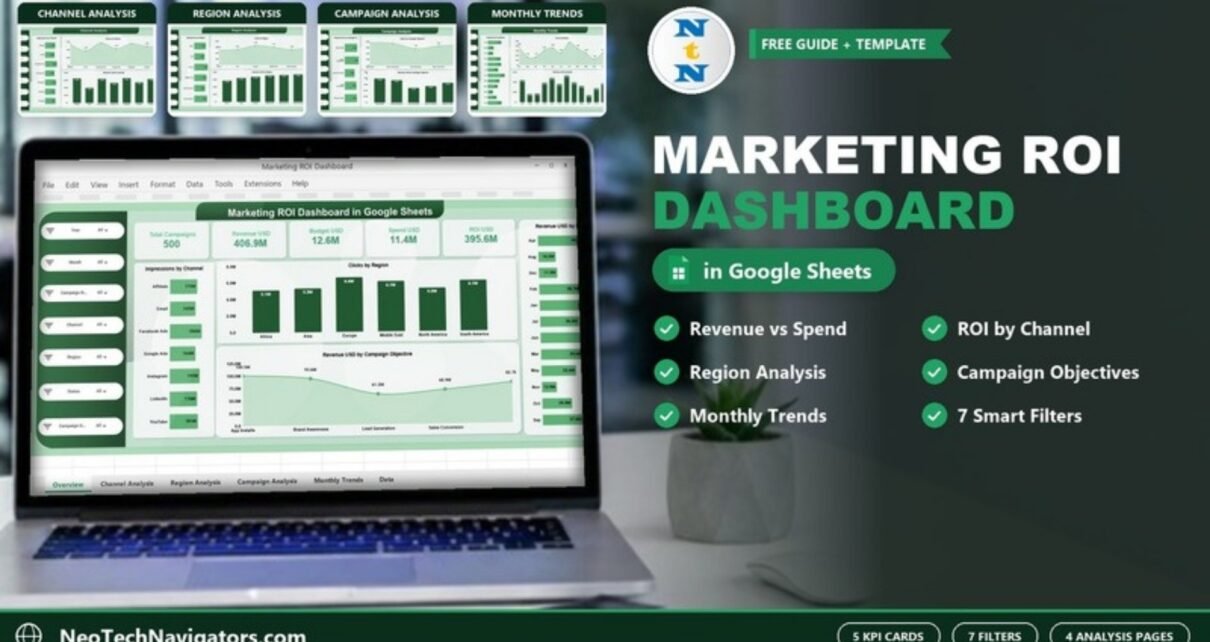
A Marketing ROI Dashboard in Google Sheets puts campaign spend and campaign revenue on the same screen, so you can see which channels, regions and campaign objectives actually pay back. Instead of stitching together ad-platform exports and finance reports every month, you keep one data sheet and let the dashboard pages summarise it.
This guide walks through a ready-made template built for marketing managers, performance marketers, agency account leads and founders who run their own campaigns. You will see the five KPI cards, the four analysis pages (Channel, Region, Campaign, Monthly Trends), the seven filters on the left panel, and how to load your own campaign data.
🎥 Watch the Video Tutorial
Get the Marketing ROI Dashboard
What Problem Does a Marketing ROI Dashboard Solve?
Most marketing teams can tell you how much they spent last quarter. Far fewer can tell you, in the same meeting, which channel returned the most revenue per dollar or which region is soaking up budget without matching results. The data usually exists, but it sits in separate places: ad accounts, a budget sheet, a CRM revenue report.
The dashboard fixes that by reading every campaign row from one data sheet and summarising it four ways: by channel, by region, by campaign objective and by month. Because it lives in Google Sheets, the whole team can open the same file, filter it, and talk about the same numbers.
Template at a Glance
| Part | What it contains |
|---|---|
| Overview page | 5 KPI cards plus Impressions by Channel, Clicks by Region, Revenue USD by Campaign Objective and Revenue USD by Month |
| Channel Analysis | Impressions, Clicks, Revenue USD and Budget USD by Channel |
| Region Analysis | Impressions, Clicks, Revenue USD and Budget USD by Region |
| Campaign Analysis | Impressions, Clicks, Revenue USD and Budget USD by Campaign Objective |
| Monthly Trends | Impressions, Clicks, Revenue USD and Budget USD by Month |
| Filter panel (every page) | Year, Month, Campaign Name, Channel, Region, Status, Campaign Objective |
| Data sheet | One row per campaign record that feeds every card and chart |
Overview Page: The Marketing ROI Snapshot
The Overview page is the one you open in a weekly review. Across the top are five KPI cards. With the sample data loaded they read Total Campaigns 500, Revenue USD 406.9M, Budget USD 12.6M, Spend USD 11.4M and ROI USD 395.6M.

The five KPI cards
| KPI card | What it measures | How it is calculated | Better when |
|---|---|---|---|
| Total Campaigns | Number of campaign records in the current filter | Count of campaign rows | Context only |
| Revenue USD | Revenue attributed to the campaigns | Sum of Revenue USD | Higher |
| Budget USD | Planned marketing budget | Sum of Budget USD | Context only (compare with Spend) |
| Spend USD | Money actually spent | Sum of Spend USD | At or below Budget |
| ROI USD | Revenue left after marketing spend | Revenue USD − Spend USD (406.9M − 11.4M ≈ 395.6M in the sample) | Higher |
Note that ROI here is shown as a dollar amount, not a percentage. If your leadership prefers a ratio, you can add a small card with the formula below, using the totals already on the page:
=(Revenue_USD - Spend_USD) / Spend_USDWith the sample totals that works out to roughly 34.7, meaning about $34.70 of net revenue for each dollar spent. Treat sample figures as demonstration data only.
The four Overview charts
- Impressions by Channel – a bar chart across Affiliate, Email, Facebook Ads, Google Ads, Instagram, LinkedIn and YouTube. Facebook Ads leads the sample at 206M.
- Clicks by Region – columns for Africa, Asia, Europe, Middle East, North America and South America. Europe is highest at 6.6M clicks.
- Revenue USD by Campaign Objective – a trend line across the objectives, with App Installs at the top (100.5M).
- Revenue USD by Month – a bar per month; June is the strongest month in the sample at 53.2M.
Channel Analysis Page
This page answers the most common budget question: which channels deserve more money? It shows Impressions by Channel, Clicks by Channel, Revenue USD by Channel and Budget USD by Channel side by side for all seven channels.

Reading revenue against budget is where the insight is. In the sample, Instagram returns 65.9M revenue on a 1.9M budget, while Email returns 39.9M on a 2.0M budget. That gap is exactly the sort of thing that should trigger a closer look at the Email programme before the next planning cycle.
Region Analysis Page
The Region page repeats the same four measures by geography: Impressions by Region, Clicks by Region, Revenue USD by Region and Budget USD by Region.

In the sample data, South America has both the largest budget (2.4M) and the highest revenue (74.2M), while Africa has the lowest revenue (57.2M) on a 1.8M budget. Regional teams can use this page to defend or rebalance their allocation with numbers rather than opinions.
Campaign Analysis Page
Not every campaign is meant to drive sales directly, so this page splits results by Campaign Objective: App Installs, Brand Awareness, Lead Generation, Sales Conversion and Website Traffic. It includes Impressions, Clicks, Revenue USD and Budget USD by objective.

Brand Awareness campaigns, for example, generate the most impressions (292M) in the sample, while Sales Conversion carries the largest budget (2.9M). Comparing objectives this way stops awareness campaigns from being judged on the same revenue yardstick as conversion campaigns.
Monthly Trends Page
The last analysis page tracks Impressions by Month, Clicks by Month, Revenue USD by Month and Budget USD by Month. It is the page to use when you plan campaign timing or explain a dip to leadership.

In the sample, June is the peak for impressions (166M), revenue (53.2M) and budget (1.8M), while November is the low point with 13.9M revenue on a 493.2K budget.
The Filter Panel
Every page carries the same left-hand panel with seven drop-down filters: Year, Month, Campaign Name, Channel, Region, Status and Campaign Objective. Set Channel to Google Ads and Region to Europe, for instance, and all the cards and charts on that page recalculate for that slice only. Leave everything on All to see the full picture.
How to Use It With Your Own Data
- Make your own copy of the template from File → Make a copy so the original stays clean.
- Open the data sheet and review the column headers (Campaign Name, Campaign Objective, Channel, Region, Month, Impressions, Clicks, Budget USD, Spend USD, Revenue USD, plus the fields used by the Year and Status filters).
- Delete the sample rows and paste your own campaign records underneath the headers. Keep one row per campaign record.
- Use consistent names for channels, regions and objectives. “Facebook Ads” and “FB Ads” will show up as two different bars.
- Enter currency values as plain numbers (no text like “$1,200 approx”) so the totals add up.
- Go back to the Overview page and confirm the KPI cards match a quick manual check, for example
=SUM()of the Spend USD column. - Share the file with your team through Share → General access, giving editors only to the people who maintain the data.
Real-World Use Cases
1. Quarterly budget reallocation
A marketing manager opens Channel Analysis before the quarterly plan, compares revenue against budget per channel and moves money from the weakest channel to the strongest, then tracks the effect on the Monthly Trends page.
2. Agency client reporting
An agency keeps one copy per client, filters by Campaign Name and shares a view-only link instead of building a slide deck each month.
3. Regional performance reviews
A company running campaigns in several regions uses the Region filter and Region Analysis page to hold each regional lead to the same scorecard.
Best Practices
- Update the data sheet on a fixed schedule, weekly for active campaigns.
- Agree on an attribution rule before you enter revenue, and write it in a note on the data sheet.
- Compare Budget USD with Spend USD every month to catch overspend early.
- Review results by objective, not only by channel, so awareness work is judged fairly.
- Protect the dashboard pages with Data → Protect sheets and ranges so only the data sheet is edited.
Limitations and Who Should Not Use It
- It does not connect to ad platforms automatically. Data is entered or pasted into the data sheet.
- ROI USD is a dollar figure (revenue minus spend). It does not include cost of goods, salaries or agency fees.
- If you need multi-touch attribution or customer-level journey analysis, a dedicated analytics or BI tool is a better fit.
- Very large data sets (hundreds of thousands of rows) will slow Google Sheets down; consider the Power BI version instead.
Other Metrics Worth Tracking
The template does not include these, but many teams add them as extra columns or cards once the basics are in place: cost per click (Spend ÷ Clicks), click-through rate (Clicks ÷ Impressions), cost per lead and return on ad spend (Revenue ÷ Spend). They are easy to calculate from the fields already in the data sheet.
Related Guides and Templates
If you want a closer look at campaign-level metrics, read our Campaign ROI and Performance Dashboard in Google Sheets guide. For a spend-focused view, see the Marketing Spend and Revenue Dashboard. Teams that prefer a broader picture can compare this template with the Marketing Analytics Dashboard in Google Sheets and the Marketing KPI Dashboard in Google Sheets. Social teams may prefer the Social Media ROI KPI Dashboard.
Related templates: the same dashboard is also available as a Marketing ROI Dashboard in Excel and a Marketing ROI Dashboard in Power BI.
If you want to build dashboards like this yourself, the Pivot Tables and Dashboards course on NextGenTemplates Academy covers the summarising and charting techniques step by step.
Frequently Asked Questions
How is ROI calculated in this dashboard?
The ROI USD card shows revenue minus spend as a dollar amount. In the sample, 406.9M revenue minus 11.4M spend gives about 395.6M. You can add a percentage version by dividing that figure by Spend USD.
Which marketing channels does the template include?
The sample data covers Affiliate, Email, Facebook Ads, Google Ads, Instagram, LinkedIn and YouTube. You can replace them with your own channel names in the data sheet.
Can I filter the dashboard by campaign or region?
Yes. Each page has seven filters: Year, Month, Campaign Name, Channel, Region, Status and Campaign Objective.
Does it pull data from Google Ads or Meta automatically?
No. You paste or type campaign data into the data sheet. Many teams export a monthly CSV from each ad platform and paste it in.
Do I need advanced Google Sheets skills?
No. If you can paste data into a sheet and use a drop-down filter, you can run the dashboard. Editing the charts needs only basic chart-editor knowledge.
Is there an Excel or Power BI version?
Yes, Excel and Power BI versions of the Marketing ROI Dashboard are available on NextGenTemplates.
Wrapping Up
A Marketing ROI Dashboard in Google Sheets gives you one honest view of where your marketing money goes and what it brings back, by channel, region, objective and month. Start by loading last quarter’s campaigns, compare revenue against budget on the Channel page, and use what you find to shape the next plan.
Get the Marketing ROI Dashboard in Google Sheets
📅 Last updated: October 2026